3 - Execute a Calculation
Last updated 15/12/2025
This documentation will explain how to add a calculation function and attach it to the On Enter event to execute client-side when entering a form field.
When in Five's Code Editor you will be interacting with Five's API. In the
CalculateTotal()
function you will be using the following functions and properties:
actionID() - is a function on the
Five
object to return the current action ID.
field.<fieldID> - is a property on the
Five
object which gives the fields for the current form.
success() - is a function on the
Five
object that returns a FiveError
indicating success.
Add the CalculateTotal Function
1. Click Logic in the menu followed by Code Editor in the sub-menu.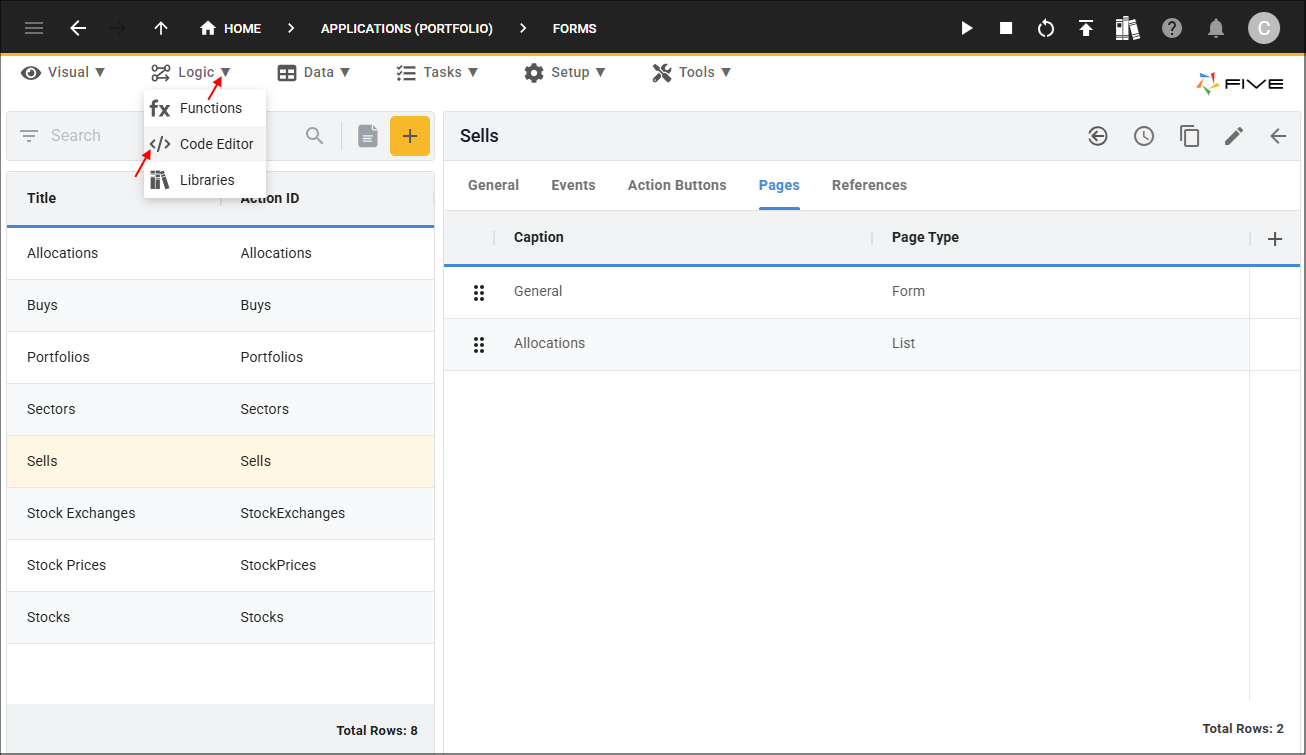
Figure 1 - Code Editor menu item
2. Click the Add New Code button.
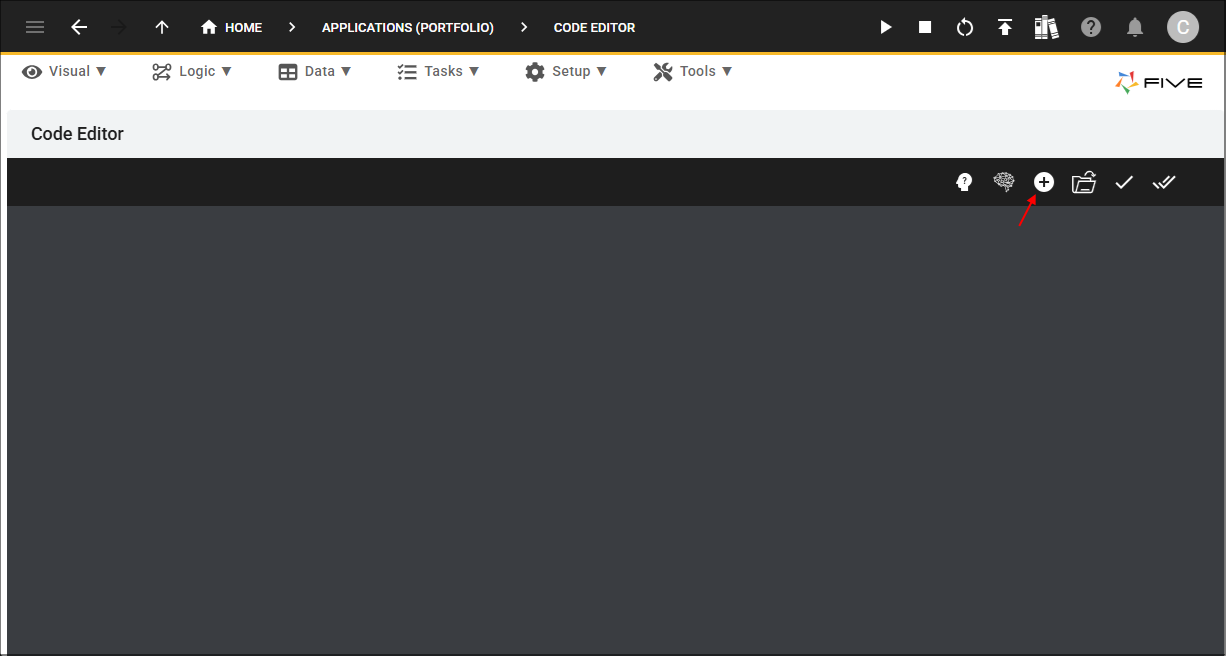
Figure 2 - Add New Code button
3. Type CalculateTotal in the Function ID field.
4. Select TypeScript in the Language field and click the OKAY button.
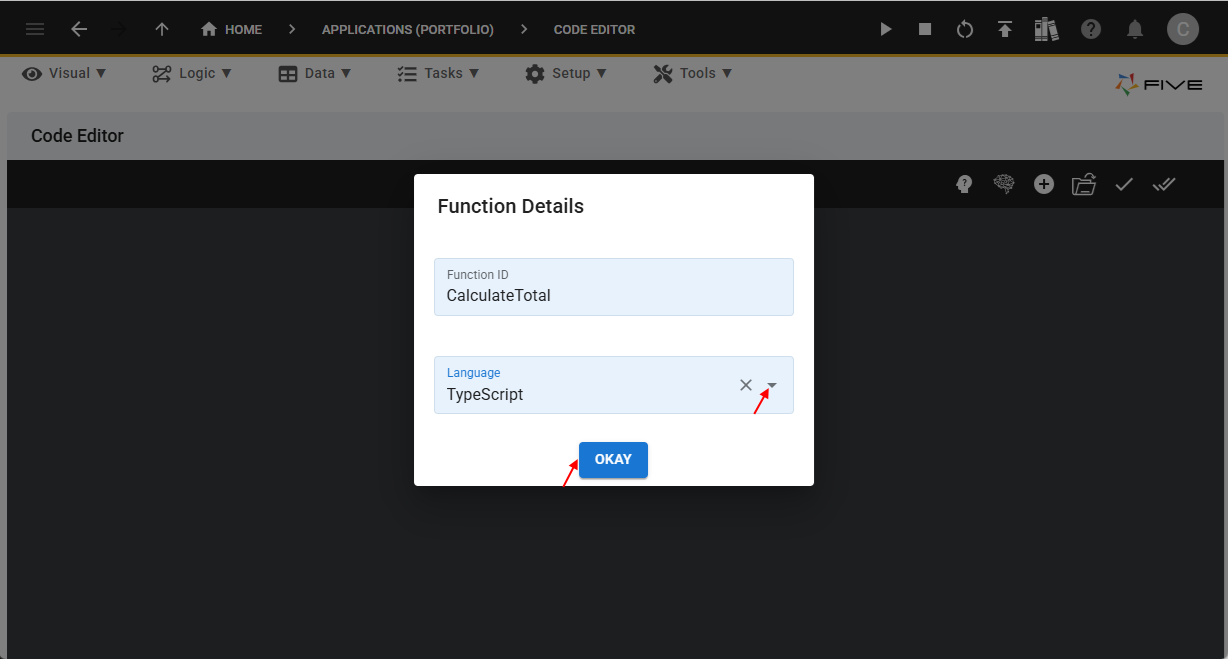
Figure 3 - Add CalculateTotal function
5. Click the Copy button on the code block below.

CalculateTotal
function CalculateTotal(five: Five, context: any, result: FiveError) : FiveError  {
    if (five.actionID() === 'Buys') {
      five.field.Total = five.field.Quantity * five.field.Price + five.field.Fees;
    } else {
      five.field.Total = five.field.Quantity * five.field.Price - five.field.Fees;
    }
    return five.success();
}
6. Paste the code block over the template in Five's Code Editor and click the Save Current Tab button.
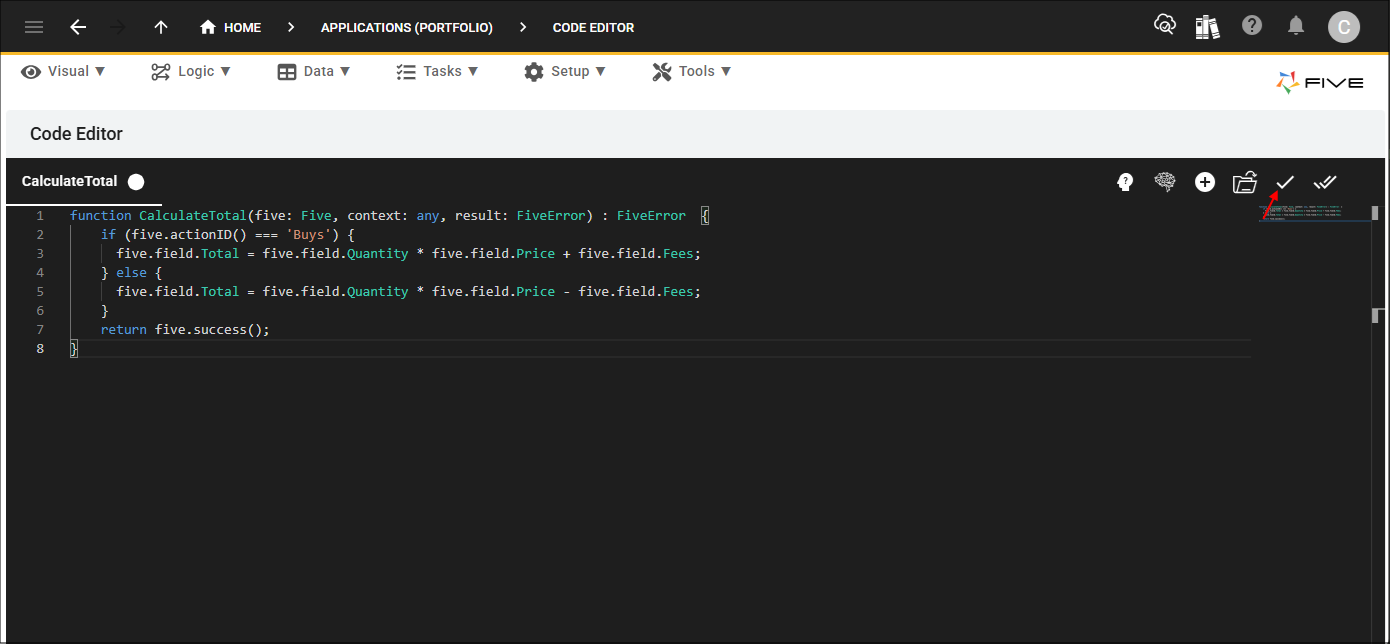
Figure 4 - Save Current Tab button
info
Once you have saved the
CalculateTotal()
function, you will find the function record in the Functions view. To navigate to the Functions view, click Logic in the menu followed by Functions in the sub-menu.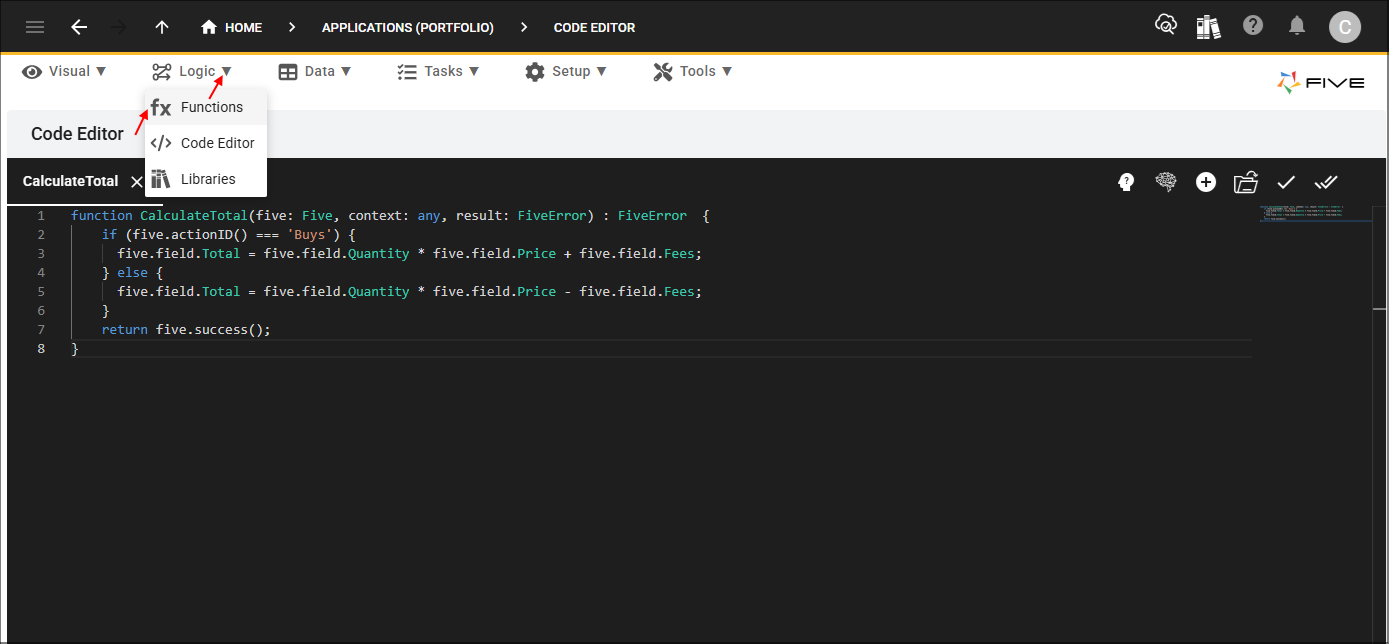
Figure 5 - Functions menu item
info
Select your record in the list and click in the Code field to open your code.
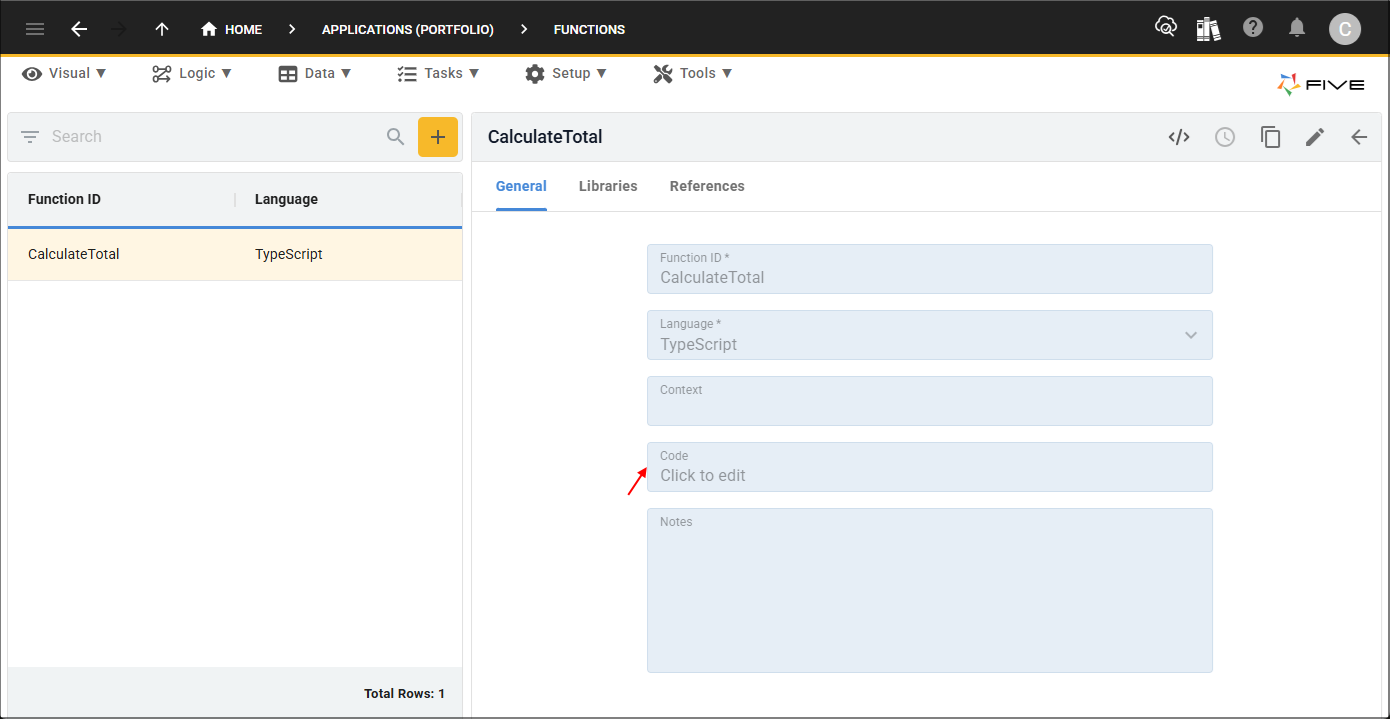
Figure 6 - CalculateTotal function record
info
You can also open a function in the Code Editor by clicking the Open Existing Function button and selecting the function ID!
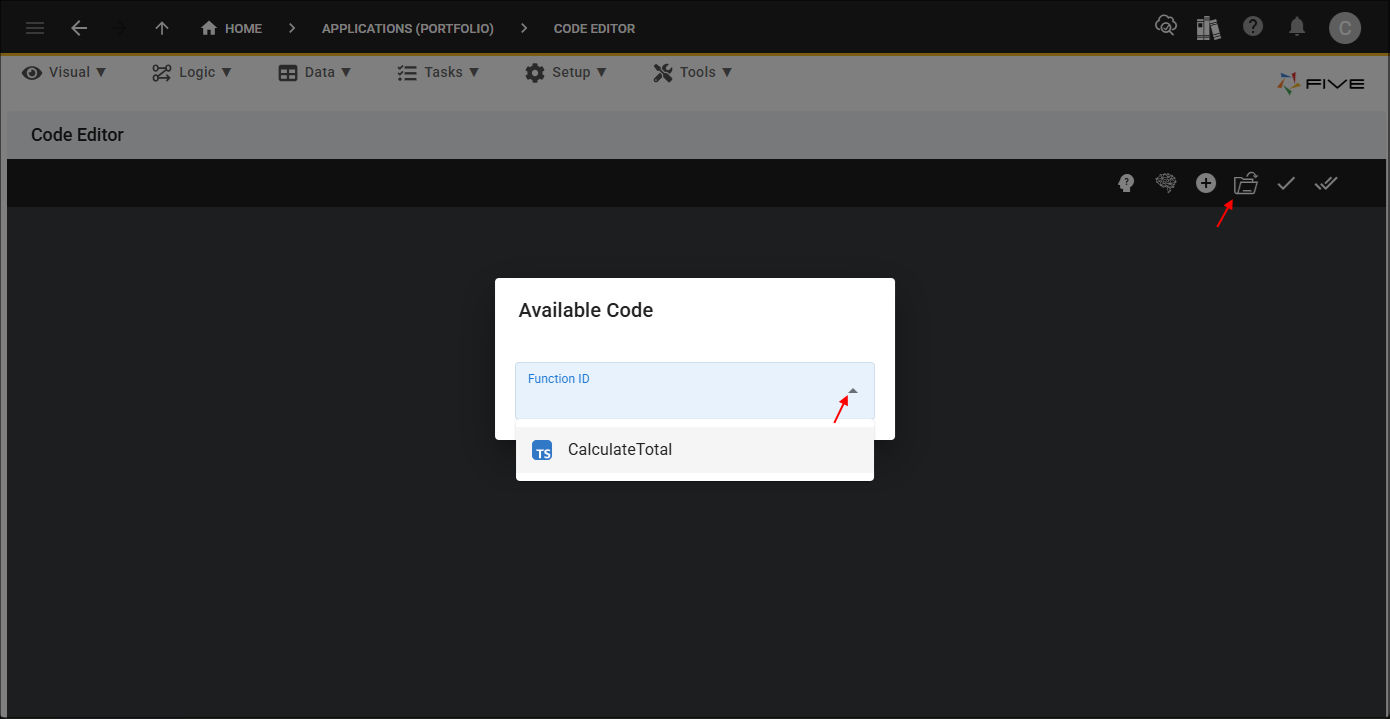
Figure 7 - Open Existing Function button
Attach the CalculateTotal Function
The
CalculateTotal()
function needs to be attached to the On Enter event for the Total field on the Buys and Sells forms. The function will execute
on entering the Total field and will calculate the total by multiplying the values in the Quantity and Price fields and if on the Buys form add the fees, else
subtract the fees.
1. Click Visual in the menu followed by Forms in the sub-menu.
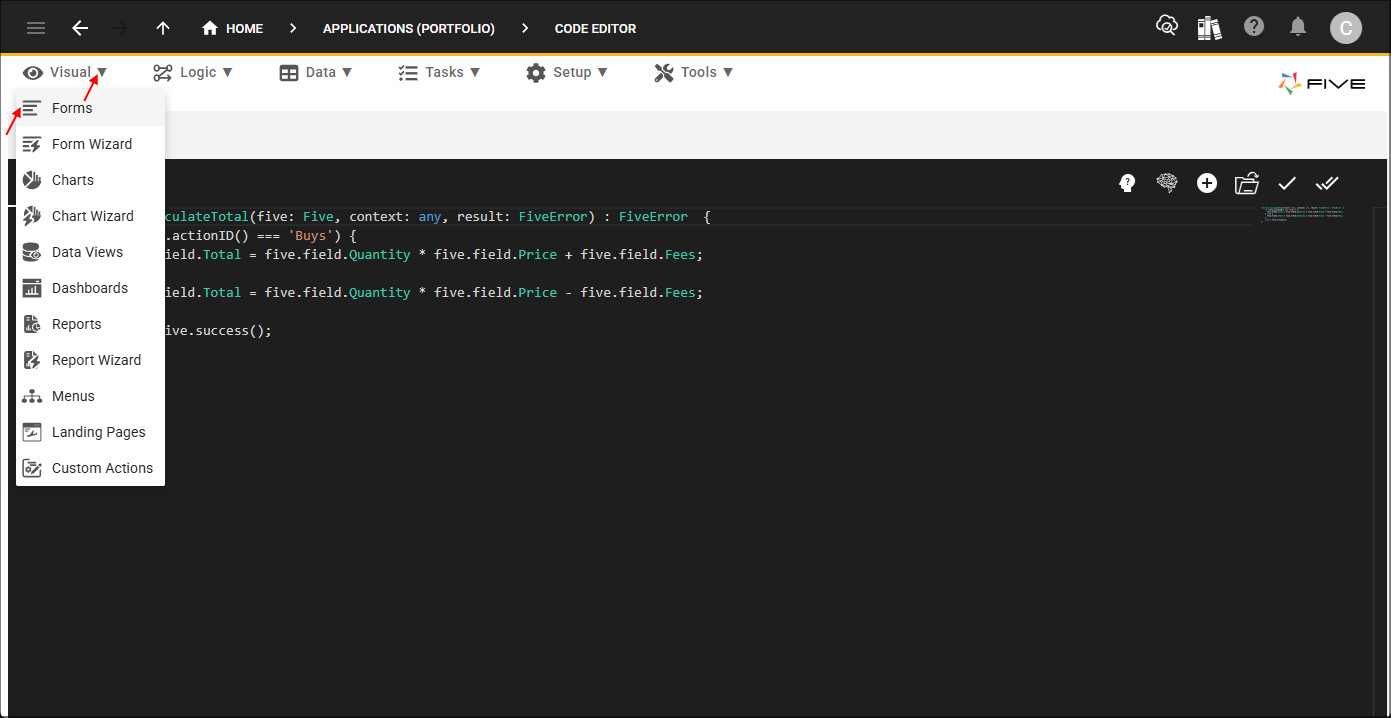
Figure 8 - Forms menu item
Edit the Buys Form
Path: Buys form > General page > Total field > On Enter event
1. Select the Buys record in the list and click the Pages tab.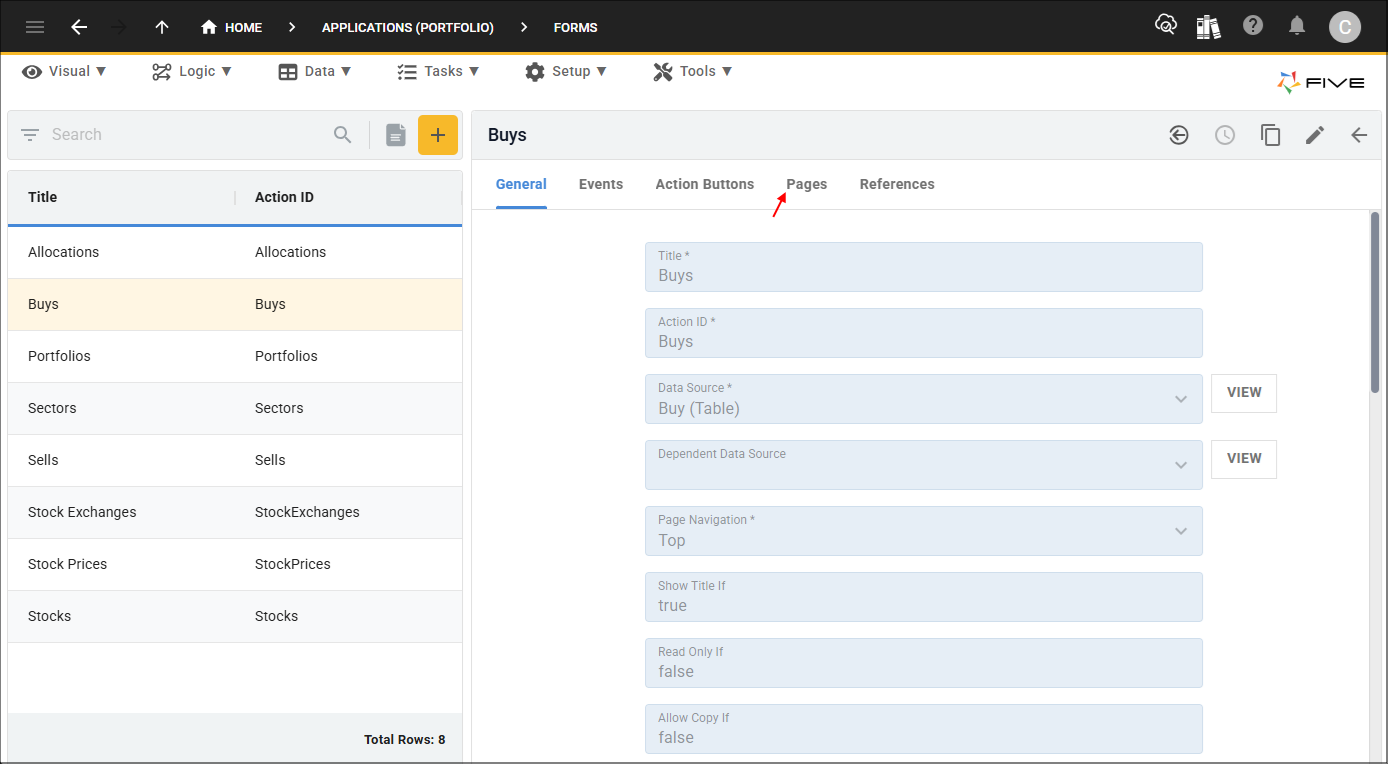
Figure 9 - Pages tab
2. Select the General record.
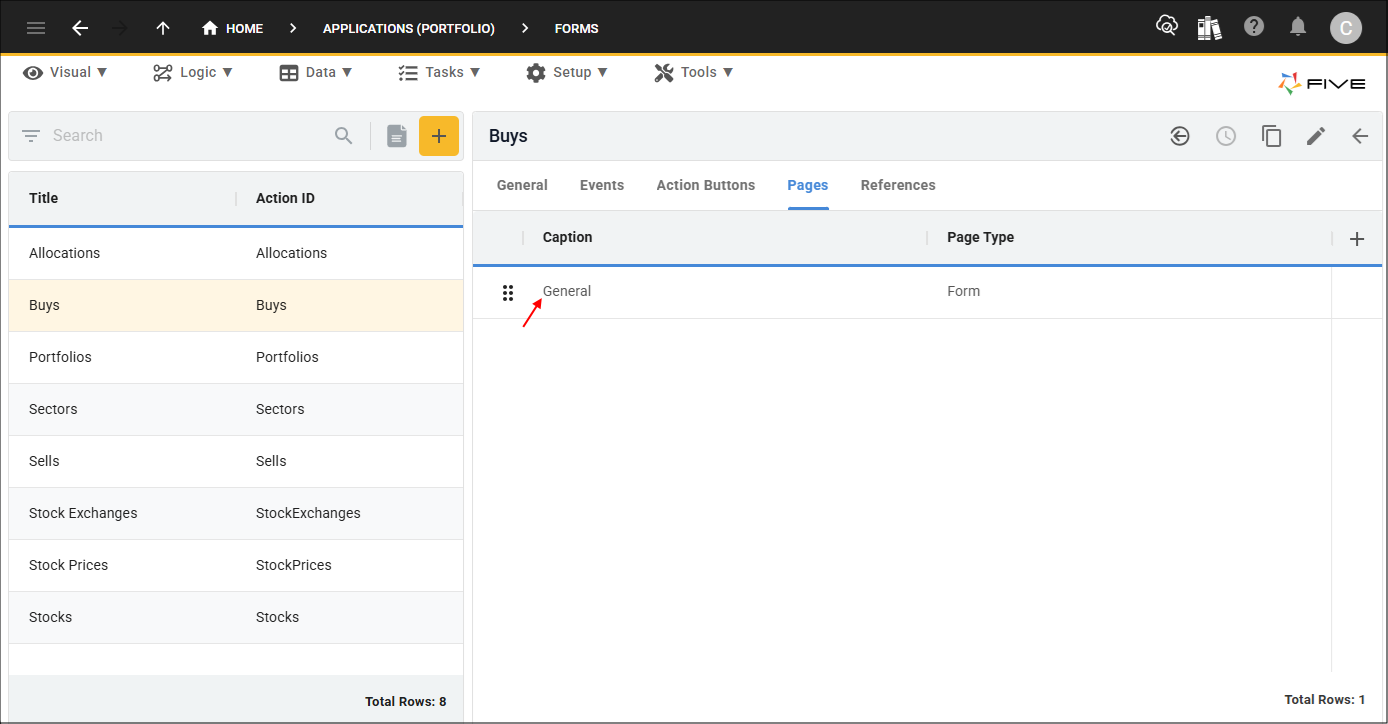
Figure 10 - General record
3. Click the Fields tab.
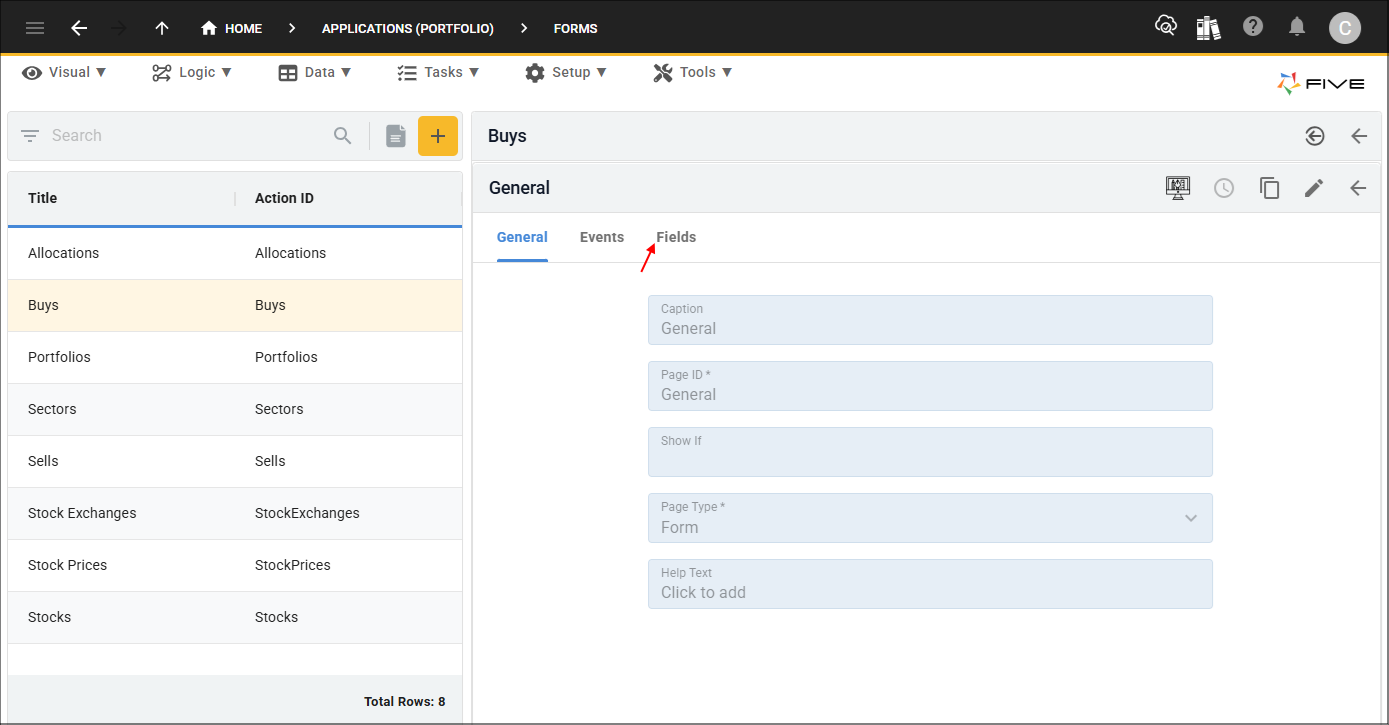
Figure 11 - Fields tab
4. Select the Total record.
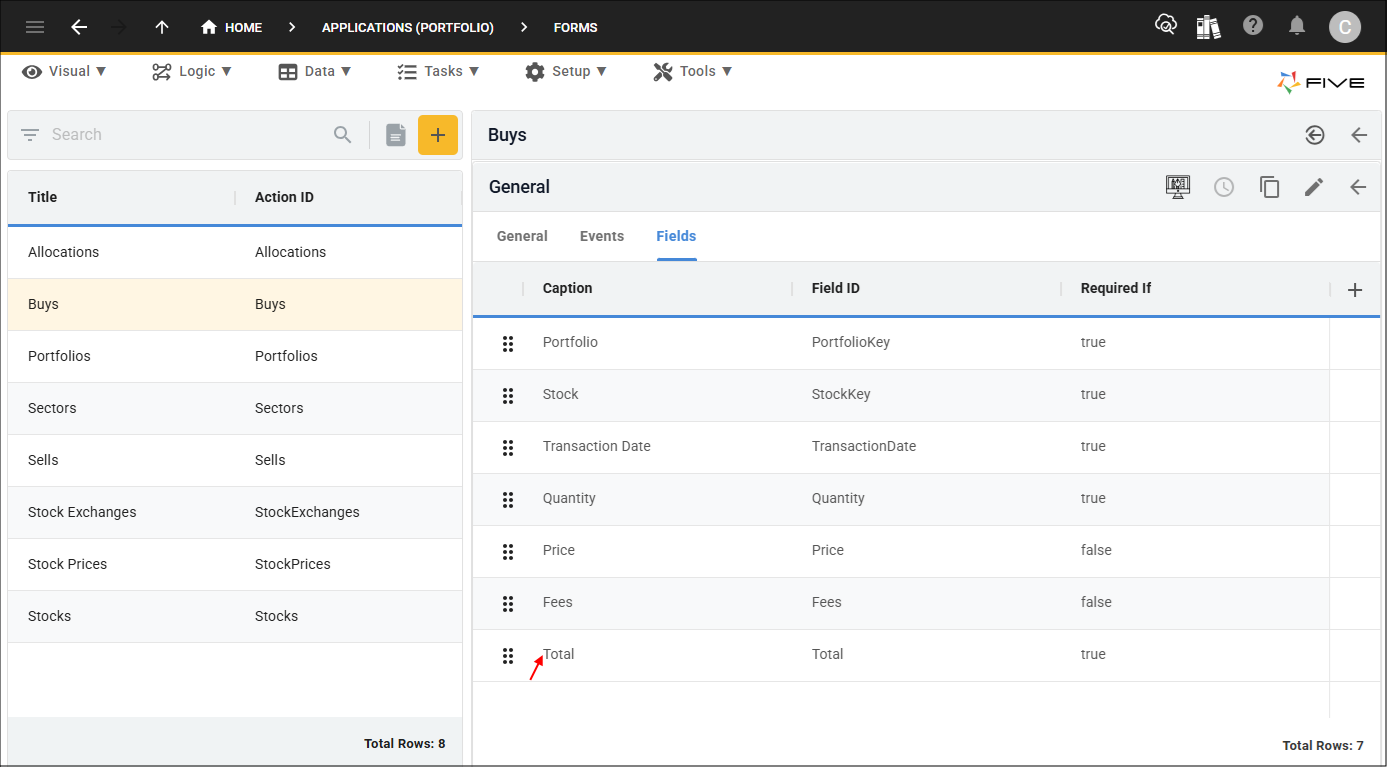
Figure 12 - Total record
5. Click the Events tab.
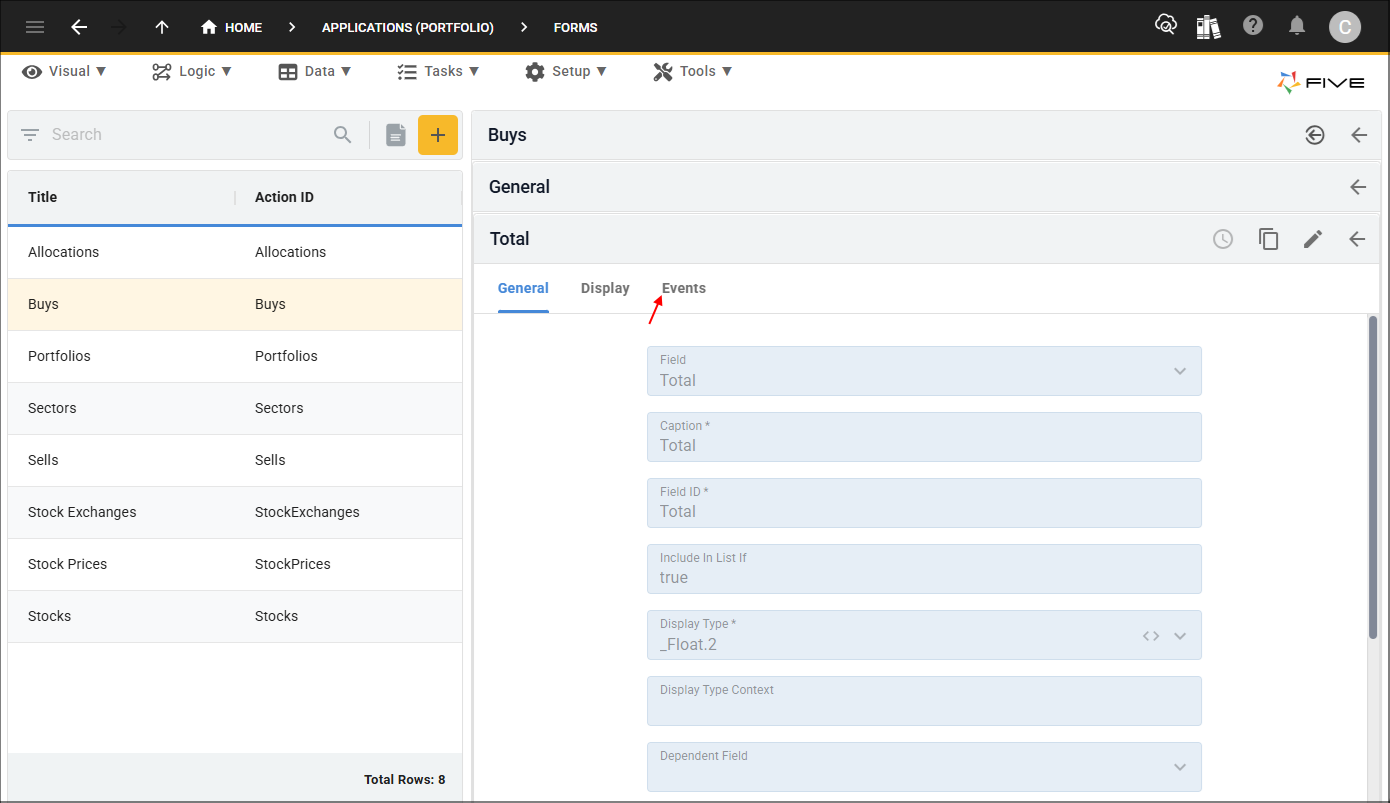
Figure 13 - Events tab
6. Either click the Edit button in the form app bar or click directly in the On Enter field.
7. Select CalculateTotal in the On Enter field.
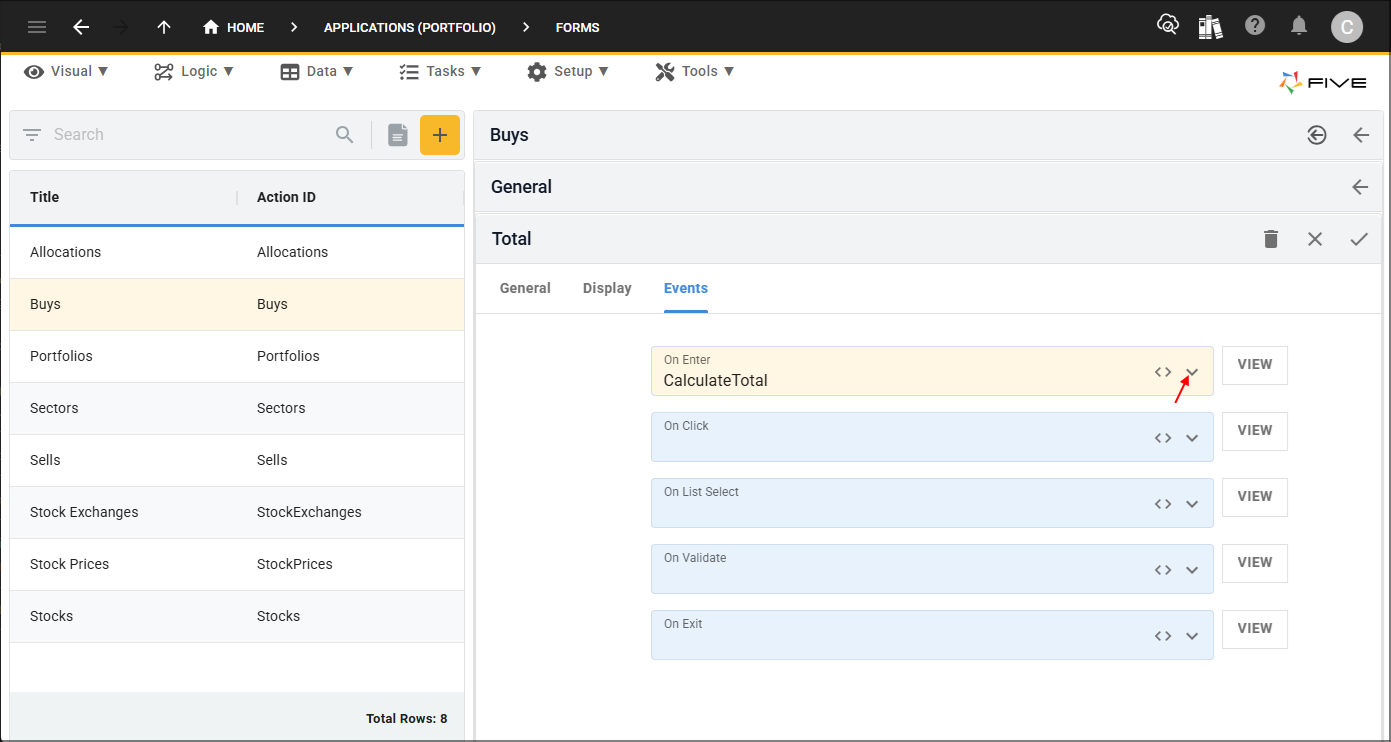
Figure 14 - On Enter field
8. Click the Save button in the form app bar.
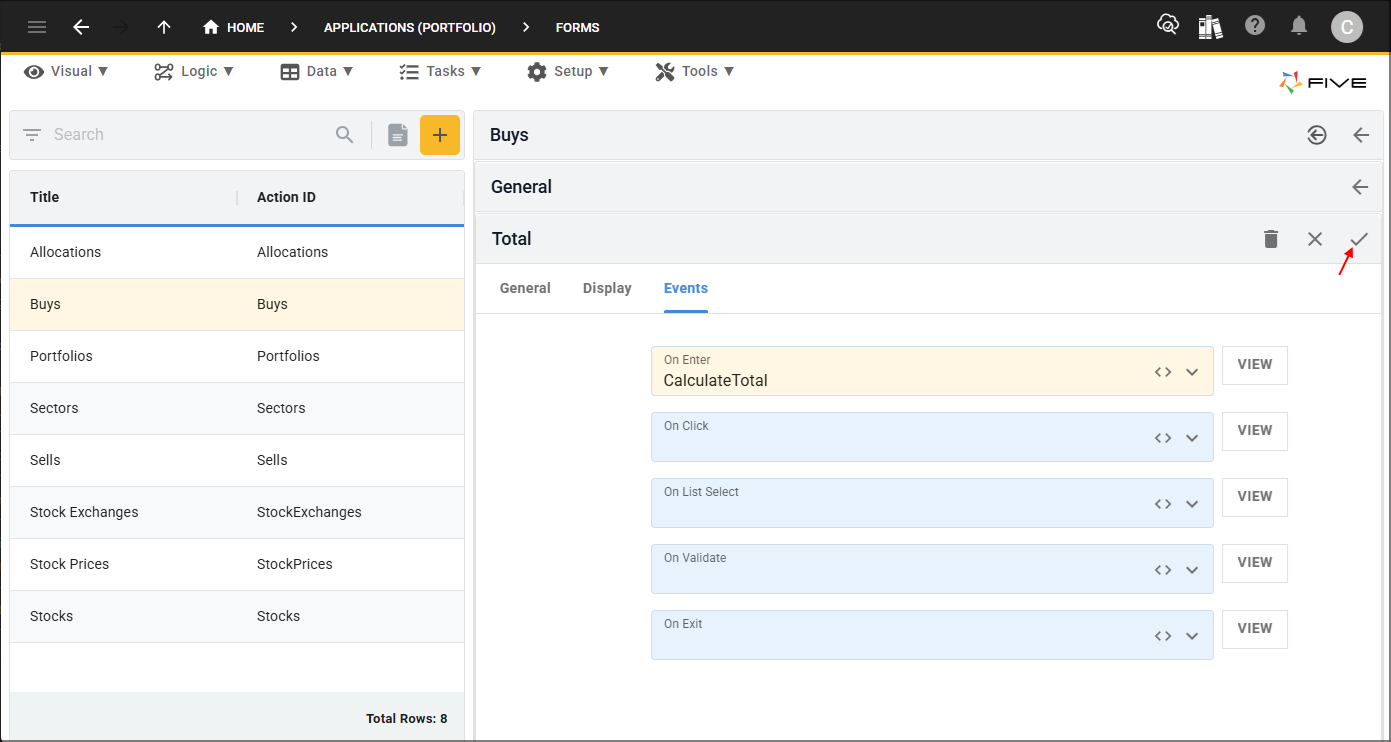
Figure 15 - Save button
9. Click the Save button in the form app bar above the list.
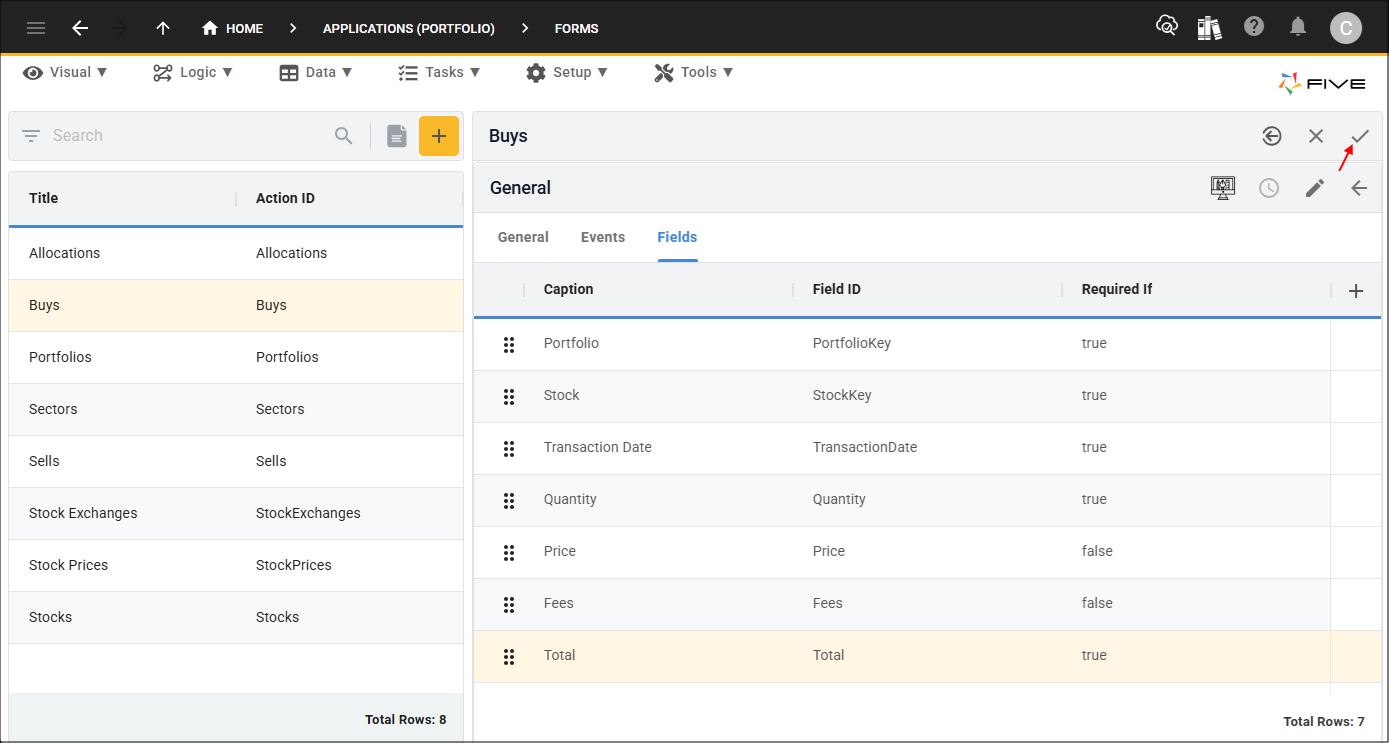
Figure 16 - Save button
Edit the Sells Form
Path: Sells form > General page > Total field > On Enter event
1. Select the Sells record in the list and repeat the above steps.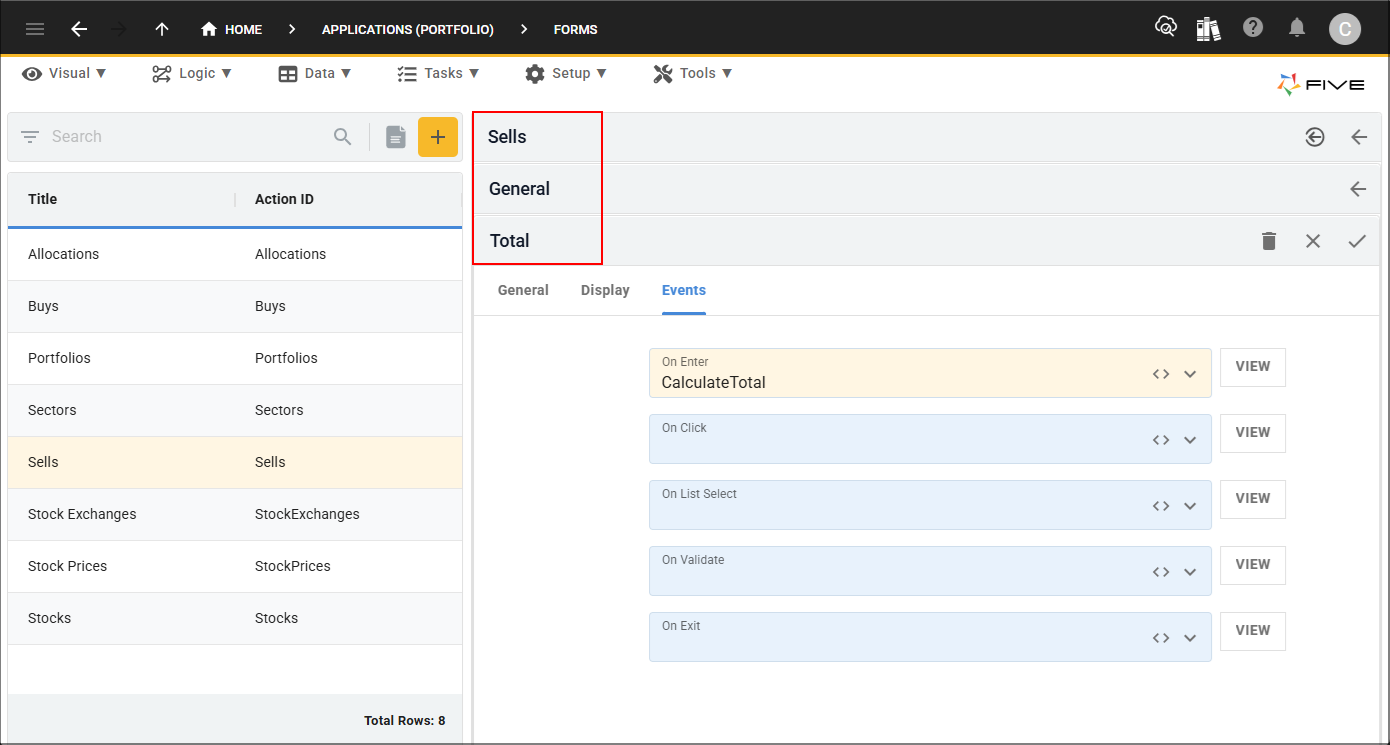
Figure 17 - Sells record
tip
This is a good time to deploy/run the Portfolio application to see how the
CalculateTotal()
function works!Test the Buys Form
1. Select the Growth Portfolio record in the list and click the Down button in the form app bar.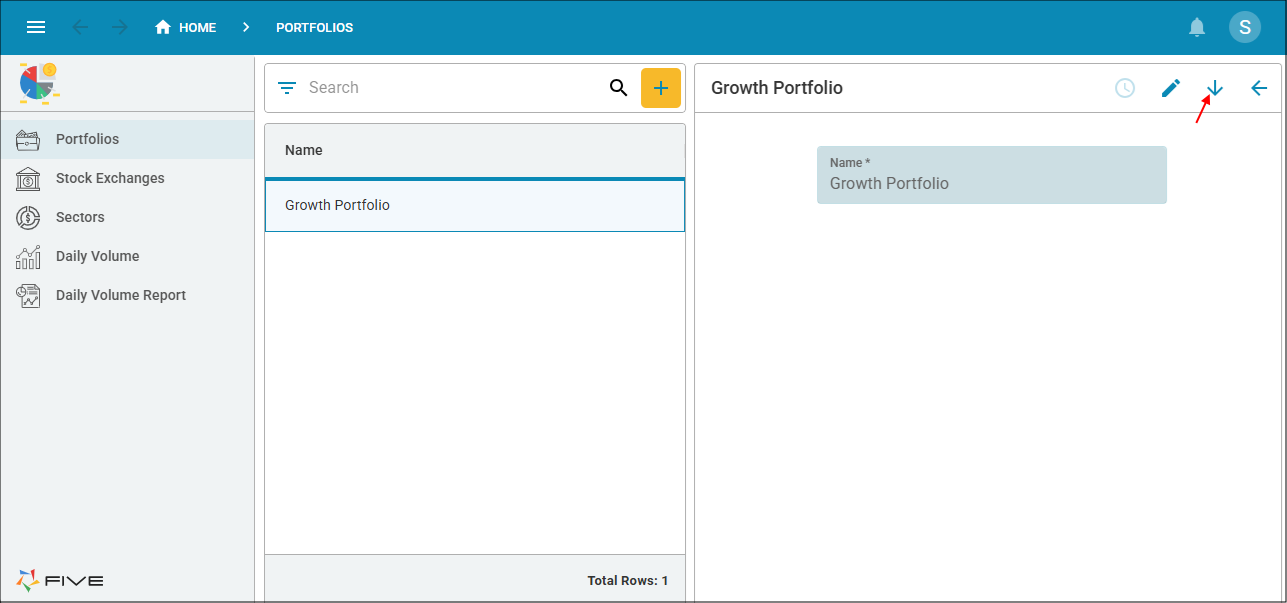
Figure 18 - Down button
2. Click the Add Item button and select AAPL in the Stock field.
3. Select the current date in the Transaction Date field.
4. Type 5000 in the Quantity field, 1.20 in the Price field, 10.00 in the Fees field, and press tab.
info
The On Enter event is executed and calculates the total on entering the Total field.
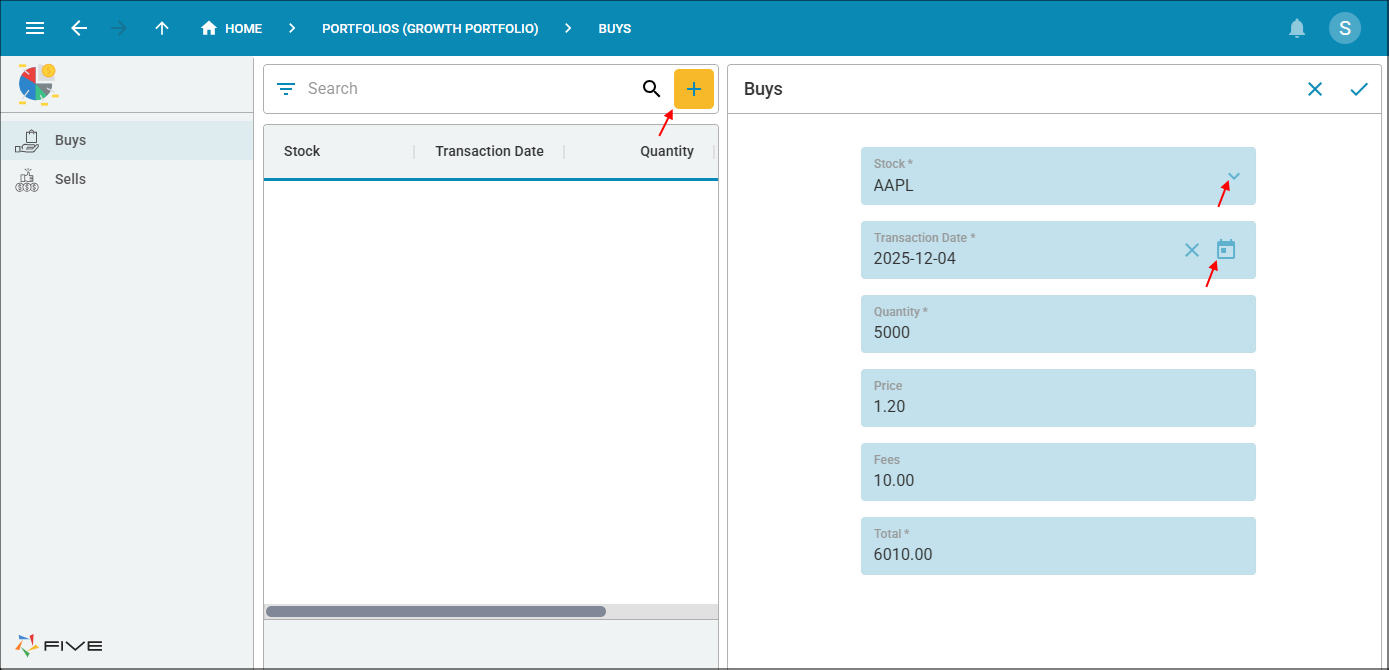
Figure 19 - Add AAPL buy record
5. Click the Save button in the form app bar.
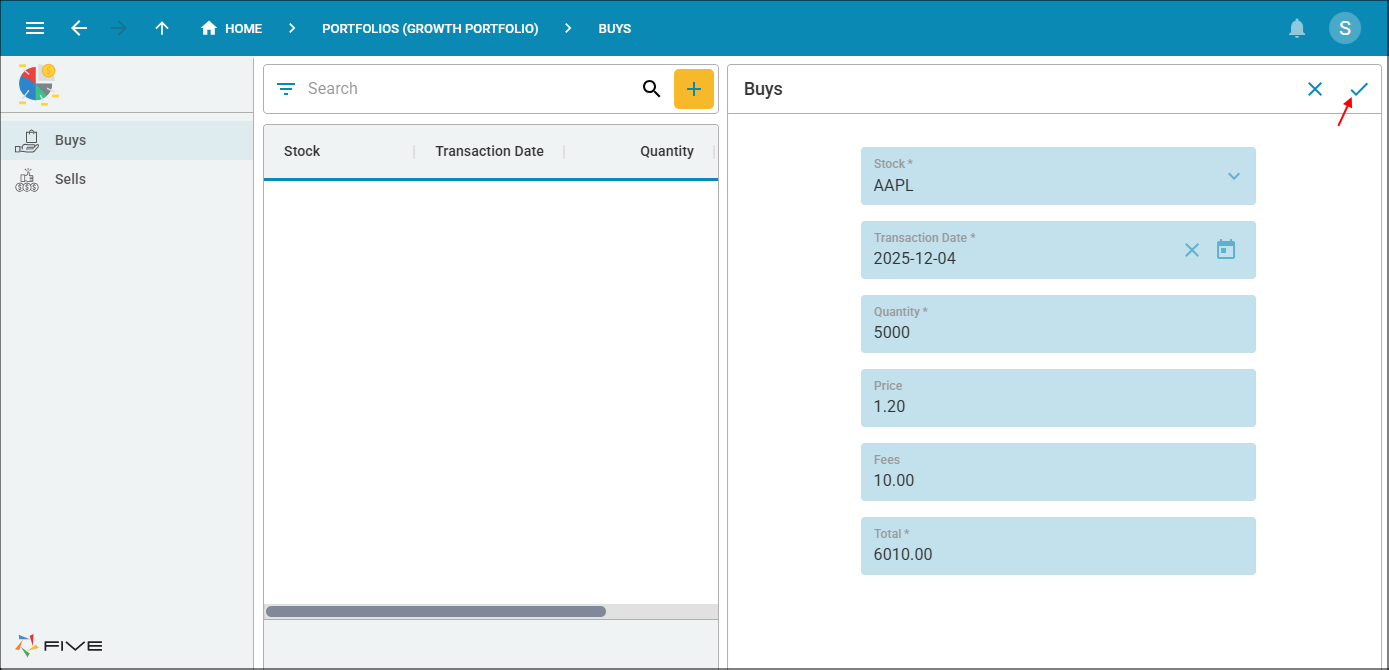
Figure 20 - Save button
Test the Sells Form
1. Select Sells in the menu.2. Click the Add Item button and click the lookup icon in the Stock field.
Problem
All the stocks are listed in the Stock lookup, we need to make it that only the stocks we own are listed. In Five, we can add a query with metadata and attach it to the Stock field to know which stock we currently own.
info
The Allocations page is on the same page as the Sells form as we set the page navigation to continuous.

Figure 21 - Sells form
3. Click the Cancel button in the form app bar.
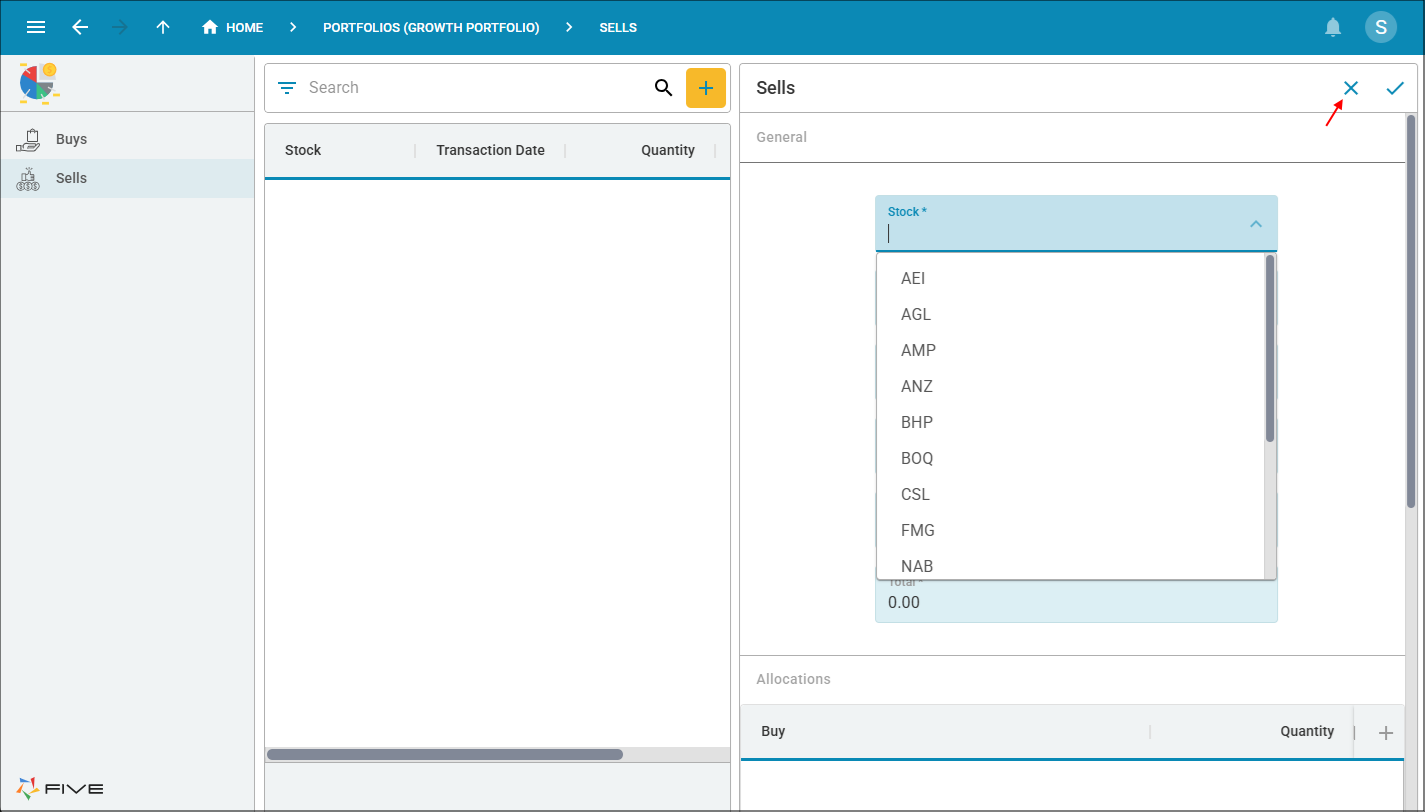
Figure 22 - Cancel button
4. Close the browser tab and return to Five.
Import the Buy.csv File
To have some buy data in the Portfolio application, the Buy.csv file needs to be imported.
1. Click Data in the menu followed by Tables in the sub-menu.
Figure 23 - Tables menu item
2. Click here to download the Buy.csv file.
3. Click the Import CSV into Table button and select Buy in the Table field.
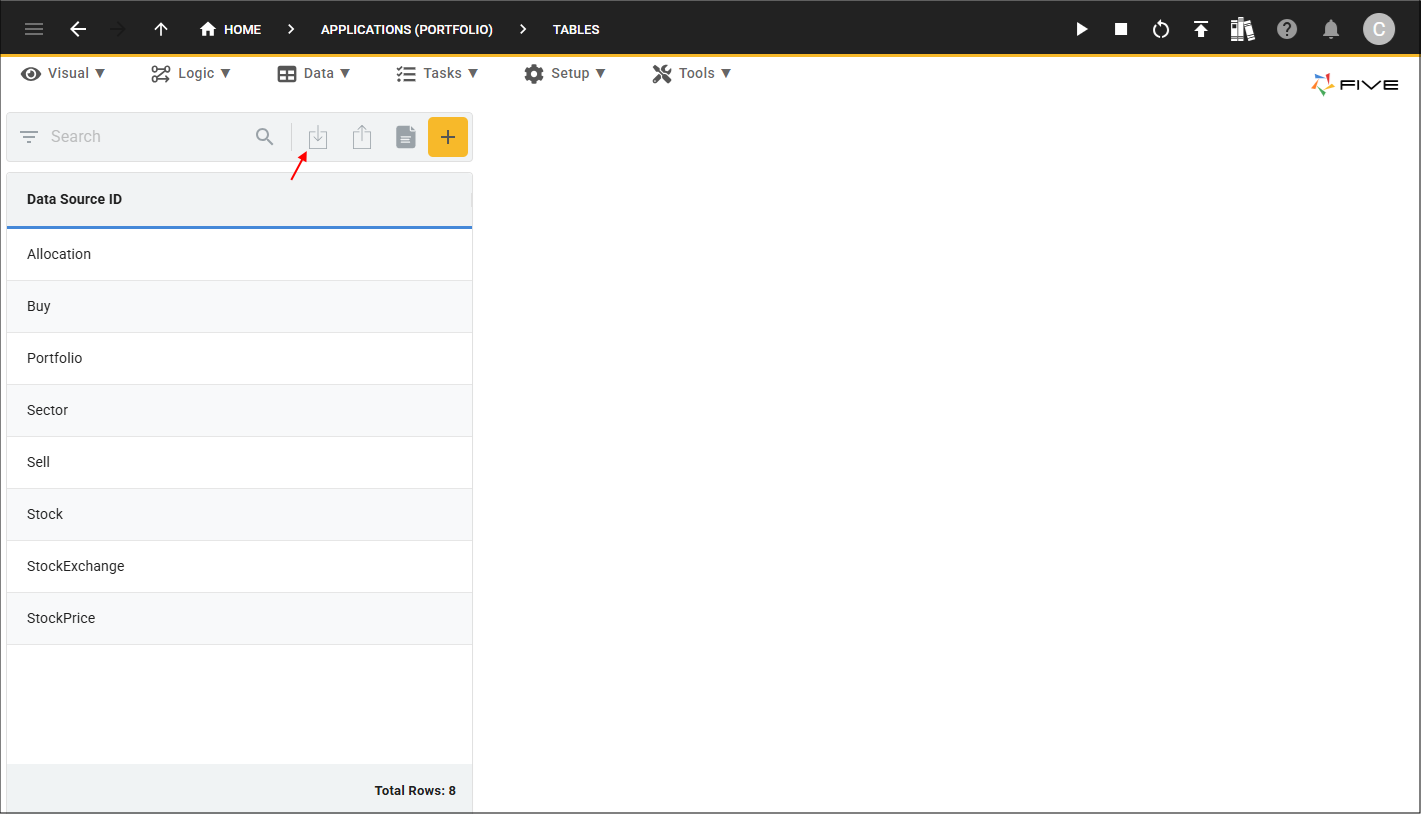
Figure 24 - Import CSV into Buy table
4. Click the Browse button, navigate your files, select and open the Buy.csv file.
5. Select YYYYMMDD in the Date Format field and - (hypen) in the Date Separator field.
caution
If you open the Buy.csv file before you import it into Five, just be aware that Excel may change the format of the date field, which may cause an error when you try to import the Buy CSV if the date field formats do not match.
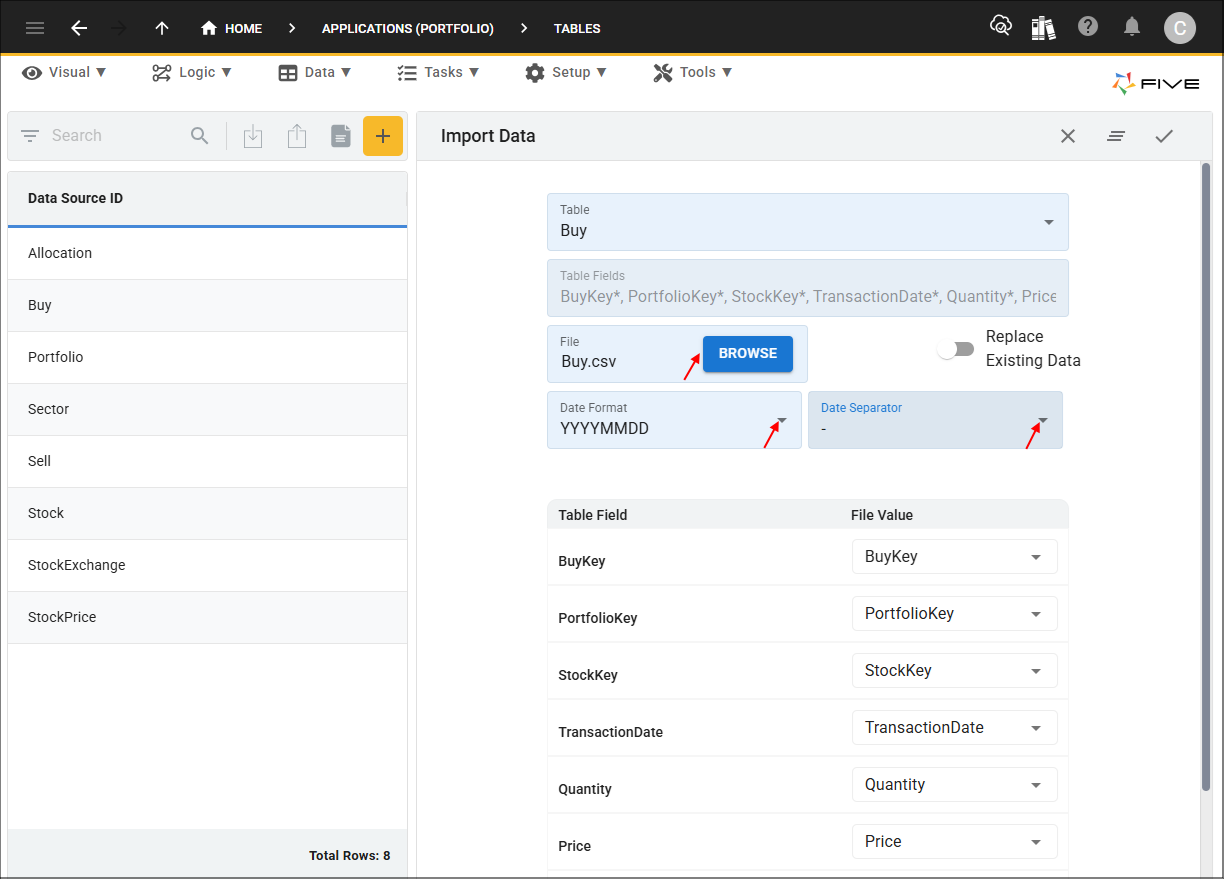
Figure 25 - Import Buy.csv
6. Click the Save button in the form app bar and the OK button.
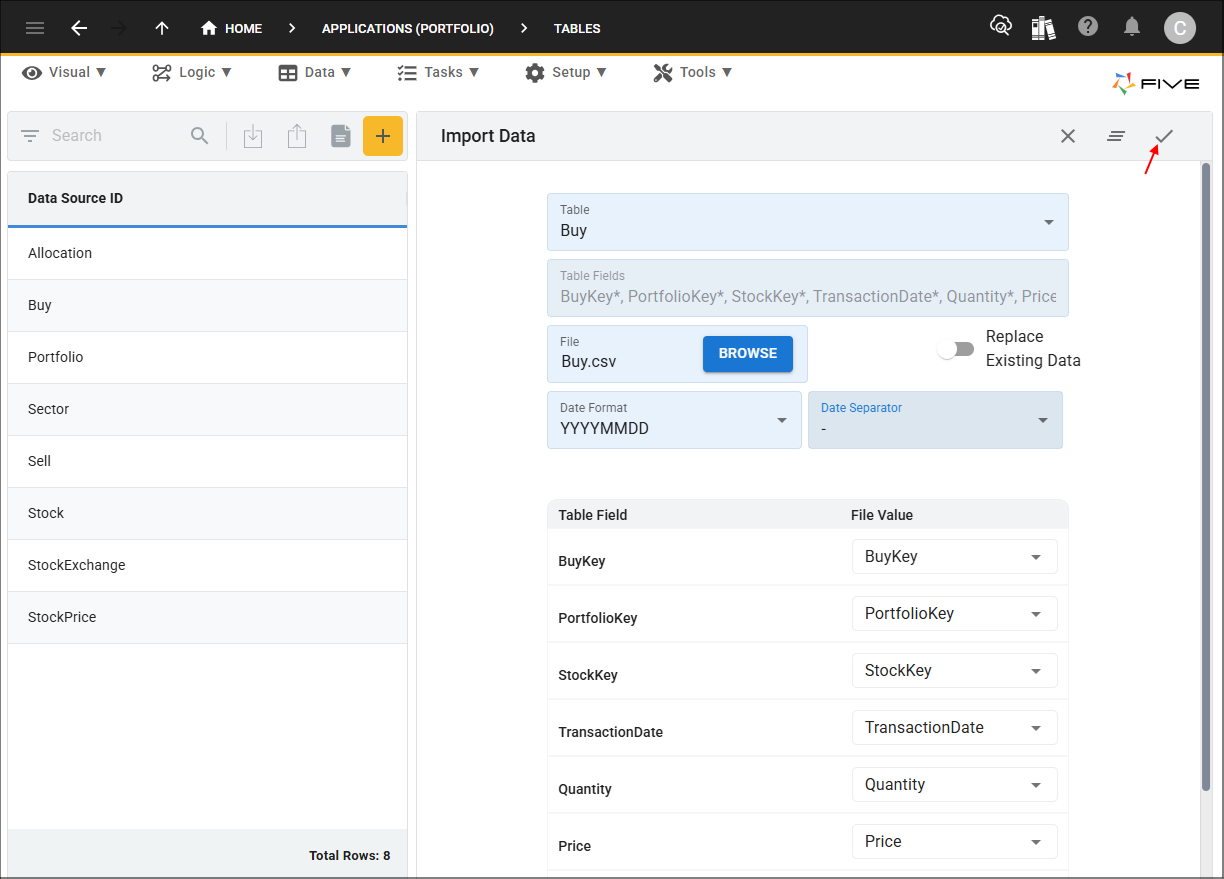
Figure 26 - Save button