5 - Create a Validation
Last updated 16/12/2025
This documentation will explain how to add validation to a field to ensure the correct data is entered. The On Validate event can be used for this. The event executes on the client and performs accuracy checks on the data entered in the field.
Using the On Validate event, we can ensure the Quantity field on the Sells form cannot have a value larger than what we own in the stock.
When in Five's Code Editor you will be interacting with Five's API. In the
CheckStockQuantity()
function you will be using the following
functions and properties:
field - is a property used on the
Five
object
which returns the value associated to the field ID on the current form.
getMetadata() - is a function used on the
Five
object
that provides metadata from a field.
createError() - is a function used on the
Five
object
that returns an error with an optional message and notification parameters.
success() - is a function used on the
Five
object
that returns a FiveError
indicating success.
Add the CheckStockQuantity Function
The
CheckStockQuantity()
function will use the metadata supplied in the CurrentStockHolding query that is attached to the Stock field on the Sells form. The function will use
the Holding query field to know what we are currently holding in the stock.
1. Click Logic in the menu followed by Code Editor in the sub-menu.
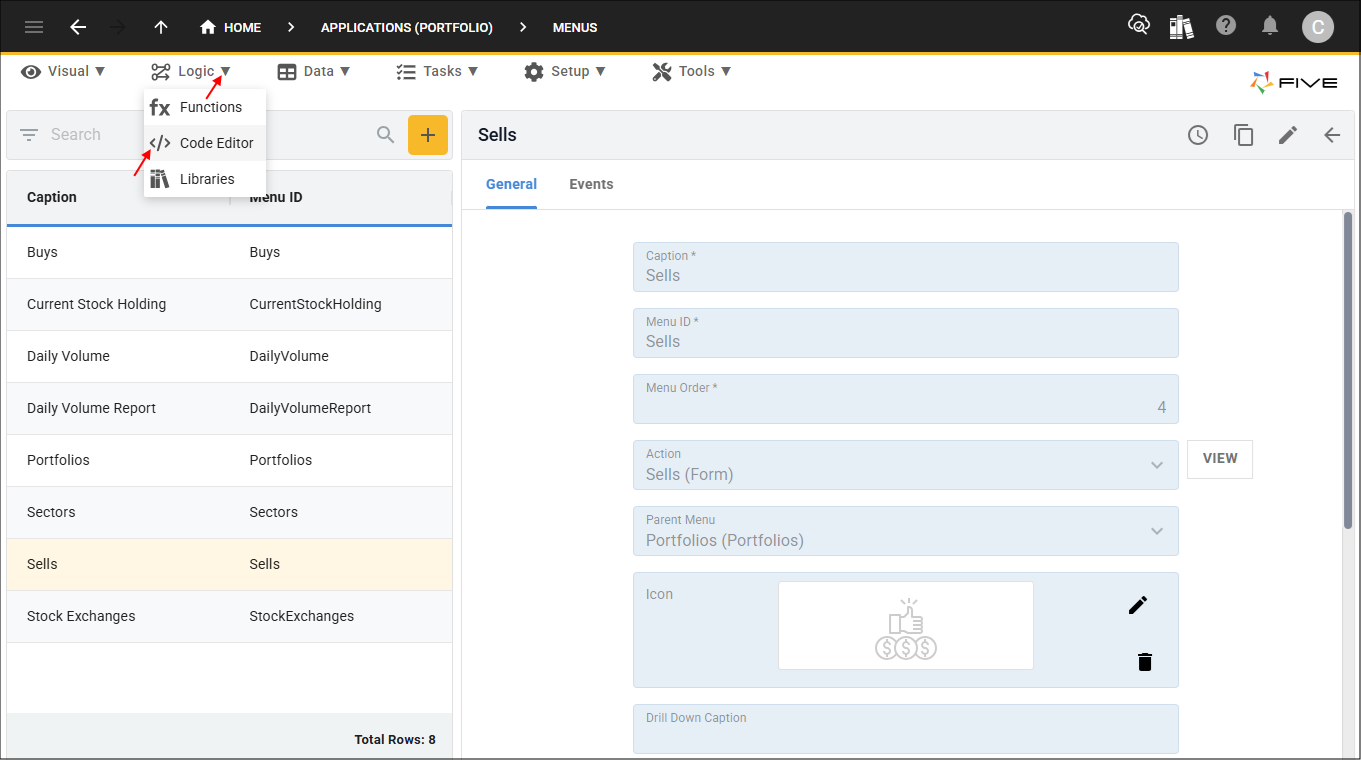
Figure 1 - Code Editor menu item
2. Click the Add New Code button.

Figure 2 - Add New Code button
3. Type CheckStockQuantity in the Function ID field.
4. Select TypeScript in the Language field and click the OKAY button.
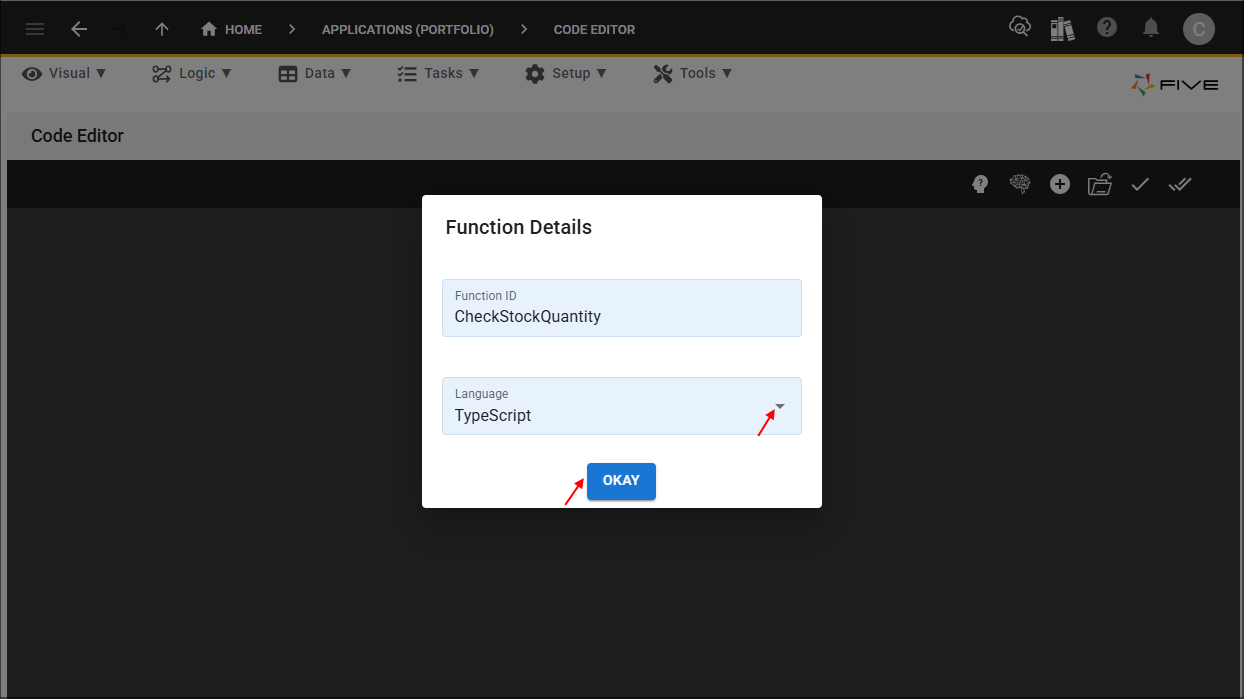
Figure 3 - Add CheckStockQuantity function
5. Click the Copy button on the code block below.

CheckStockQuantity
function CheckStockQuantity(five: Five, context: any, result: FiveError) : FiveError {
    const qty: number = parseInt(five.field.Quantity);
    if (qty > five.getMetadata('Sells', 'StockKey', 'Holding')) {
        return five.createError(result, 'Stock quantity exceeds current holding');
    }

    return five.success(result, '');
}
6. Paste the code block over the template in the Code Editor and click the Save Current Tab button.

Figure 4 - Save Current Tab button
Attach the CheckStockQuantity Function
The
CurrentStockHolding()
function needs to be attached to the Quantity field on the Sells form. If the incorrect data is entered in the
field the user will be forced to change the quantity.
Path: Sells form > General page > Quantity field > On Validate event
1. Click Visual in the menu followed by Forms in the sub-menu.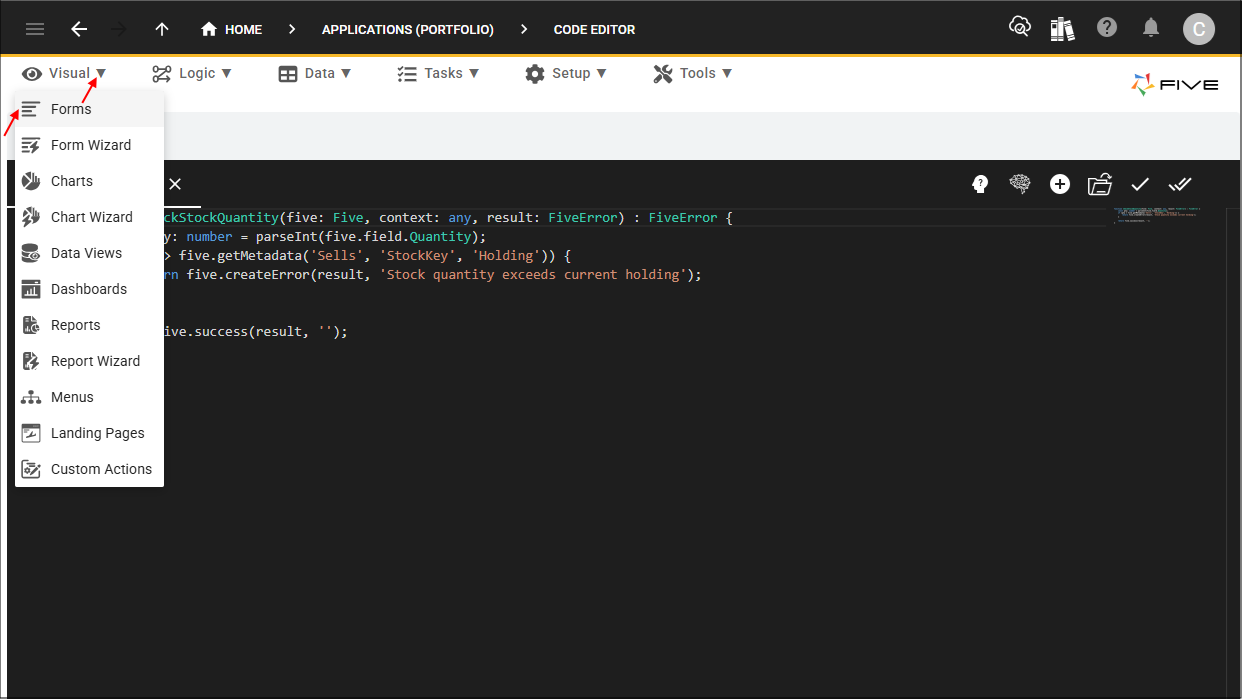
Figure 5 - Forms menu item
2. Select the Sells record in the list and click the Pages tab.

Figure 6 - Pages tab
3. Select the General record.
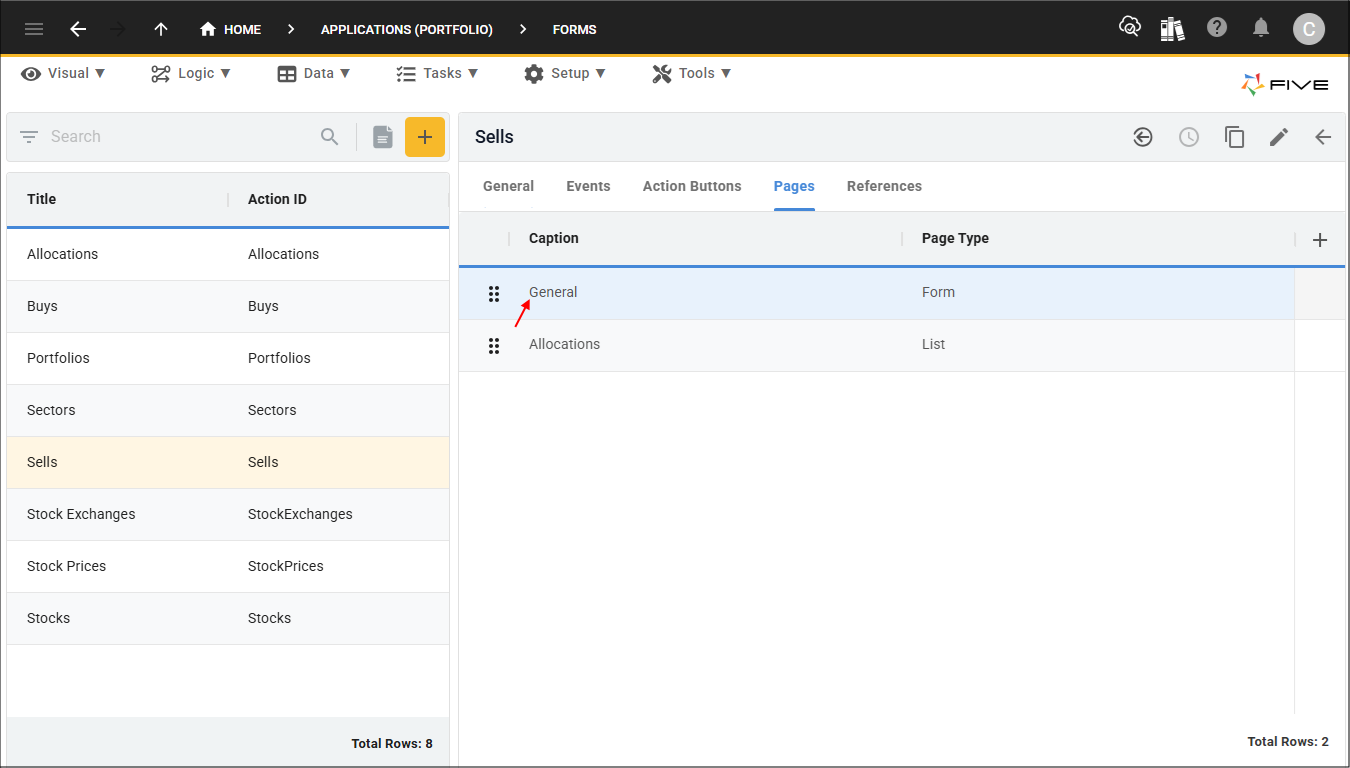
Figure 7 - General record
4. Click the Fields tab.

Figure 8 - Fields tab
5. Select the Quantity record.

Figure 9 - Quantity record
6. Click the Events tab.

Figure 10 - Events tab
7. Either click the Edit button in the form app bar or click directly in the On Validate field.
8. Select CheckStockQuantity in the On Validate field.

Figure 11 - On Validate field
9. Click the Save button in the form app bar.

Figure 12 - Save button
10. Click the Save button in the form app bar above the list.

Figure 13 - Save button
tip
This is a good time to deploy/run the Portfolio application to see how the
CheckStockQuantity()
function works!Test the Sells Form
1. Select the Growth Portfolio record in the list and click the Down button in the form app bar.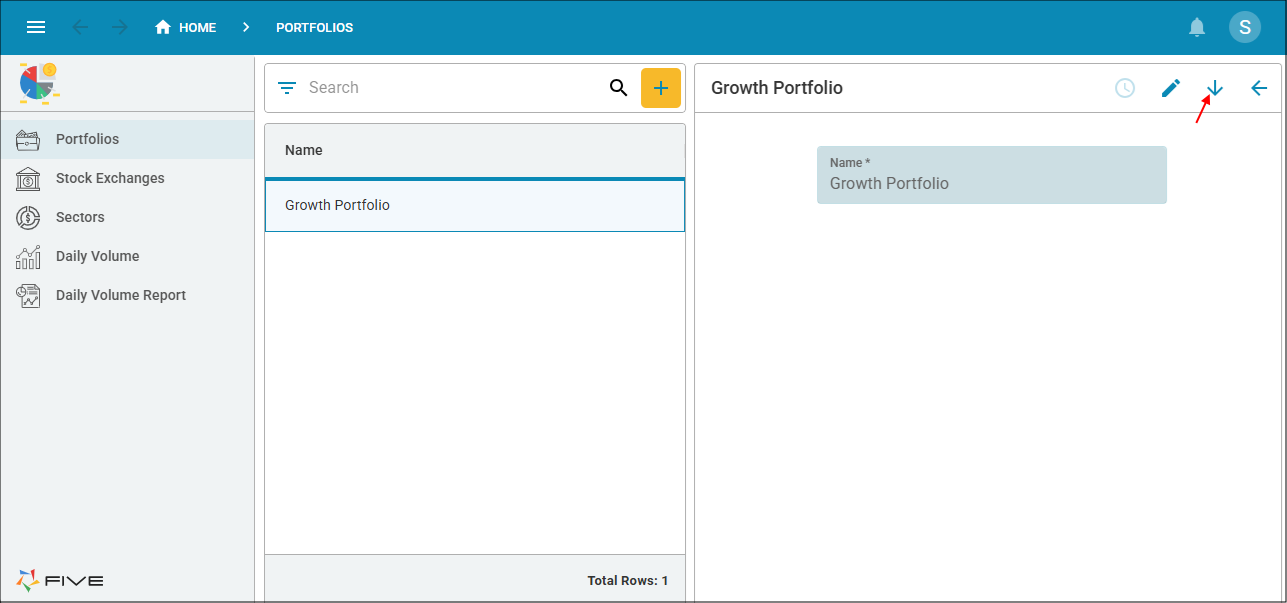
Figure 14 - Down button
note
The Current Stock Holding data view is showing us that we currently own 15200 AAPL (Apple Inc) shares.
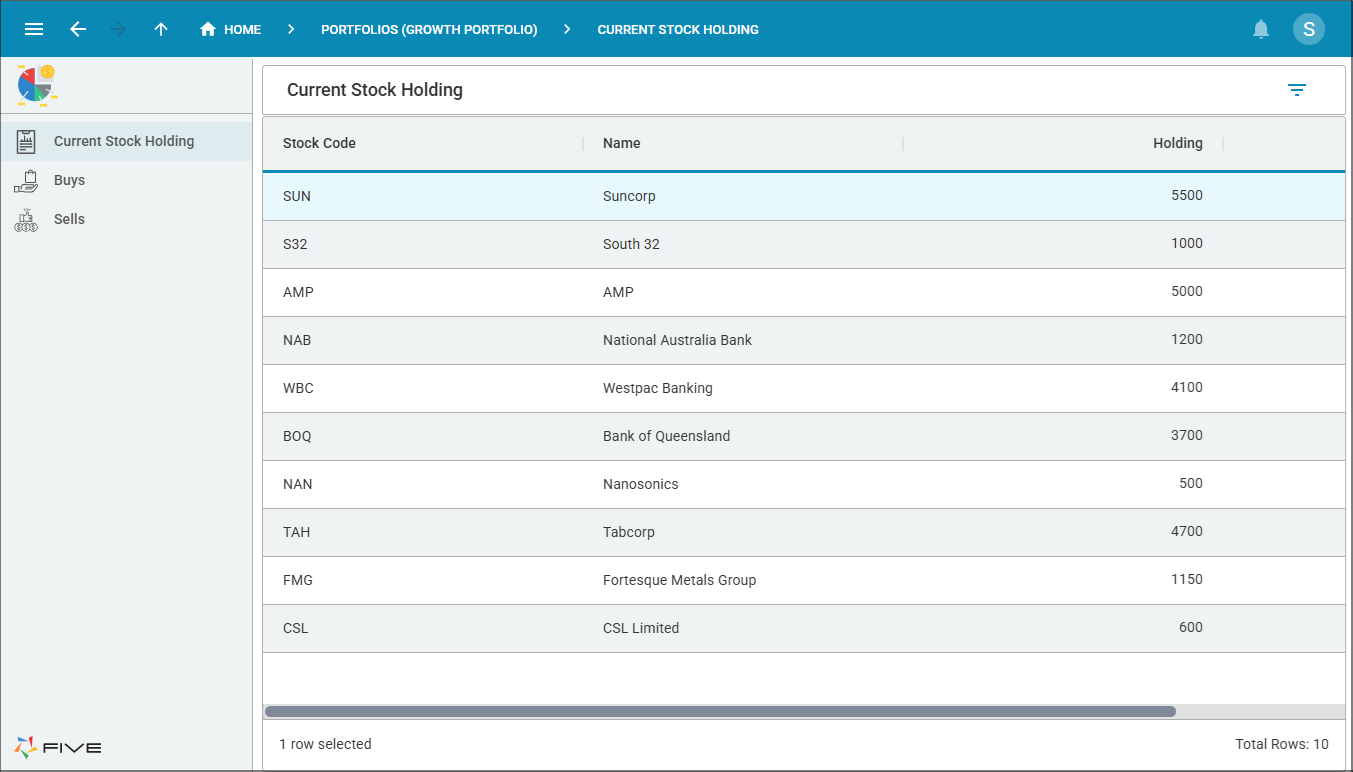
Figure 15 - Current Stock Holding data view
2. Select Sells in the menu and click the Add Item button.
3. Select AAPL in the Stock field.
4. Select the current date in the Transaction Date field.
5. Type 16000 in the Quantity field, press tab.
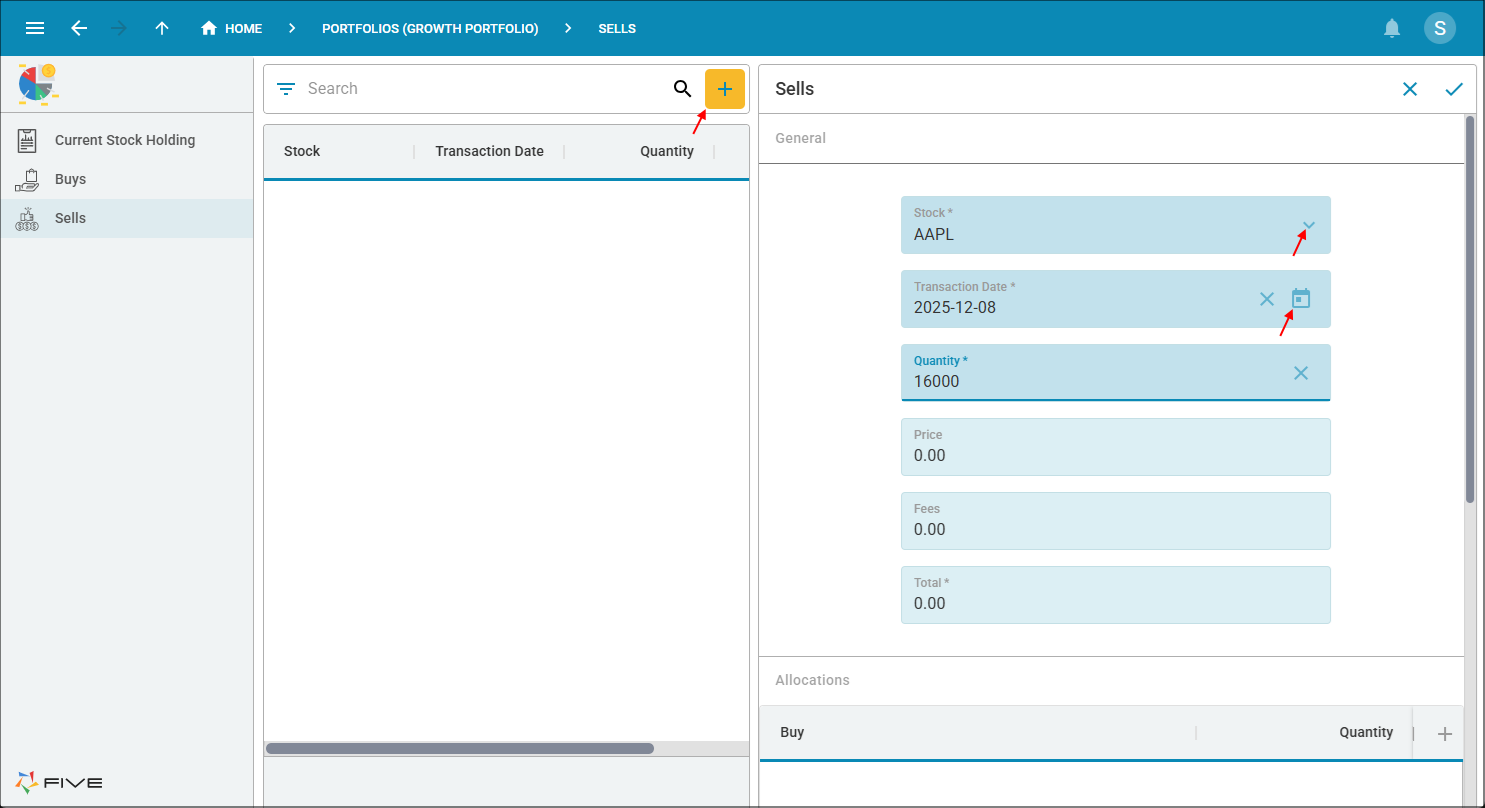
Figure 16 - Add AAPL sell record
info
The On Validate event is executed and causes an error as we do not own 16000 shares in AAPL.
6. Click the OK button.
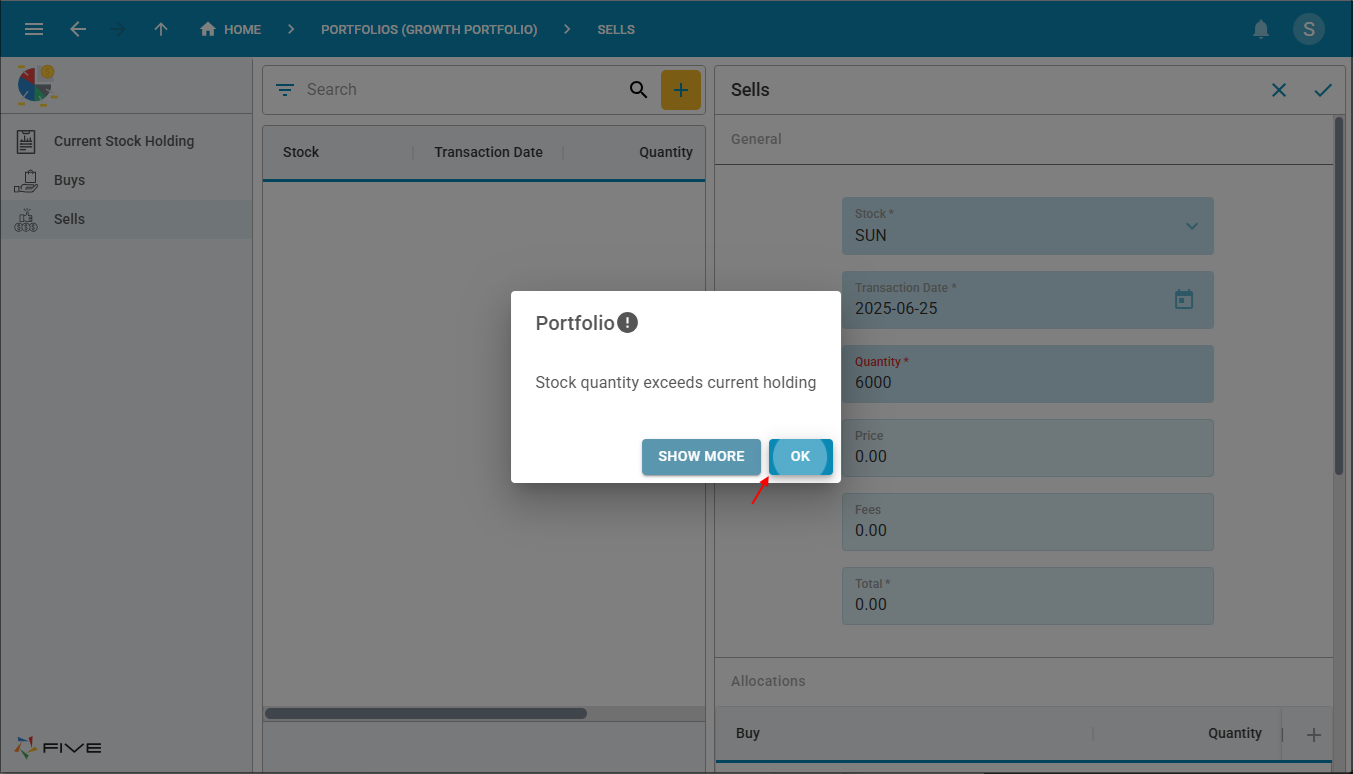
Figure 17 - OK button
7. Type 8000 in the Quantity field, 5.00 in the Price field, 10.00 in the Fees field, and press tab.
info
The On Enter event is executed and calculates the total on entering the Total field.
8. Click the Add Allocations button.
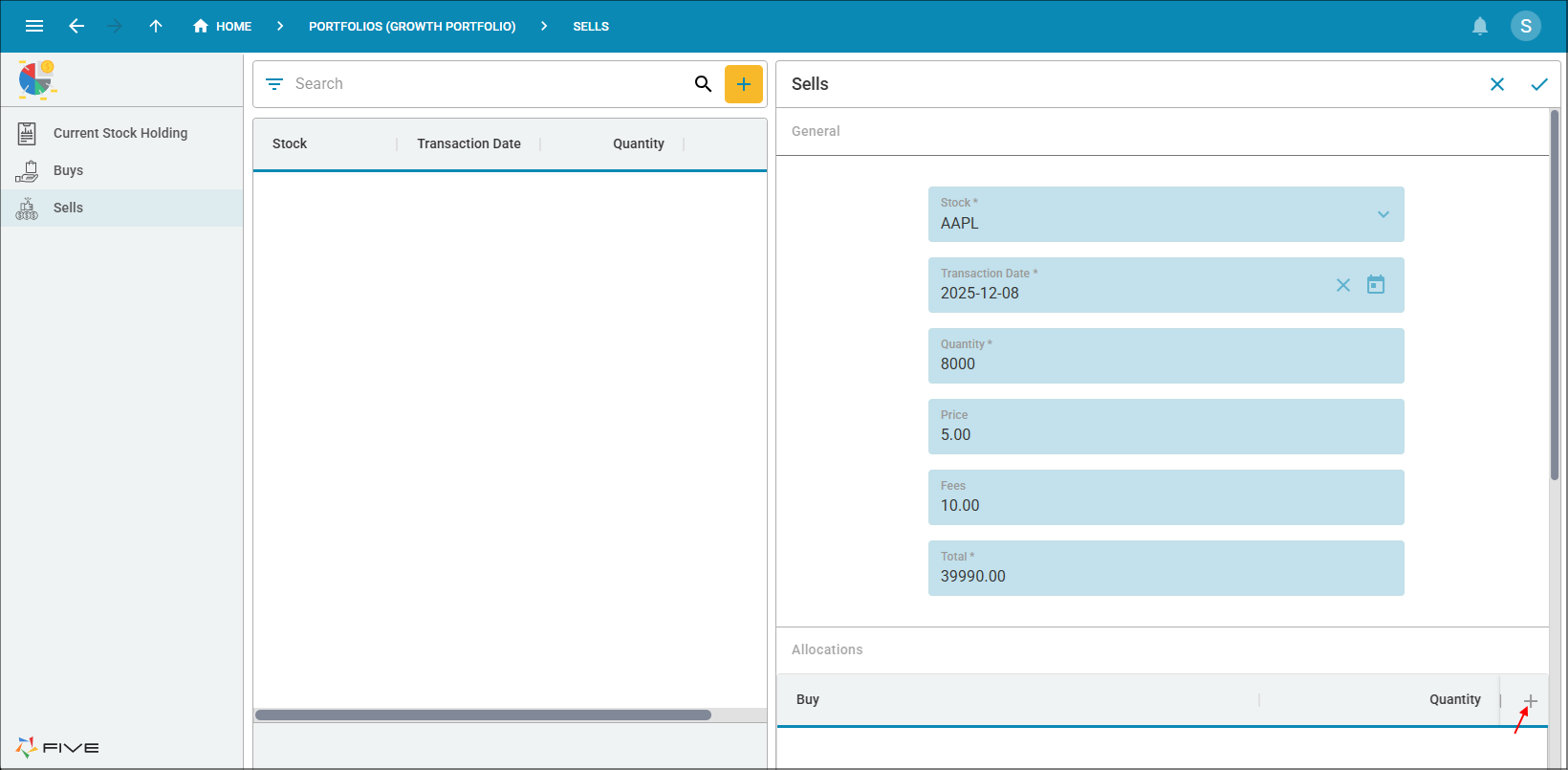
Figure 18 - Add Allocations button
9. Click the lookup icon in the Buy field.
Problem
All the transaction dates are listed in the Buy list, we need to make it that only the transaction dates for the selected stock on the Sells form are listed. In Five, we can use the data in a stacked form (Sells) to only get the transaction dates for the selected stock.
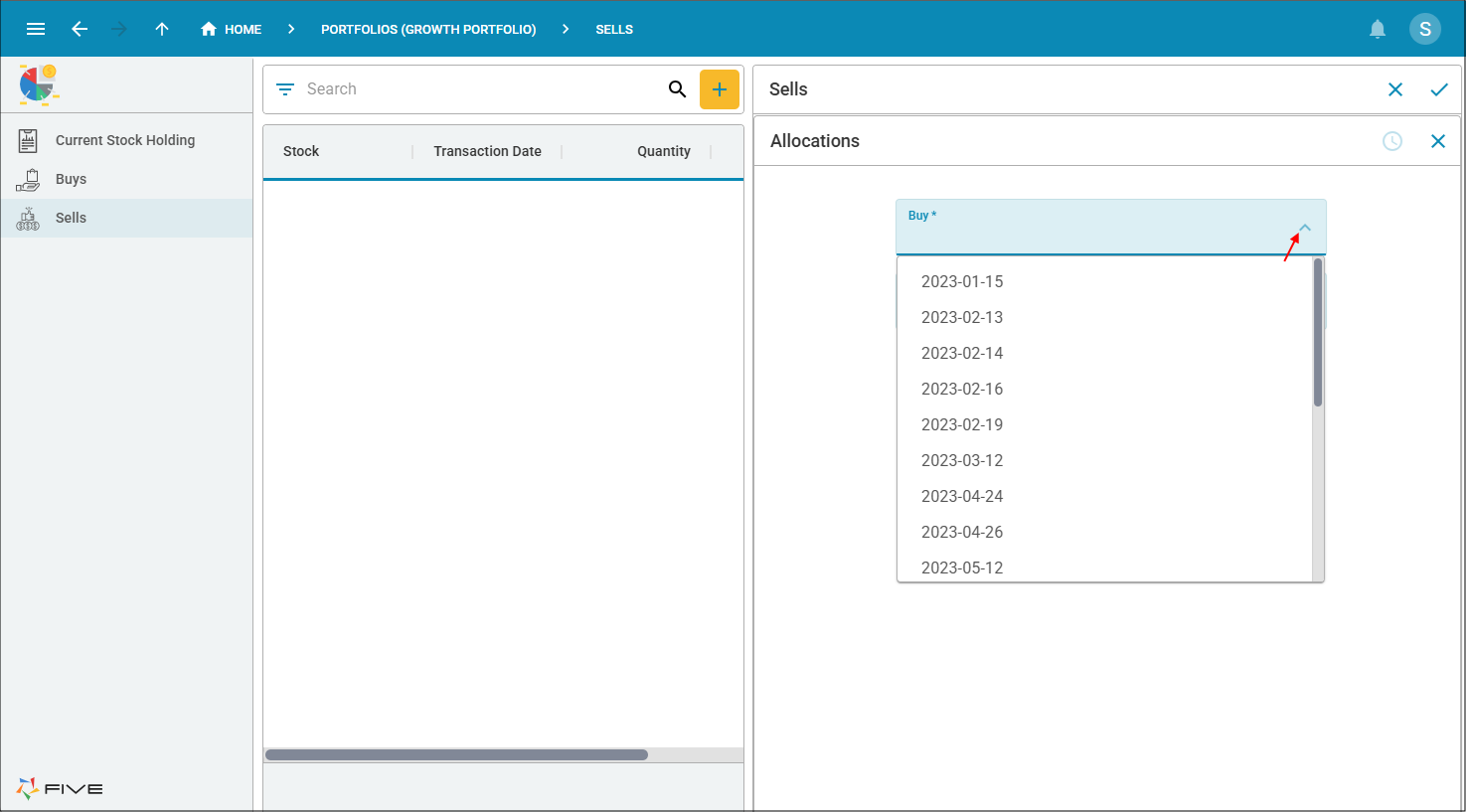
Figure 19 - Buy field
10. Click the Cancel button in the form app bar.

Figure 20 - Cancel button
11. Close the browser tab and return to Five.