8 - Add a Server-Side Function
Last updated 16/12/2025
This documentation will explain how to add a server-side function. To date we have only been using functions that execute on the client.
There are two types of events in Five:
- On Event - executes on the client
- Do Event - executes on the server
When we ran the Portfolio application, we saw that we could save a Sell record without the Quantity fields having equal values. We will add a function and attach it to the Do Complete event on the Sells form. The function will execute when the Save button is clicked on the Sells form and will verify that the single or multiple allocation records equal the quantity value on the Sells form before committing to the database.
This functionality can be performed on the client-side using the On Complete event, however, it would require extra code as Five assembles the data from all the forms into a single transaction array, this simplifies your code as you can iterate over all forms in one array. Essentially, when the Save button is clicked it sends the current data on the forms to the backend, and the backend will call the function with the transactions being saved.
When in Five's Code Editor you will be interacting with Five's API. In the
Add the CheckValidSell Function
1. Click Logic in the menu followed by Code Editor in the sub-menu.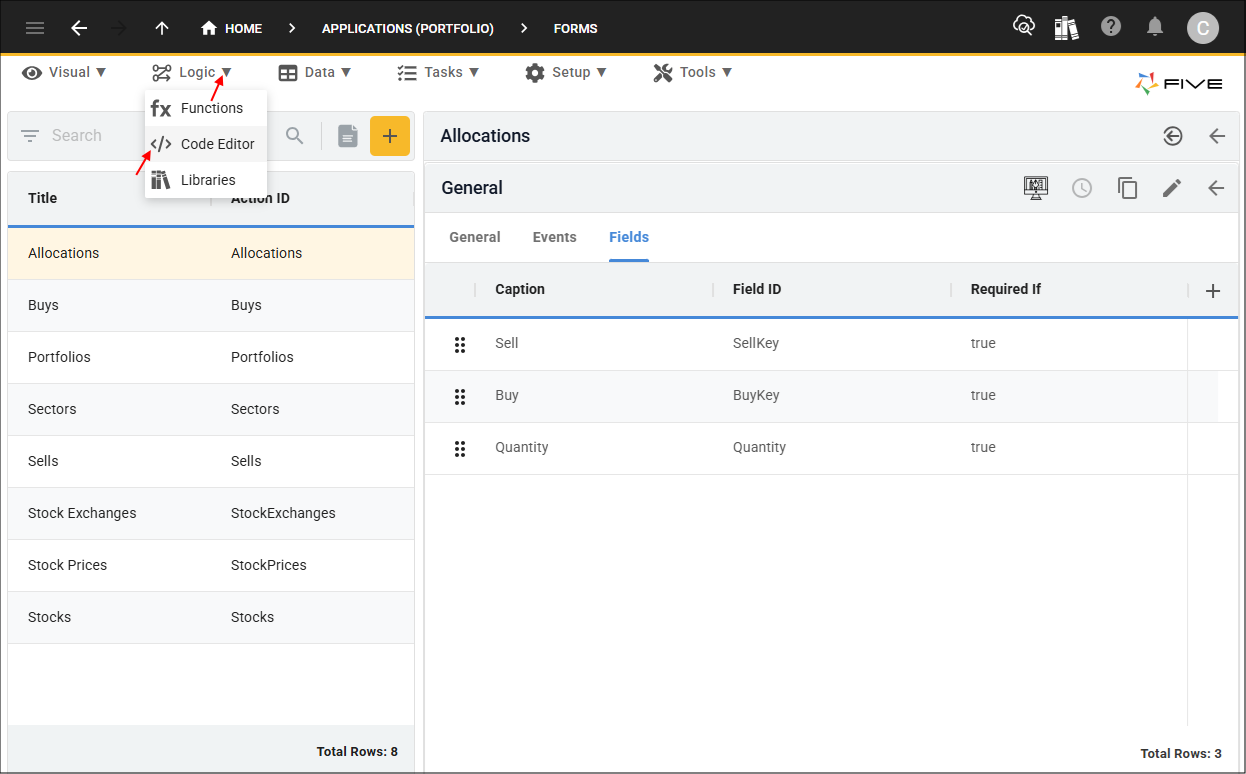
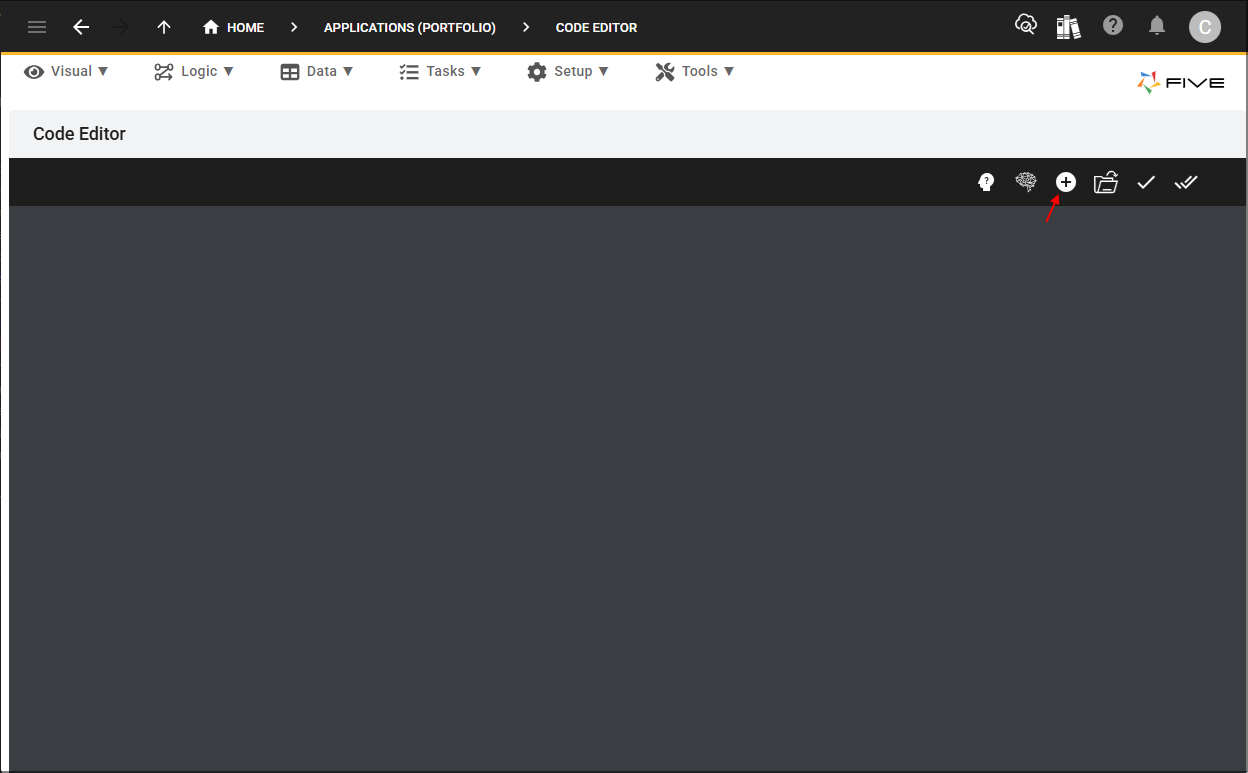
2. Click the Add New Code button.
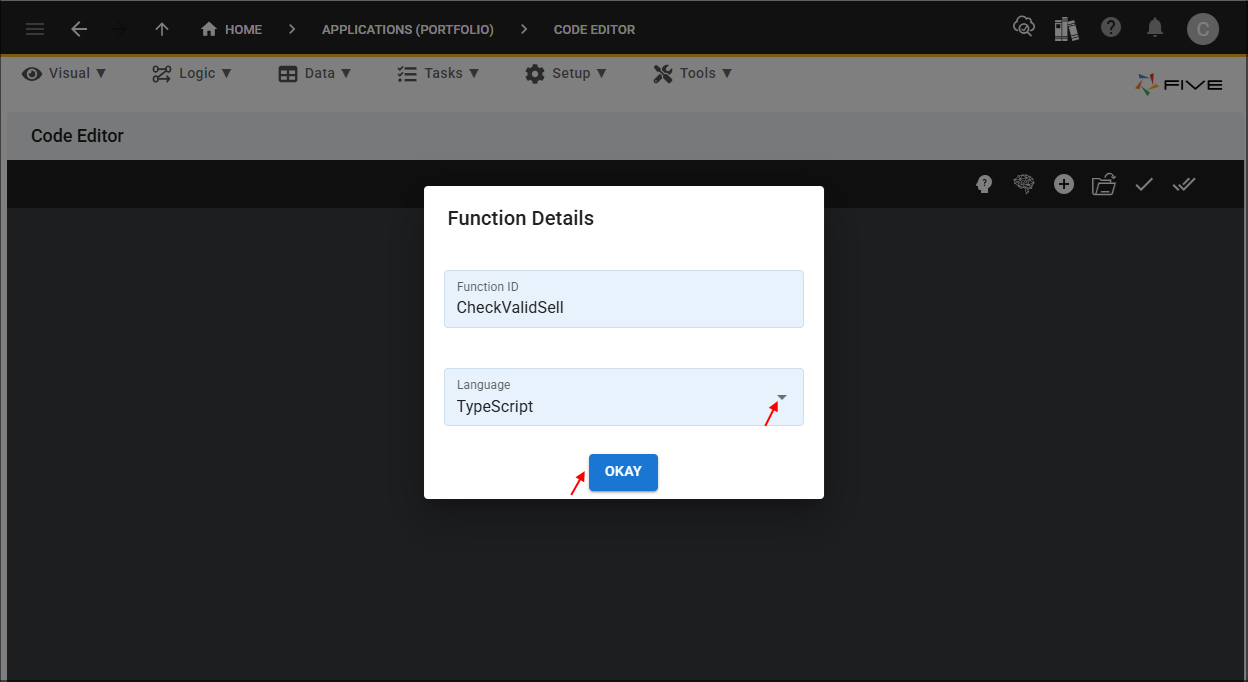
3. Type CheckValidSell in the Function ID field.
4. Select TypeScript in the Language field and click the OKAY button.
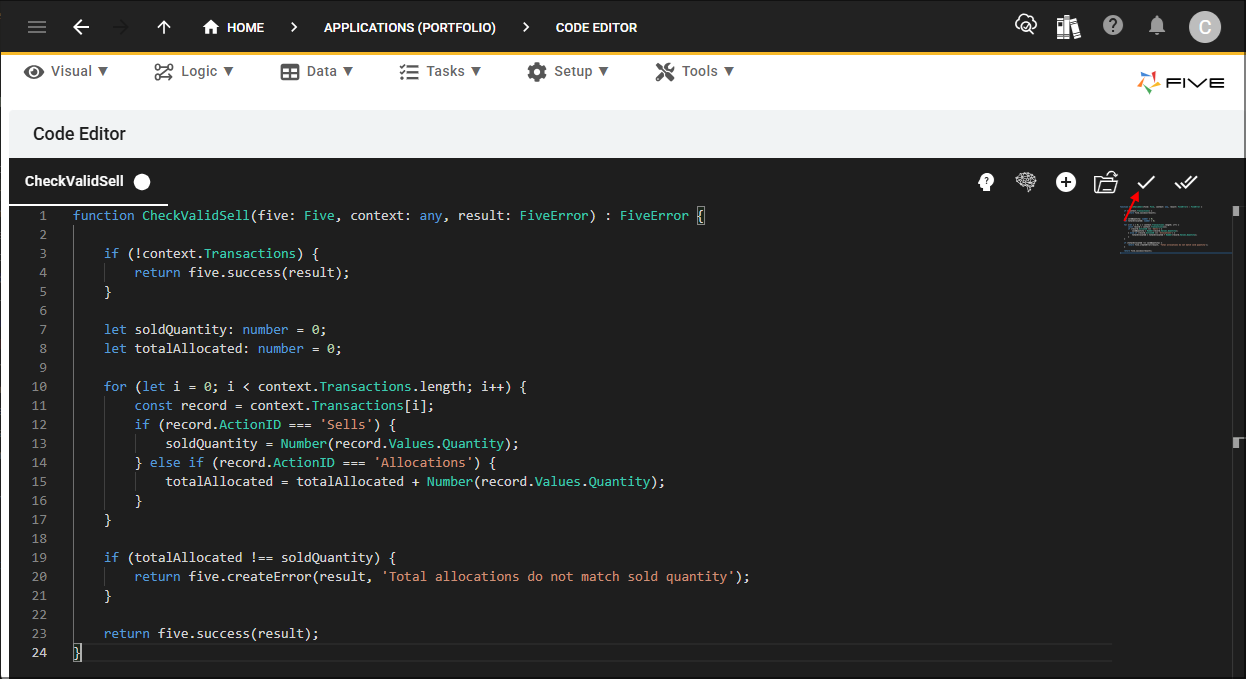
5. Click the Copy button on the below code block.

function CheckValidSell(five: Five, context: any, result: FiveError) : FiveError {

    if (!context.Transactions) {
        return five.success(result);
    }

    let soldQuantity: number = 0;
    let totalAllocated: number = 0;

    for (let i = 0; i < context.Transactions.length; i++) {
        const record = context.Transactions[i];
        if (record.ActionID === 'Sells') {
            soldQuantity = Number(record.Values.Quantity);
        } else if (record.ActionID === 'Allocations') {
            totalAllocated = totalAllocated + Number(record.Values.Quantity);
        }
    }

    if (totalAllocated !== soldQuantity) {
        return five.createError(result, 'Total allocations do not match sold quantity');
    }

    return five.success(result);
}
6. Paste the code block over the template in the Code Editor and click the Save Current Tab button.
Attach the CheckValidSell Function
The
Path: Sells form > Do Complete event
1. Click Visual in the menu followed by Forms in the sub-menu.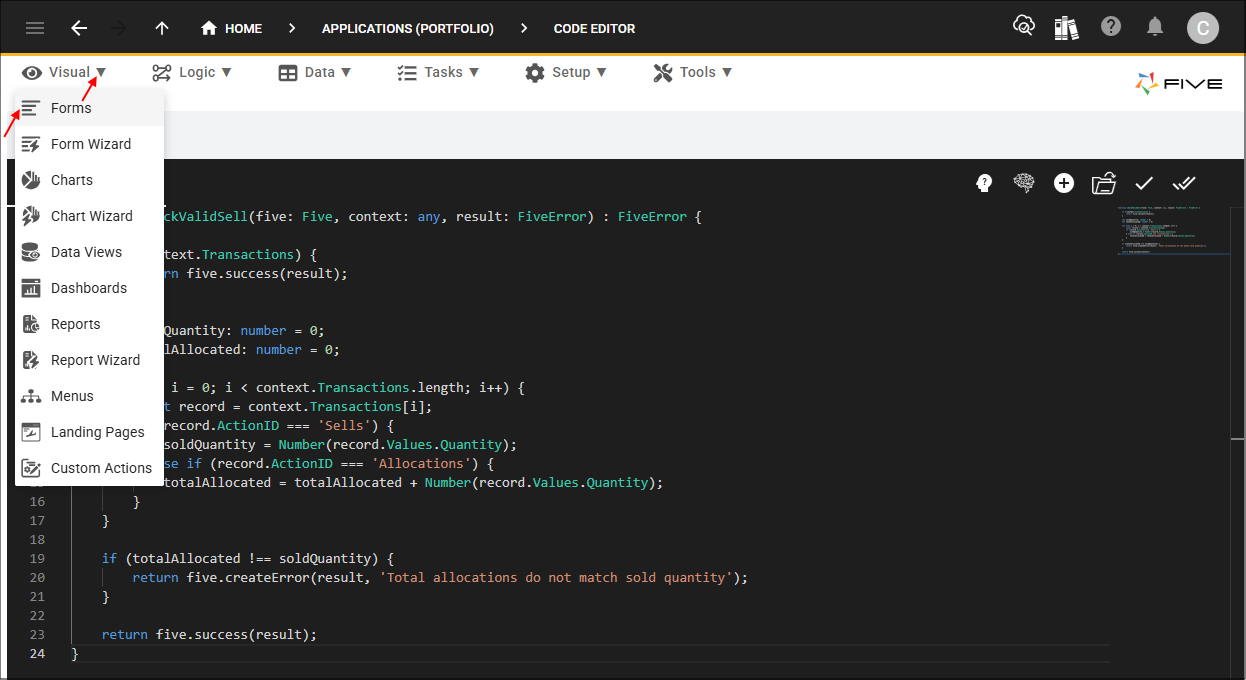
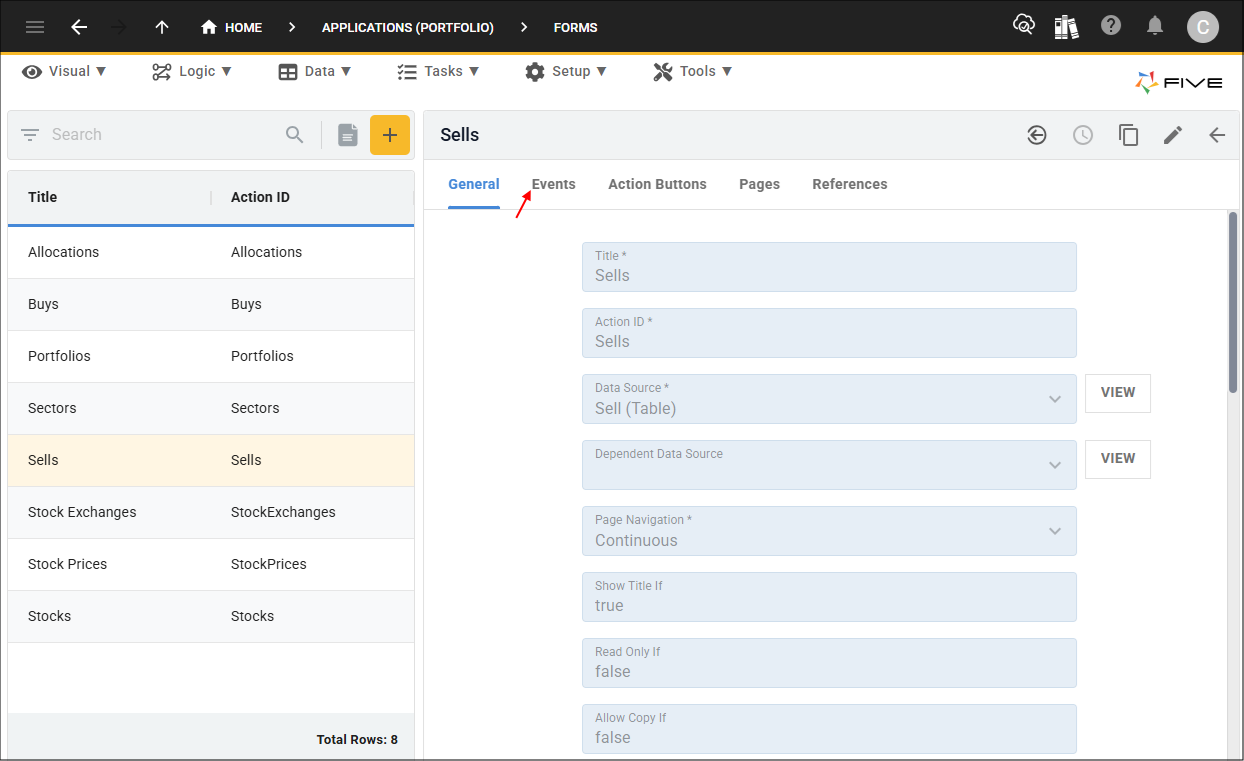
2. Select the Sells record in the list and click the Events tab.
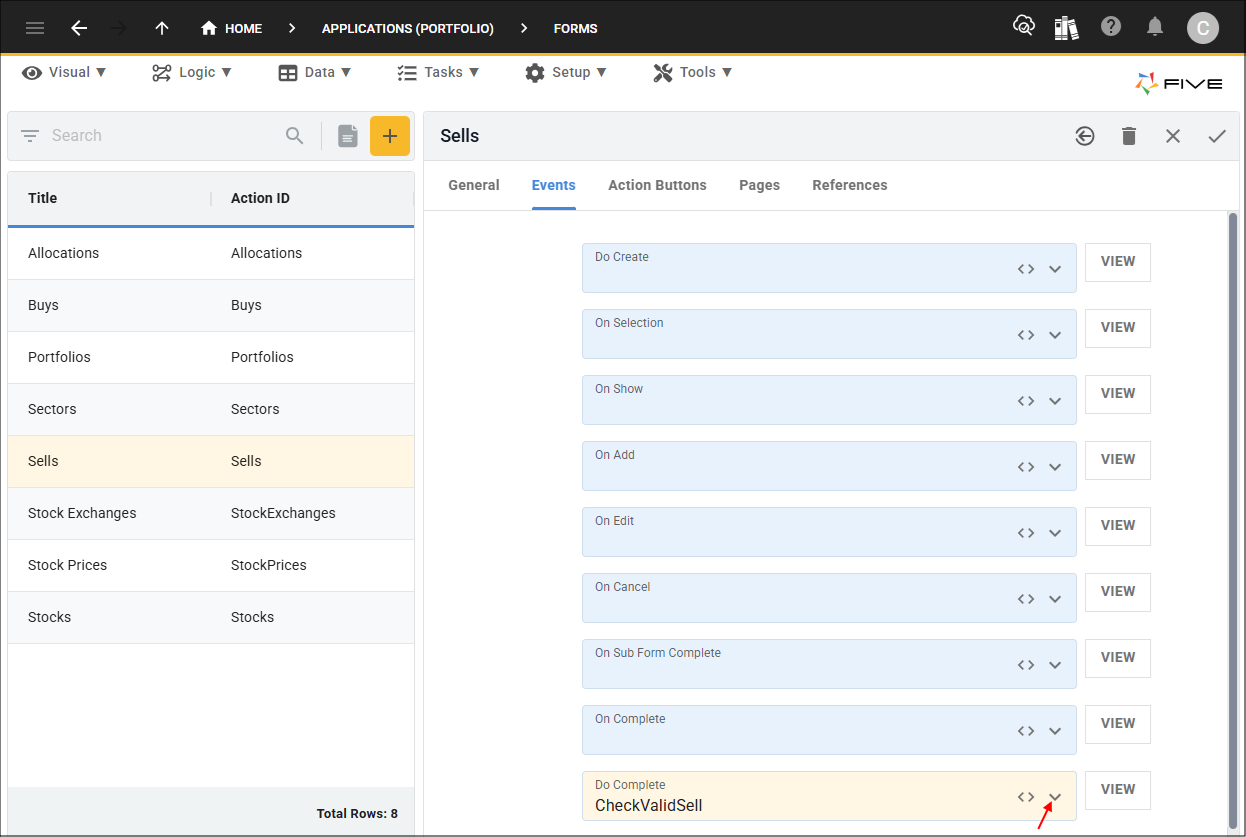
3. Either click the Edit button in the form app bar or click directly in the Do Complete field.
4. Select CheckValidSell in the Do Complete field.
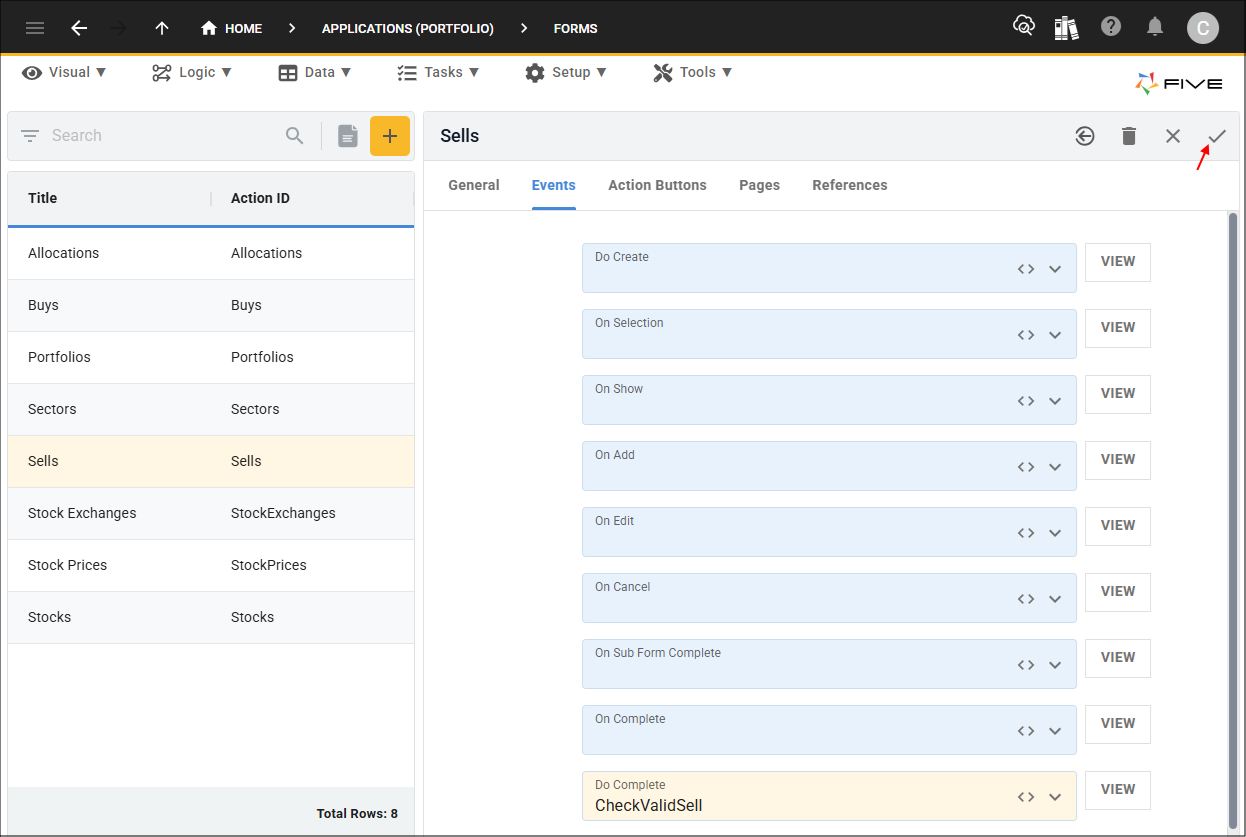
5. Click the Save button in the form app bar.
Test the Sells Form
1. Select the Growth Portfolio record in the list and click the Down button in the form app bar.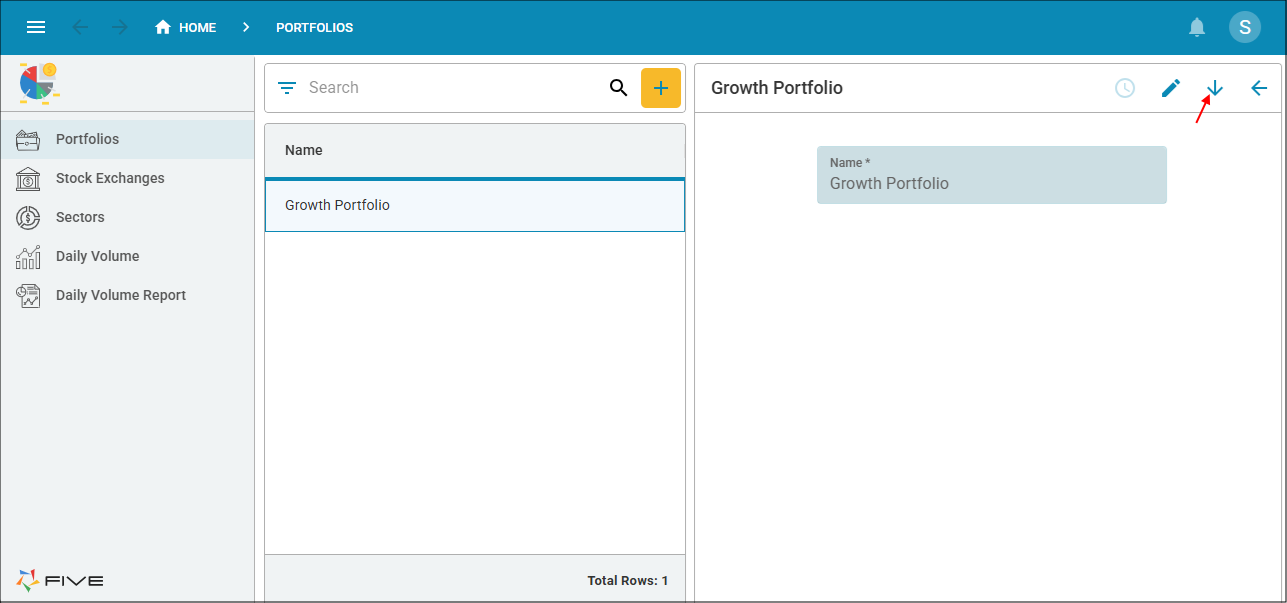
- 2025-11-30 has a purchase of 10000 shares
- 2025-12-02 has a purchase of 3000 shares
We will still be working with the two buy TSLA records:
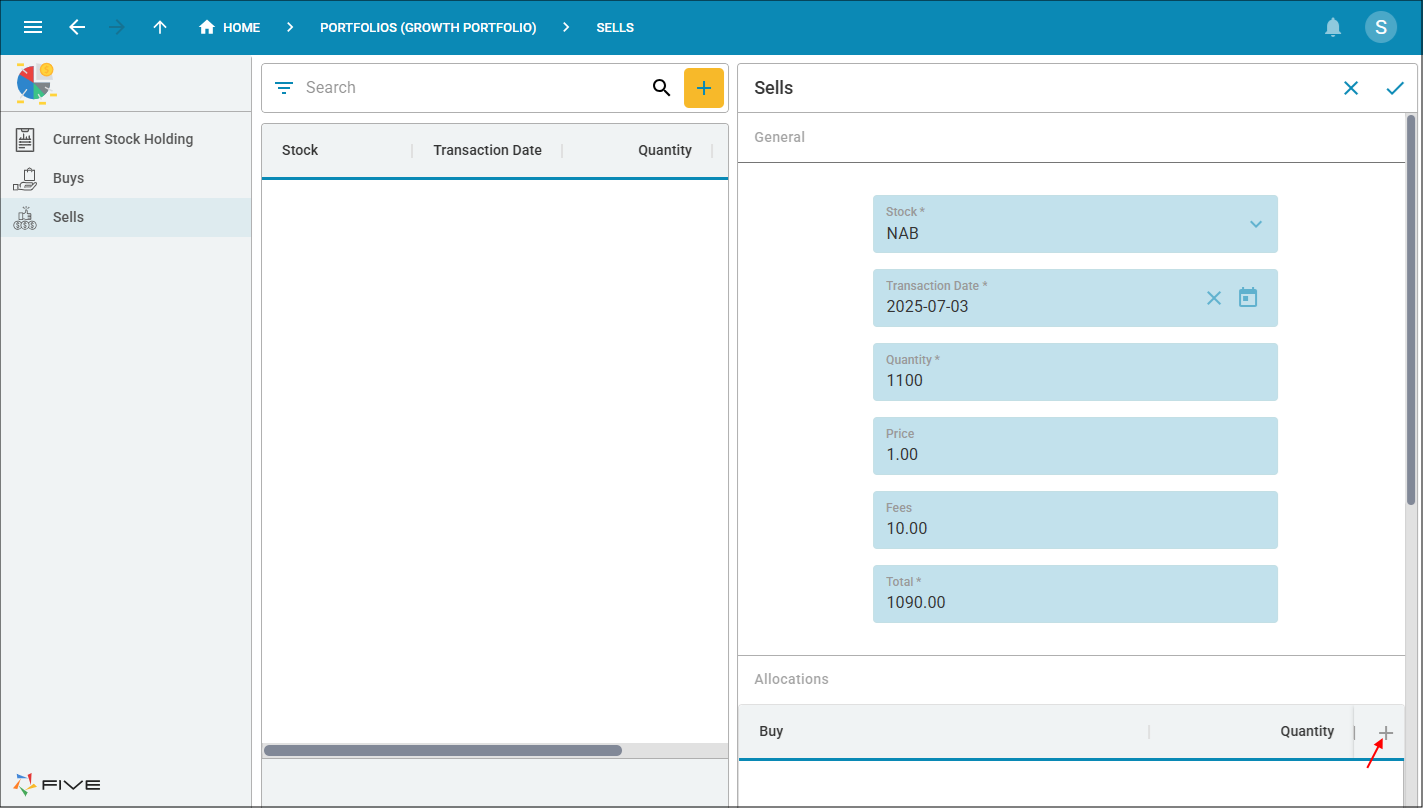
2. Select Sells in the menu and click the Add Item button.
3. Select TSLA in the Stock field and the current date in the Transaction Date field.
4. Type 11000 in the Quantity field, 400.00 in the Price field, 10.00 in the Price field, and press tab.

5. Click the Add Allocations button.
6. Select 2025-11-30 in the Buy field and type 10000 in the Quantity field.
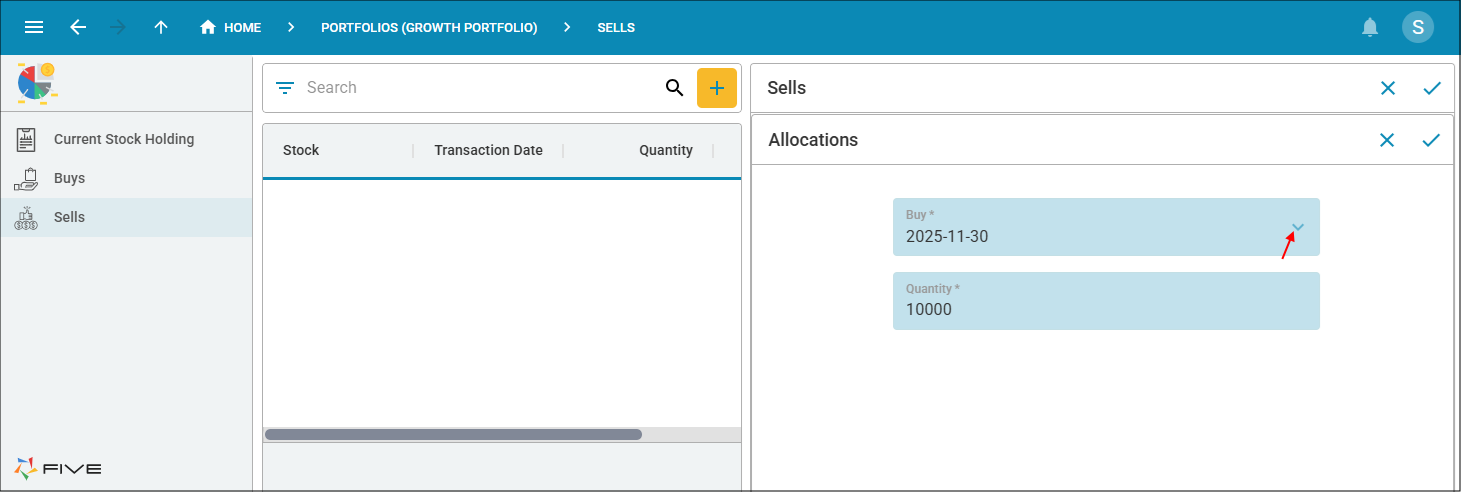
7. Click the Save button in the form app bar.

8. Click the Save button in the form app bar.
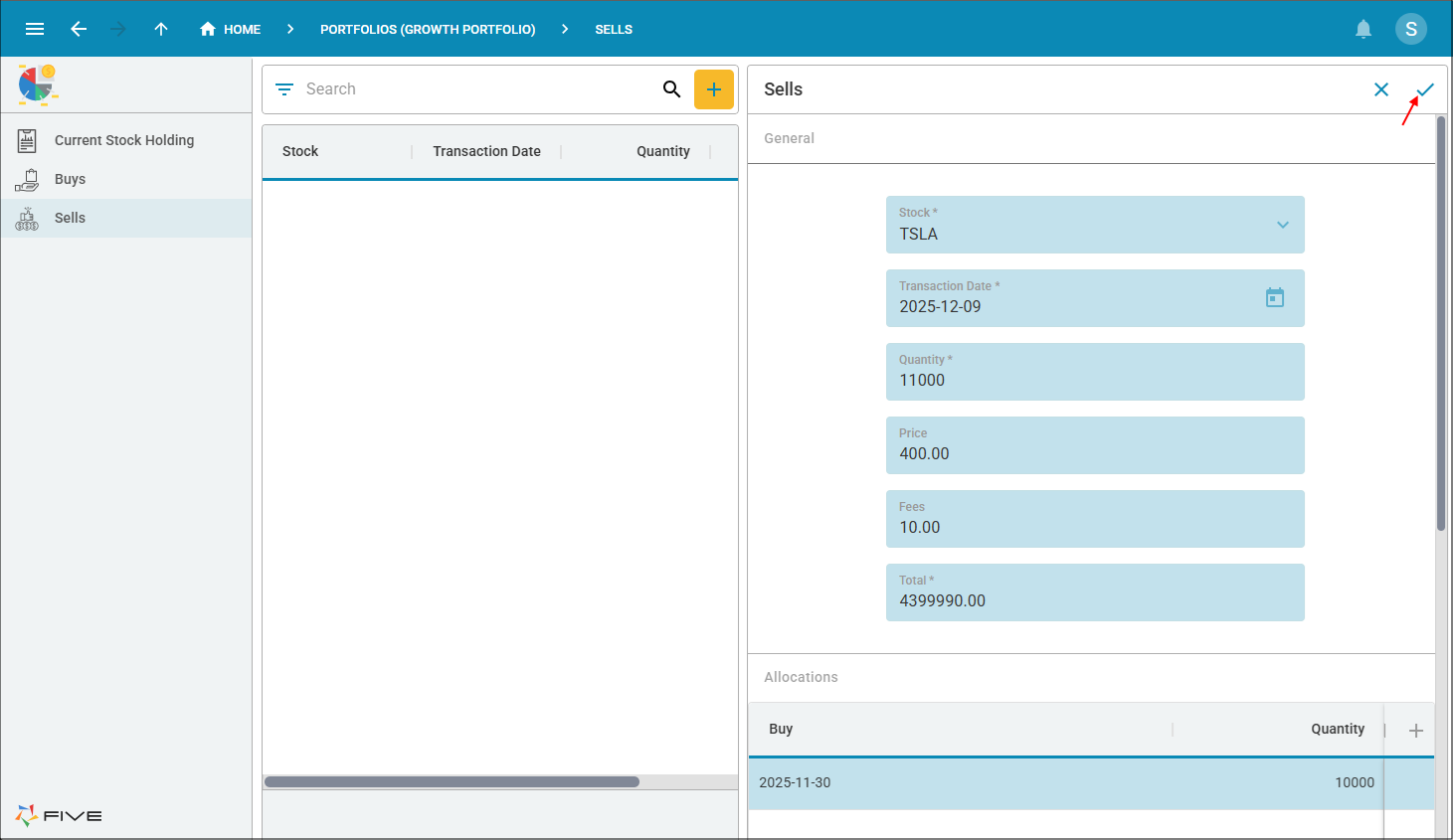
9. Click the OK button.
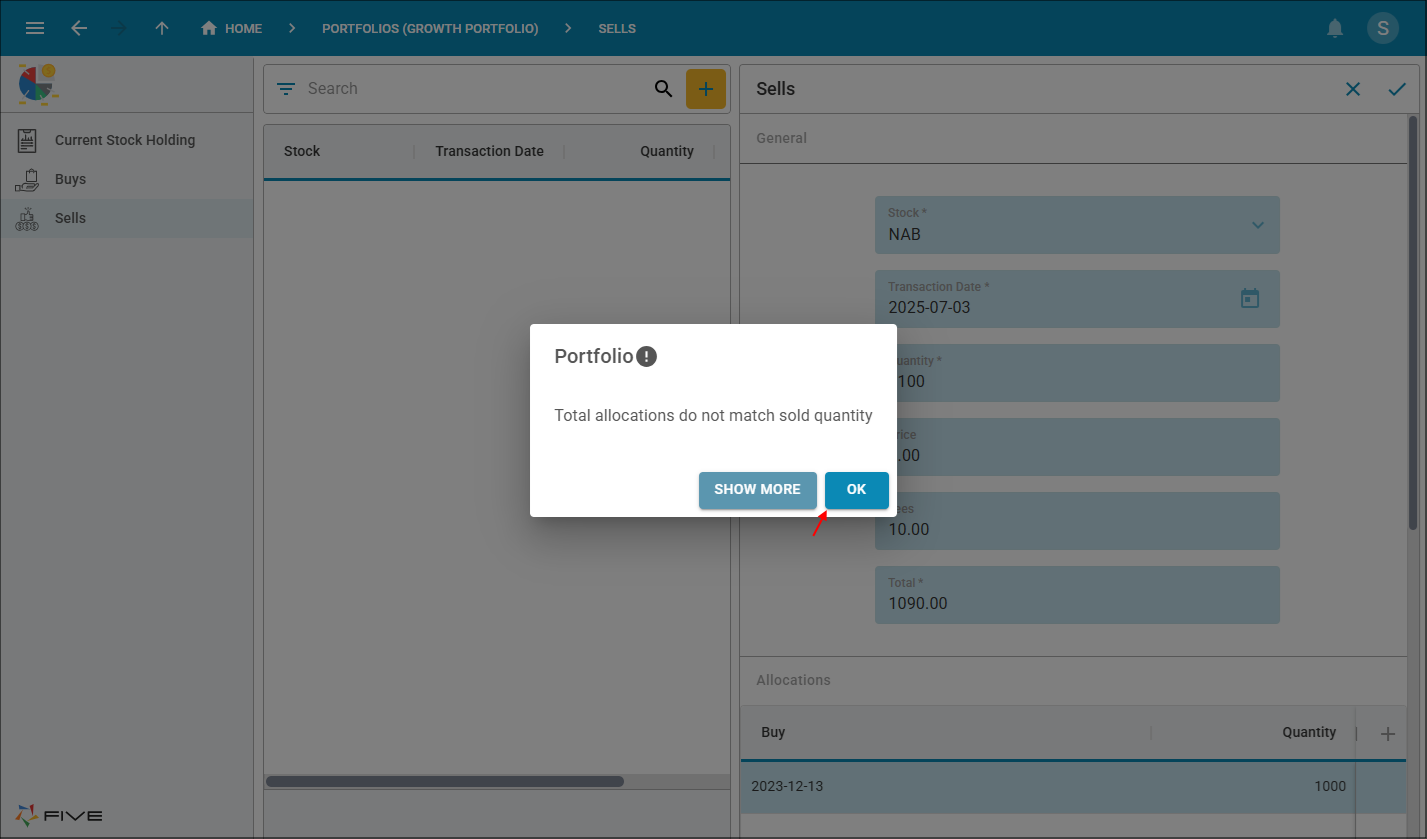
10. Click the Add Allocations button.

11. Select 2025-12-02 in the Buy field and type 1000 in the Quantity field.

12. Click the Save button in the form app bar.

13. Click the Save button in the form app bar.

14. Close the browser tab and return to Five.