4 - Use Metadata in a Query
Last updated 15/12/2025
This documentation will explain how you can create a query with metadata and attach the query to a field with Five's _LookupQuery display type.
A query in Five is a data source and can be used multiple times. The CurrentStockHolding query will be used on the Stock field and on a data view.
When we deployed the Portfolio application, we saw that we were able to select a stock that we do not own to sell as all stocks in the system are listed in the Stock lookup. The CurrentStockHolding query will have metadata that we can use to only list the stocks we own in the Stock field on the Sells form.
In its most minimal form a _LookupQuery display type must have:
- A primary key field to have uniqueness; and
- A value field to display in the lookup list
The CurrentStockHolding query's
The
The
The
Add the CurrentStockHolding Query
1. Click Data in the menu followed by Queries in the sub-menu.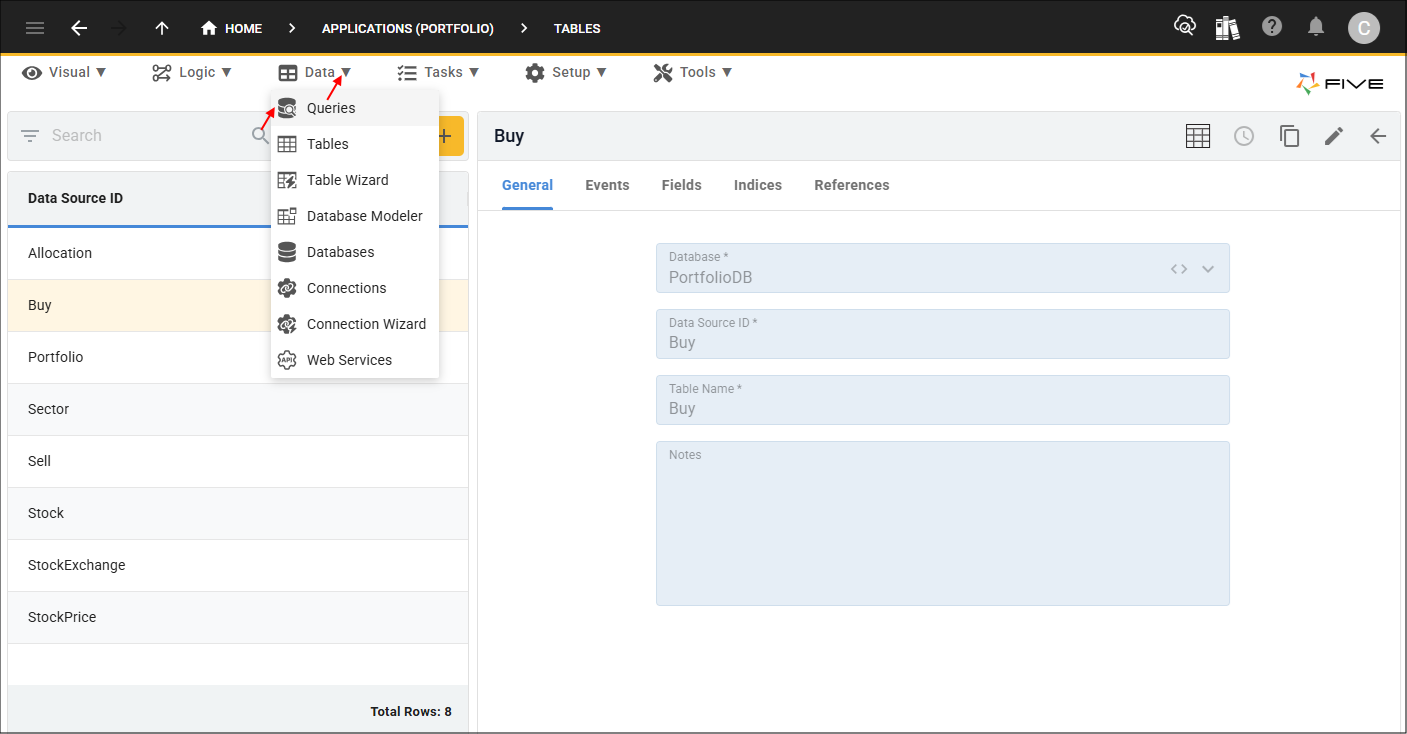
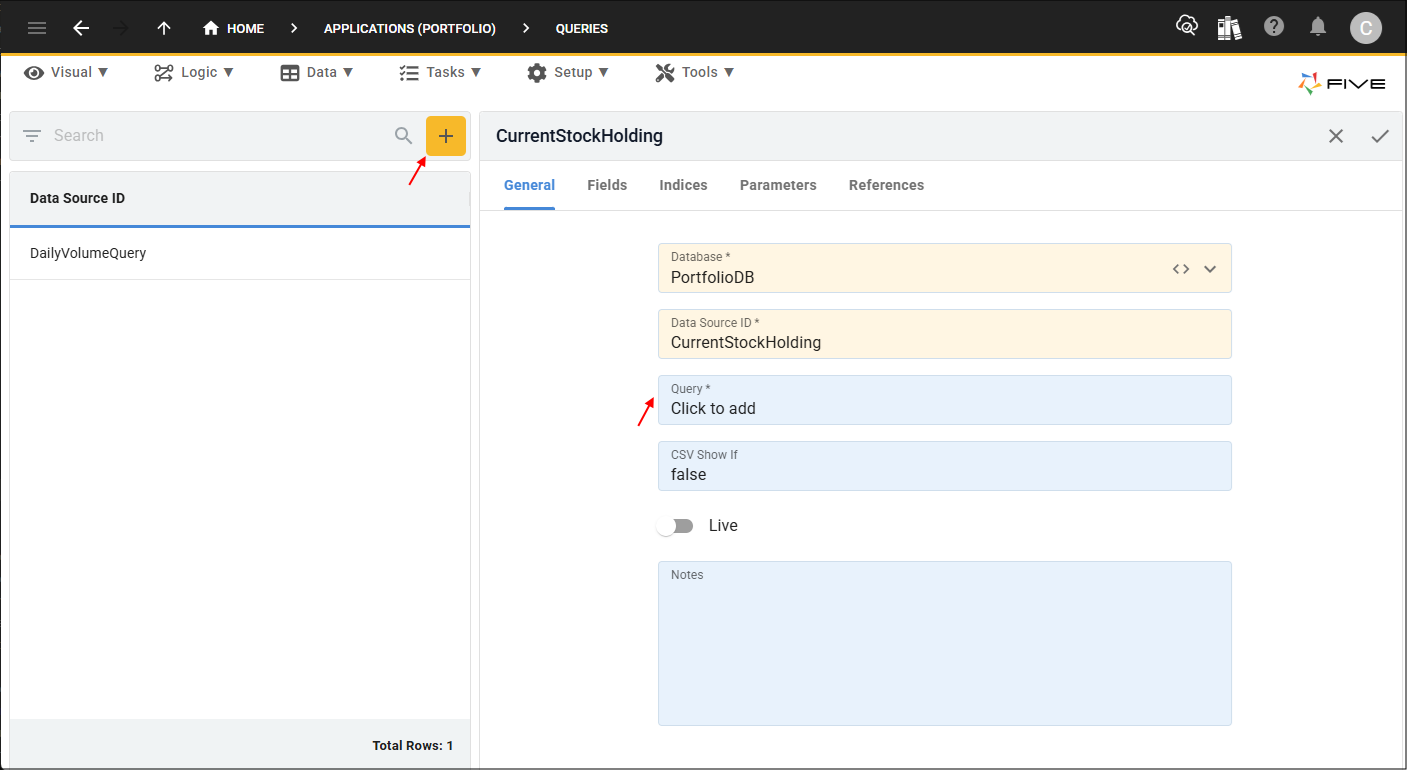
2. Click the Add Item button and type CurrentStockHolding in the Data Source ID field.
3. Click in the Query field to open Five's Query Builder.
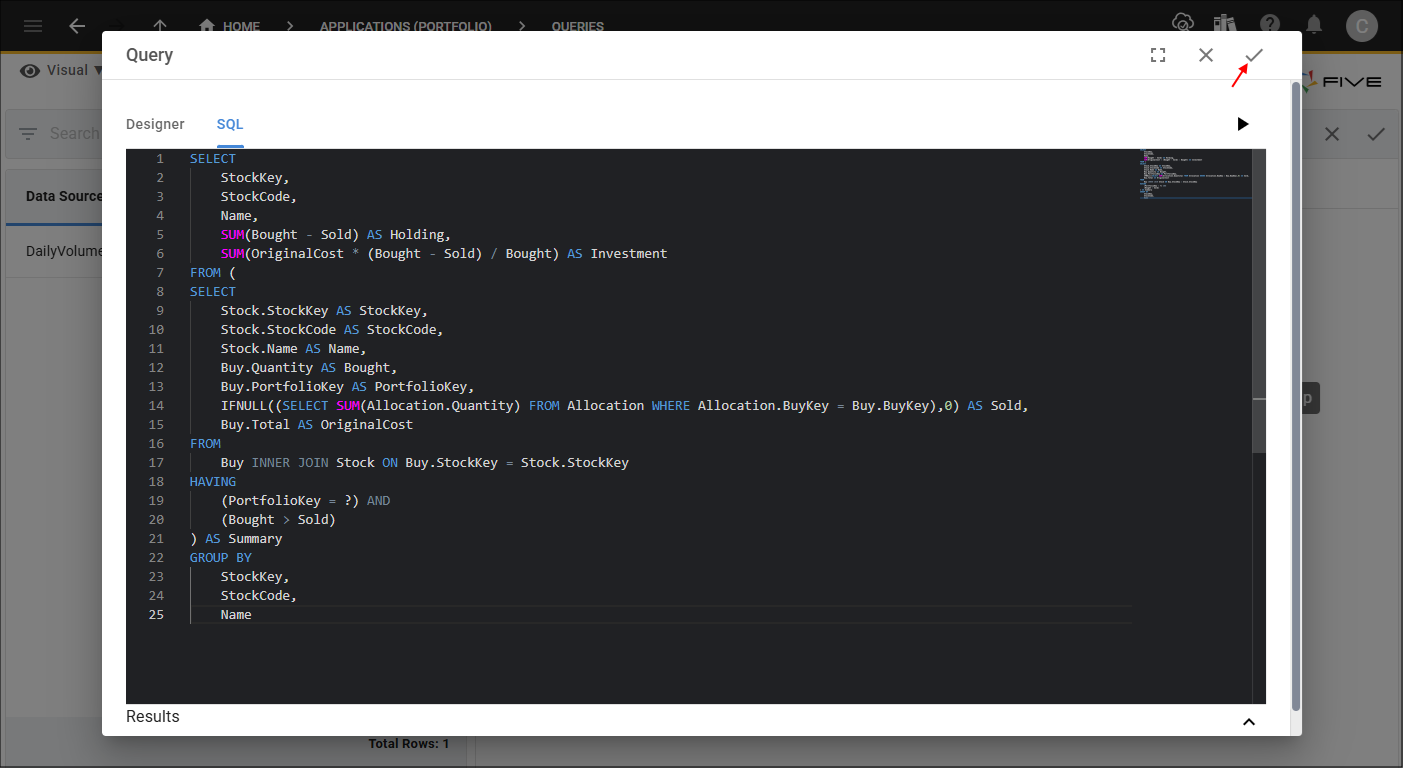
4. Click the SQL tab.

5. Click the Copy button for the syntax below.

SELECT
    StockKey,
    StockCode,
    Name,
    SUM(Bought - Sold) AS Holding,
    SUM(OriginalCost * (Bought - Sold) / Bought) AS Investment
FROM (
SELECT
    Stock.StockKey AS StockKey,
    Stock.StockCode AS StockCode,
    Stock.Name AS Name,
    Buy.Quantity AS Bought,
    Buy.PortfolioKey AS PortfolioKey,
    IFNULL((SELECT SUM(Allocation.Quantity) FROM Allocation WHERE Allocation.BuyKey = Buy.BuyKey),0) AS Sold,
    Buy.Total AS OriginalCost
FROM
    Buy INNER JOIN Stock ON Buy.StockKey = Stock.StockKey
HAVING
    (PortfolioKey = ?) AND
    (Bought > Sold)
) AS Summary
GROUP BY
    StockKey,
    StockCode,
    Name
6. Paste the syntax in the SQL Editor.
7. Click the Save button in the SQL Editor app bar.
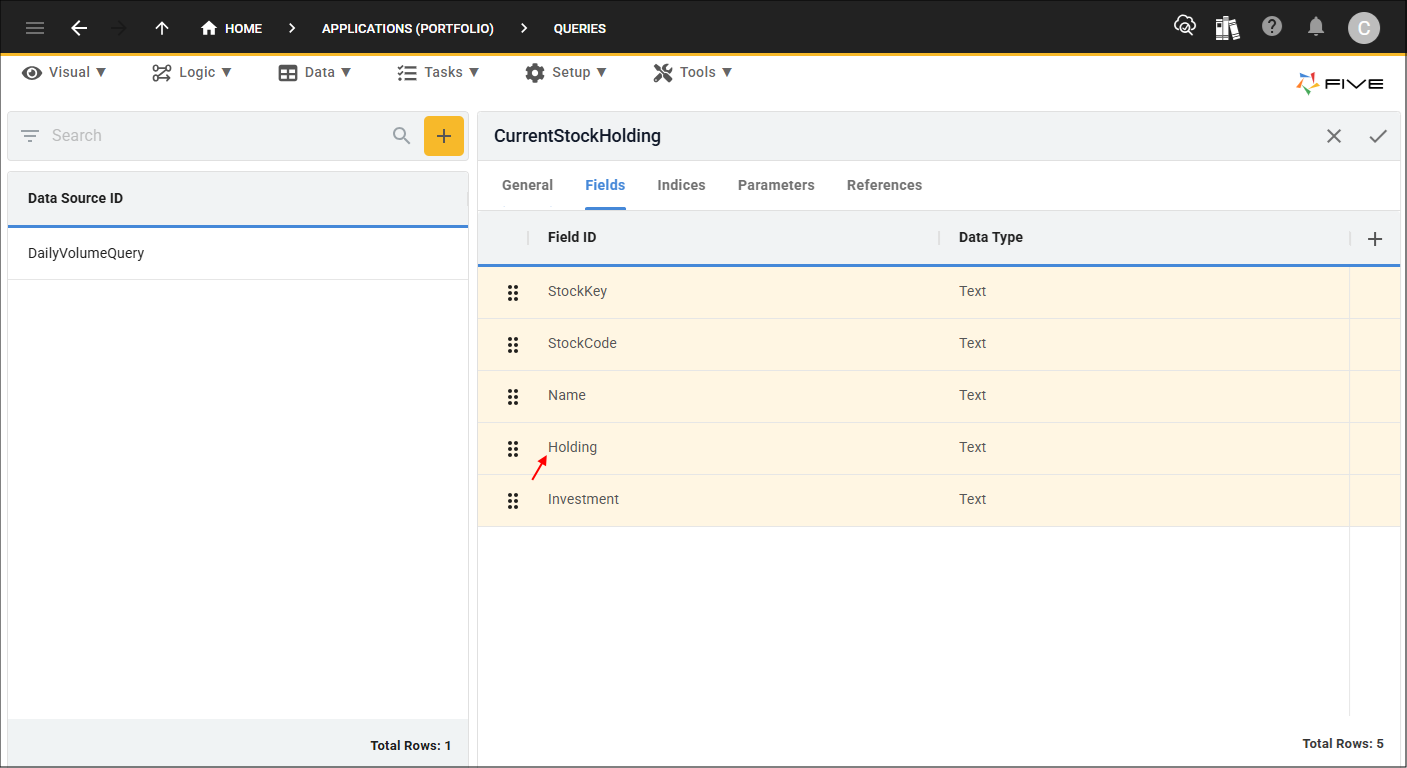
8. Click the Fields tab.

9. Select the Holding record.
10. Edit the following fields:
- Select Integer in the Data Type field
- Type 4 in the Size field
- Select _Integer in the Default Display Type field

11. Click the Save button in the form app bar.

12. Select the Investment record.

13. Edit the following fields:
- Select Float in the Data Type field
- Type 8 in the Size field
- Select _Float.2 in the Default Display Type field
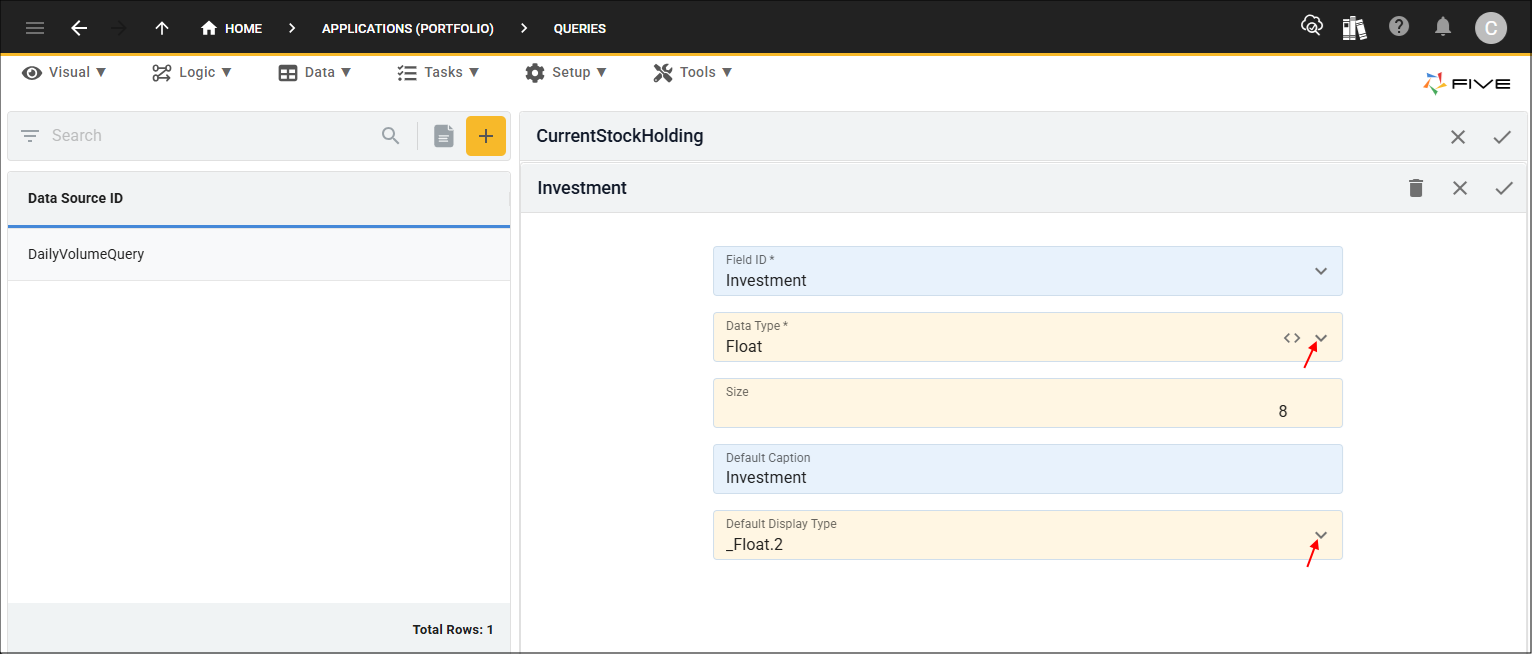
14. Click the Save button in the form app bar.

15. Click the Parameters tab.

16. Click the Add Parameters button.

17. Type PortfolioKey in the Parameter ID field.
18. Type
The

19. Click the Save button in the form app bar.
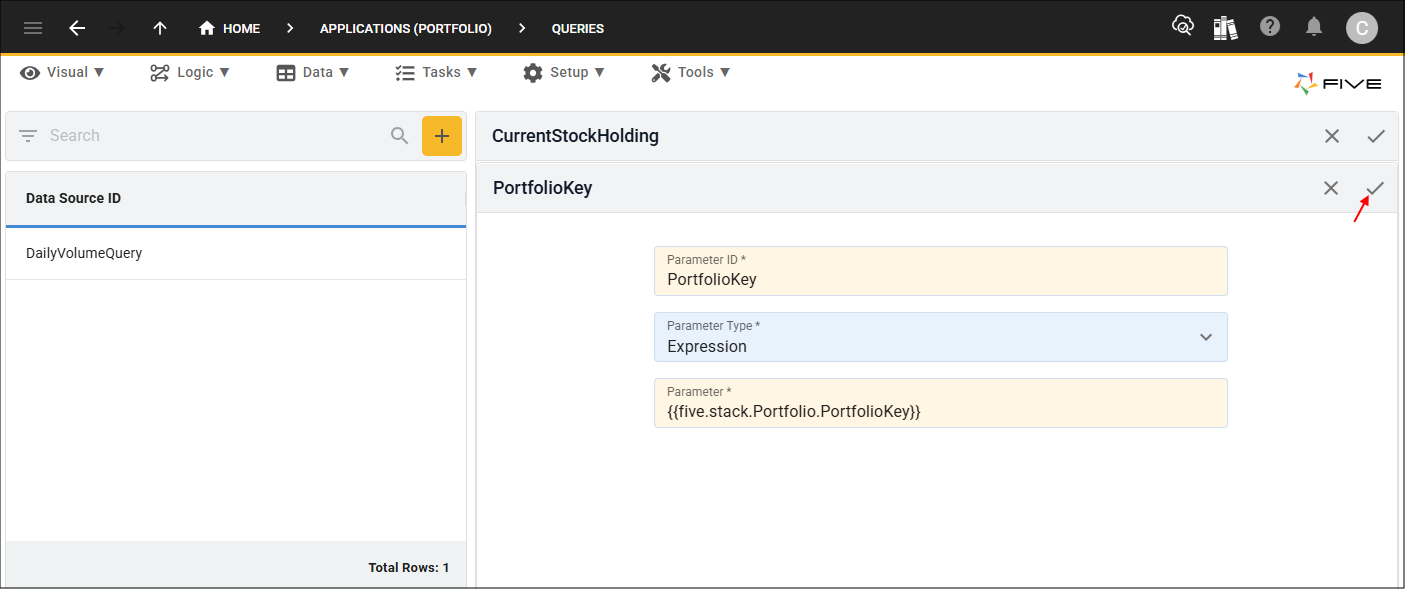
20. Click the Save button in the form app bar above the list.
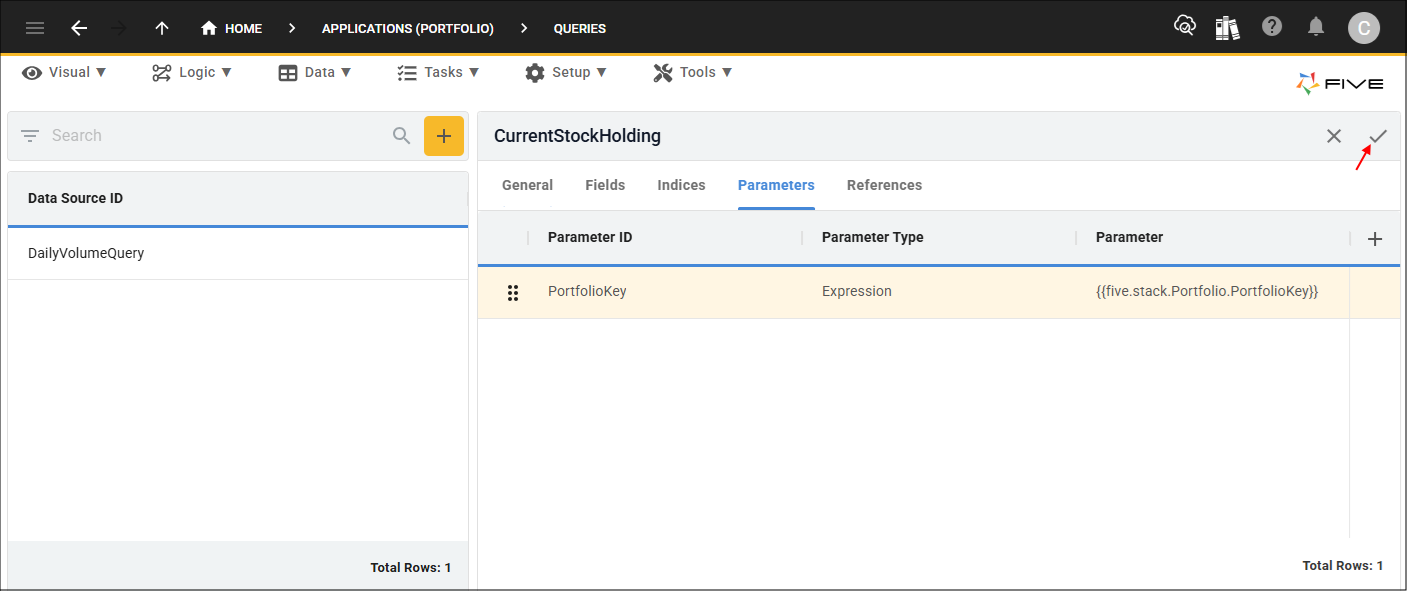
Working with Parameters
TheIf you want to find transactions for just one Portfolio record, you can by setting a parameter type of Constant, this will only pull the data for that particular portfolio.
WHERE PortfolioKey = ‘6b087bf8-110d-4e9f-aff0-59d99858c437’
To use the query repeatedly to get data from different Portfolio records, you can parameterize the query with an Expression and use the
WHERE PortfolioKey = {{five.stack.Portfolio.PortfolioKey}}
Attach the CurrentStockHolding Query
The CurrentStockHolding query needs to be attached to the Stock field on the Sells form using Five's display type _LookupQuery.
Path: Sells form > General page > Stock field
1. Click Visual in the menu followed by Forms in the sub-menu.
2. Select the Sells record in the list and click the Pages tab.

3. Select the General record.
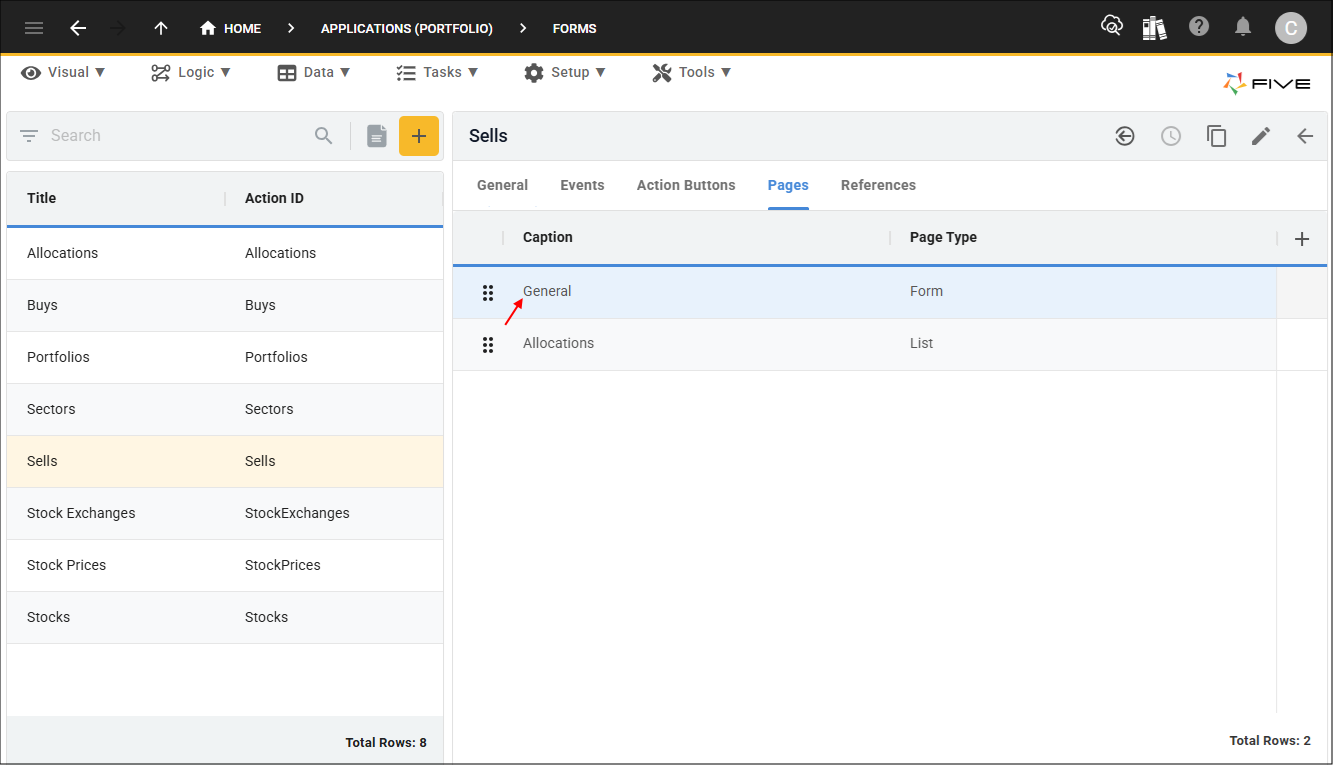
4. Click the Fields tab.
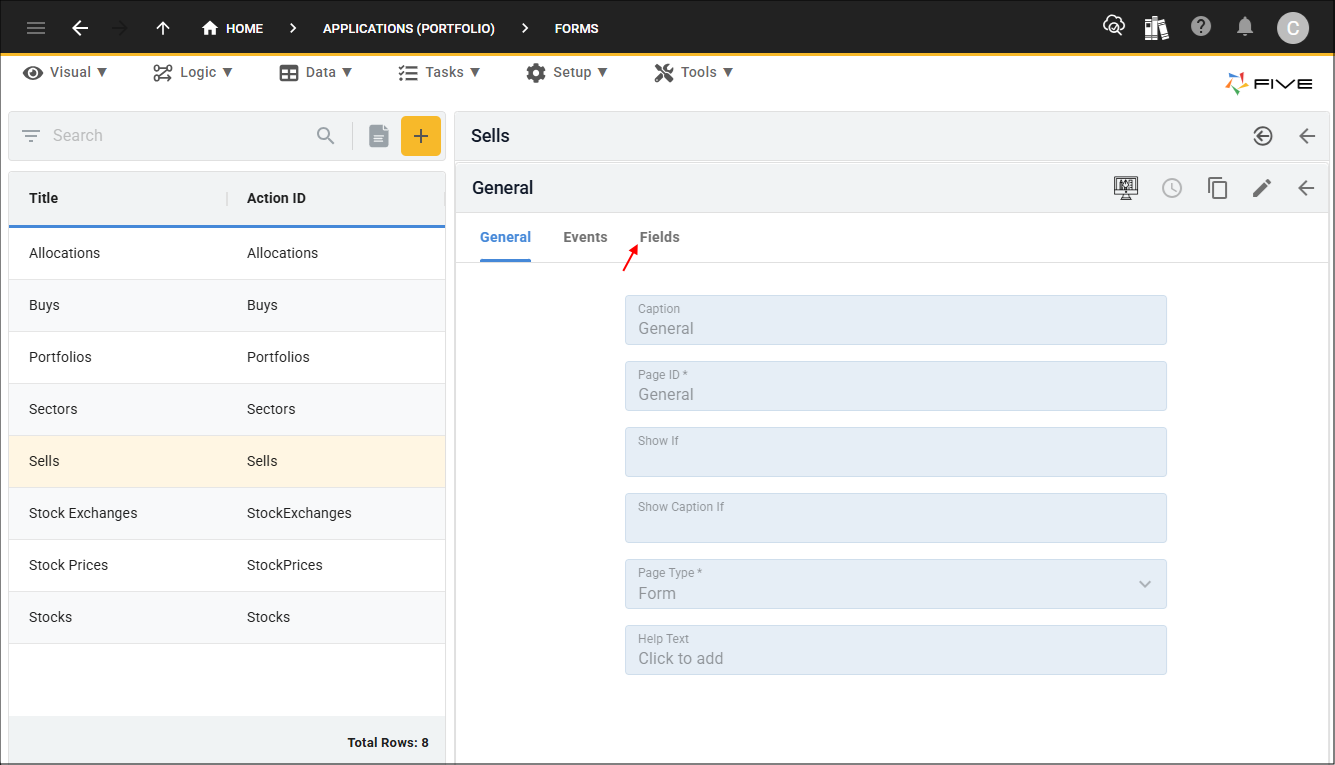
5. Select the Stock record.
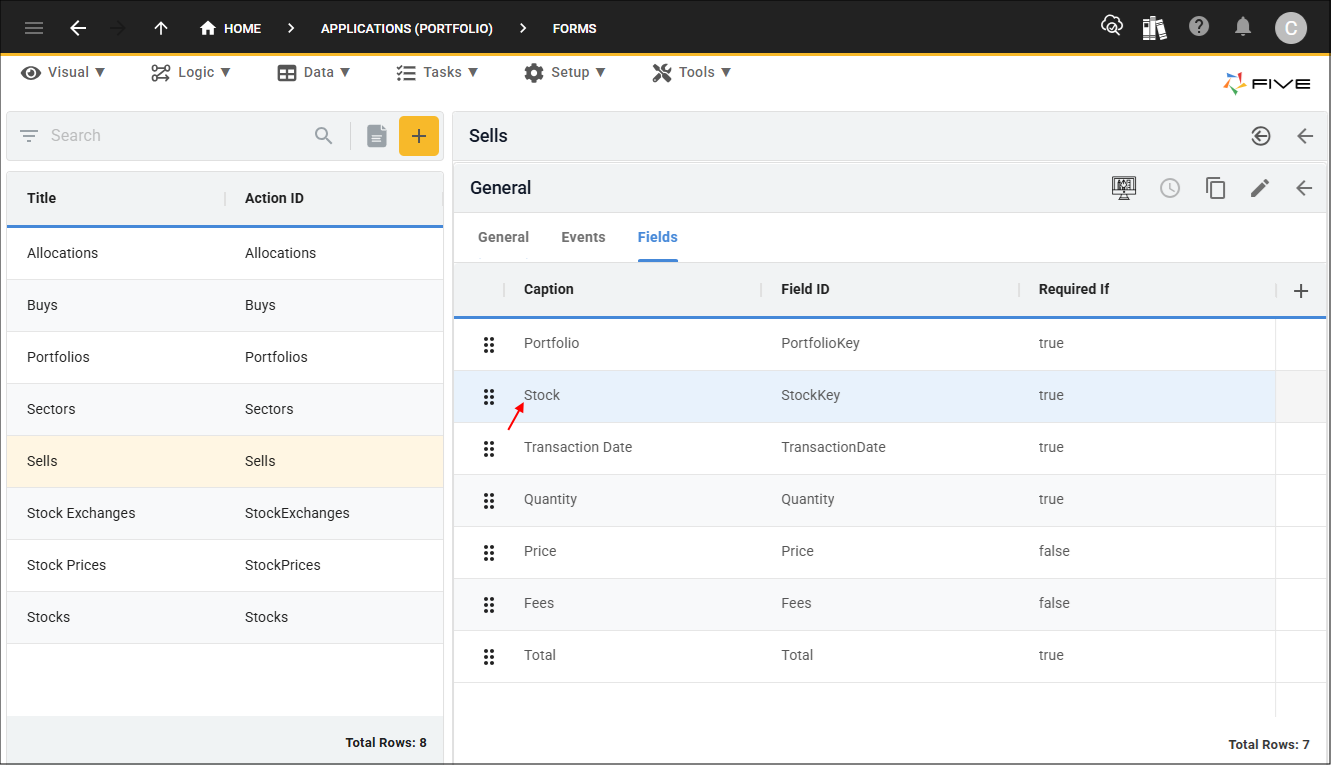
6. Either click the Edit button in the form app bar or click directly in the Display Type field.
7. Select _LookupQuery in the Display Type field, click the Cancel button in the Reference Form field, and select CurrentStockHolding in the Lookup Data Source field.

8. Click the Save button in the form app bar.
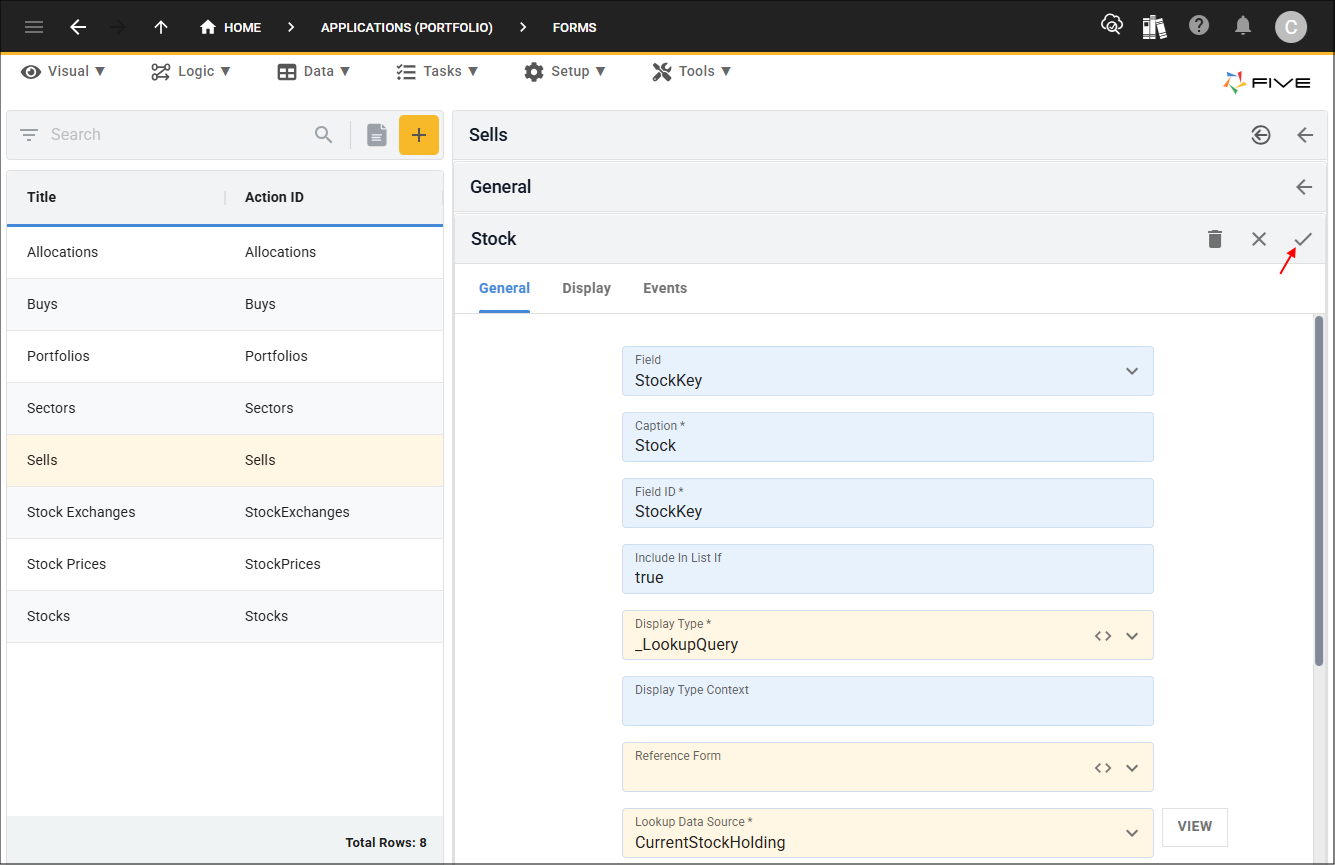
9. Click the Save button in the form app bar above the list.

Add the Current Stock Holding Data View
The Current Stock Holding data view needs to be created using the CurrentStockHolding query as the data source so we can view the results in the Portfolio application.
1. Click Visual in the menu followed by Data Views in the sub-menu.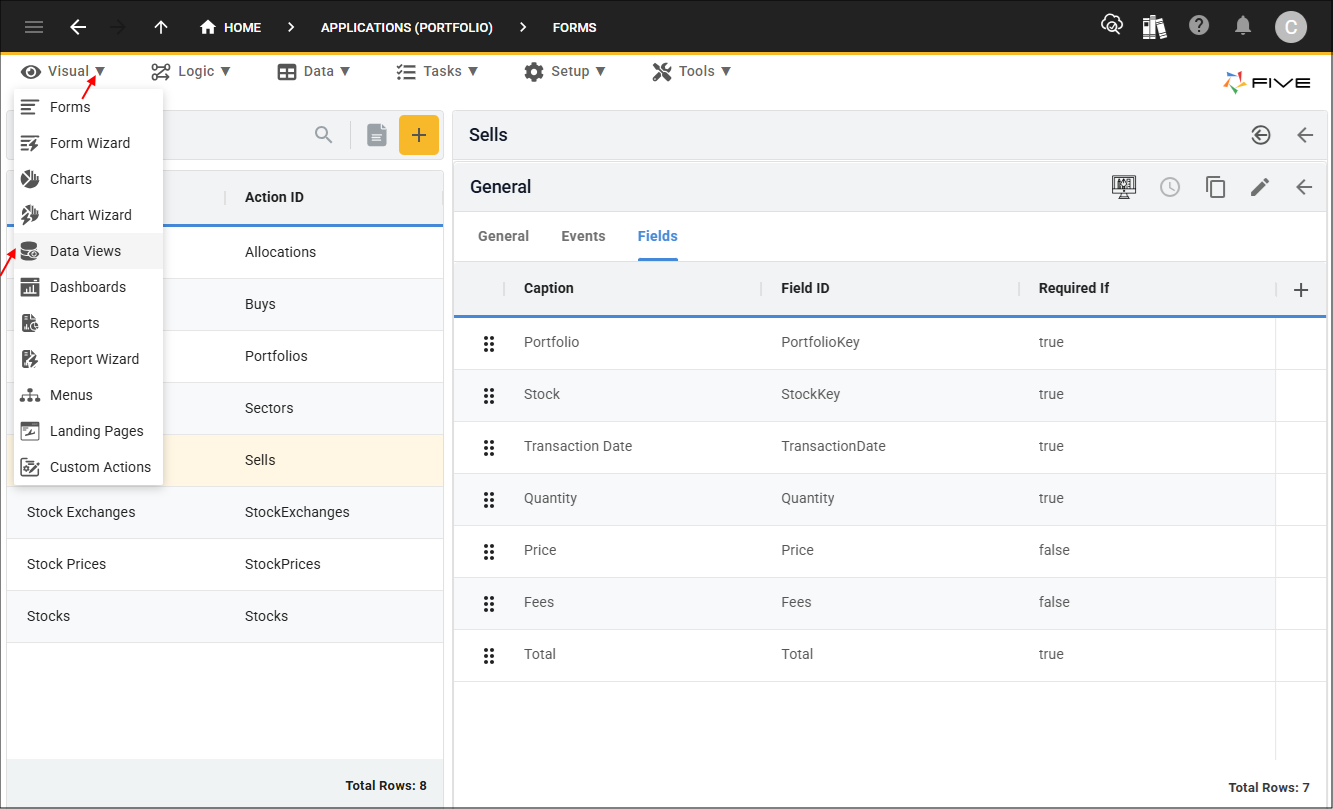
2. Click the Add Item button and type Current Stock Holding in the Title field.
3. Select CurrentStockHolding (Query) in the Data Source field.

4. Click the Data Fields tab.

5. Select the StockKey record.

6. Edit the Show If field and type
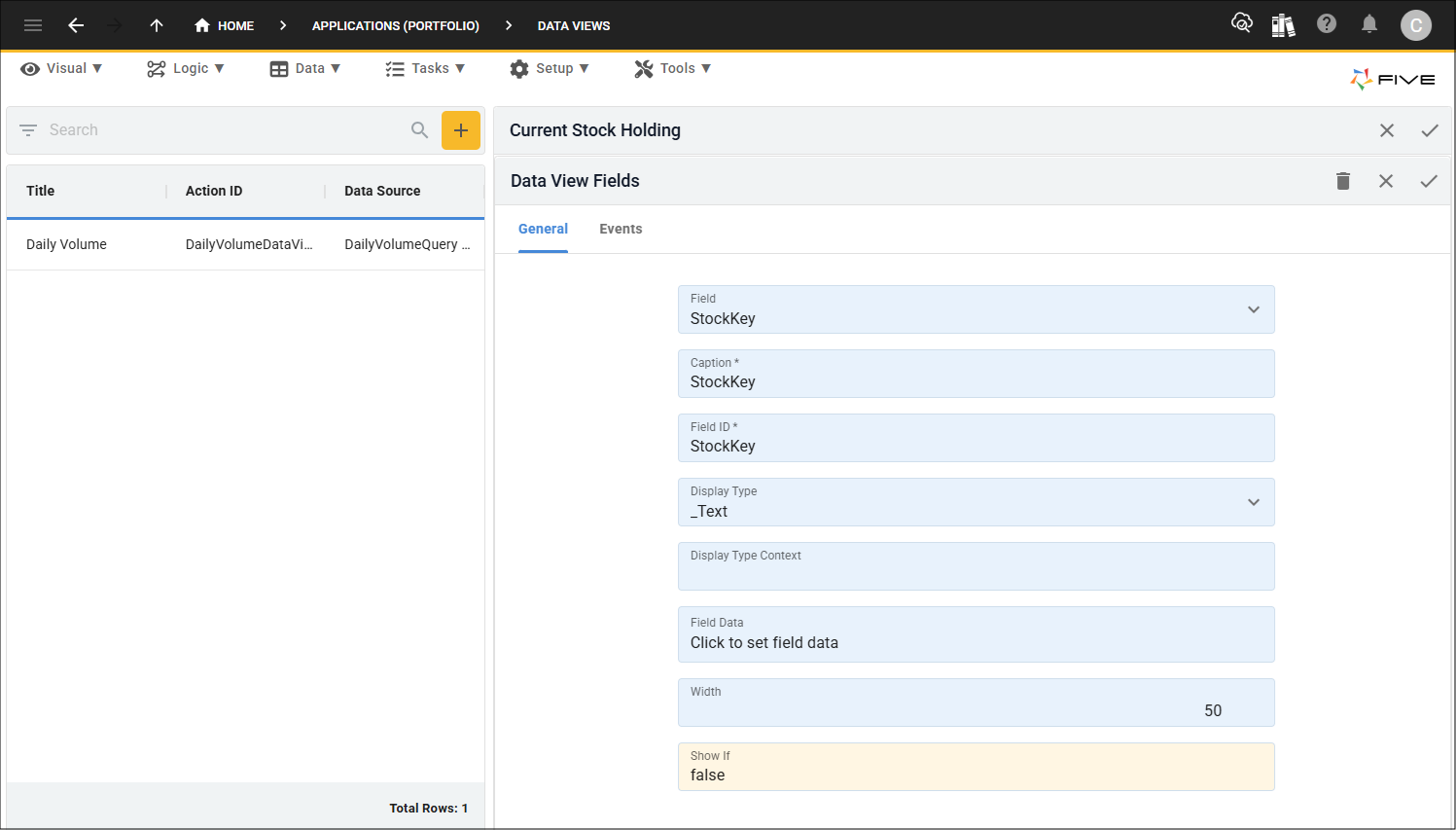
7. Click the Save button in the form app bar.

8. Select the StockCode record.

9. Edit the following fields:
- Add a space between Stock and Code
- Click the Cancel button in the Width field and type 30

10. Click the Save button in the form app bar.

11. Repeat the same steps in the Width field for the Name, Holding, and Investment records.
12. On completion, click the Save button in the form app bar above the list.

Add the Current Stock Holding Menu
1. Click Visual in the menu followed by Menus in the sub-menu.
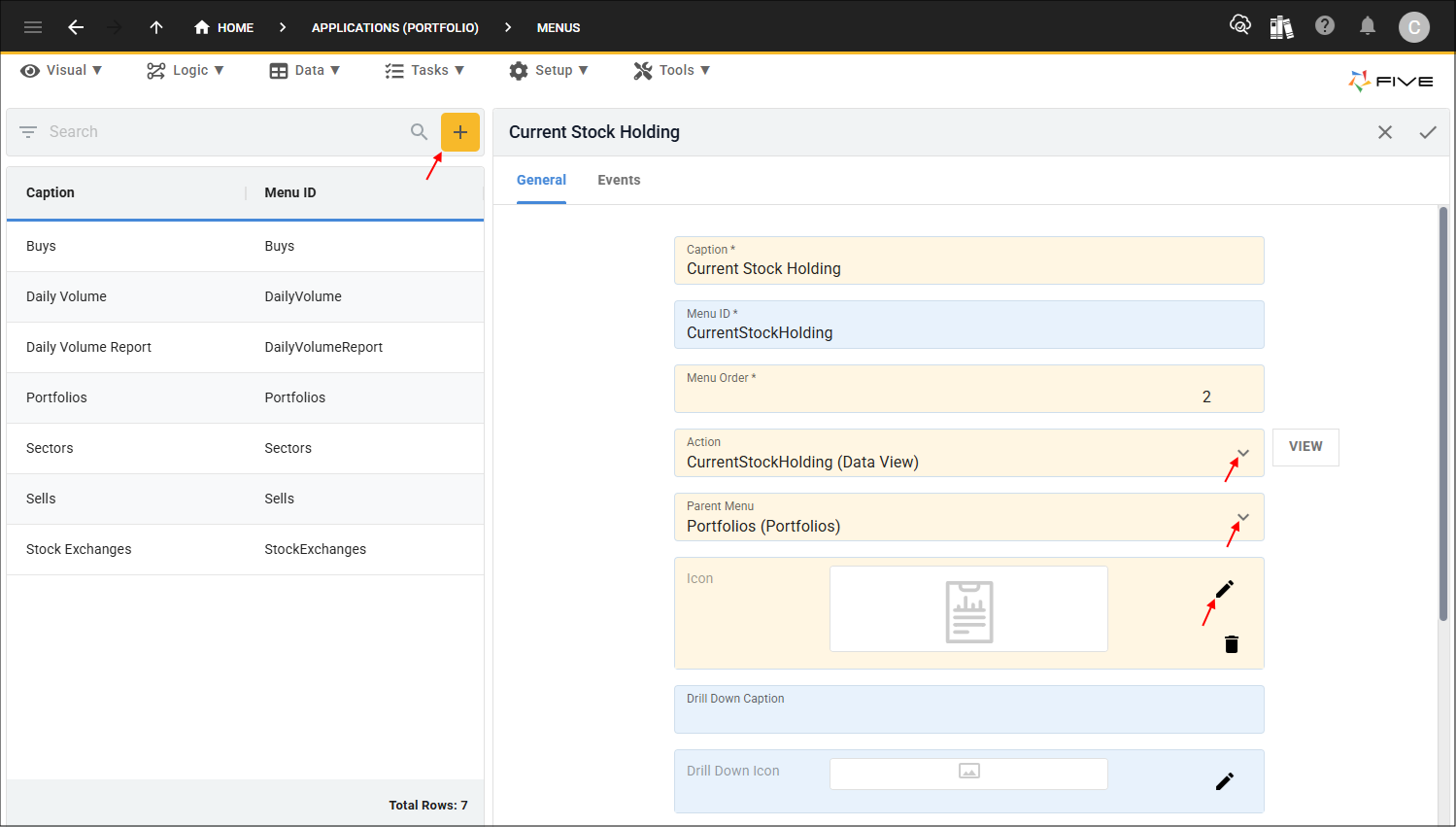
2. Click the Add Item button and type Current Stock Holding in the Caption field.
3. Type 2 in the Menu Order field, select CurrentStockHolding (Data View) in the Action field, and select Portfolios (Portfolios) in the Parent Menu field.
4. Optional: Click the Edit button in the Icon field and open an image file.
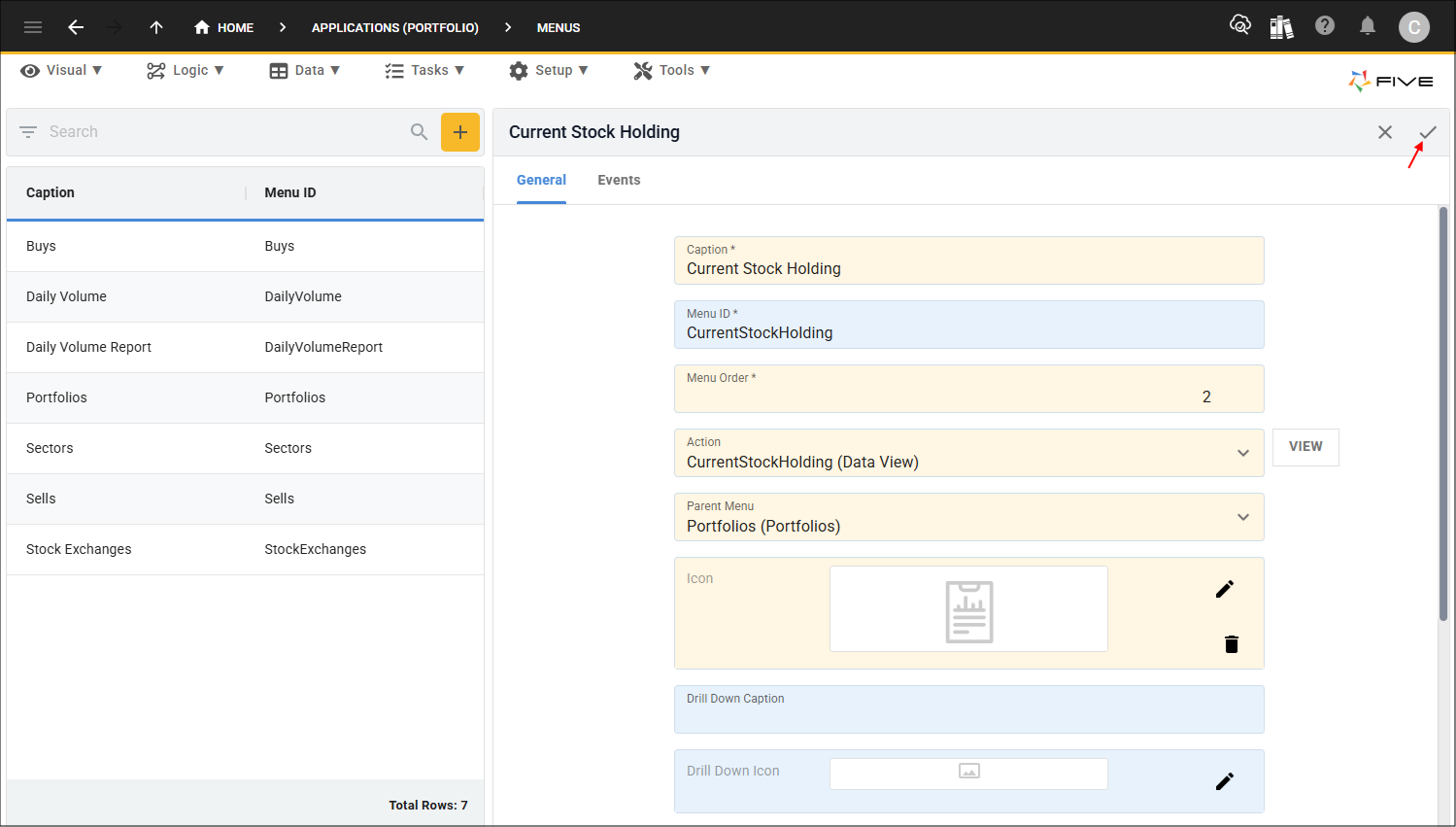
5. Click the Save button in the form app bar.
Edit Menu Records
The Buys and Sells menus were created by the Form Wizard, these need to be reordered.
Edit the Buys Menu
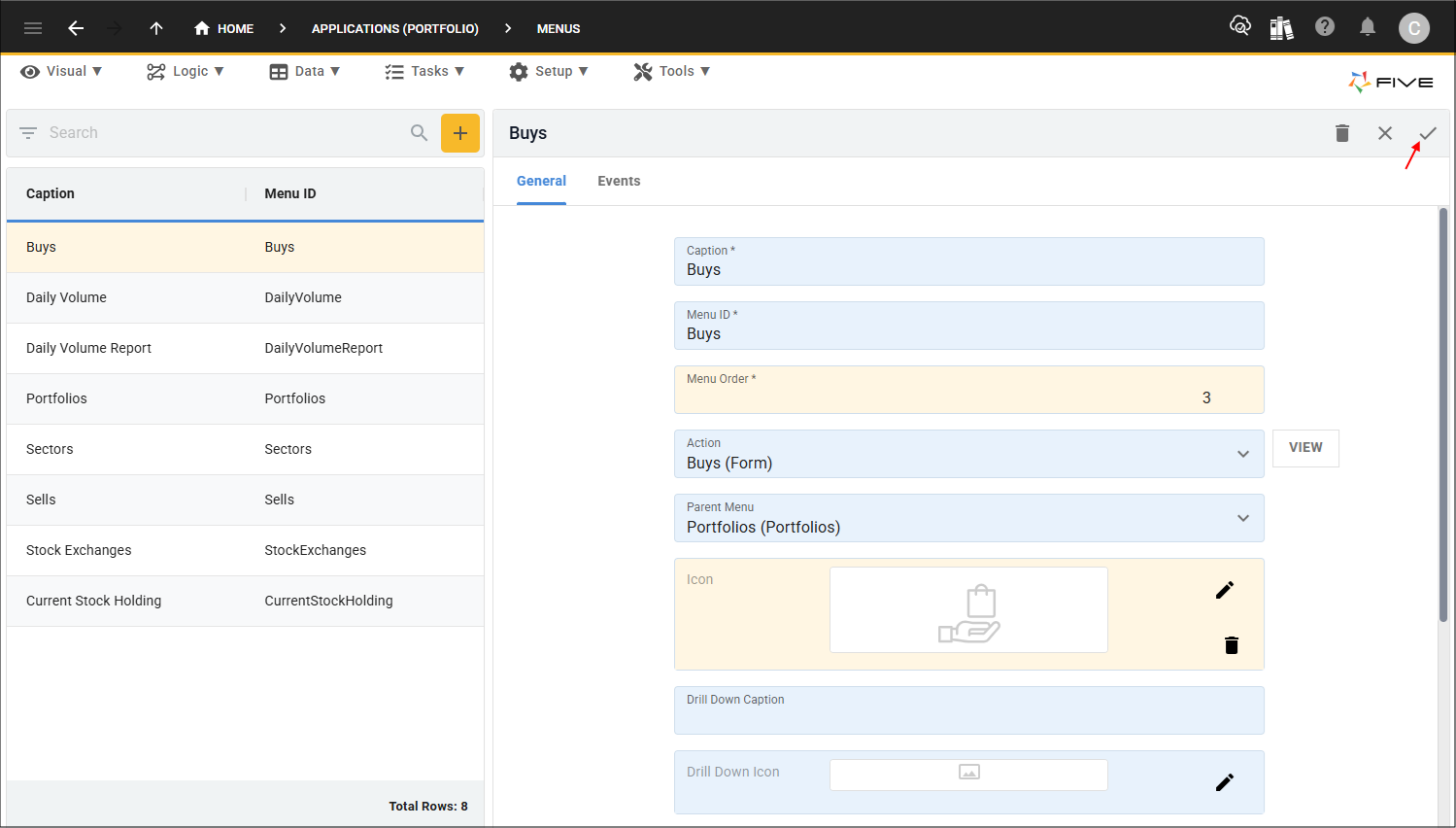
1. Select the Buys record in the list and click the Edit button in the form app bar.2. Click the Cancel button in the Menu Order field and type 3.
3. Optional: Click the Edit button in the Icon field and open an image file.
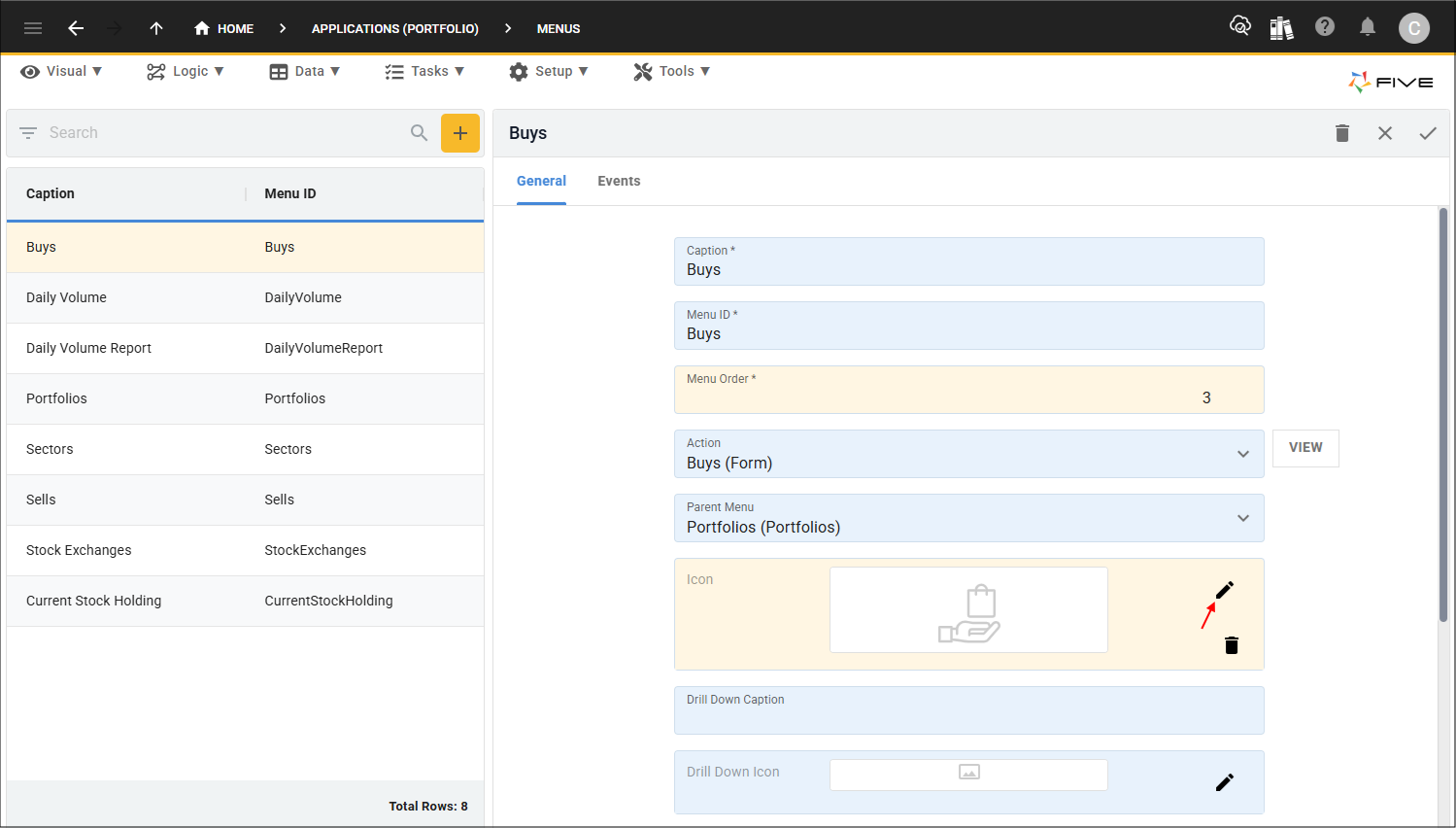
4. Click the Save button in the form app bar.
Edit the Sells Menu
1. Select the Sells record in the list and click the Edit button in the form app bar.2. Click the Cancel button in the Menu Order field and type 4.
3. Optional: Click the Edit button in the Icon field and open an image file.

4. Click the Save button in the form app bar.

Test the Current Stock Holding Data View
1. Select the Growth Portfolio record in the list and click the Down button in the form app bar.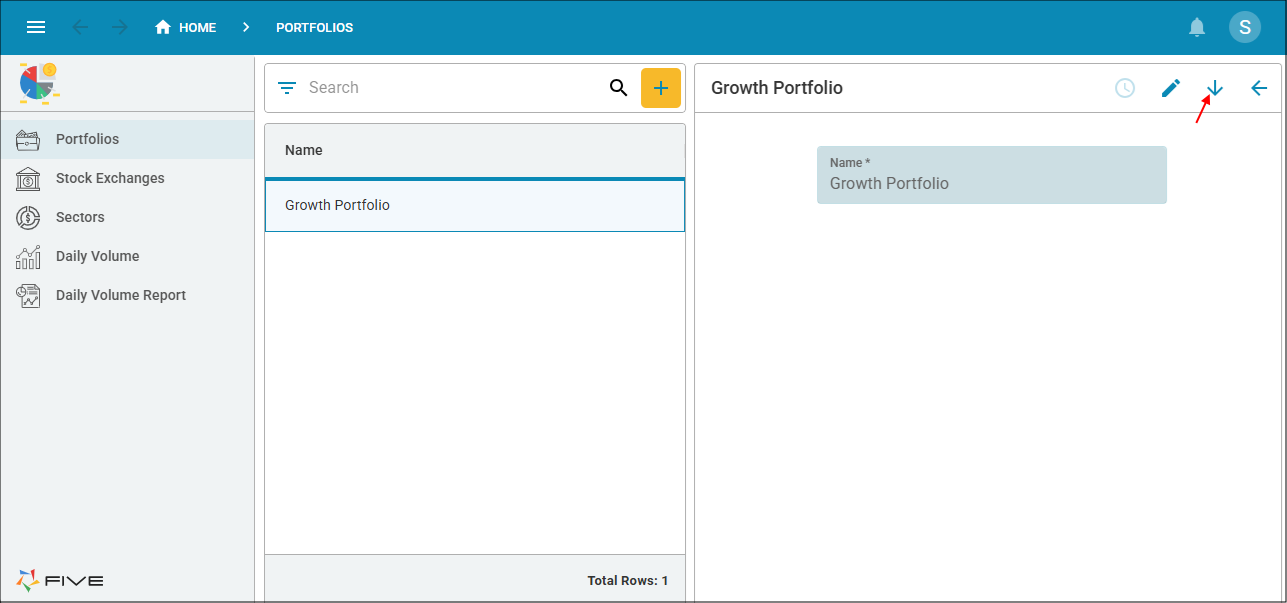
The first thing we now see in the child menu is the Current Stock Holding data view and it shows us the stock we own with our share holding, and what we have invested. These are the results from the CurrentStockHolding query attached to the data view.

Test the Sells Form
1. Select Sells in the menu and click the Add Item button.2. Click the lookup icon in the Stock field.
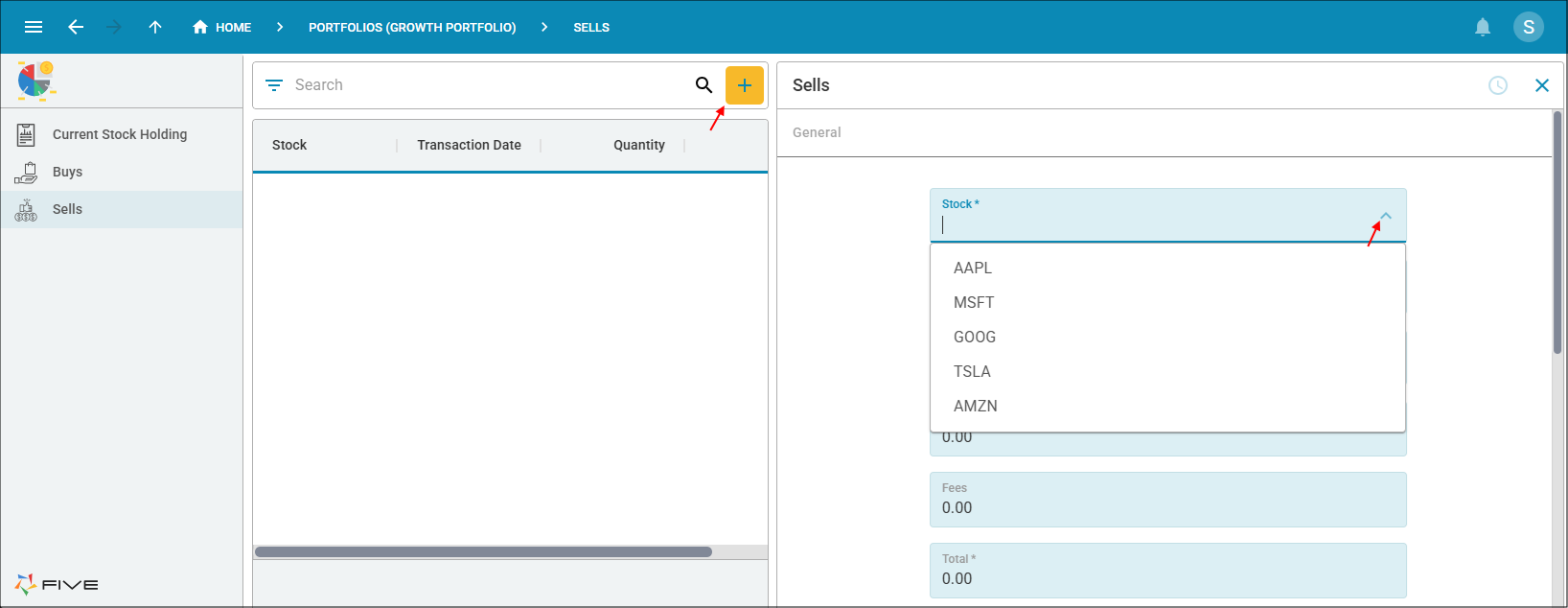
3. Select AAPL in the Stock field.
4. Type 16000 in the Quantity field, press tab.
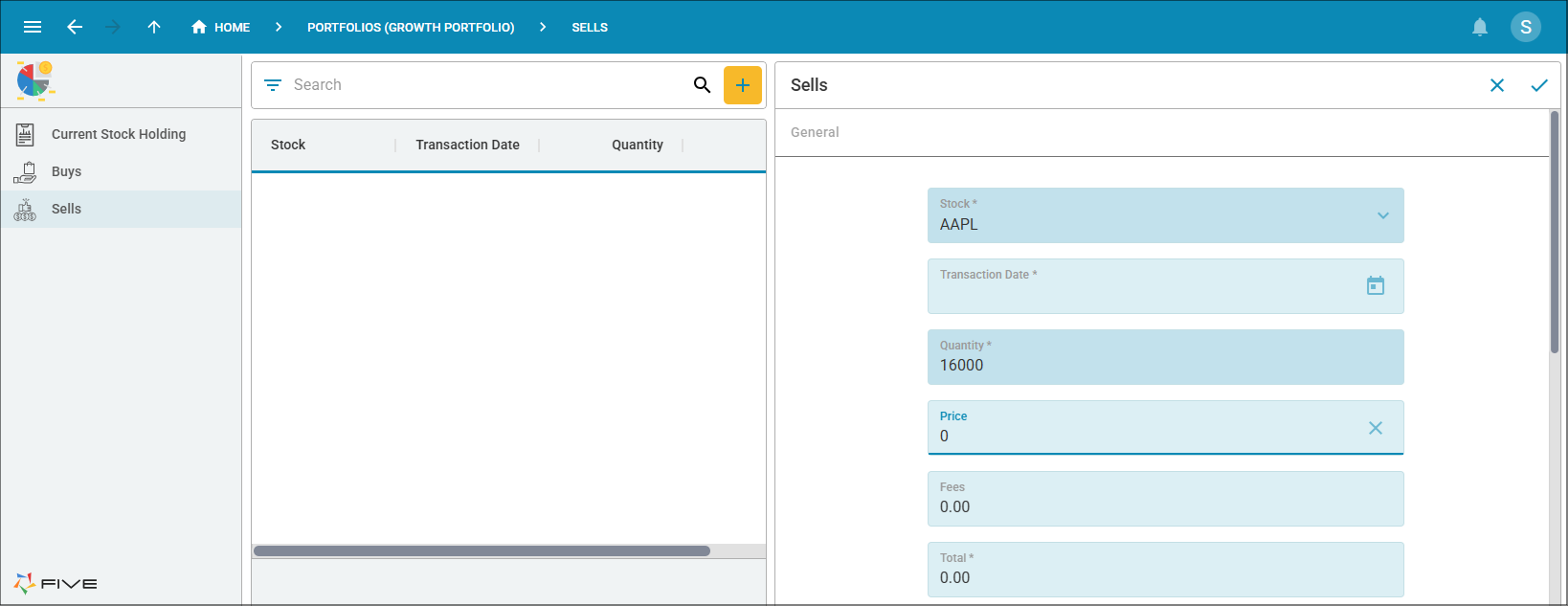
5. Click the Cancel button in the form app bar.

6. Close the browser tab and return to Five.