12 - Select Actions

Last updated 16/12/2025

This documentation will explain how you can use Five's

function to open another action without leaving the current menu. Because you stay on the current menu, you can then use Five's
previousAction()
function to return to the previous action.

tip
In the How To Guides chapter, you can learn how to use all of Five's action navigation functions!

Five's

selectAction()
function will be used for when we click on a slice of the Investment By Sector pie chart, this will then display a data view filtered by the sector slice that was clicked. The data view will have an action button that will return us to the previous action through the use of Five's
previousAction()
function.

To do this the following steps are performed:

  • Add the StocksInSector query to filter the stock belonging to each sector
  • Add the Stocks In Sector data view to display the results from the StocksInSector query
  • Add the
    ClickSector()
    function which uses Five's
    selectAction()
    function
  • Attach the
    ClickSector()
    function to the On Click event for the Investment by Sector chart area dataset
  • Add the
    PreviousAction()
    function which uses Five's
    previousAction()
    function to return to the chart
  • Add the Back To Chart action button on the Stocks In Sector data view and attach the
    PreviousAction()
    function to the On Press event to return to us to the previous action when clicked

Add the StocksInSector Query

The StocksInSector query's

SELECT
statement selects the
Stock.StockCode
and
Stock.Name
fields from the
Stock
table.

The

Stock
table is joined to the
Sector
table with a
WHERE
condition to filter the stocks belonging to the sector.

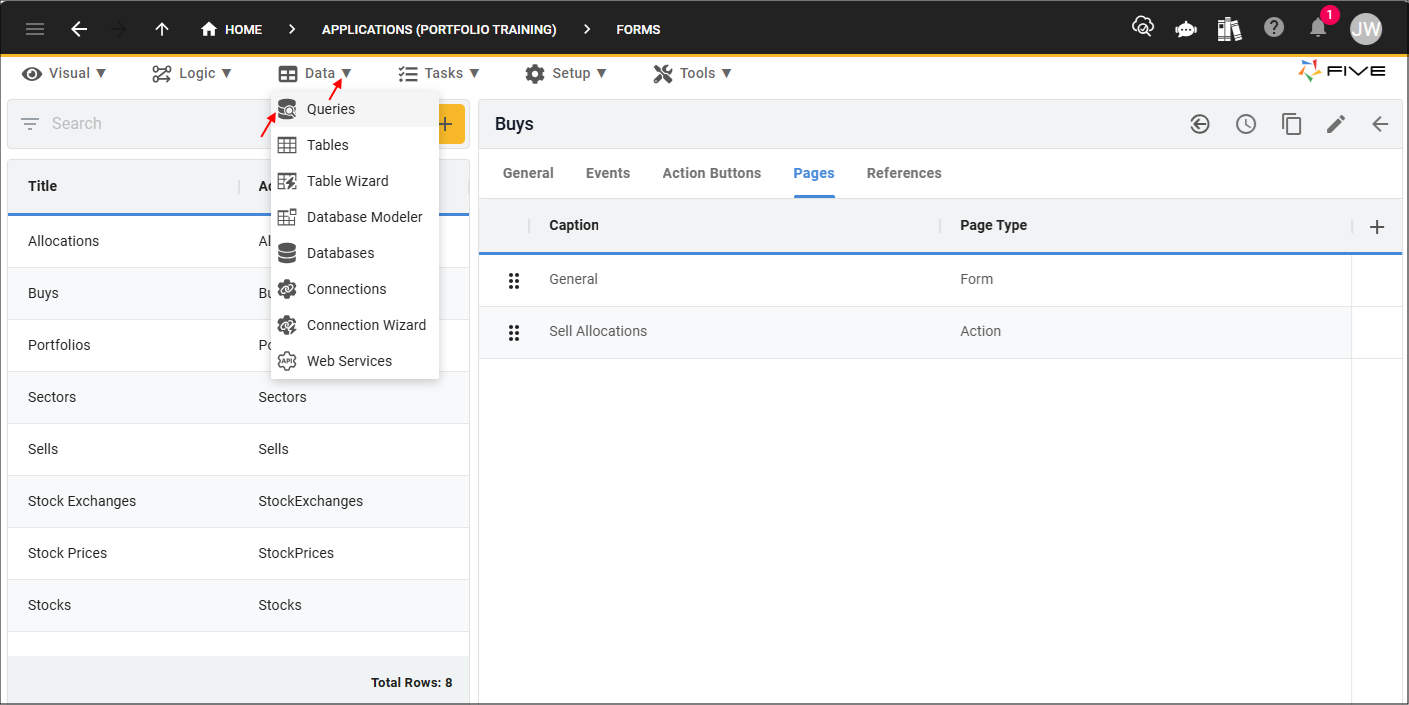
1. Click Data in the menu followed by Queries in the sub-menu.


Queries menu item
Figure 1 - Queries menu item

2. Click the Add Item button and type StocksInSector in the Data Source ID field.

3. Click in the Query field to open Five's Query Builder.
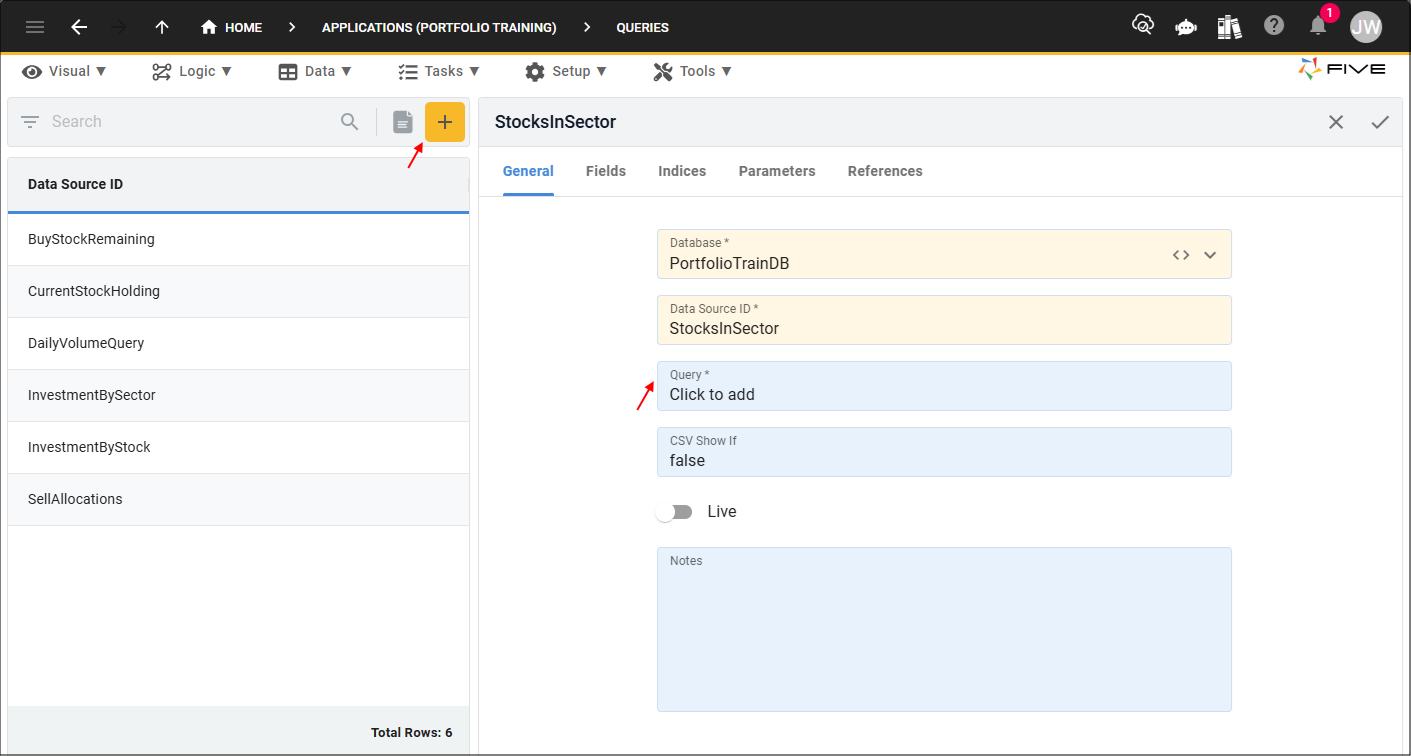

Add StocksInSector query
Figure 2 - Add StocksInSector query

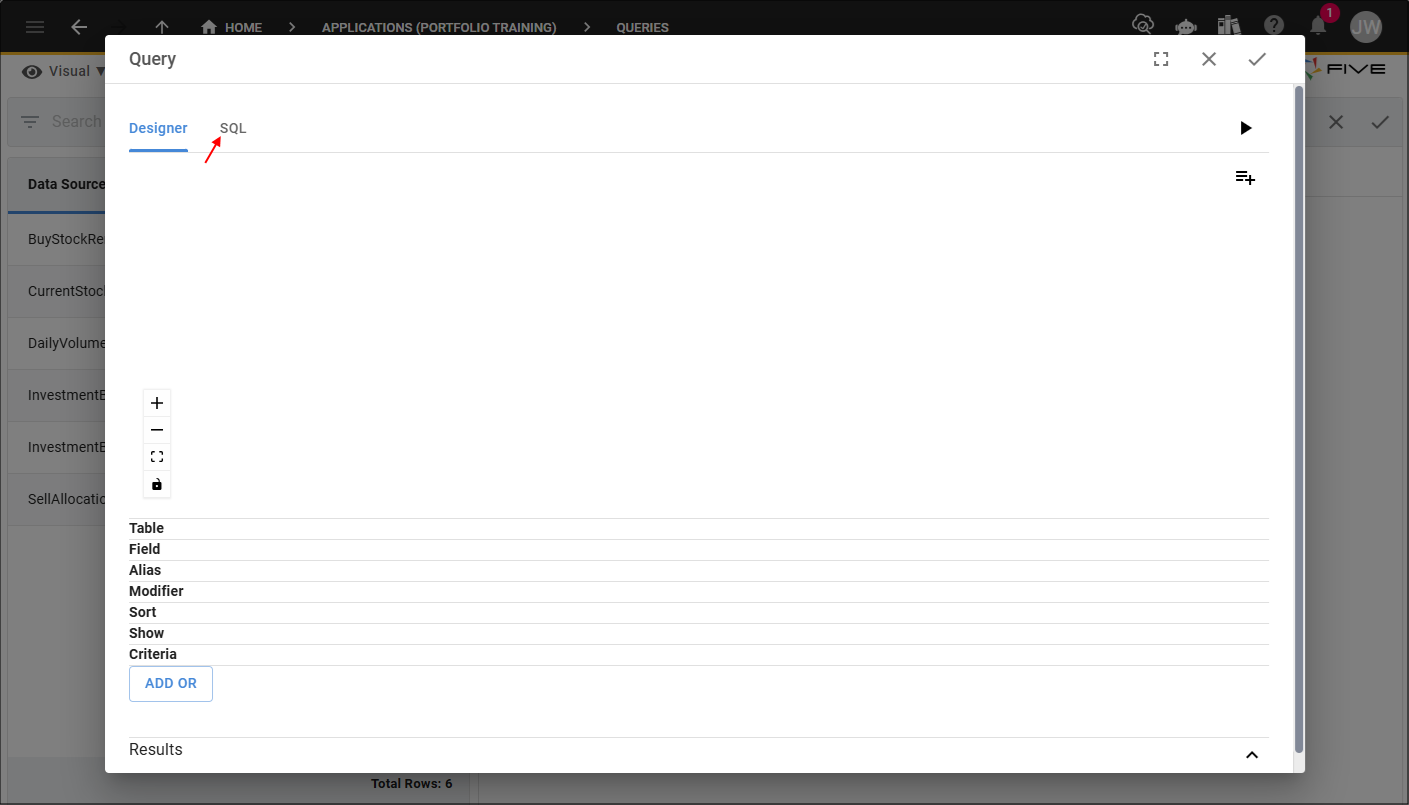
4. Click the SQL tab.


SQL tab
Figure 3 - SQL tab

5. Click the Copy button for the syntax below.

MySQL
StocksInSector
SELECT
Stock.StockCode,
Stock.Name
FROM
Stock
INNER JOIN Sector ON Stock.SectorKey = Sector.SectorKey
WHERE
Sector.Name = ?

6. Paste the syntax in the SQL Editor.

7. Click the Save button in the SQL Editor app bar.
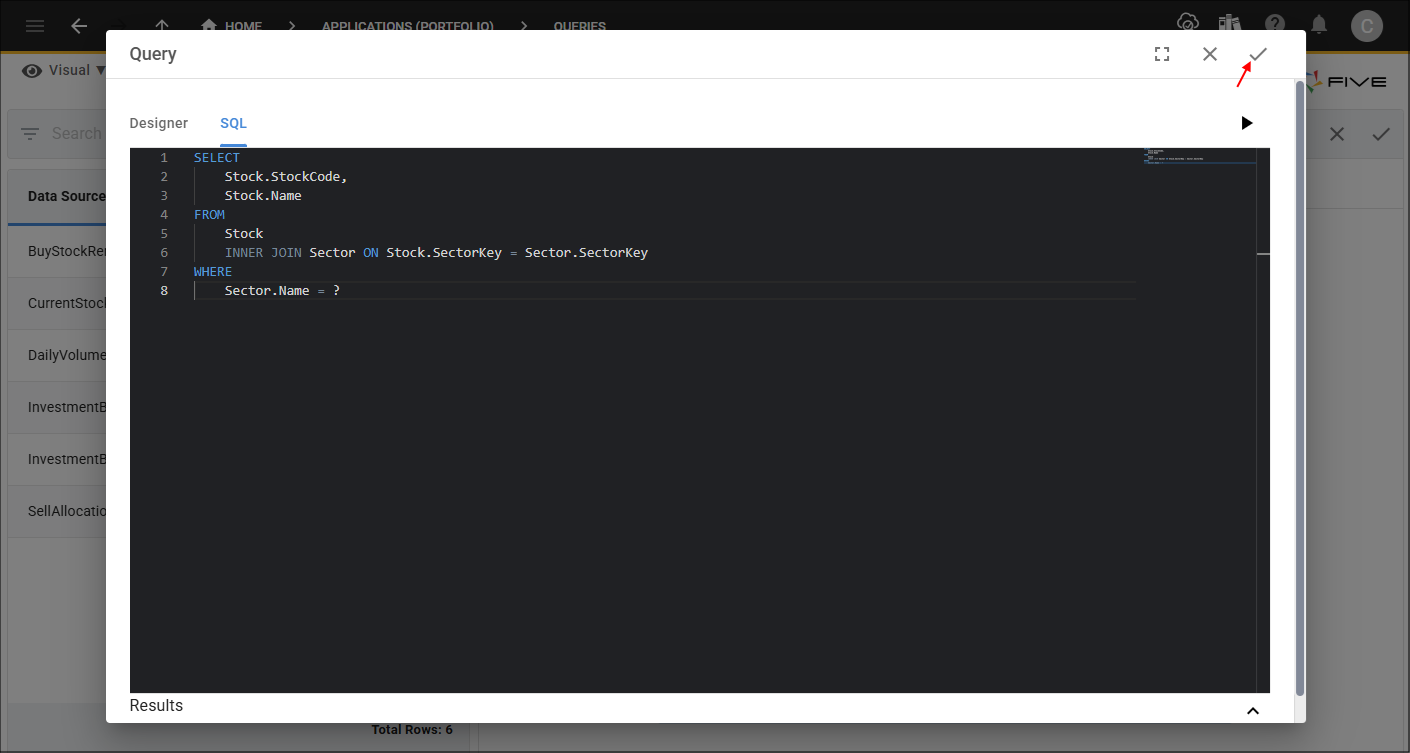

Save button
Figure 4 - Save button

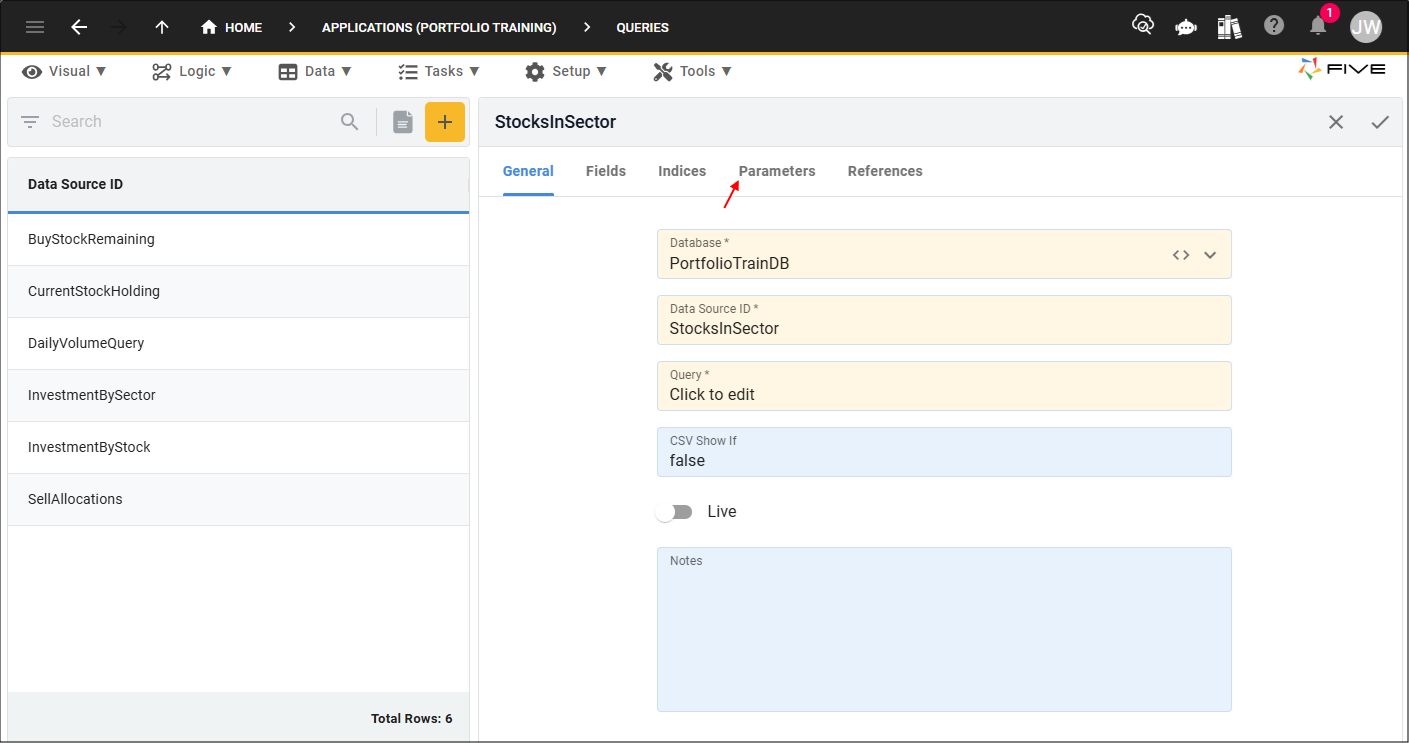
8. Click the Parameters tab.


Parameters tab
Figure 5 - Parameters tab

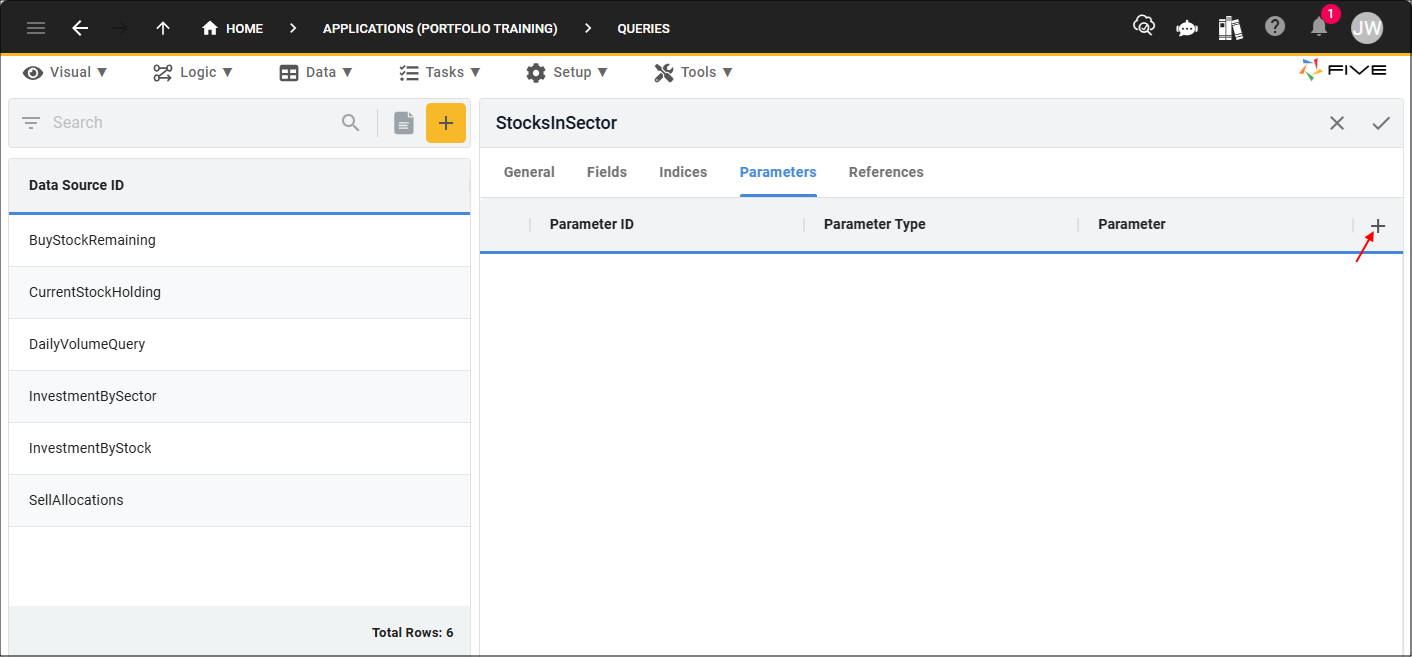
9. Click the Add Parameters button.


Add Parameters button
Figure 6 - Add Parameters button

10. Type Sector in the Parameter ID field.

11. Type
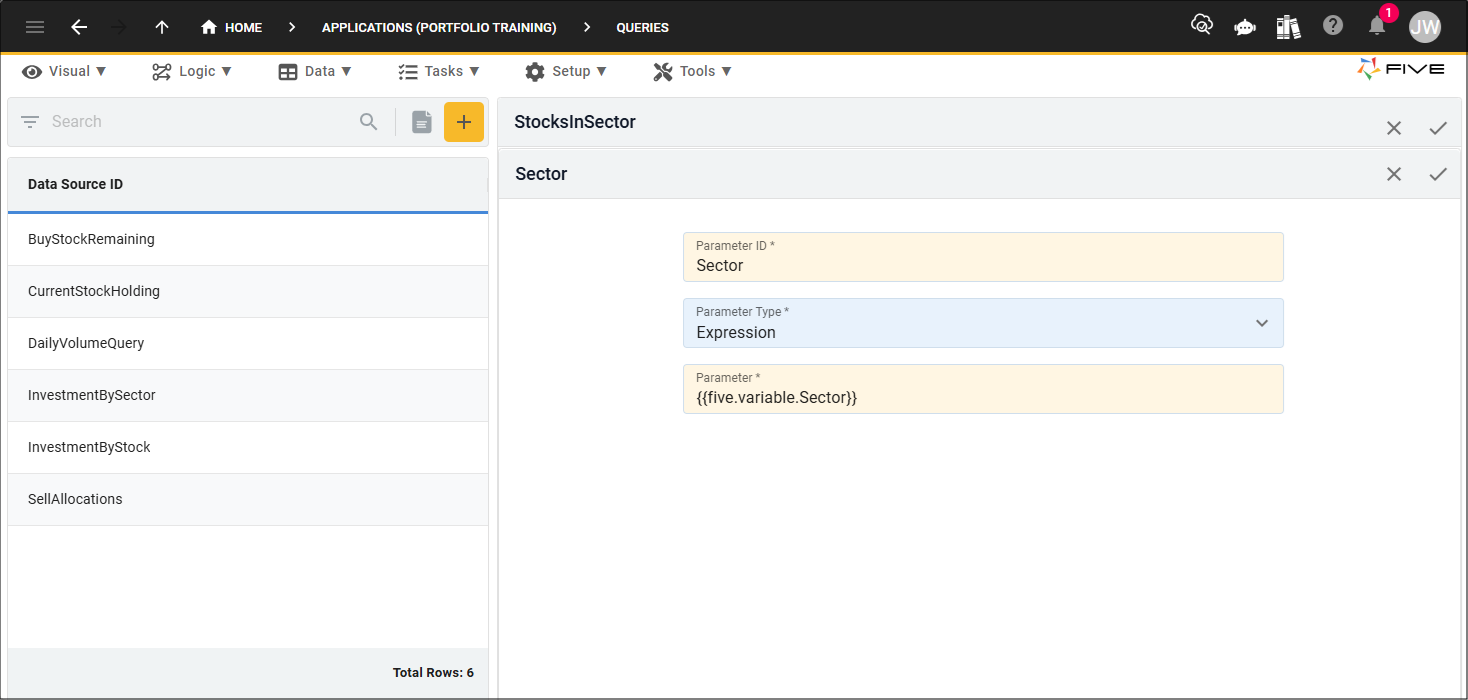
{{five.variable.Sector}}
in the Parameter field.


info
We will need to set the
Sector
variable using the
setVariable()
function on the
Five
object, this will be done when we add the
ClickSector()
function.

Add the Sector parameter
Figure 7 - Add the Sector parameter

12. Click the Save button in the form app bar.
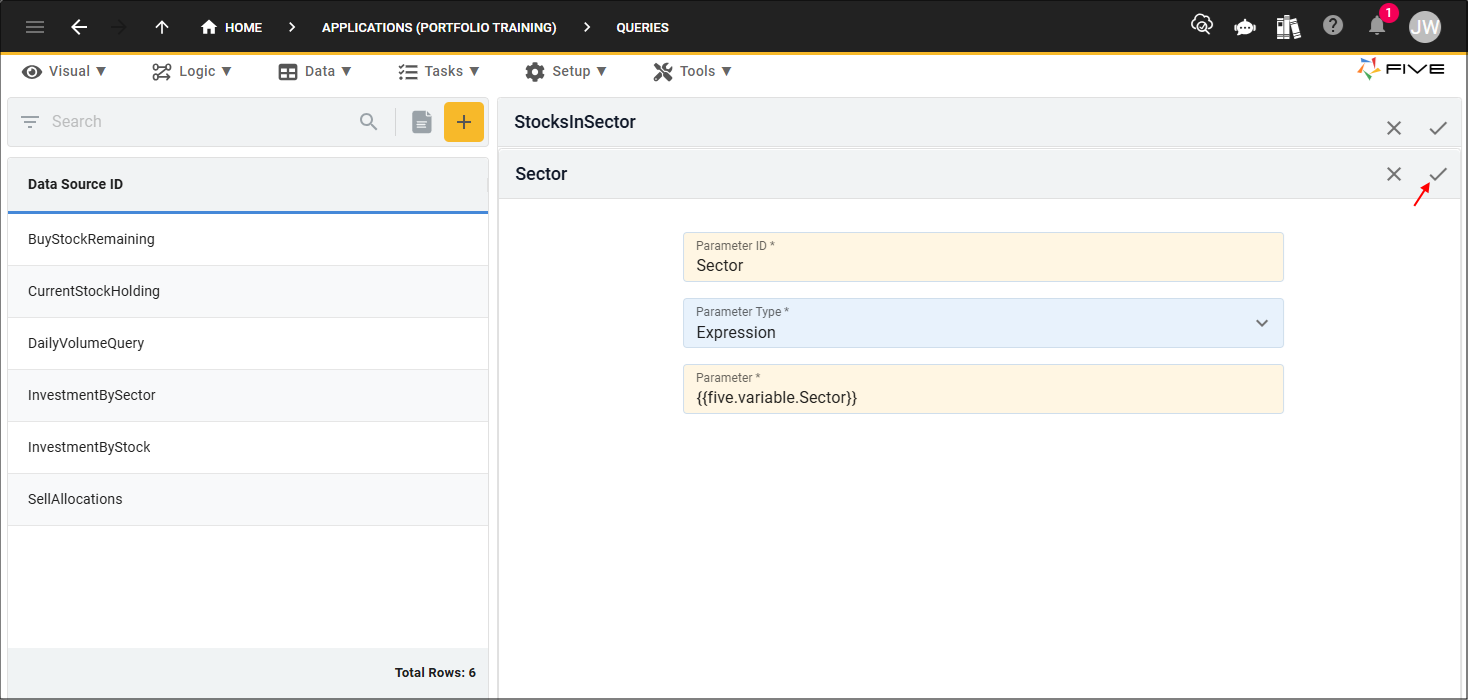

Save button
Figure 8 - Save button

13. Click the Save button in the form app bar above the list.
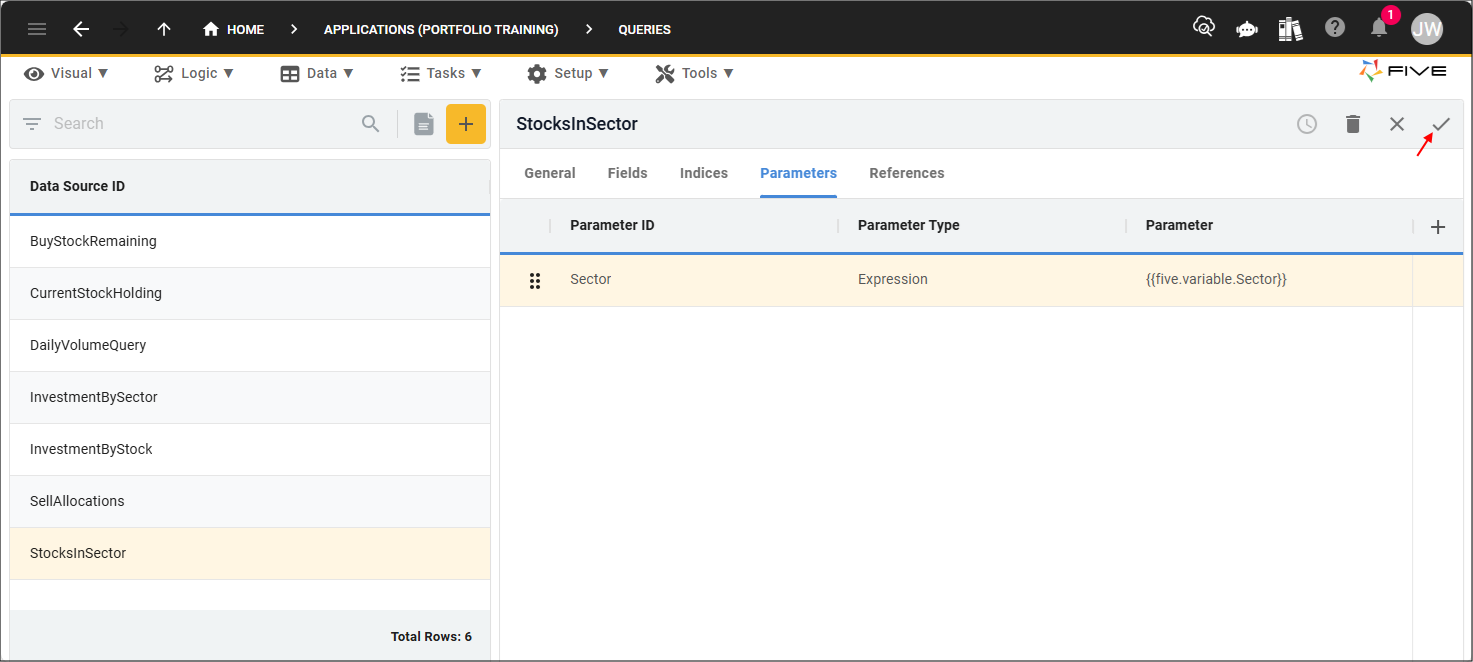

Save button
Figure 9 - Save button

Add the Stocks in Sector Data View

The StocksInSector query will be used as the data source for the Stocks in Sector data view.

1. Click Visual in the menu followed by Data Views in the sub-menu.
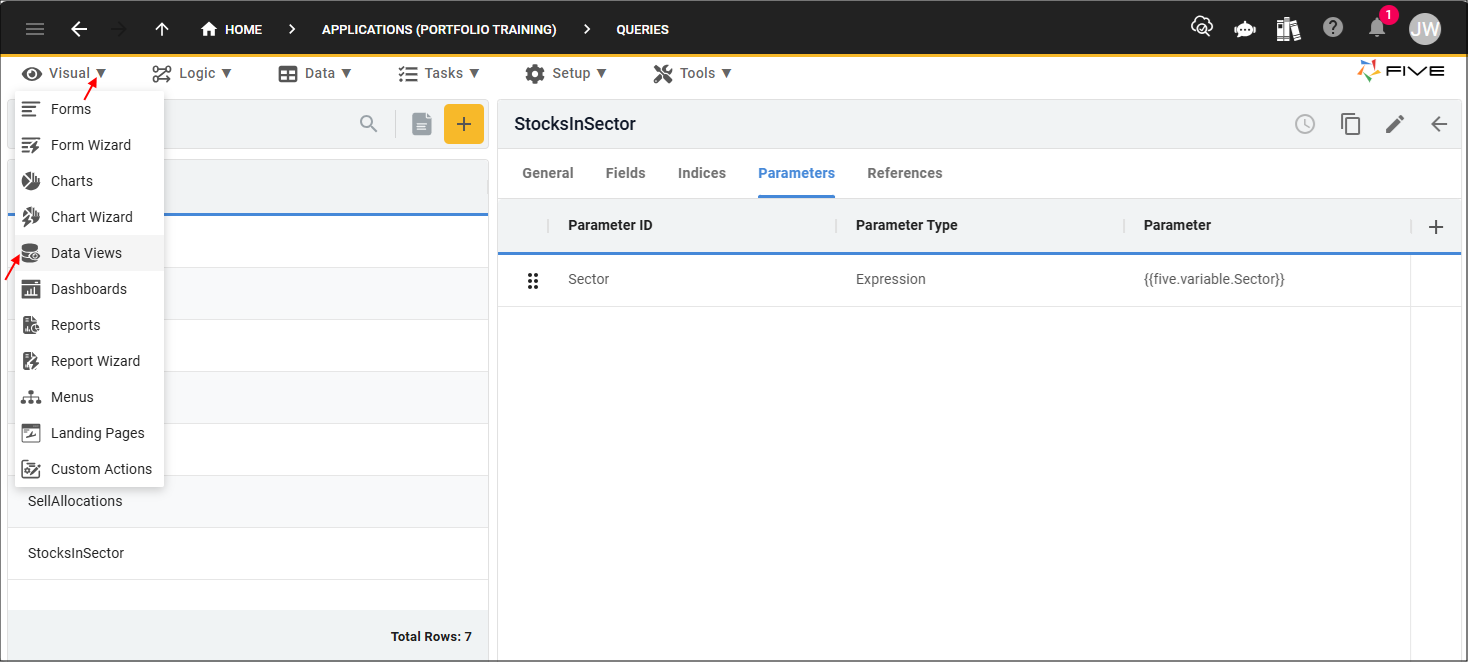

Data Views menu item
Figure 10 - Data Views menu item

2. Click the Add Item button and type Stocks in Sector in the Title field.

3. Select StocksInSector (Query) in the Data Source field.
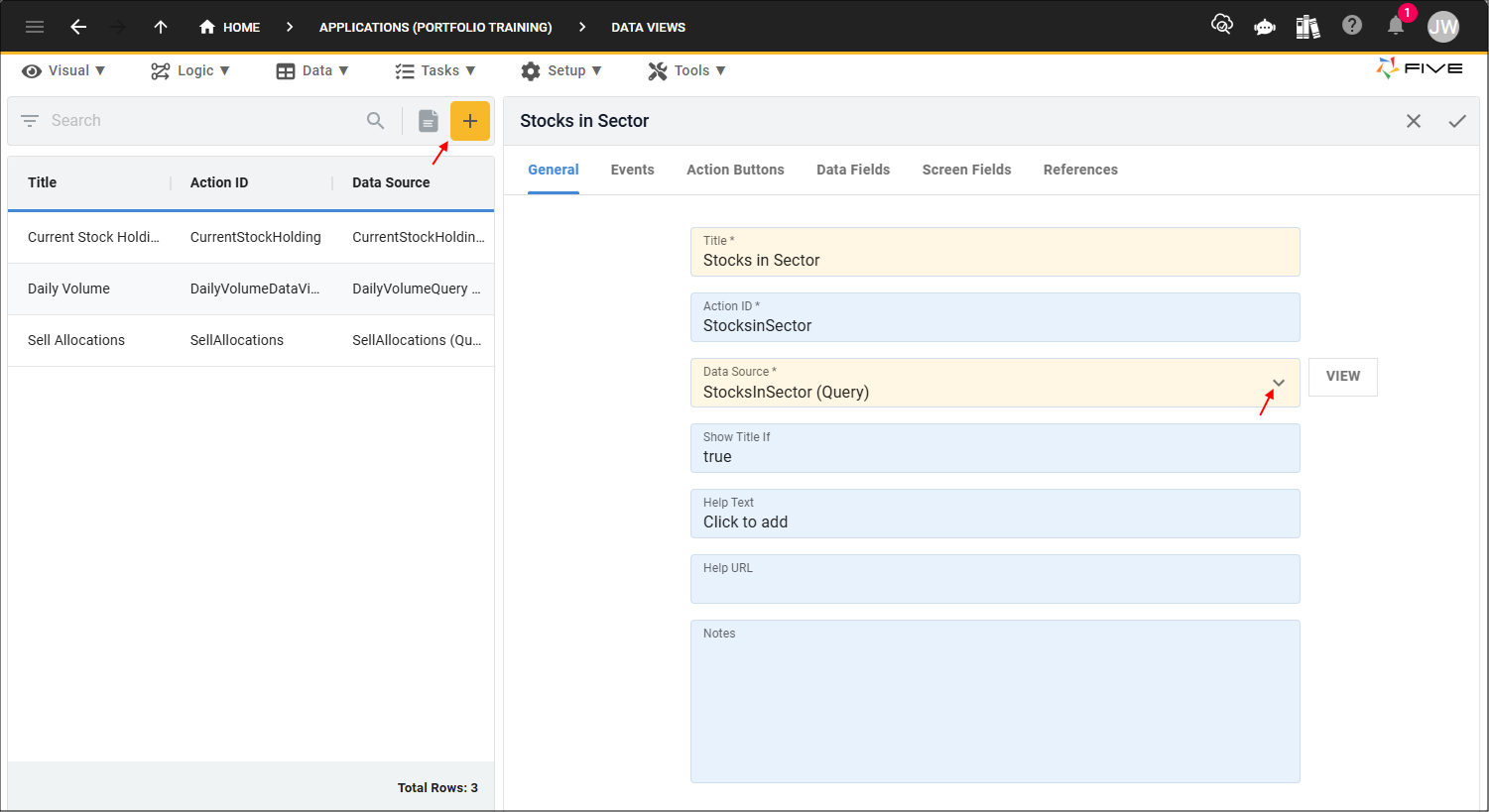

Add Stocks in Sector data view
Figure 11 - Add Stocks in Sector data view

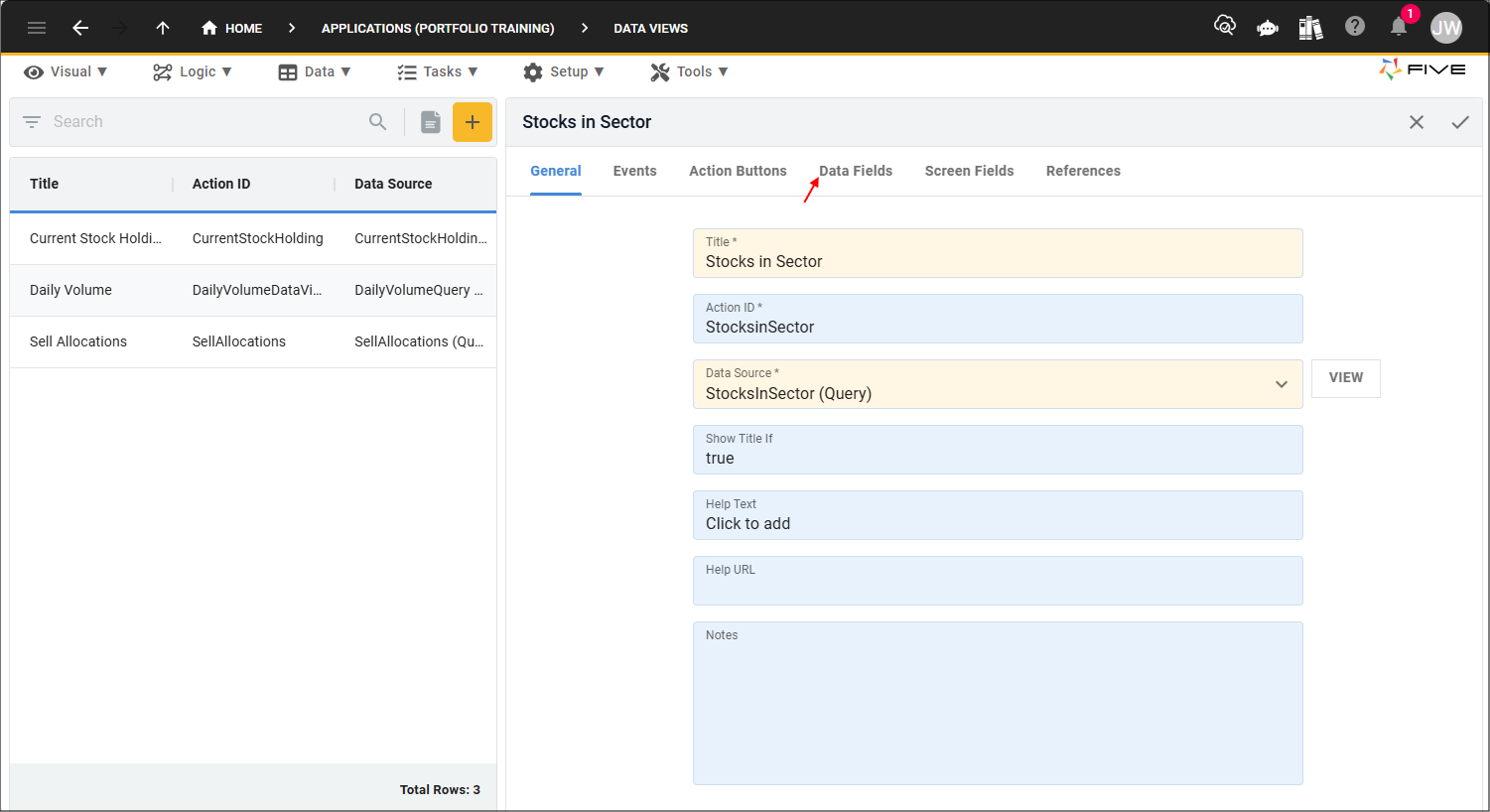
4. Click the Data Fields tab.


Data Fields tab
Figure 12 - Data Fields tab

5. Select the Stock.StockCode record.
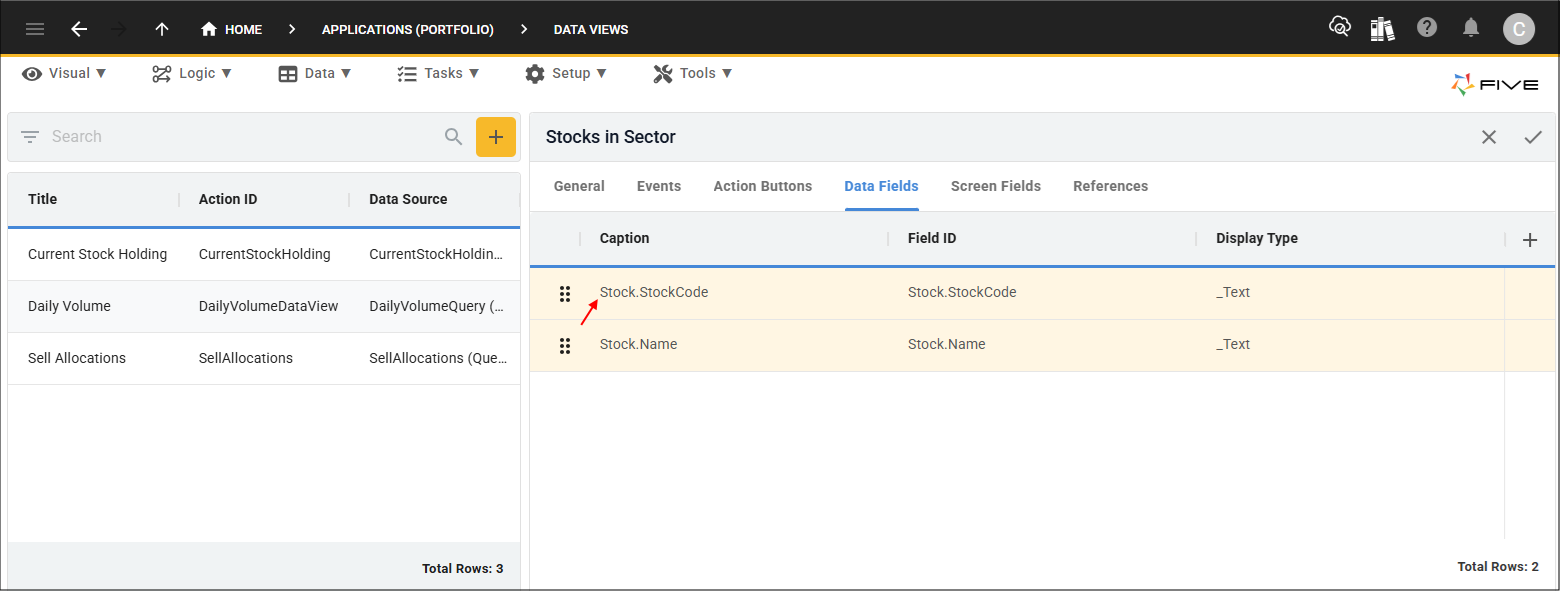

Stock.StockCode record
Figure 13 - Stock.StockCode record

6. Either click the Edit button in the form app bar or click directly in the Caption field.

7. Click the Cancel button in the Caption field and type Stock Code.

8. Click the Save button in the form app bar.
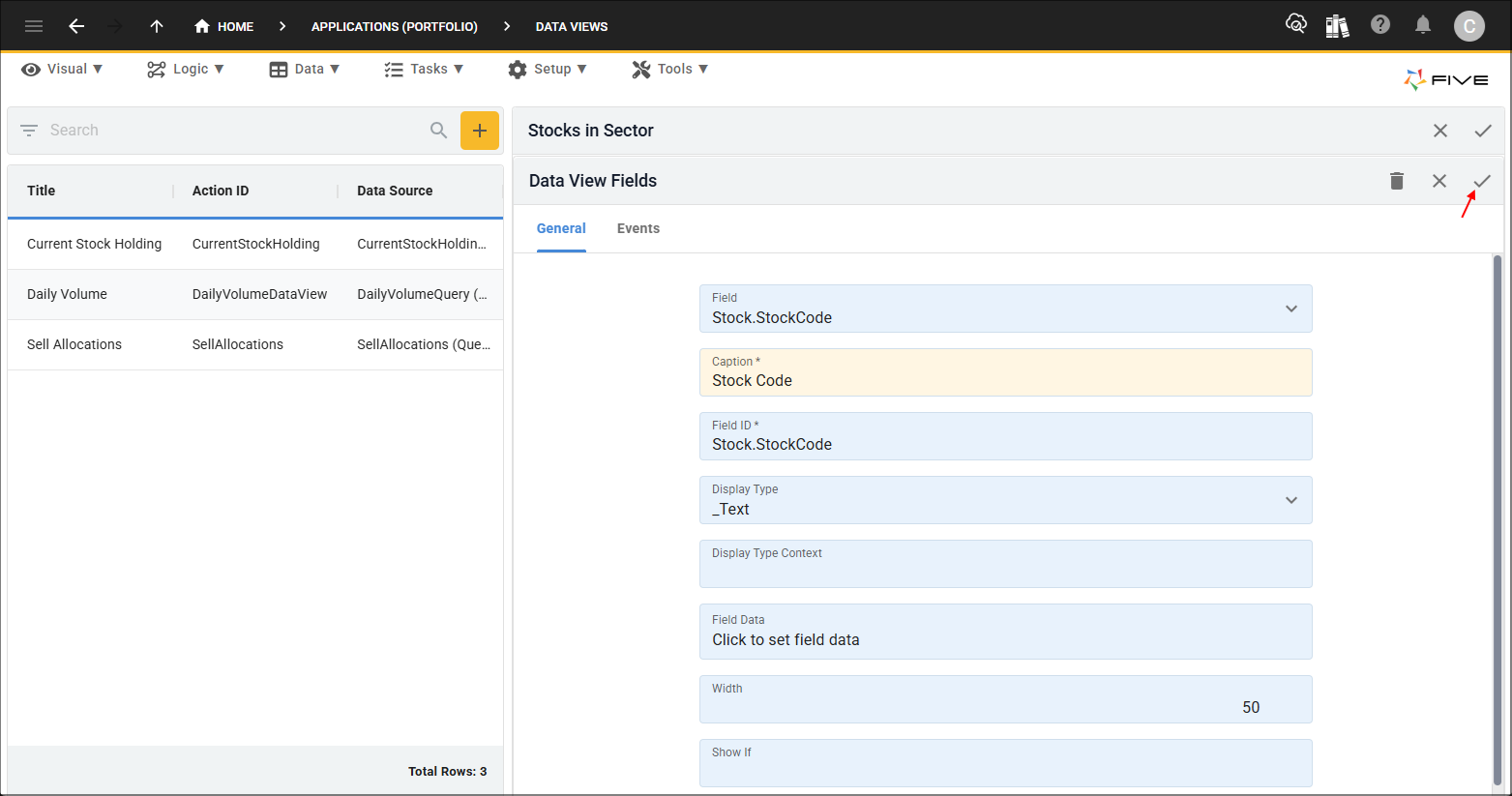

Save button
Figure 14 - Save button

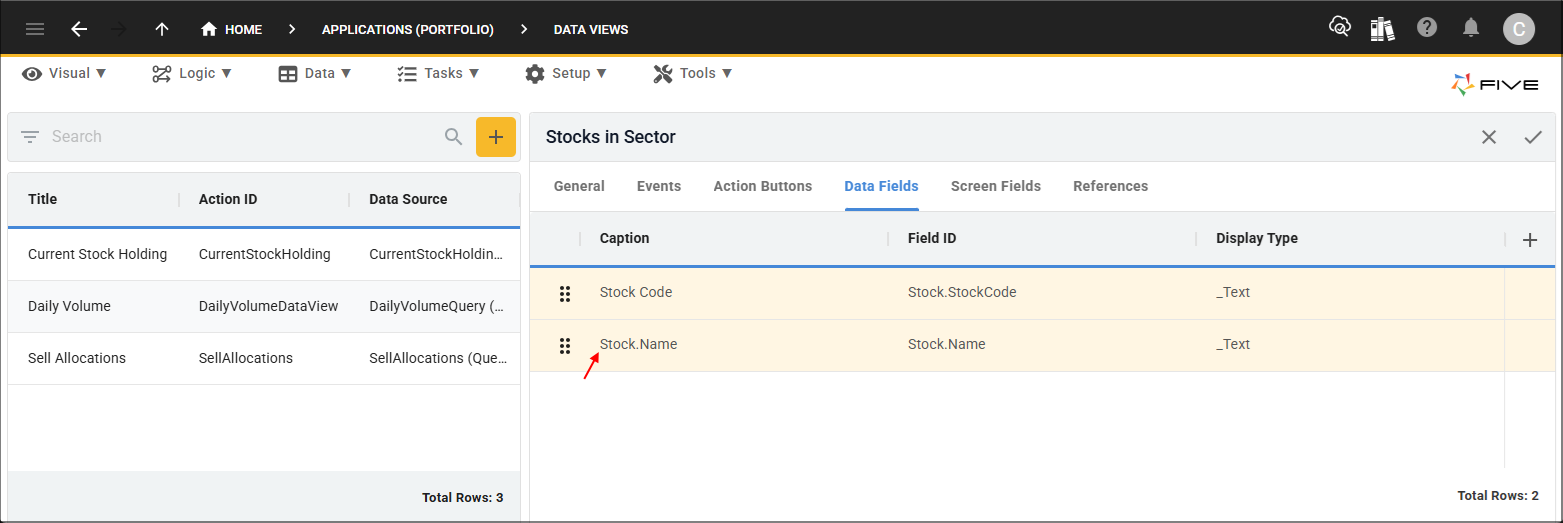
9. Select the Stock.Name record.


Stock.Name record
Figure 15 - Stock.Name record

10. Either click the Edit button in the form app bar or click directly in the Caption field.

11. Click the Cancel button in the Caption field and type Name.

12. Click the Save button in the form app bar.


Save button
Figure 16 - Save button

13. Click the Save button in the form app bar above the list.
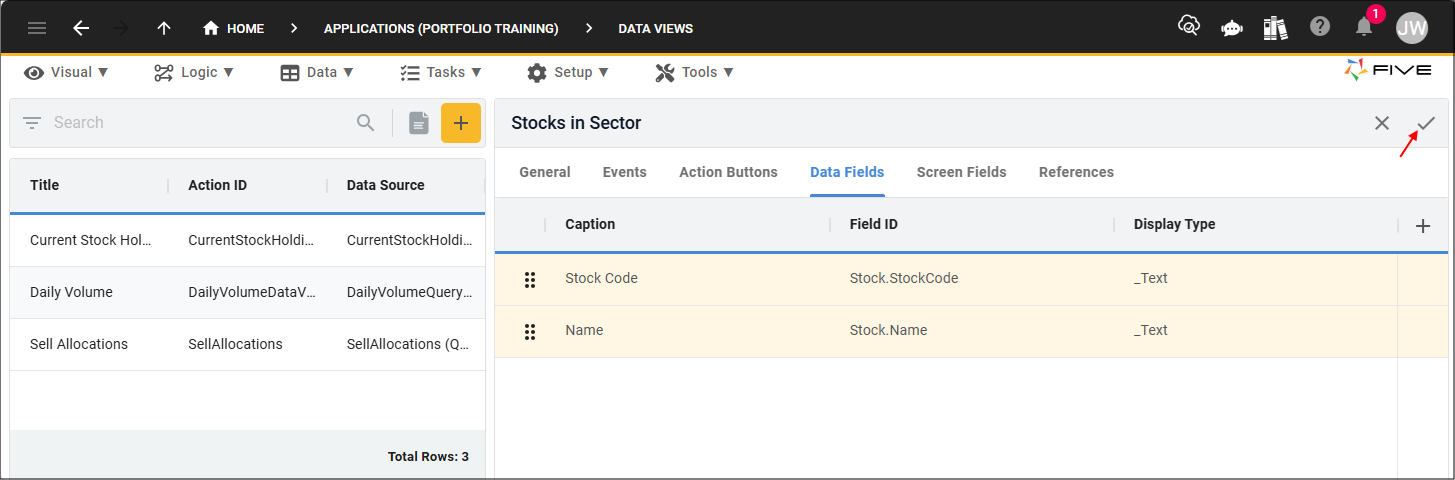

Save button
Figure 17 - Save button

Add the ClickSector Function

When in Five's Code Editor you will be interacting with Five's API. In the
ClickSector()
function you will be using the following functions and parameter.

- is a function on the

Five
object that sets a global variable. It sets the value of the named global variable with a new value on the variable property on the
Five
object.

- is a function on the

Five
object that selects an action to take place of the current action without leaving the current menu.

context
- is a parameter passed in from the chart area dataset containing values regarding the chart segment that is clicked which is executed through the On Click event.

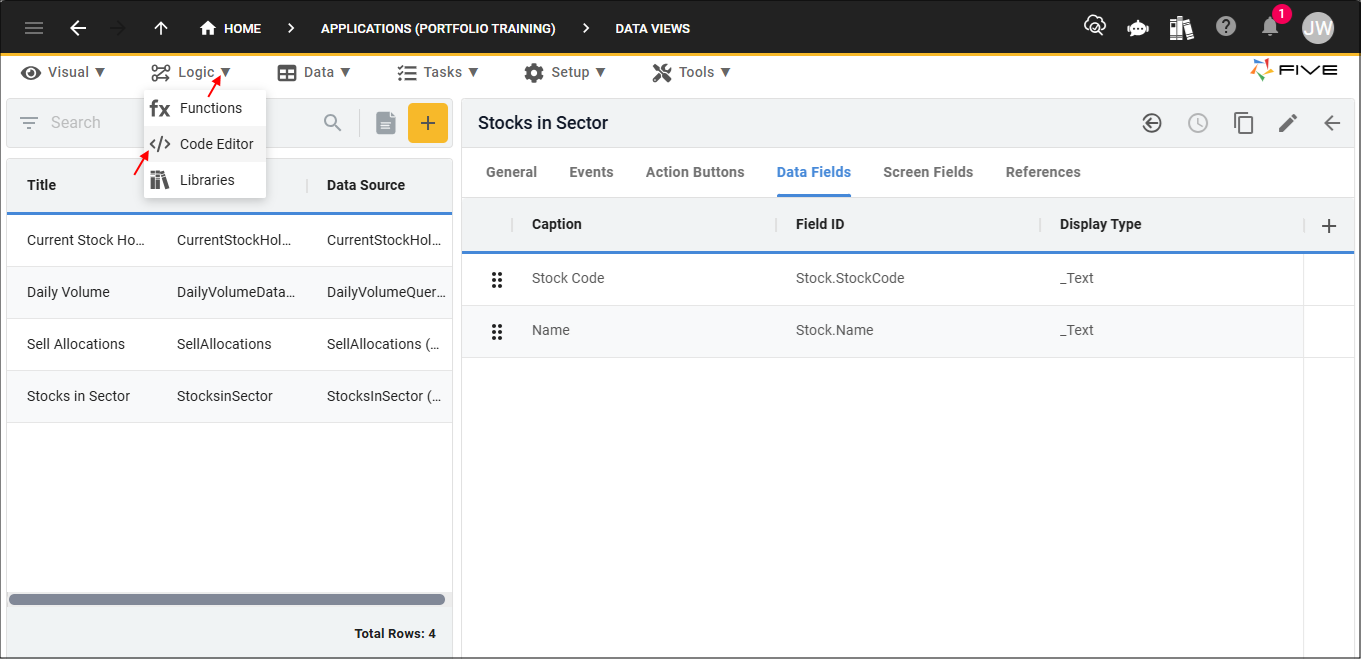
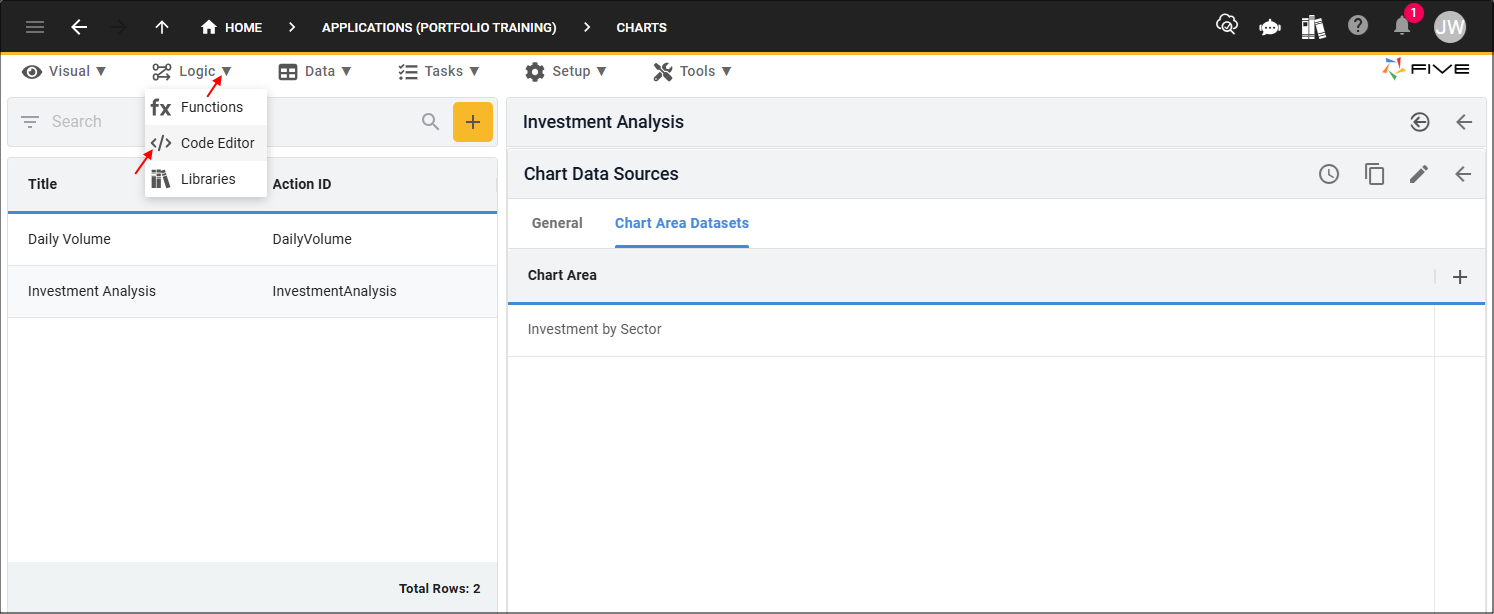
1. Click Logic in the menu followed by Code Editor in the sub-menu.


Code Editor menu item
Figure 18 - Code Editor menu item

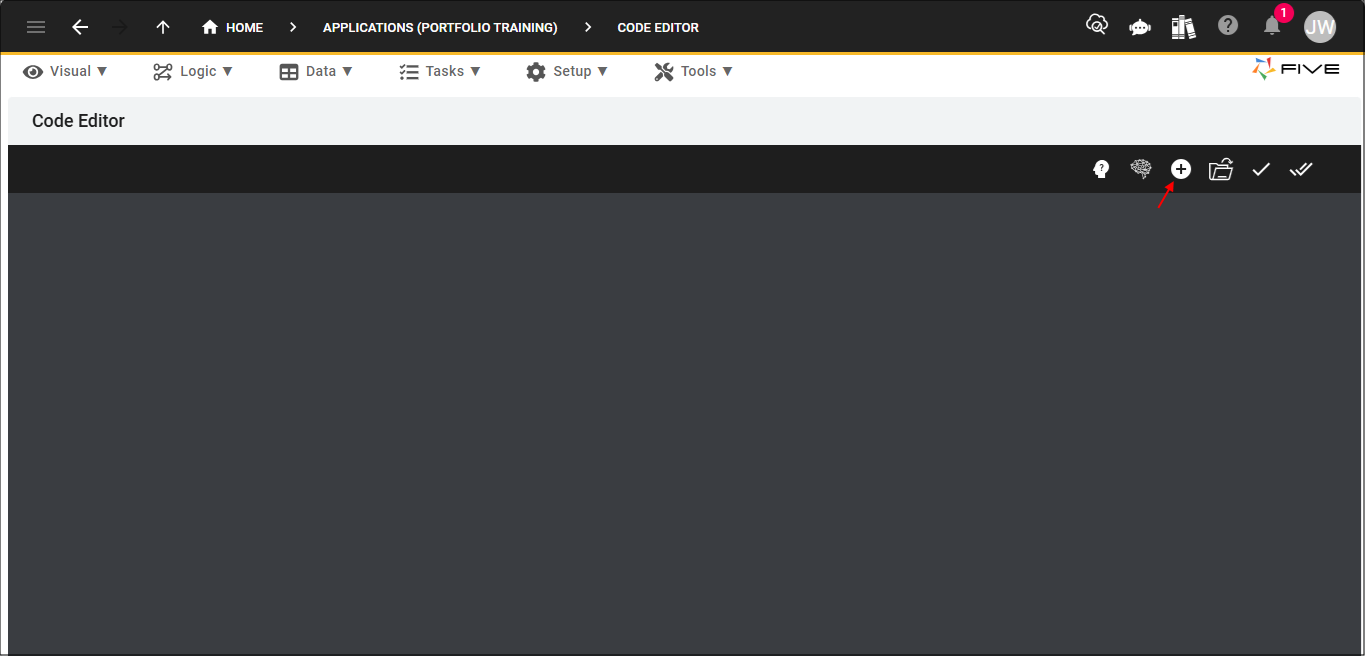
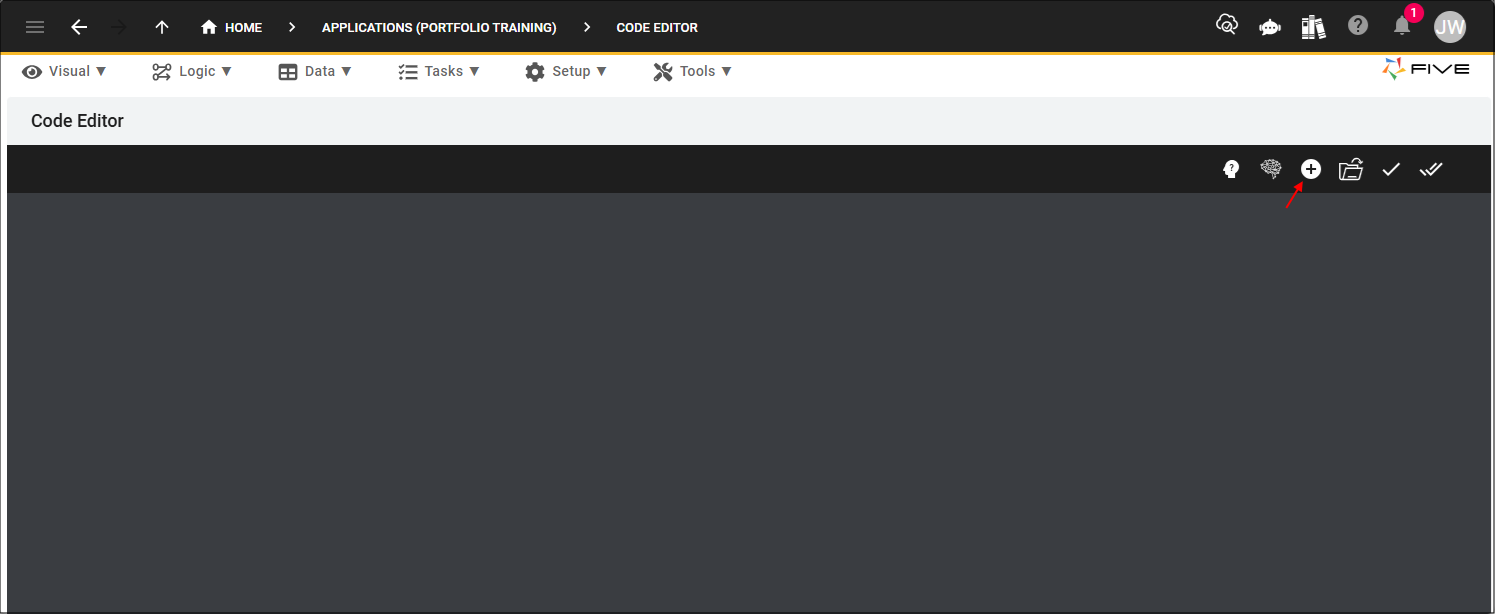
2. Click the Add New Code button.


Add New Code button
Figure 19 - Add New Code button

3. Type ClickSector in the Function ID field.

4. Select TypeScript in the Language field and click the OKAY button.
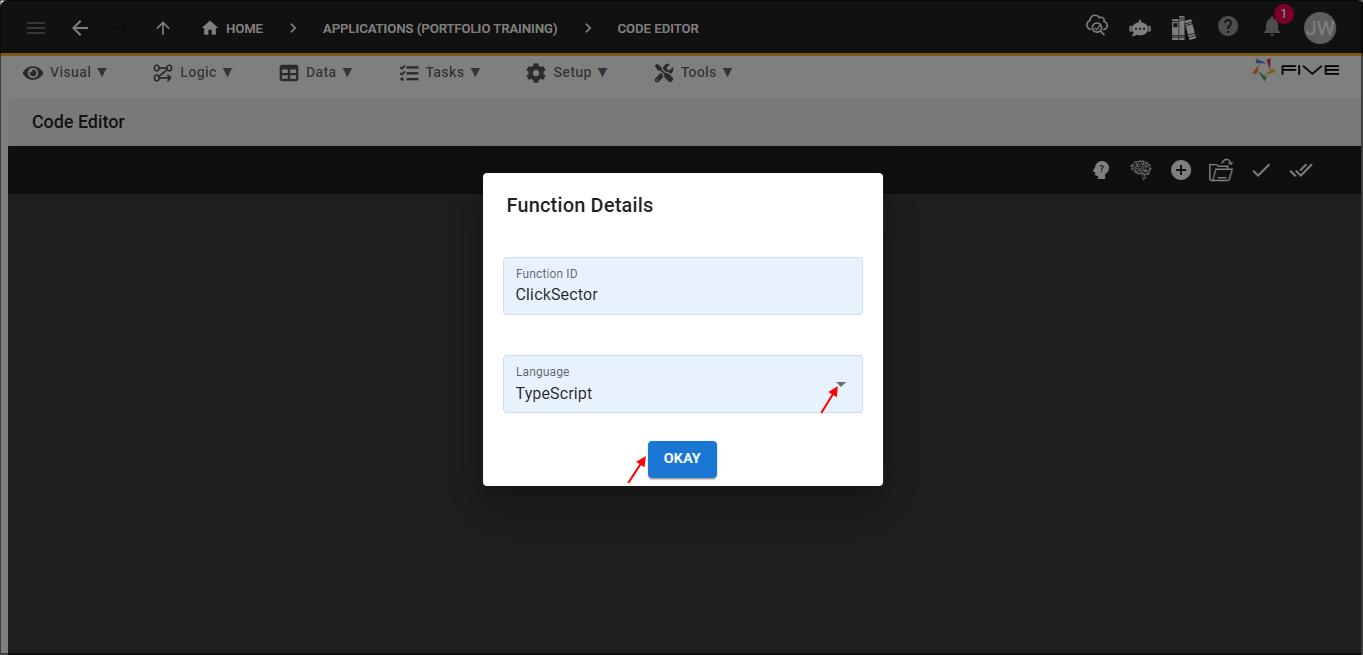

Add ClickSector function
Figure 20 - Add ClickSector function

5. Click the Copy button on the code block below.

TypeScript
ClickSector
function ClickSector(five: Five, context: any, result: FiveError) : FiveError {
five.setVariable('Sector', context.xValue);
five.selectAction('StocksinSector');
return five.success(result);
}

6. Paste the code block over the template in the Code Editor and click the Save Current Tab button.
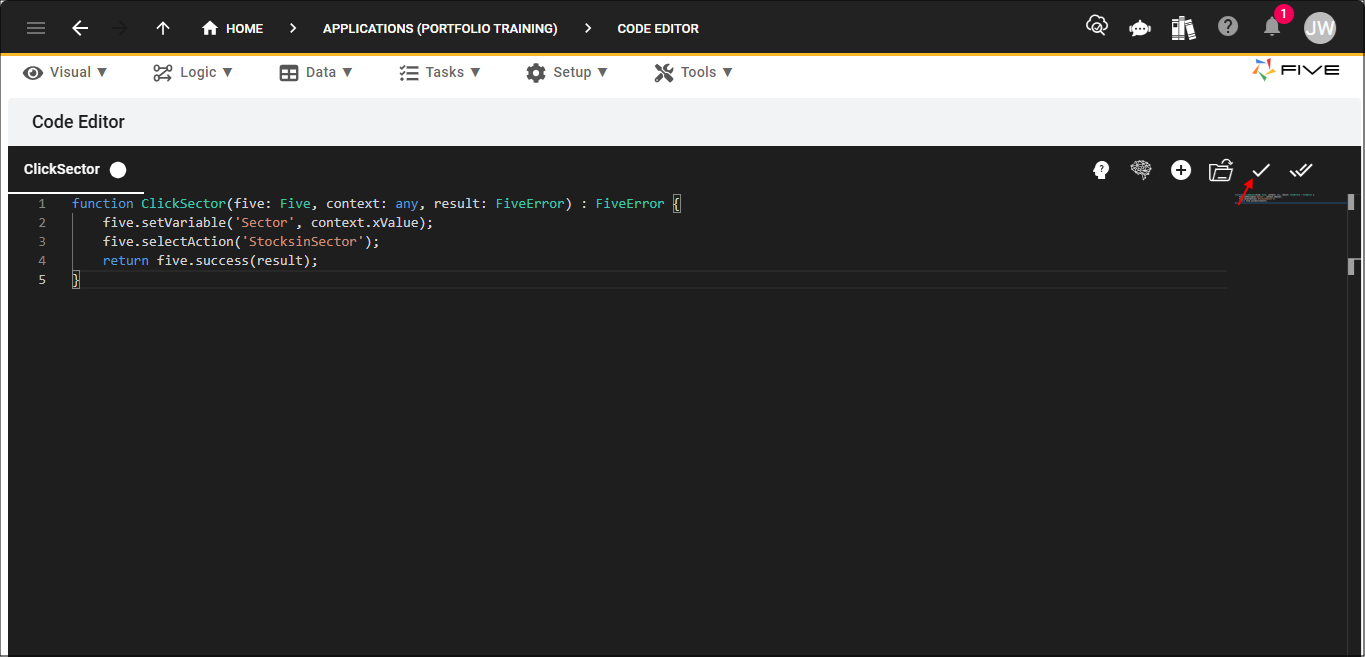

Save Current Tab button
Figure 21 - Save Current Tab button

Attach the ClickSector Function

The Investment Analysis chart record has two chart area datasets. We need to attach the
ClickSector()
function to the On Click event for the Investment By Sector chart area dataset. When a slice of the pie chart is clicked, the event will execute and select the data view.

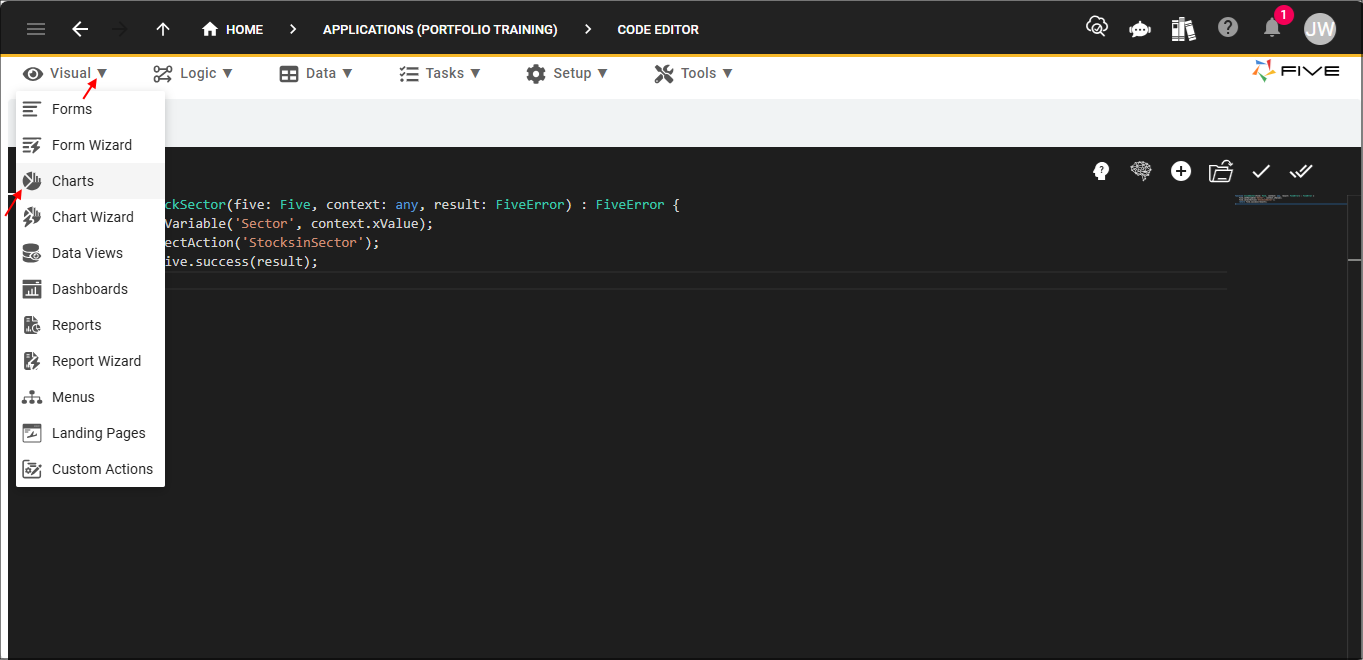
1. Click Visual in the menu followed by Charts in the sub-menu.


Charts menu item
Figure 22 - Charts menu item

2. Select the Investment Analysis record in the list and click the Datasets tab.
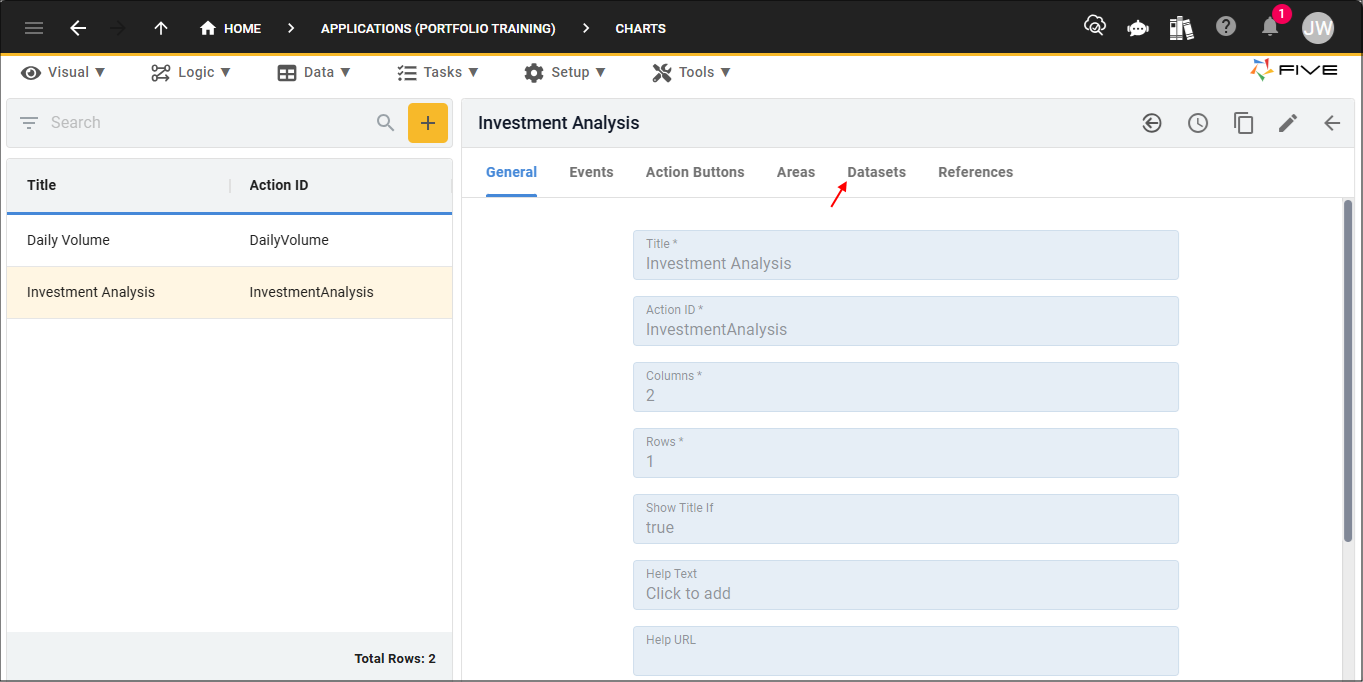

Datasets tab
Figure 23 - Datasets tab

3. Select the InvestmentBySector (Query) record.
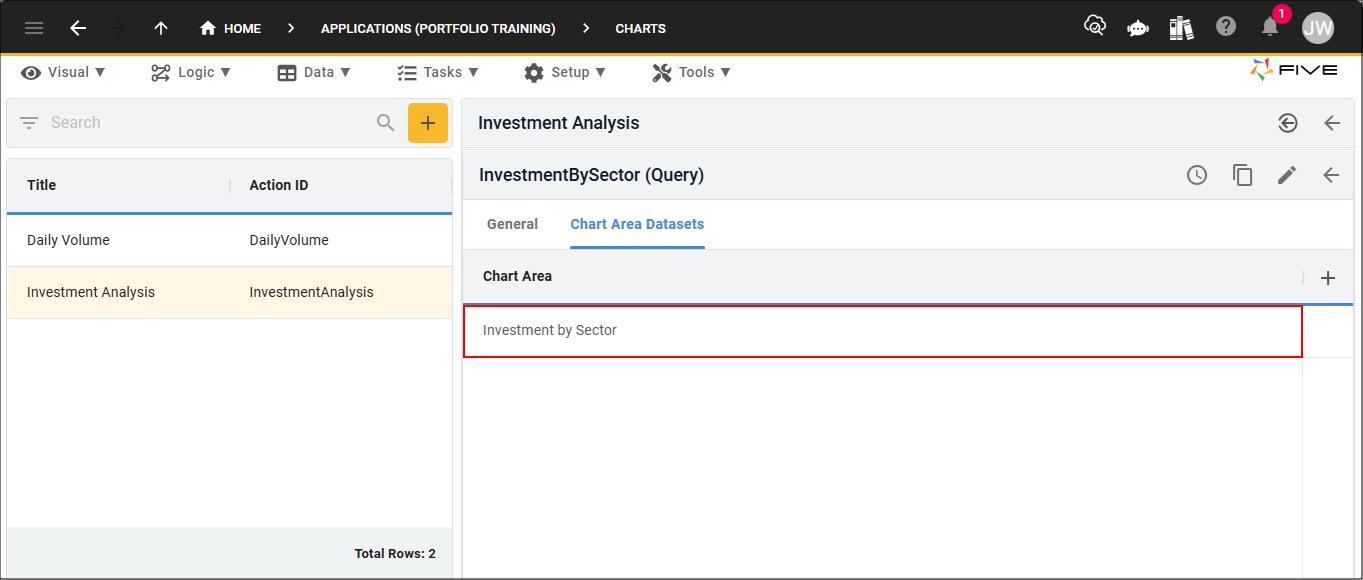

InvestmentBySector (Query) record
Figure 24 - InvestmentBySector (Query) record

4. Click the Chart Area Datasets tab.
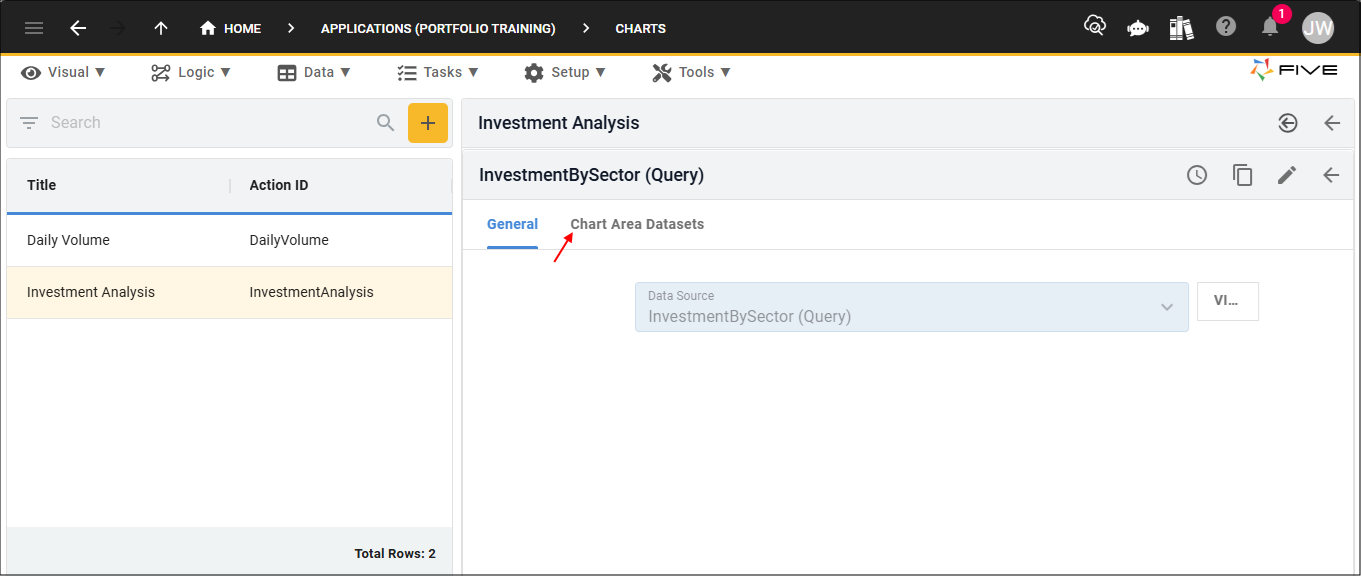

Chart Area Datasets tab
Figure 25 - Chart Area Datasets tab

5. Select the Investment By Sector record.


Investment By Sector record
Figure 26 - Investment By Sector record

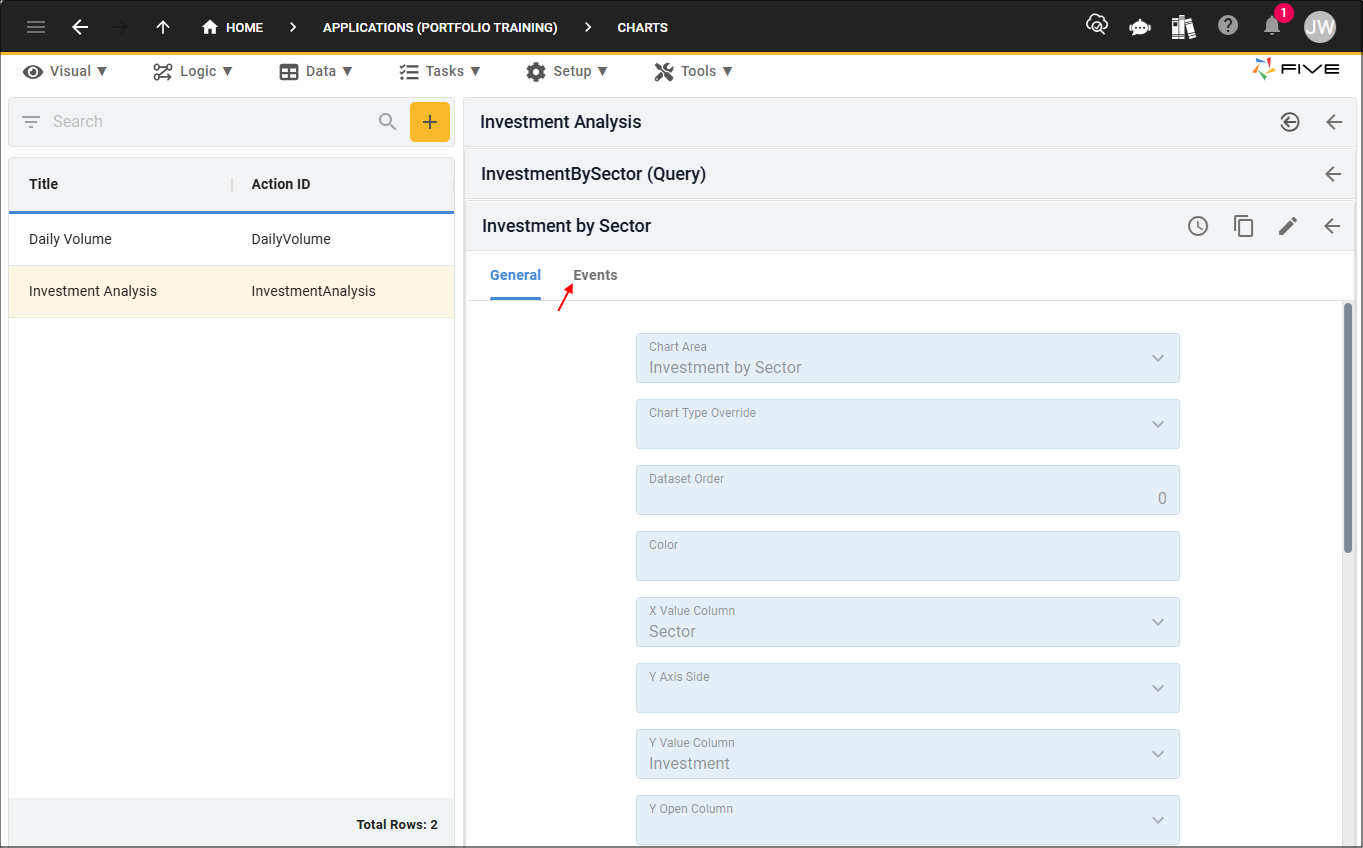
6. Click the Events tab.


Events tab
Figure 27 - Events tab

7. Either click the Edit button in the form app bar or click directly in the On Click field.

8. Select ClickSector in the On Click field.
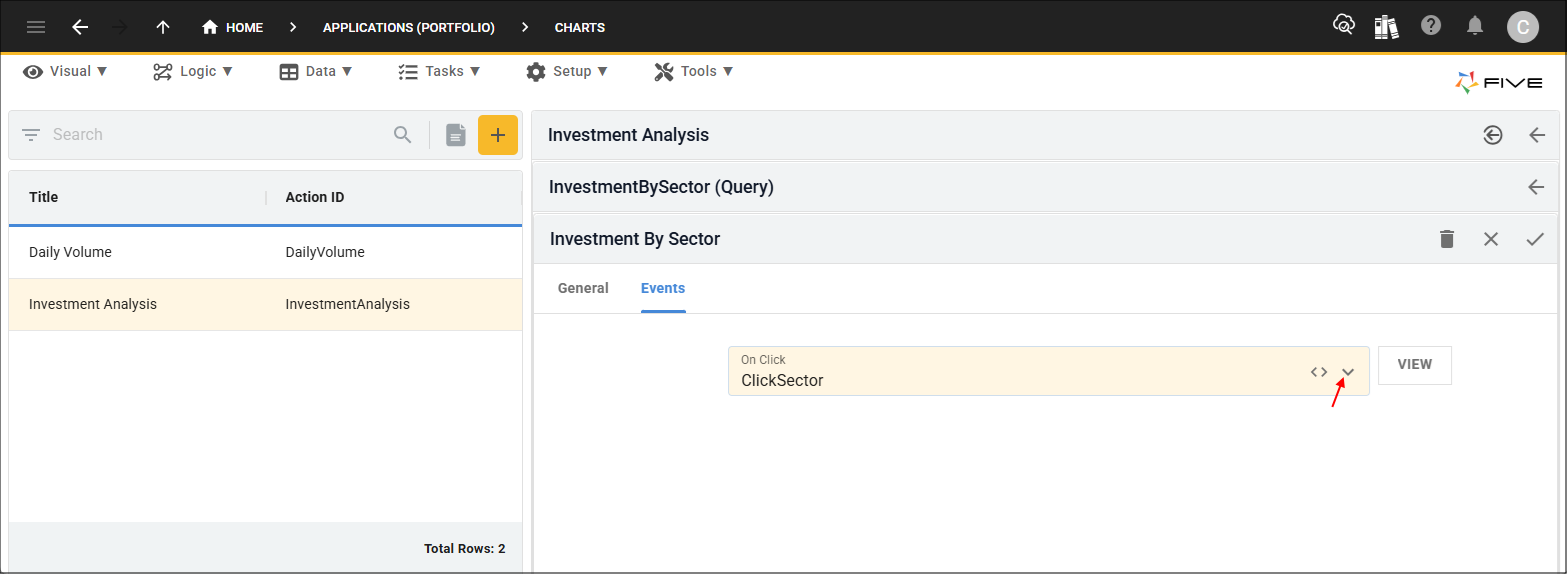

On Click field
Figure 28 - On Click field

9. Click the Save button in the form app bar.
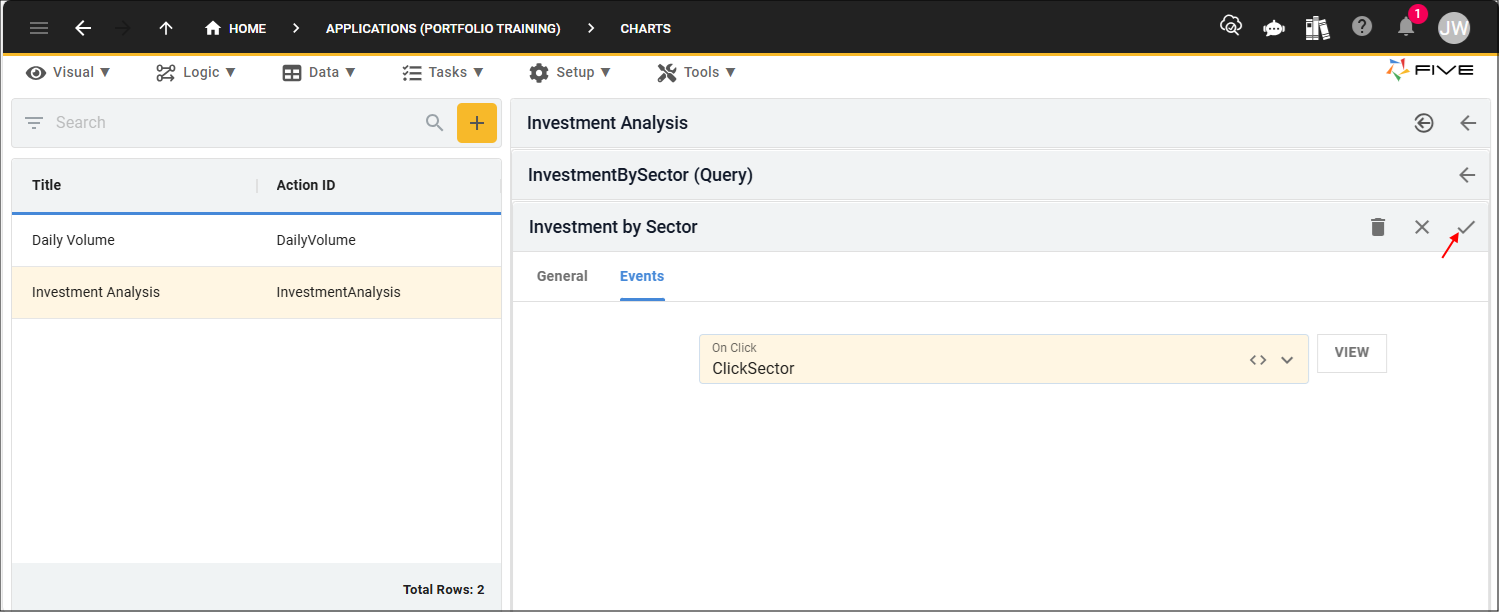

Save button
Figure 29 - Save button

10. Click the Save button in the form app bar above the list.
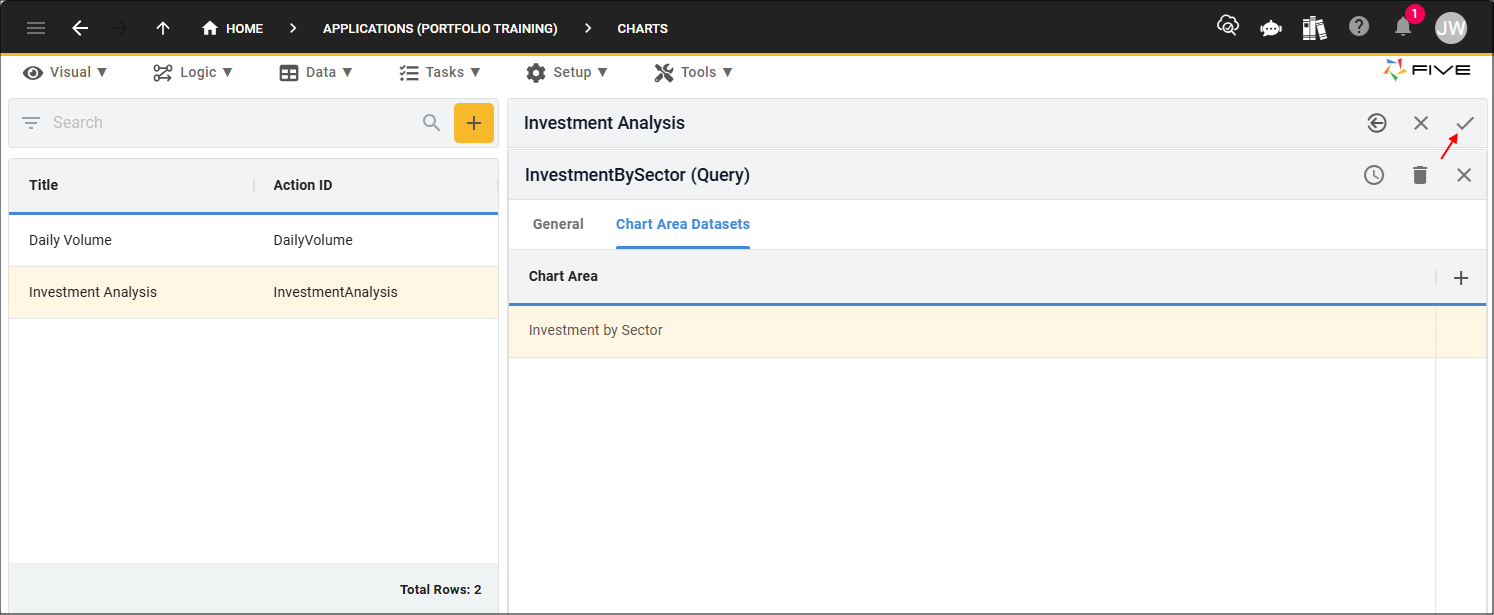

Save button
Figure 30 - Save button

Add the PreviousAction Function

When in Five's Code Editor you will be interacting with Five's API. In the
PreviousAction()
function you will be using the following function.

- is a function on the

Five
object that takes you back to the previously selected action. Optionally, you can pass in a number to go back several actions.

1. Click Logic in the menu and Code Editor in the sub-menu.


Code Editor menu item
Figure 31 - Code Editor menu item

2. Click the Add New Code button.


Add New Code button
Figure 32 - Add New Code button

3. Type PreviousAction in the Function ID field.

4. Select TypeScript in the Language field and click the OKAY button.
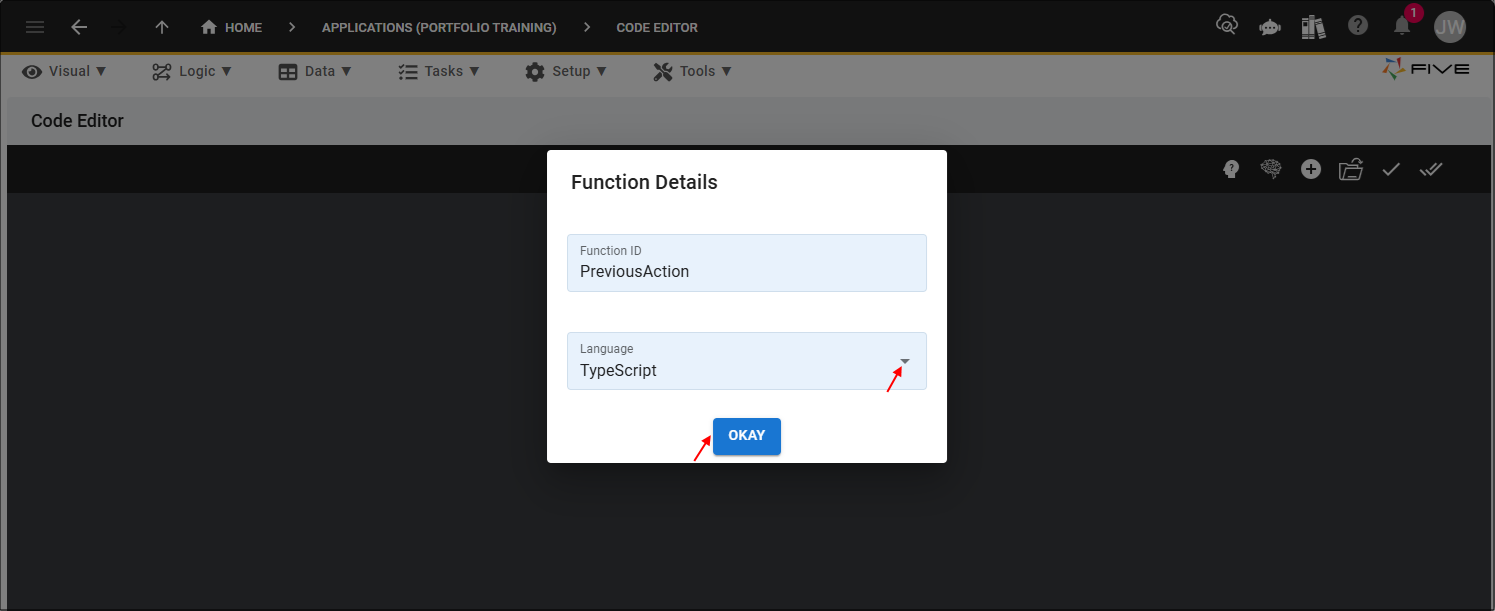

Add PreviousAction function
Figure 33 - Add PreviousAction function

5. Click the Copy button on the code block below.

TypeScript
PreviousAction
function PreviousAction(five: Five, context: any, result: FiveError) : FiveError {
five.previousAction();
return five.success(result);
}

6. Paste the code block over the template in the Code Editor and click the Save Current Tab button.
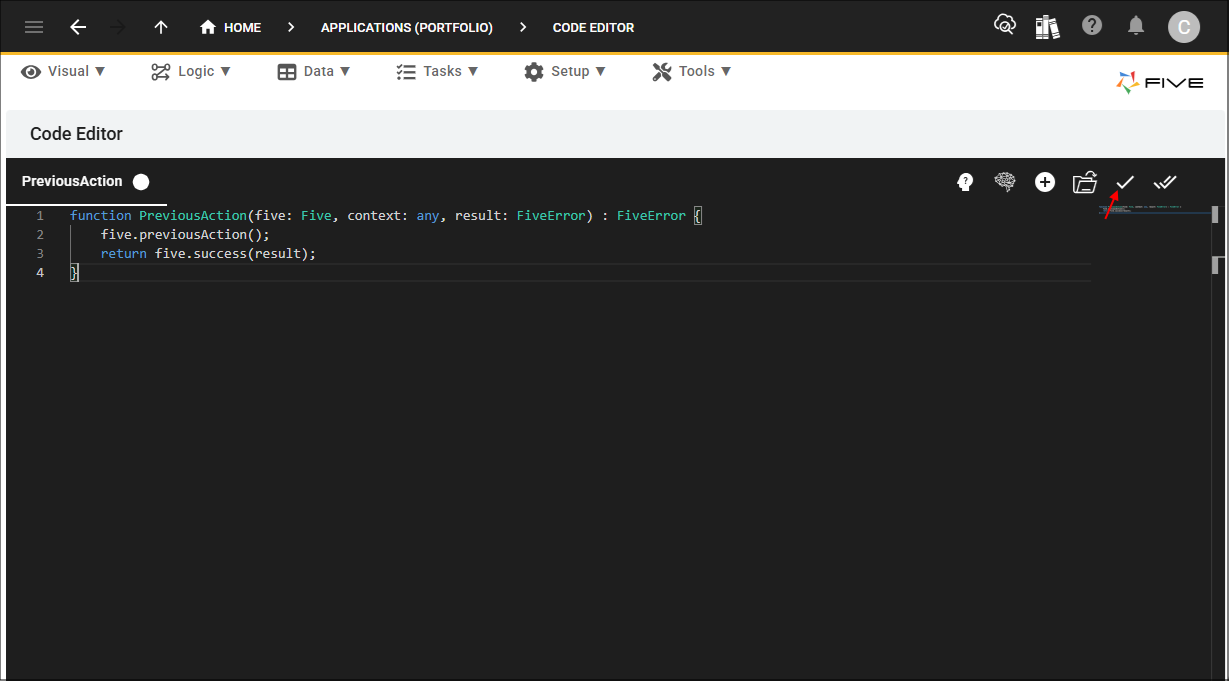

Save Current Tab button
Figure 34 - Save Current Tab button

Add the Back To Chart Action Button

The Stocks in Sector data view needs an action button with the

PreviousAction()
function attached to the On Press event. When the button is clicked, the event will execute and select the previous action.

1. Click Visual in the menu followed by Data Views in the sub-menu.


Data Views menu item
Figure 35 - Data Views menu item

2. Select the Stocks in Sector record in the list and click the Action Buttons tab.
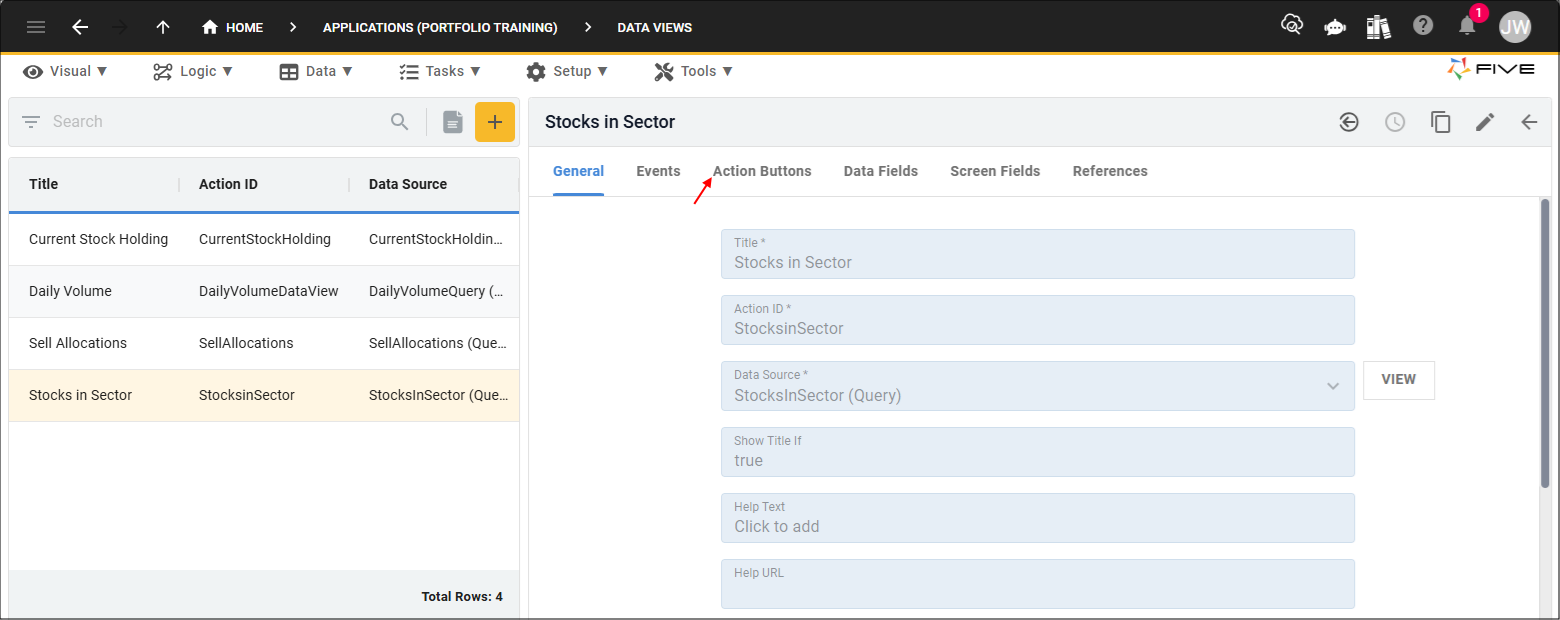

Action Buttons tab
Figure 36 - Action Buttons tab

3. Click the Add Action Buttons button.
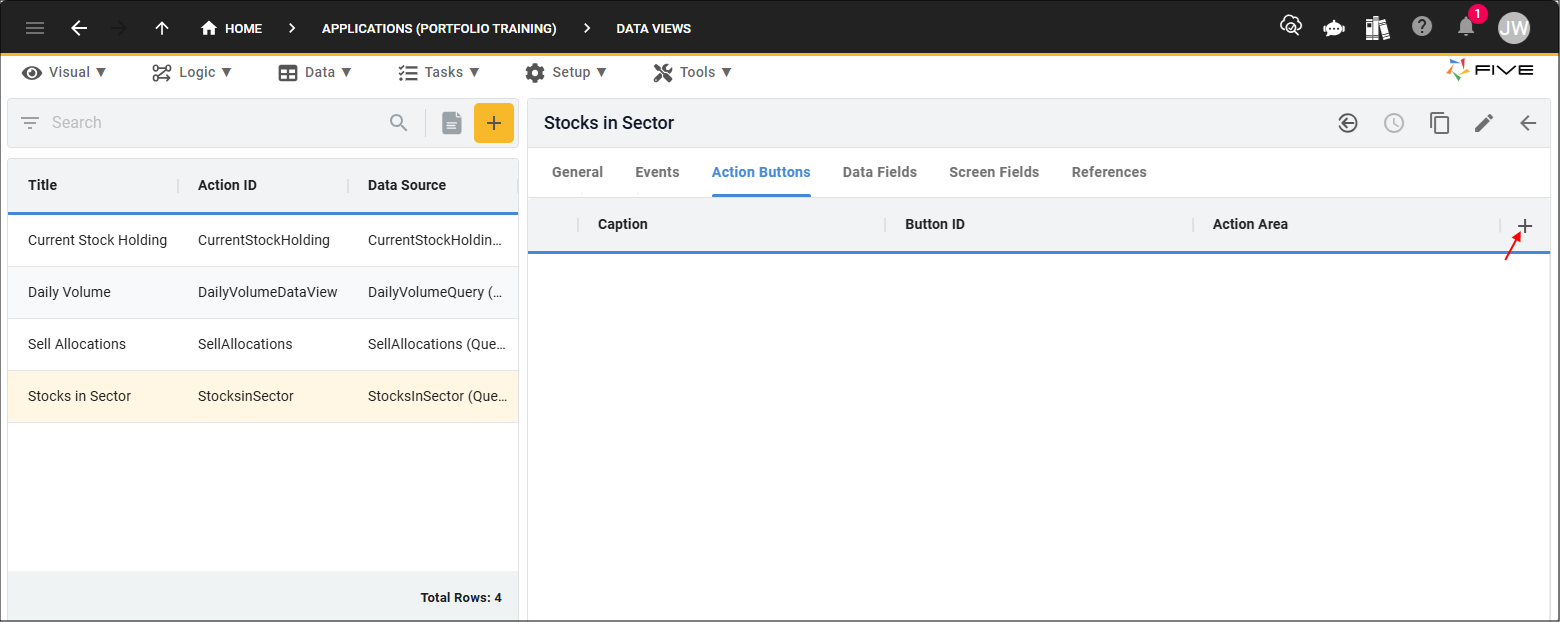

Add Action Buttons button
Figure 37 - Add Action Buttons button

4. Type Back To Chart in the Caption field.

5. Click the Events tab.
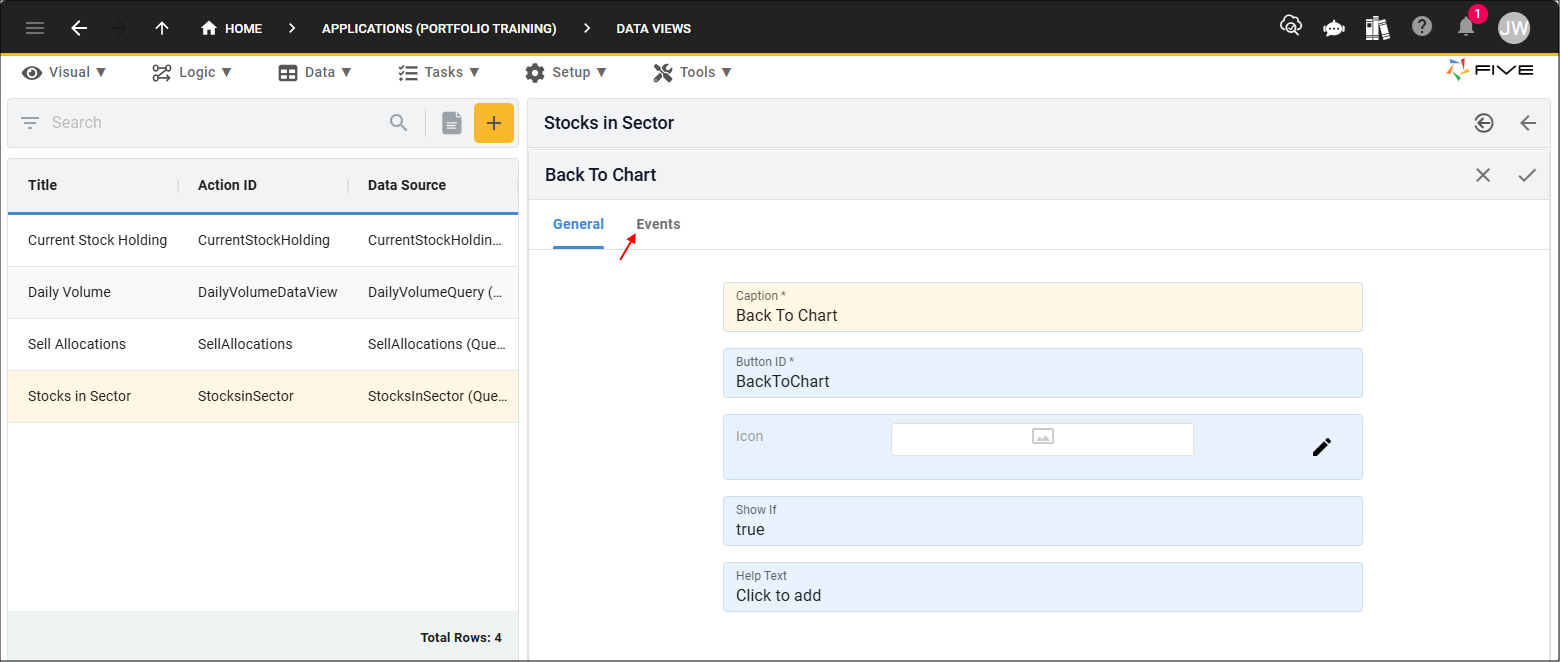

Events tab
Figure 38 - Events tab

6. Select PreviousAction in the On Press field.
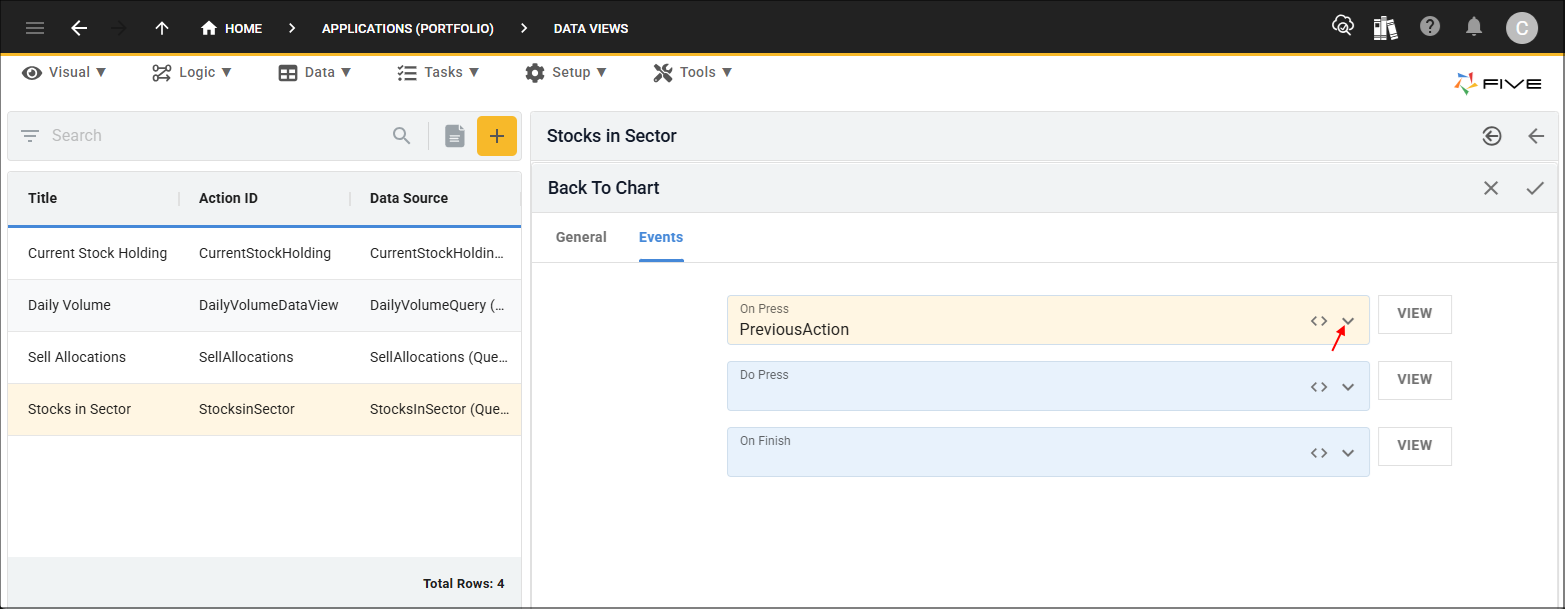

On Press field
Figure 39 - On Press field

7. Click the Save button in the form app bar.
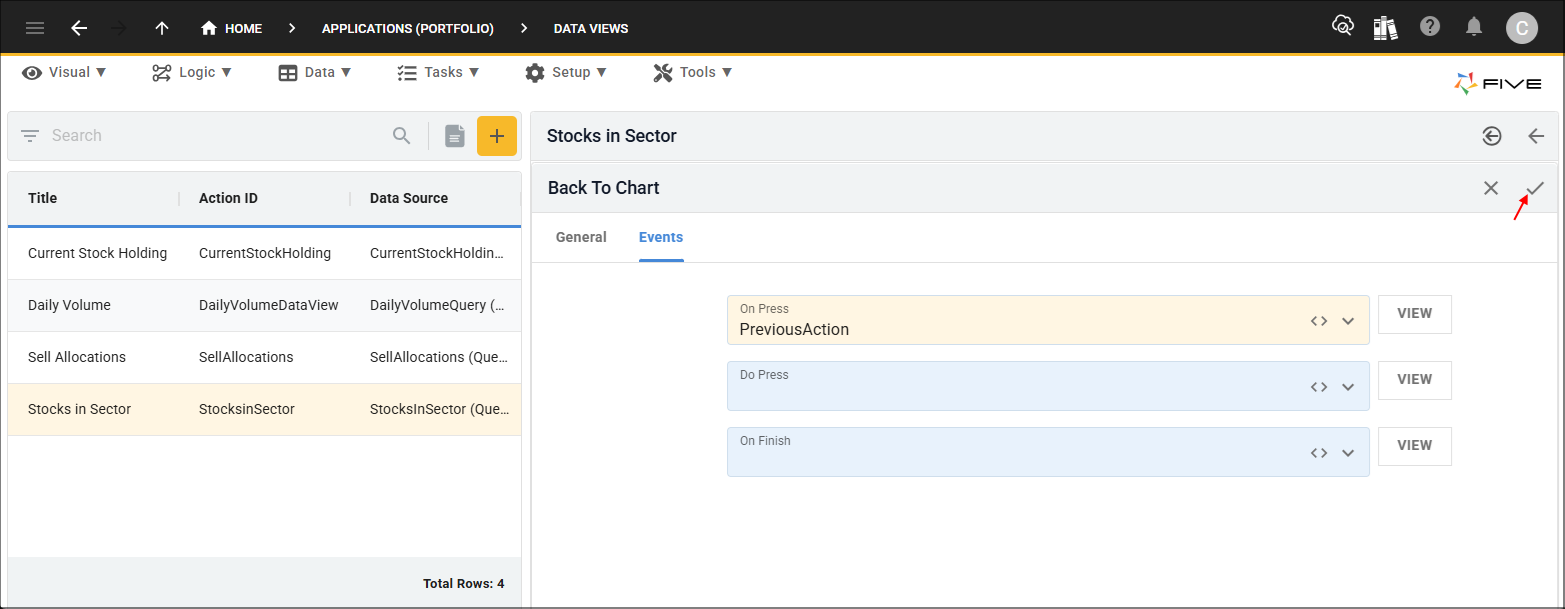

Save button
Figure 40 - Save button

8. Click the Save button in the form app bar above the list.
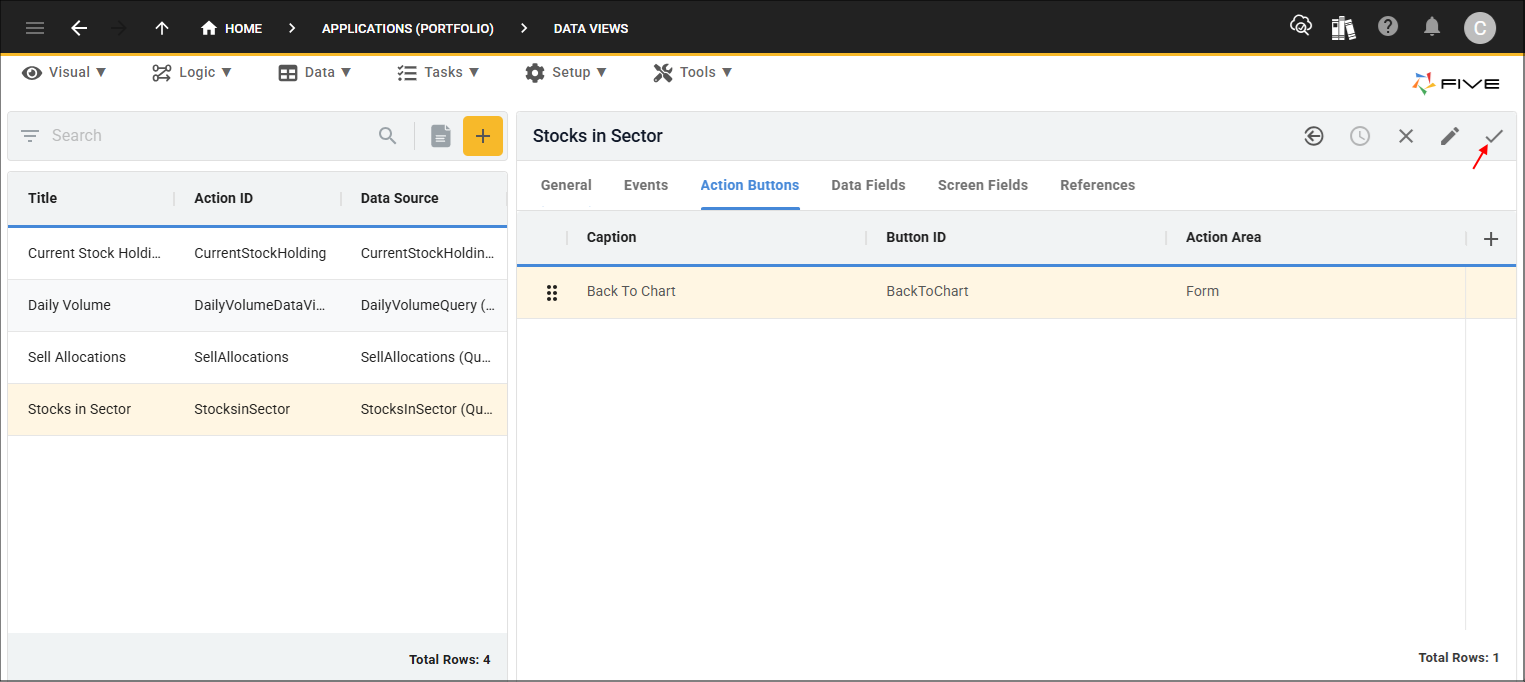

Save button
Figure 41 - Save button

tip
This is a good time to deploy/run the Portfolio application and see how the
selectAction()
and
previousAction()
functions work!

Test the Action Functions

1. Select the Growth Portfolio record in the list and click the Down button in the form app bar.
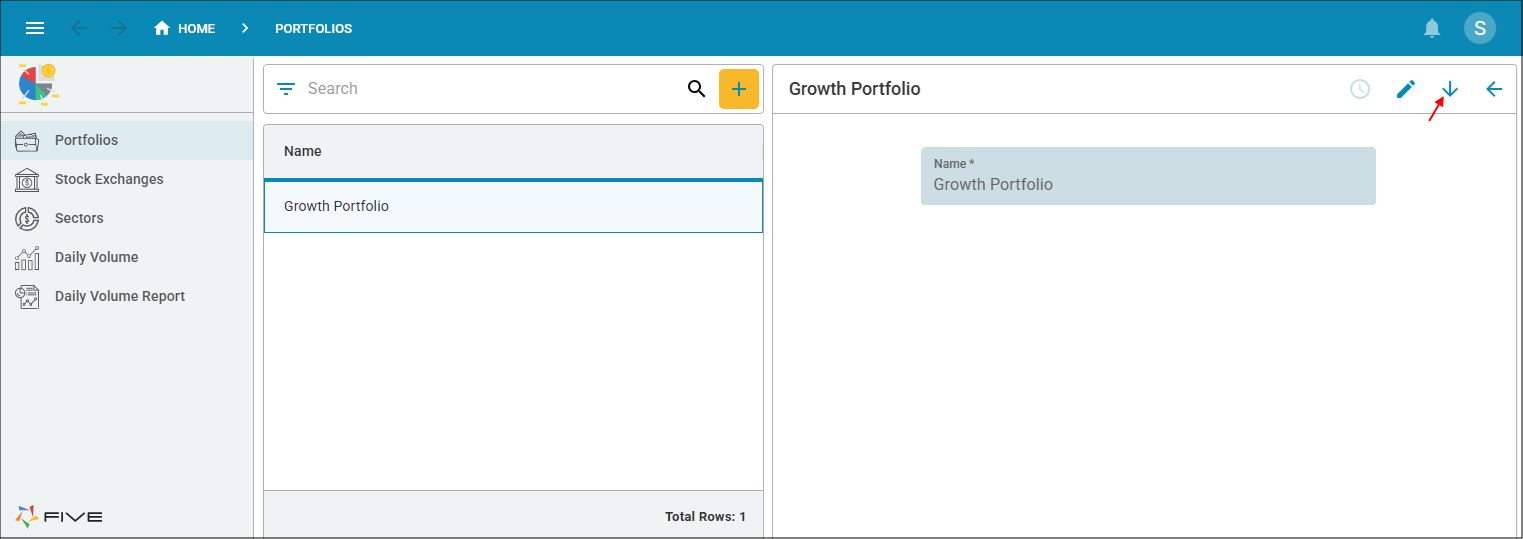

Down button
Figure 42 - Down button

2. Click a slice of the pie in the Investment By Sector chart.
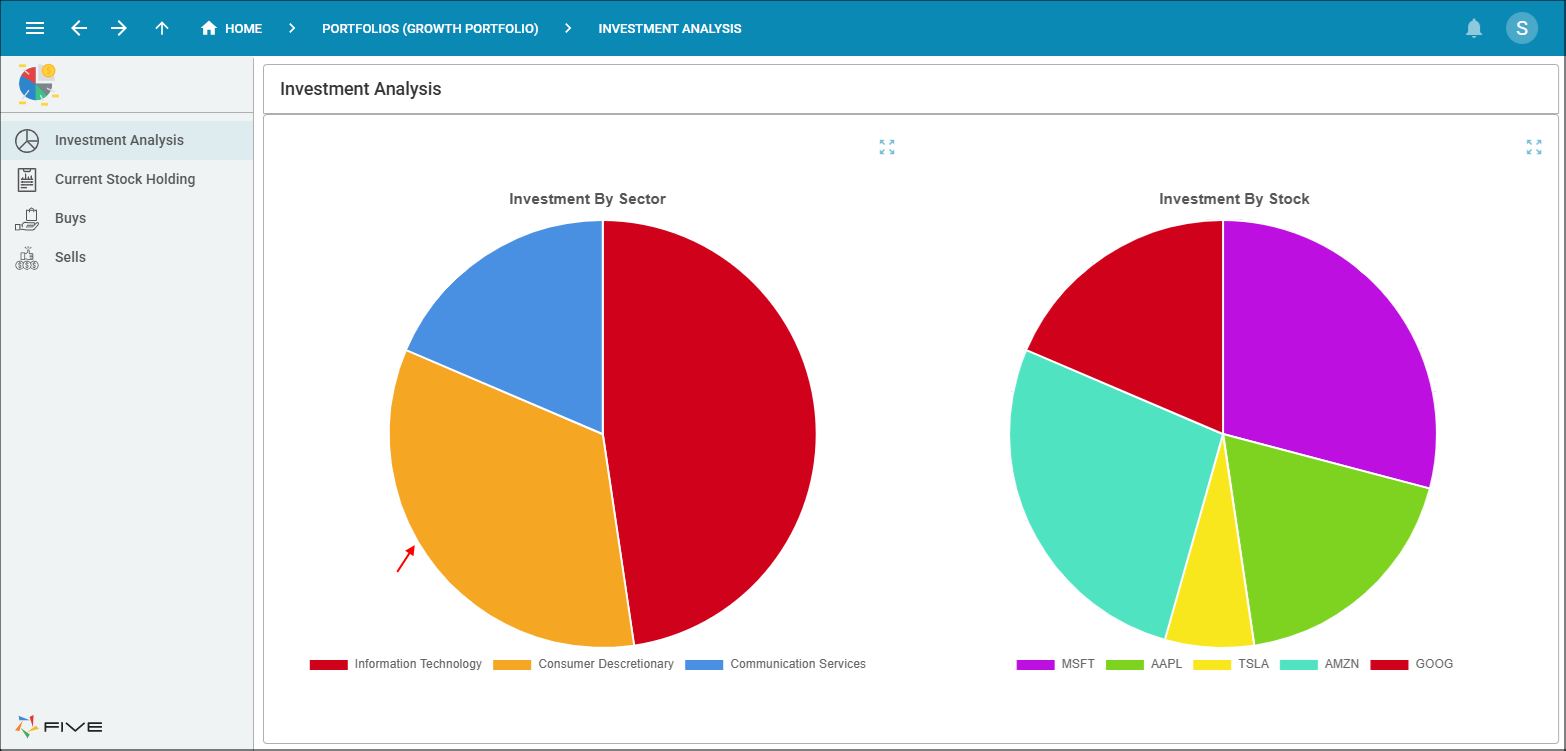

Sector slice
Figure 43 - Sector slice

info
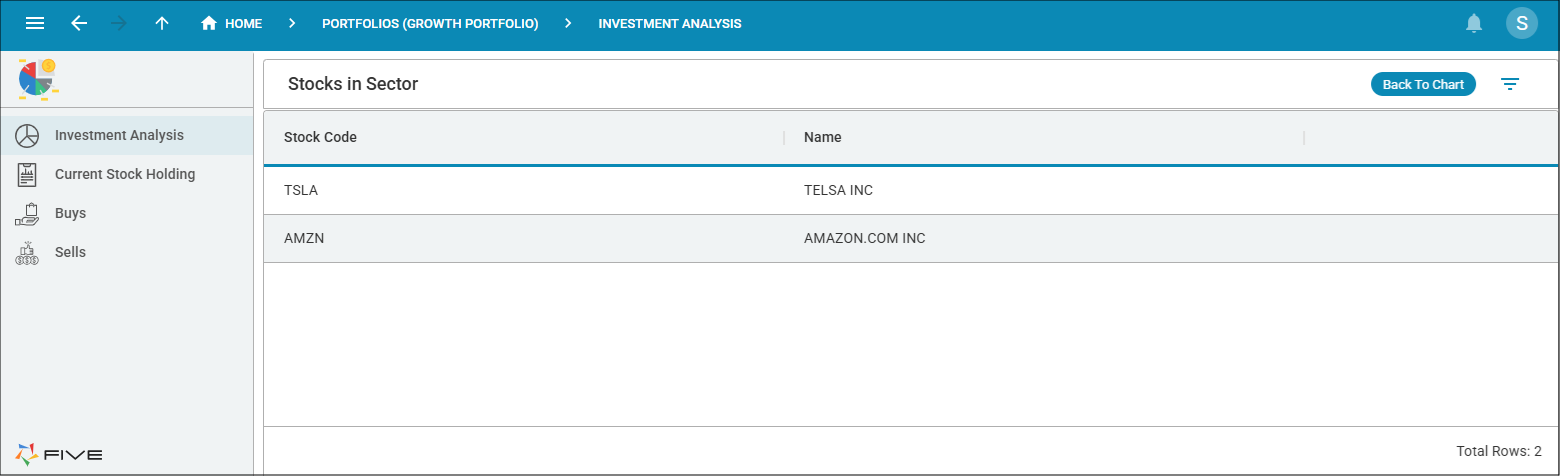
This will select the Stocks in Sector data view and display the list of stocks for that sector.

Stocks in Sector data view
Figure 44 - Stocks in Sector data view

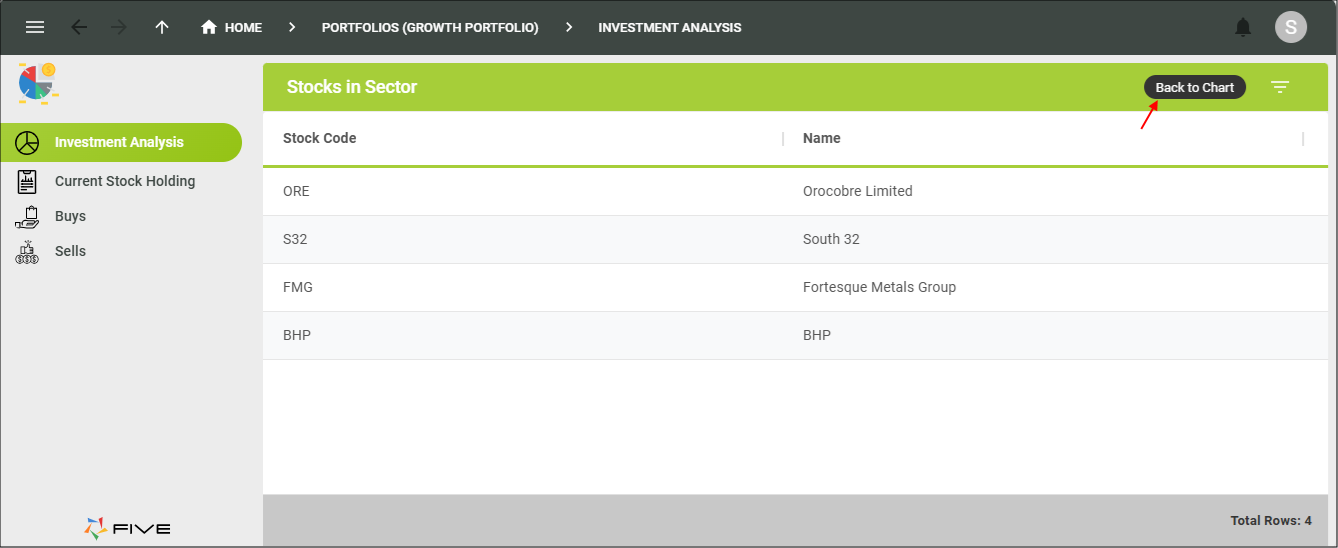
3. Click the Back To Chart button.


Back To Chart button
Figure 45 - Back To Chart button

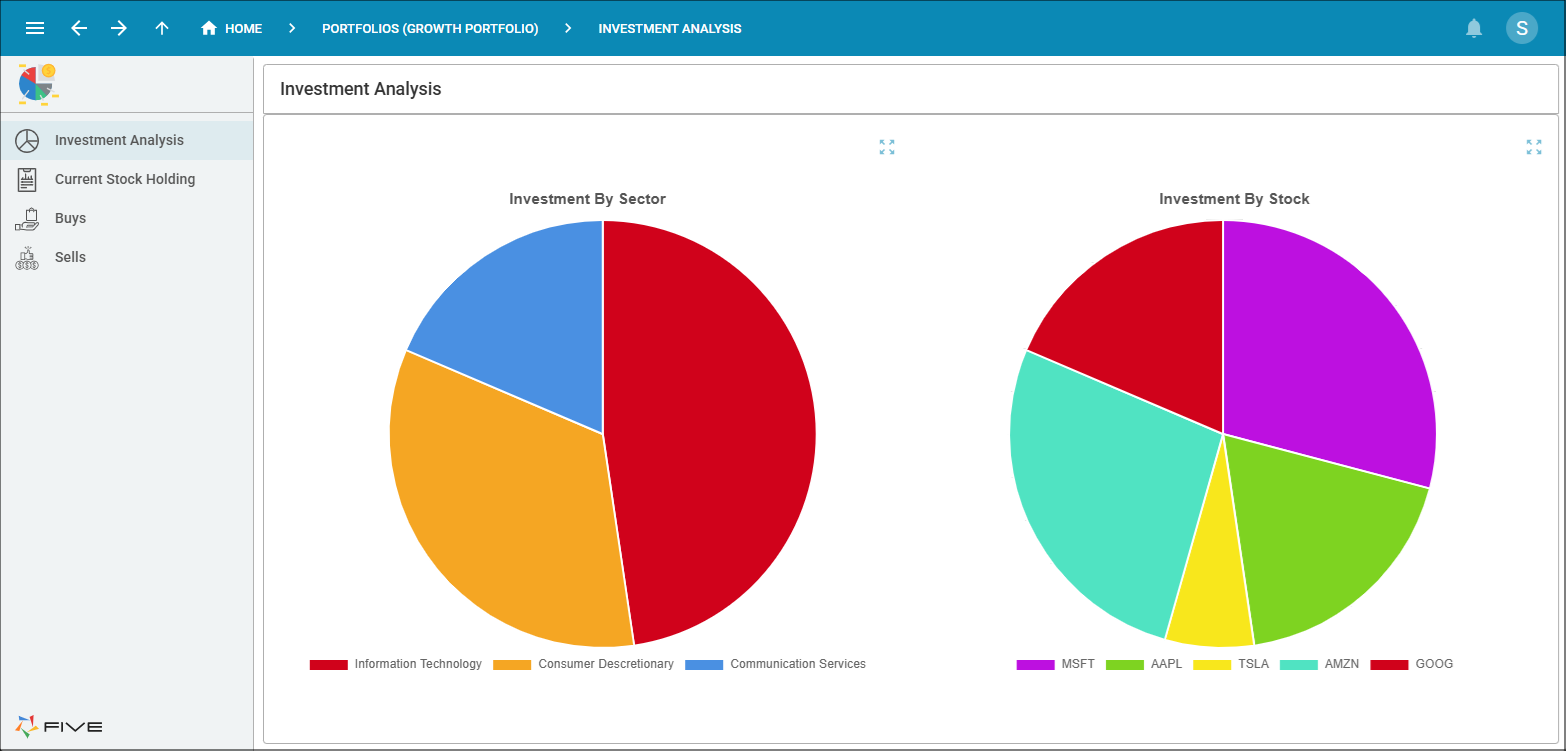
info
This will take you back to the previous action, which is ths Investment Analysis chart.

Investment Analysis charts
Figure 46 - Investment Analysis charts