Maintain Functions
Last updated 12/07/2023
All function records are listed in the Functions view for you to select if you need to update or view the record.Edit a Function Record
1. Select a function record in the list.2. Either click directly in the Function ID field, or click the Edit button in the form app bar.
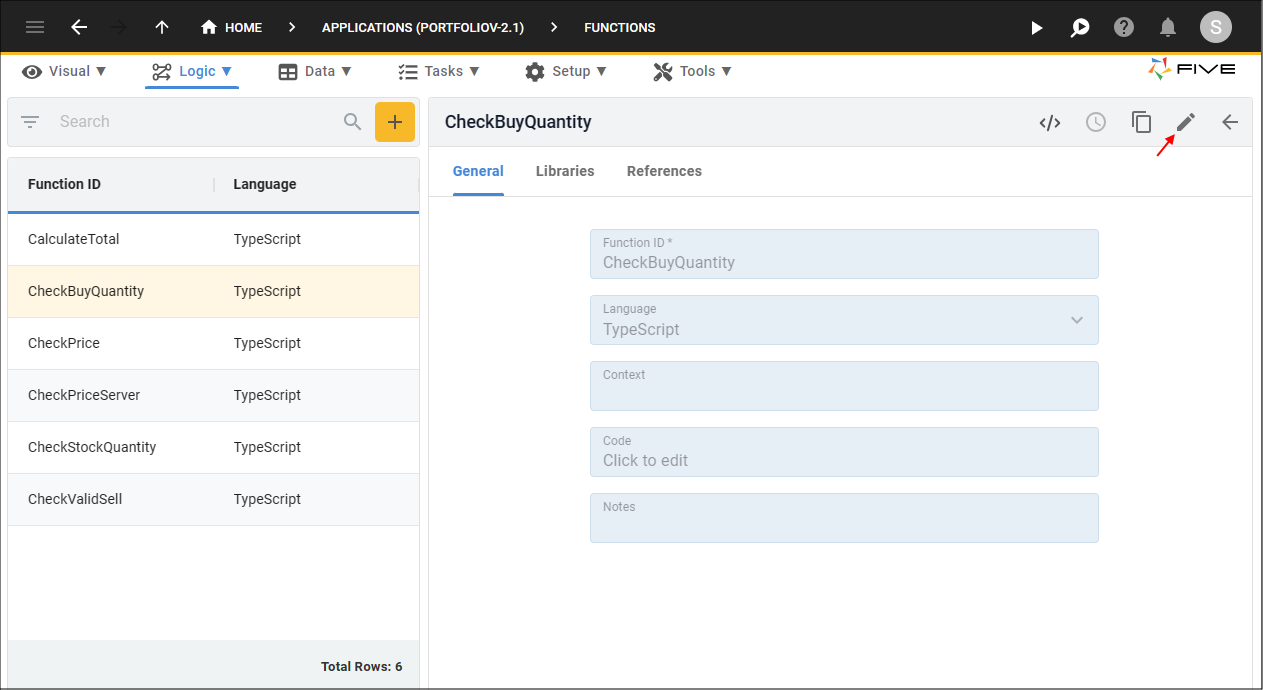
Figure 1 - Edit button
3. Click in the Code field to open the Code Editor.
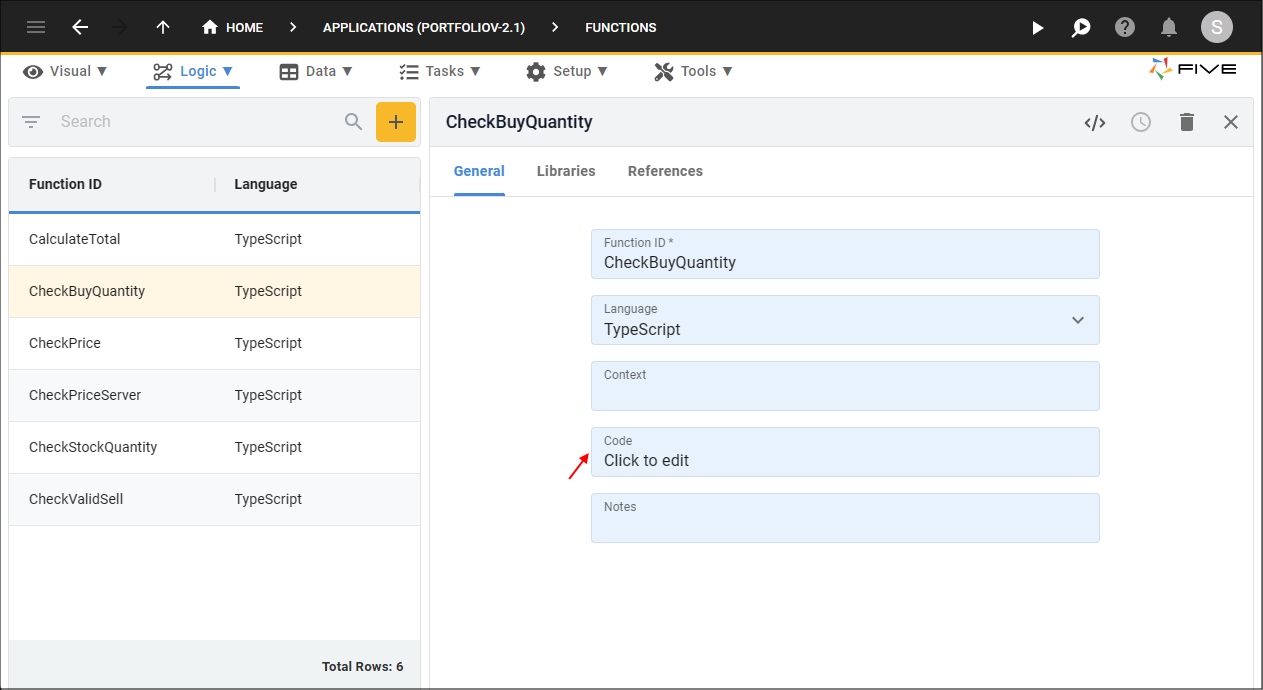
Figure 2 - Code field
4. Make the necessary changes to your code.
5. Click the Save button in the editor app bar.
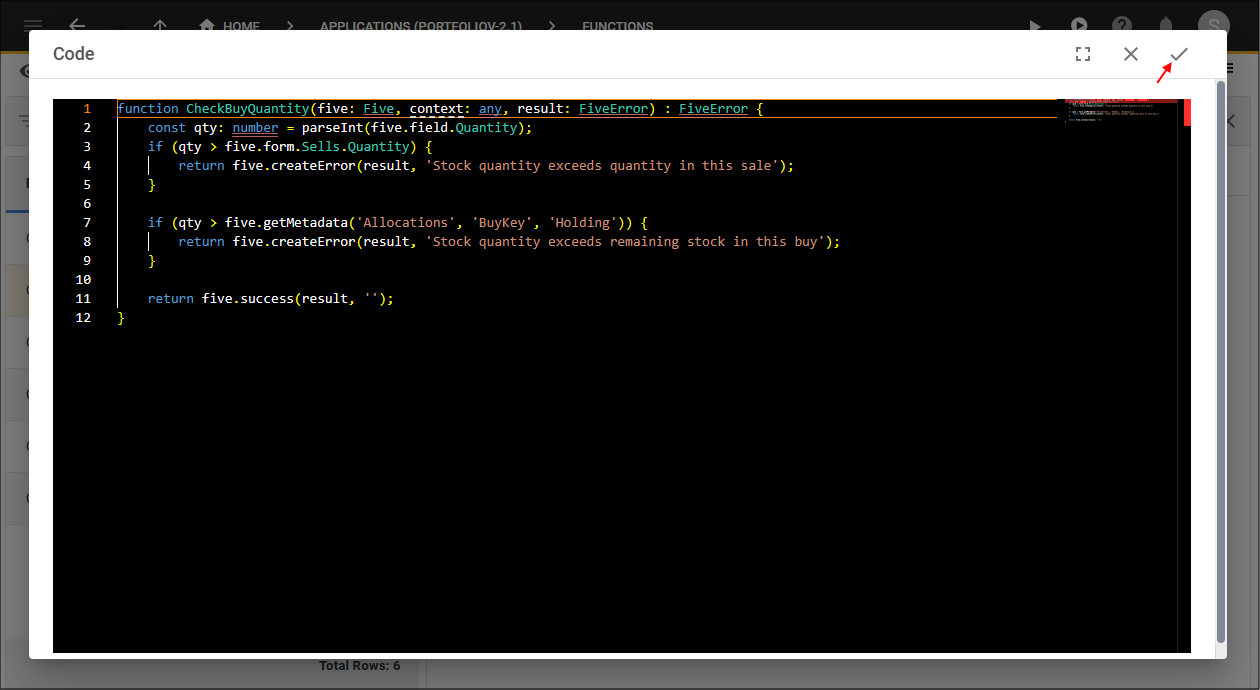
Figure 3 - Save button
6. Click the Save button in the form app bar.
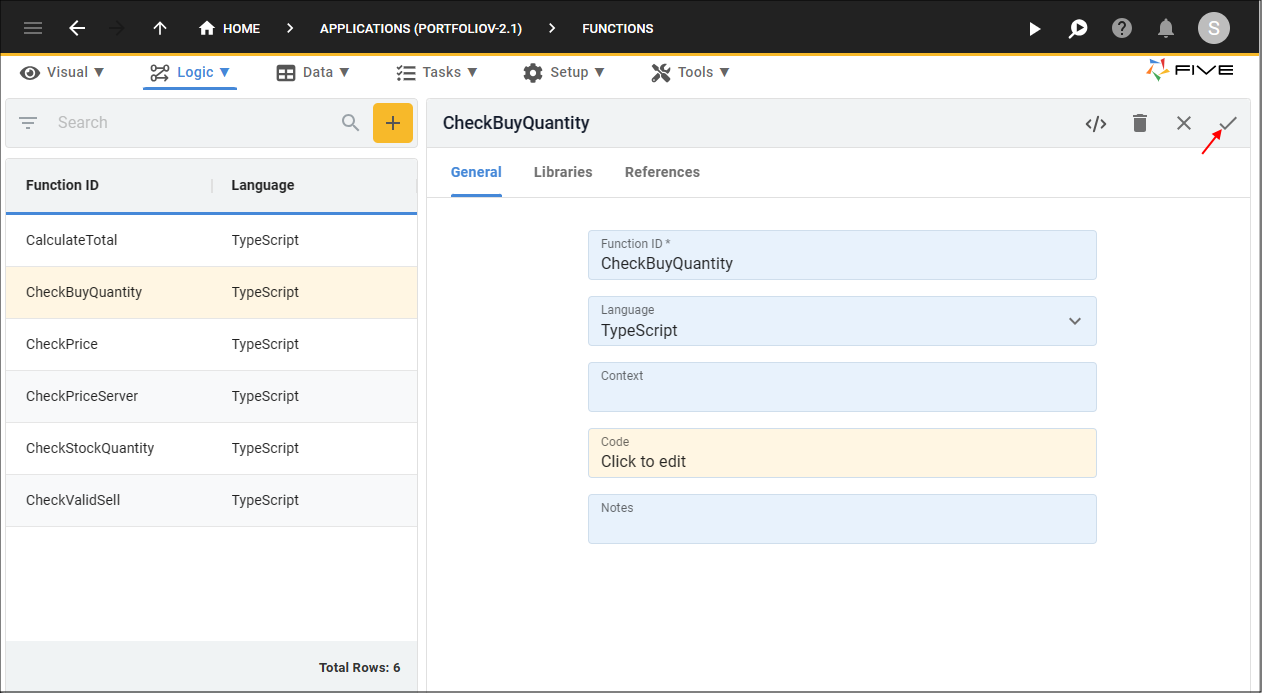
Figure 4 - Save button
Delete a Function Record
1. Select a function record in the list.2. Click the Edit button in the form app bar.
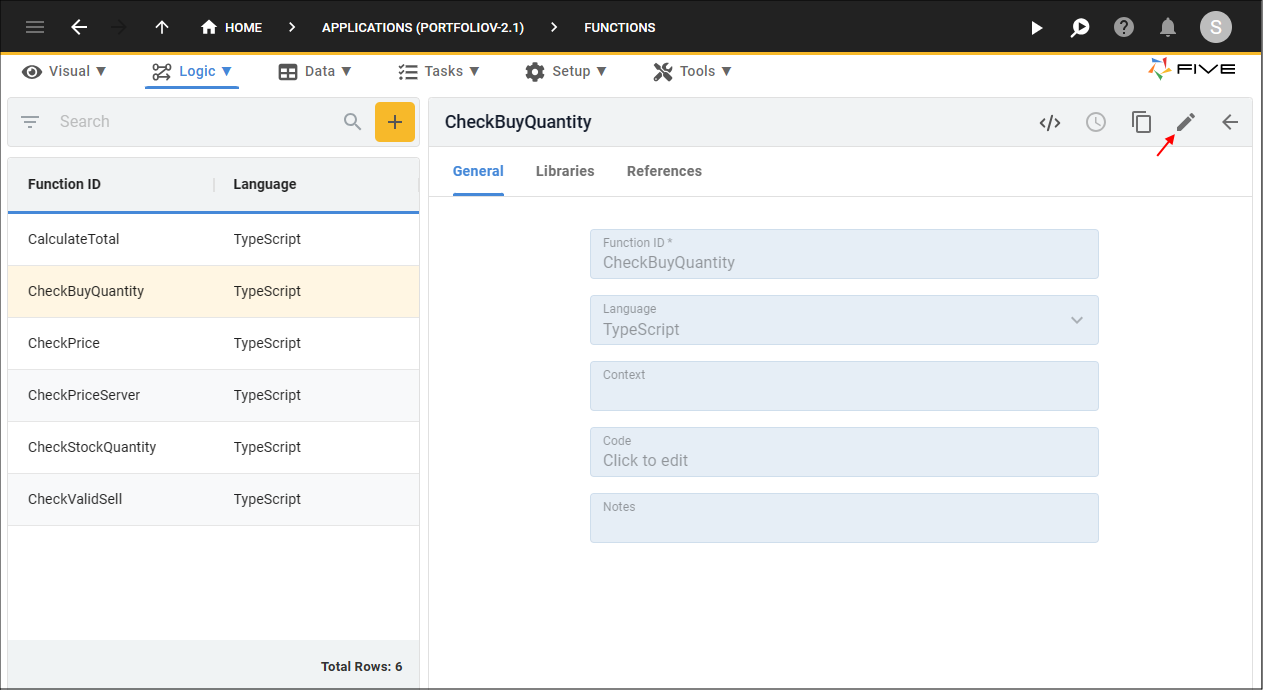
Figure 5 - Edit button
3. Click the Delete button in the form app bar.

Figure 6 - Delete button
4. Click the Yes button.
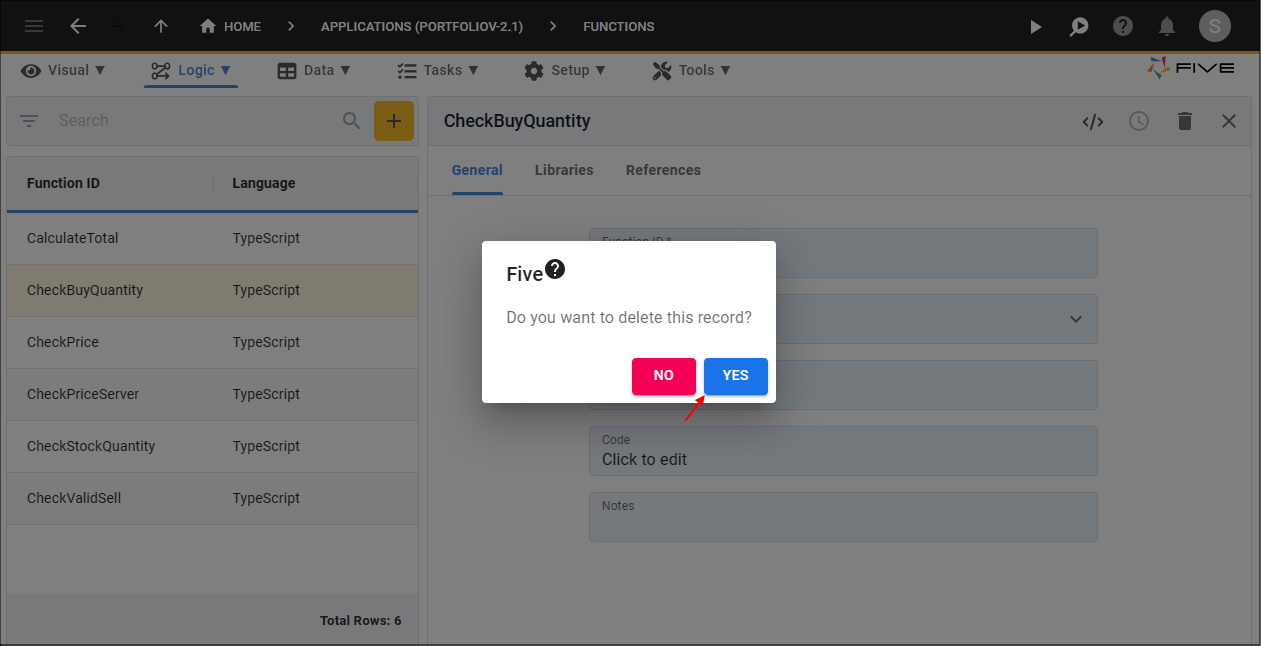
Figure 7 - Yes button
tip
Five will automatically remove the function if it is attached to any events!
Cancel Code Changes
1. Click the Cancel button in the editor app bar.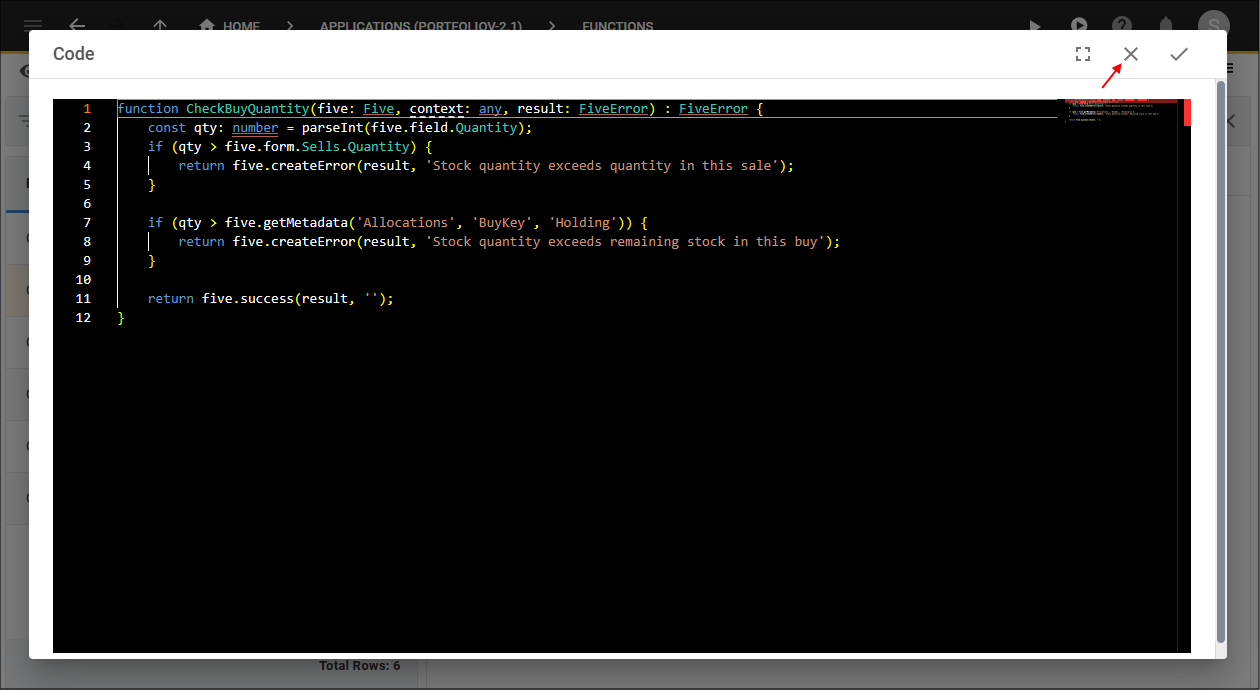
Figure 8 - Cancel Button
2. Click the Cancel button in the form app bar.
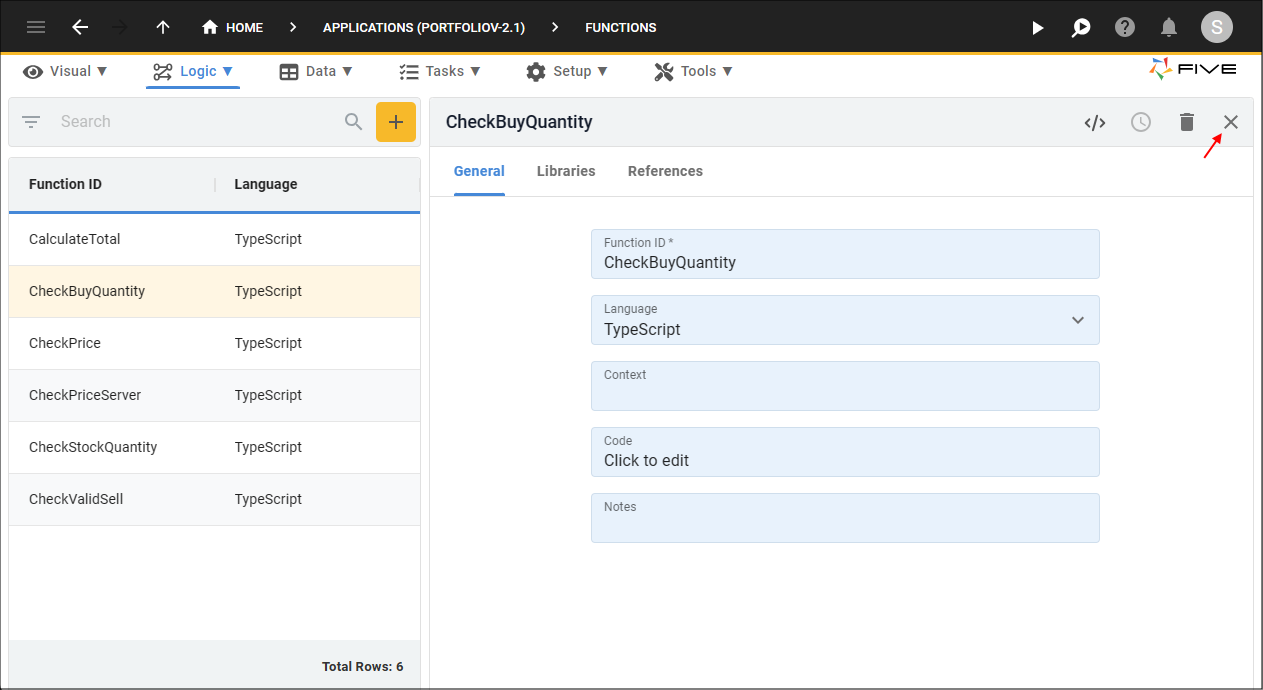
Figure 9 - Cancel button
Open a Function in Full Screen
1. Click the Fullscreen button in the editor app bar.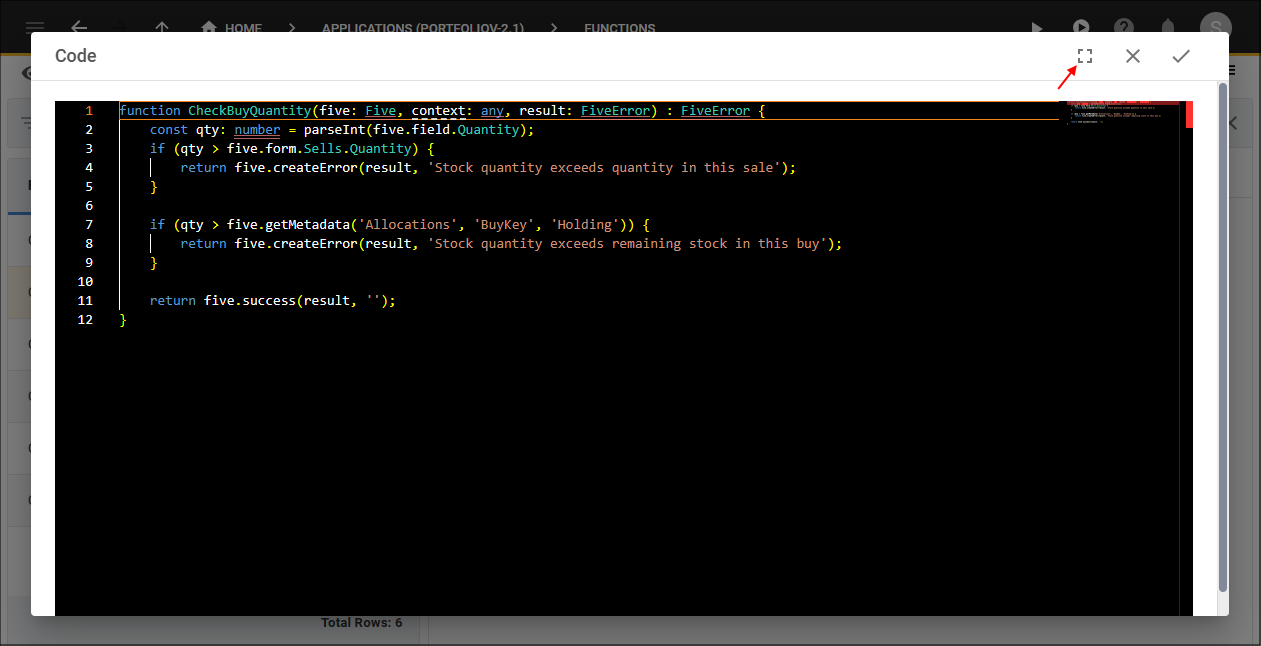
Figure 10 - Fullscreen button
2. To remove fullscreen, click the Exit Fullscreen button in the editor app bar.
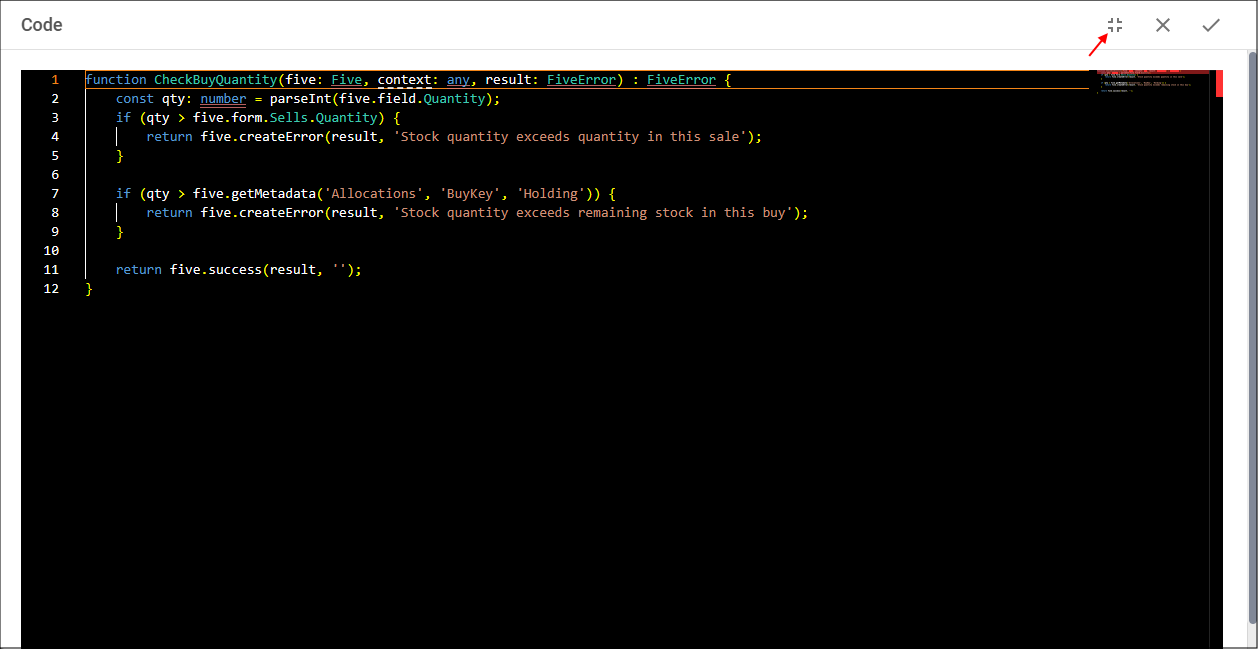
Figure 11 - Exit Fullscreen button
Open a Function in Five's Code Editor
tip
You can select a function record from the list and choose to open it Five's large Code Editor!
1. Select a function record in the list.
2. Click the Open in Code Editor button in the form app bar.
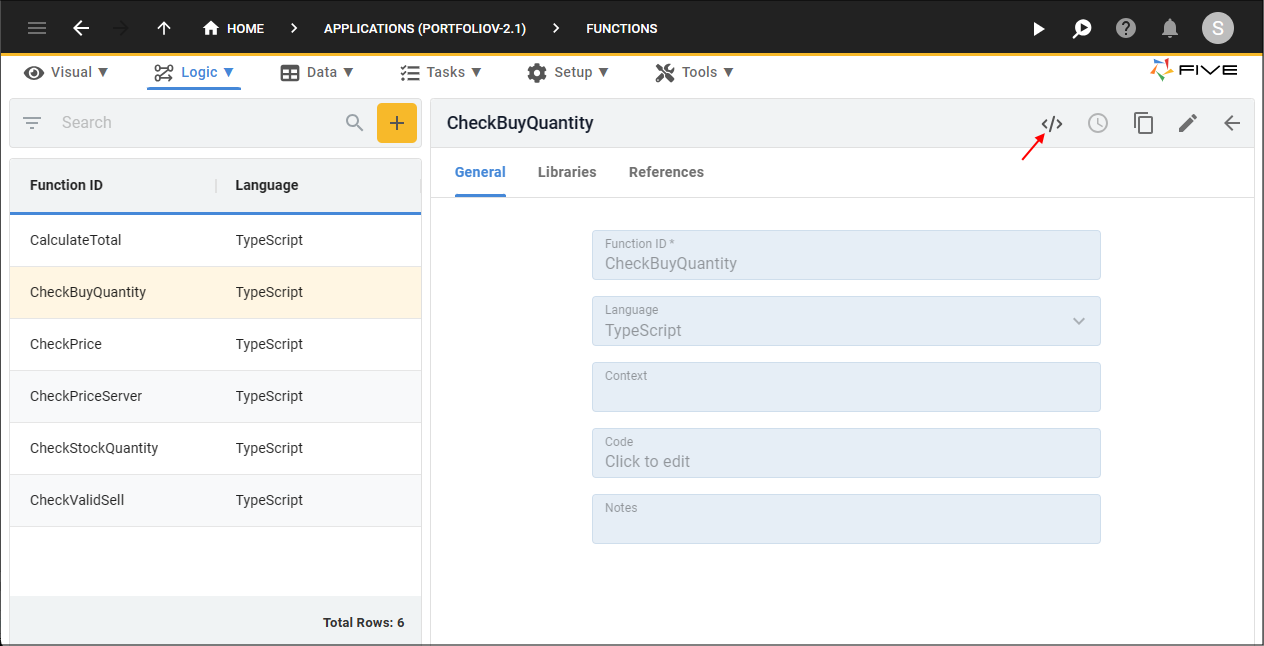
Figure 12 - Open in Code Editor button
info
Five will open your code in the Code Editor.
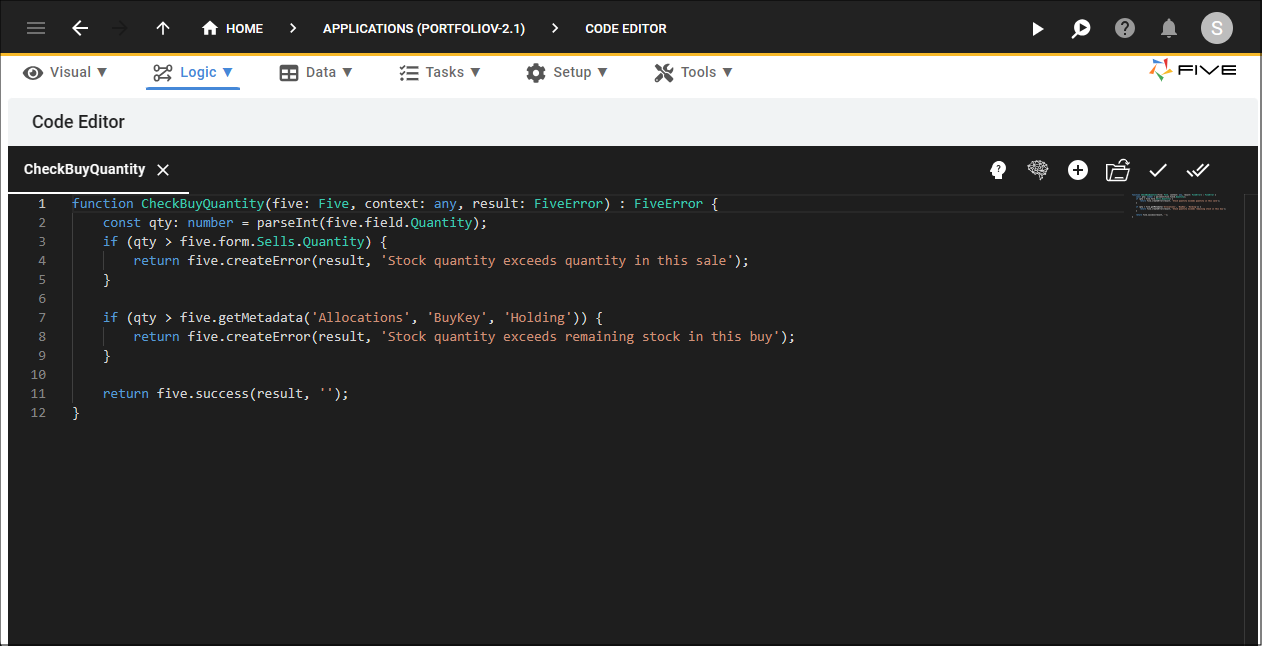
Figure 13 - Code Editor