1 - Build Database Tables
Last updated 15/12/2025
To take your knowledge of Five further, you will need to add three more tables for the Portfolio application. To reflect these changes, the Portfolio database model has been updated. The Buy, Sell, and Allocation tables are now required so a user can make transactions and allocate stock for a sale.
The Stock table has a one-to-many relationship with the Buy and Sell tables. The Portfolio table has a one-to-many relationship with the Buy and Sell tables. The Buy and Sell tables have a one-to-many relationship with the Allocation table.

Add the Buy Table
1. Select the Portfolio record in the list and click the Manage button.
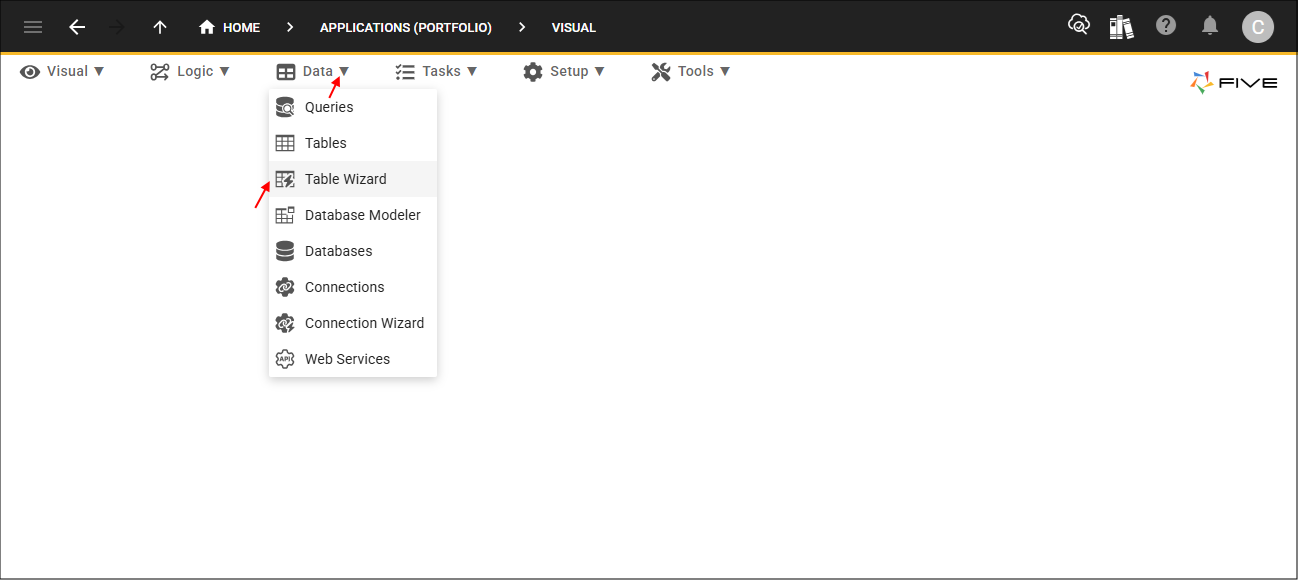
2. Click Data in the menu followed by Table Wizard in the sub-menu.
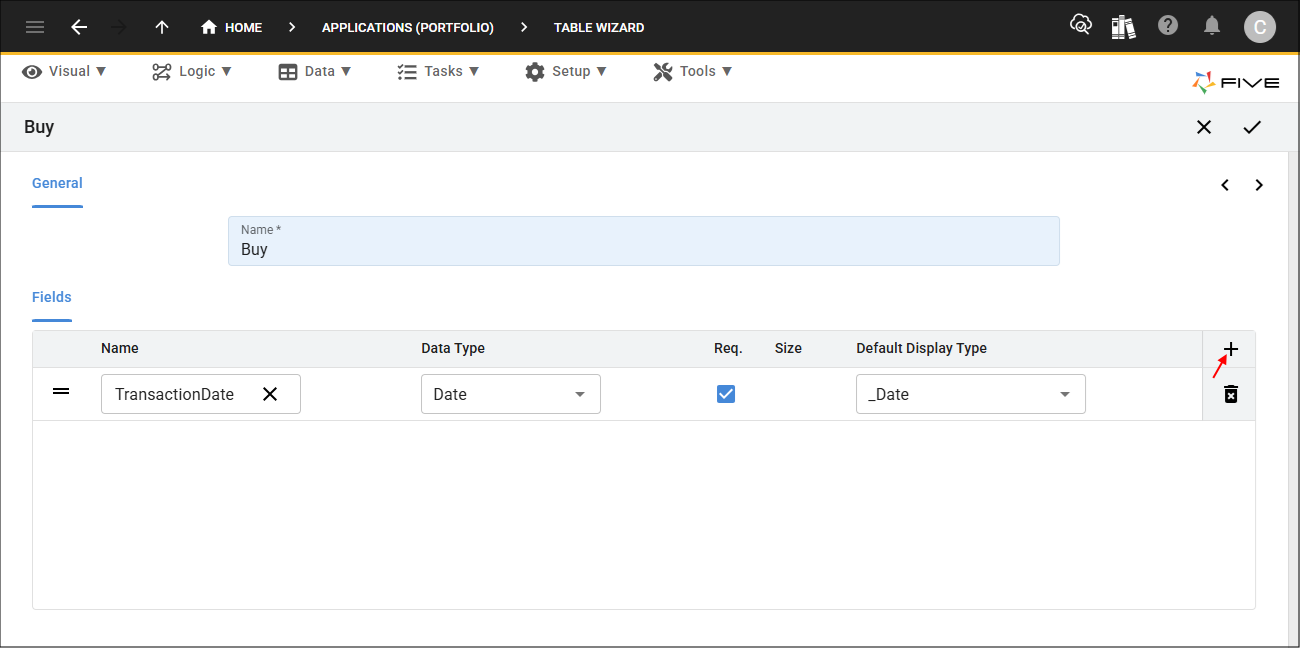
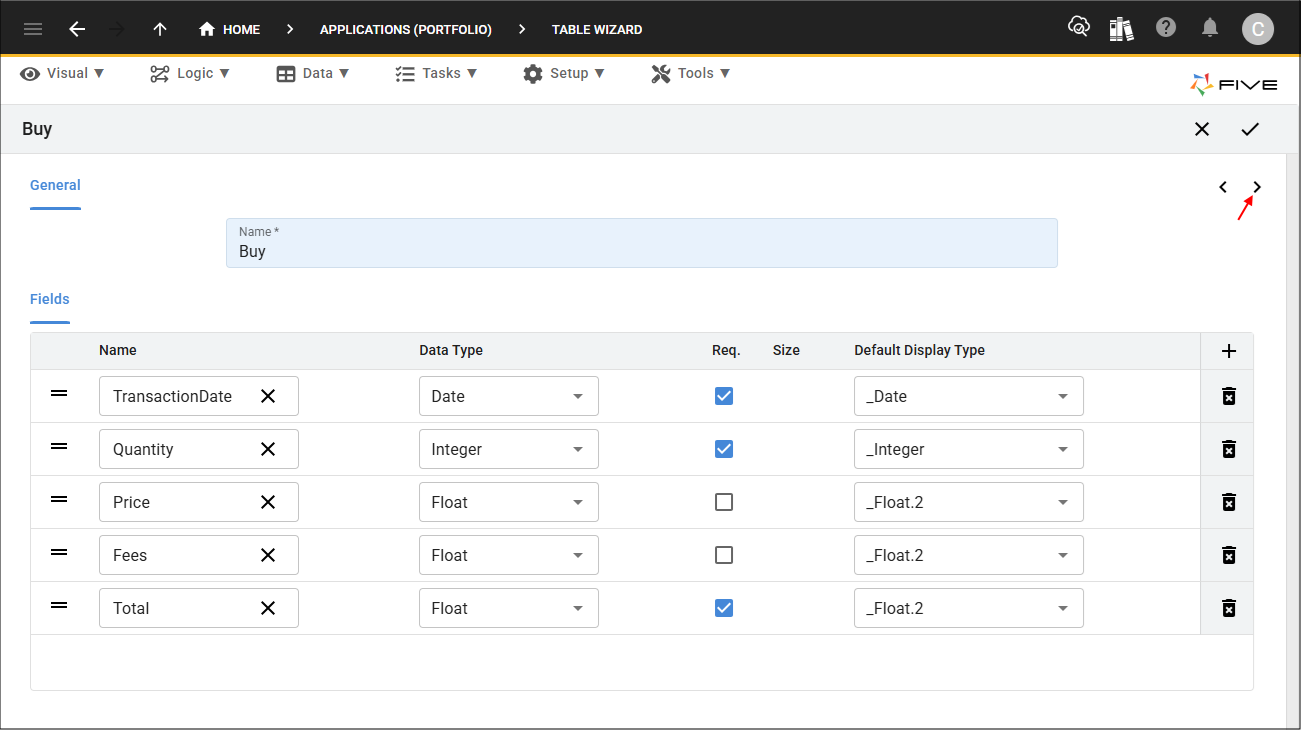
3. Type Buy in the Name field.

4. Click the Add Fields button and type TransactionDate in the Name field.
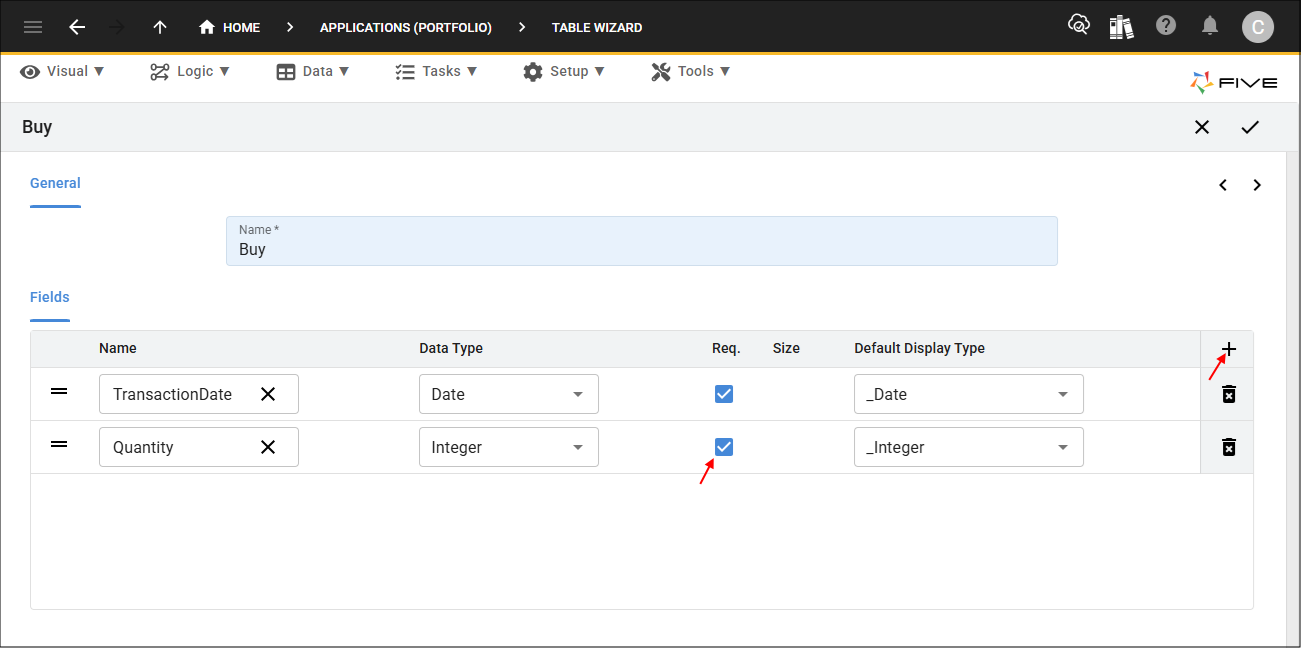
5. Click the Add Fields button, type Quantity in the Name field, and click the Req. checkbox.
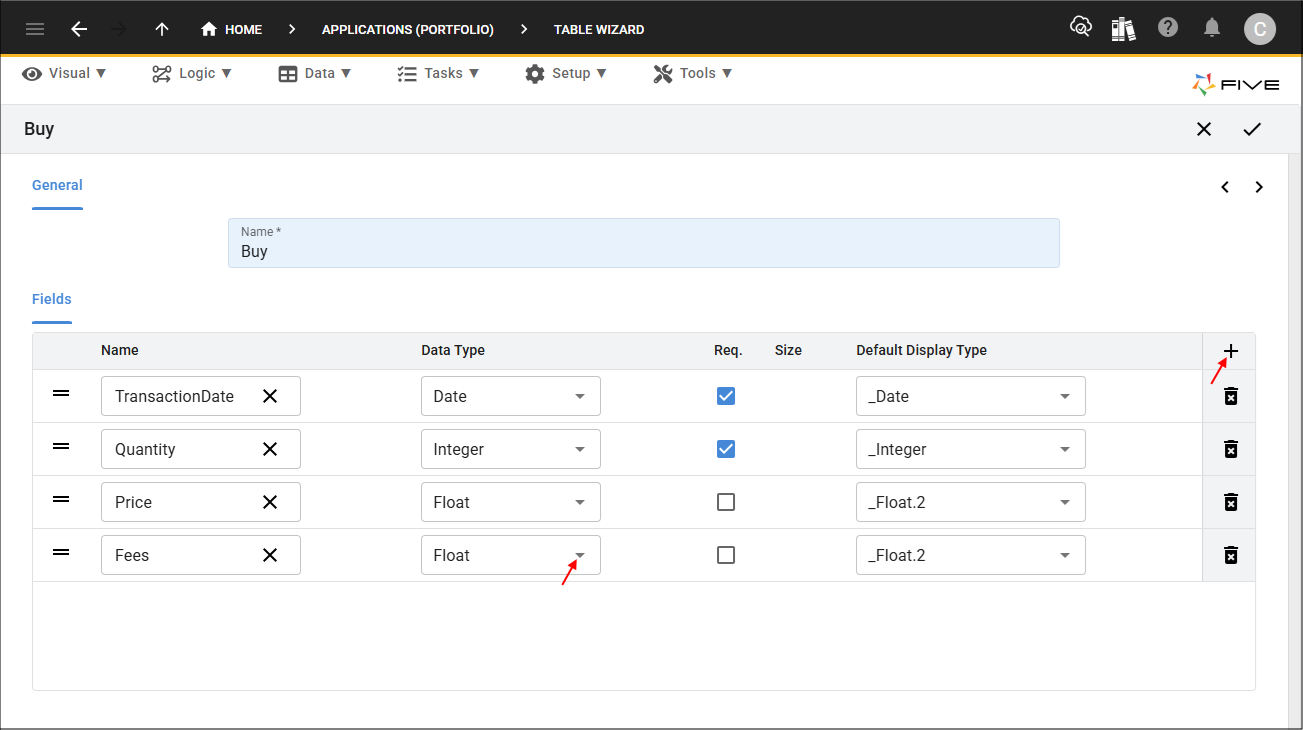
6. Click the Add Fields button, type Price in the Name field, and select Float in the Data Type field.

7. Click the Add Fields button, type Fees in the Name field, and select Float in the Data Type field.
8. Click the Add Fields button, type Total in the Name field, select Float in the Data Type field, and click the Req. checkbox.

9. Click the Next button.
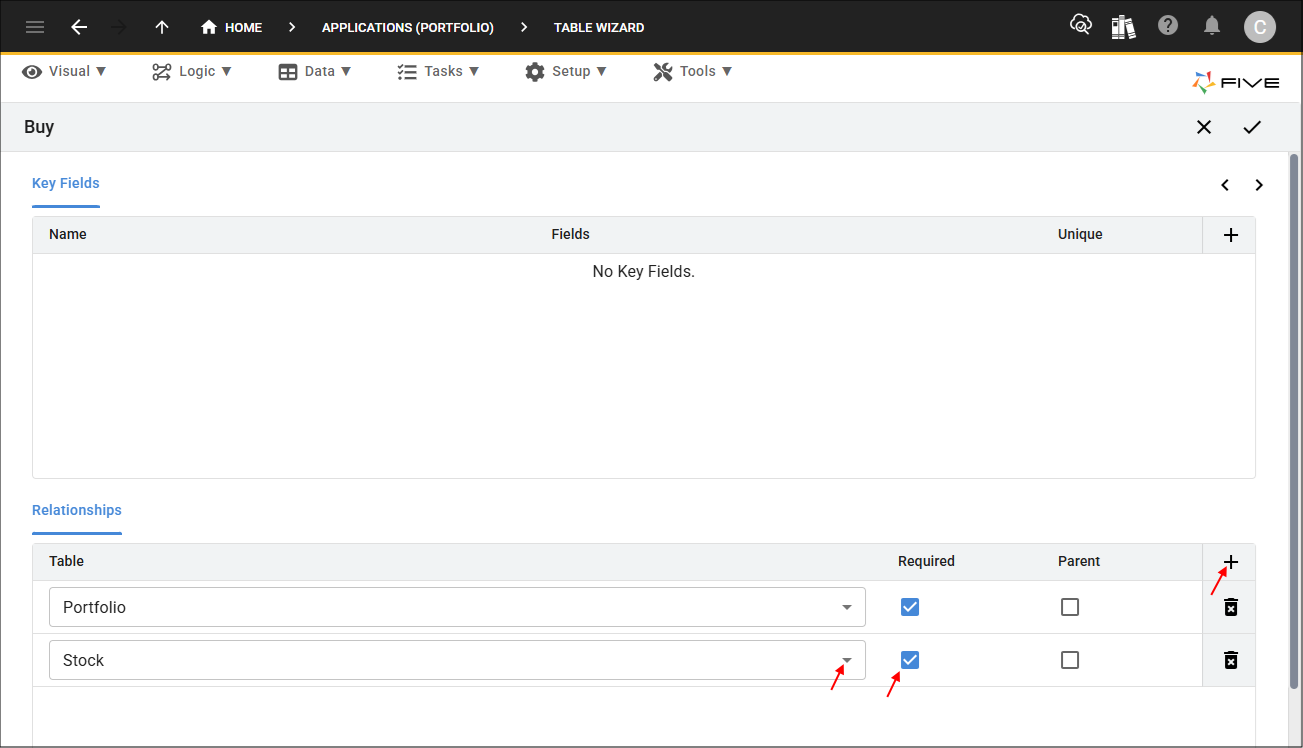
10. Click the Add Relationships button, select Portfolio in the Table field, and click the Required checkbox.

11. Click the Add Relationships button, select Stock in the Table field, and click the Required checkbox.
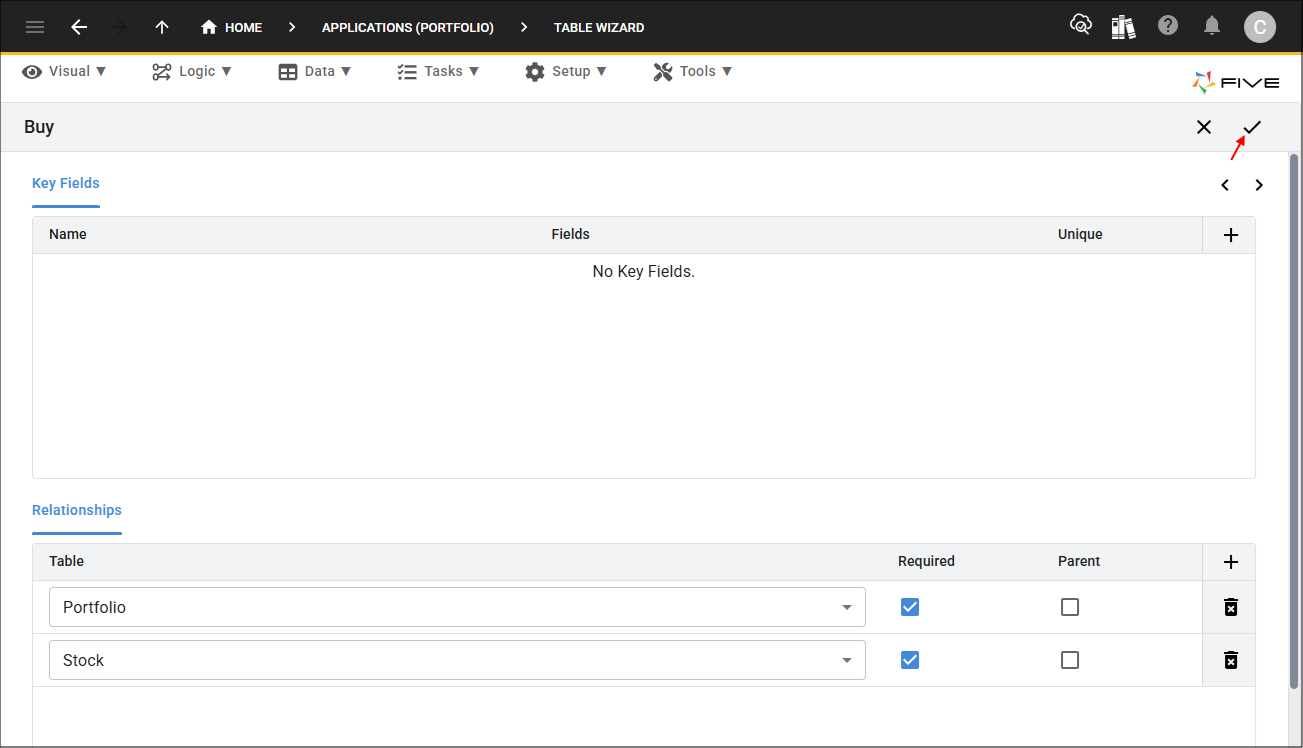
12. Click the Save button in the Table Wizard app bar.
13. Click the Save button in the Table Upgrade window.

Add the Sell Table
The Sell table, has the same fields and table relationships as the Buy table. This is a good time to introduce Five's Copy feature to duplicate the Buy table record.
When using the Copy feature, Five exactly copies the record, so we will need to edit the data source ID, the table name, and the primary field and index to reflect the Sell table.
Copying a table record needs to be performed in the Tables view.
1. Click Data in the menu followed by Tables in the sub-menu.
2. Select the Buy record in the list and click the Copy button in the form app bar.
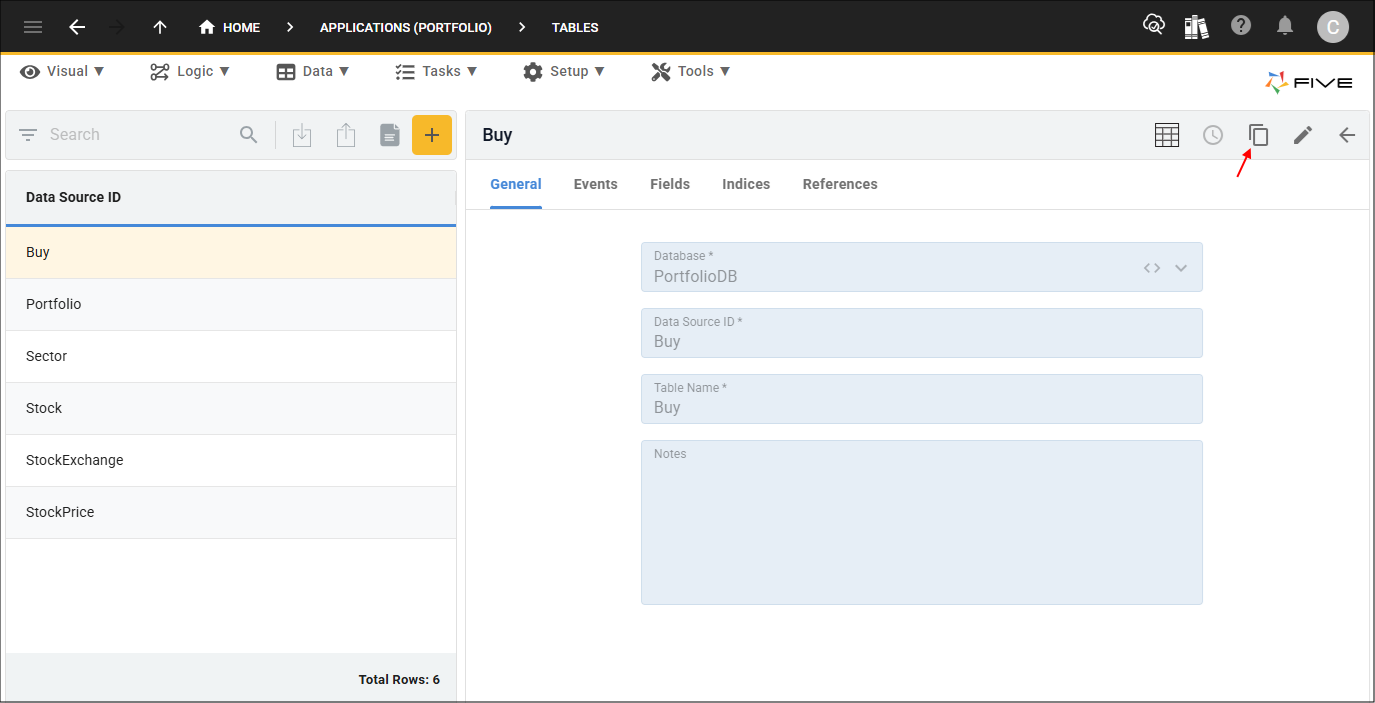
3. Click the Cancel button in the Data Source ID field and type Sell.
4. Click the Cancel button in the Table Name field and type Sell.

5. Click the Fields tab.

6. Select the BuyKey record.
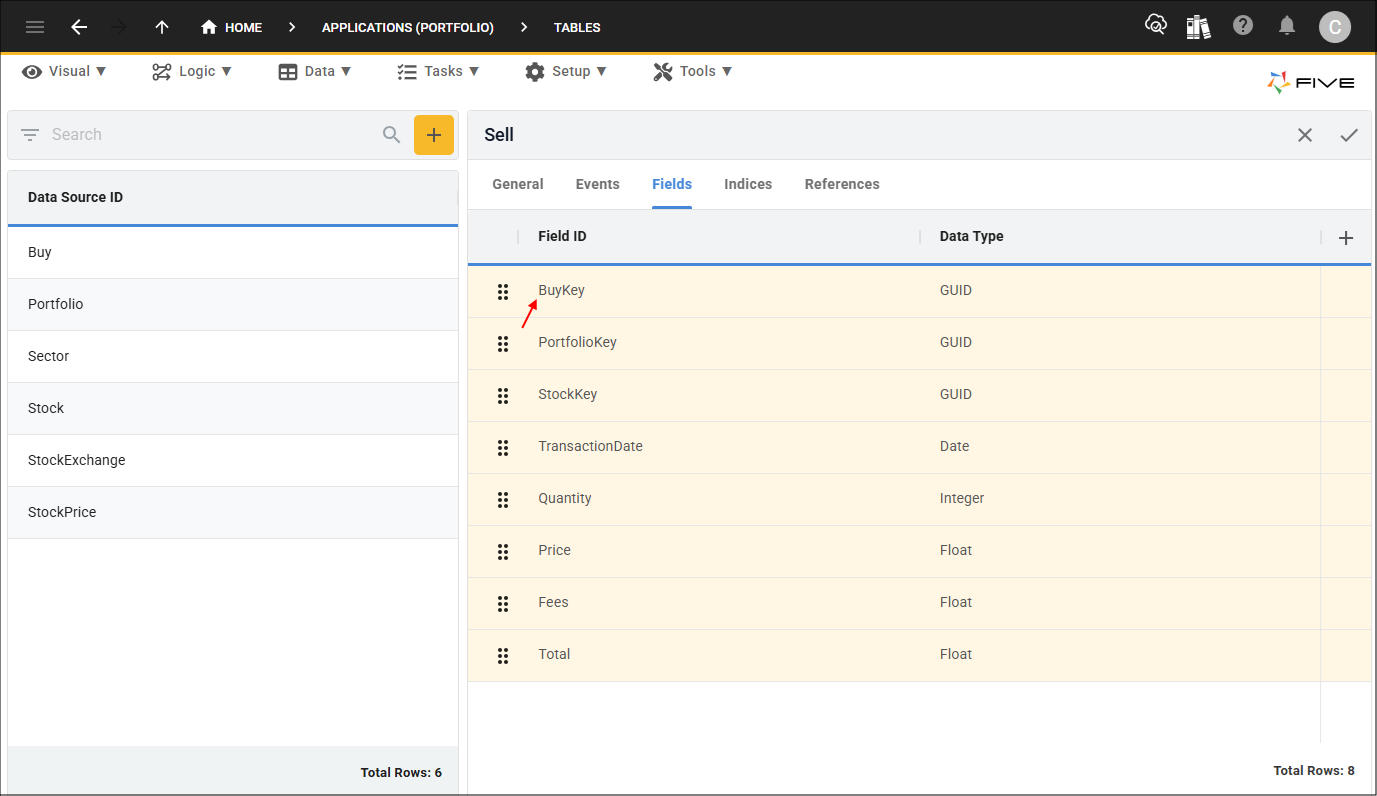
7. Either click the Edit button in the form app bar or click directly in the Field ID field.
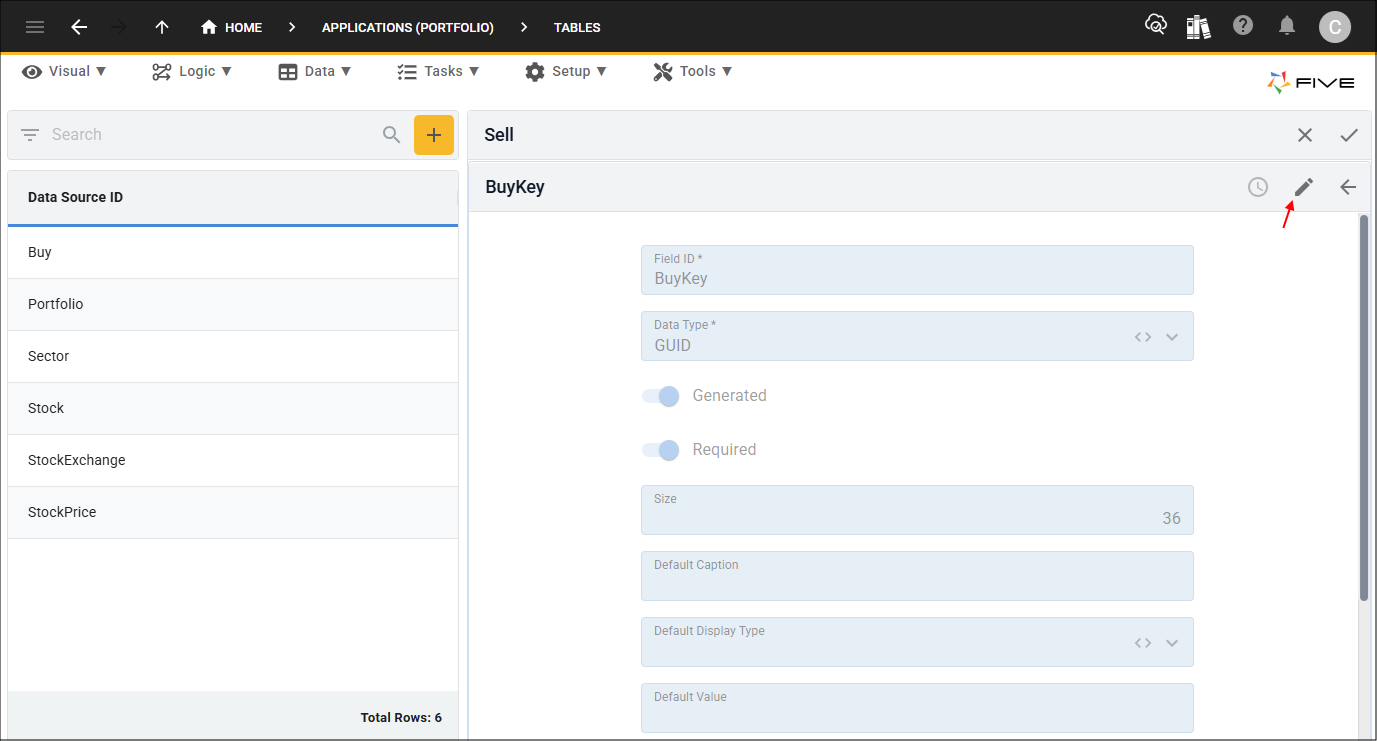
8. Click the Cancel button in the Field ID field and type SellKey.
9. Click the Save button in the form app bar.

10. Click the Indices tab.

11. Select the BuyKey record.

12. Either click the Edit button in the form app bar or click directly in the Index ID field.

13. Click the Cancel button in the Index ID field and type SellKey.
14. Click the Save button in the form app bar.
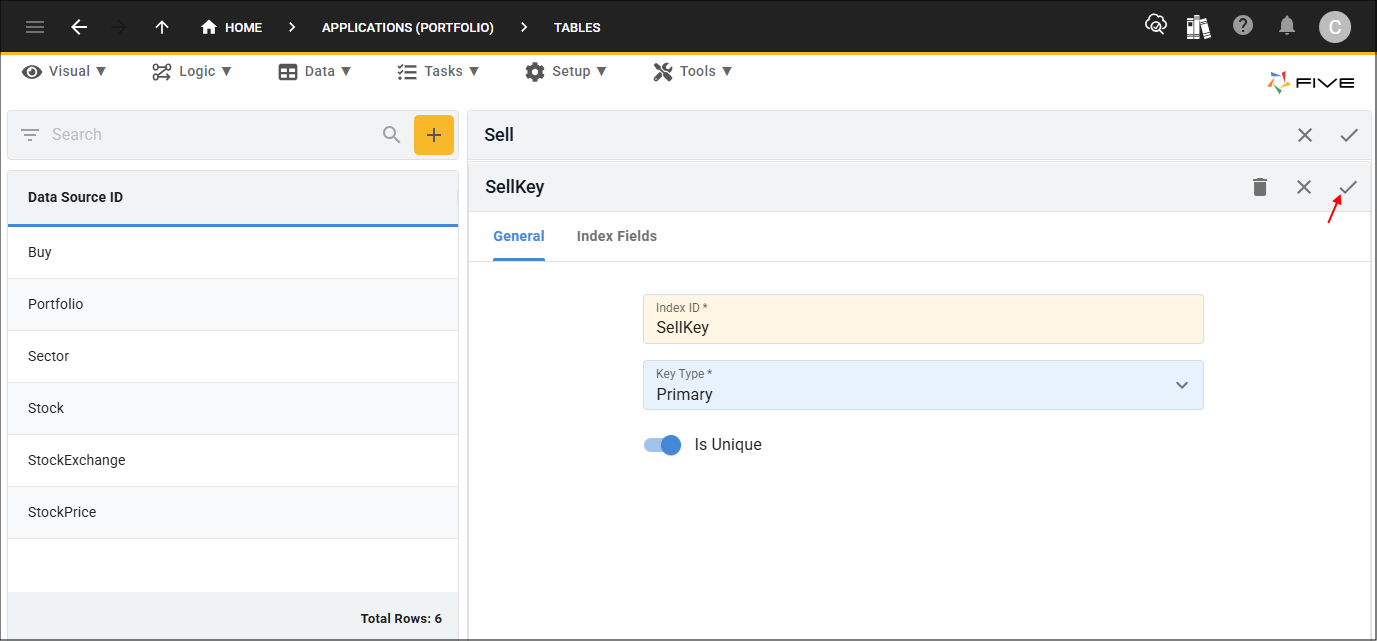
15. Click the Save buttons in the form app bar above the list and the Table Upgrade window.

Add the Allocation Table
1. Type Allocation in the Name field.
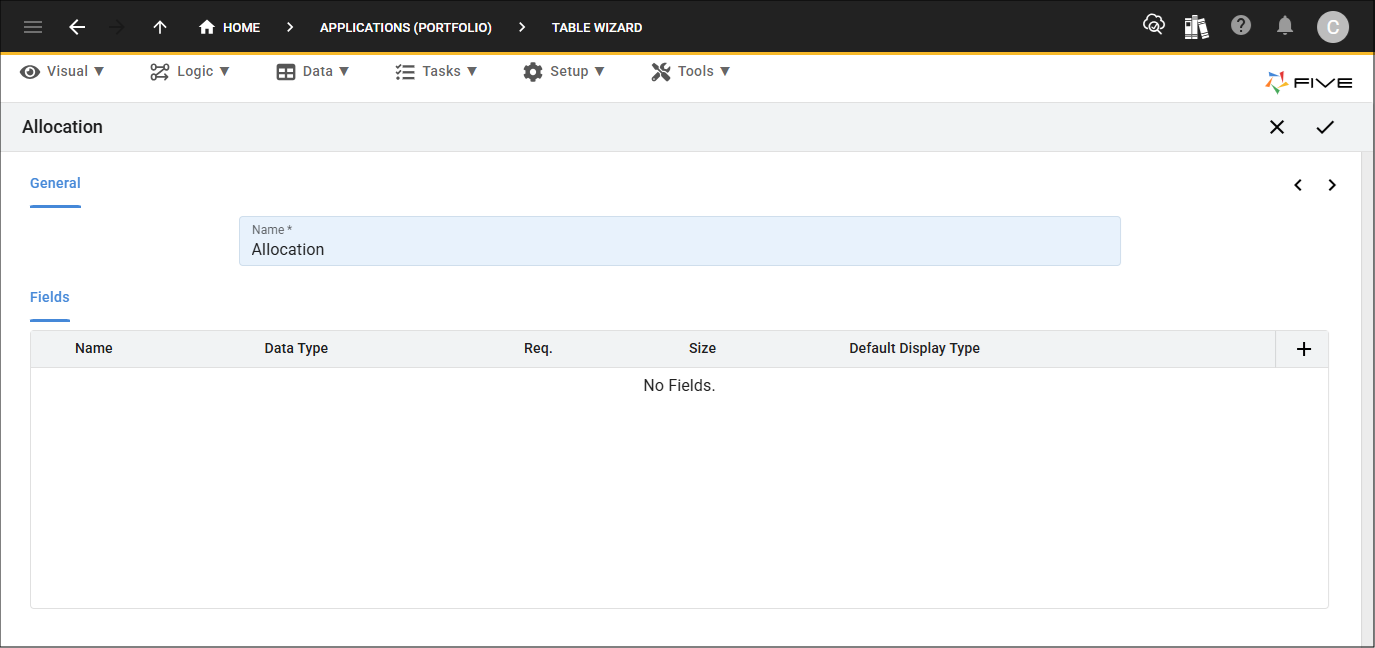
2. Click the Add Fields button and type Quantity in the Name field.

3. Click the Next button.

4. Click the Add Relationships button, select Sell in the Table field, and click the Required checkbox.

5. Click the Add Relationships button, select Buy in the Table field, and click the Required checkbox.
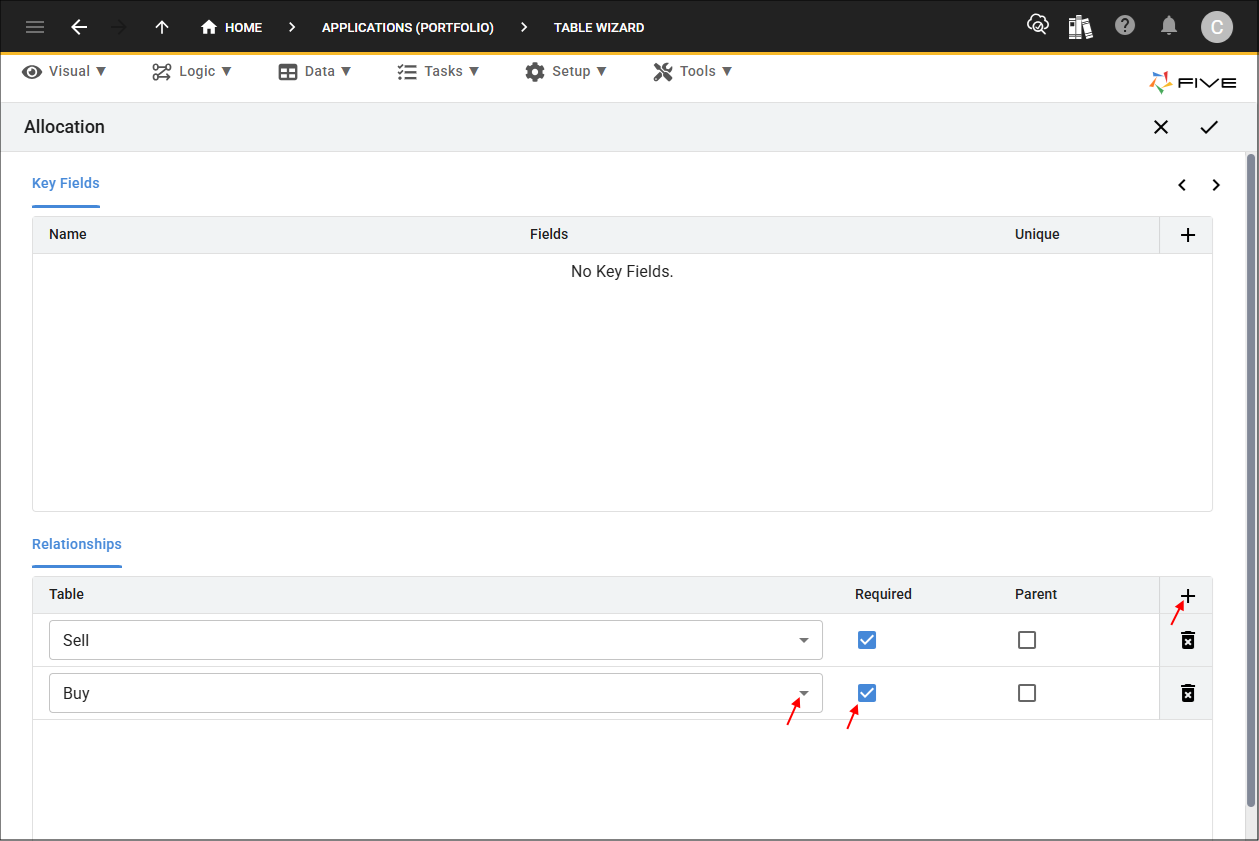
6. Click the Save buttons in the Table Wizard app bar and the Table Upgrade window.
