2 - Create Forms
Last updated 15/12/2025
This documentation will explain the forms you will need to create using the new tables you added in the Portfolio application. With these forms, you will see how to position the forms under a parent menu to understand how Five filters the data for you.
The Portfolios menu will become the parent for the Buys and Sells menus. By making Portfolios the parent menu, the Buys and Sells menus will be accessed in the Portfolio application under a selected portfolio record, hence, the buy and sell records will belong to the selected portfolio record.
Add the Buys Form
1. Click Visual in the menu followed by Form Wizard in the sub-menu.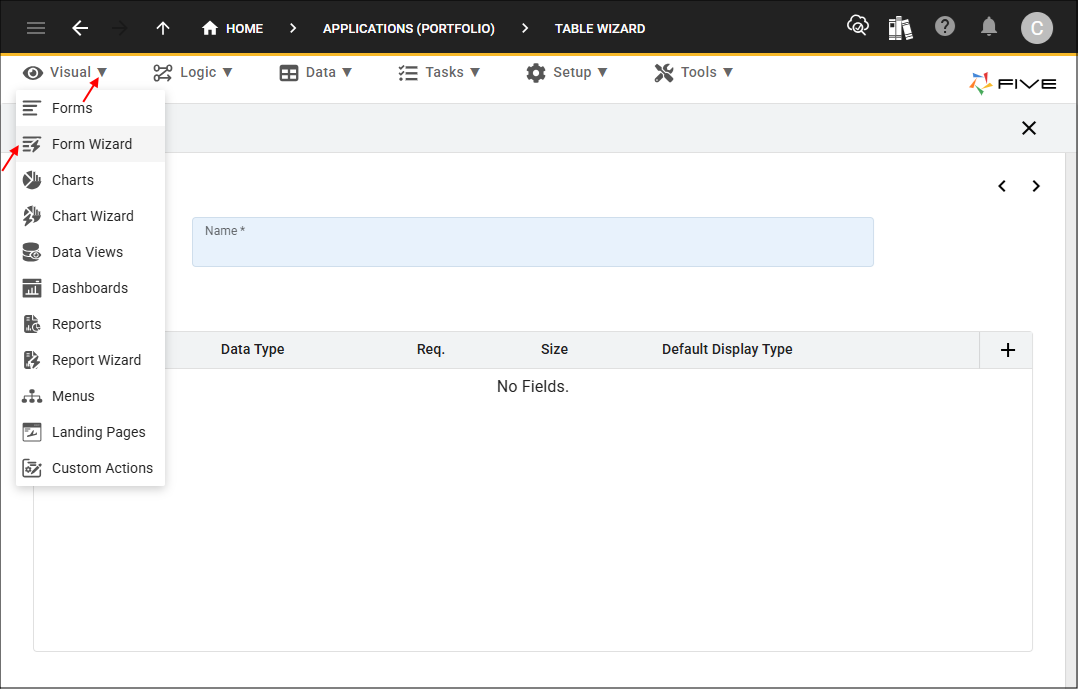
2. Select Buy in the Main Data Source field.
3. Select Portfolios in the Parent Menu field.
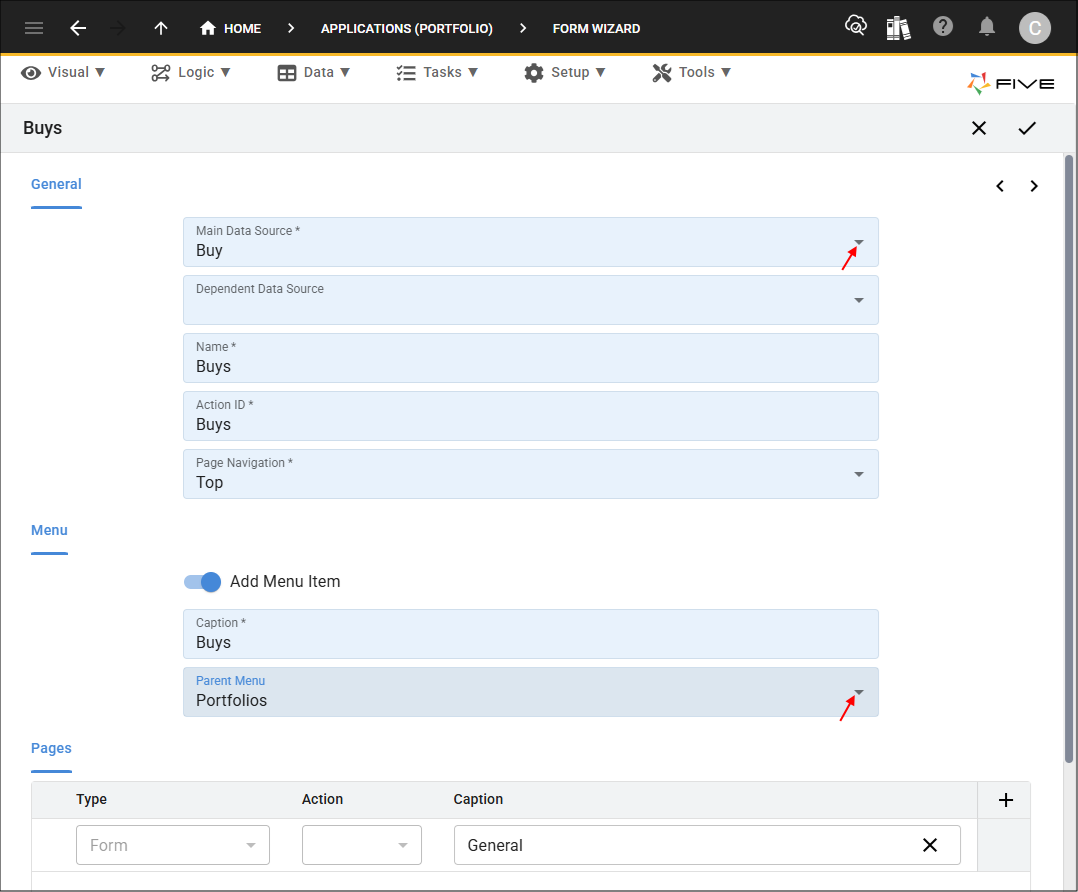
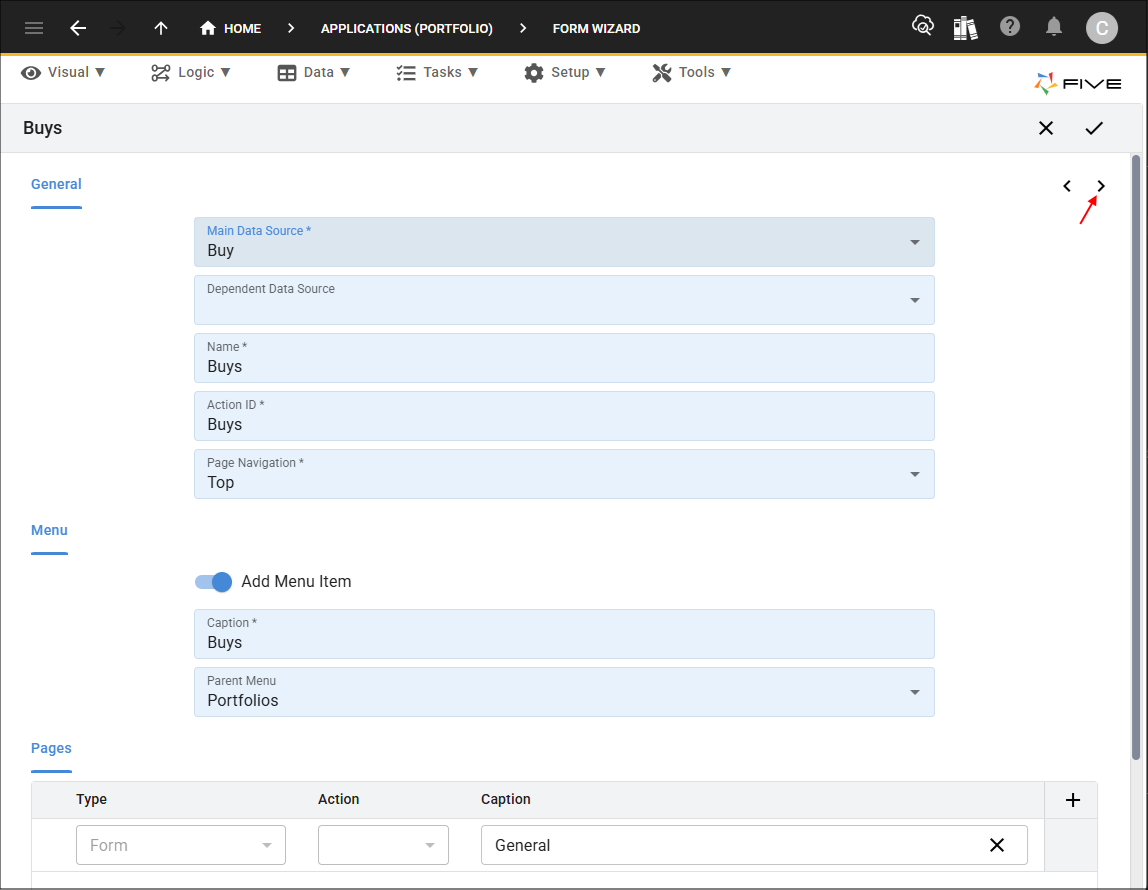
4. Click the Next button.
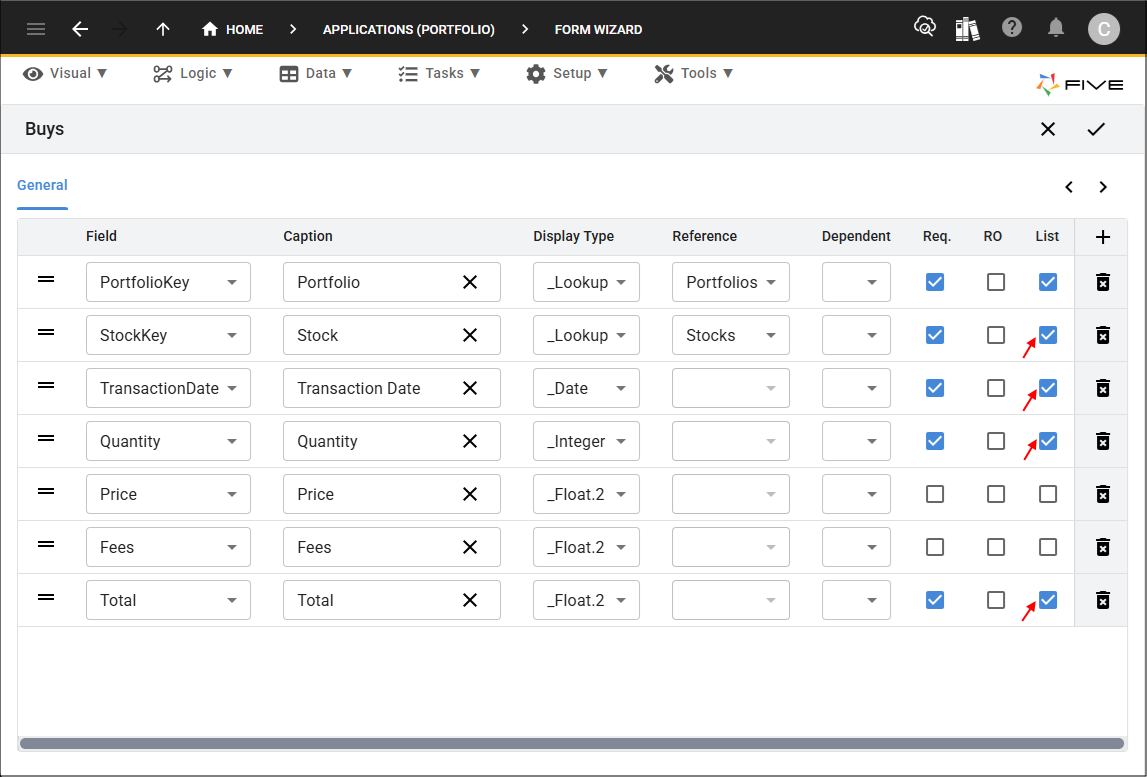
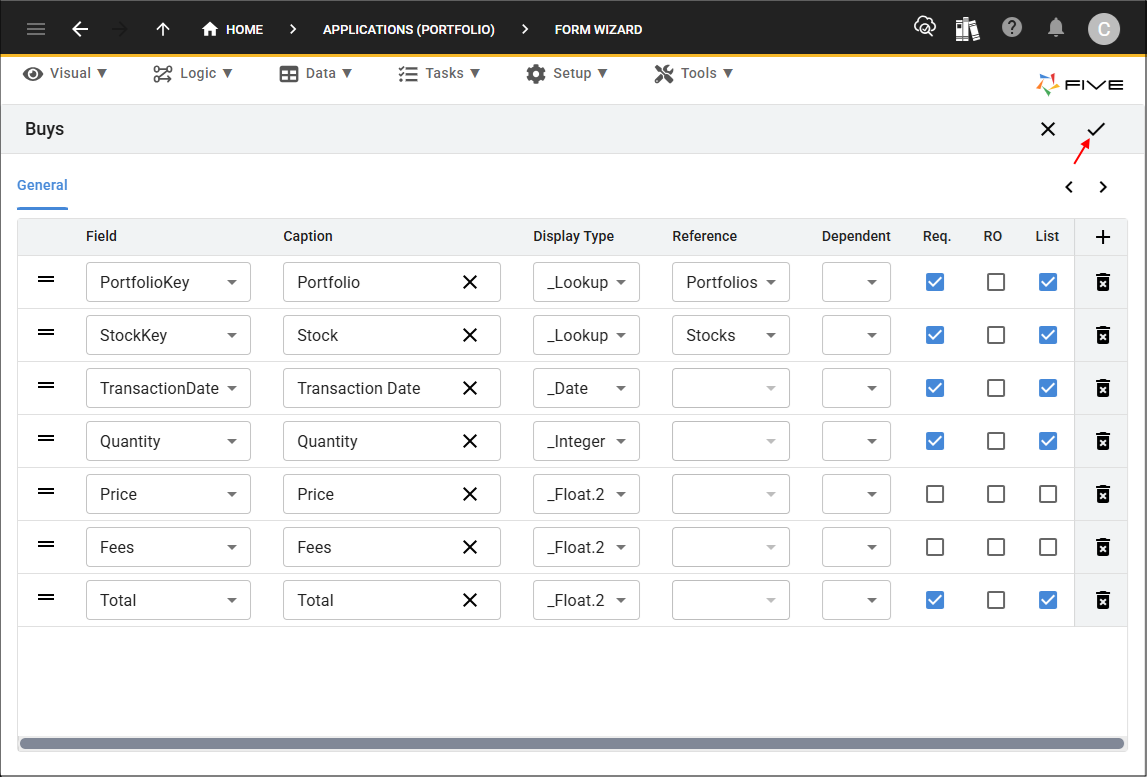
5. Click the List checkbox for the StockKey, TransactionDate, Quantity, and Total fields.
6. Click the Save button in the Form Wizard app bar.
Add the Sells Form
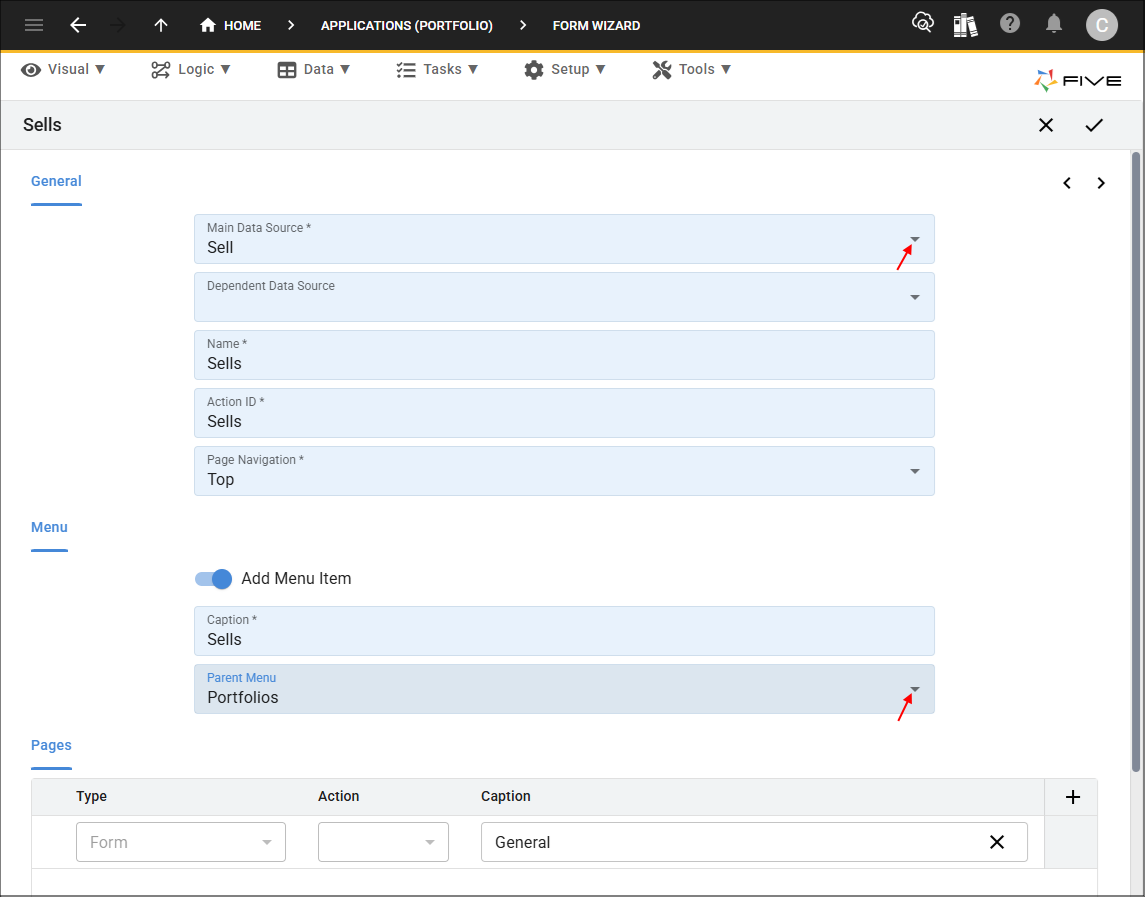
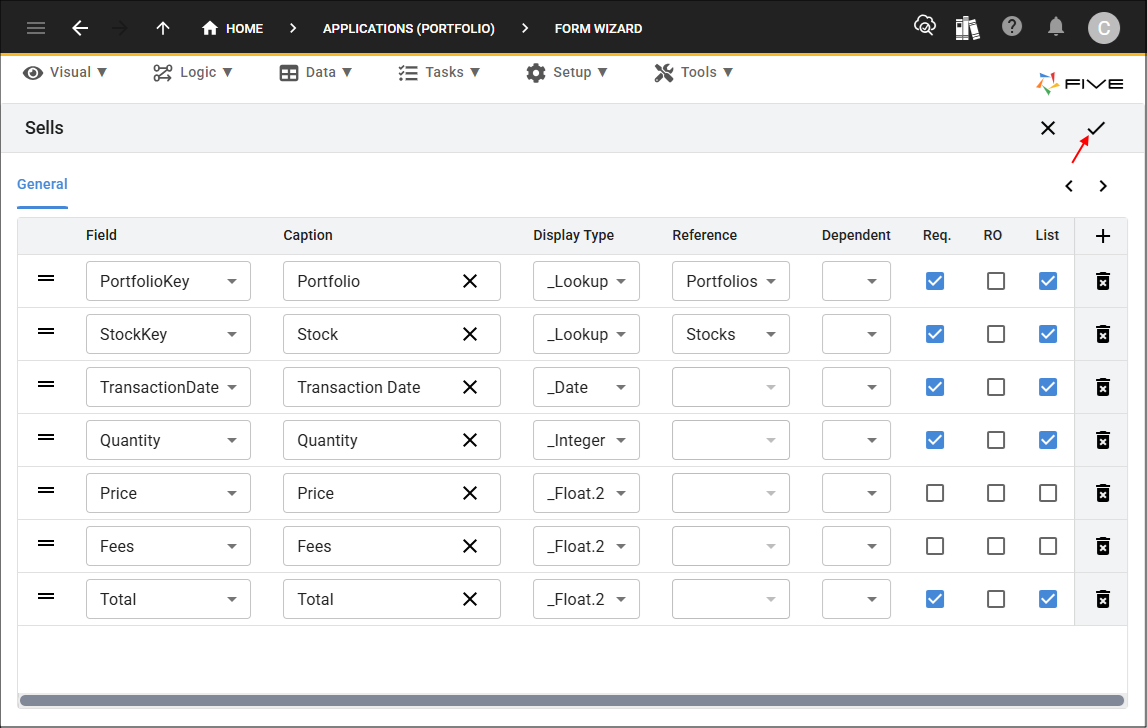
1. Select Sell in the Main Data Source field.2. Select Portfolios in the Parent Menu field.
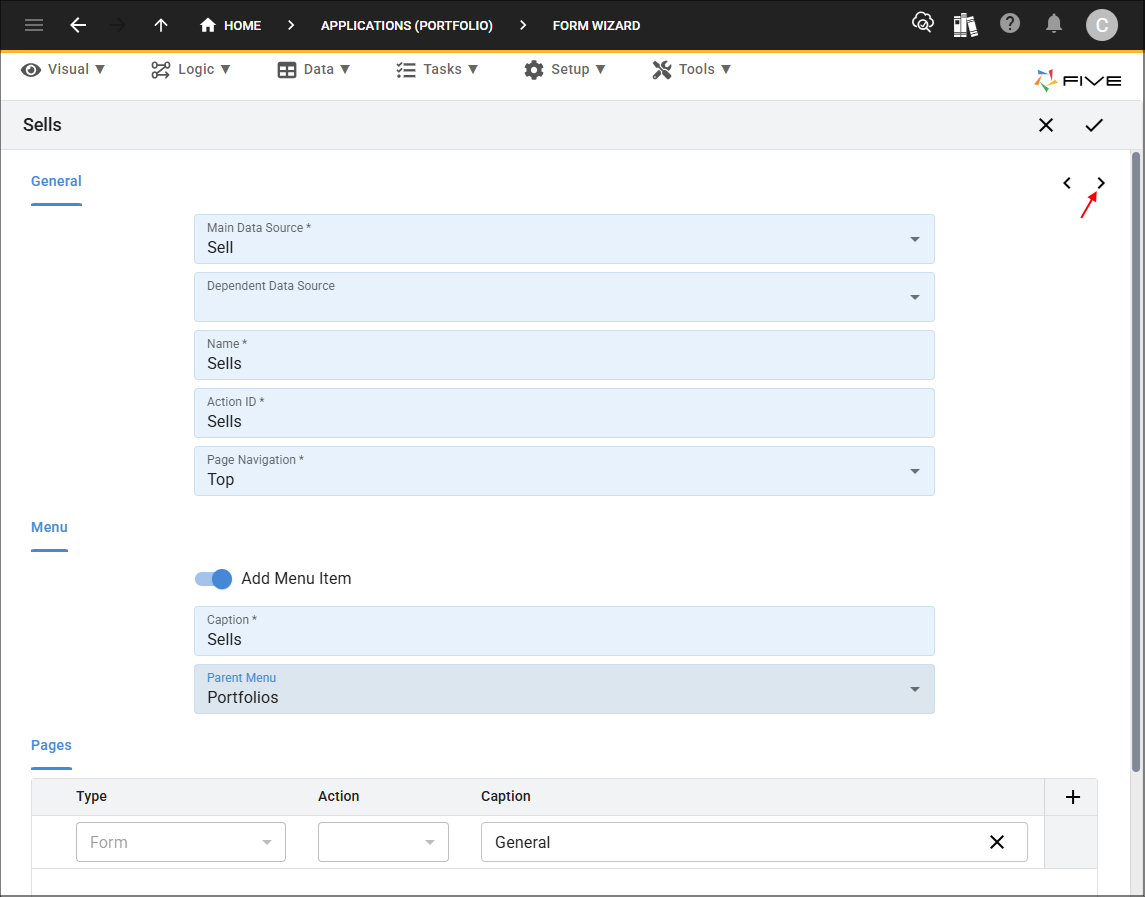
3. Click the Next button.
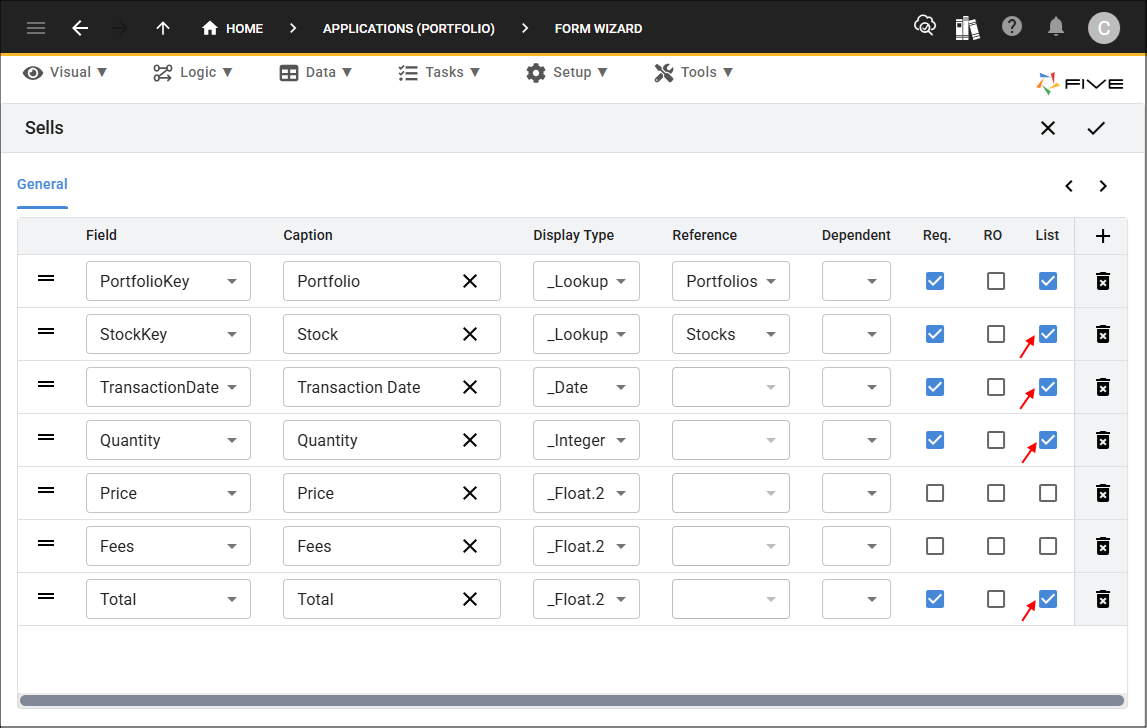
4. Click the List checkbox for the StockKey, TransactionDate, Quantity, and Total fields.
5. Click the Save button in the Form Wizard app bar.
Add the Allocations Form
The Allocations form will be available on the Sells form as a list page.
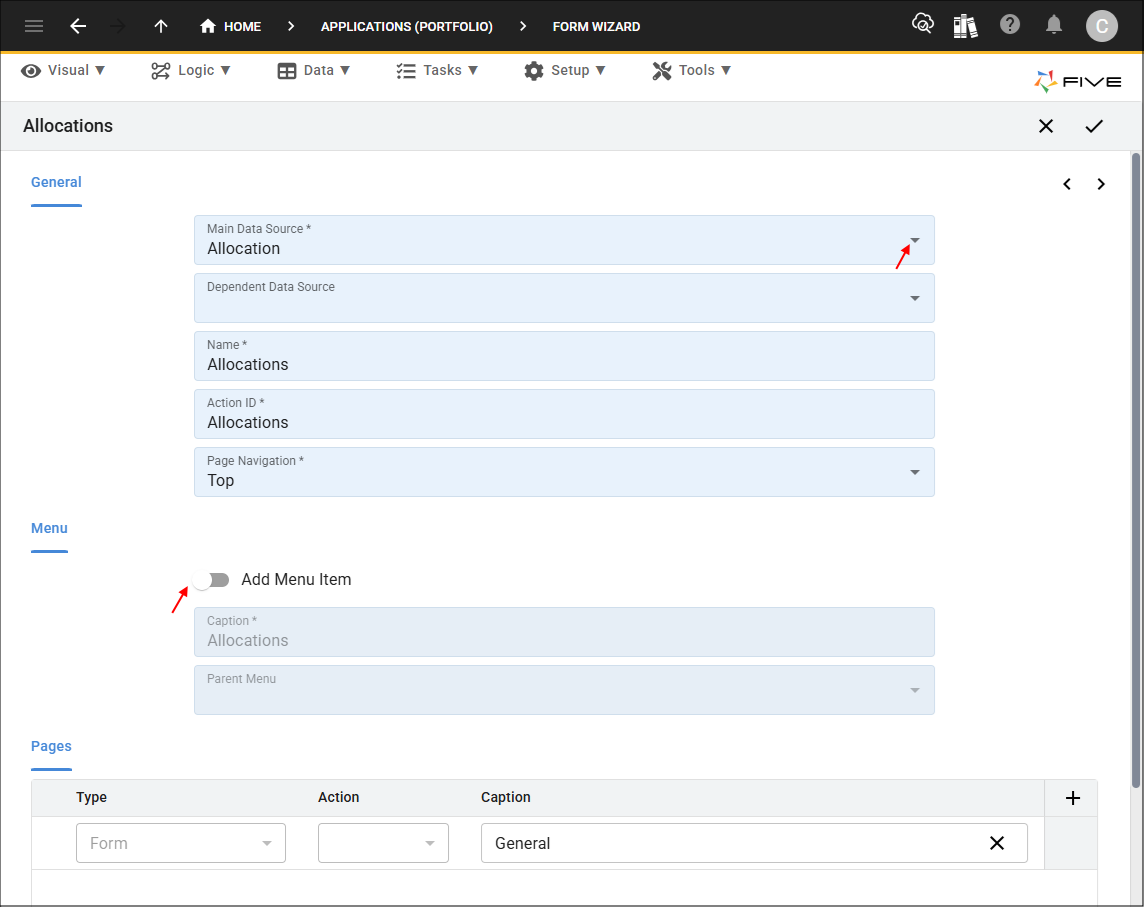
1. Select Allocation in the Main Data Source field.2. Click the Add Menu Item switch.
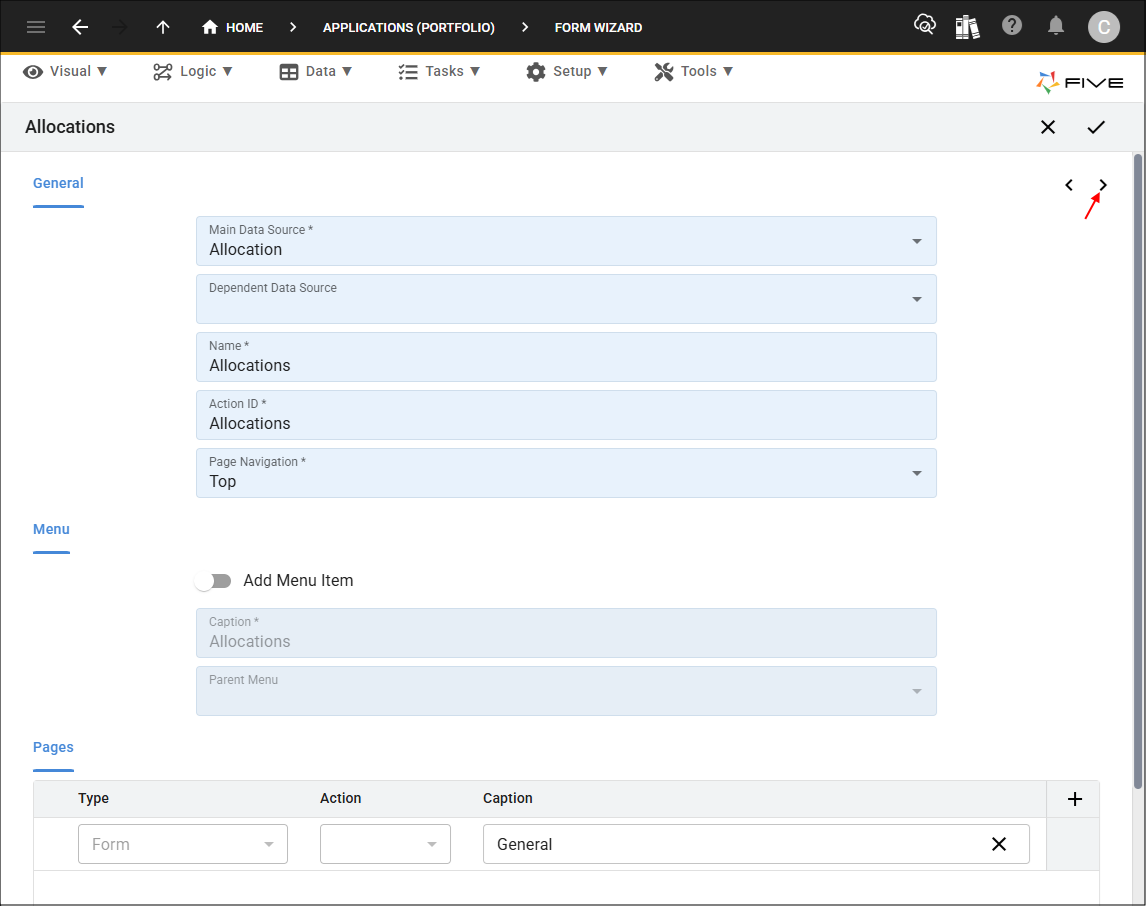
3. Click the Next button.
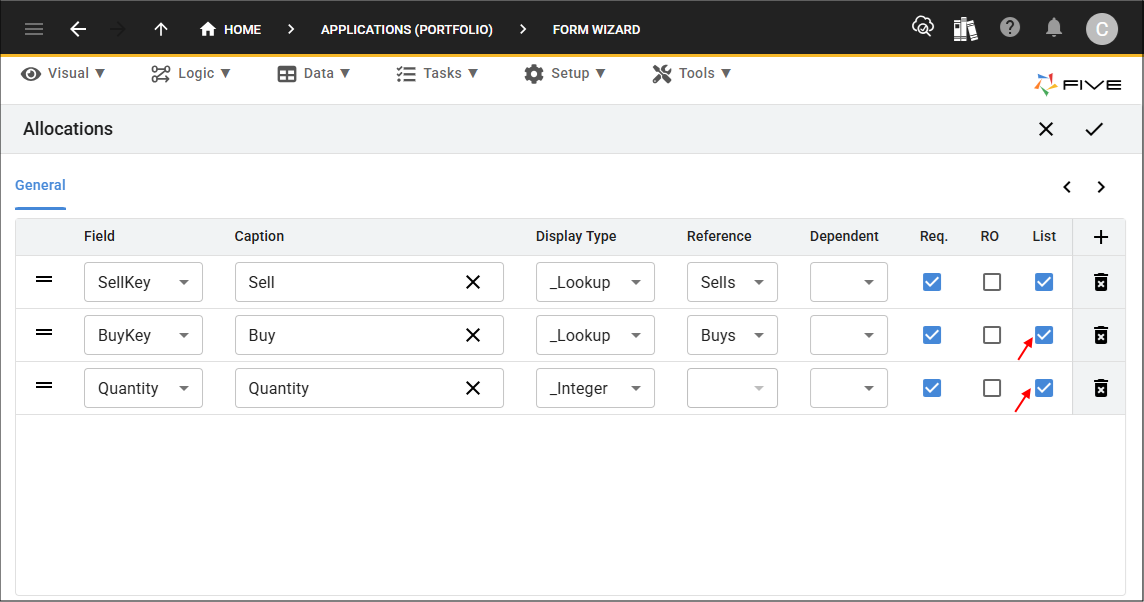
4. Click the List checkbox for the BuyKey and Quantity fields.
5. Click the Save button in the Form Wizard app bar.
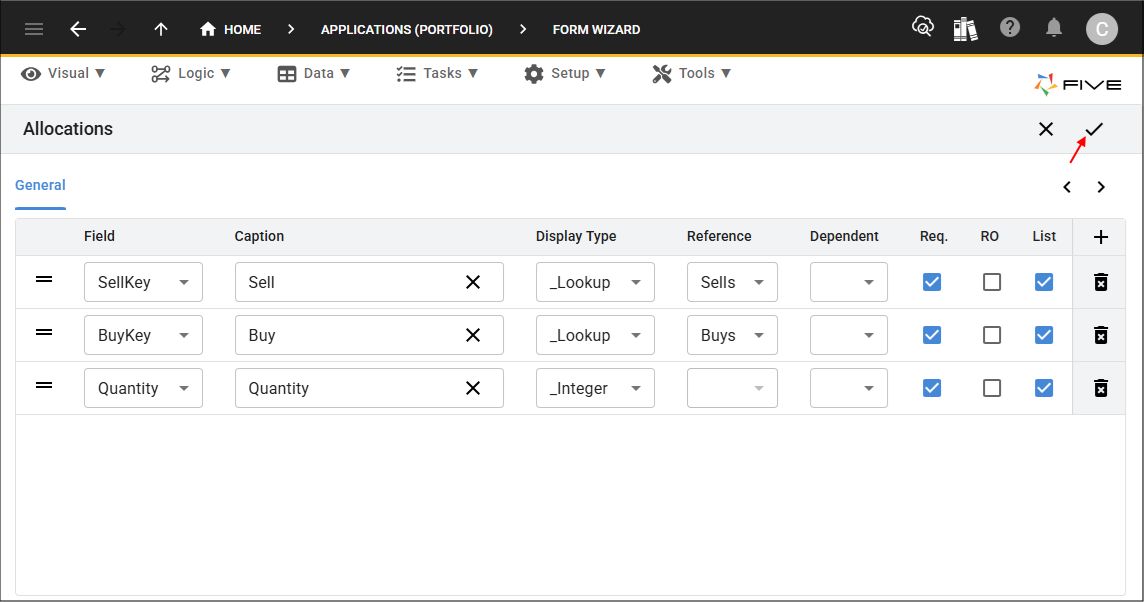
Edit the Sells Form
The Allocations page on the Sells form will enable us to allocate shares for a sale.
1. Click Visual in the menu followed by Forms in the sub-menu.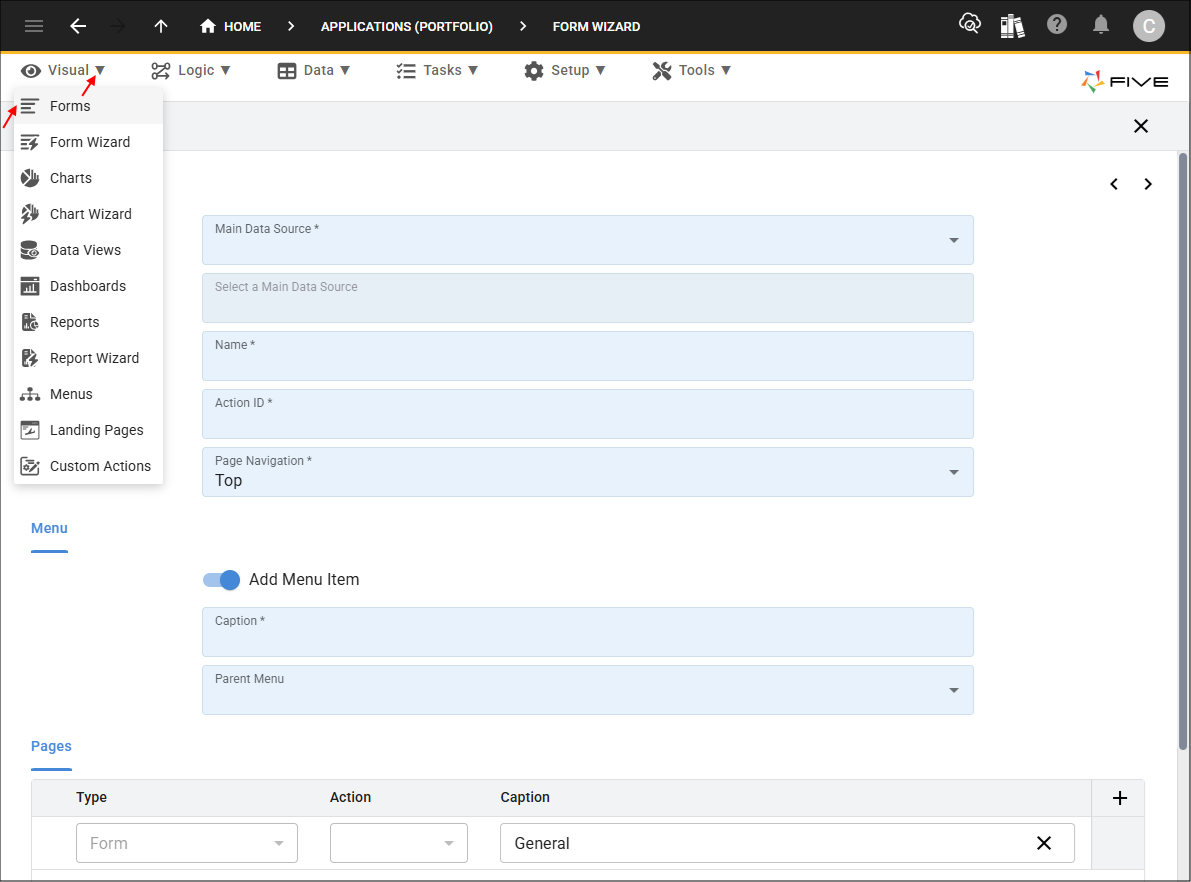
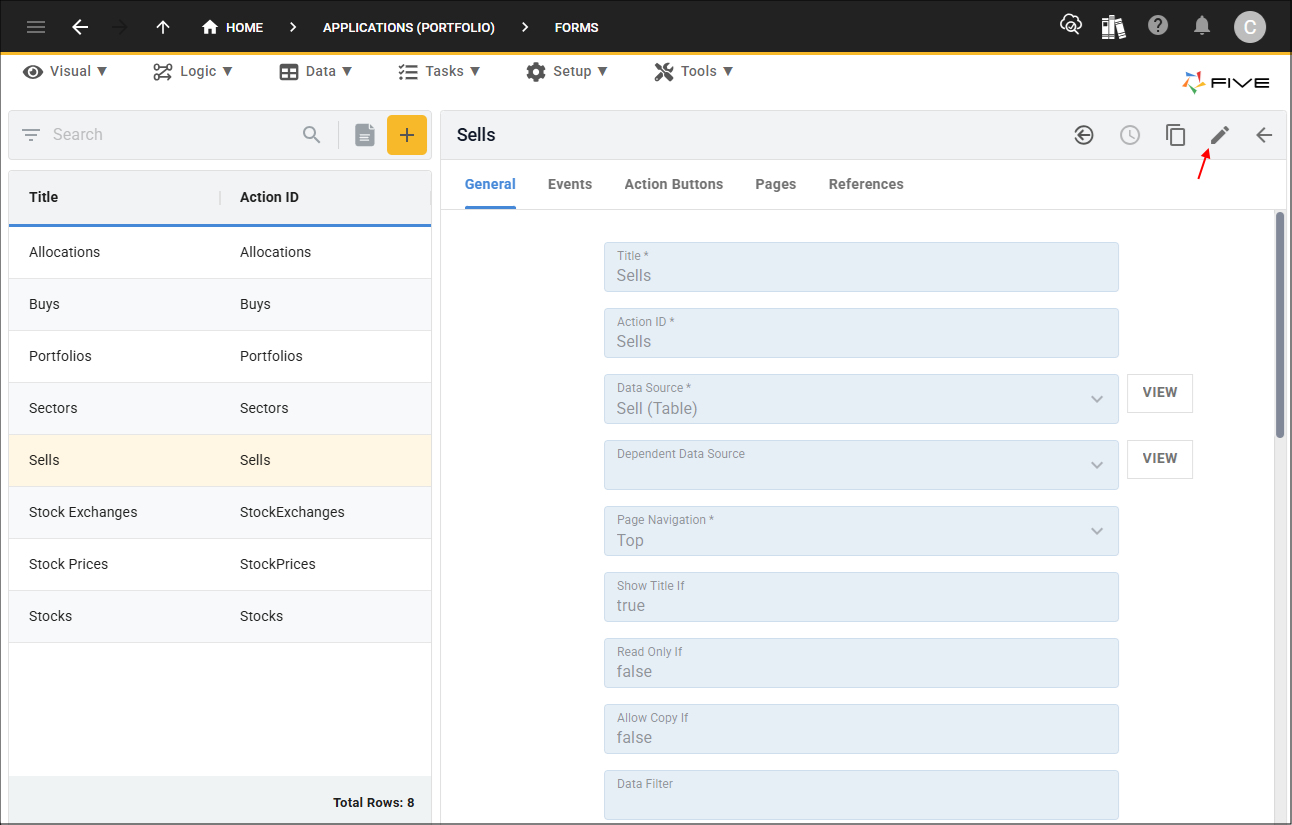
2. Select the Sells record in the list.
3. Either click the Edit button in the form app bar or click directly in the Page Navigation field.
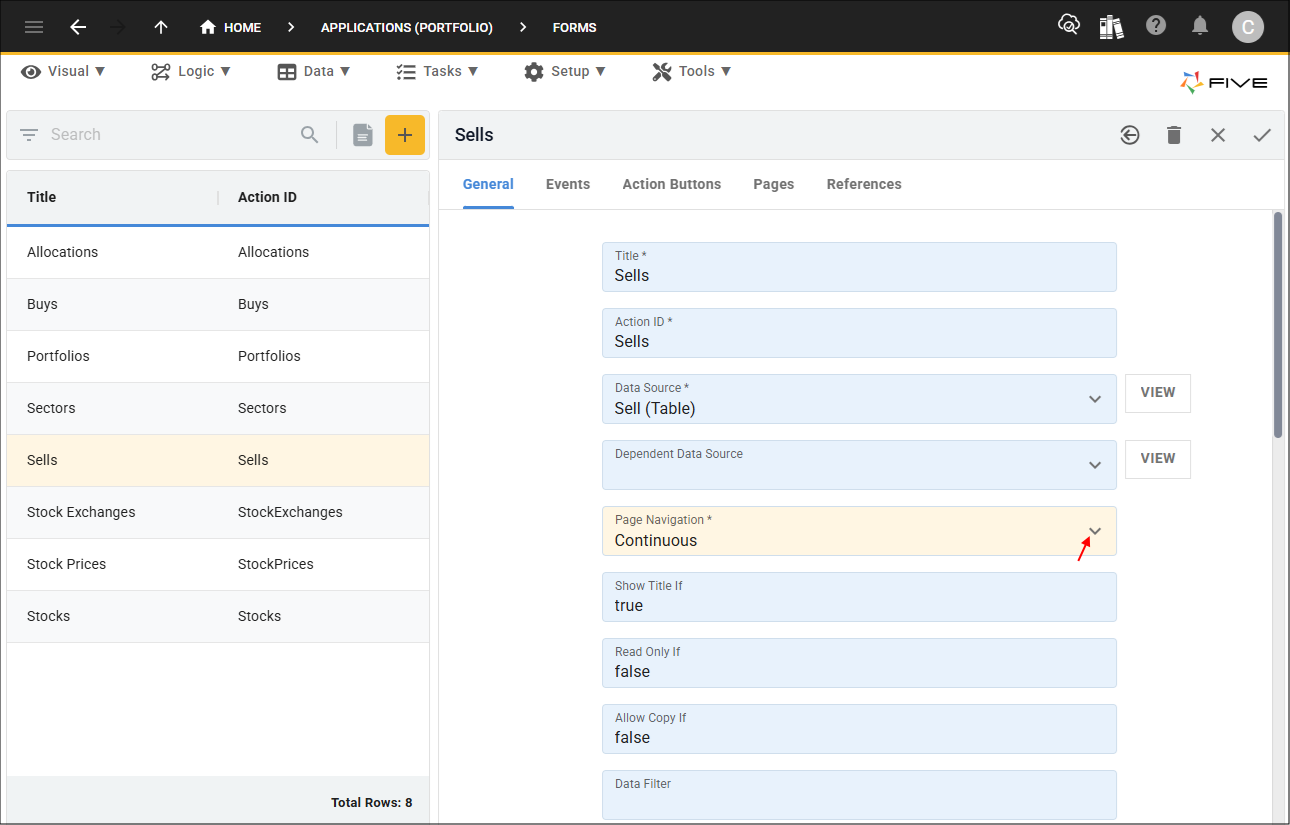
4. Select Continuous in the Page Navigation field.
5. Click the Pages tab.

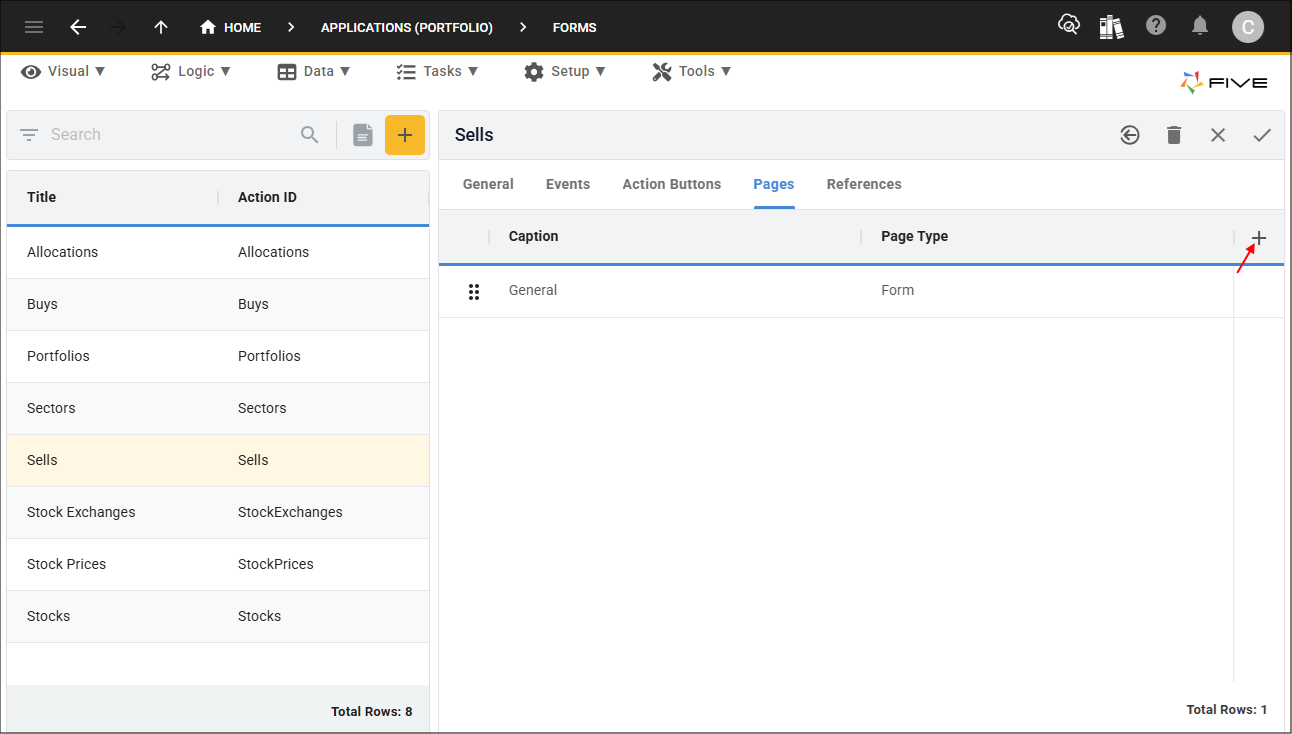
6. Click the Add Pages button.
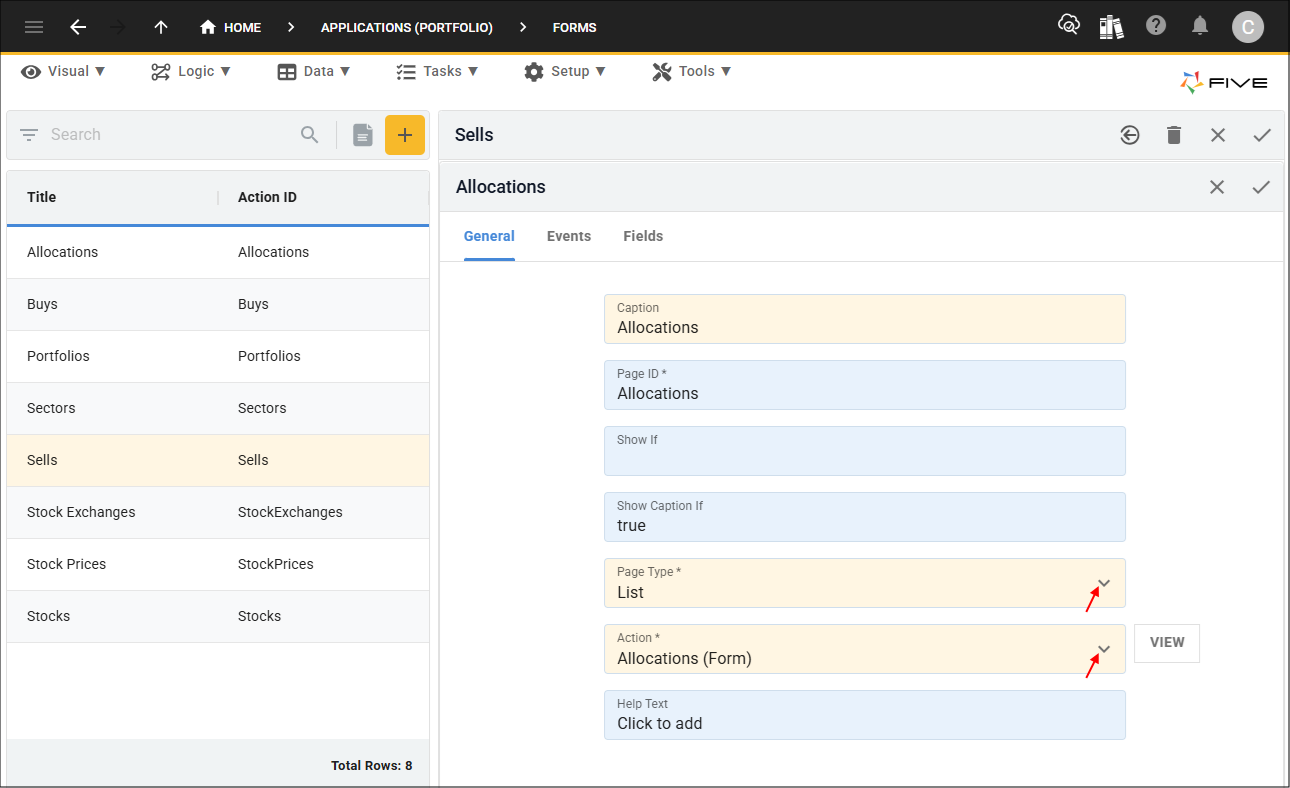
7. Type Allocations in the Caption field, select List in the Page Type field, and select Allocations (Form) in the Action field.
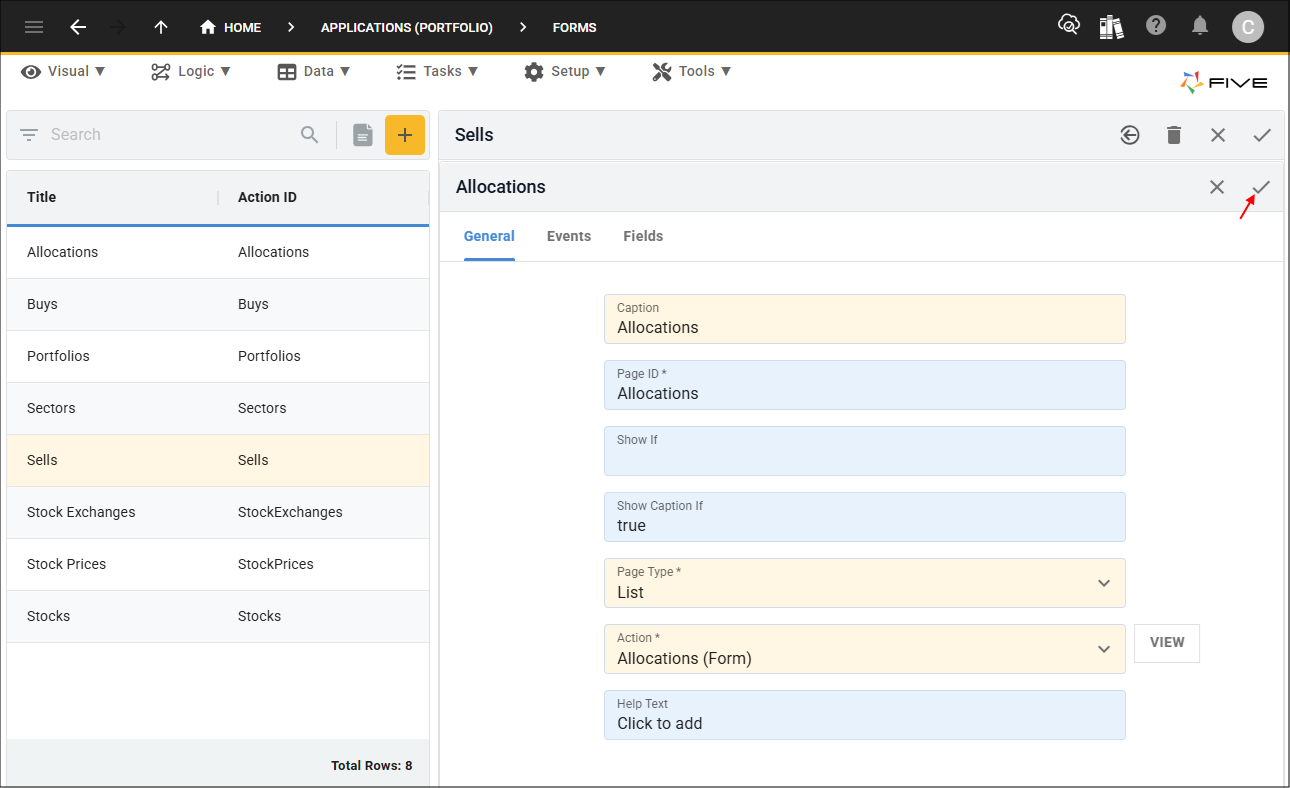
8. Click the Save button in the form app bar.
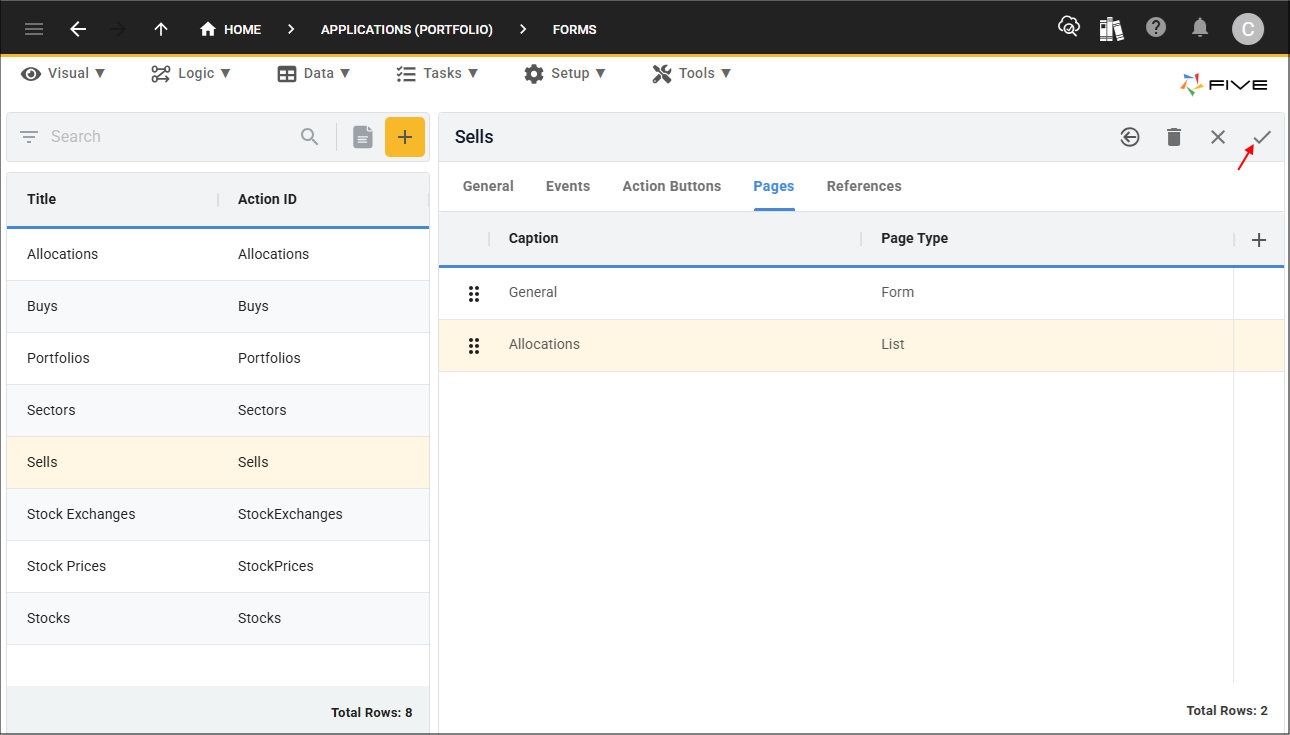
9. Click the Save button in the form app bar above the list.
Test the Buys Form
To navigate to the Buys and Sells menus, a Portfolio record needs to be selected in the list for the Down button to be available which will take you to the menus under the selected Portfolio record.
1. Select the Growth Portfolio record in the list and click the Down button in the form app bar.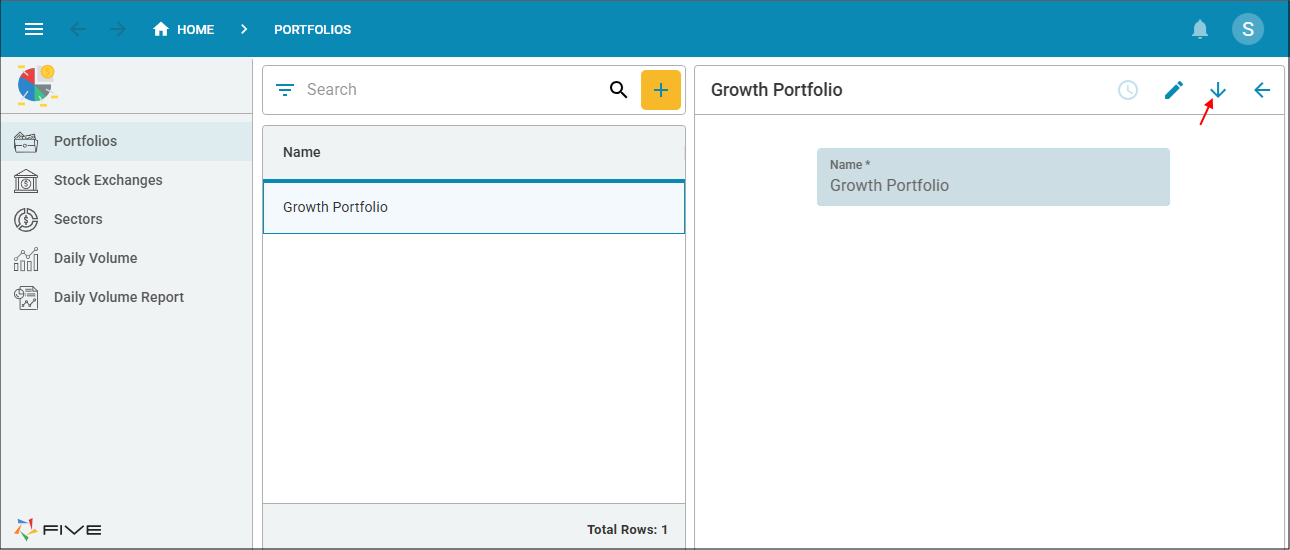
As the Portfolios menu was set as the parent for the Buys and Sells menus, you will only see the data related to the selected Portfolio record when drilling down.
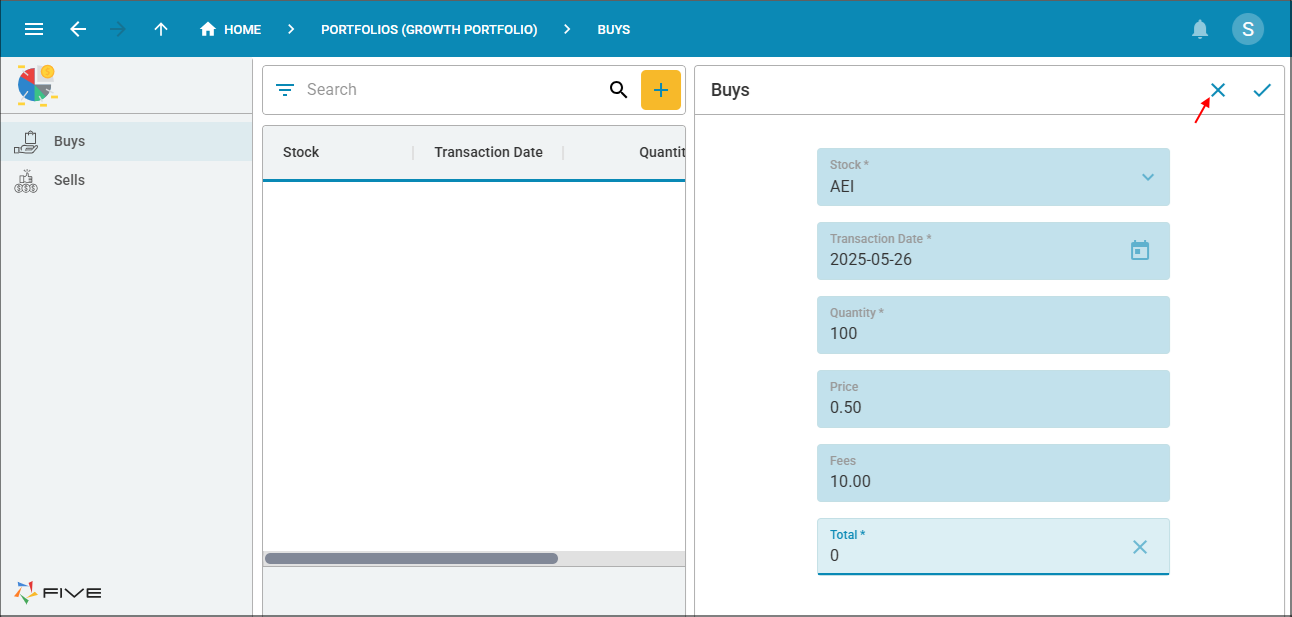
2. Click the Add Item button and select AAPL in the Stock field.
3. Click the calendar icon in the Transaction Date field.
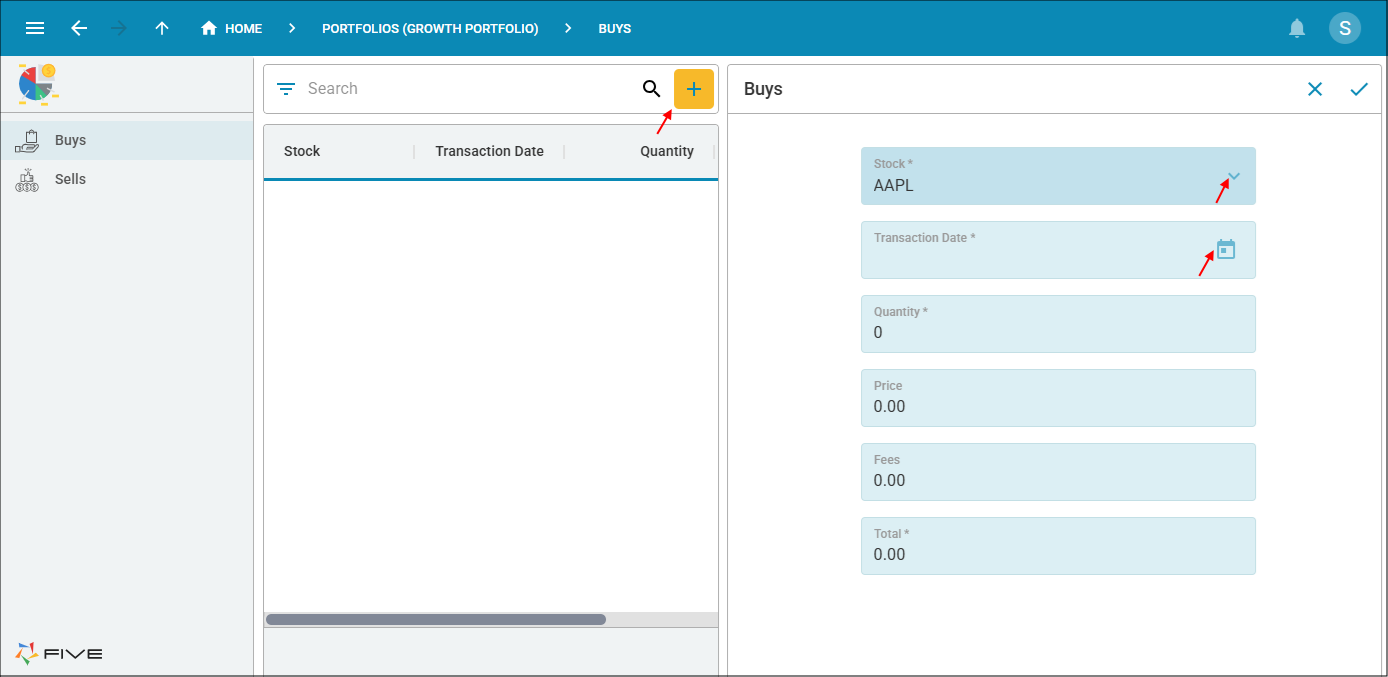
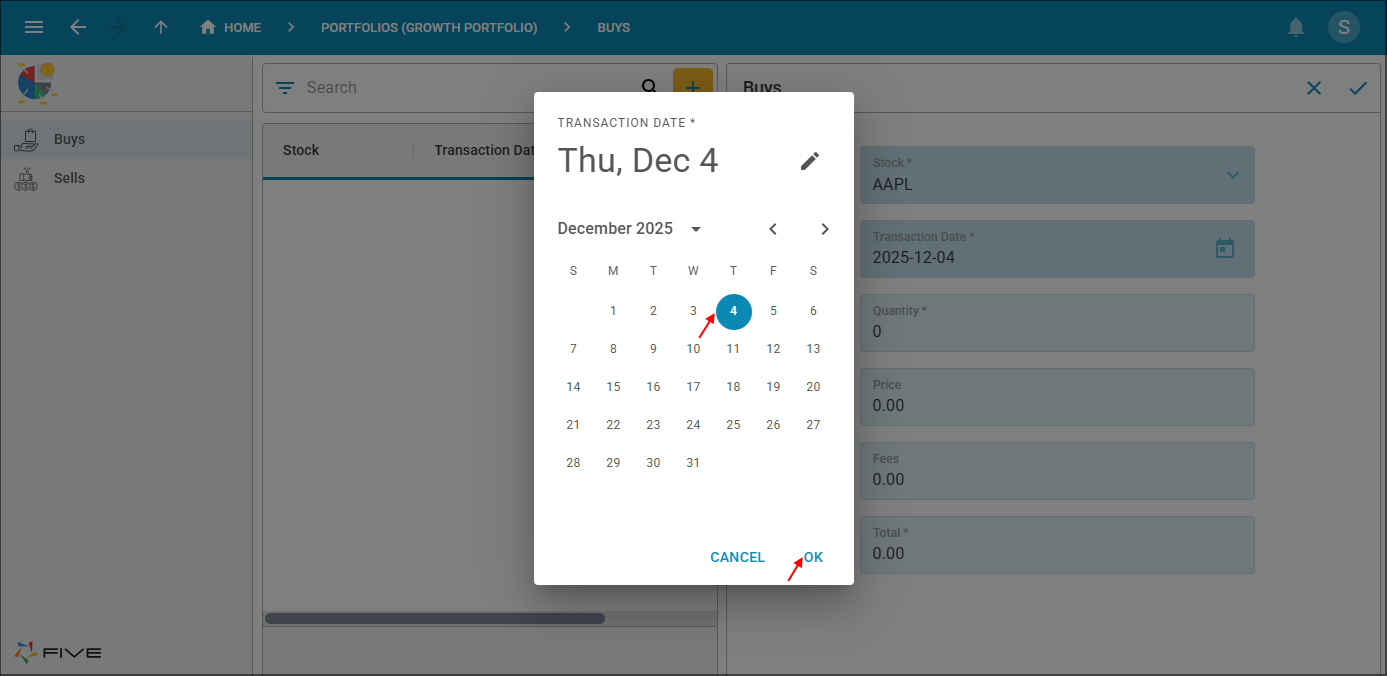
4. Select today's date and click the OK button.
5. Type 100 in the Quantity field, .50 in the Price field, 10.00 in the Fees field, and press Tab.
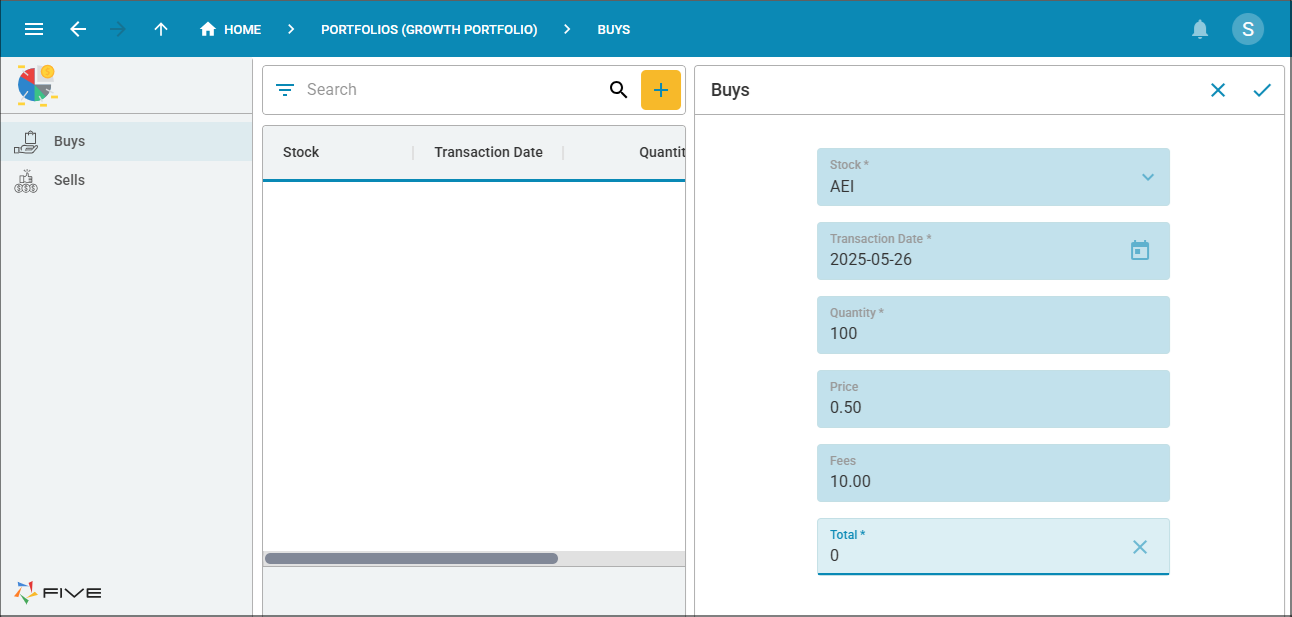
6. Click the Cancel button in the form app bar.
7. Close the browser tab and return to Five.