6 - Use Data in a Stacked Form
Last updated 16/12/2025
This documentation will explain how to use the _LookupQuery display type and
stacked form data to filter information on the current form. To do this, we use the
The
When we deployed the Portfolio application we saw that the Buy field on the Allocations form was listing the buy transaction dates for all stocks. We will write a query interacting with Five's API to know the transaction dates specific to the stock selected on the Sells form.
In the Portfolio application, the Sells form is stacked above the Allocations form.
The BuyStockRemaining query's
The
The
Add the BuyStockRemaining Query
1. Click Data in the menu followed by Queries in the sub-menu.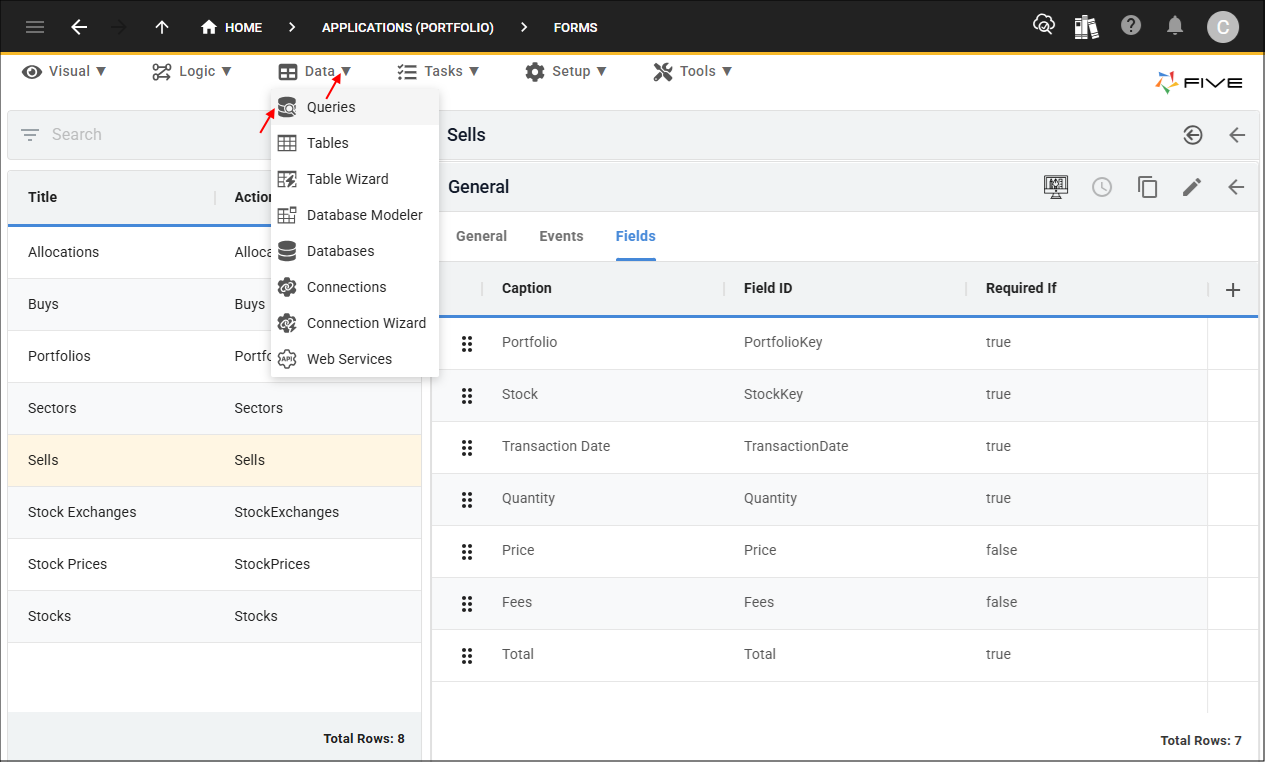
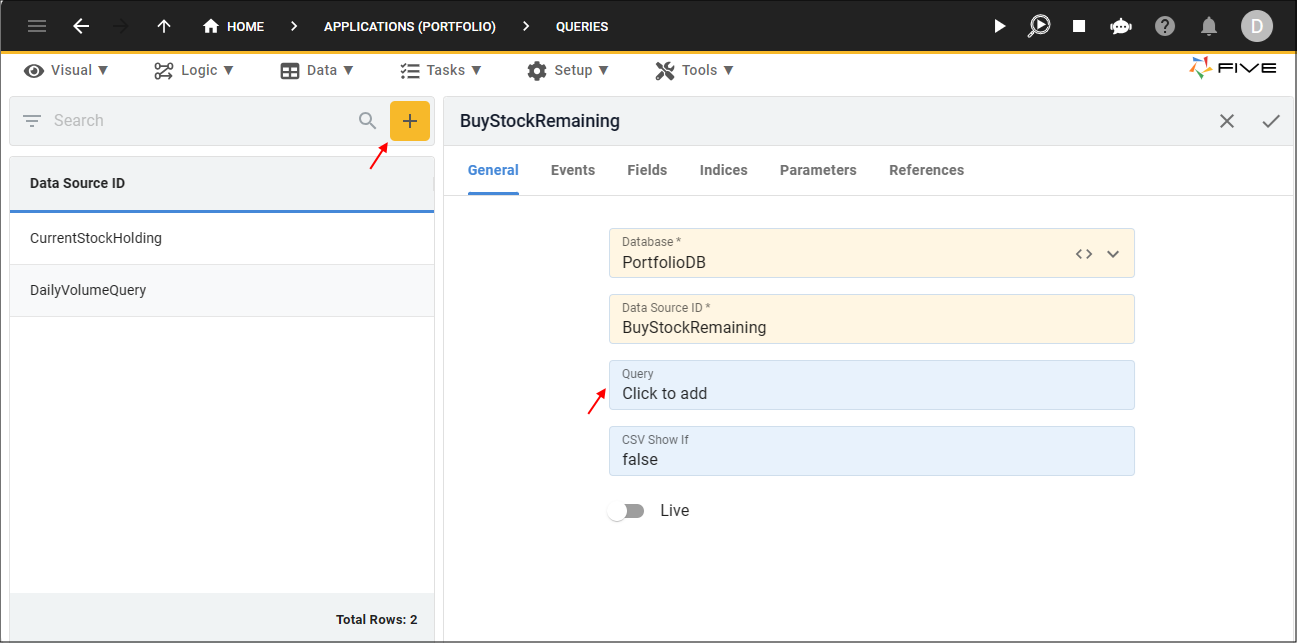
2. Click the Add Item button and type BuyStockRemaining in the Data Source ID field.
3. Click in the Query field to open Five's Query Builder.
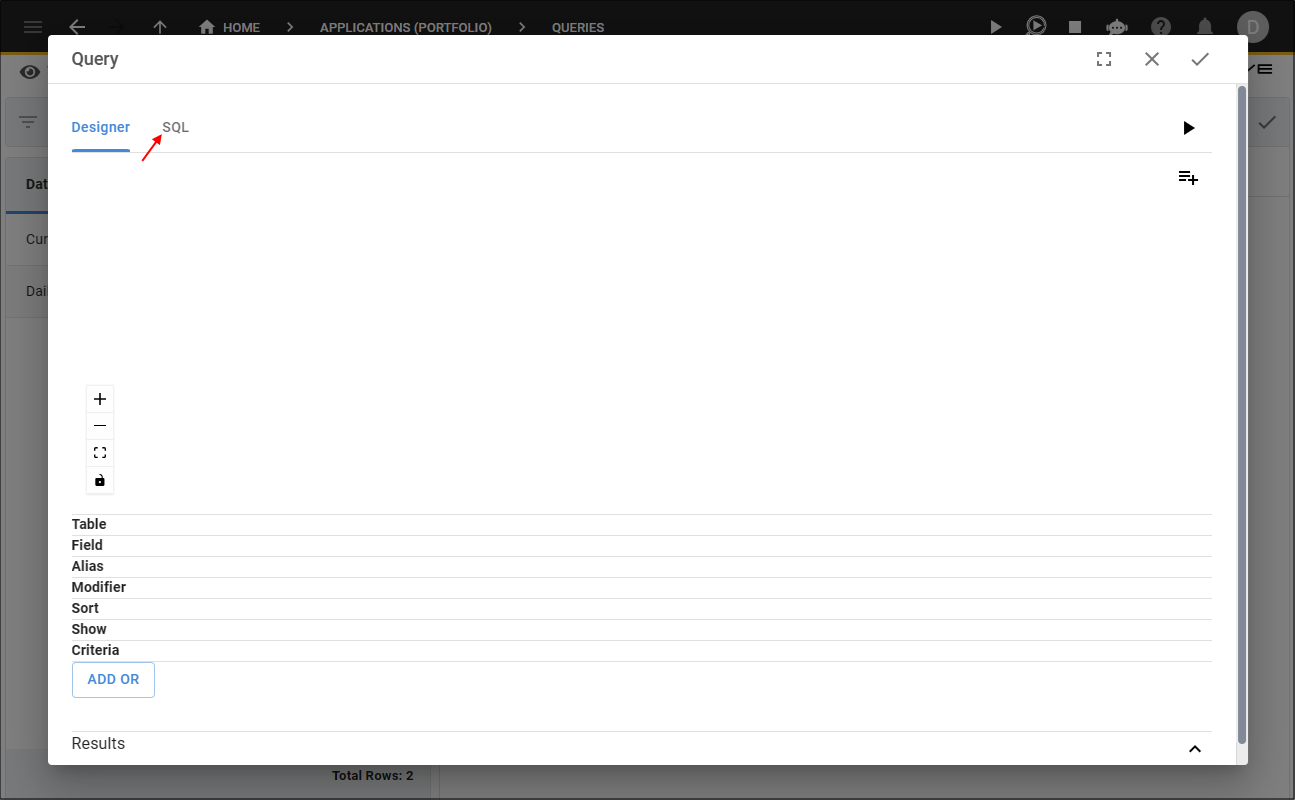
4. Click the SQL tab.
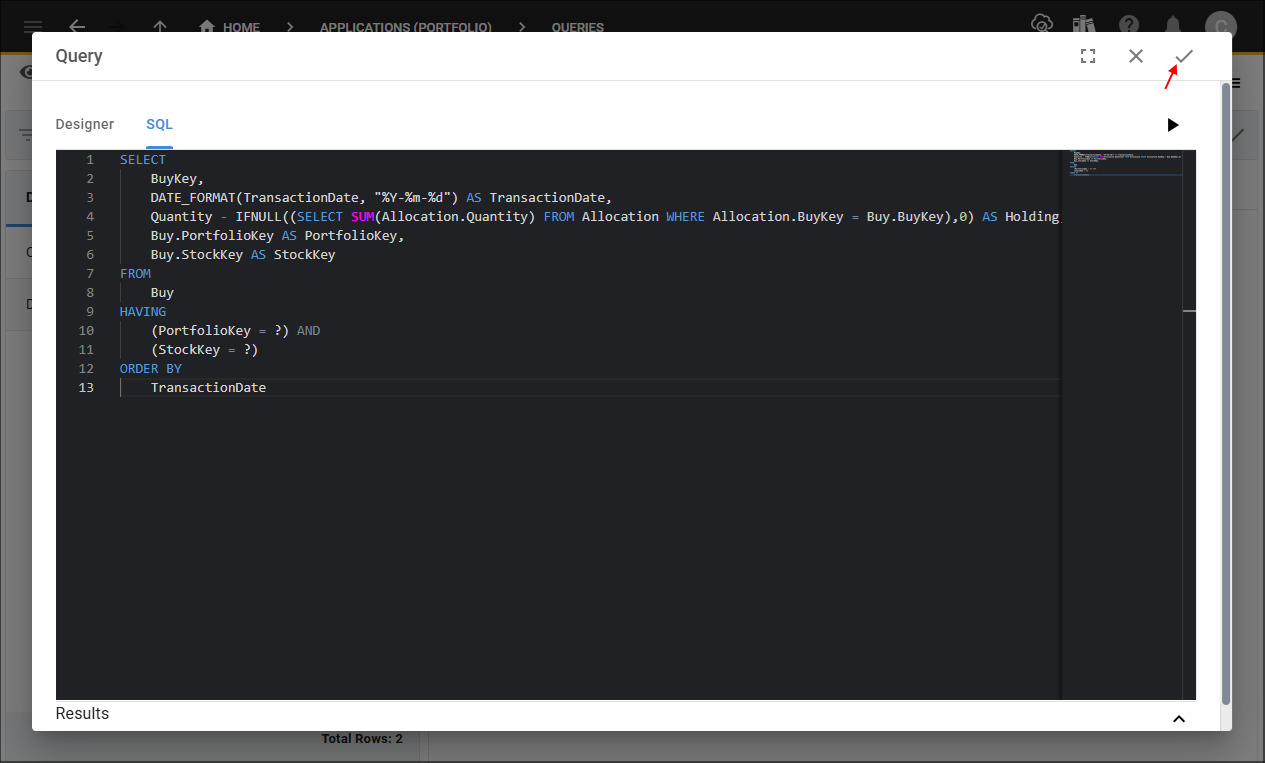
5. Click the Copy button for the syntax below.

SELECT
    BuyKey,
    DATE_FORMAT(TransactionDate, "%Y-%m-%d") AS TransactionDate,
    Quantity - IFNULL((SELECT SUM(Allocation.Quantity) FROM Allocation WHERE Allocation.BuyKey = Buy.BuyKey),0) AS Holding,
    Buy.PortfolioKey AS PortfolioKey,
    Buy.StockKey AS StockKey
FROM
    Buy
HAVING
    (PortfolioKey = ?) AND
    (StockKey = ?)
ORDER BY
    TransactionDate
6. Paste the syntax in the SQL Editor.
7. Click the Save button in the SQL Editor app bar.
8. Click the Fields tab.
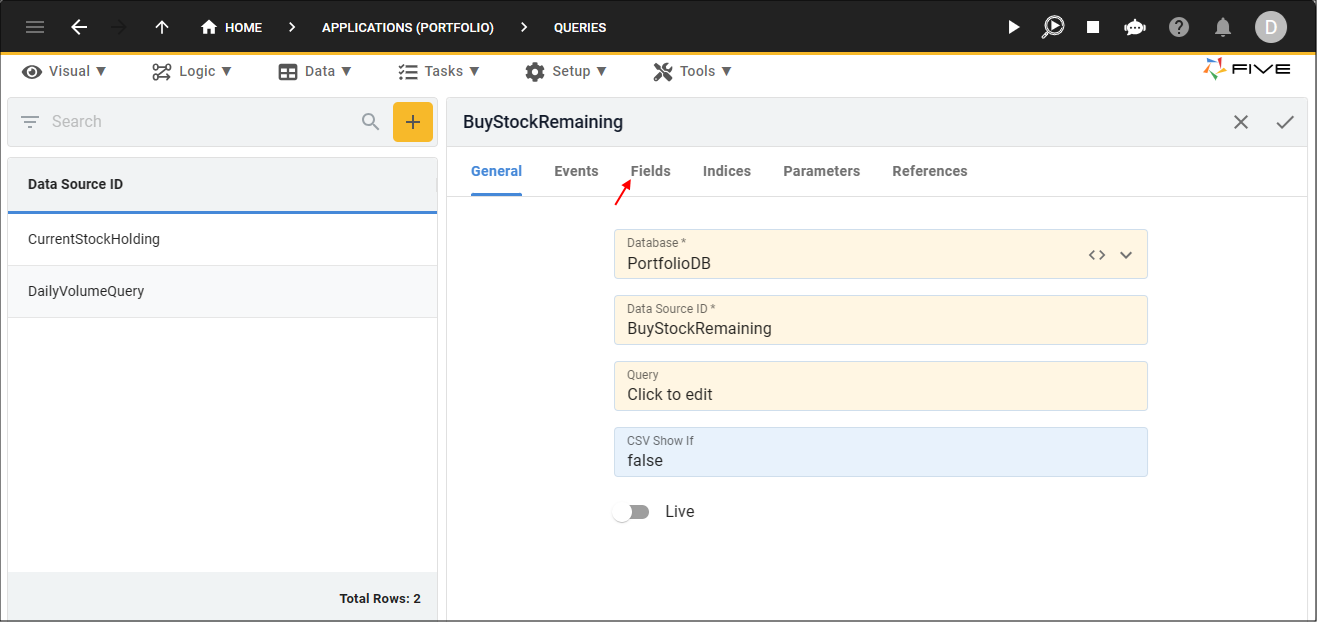
9. Select the TransactionDate record.
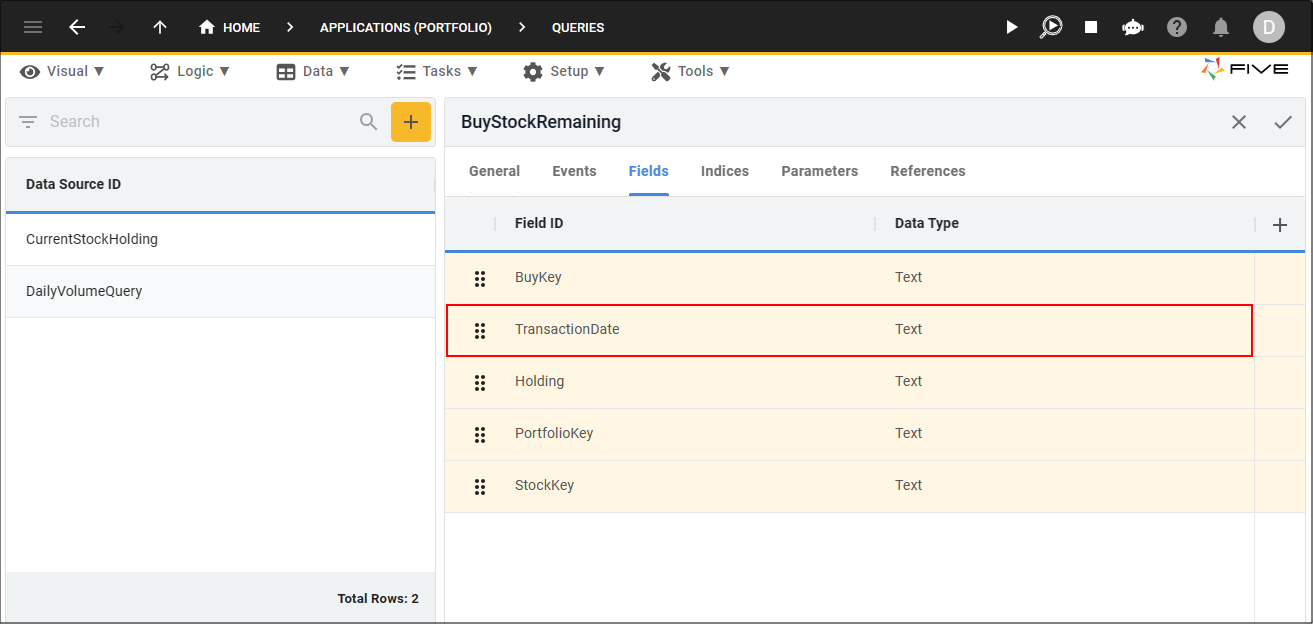
10. Edit the following fields:
- Select Date in the Data Type field
- Type 8 in the Size field
- Select _Date in the Default Display Type field
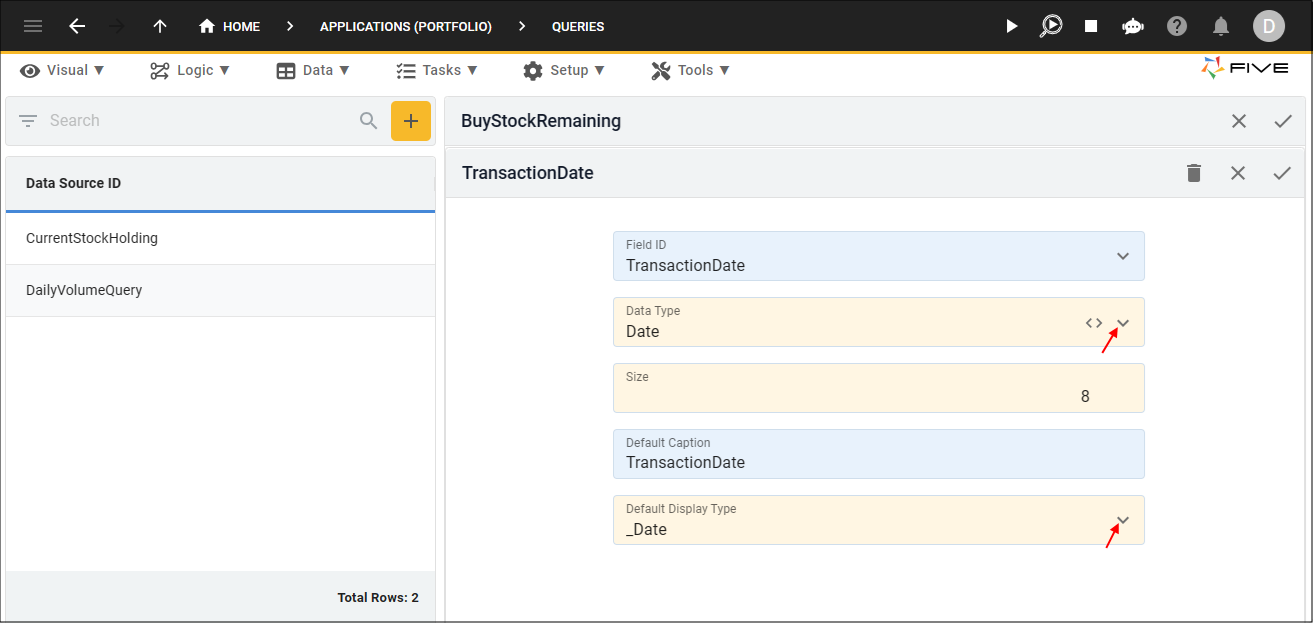
11. Click the Save button in the form app bar.
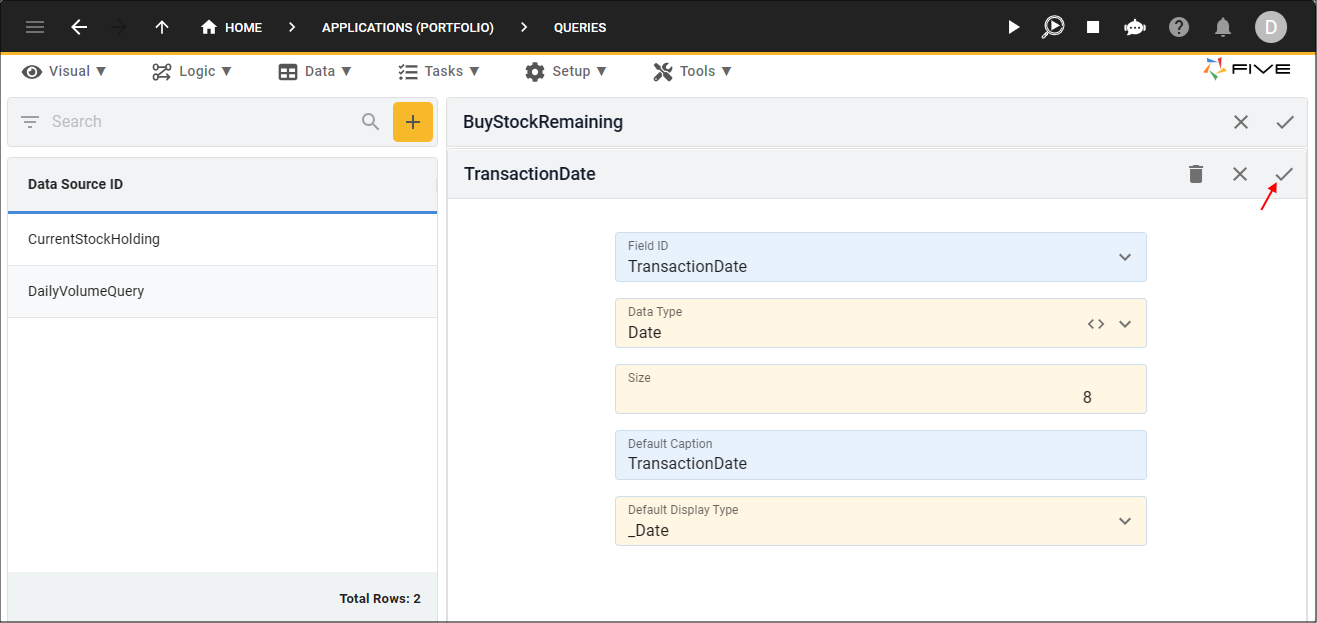
12. Select the Holding record.
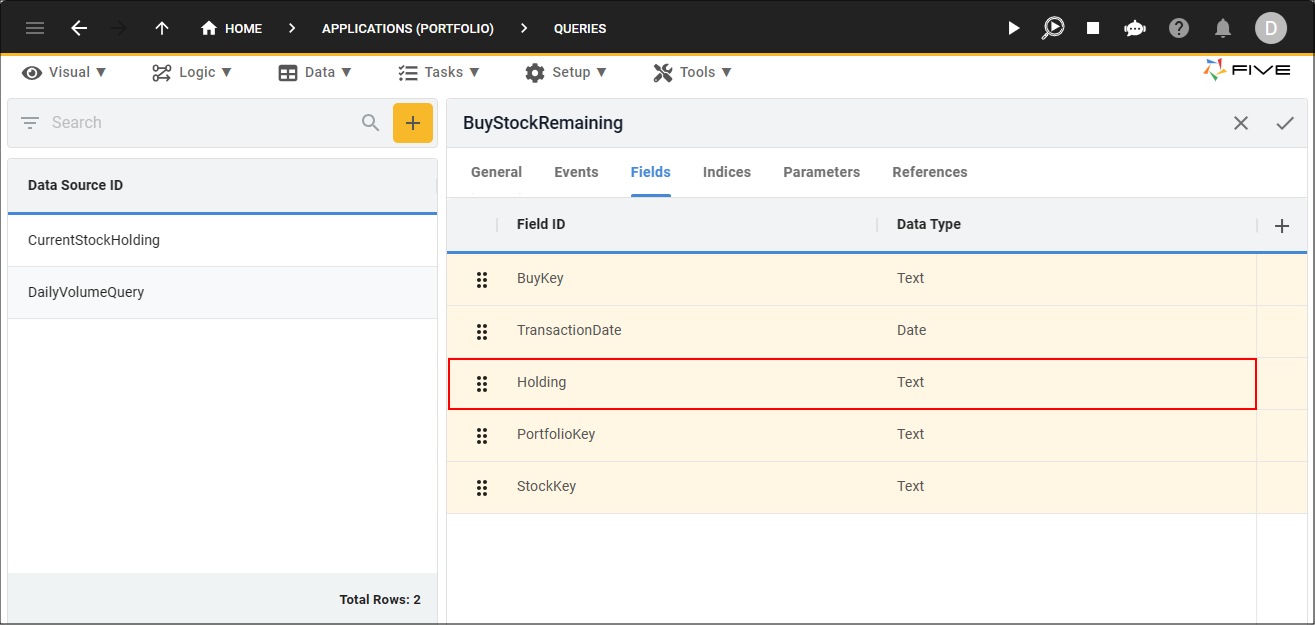
13. Edit the following fields:
- Select Integer in the Data Type field
- Type 4 in the Size field
- Select _Integer in the Default Display Type field
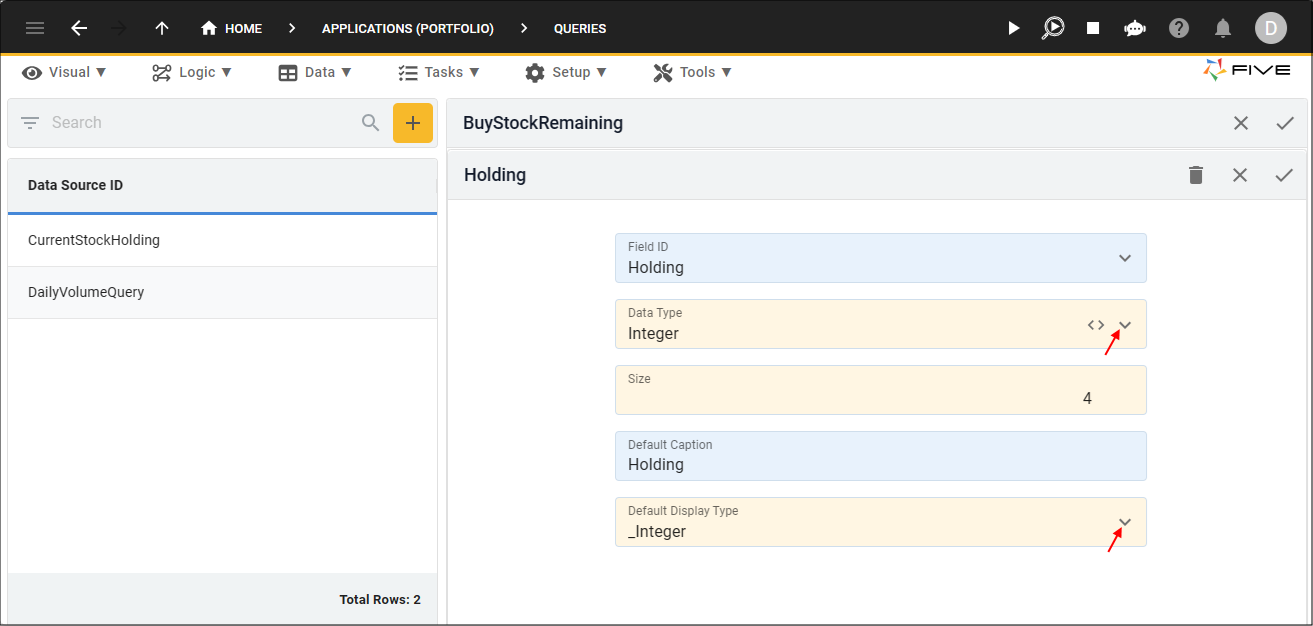
14. Click the Save button in the form app bar.
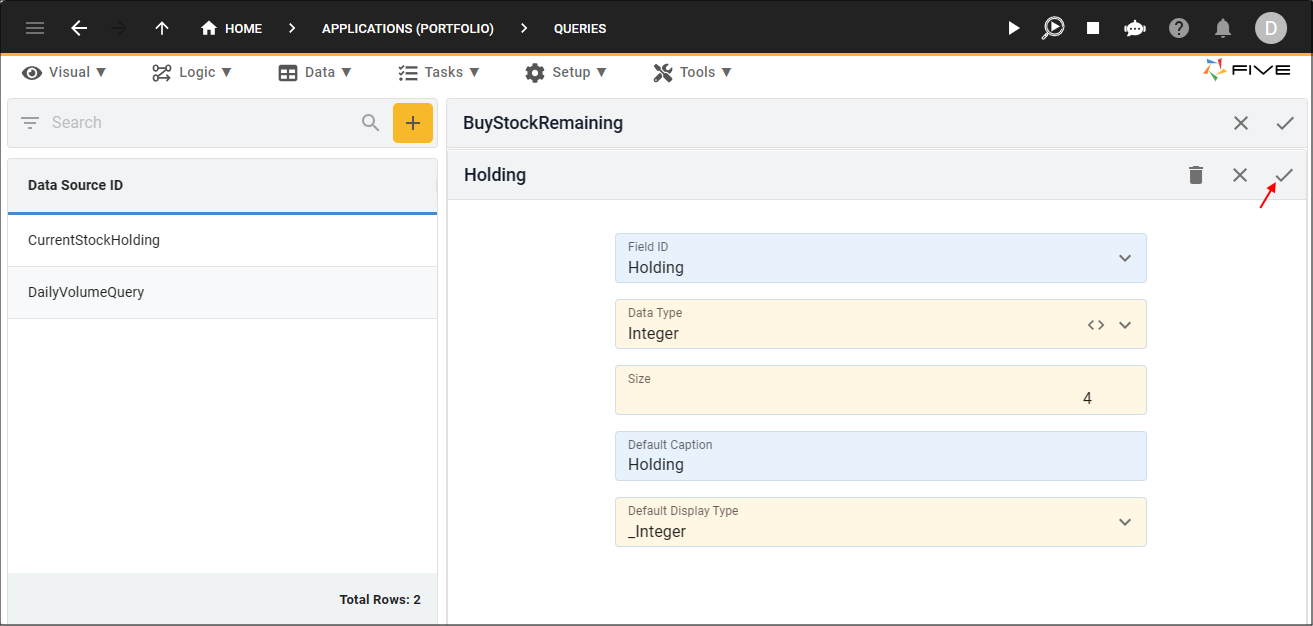
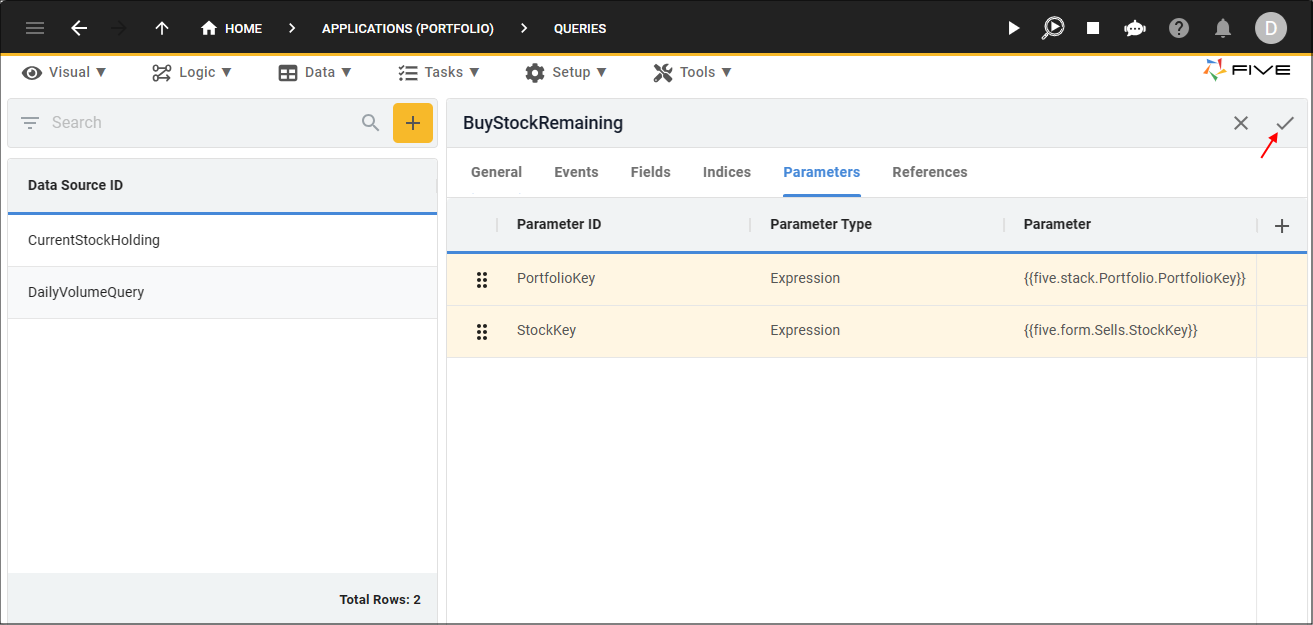
15. Click the Parameters tab.

16. Click the Add Parameters button.
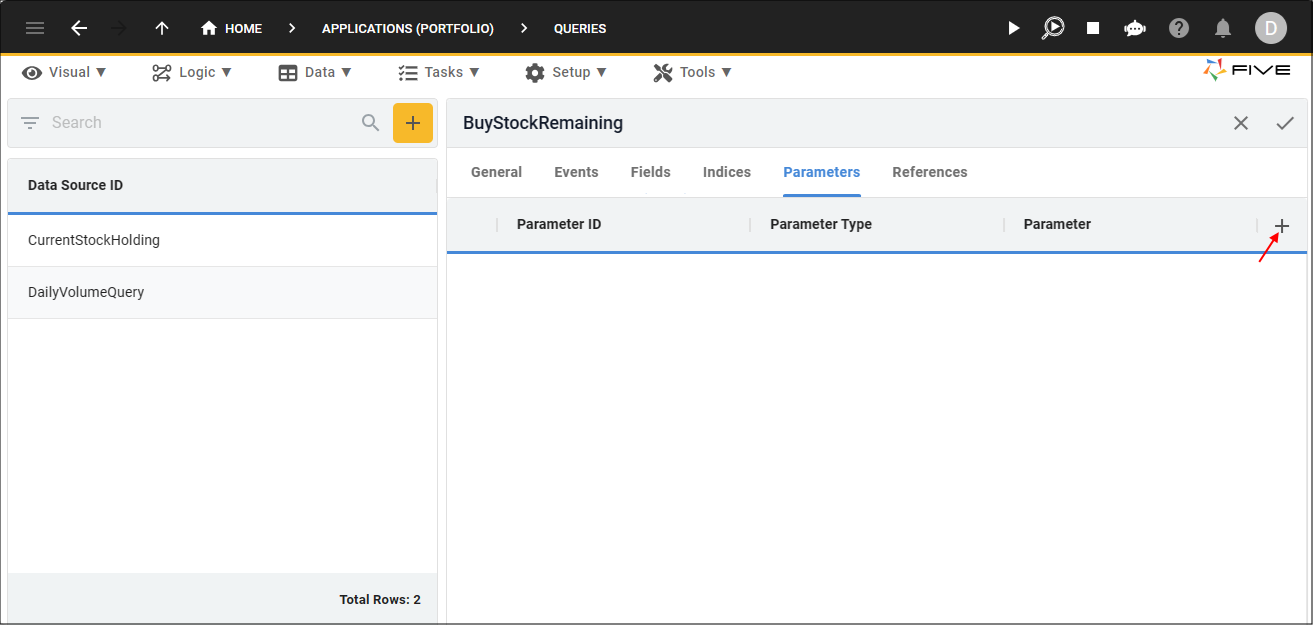
17. Type PortfolioKey in the Parameter ID field.
18. Type
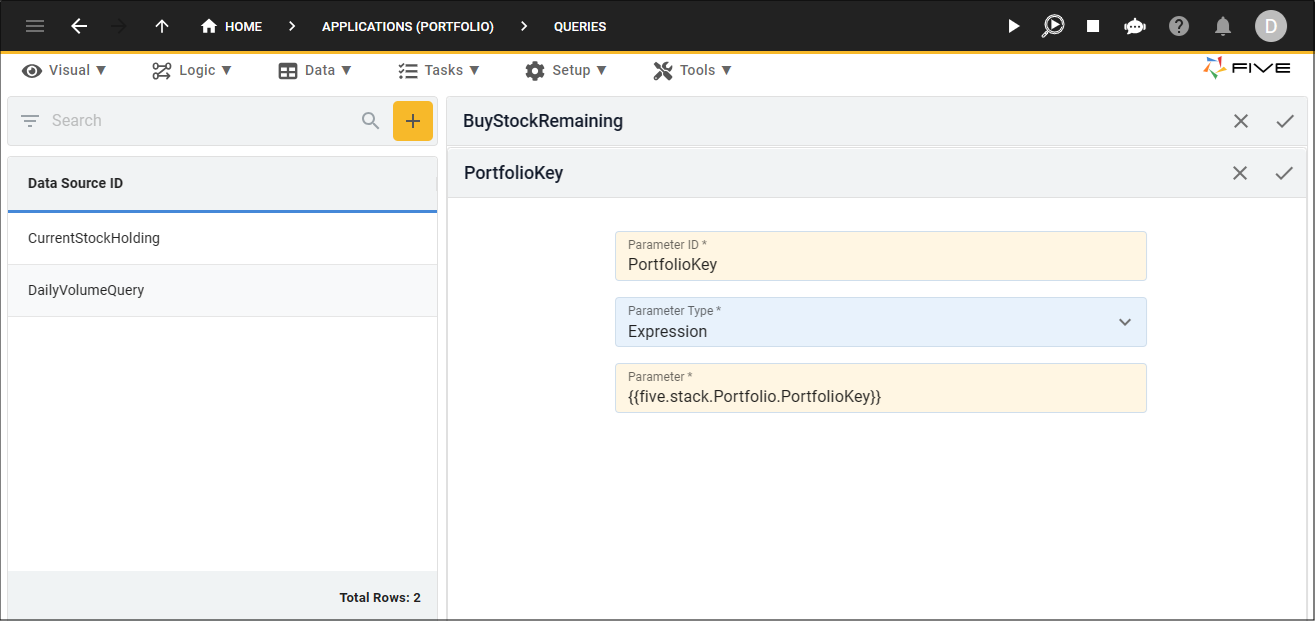
19. Click the Save button in the form app bar.
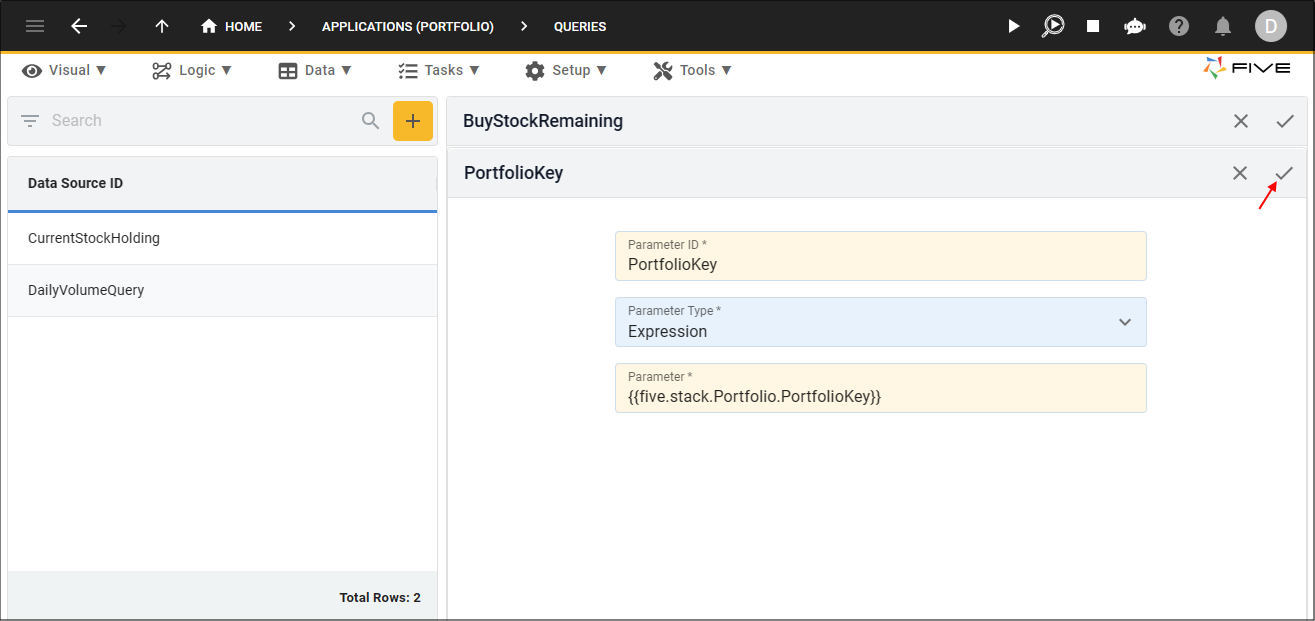
20. Click the Add Parameters button.
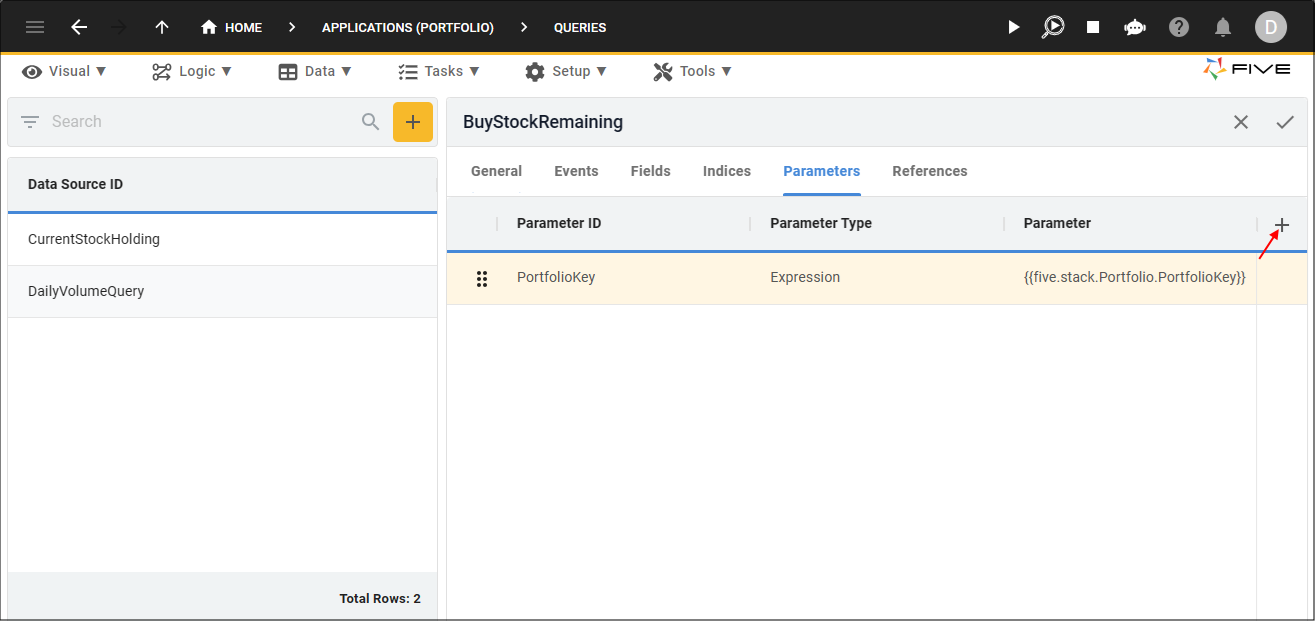
21. Type StockKey in the Parameter ID field.
22. Type

23. Click the Save button in the form app bar.
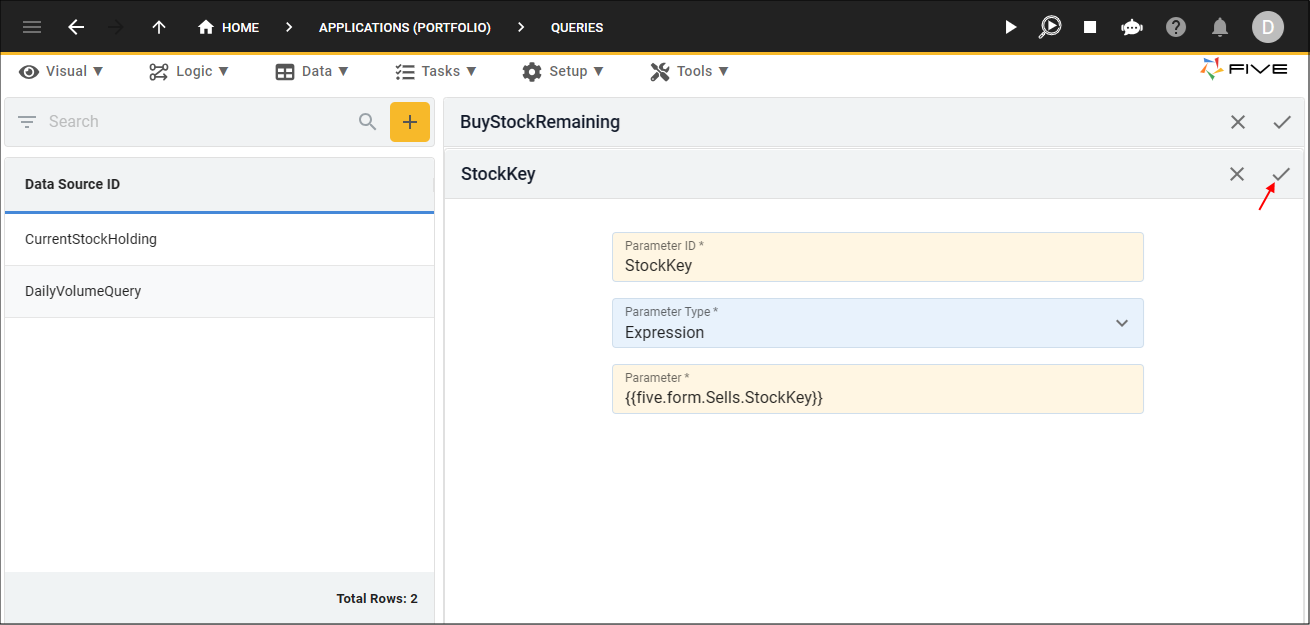
24. Click the Save button in the form app bar above the list.
Attach the BuyStockRemaining Query
The BuyStockRemaining query needs to be attached to the Buy field on the Allocations form using Five's display type _LookupQuery.
Path: Allocations form > General page > Buy field
1. Click Visual in the menu followed by Forms in the sub-menu.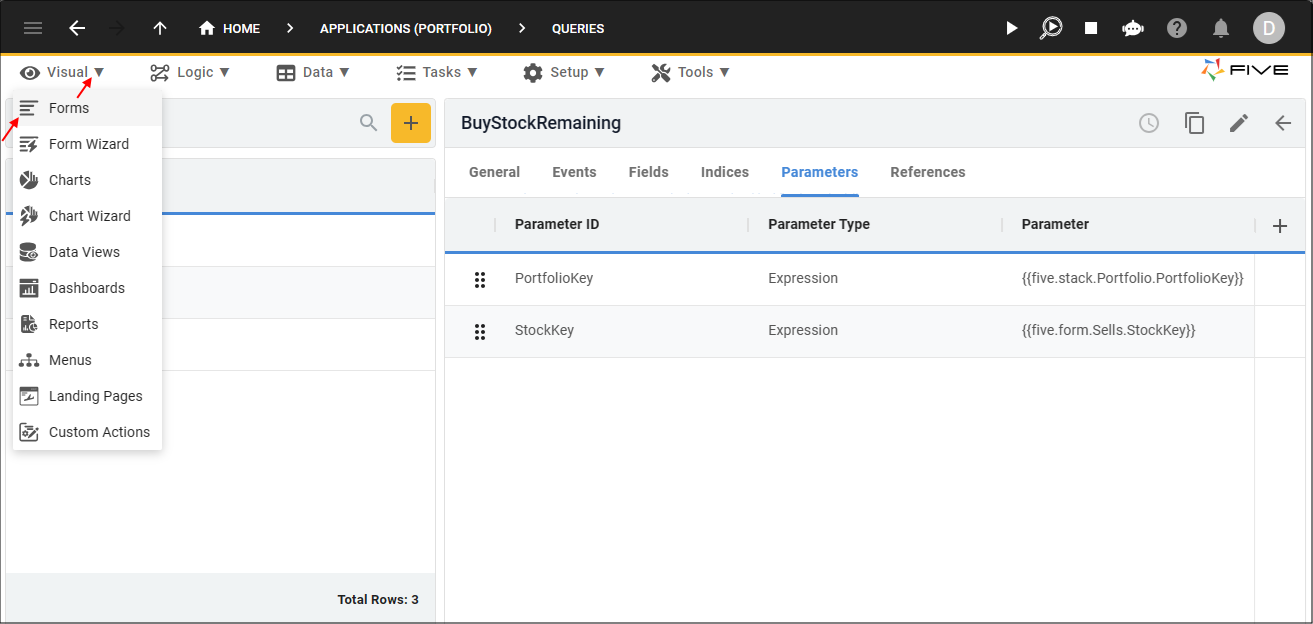
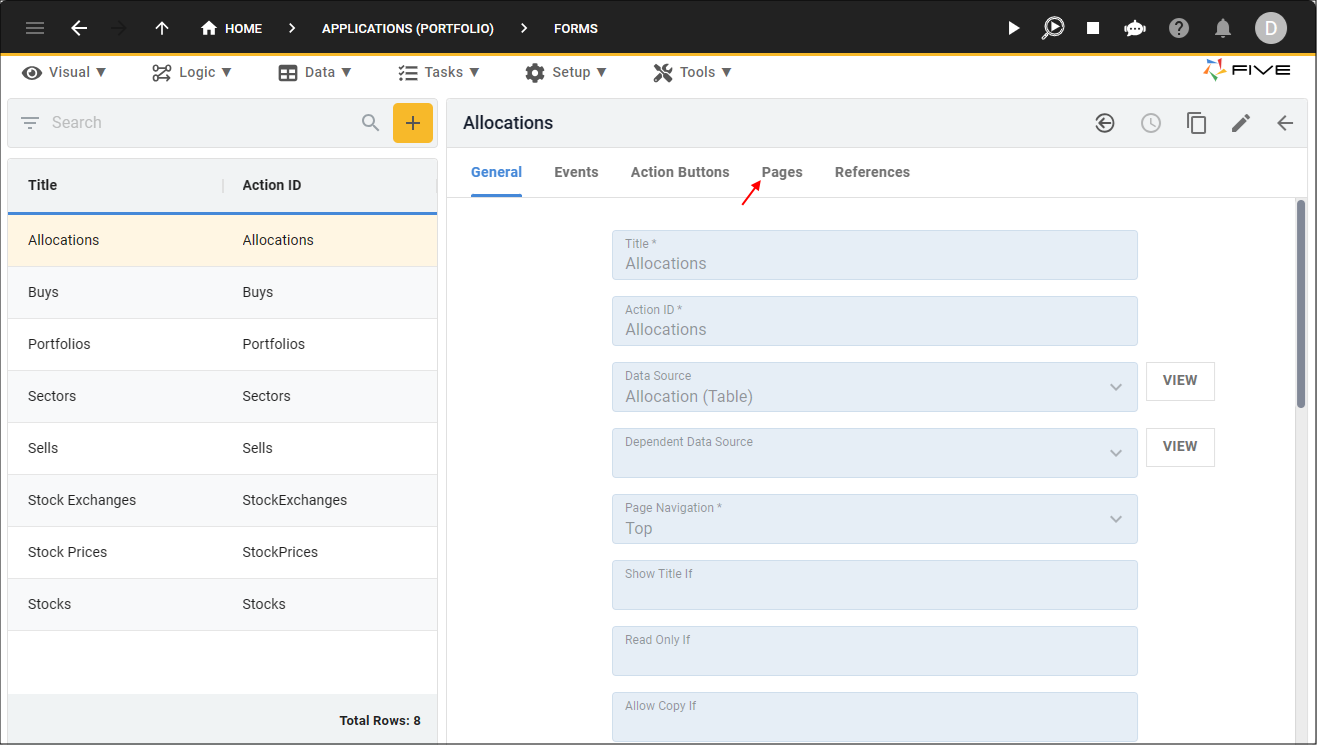
2. Select the Allocations record in the list and click the Pages tab.
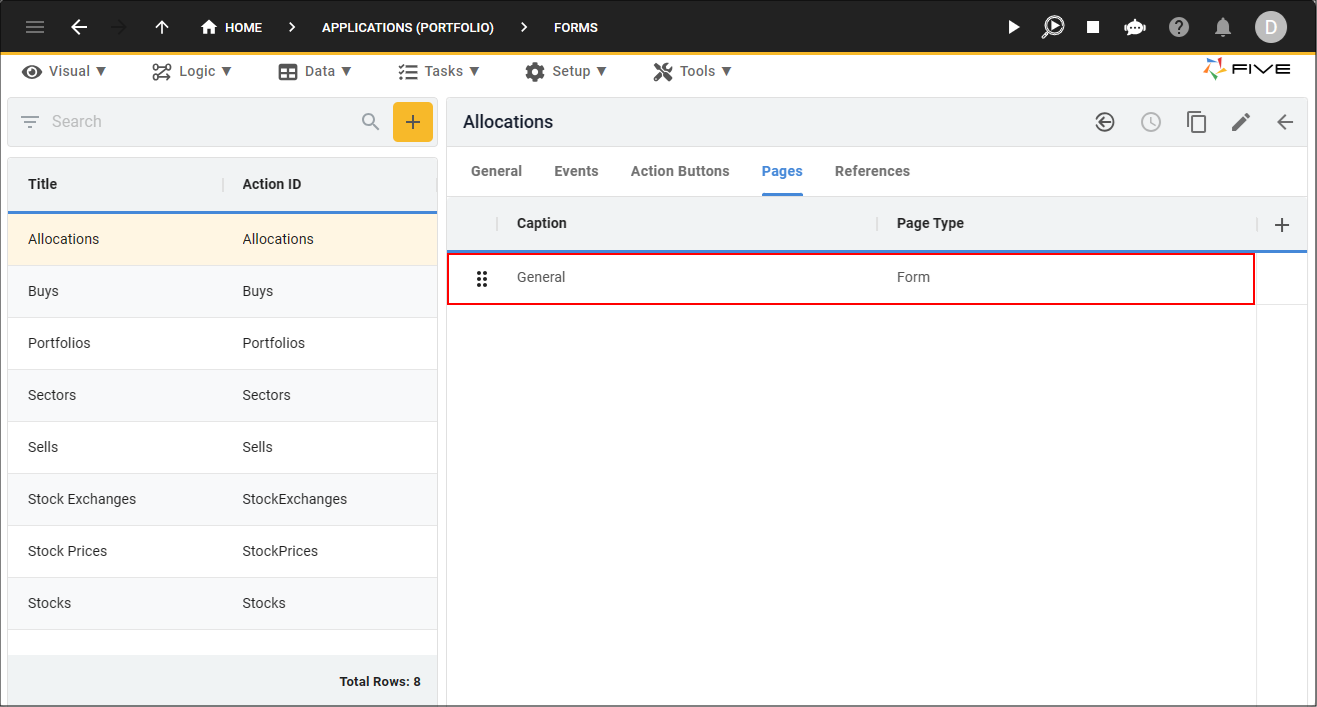
3. Select the General record.
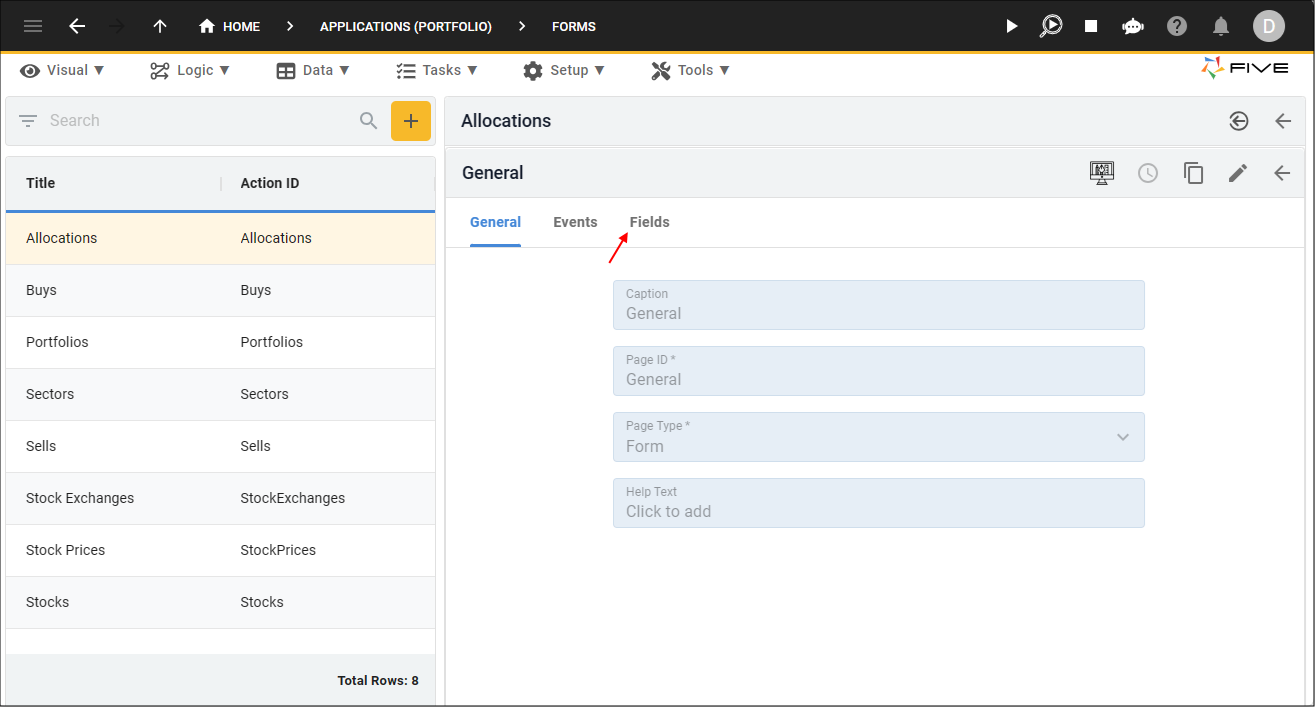
4. Click the Fields tab.
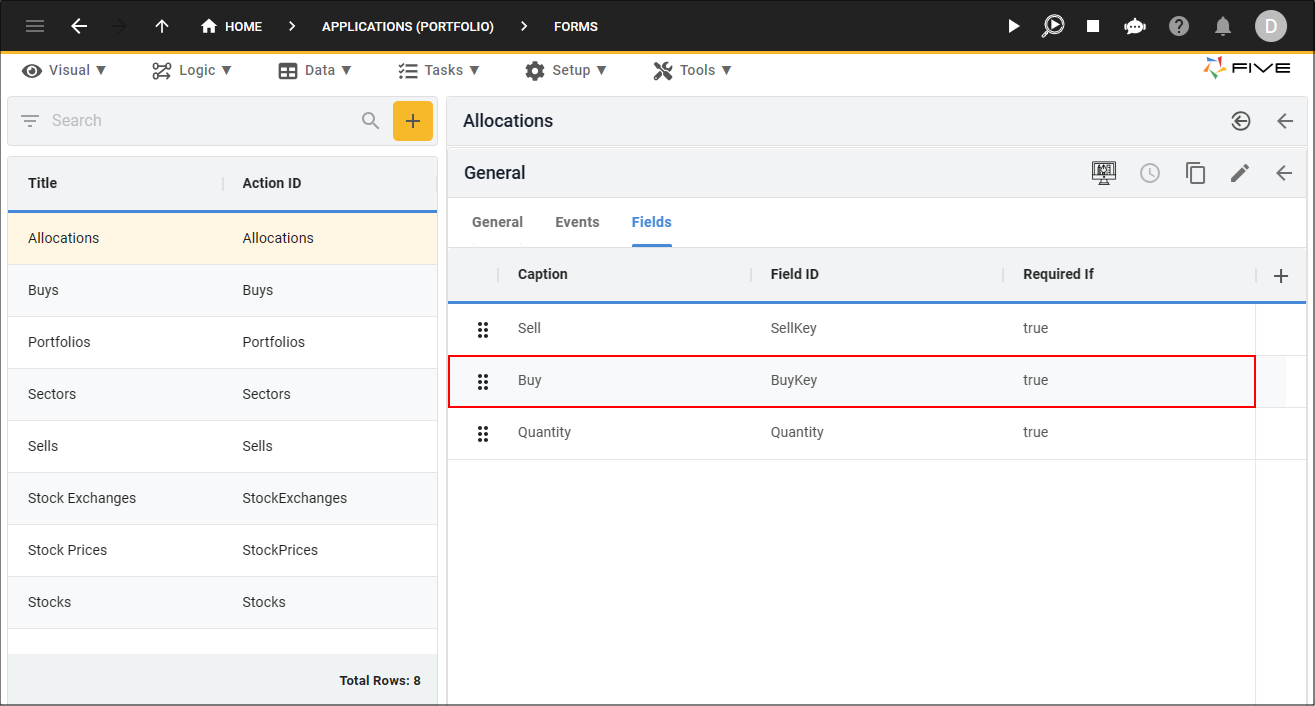
5. Select the Buy record.
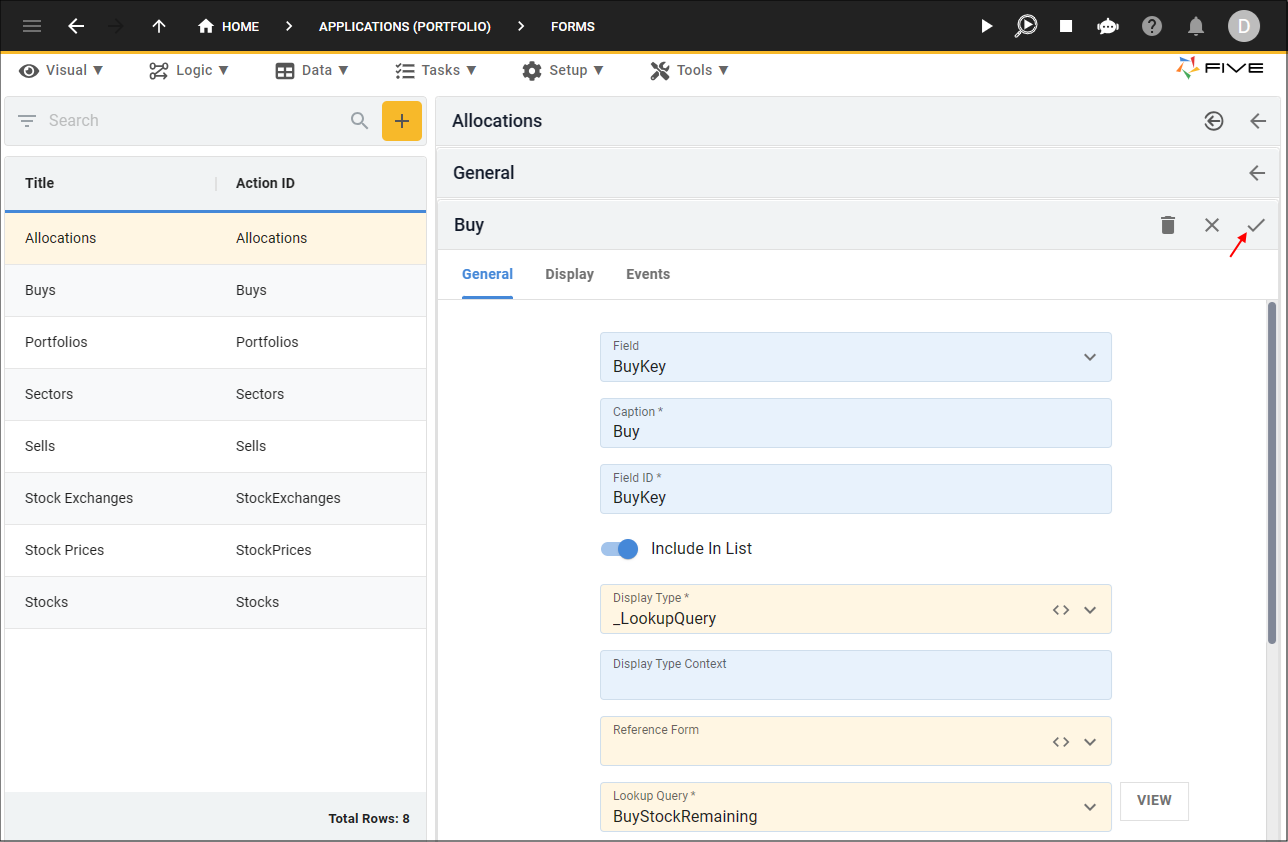
6. Either click the Edit button in the form app bar or click directly in the Display Type field.
7. Select _LookupQuery in the Display type field, click the Cancel button in the Reference Form field, and select BuyStockRemaining in the Lookup Data Source field.

8. Click the Save button in the form app bar.
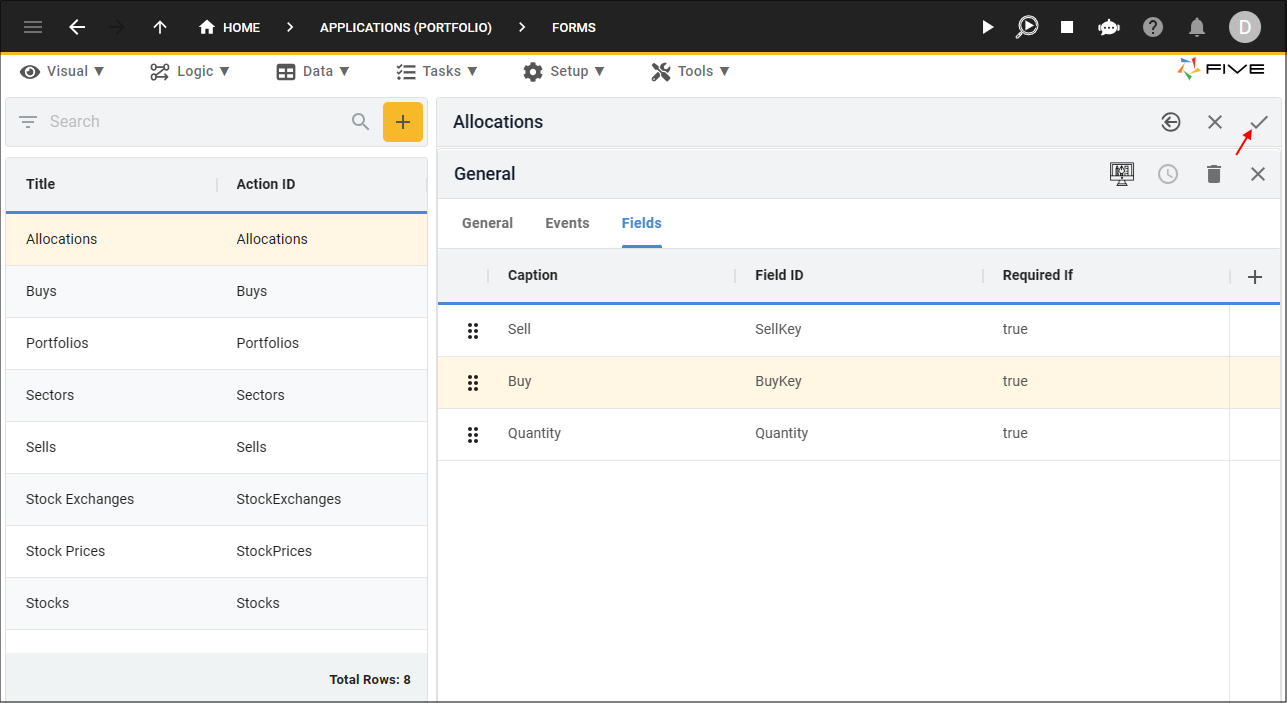
9. Click the Save button in the form app bar above the list.
Test the Allocations Page
1. Select the Growth Portfolio record in the list and click the Down button in the form app bar.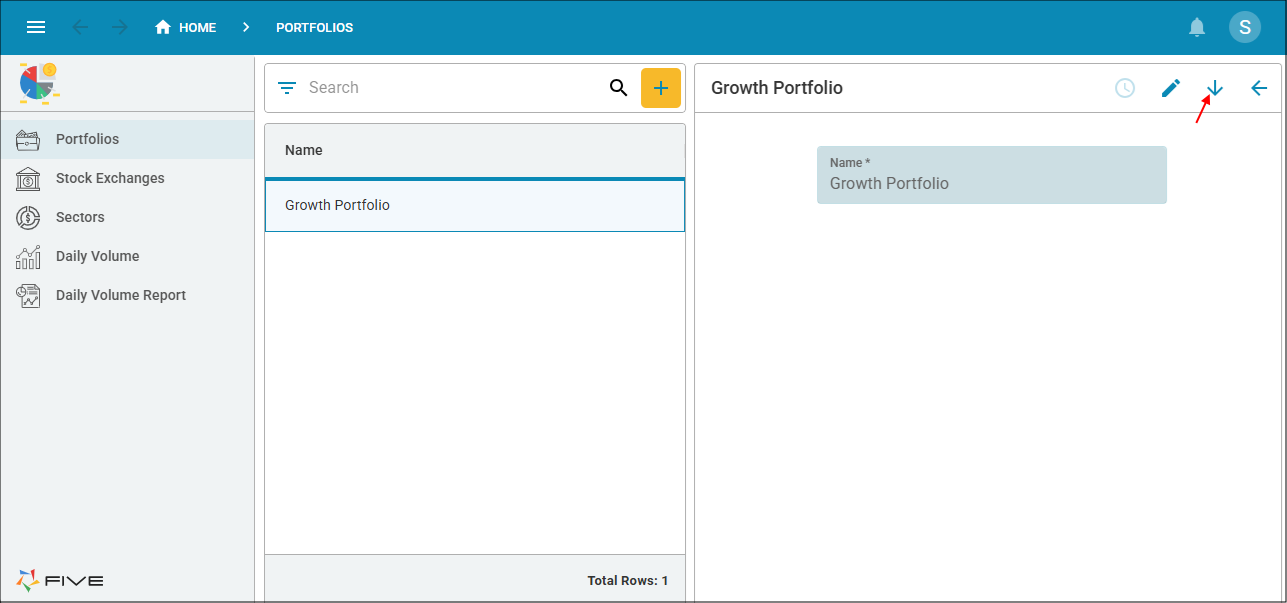
2. Select Buys in the menu.
- 2025/11/30 - 10000 shares
- 2025/12/02 - 3000 shares

3. Select Sells in the menu and click the Add Item button.
4. Select TSLA in the stock field and the current date in the Transaction Date field.
5. Type 11000 in the Quantity field, 400 in the Price field, 10.00 in the Fees field, and press tab.
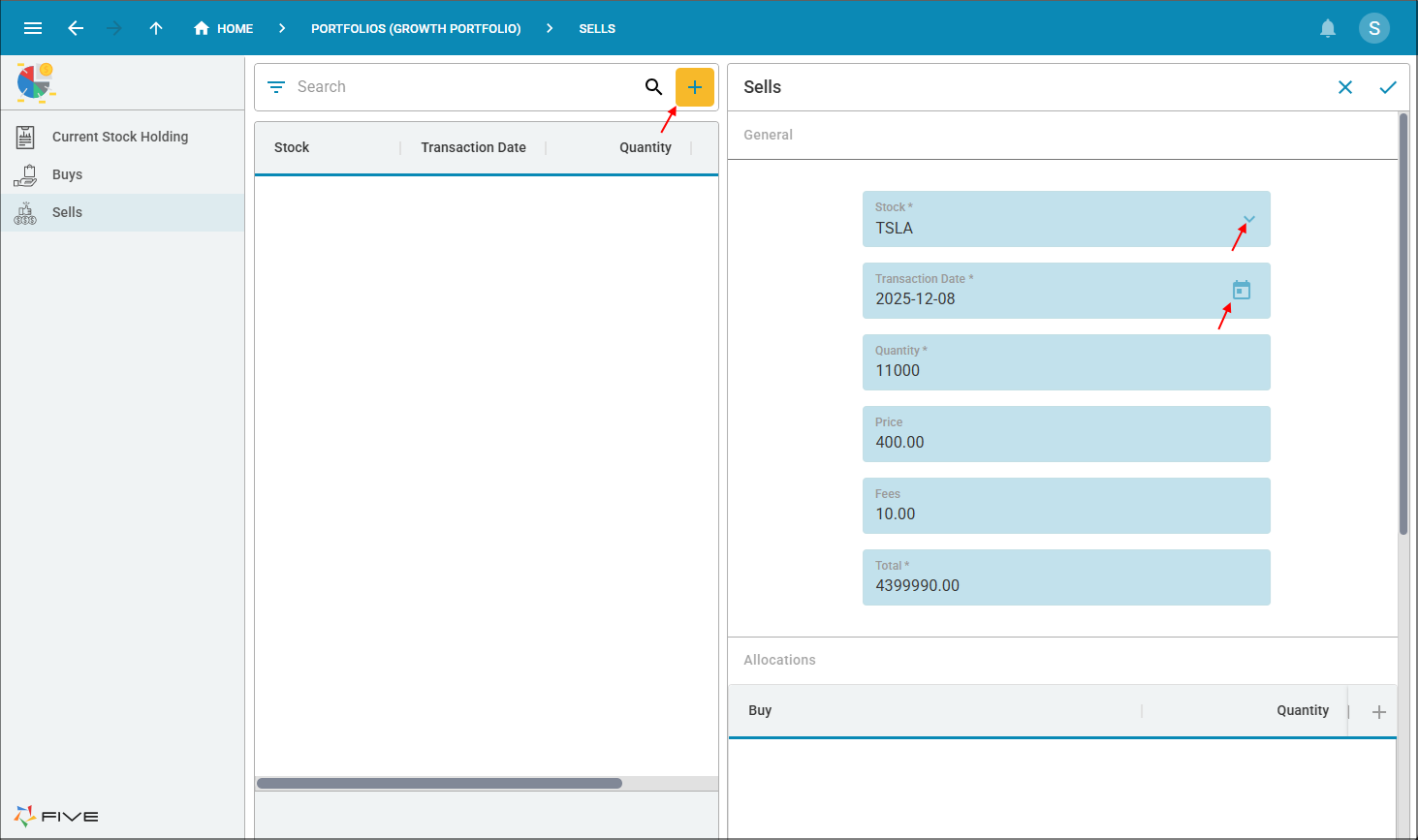
6. Click the Add Allocations button.
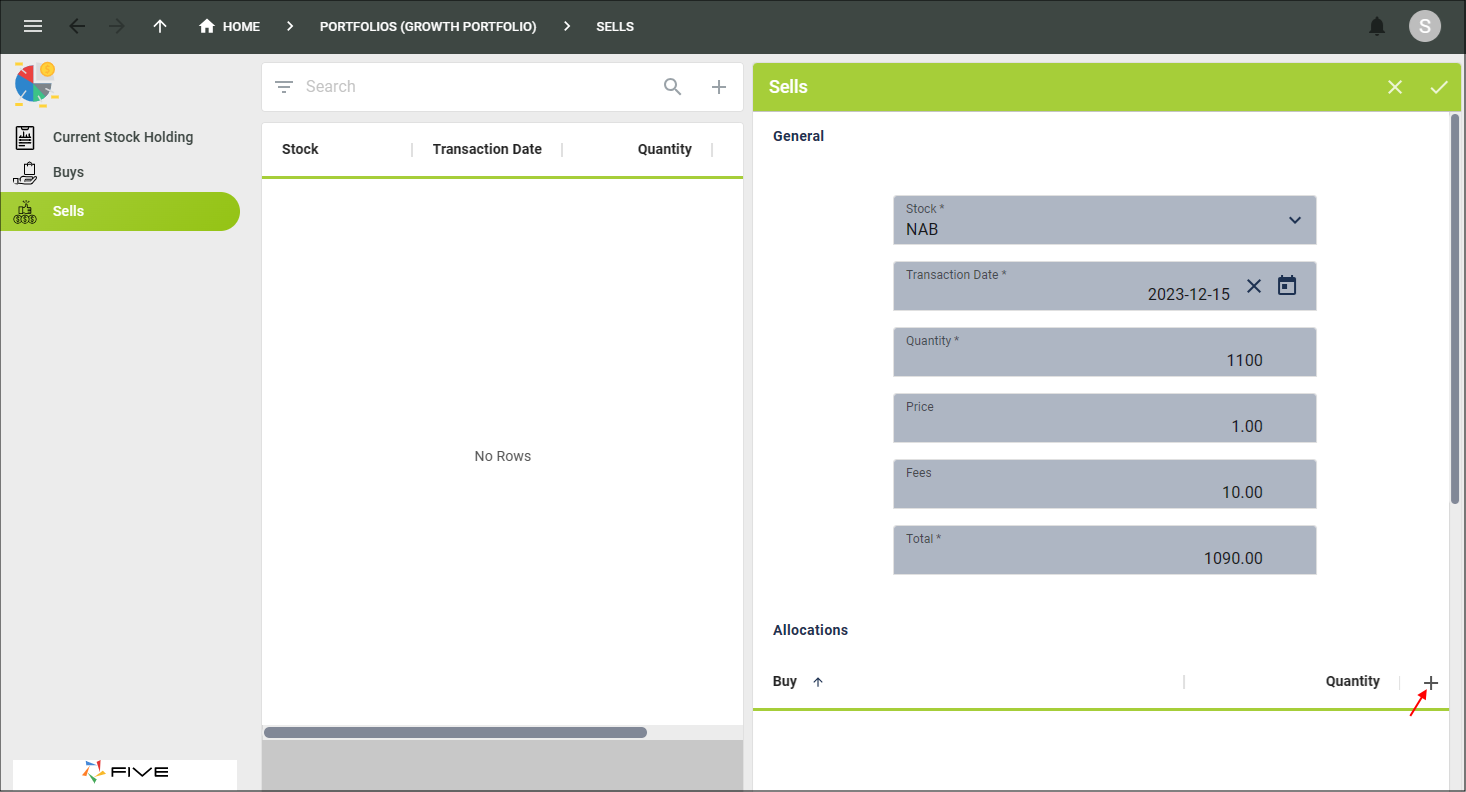
7. Click the lookup icon in the Buy field.
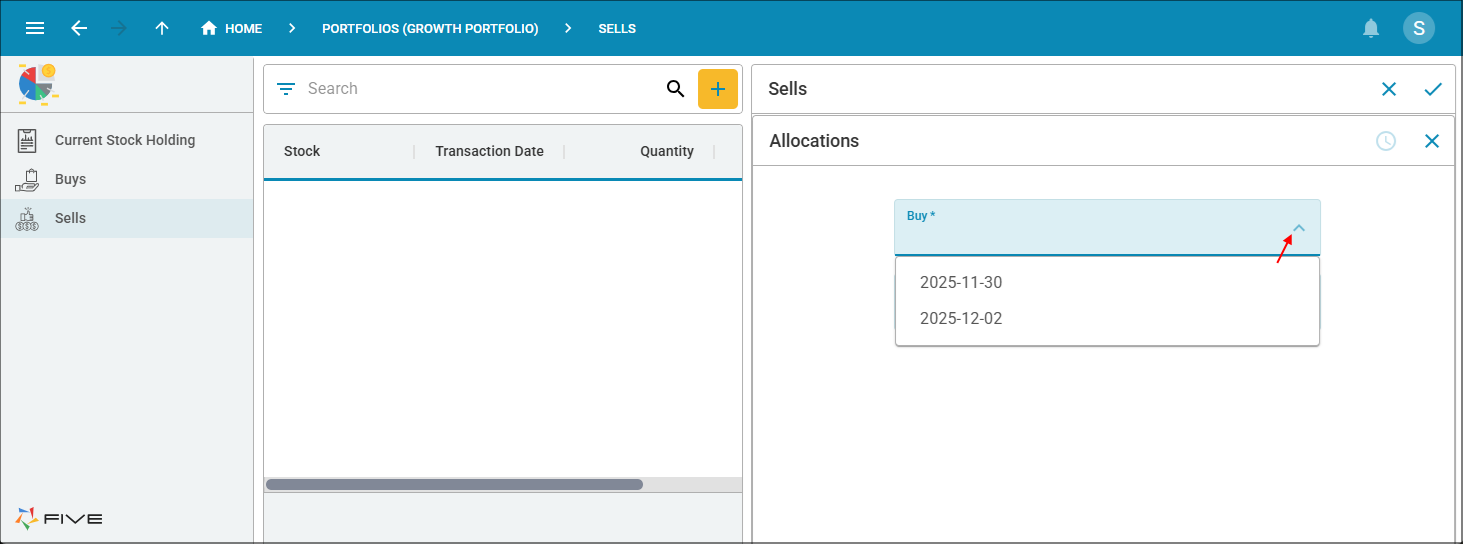
8. Select 2025-11-30 in the Buy field.
9. Type 11000 in the Quantity field.
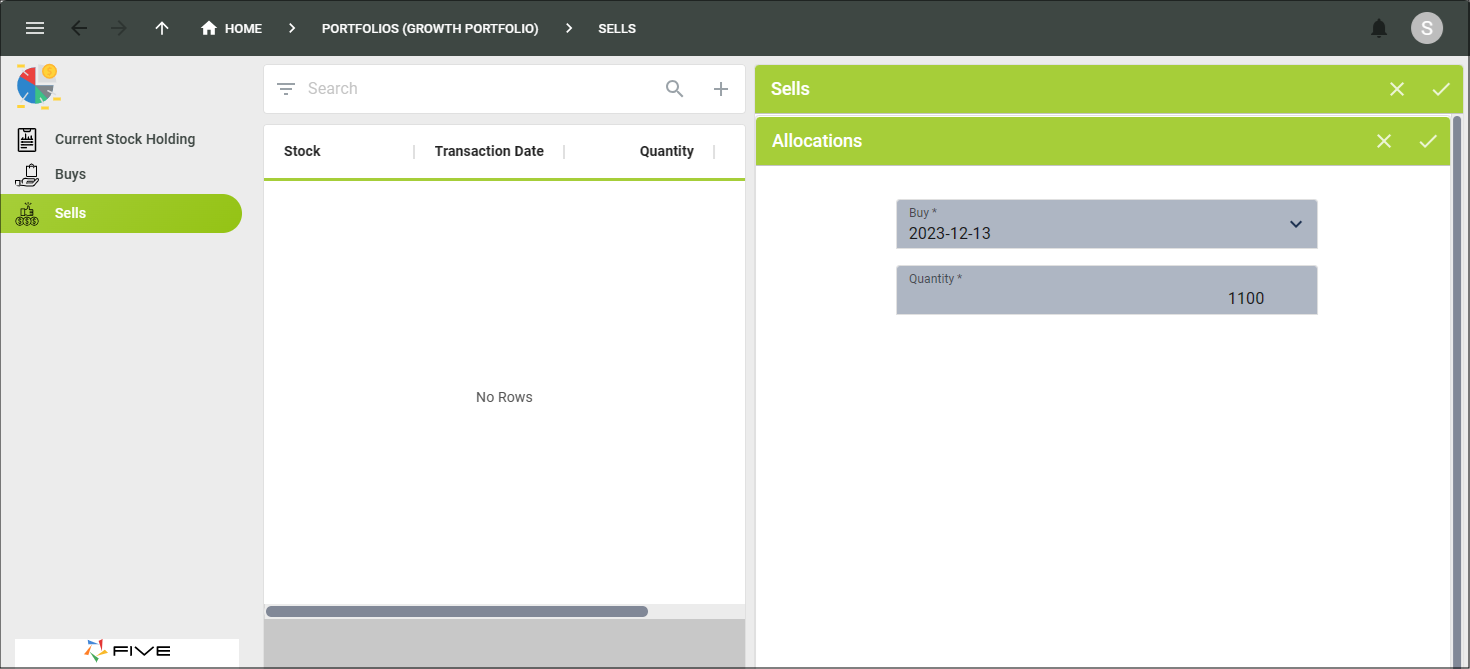
10. Click the Cancel button in the form app bar.
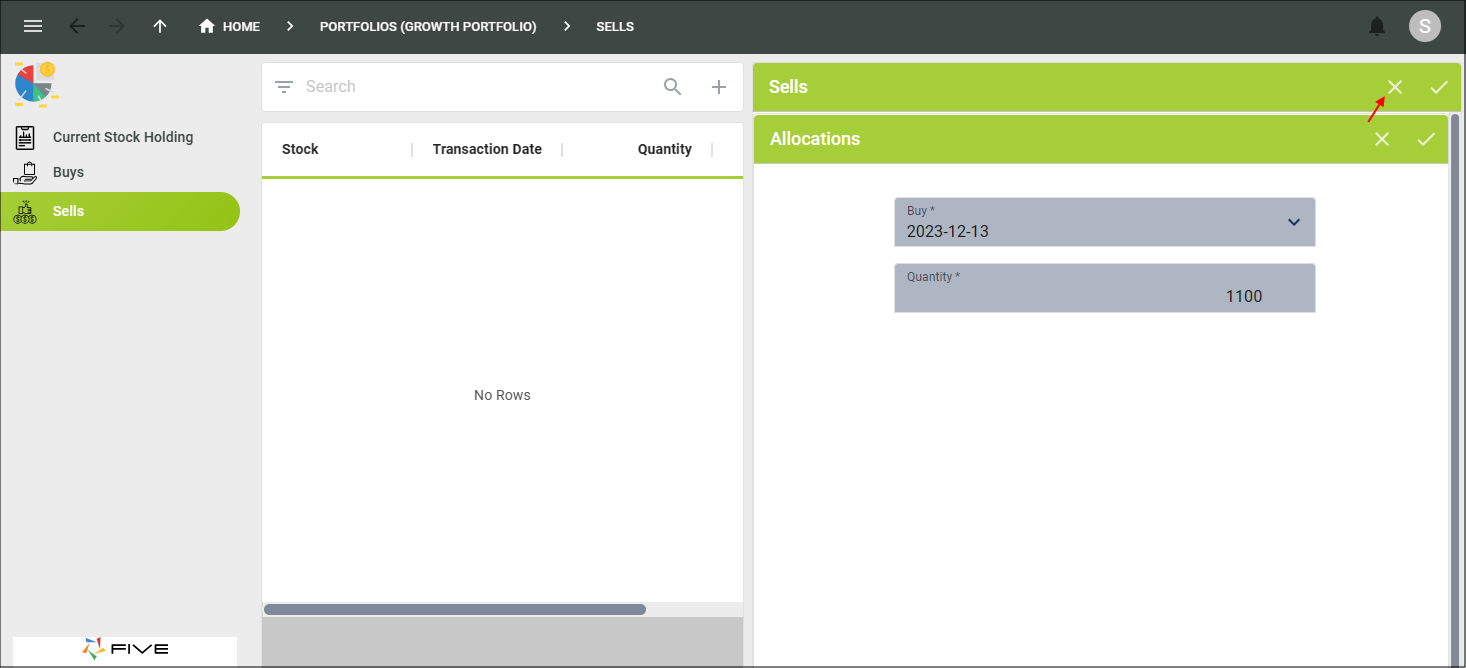
11. Close the browser tab and return to Five.