Deploy to the Web
Last updated 1/10/2025
Dependent on your subscription, an instance of your application can progress through three deployments; development, testing, and production. It is recommended that you read the chapter Deployment Environments to understand each type of deployment and who can deploy to each environment.
In the event of a timeout, wait for one to two minutes and click the Run button again. The Run button will show in the toolbar but the location can't be found yet because the DNS has not propagated.
Deploy to Development
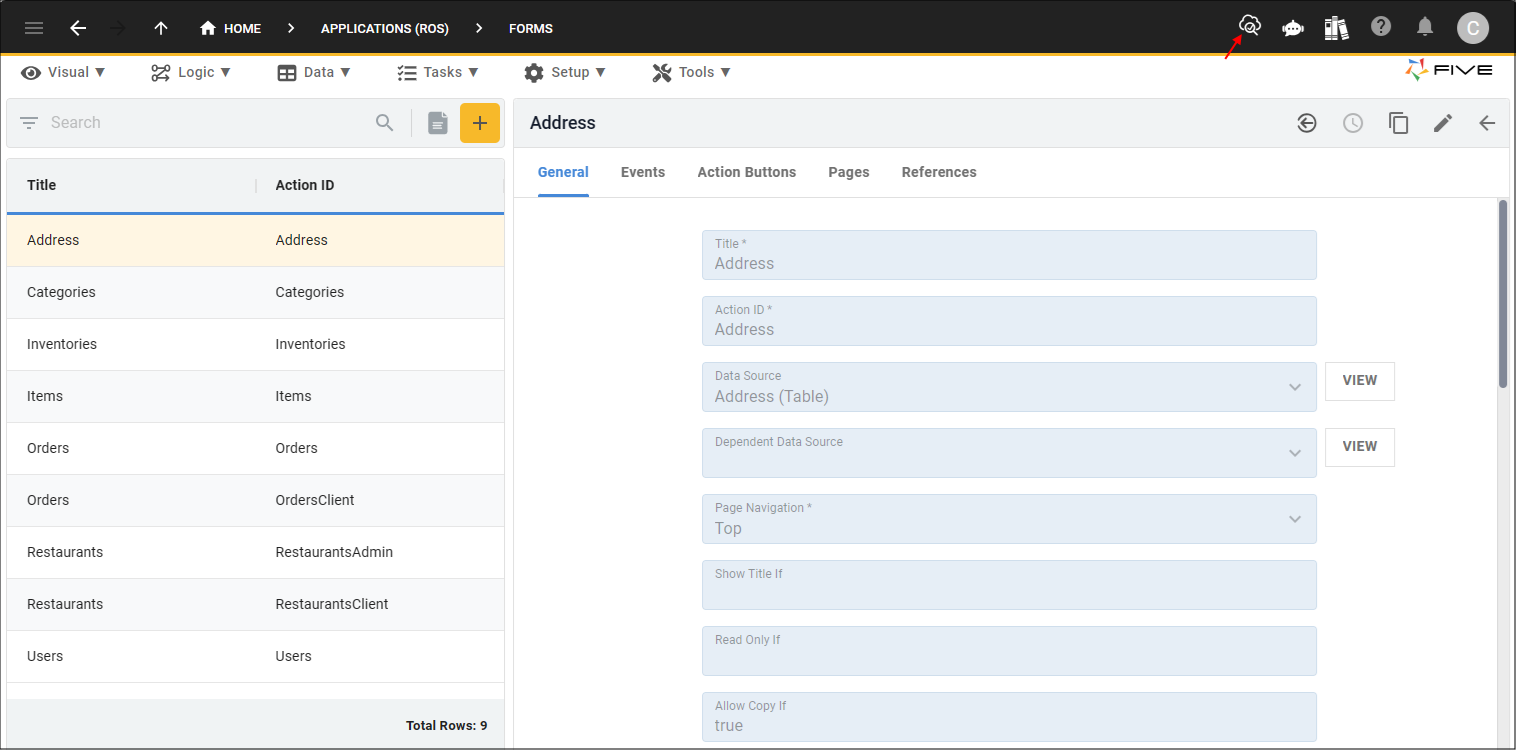
Five will initially create an instance of your application for you and set this record as the default when you first save an application record. Only one instance of your application can be flagged as the default. The default instance record will have the Deploy to Development button in Five's toolbar enabling you to deploy your application from any view in Five.
1. Click the Deploy to Development button.
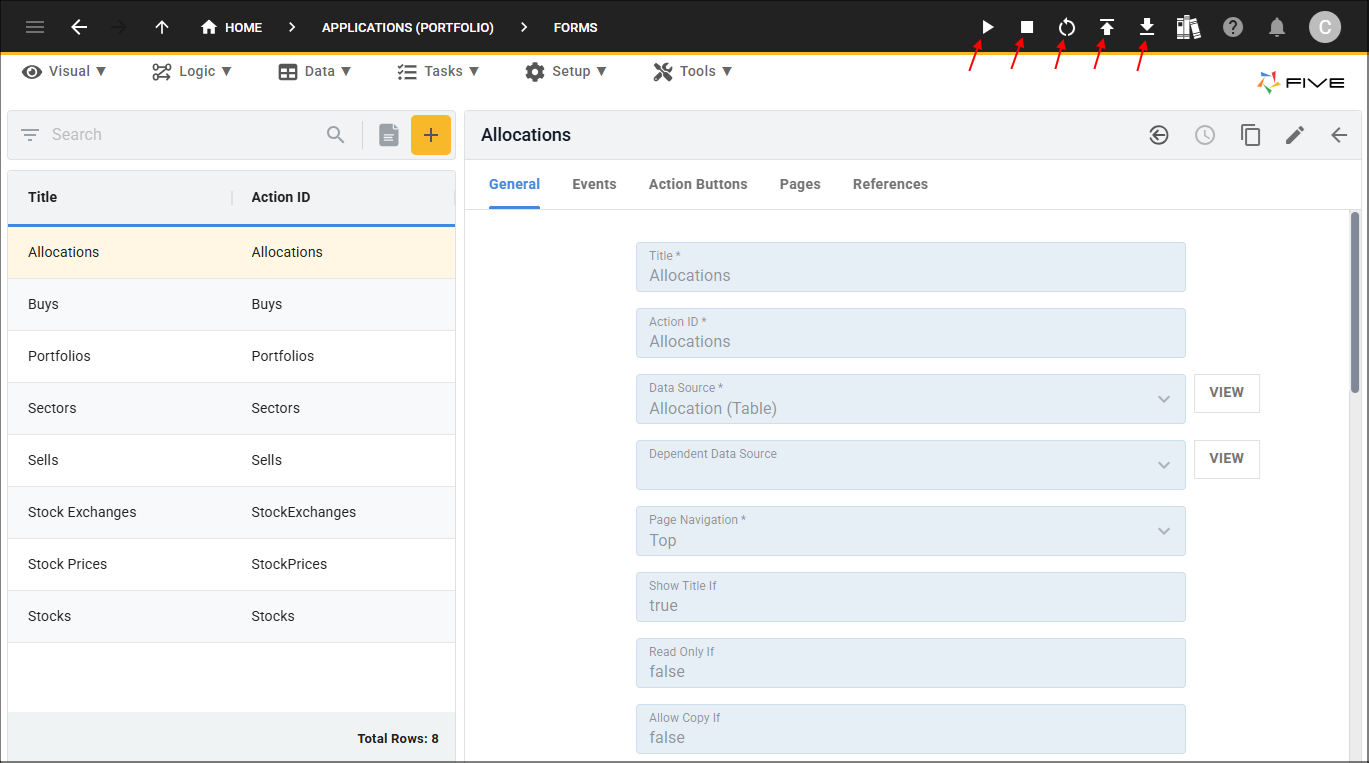
Once you deploy your application, the Deploy to Development button will be replaced with the following buttons:
Run: With your application deployed to the development environment, you use the Run button each time you want to see the development changes you have made.
Remove from Deployment: This button will bring down the container holding your development instance. Next time you deploy to the development environment, a new container will be created to hold the development instance.
Restart Development: This button will remove the application from the development environment and then re-deploy the application to the development environment in one go.
Import Database to Development button: This button enables you to import a MySQL file in the development environment for your application.
Back up Development button: This button will export your data into a MySQL file from the development environment.
Cluster Management
The Cluster Management page on the instance record enables you to:
- Deploy all instances to the development environment, dependent on your subscription
- Deploy to the testing and production environments, dependent on your subscription
- Remove deployments
- Restart deployments
- Backup databases
Your subscription will determine how the Cluster Management page looks for you.
On the Basic plan, deployment to the development environment is available.

On the Team plan, deployment to the development and production environments are available.
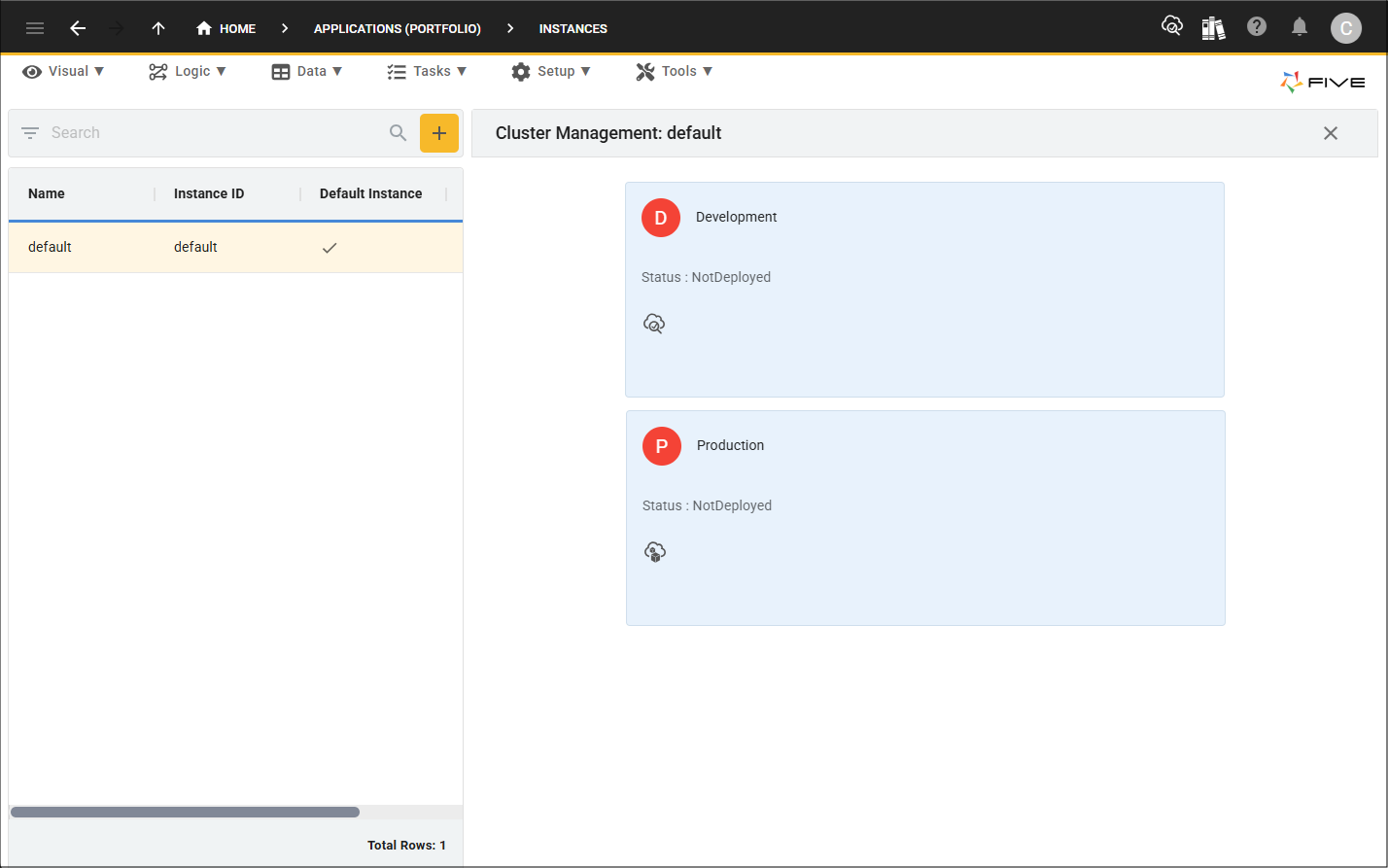
On the Business and Enterprise plans, deployment to the development, testing, and production environments are available.

Deploy an Instance From the Cluster Management
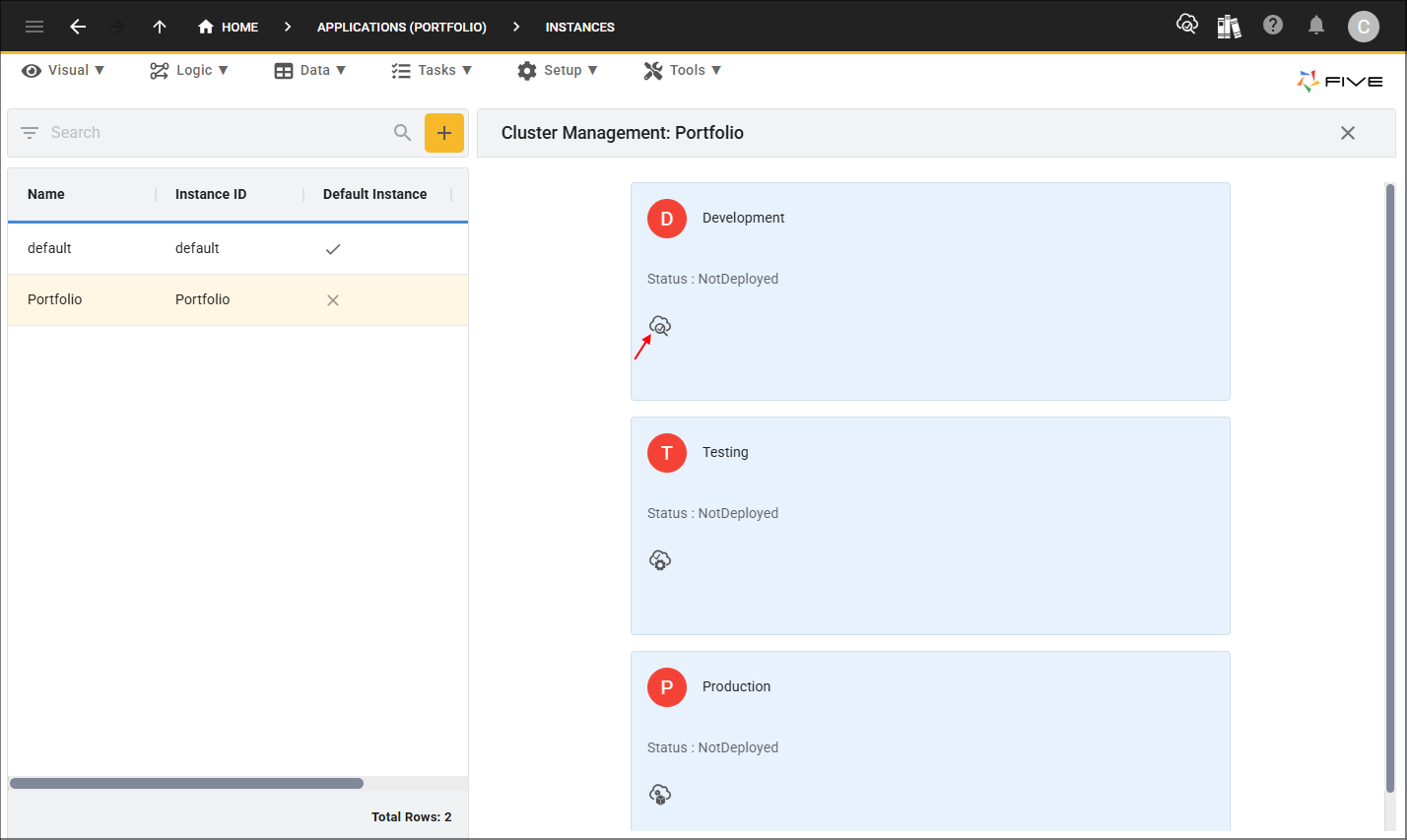
All instances of your application can be deployed from the Cluster Management. If you wish to deploy an instance of your application that is not set as the default, you will need to deploy it using the Cluster Management.
For a Basic plan, if this is the instance of your application that you want to run live for your end-users, you will need to ensure the Production switch on the application record is set to true.
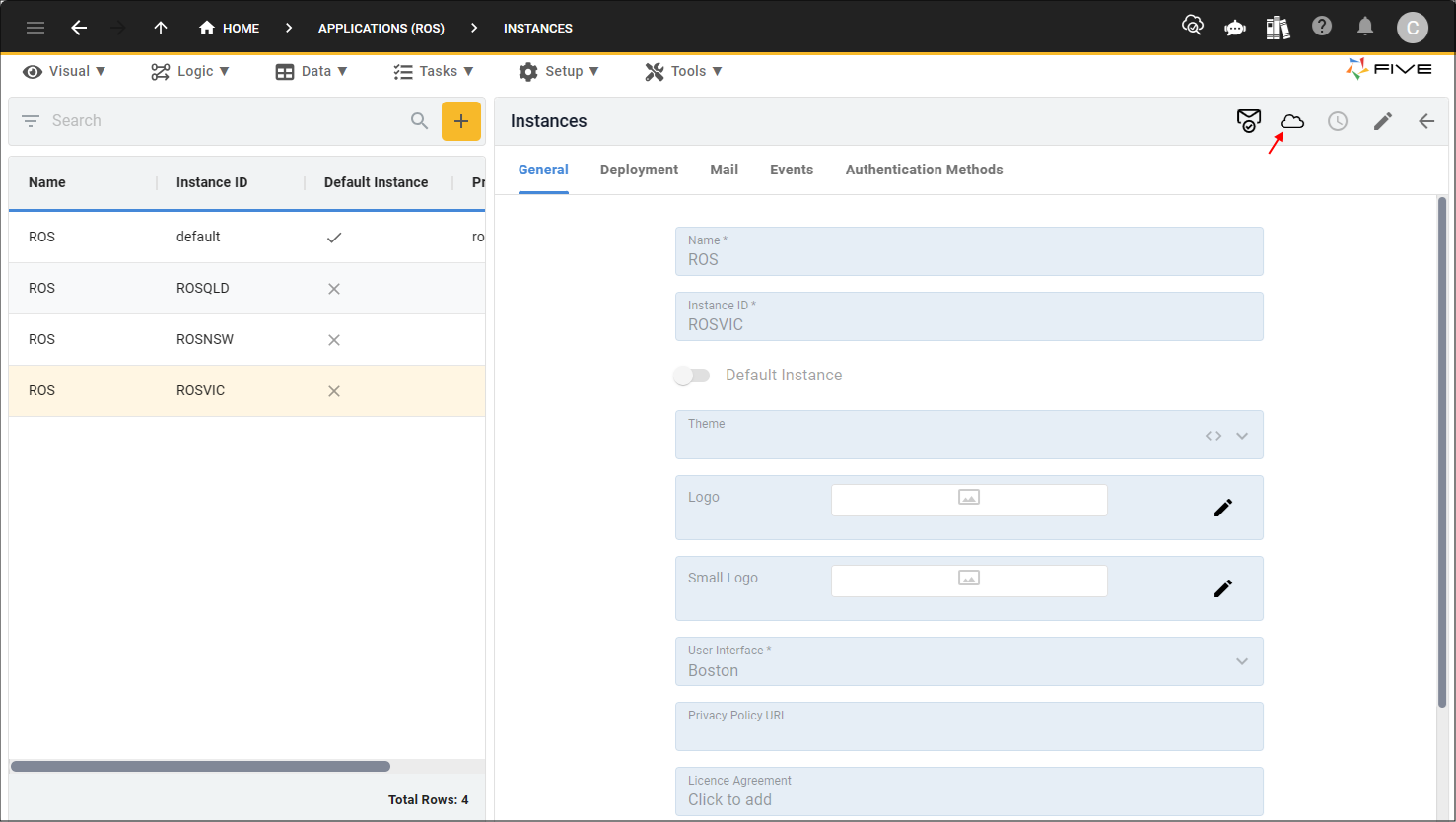
1. Navigate to the Instances view by selecting Setup in the menu and Instances in the sub-menu.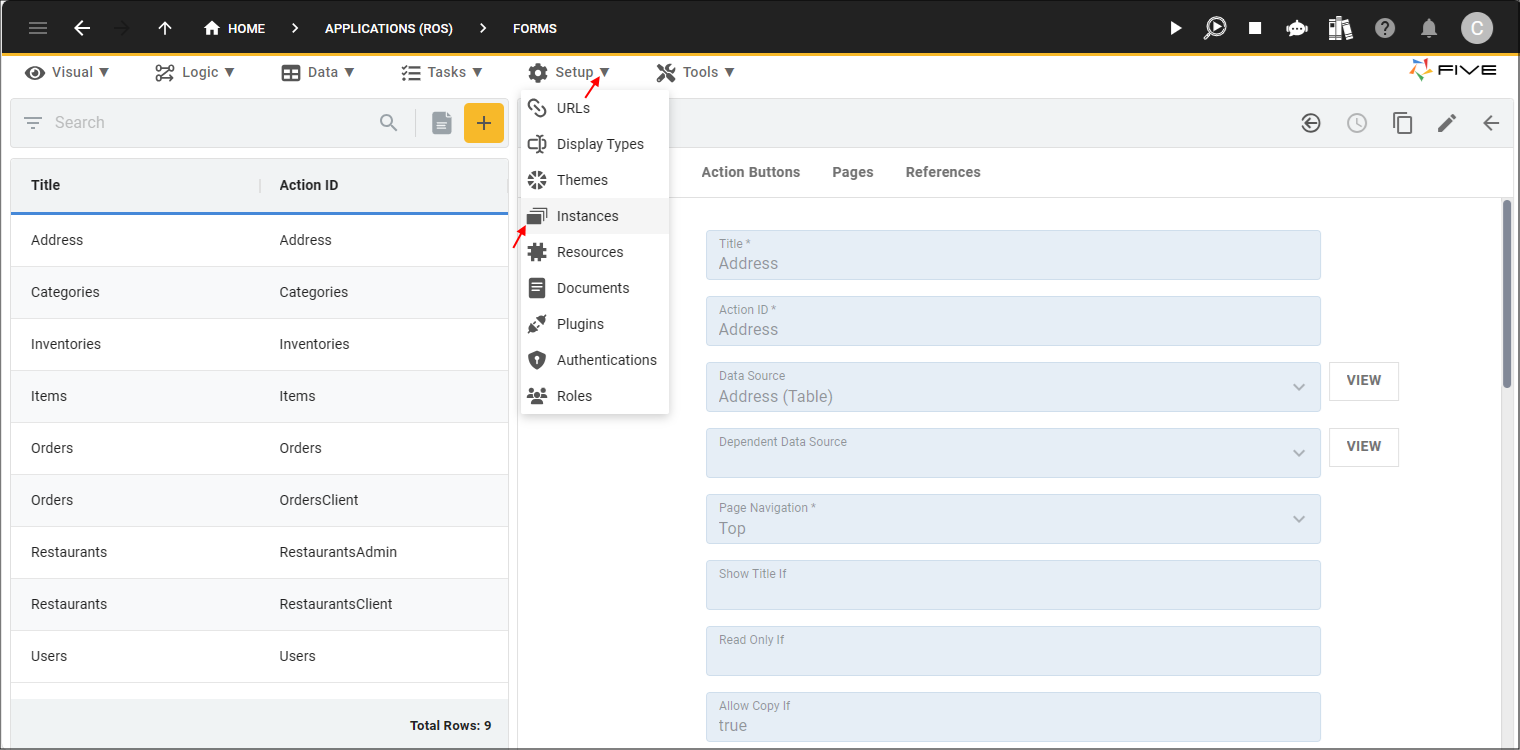
2. Select the instance record you want to deploy to the development environment.
3. Click the Cluster Management button.
4. Click the Deploy to Development button.
Deploy to Testing
The testing deployment is available to the Business and Enterprise plans.
For a Business or Enterprise plan, if this is the instance of your application that you want to run in the testing environment, you will need to ensure the Production switch on the application record is set to true.
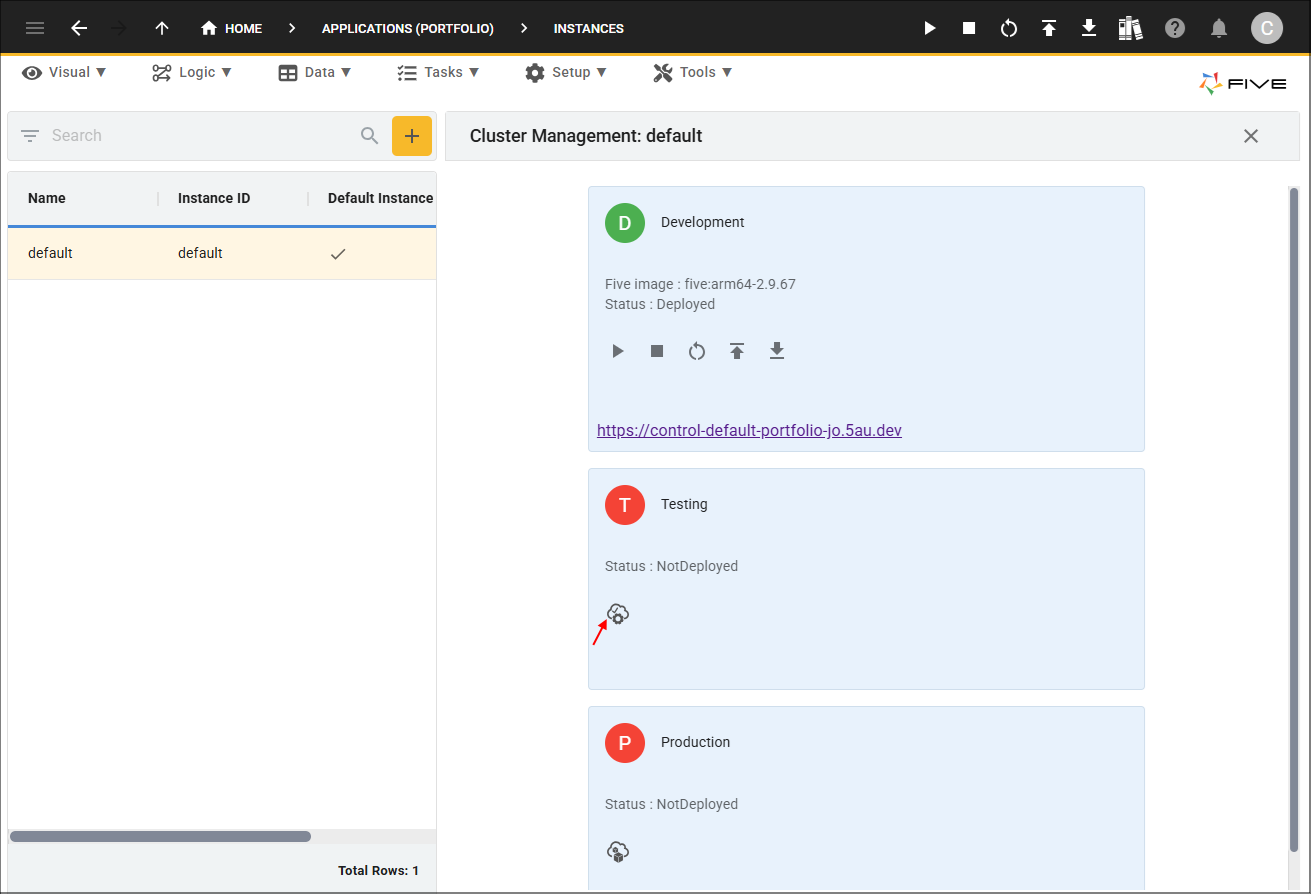
To deploy an instance of your application to the testing environment, you must use the Cluster Management and the instance must of been deployed to the development environment first.
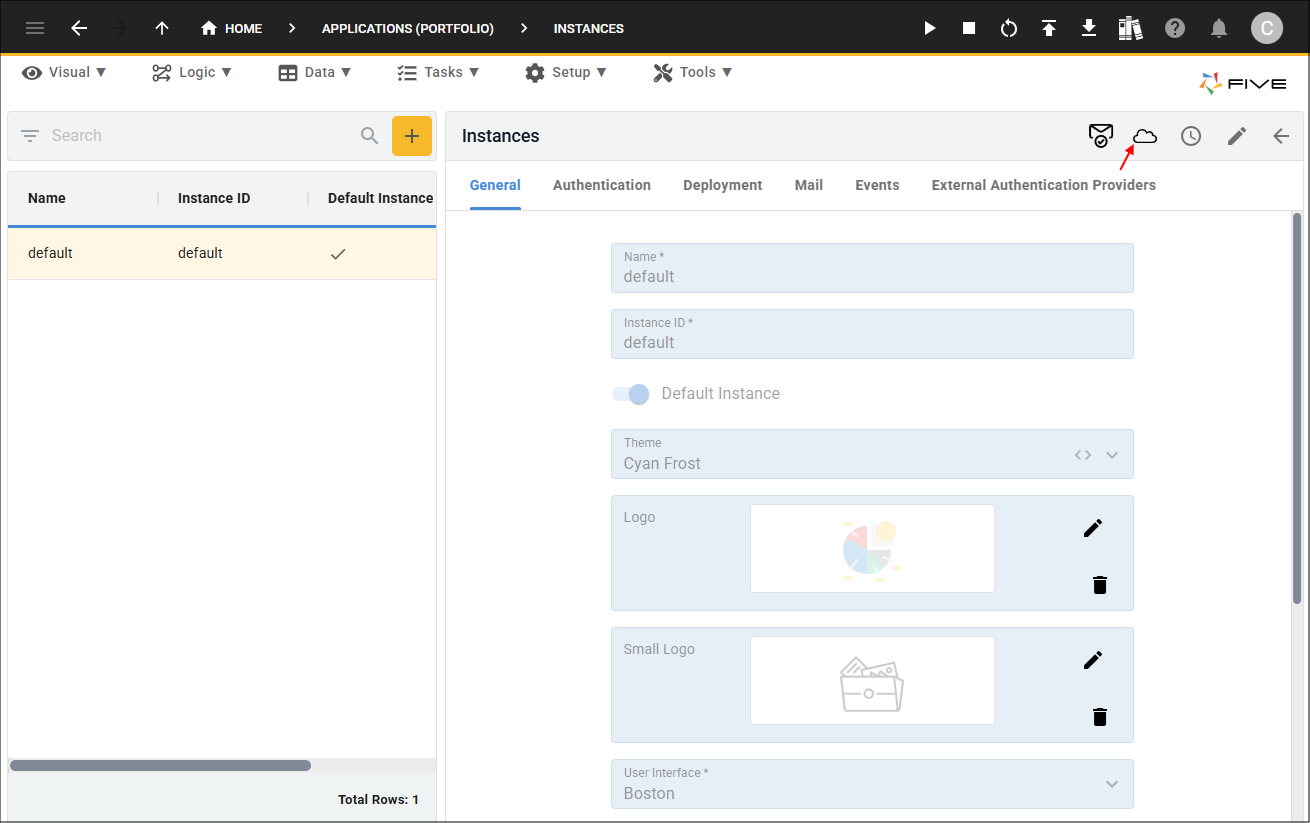
1. Select the instance record you want to deploy to the testing environment and click the Cluster Management button.
2. Click the Deploy to Testing button.
Deploy to Production
The production deployment is available to the Team, Business, and Enterprise plans.
For a Team, Business, or Enterprise plan, if this is the instance of your application that you want to run in the production environment, you will need to ensure the Production switch on the application record is set to true.
On a Team plan, to deploy an instance of your application to the production environment, you must use the Cluster Management and the instance must of been deployed to the development environment first.
On a Business or Enterprise plan, to deploy an instance of your application to the production environment, you must use the Cluster Management and the instance must of been deployed to the development and testing environments first.
1. Select the instance record you want to deploy to the production environment and click the Cluster Management button.

2. Click the Deploy to Production button.
