6 - Deploy an Application
Last updated 11/12/2025
This documentation will explain how to deploy the Portfolio application to the development environment.
Once your Portfolio application is deployed, click on the menu items to see your development. You will also be able to click the tabs on the Stock Exchanges and Sectors forms to see the pages created on the forms.
tip
Be sure to watch the video in the Introduction chapter again if you need any assistance in navigating the Portfolio application!
Deploy to the Development Environment
1. Click the Deploy to Development button in Five's toolbar.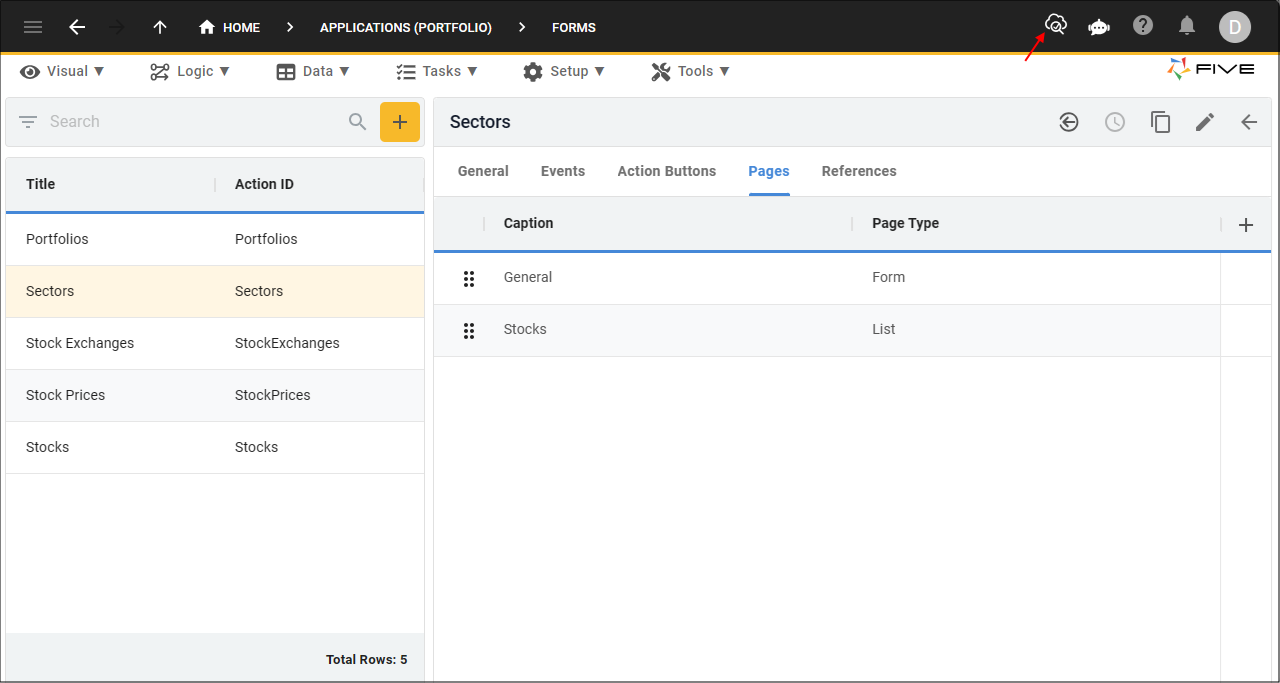
Figure 1 - Deploy to Development button
info
Once you deploy the Portfolio application to the development environment, the Deploy to Development button will be removed and replaced with the Run, Remove from Development, Restart Development, Import Database to Development, and Backup Development buttons. Your initial deployment may take several minutes to propagate, however, after this you can just use the Run button each time to check your development without having to remove it from deployment.
You can also deploy to the Development environment by using the Cluster Management page on the Instances form.
You can also deploy to the Development environment by using the Cluster Management page on the Instances form.
caution
After two hours of inactivity, your application will dropout except if you are on the Basic plan and the application is flagged as your production application. To re-deploy your application, you will need to either: