7 - Add a Query
Last updated 11/12/2025
There are two ways in Five to build queries to interact with your database, you can use:
- Five's Query Builder - A point and click editor
- Five's SQL Editor - An editor where you can write SQL commands
This documentation will explain how to create a query for the Portfolio application via Five's Query Builder. The results of the query will return the trading volume for each stock, per day, for October 2025.
Add the DailyVolumeQuery
1. Click Data in the menu followed by Queries in the sub-menu.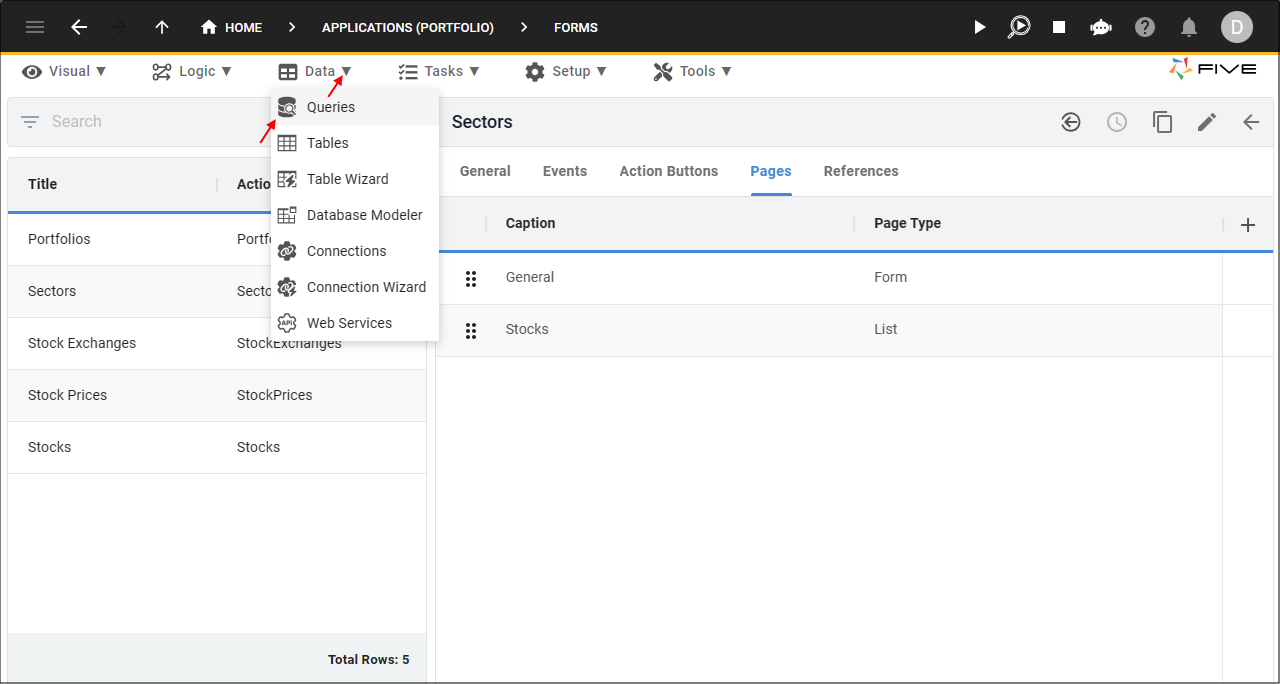
Figure 1 - Queries menu item
2. Click the Add Item button and type DailyVolumeQuery in the Data Source ID field.
3. Click in the Query field to open Five's Query Builder.
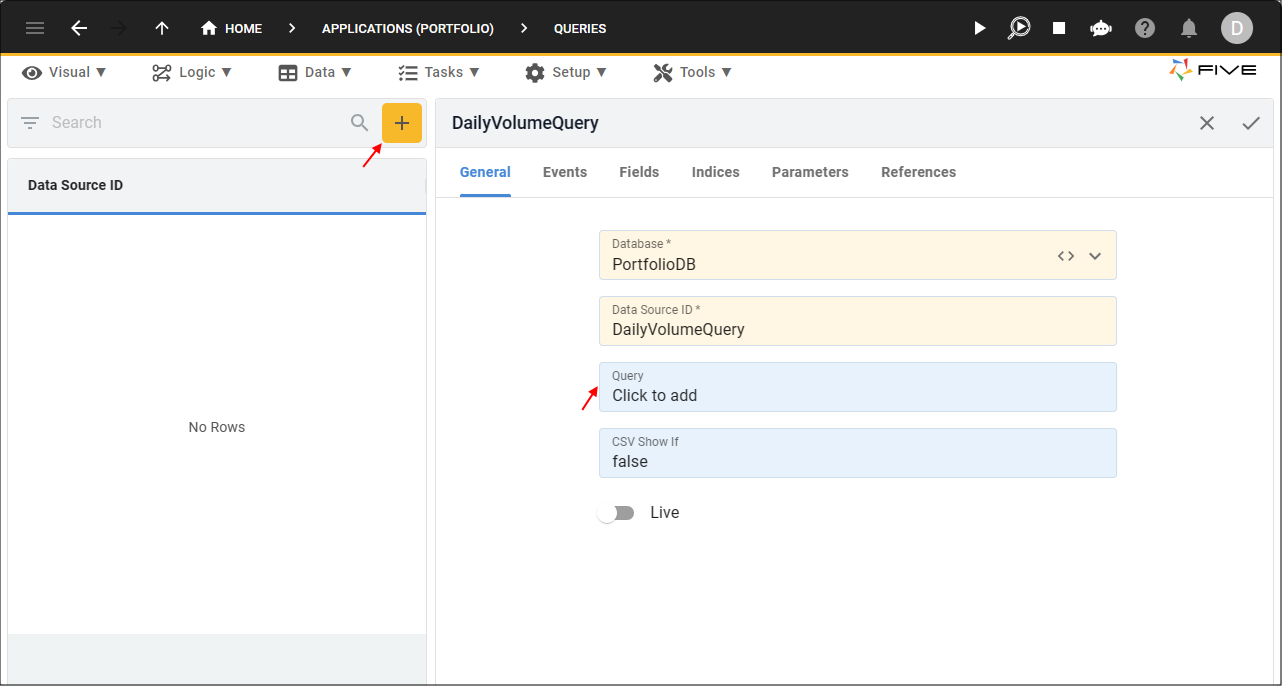
Figure 2 - Add DailyVolumeQuery
4. Click the Add Table button and select the StockPrice table.
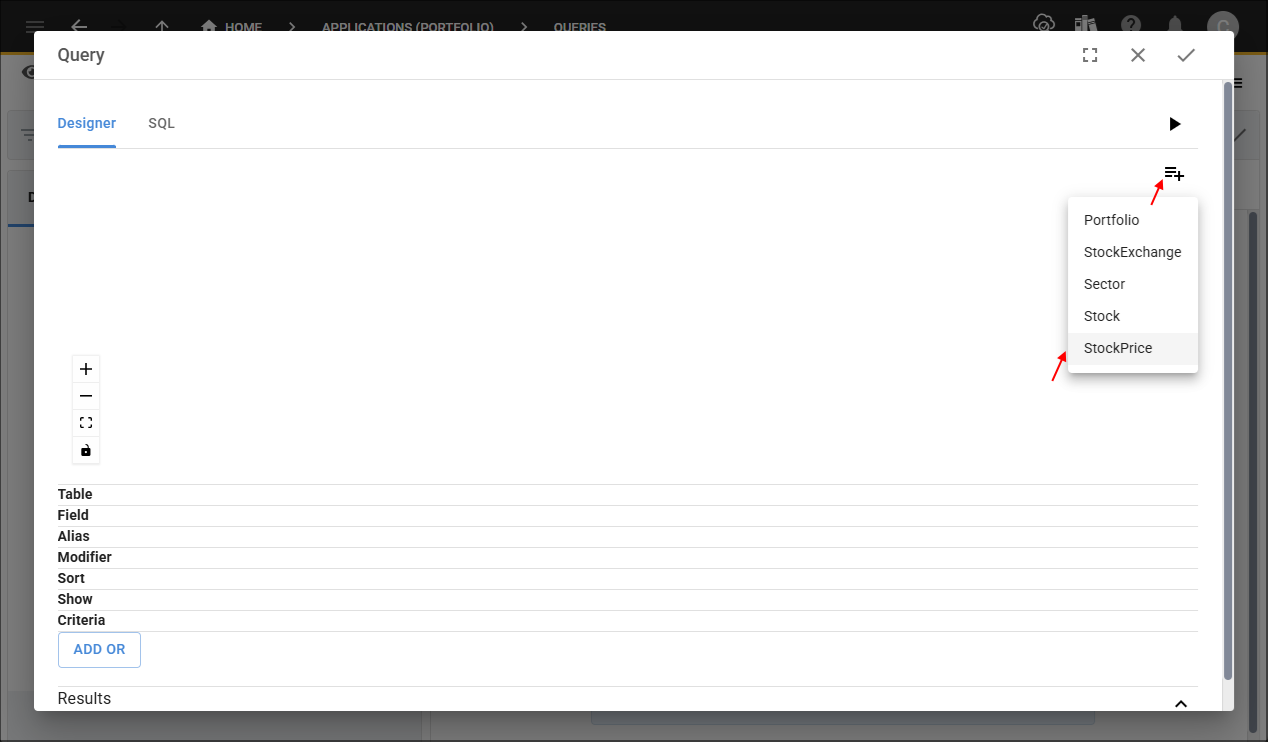
Figure 3 - Add StockPrice table
5. Click the Add Table button and select the Stock table.
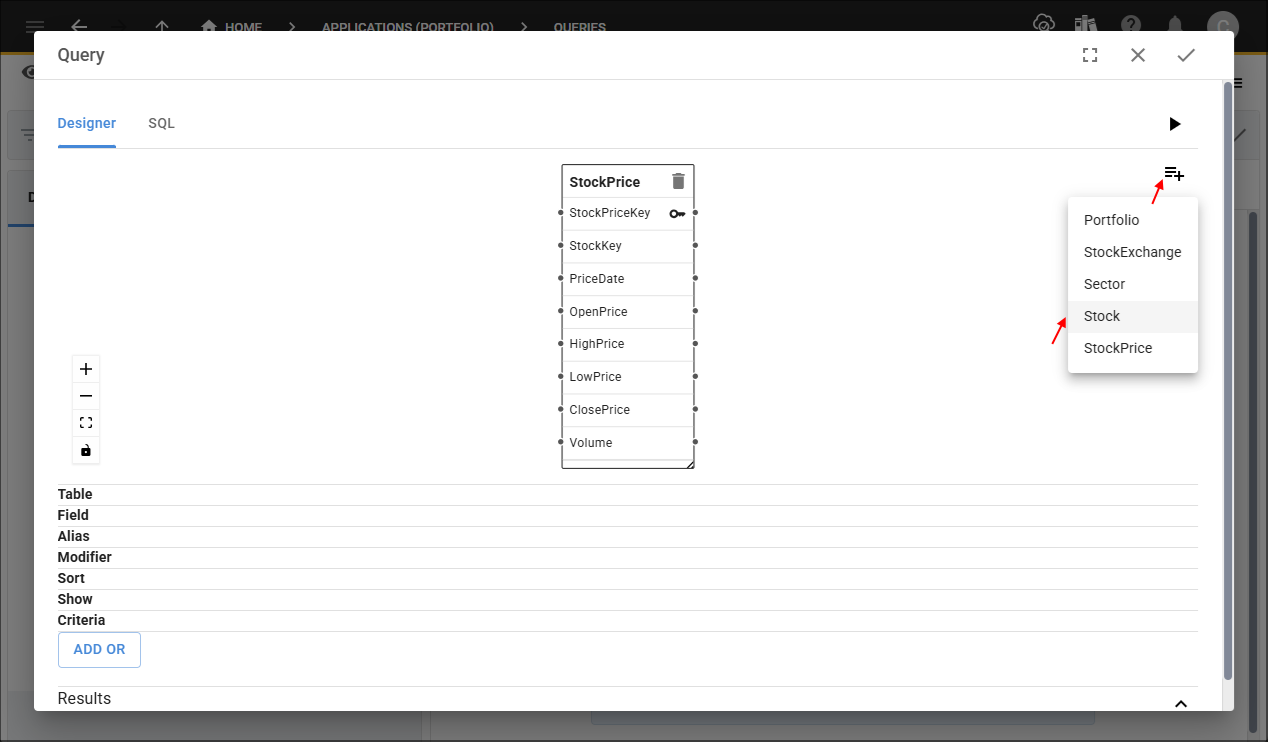
Figure 4 - Add Stock table
tip
You can drag and zoom tables to get the position and size required!
6. Double click on each of the following fields:
- StockPrice.PriceDate
- Stock.StockCode
- Stock.Name
- StockPrice.Volume
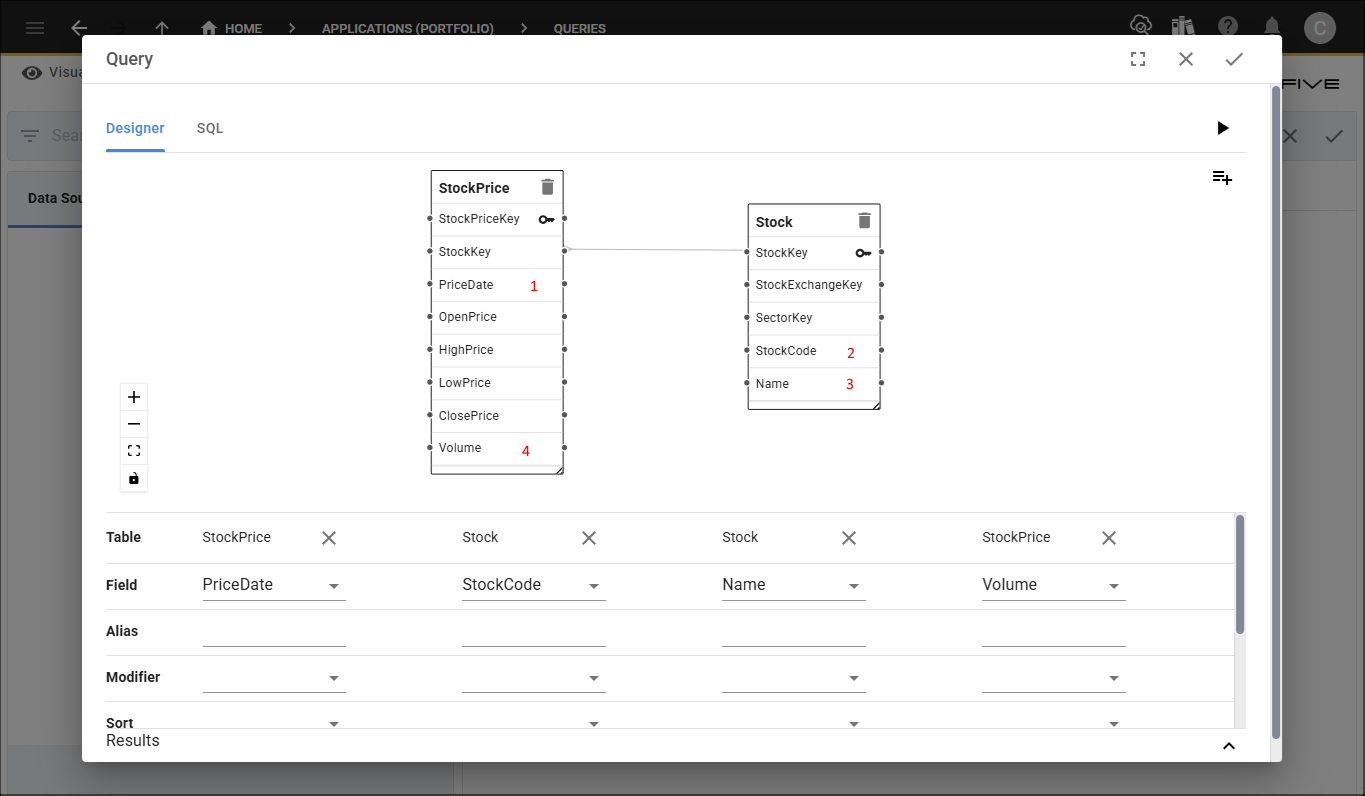
Figure 5 - Add query fields
7. Select Ascending in the Sort field for the PriceDate and StockCode fields.
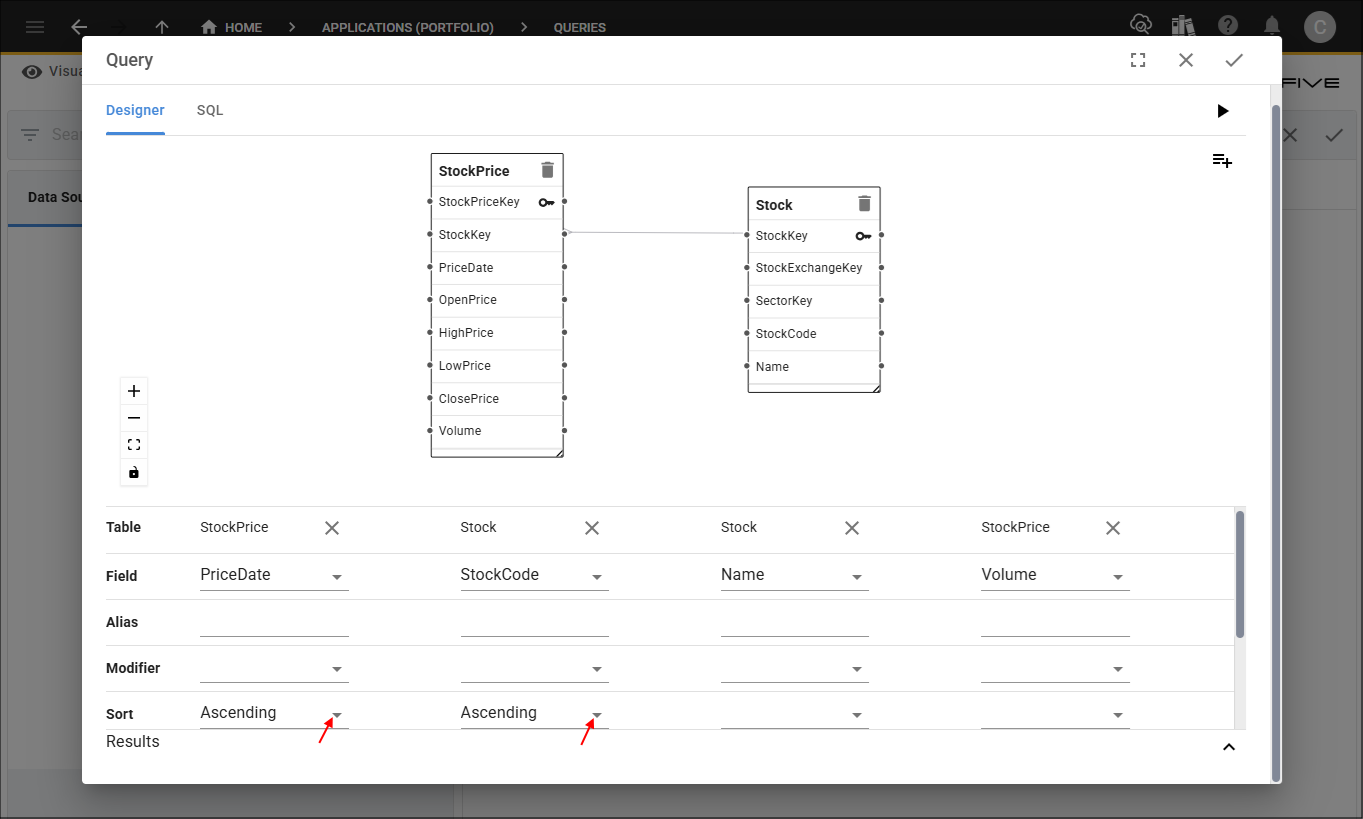
Figure 6 - Sort field
8. Type
BETWEEN '2025-10-01' AND '2025-10-31'
in the Criteria field for the PriceDate field.
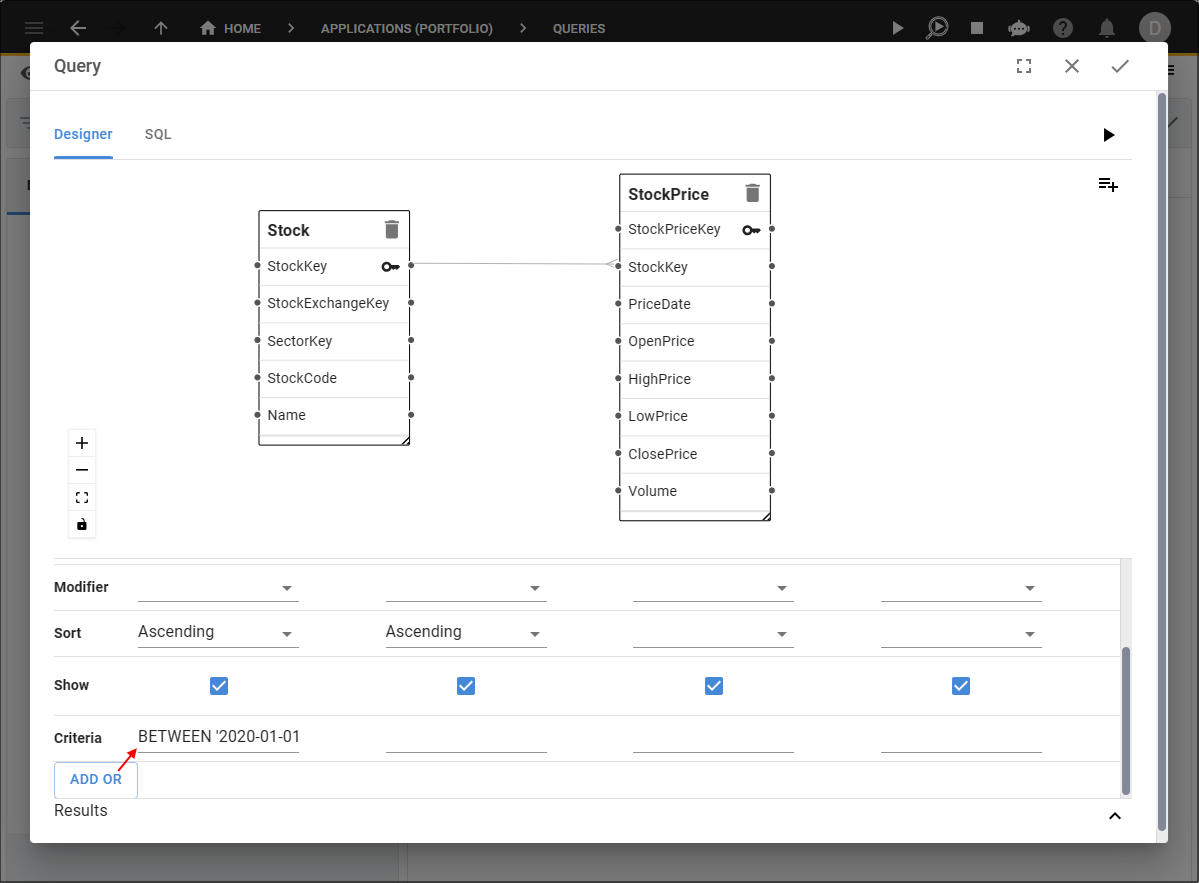
Figure 7 - Criteria field
tip
You can click the Run button, located in the top right corner under the Save button in the Query Builder!
info
Because we have criteria in our query, only the column headings will be displayed and not the results.
9. Click the Save button in the Query Builder app bar.
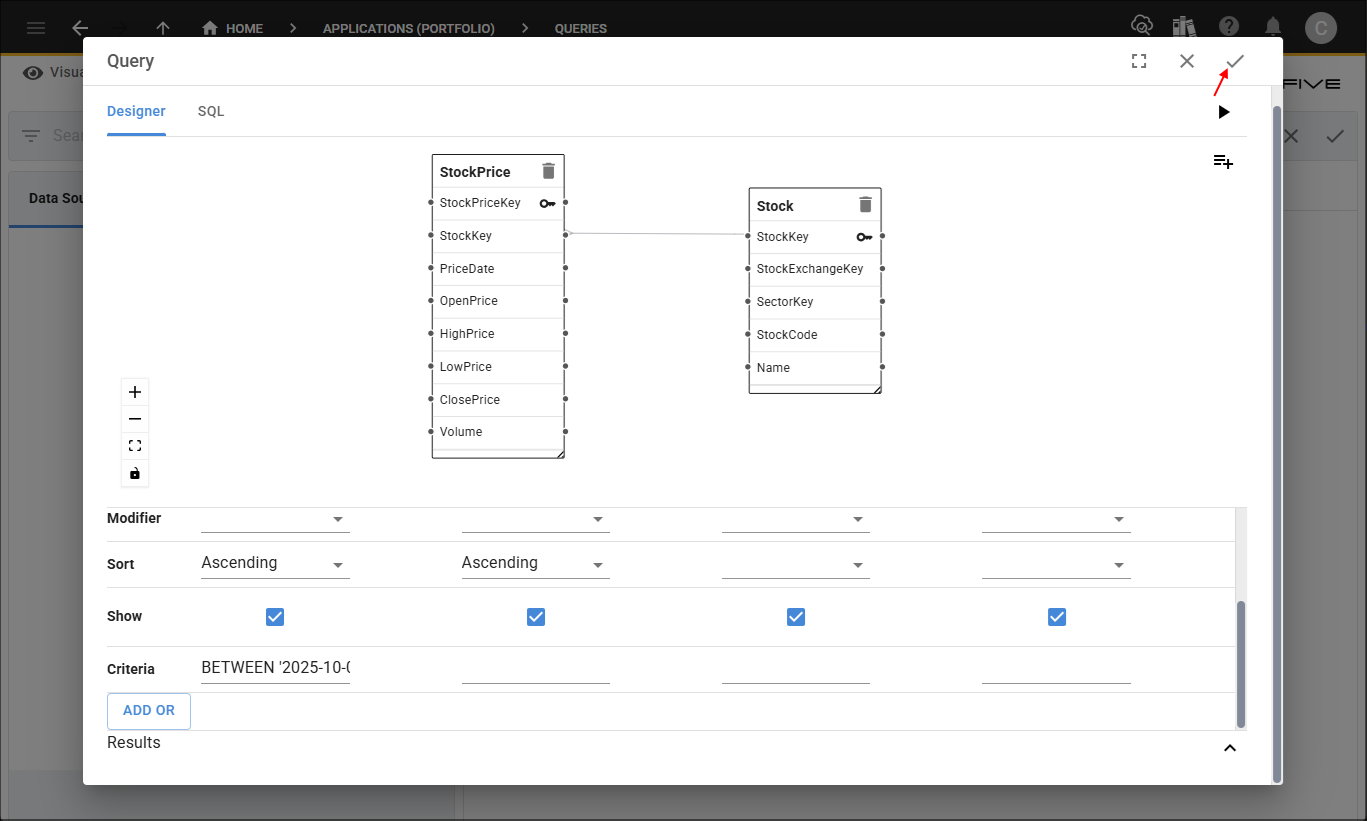
Figure 8 - Save button
10. Click the Fields tab.
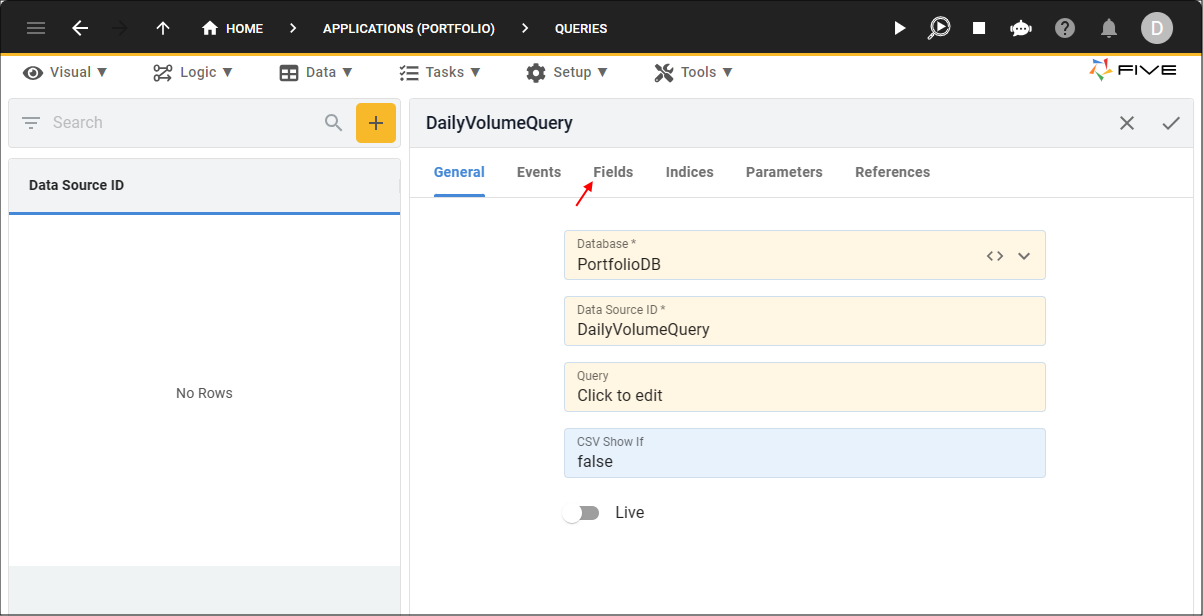
Figure 9 - Fields tab
info
Five will list the fields from your query on the Fields page, you can edit the default values set by Five. These definitions will be carried forward when the DailyVolumeQuery is selected as a data source.
11. Select the StockPrice.PriceDate record.
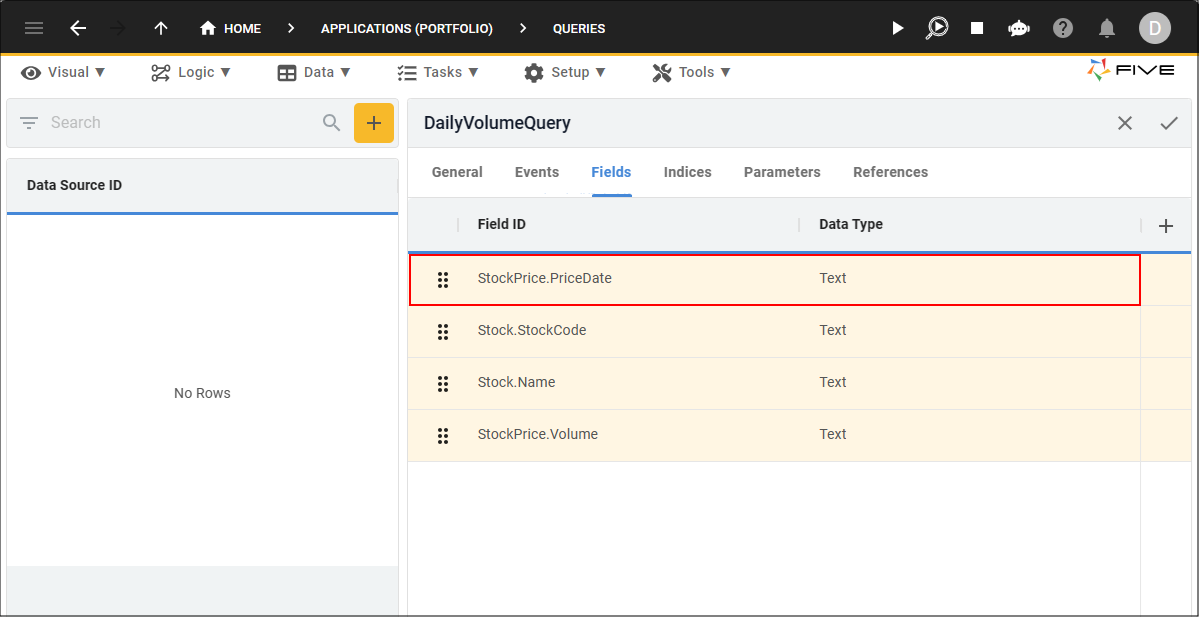
Figure 10 - StockPrice.PriceDate record
12. Edit the following fields:
- Select Date in the Data Type field
- Type 8 in the Size field
- Type Price Date in the Default Caption field
- Select _Date in the Default Display Type field
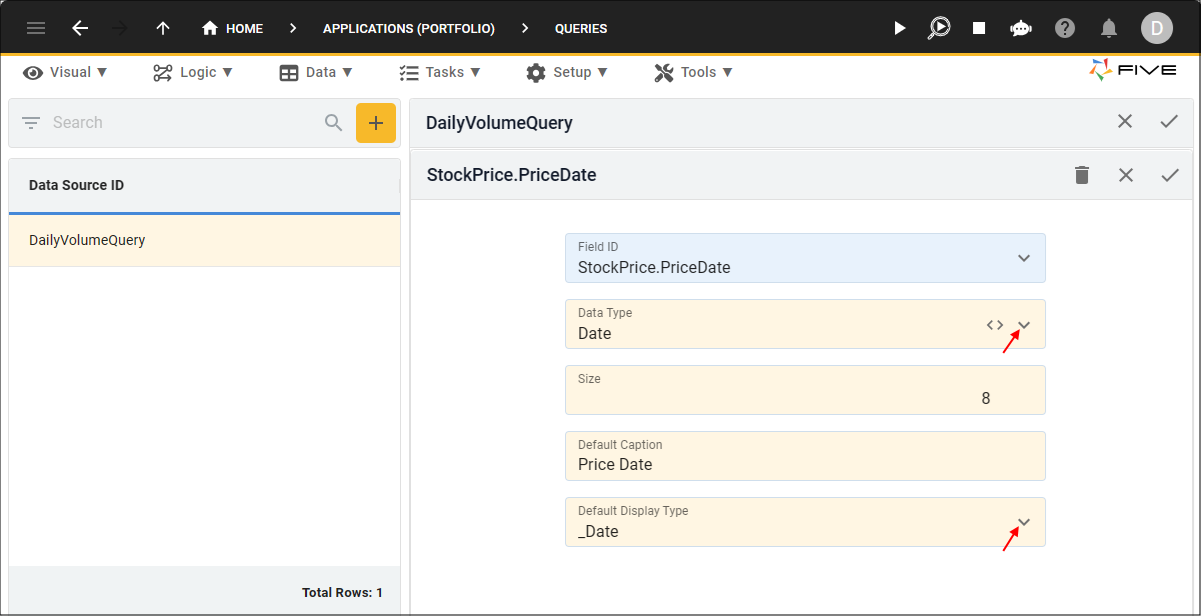
Figure 11 - Edit StockPrice.PriceDate field
13. Click the Save button in the form app bar.
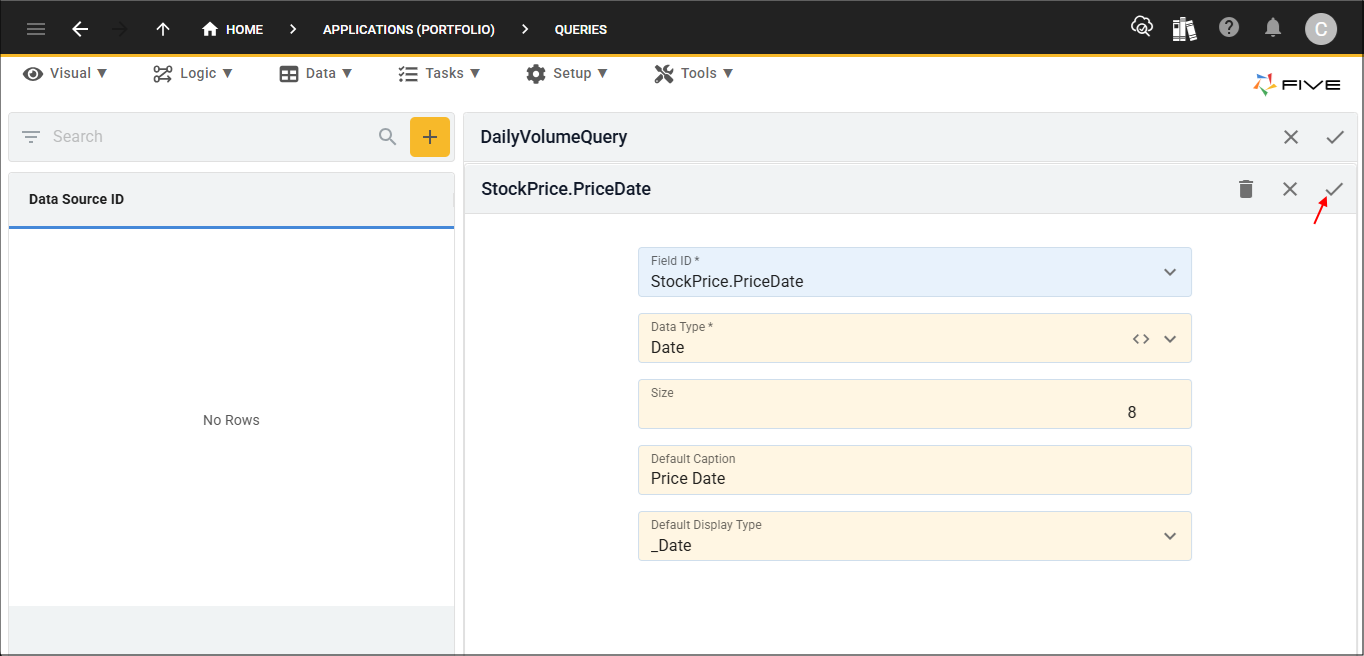
Figure 12 - Save button
14. Select the Stock.StockCode record.
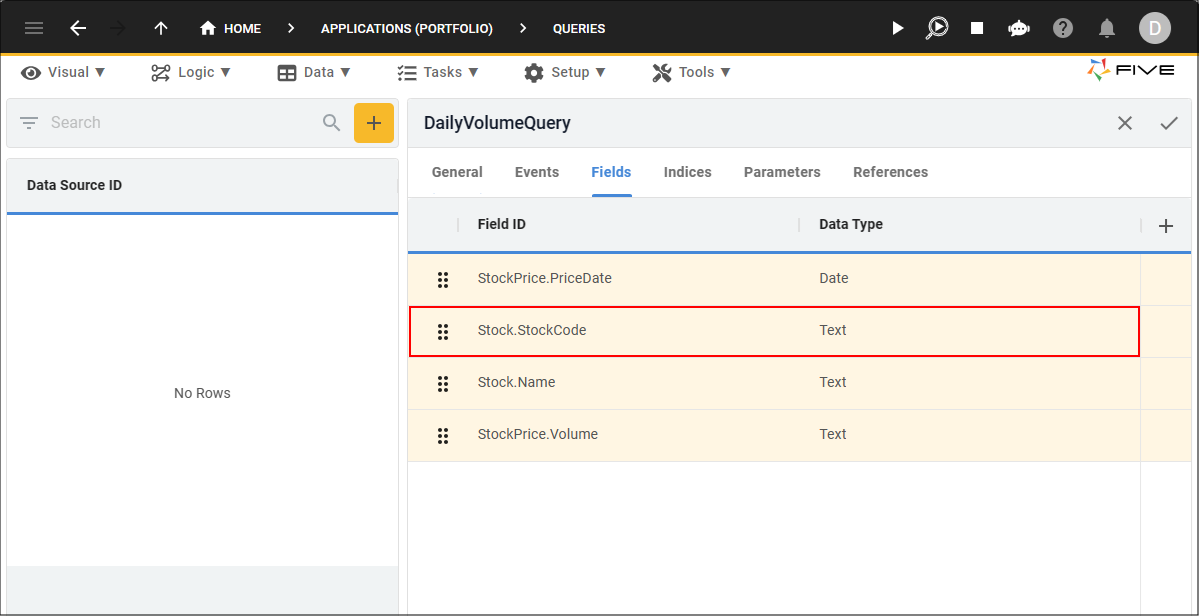
Figure 13 - Stock.StockCode record
15. Edit the Default Caption field and type Stock Code.
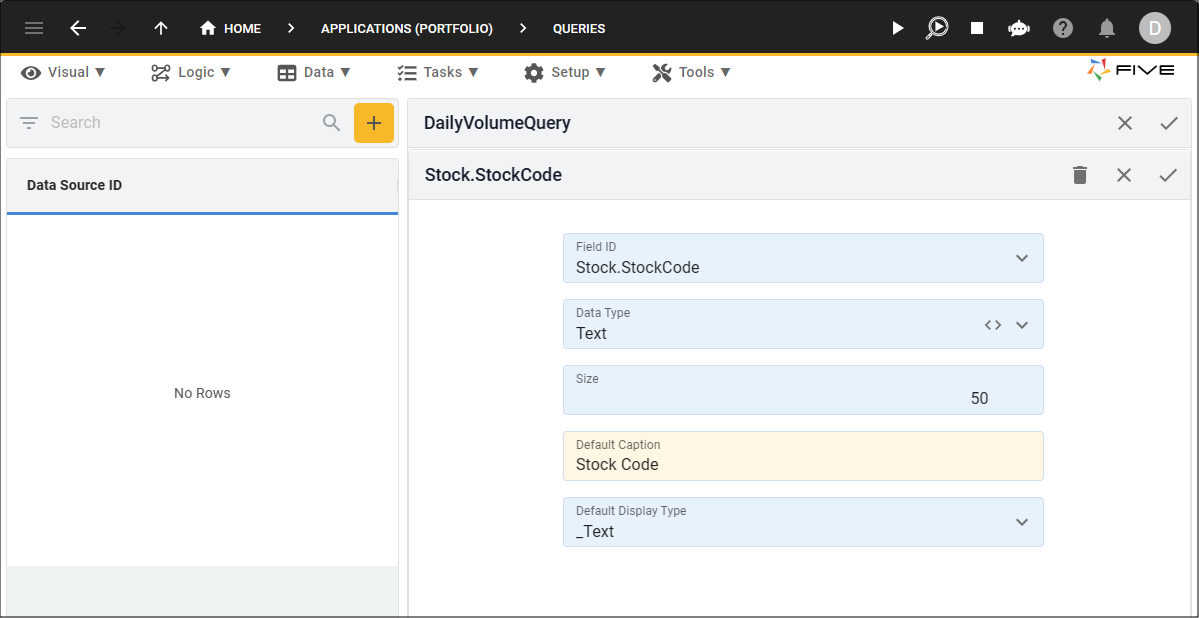
Figure 14 - Edit Stock.StockCode field
16. Click the Save button in the form app bar.
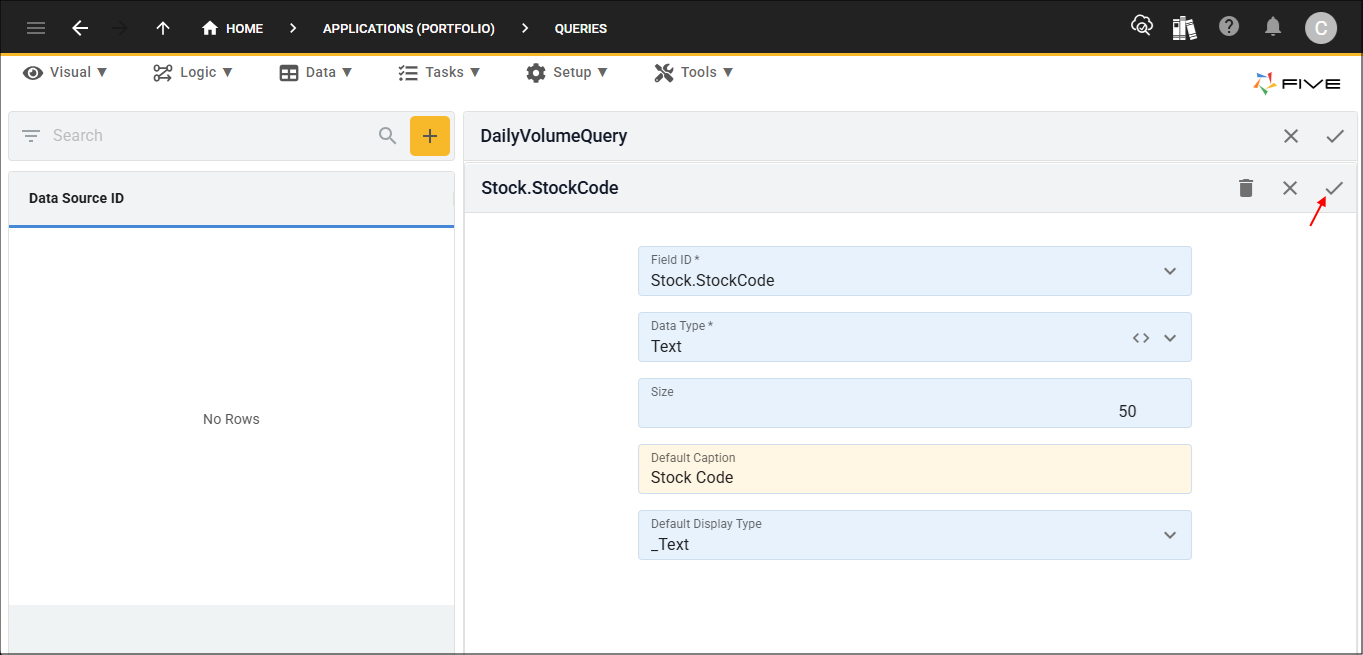
Figure 15 - Save button
17. Select the Stock.Name record.
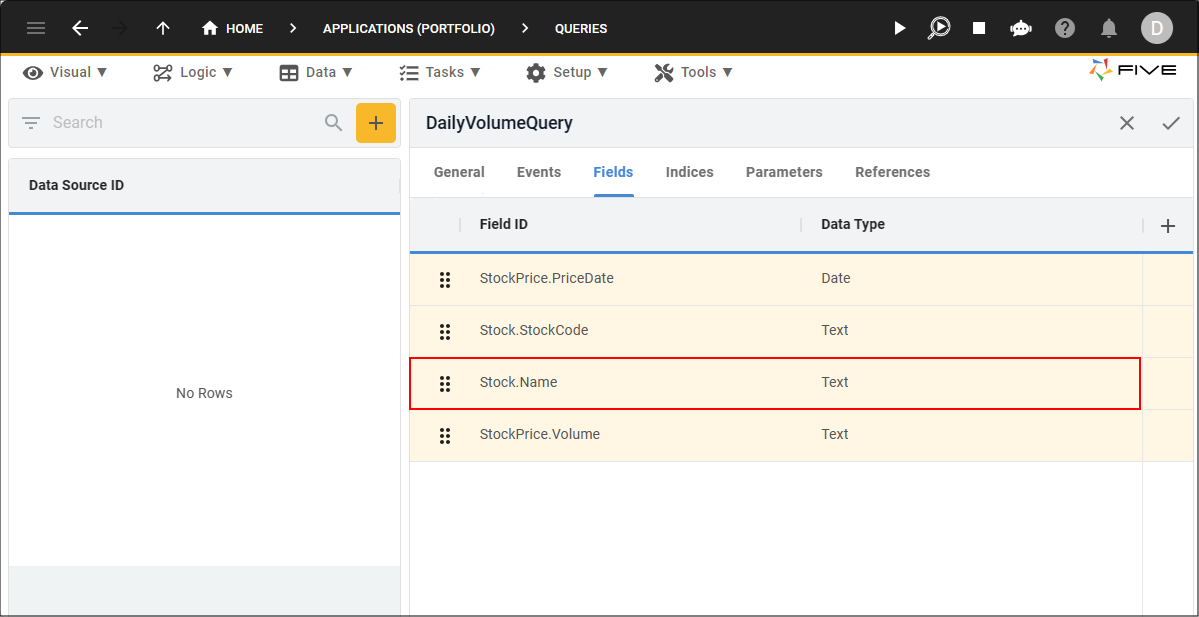
Figure 16 - Stock.Name record
18. Edit the Default Caption field and type Name.
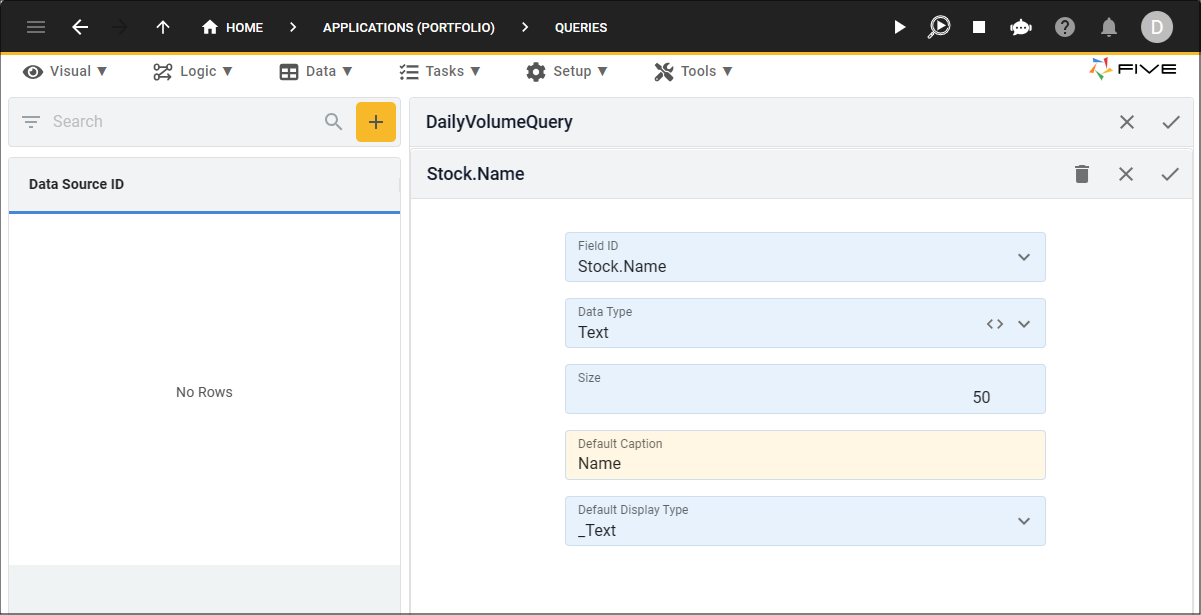
Figure 17 - Edit Stock.Name field
19. Click the Save button in the form app bar.
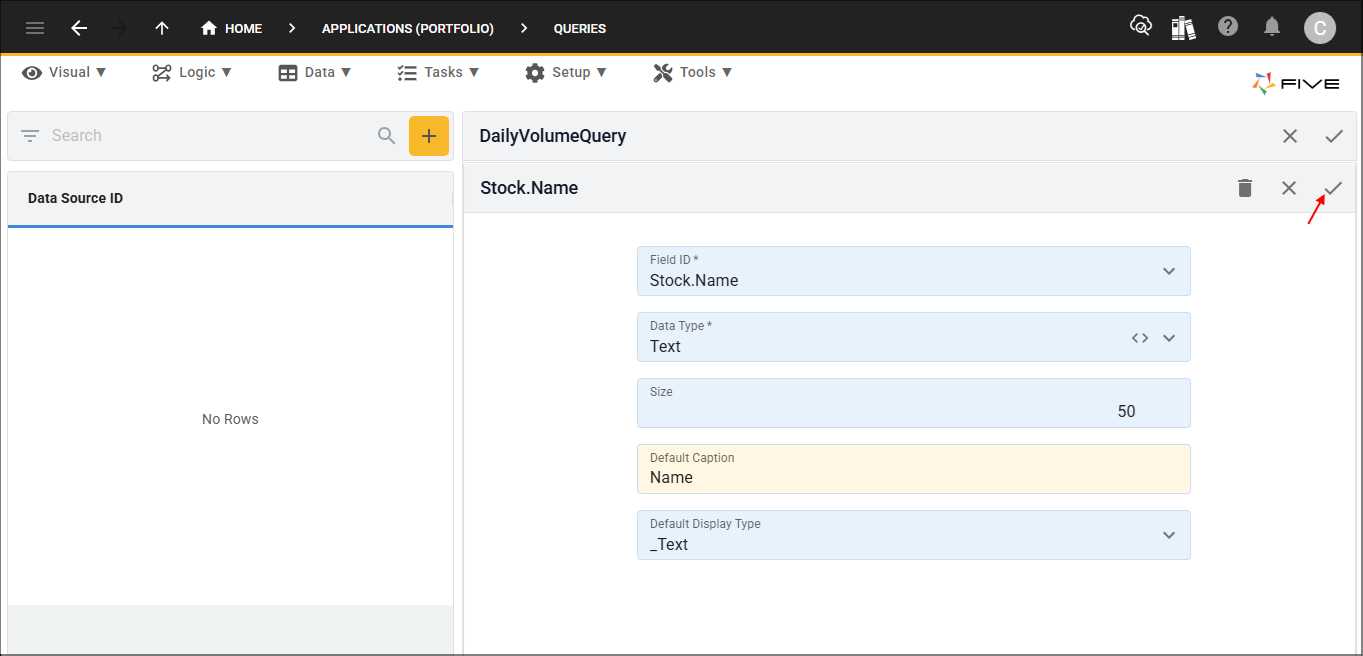
Figure 18 - Save button
20. Select the StockPrice.Volume record.

Figure 19 - StockPrice.Volume record
21. Edit the following fields:
- Select Integer in the Data Type field
- Type 4 in the Size field
- Type Volume in the Default Caption field
- Select _Integer in the Default Display Type field
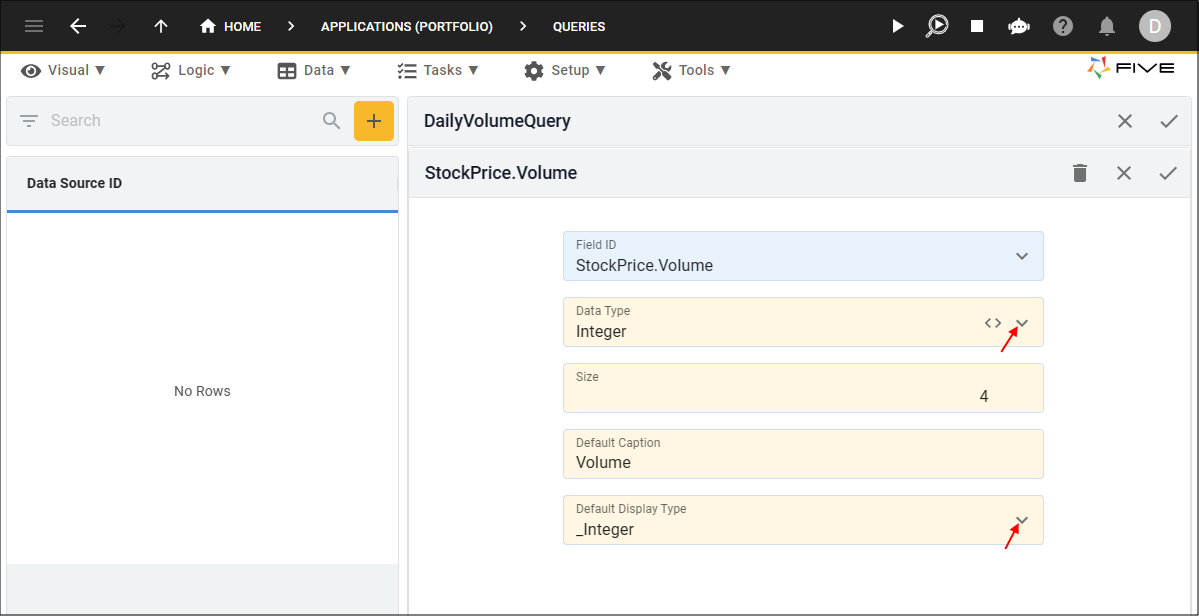
Figure 20 - Edit StockPrice.Volume field
22. Click the Save button in the form app bar.
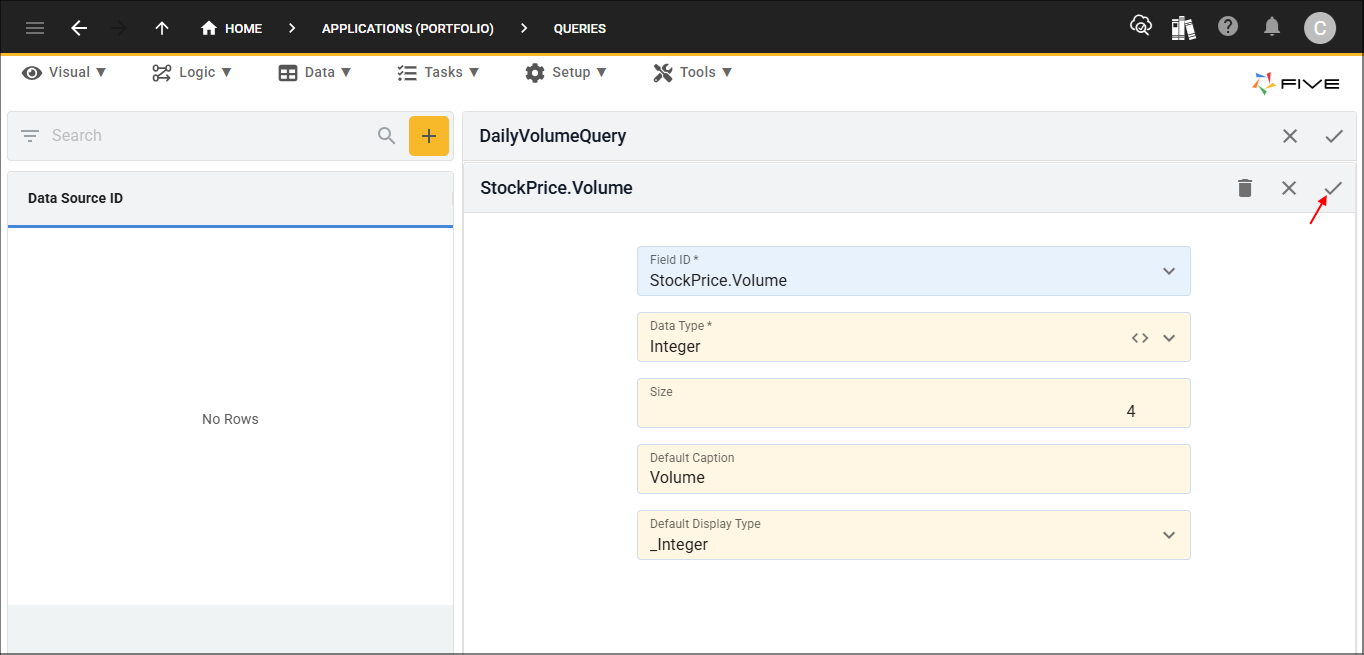
Figure 21 - Save button
23. Click the Save button in the form app bar above the list.
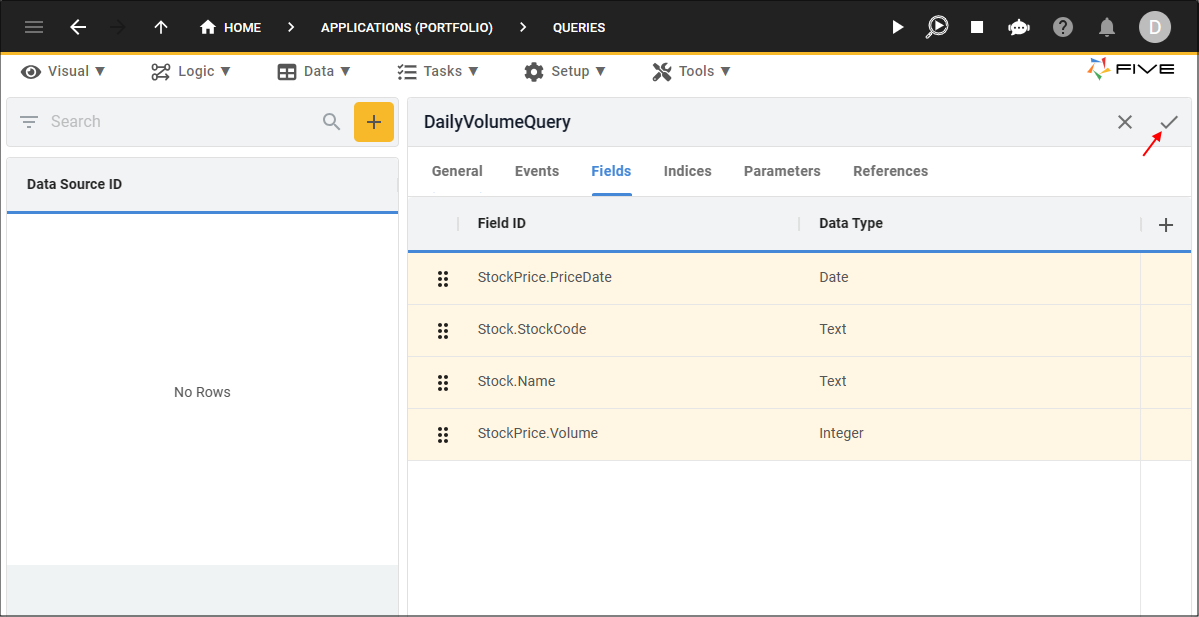
Figure 22 - Save button