9 - Create a Data View
Last updated 11/12/2025
This documentation will explain how to add a data view for the Portfolio application. The data view will use the DailyVolumeQuery we added for the data. A data view displays the records from a data source. A data view can have a menu created for it, however, our data view will be used on a dashboard to see the results.
Add the Daily Volume Data View
1. Click Visual in the menu followed by Data Views in the sub-menu.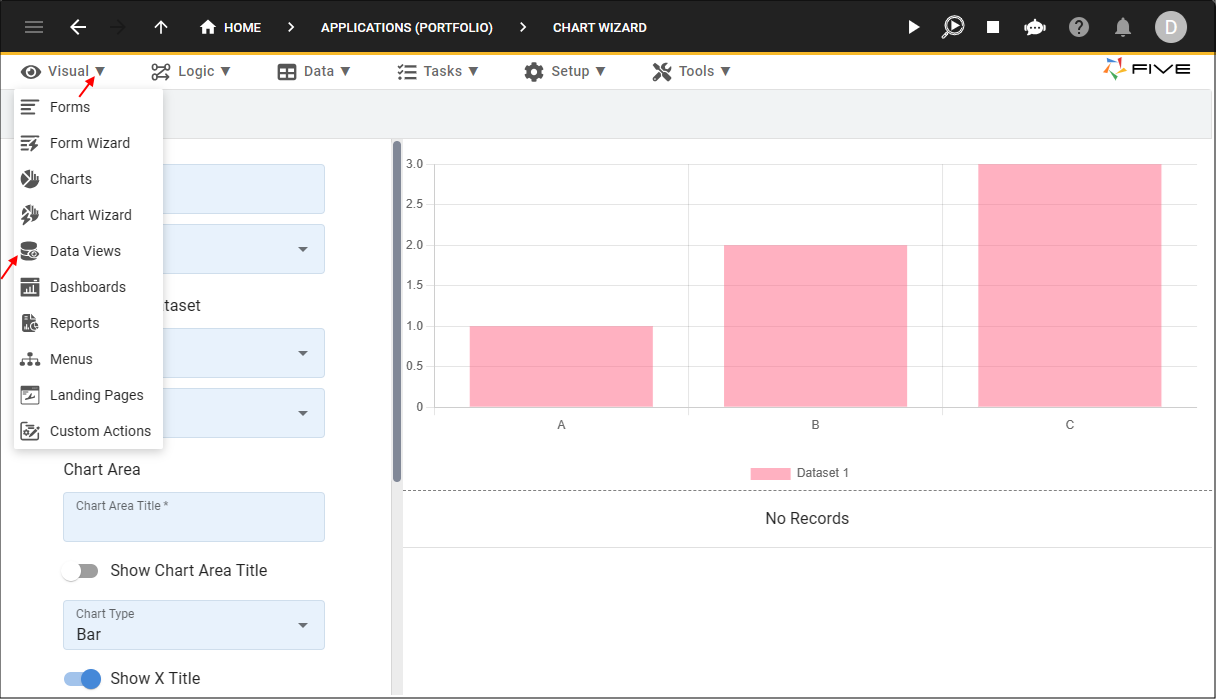
Figure 1 - Data Views menu item
2. Click the Add Item button and type Daily Volume in the Title field.
3. Type DataView after DailyVolume in the Action ID field.
info
Action IDs must be unique across all actions in Five. Our Daily Volume Chart that we just added has the action ID DailyVolume, so our data view cannot have the same action ID.
4. Select DailyVolumeQuery (Query) in the Data Source field.
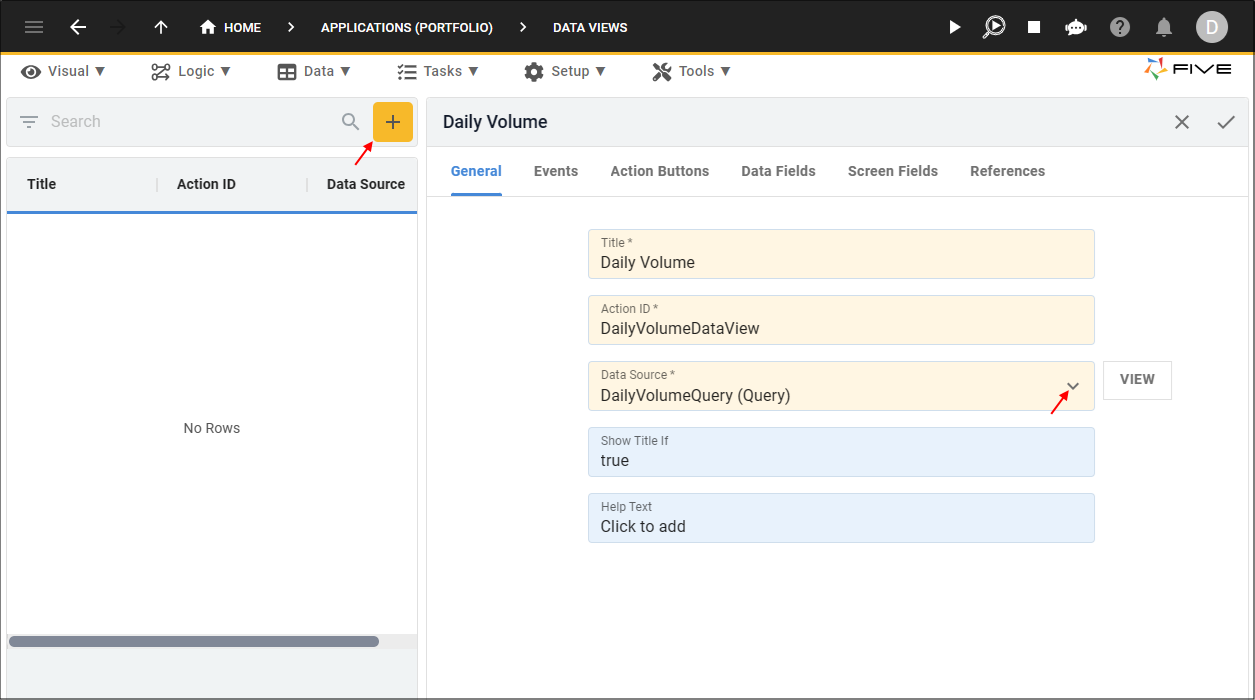
Figure 2 - Add Daily Volume data view
5. Click the Data Fields tab.
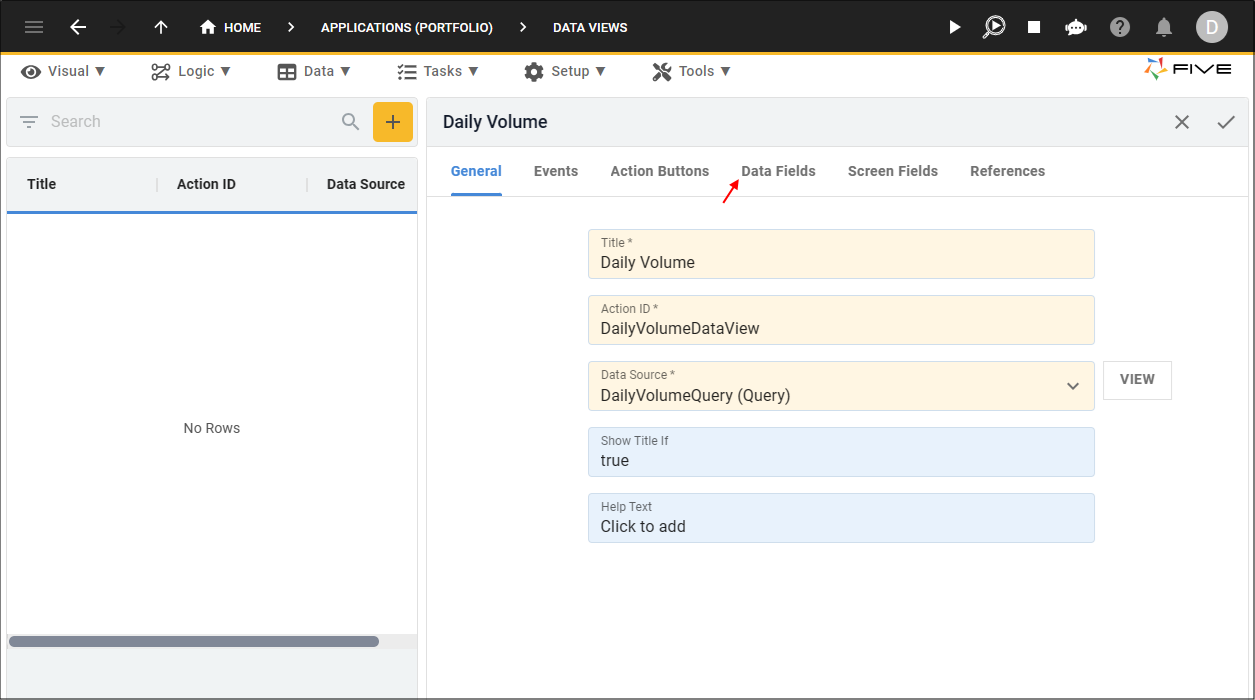
Figure 3 - Data Fields tab
info
The query fields and the definitions that we set in the Queries view for the DailyVolumeQuery are carried through to the data fields. These fields can also be edited here.
6. Click the Save button in the form app bar above the list.
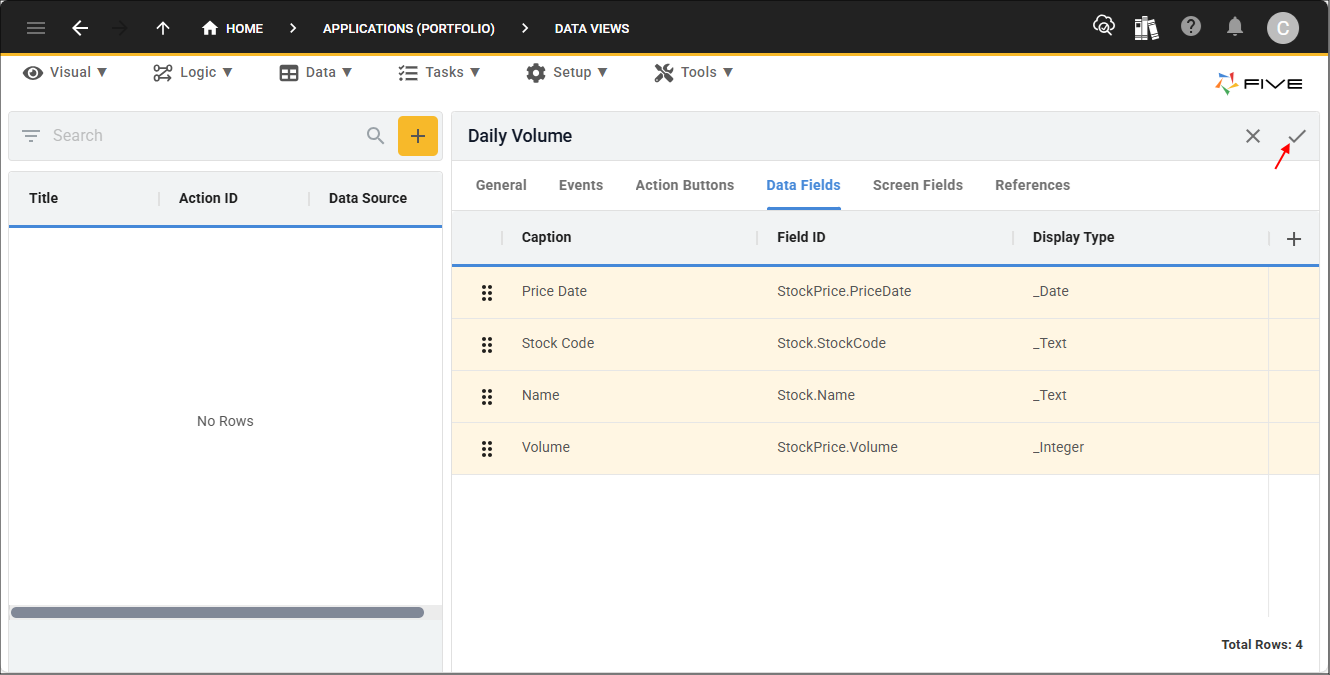
Figure 4 - Save button