10 - Create a Dashboard
Last updated 11/12/2025
This documentation will explain how to create a dashboard to view the Daily Volume chart and the Daily Volume data view together. The recommended actions to use on a dashboard are:
Add the Daily Volume Dashboard
1. Click Visual in the menu followed by Dashboards in the sub-menu.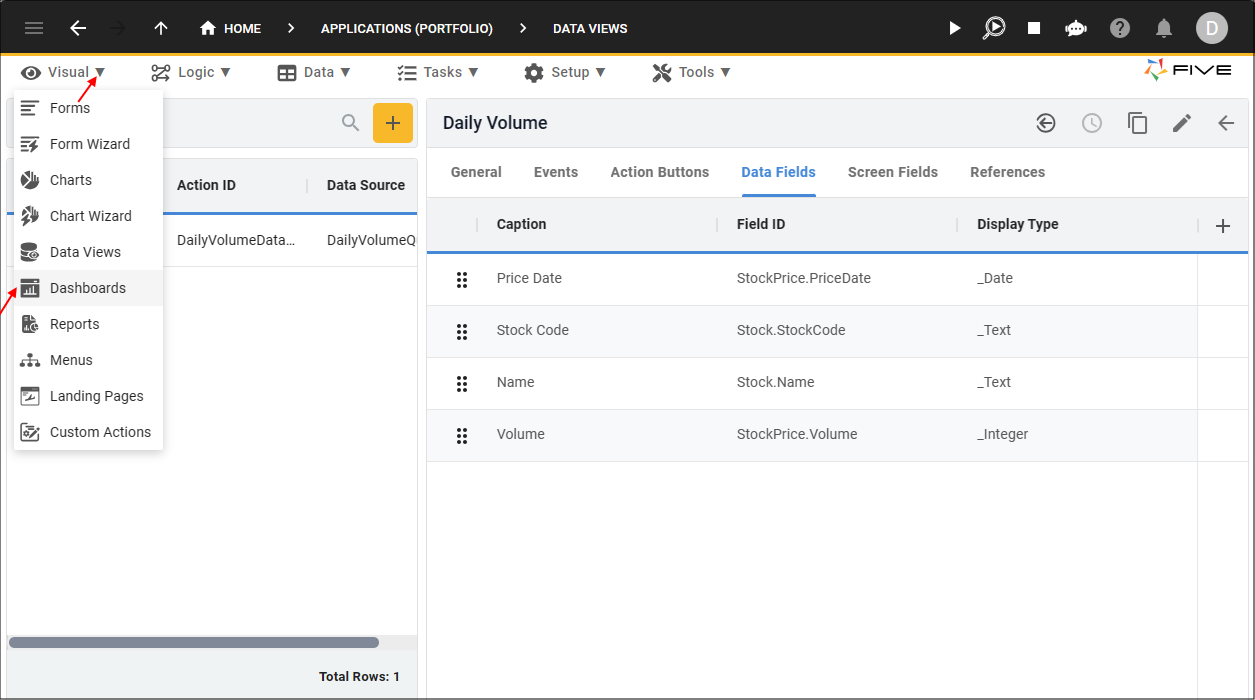
Figure 1 - Dashboards menu item
2. Click the Add Item button and type Daily Volume in the Title field.
3. Type Dashboard after DailyVolume in the Action ID field.
4. Type
false
in the Show Title If field.
info
The Show Title If field allows you to conditionally show the title in the app bar.
5. Click the Cancel button in the Rows field and type 2.
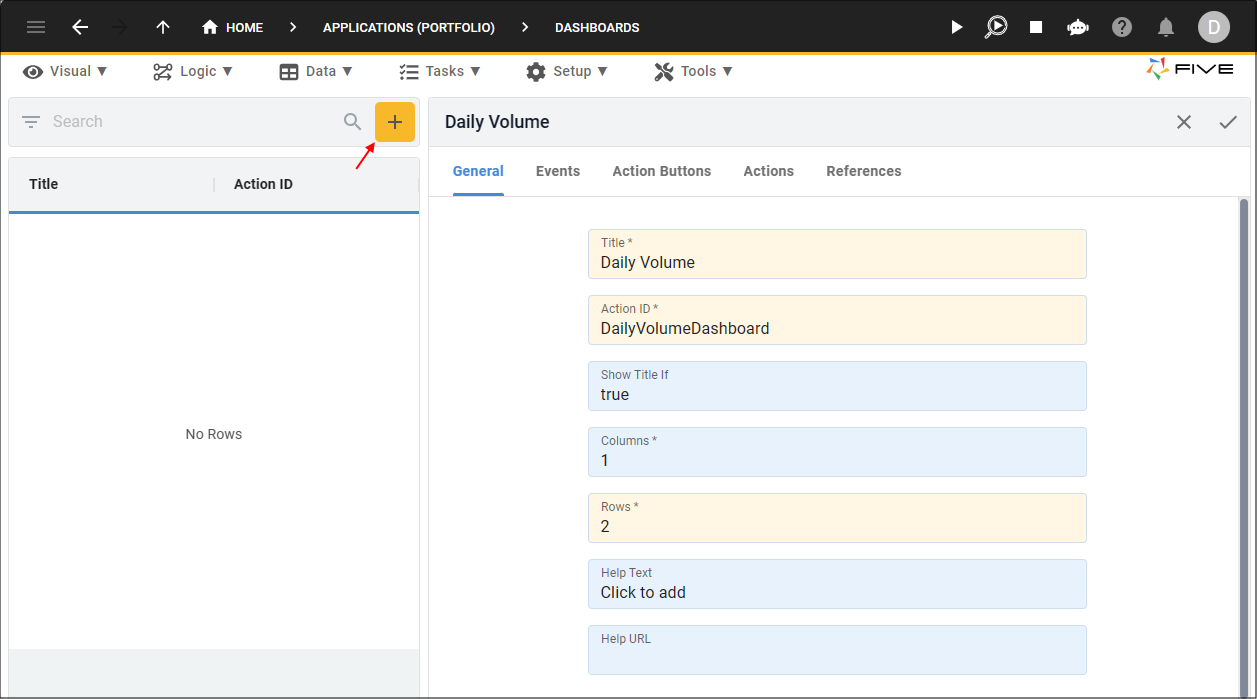
Figure 2 - Add Daily Volume dashboard
6. Click the Actions tab.
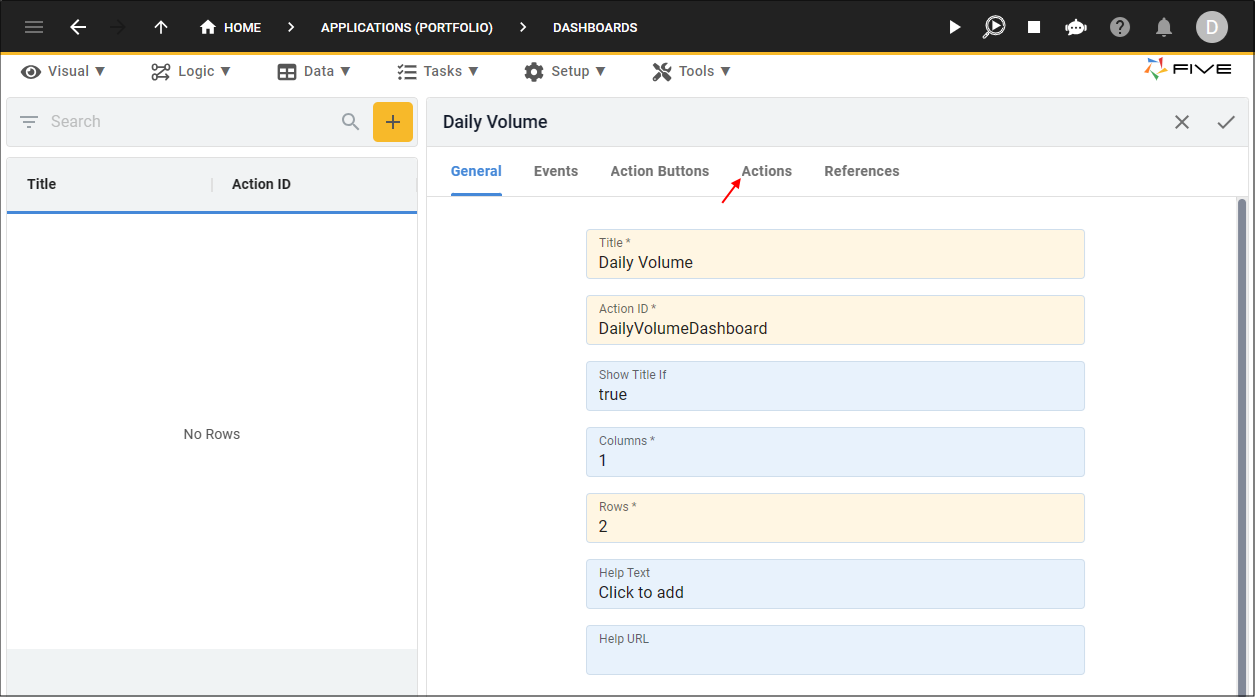
Figure 3 - Actions tab
7. Click the Add Actions button.
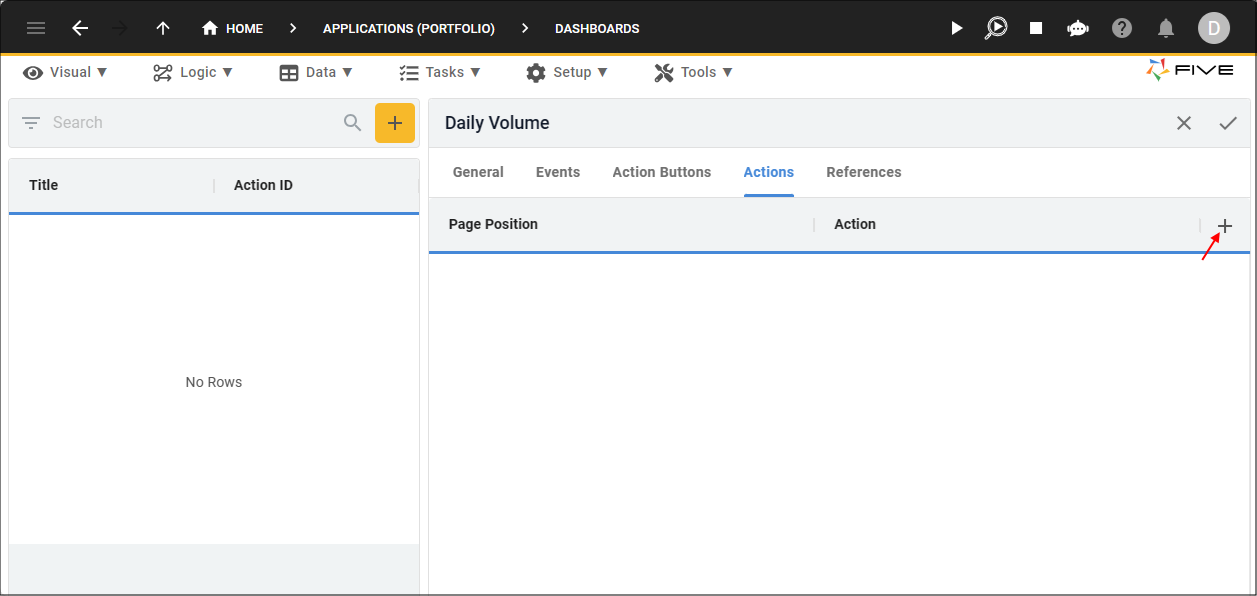
Figure 4 - Add Actions button
8. Click the Edit button in the Page Position field.
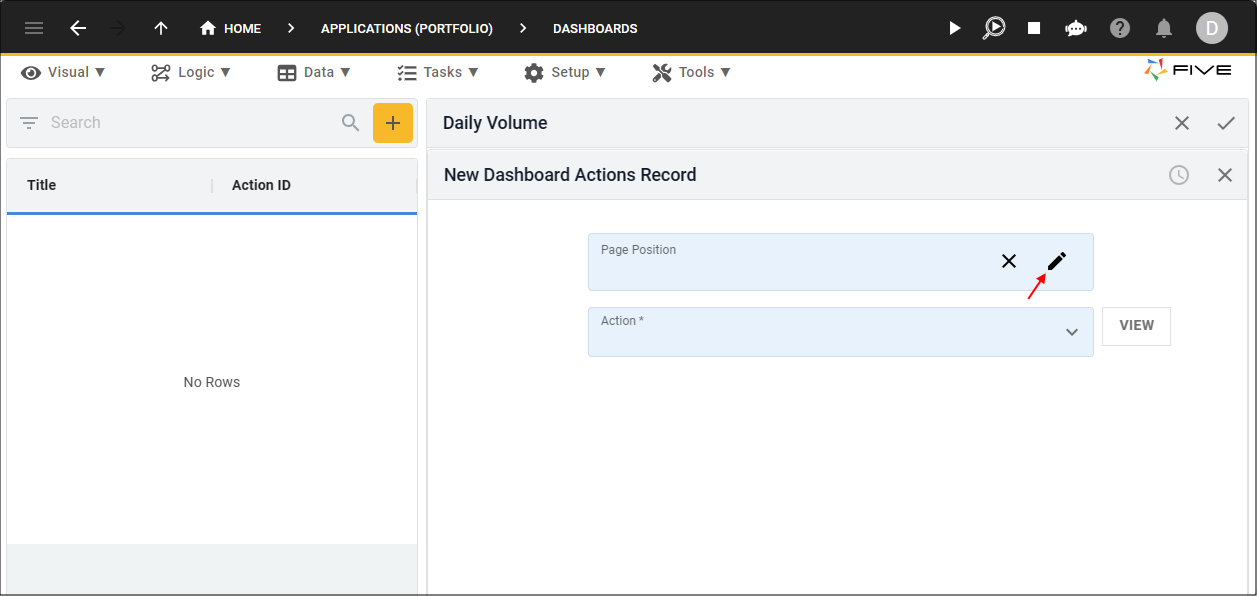
Figure 5 - Edit button
9. Select A1 and click the Save button.
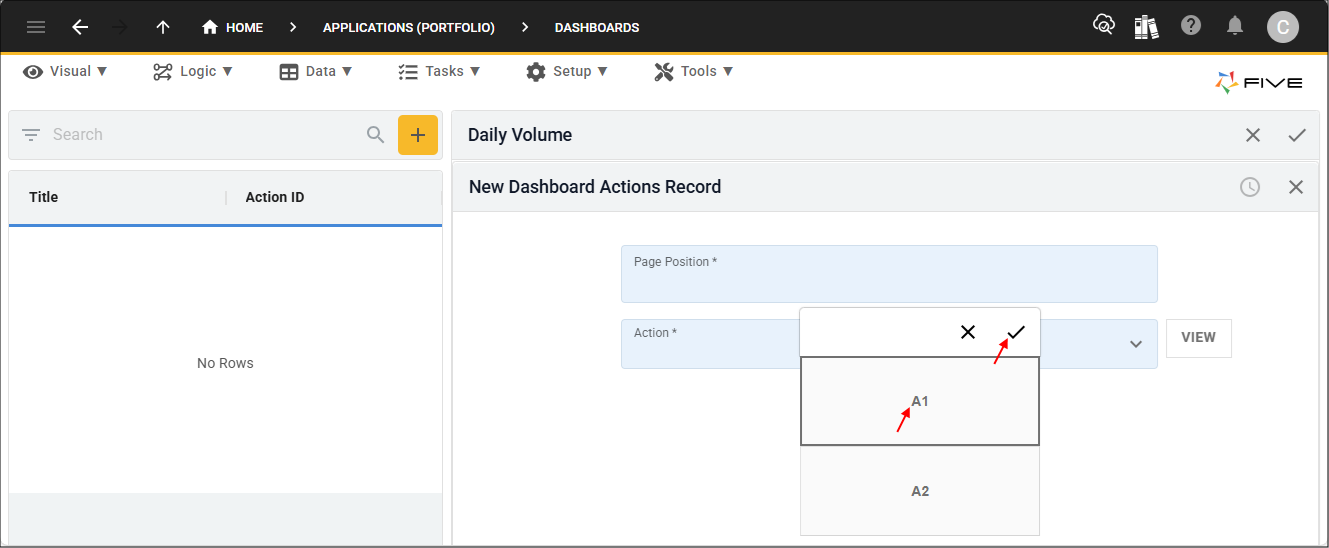
Figure 6 - Grid picker
10. Select DailyVolume (Chart) in the Action field.
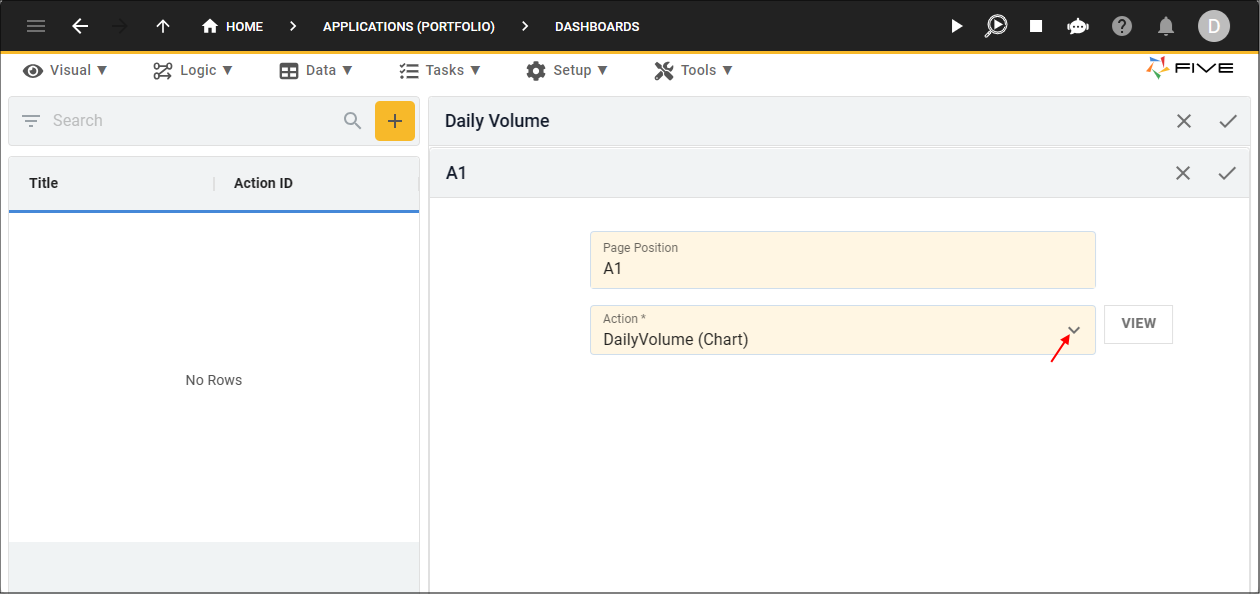
Figure 7 - Action field
11. Click the Save button in the form app bar.
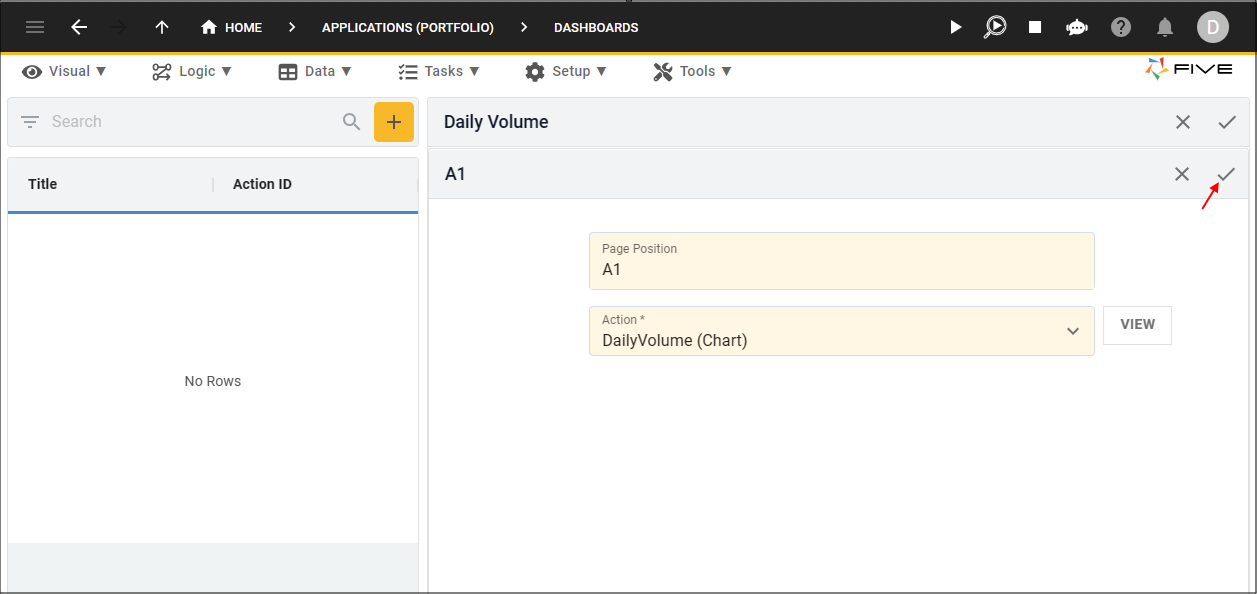
Figure 8 - Save button
12. Click the Add Actions button.
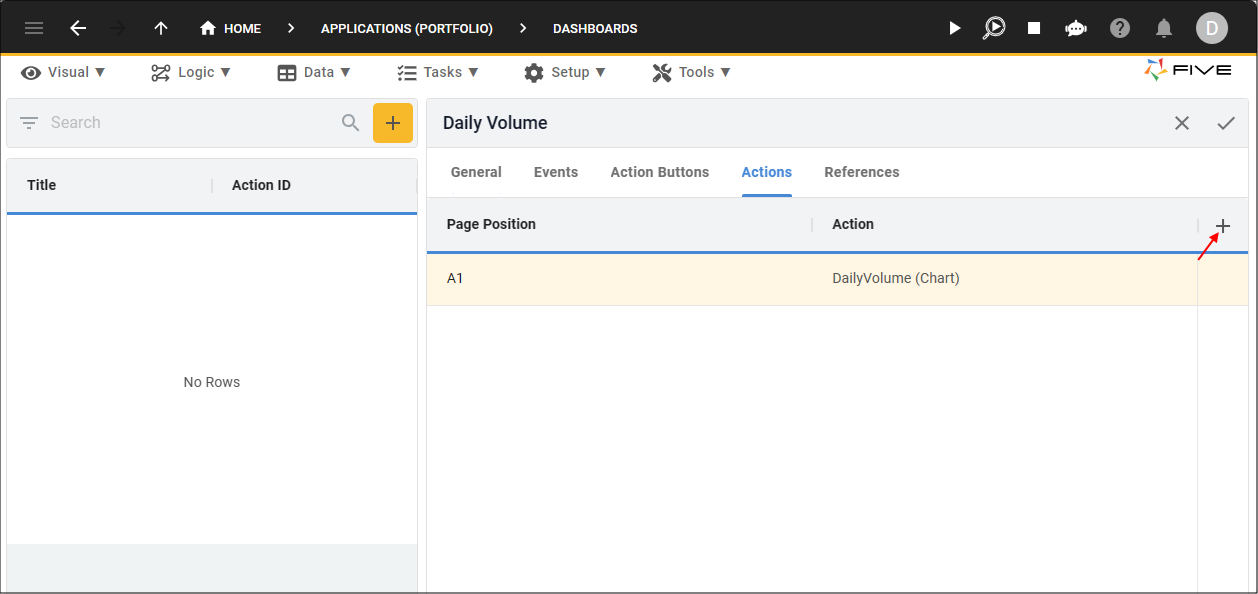
Figure 9 - Add Actions button
13. Click the Edit button in the Page Position field.
14. Select A2 and click the Save button.
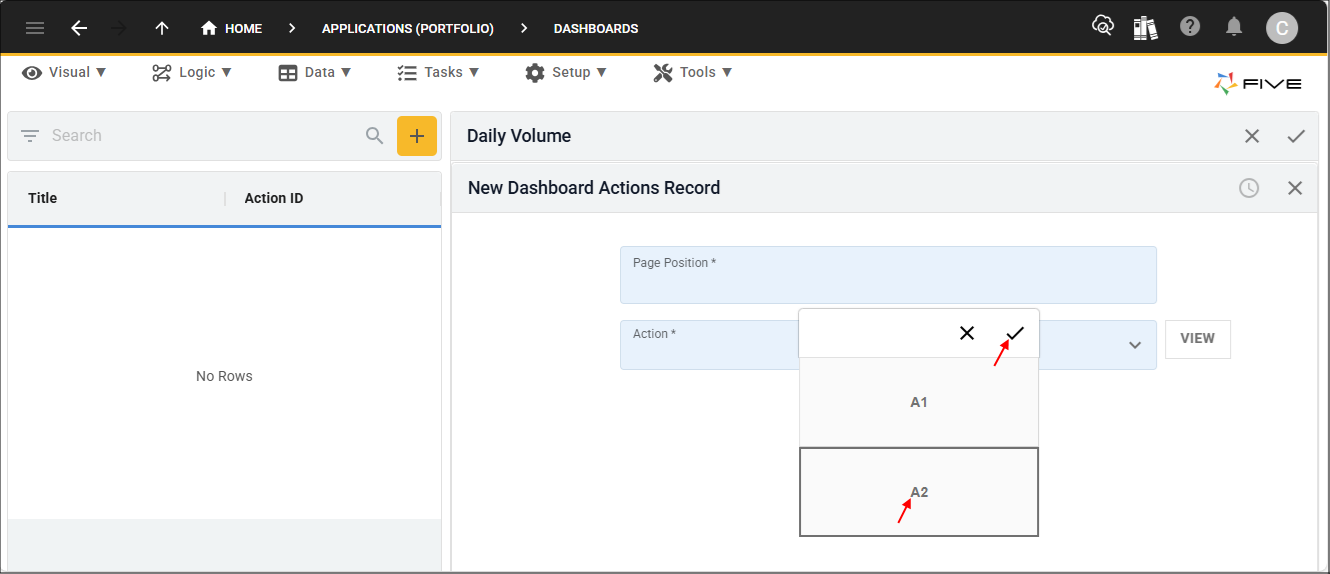
Figure 10 - Grid picker
15. Select DailyVolumeDataView (DataView) in the Action field.
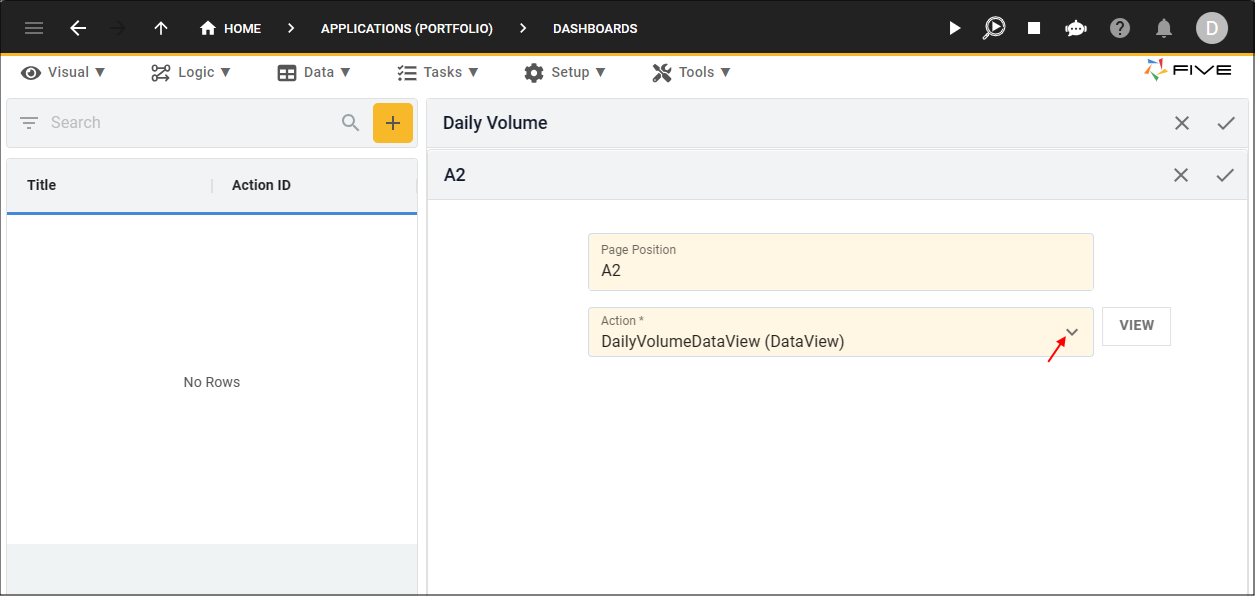
Figure 11 - Add Daily Volume data view
16. Click the Save button in the form app bar.
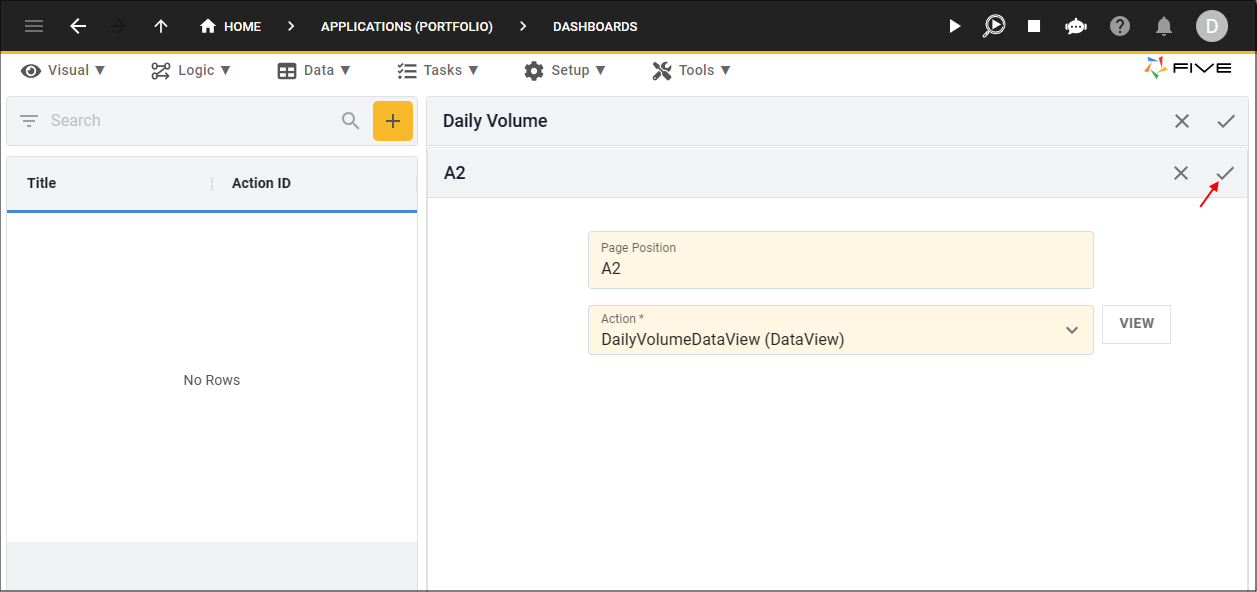
Figure 12 - Save button
17. Click the Save button in the form app bar above the list.
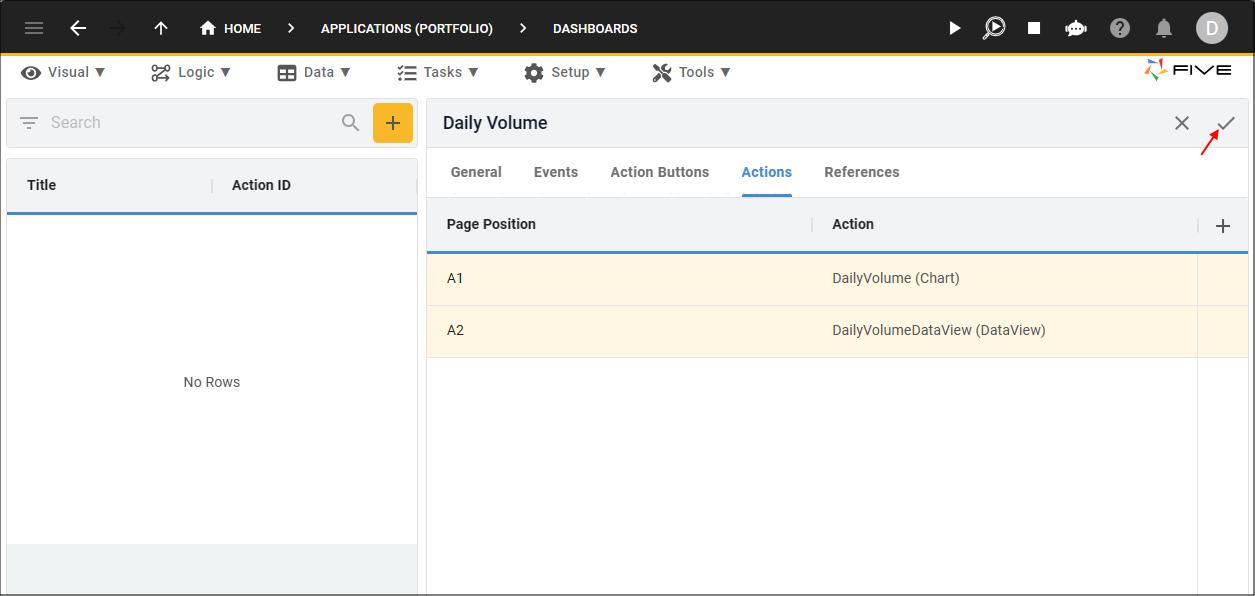
Figure 13 - Save button