4 - Create Forms
Last updated 11/12/2025
This documentation will explain how to create the forms for the Portfolio application via Five's Form Wizard. In total, five forms will be added.
Add the Portfolios Form
1. Click Visual in the menu followed by Form Wizard in the sub-menu.
Figure 1 - Form Wizard menu item
2. Select Portfolio in the Main Data Source field.
info
A data source can be a table, query, or an external connection!
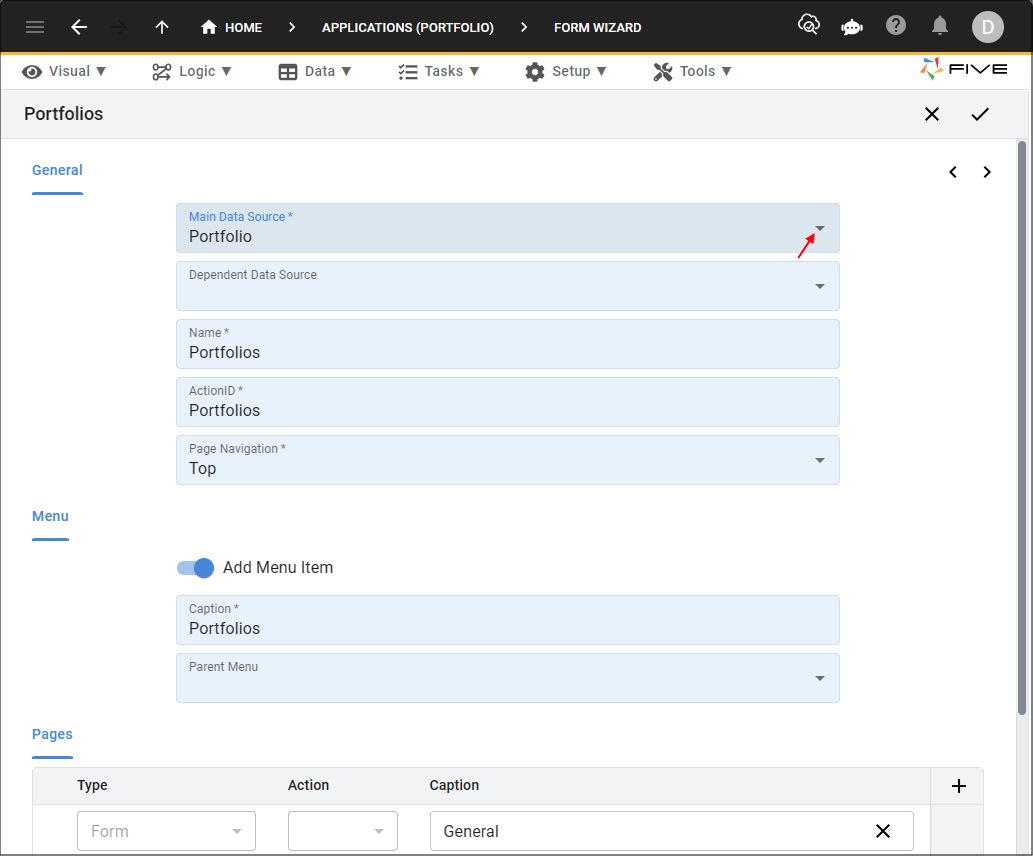
Figure 2 - Add Portfolios form
3. Click the Save button in the Form Wizard app bar.

Figure 3 - Save button
info
Once you have saved a form via our Form Wizard, you will find the form record in the Forms view. To navigate to the Forms view, click Visual in the menu followed by Forms in the sub-menu.
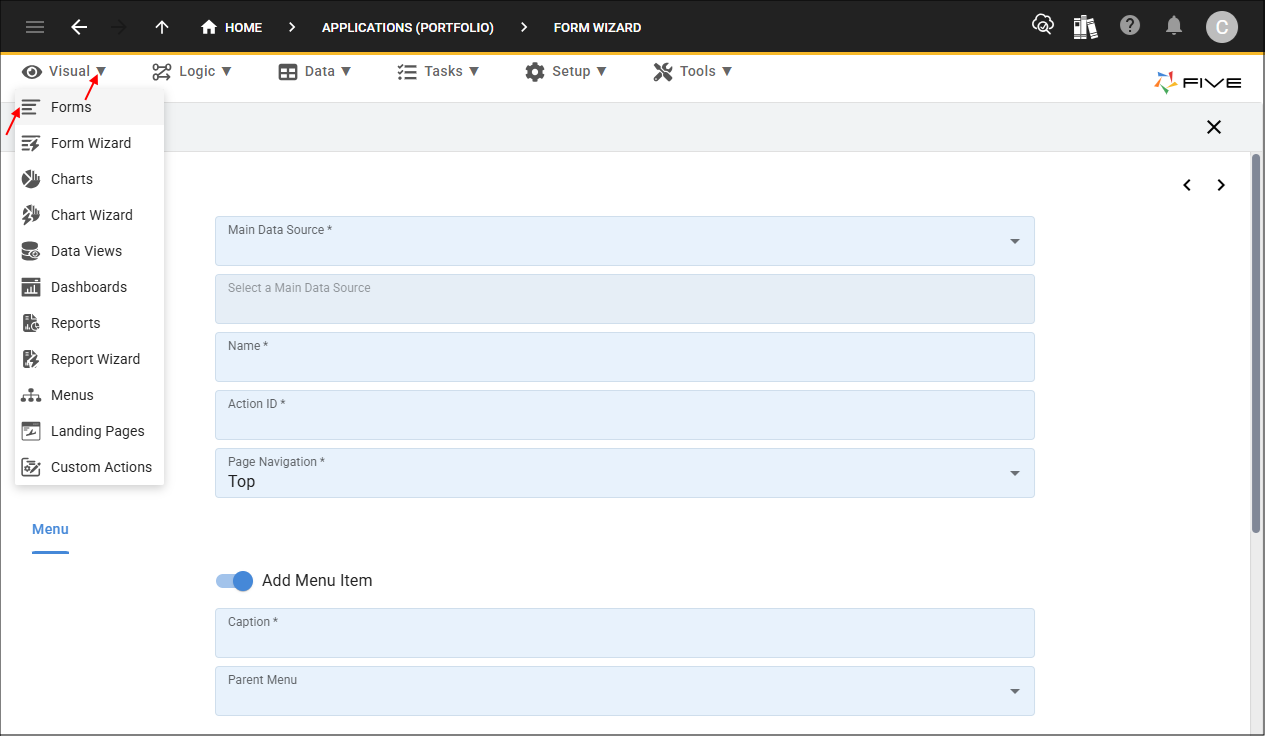
Figure 4 - Forms menu item
info
Select your record in the list and use the tabs to view and maintain your form properties.
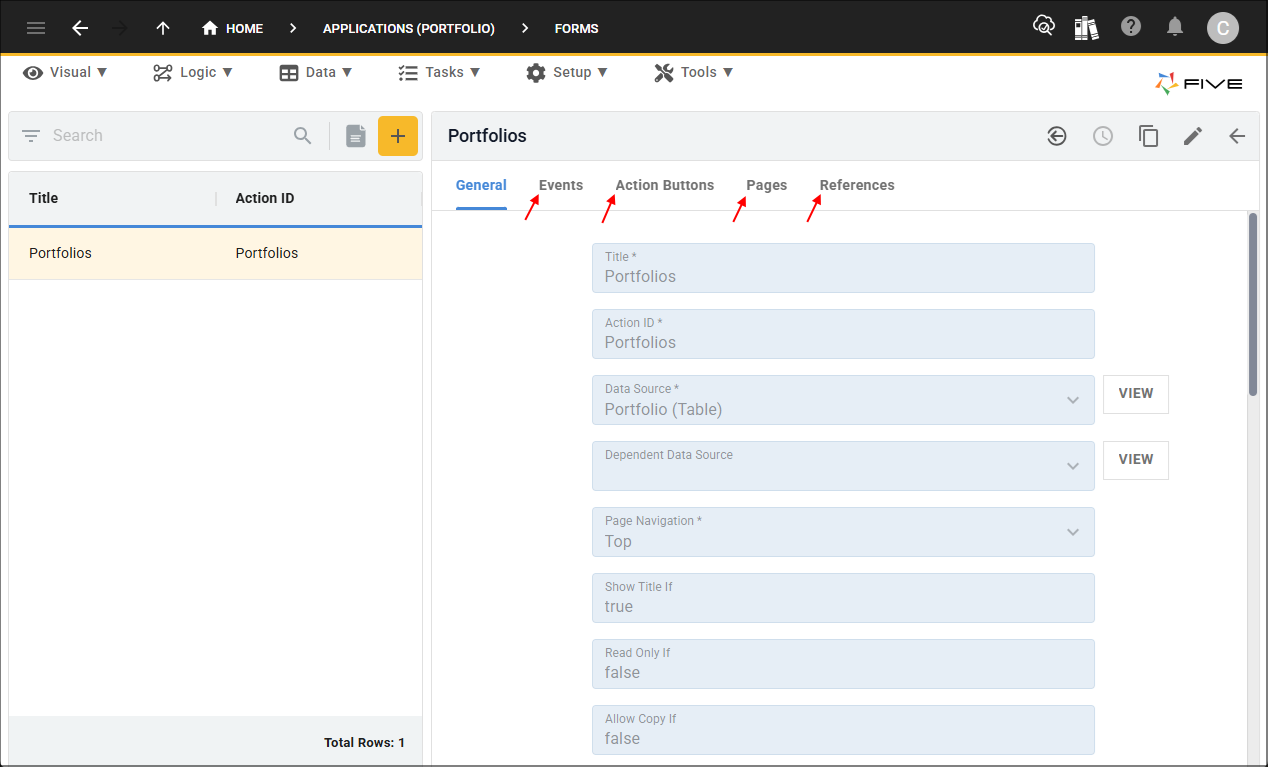
Figure 5 - Form tabs
Add the Stock Exchanges Form
note
If you navigated to the Forms view to see the Portfolios form record, you will need to navigate back to the Form Wizard by selecting Visual in the menu followed by Form Wizard in the sub-menu.
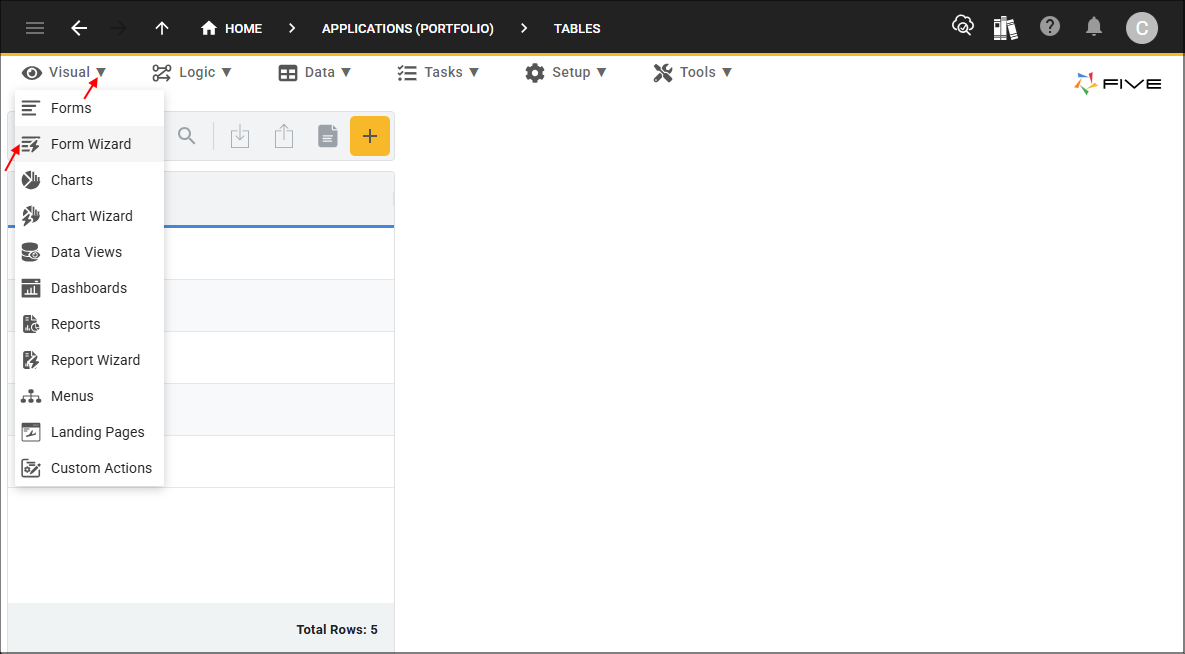
Figure 6 - Form Wizard menu item
1. Select StockExchange in the Main Data Source field.

Figure 7 - Add Stock Exchanges form
2. Click the Next button.
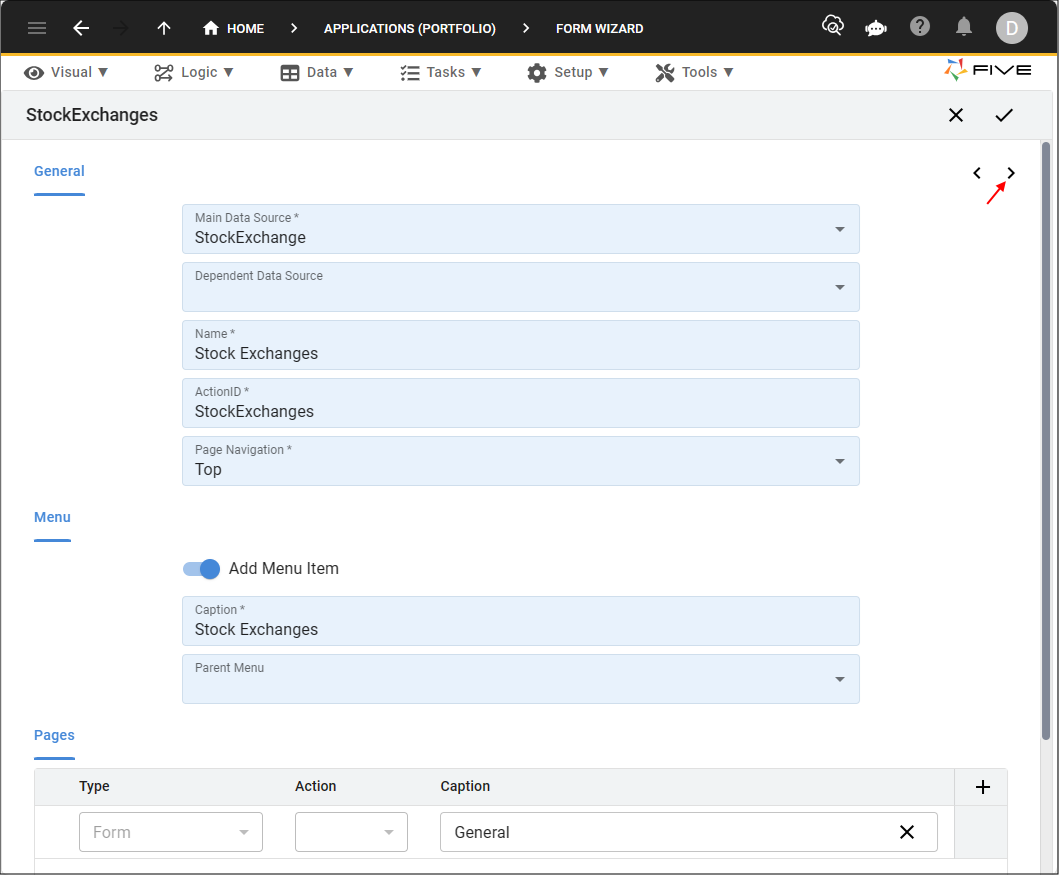
Figure 8 - Next button
info
All the fields in the table will be populated here in the Form Wizard except the primary key field.
3. Click the List checkbox for the Name field.
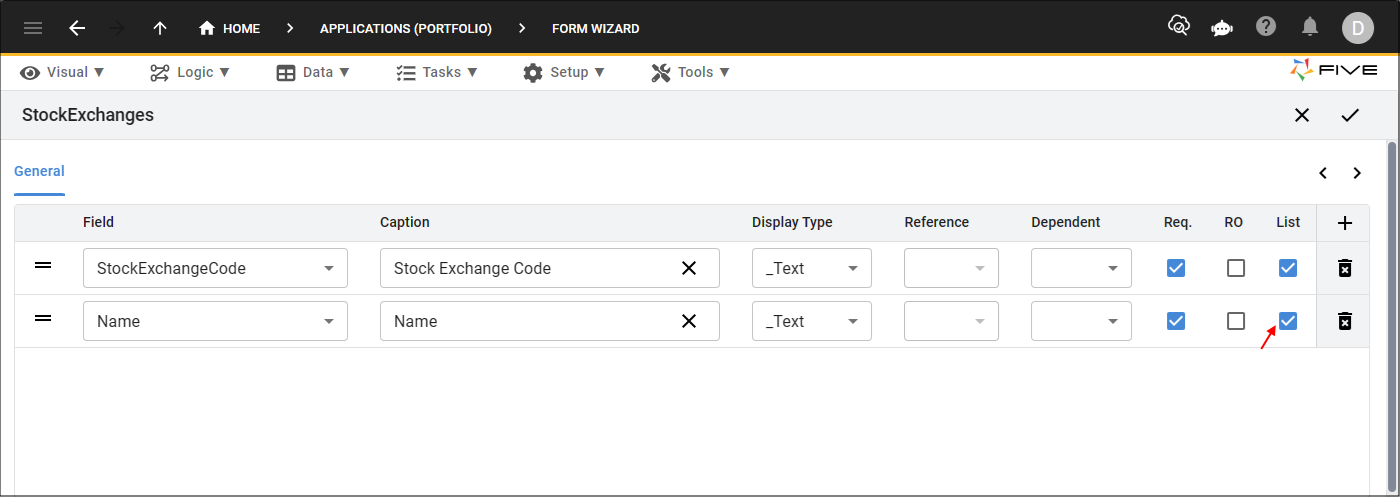
Figure 9 - Stock Exchanges form fields
4. Click the Save button in the Form Wizard app bar.
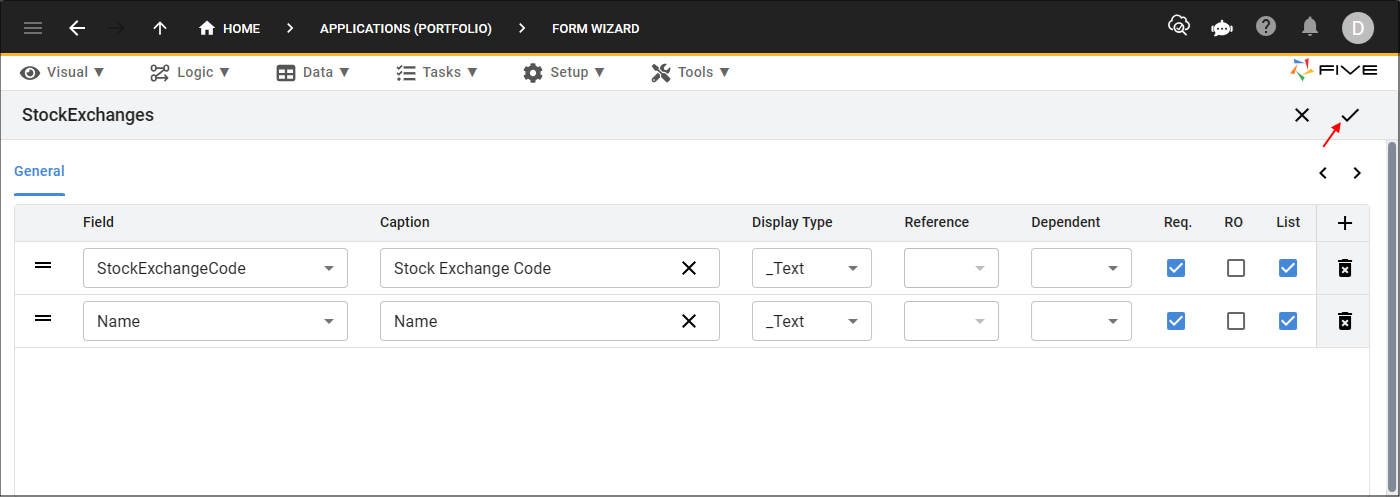
Figure 10 - Save button
Add the Sectors Form
1. Select Sector in the Main Data Source field.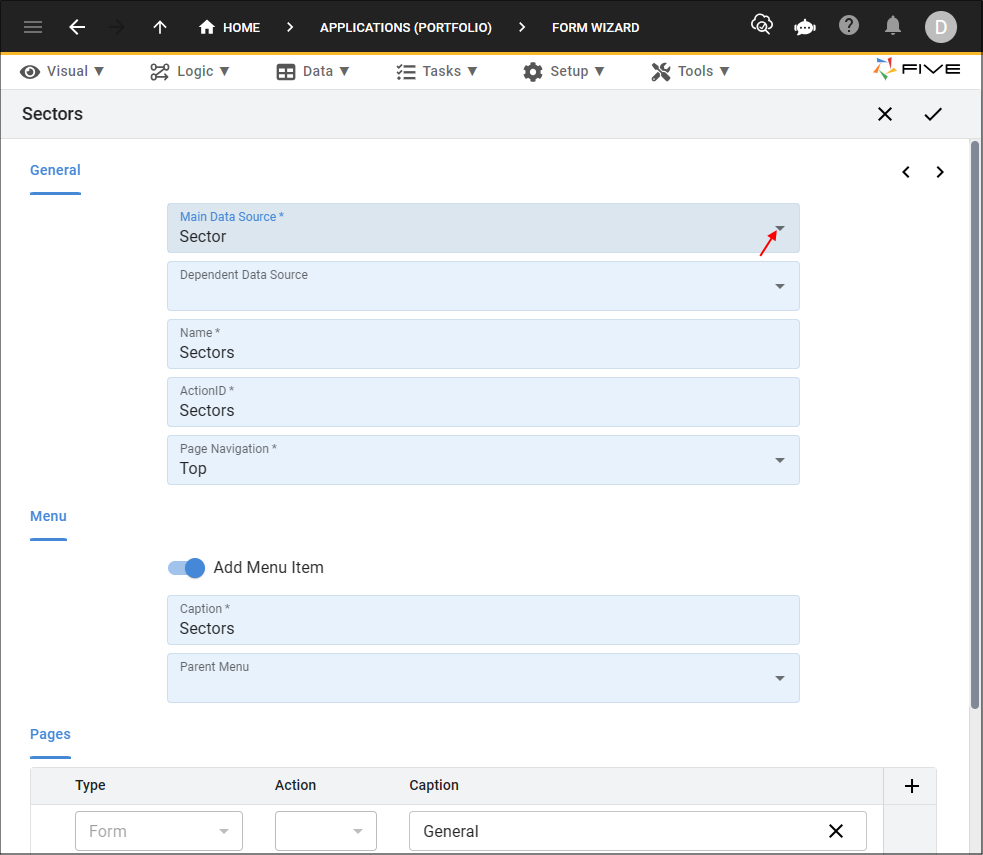
Figure 11 - Add Sectors form
2. Click the Save button in the Form Wizard app bar.

Figure 12 - Save button
Add the Stocks Form
1. Select Stock in the Main Data Source field.2. Click the Add Menu Item switch.
info
By default, Five will create a menu for a form when created via the Form Wizard. No menu will be created for the Stocks form because it will be accessed as a page on the Stock Exchanges and Sectors forms.
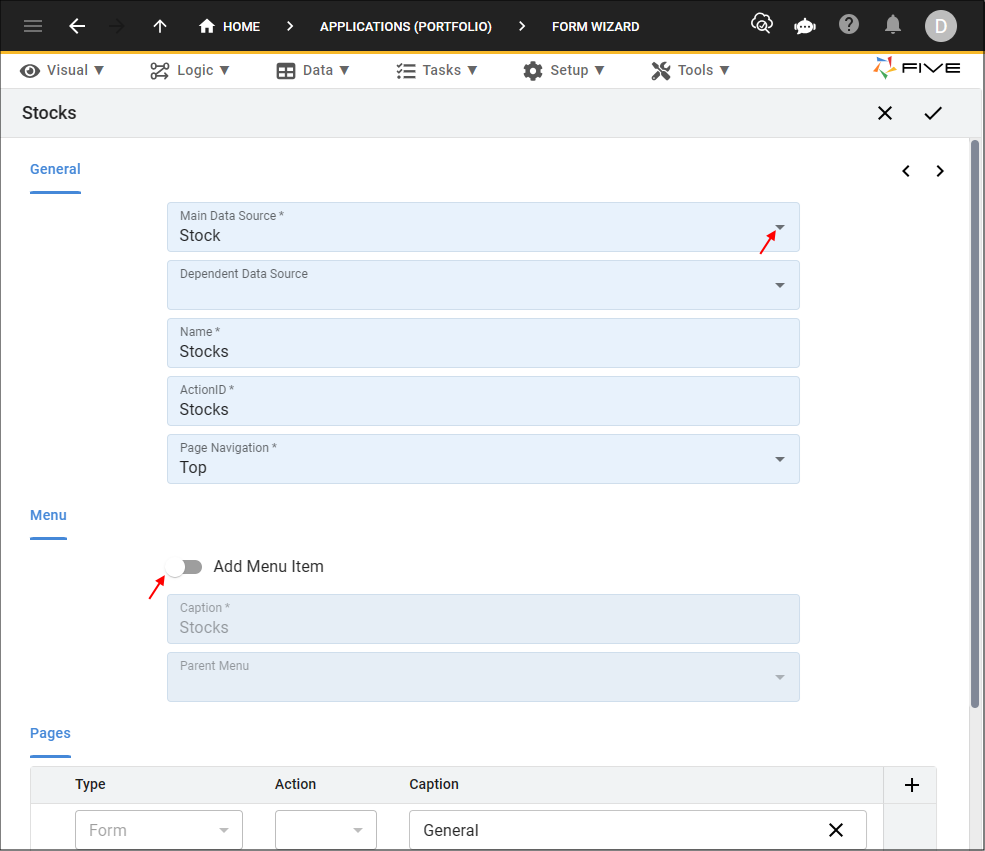
Figure 13 - Add Stocks form
3. Click the Next button.
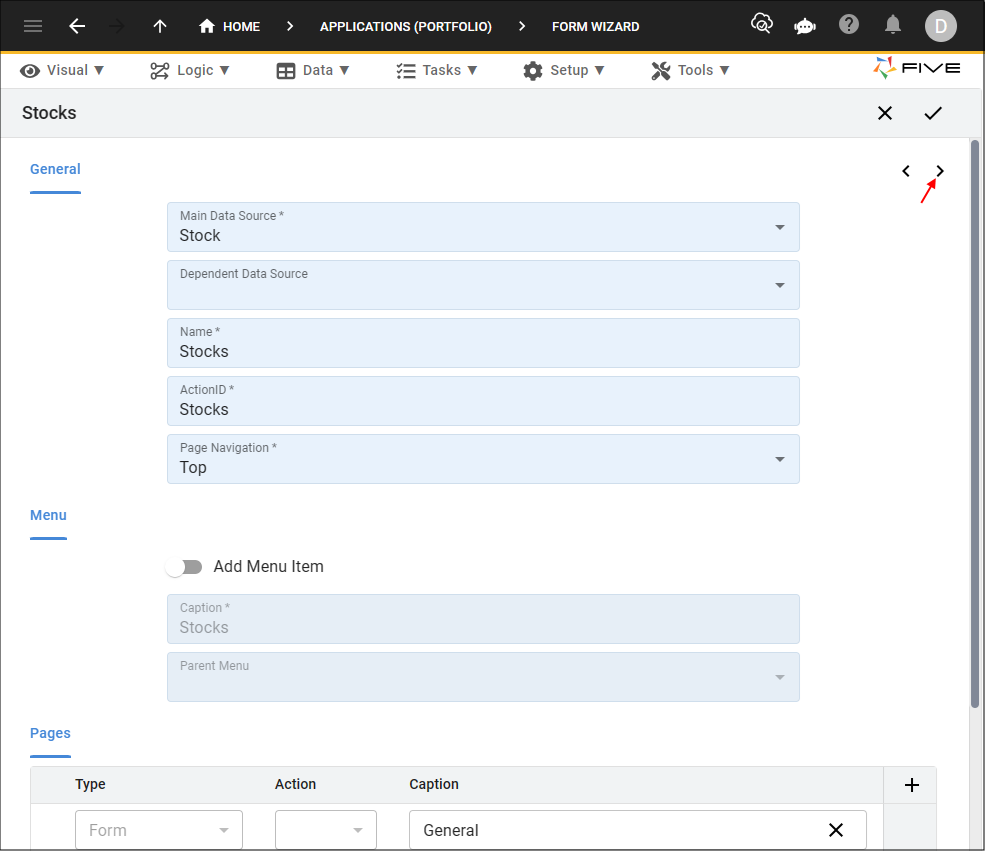
Figure 14 - Next button
4. Click the List checkbox for the SectorKey, StockCode, and Name fields.
info

Figure 15 - Stocks form fields
5. Click the Save button in the Form Wizard app bar.
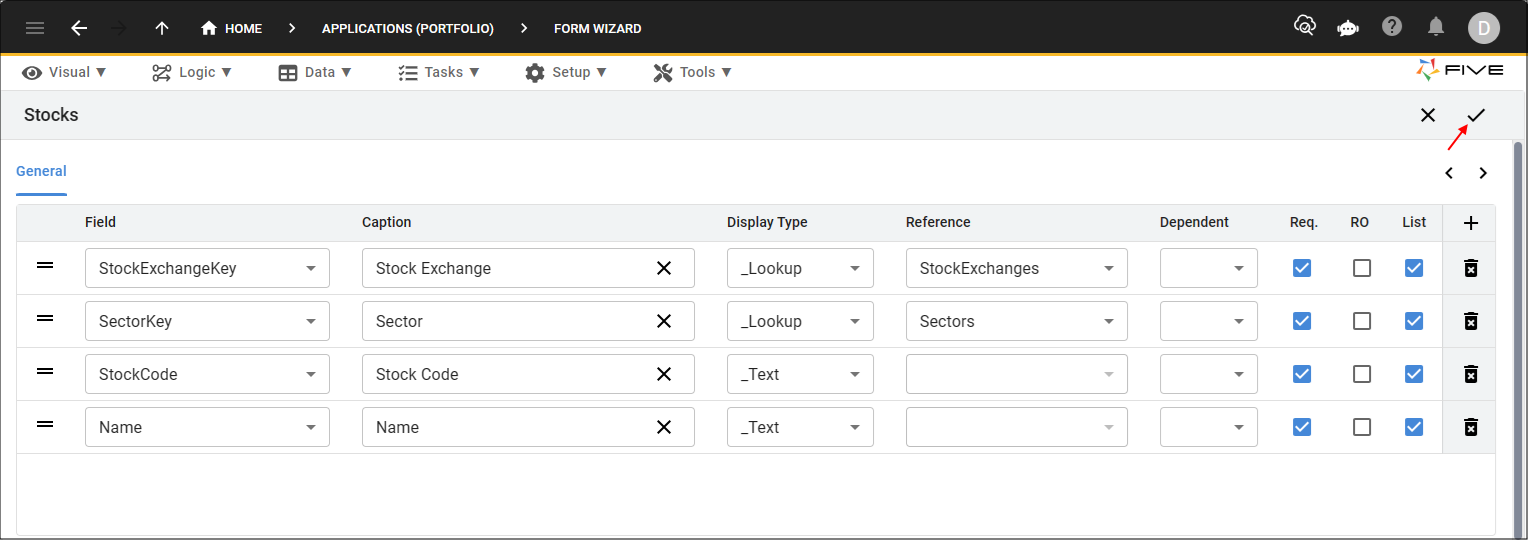
Figure 16 - Save button
Add the Stock Prices Form
1. Select StockPrice in the Main Data Source field.2. Click the Add Menu Item switch.
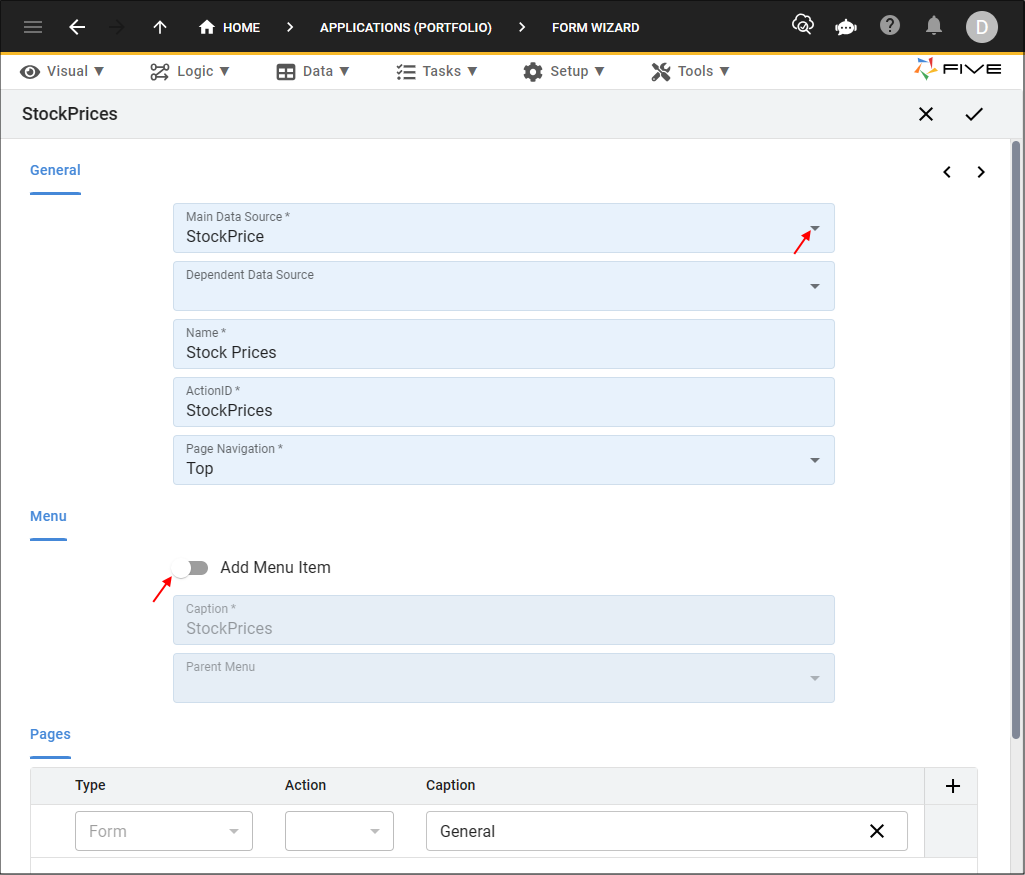
Figure 17 - Add Stock Prices form
3. Click the Next button.
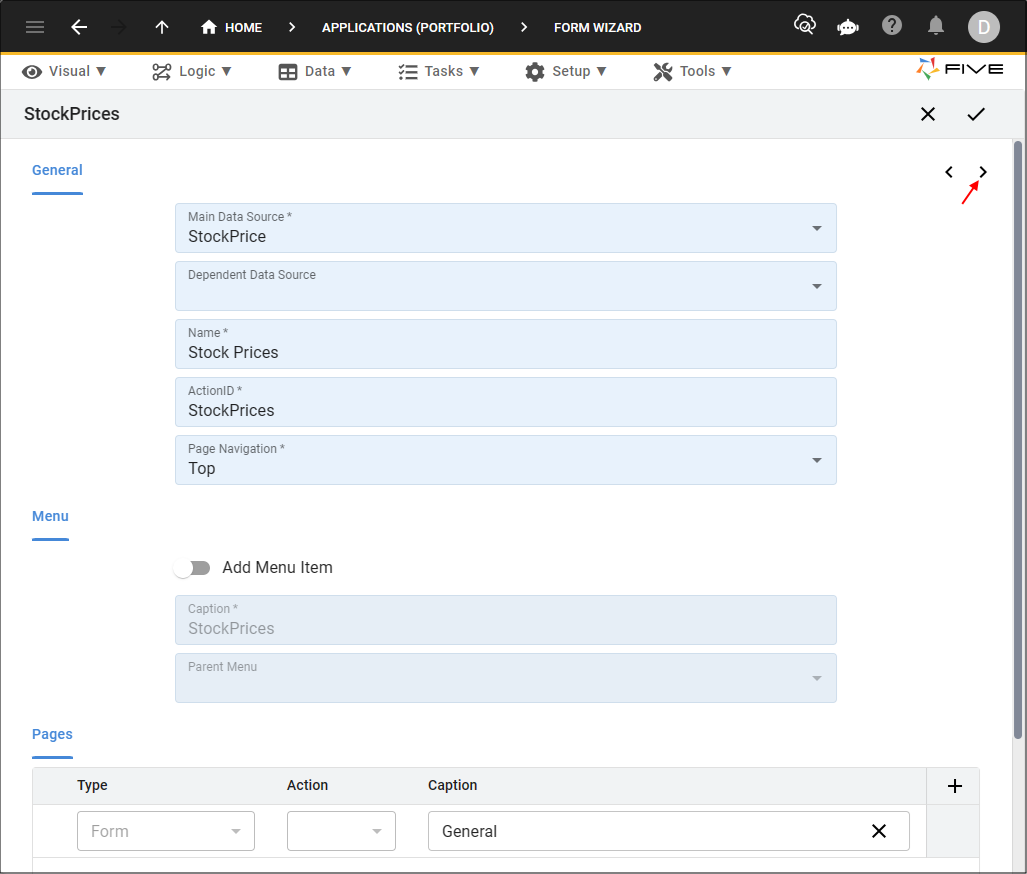
Figure 18 - Next button
4. Click the List checkbox for the PriceDate field.
5. Click the Req. and List checkboxes for the ClosePrice field.
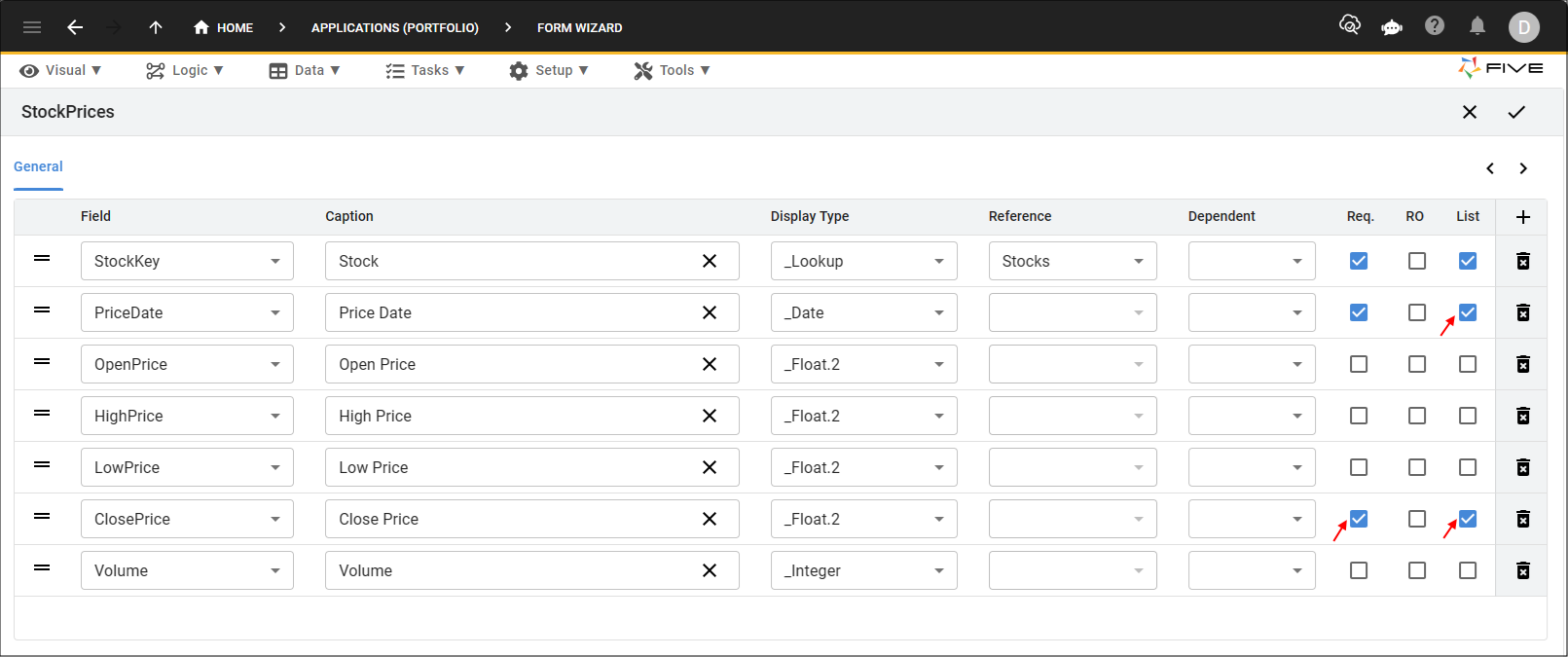
Figure 19 - Stock Prices form fields
6. Click the Save button in the Form Wizard app bar.
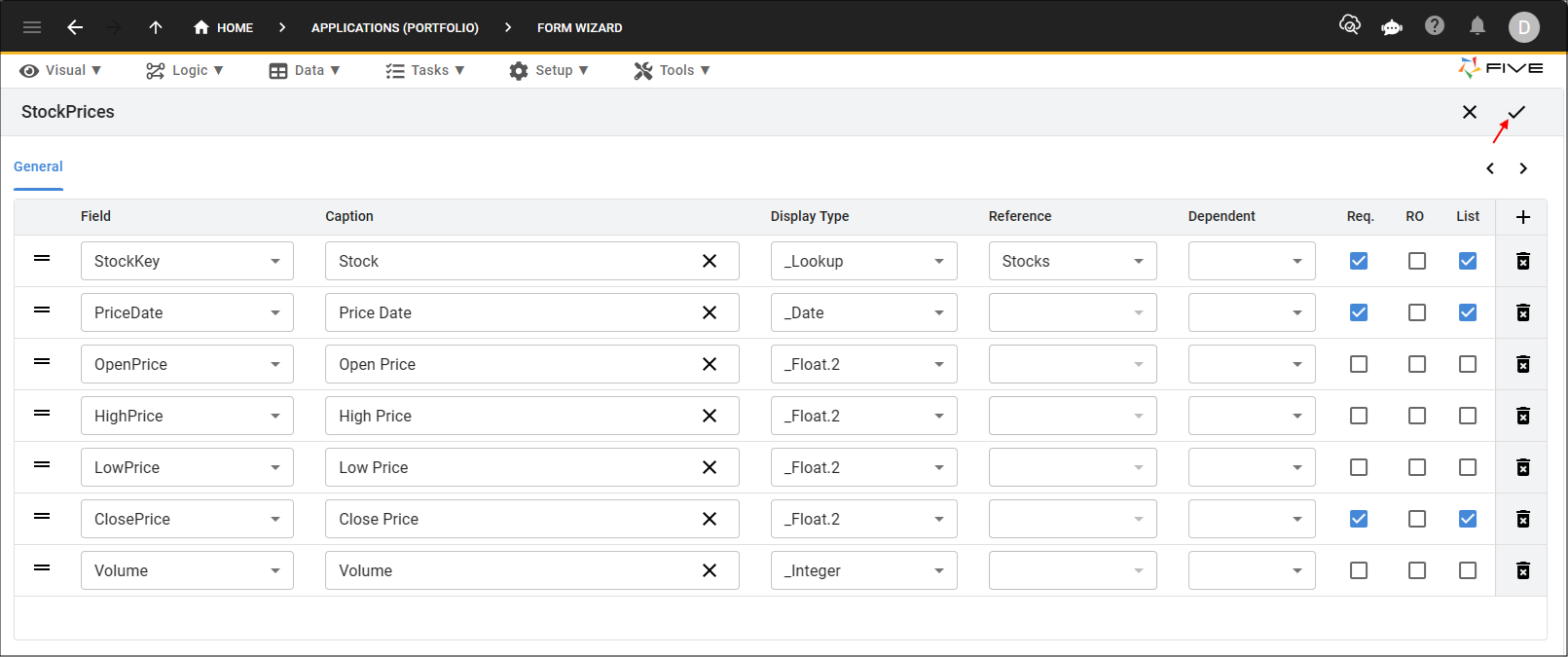
Figure 20 - Save button