12 - Create a Report
Last updated 2/12/2025
This documentation will explain how to add a report for the Portfolio application via Five's Report Wizard. The report will use the DailyVolumeQuery we added for the data.
There are several ways to generate a report in your application. We will let the Report Wizard create a menu item for the Daily Volume Report, when the menu referencing the report is clicked the report will generate in the Portfolio application.
Add the Daily Volume Report
1. Click Visual in the menu followed by Report Wizard in the sub-menu.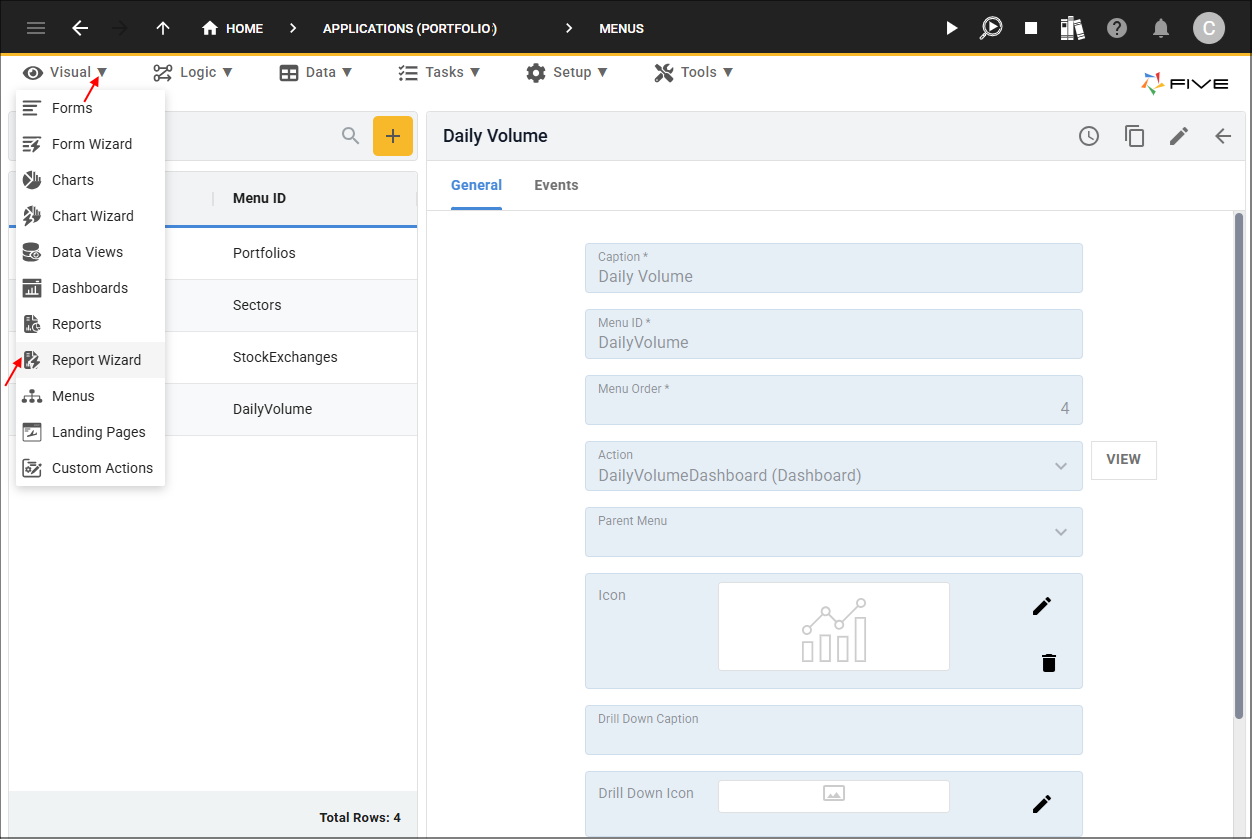
Figure 1 - Report Wizard menu item
2. Type Daily Volume Report in the Name field.
3. Click the Add Data Sources button and select DailyVolumeQuery in the Data Source field.
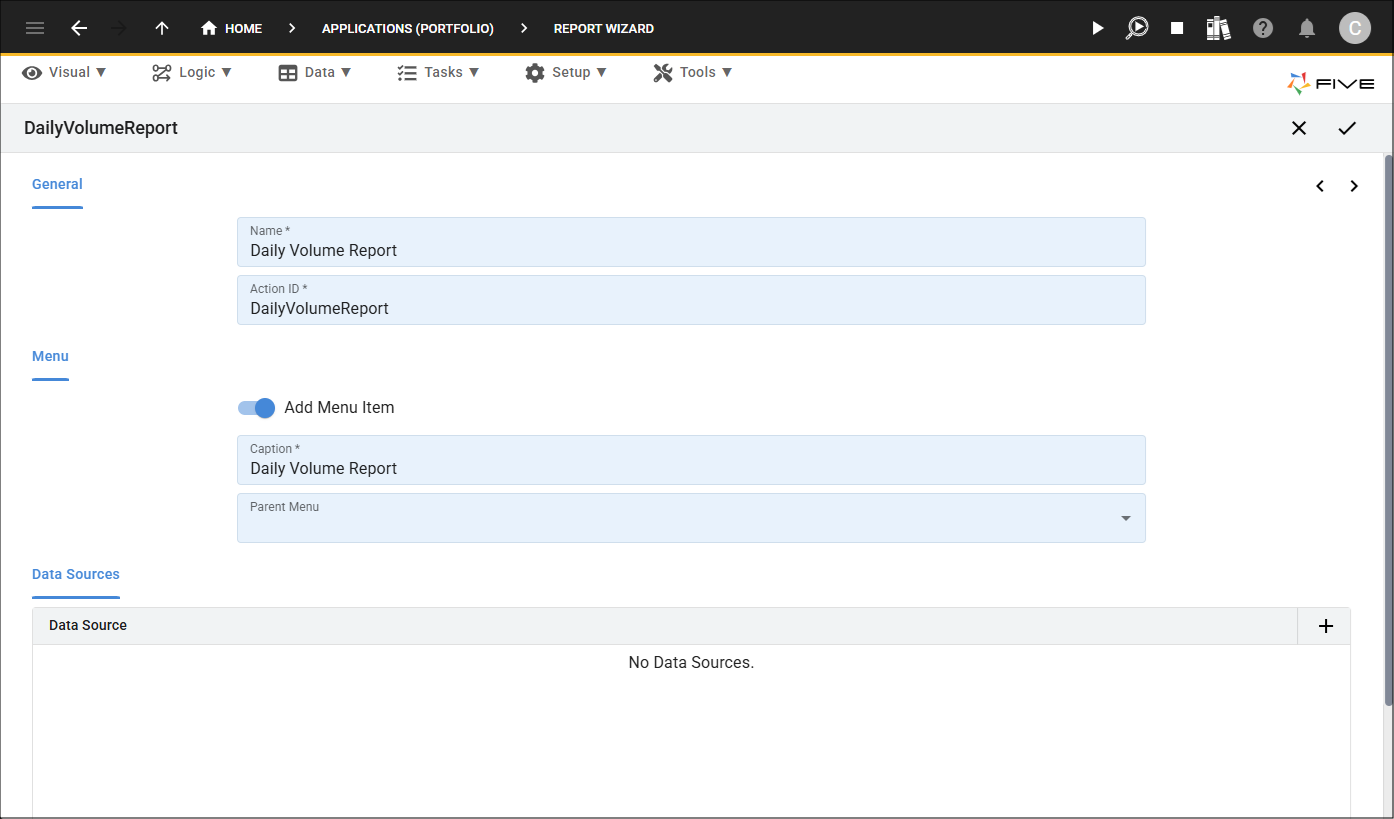
Figure 2 - Add Daily Volume Report
4. Click the Next button.
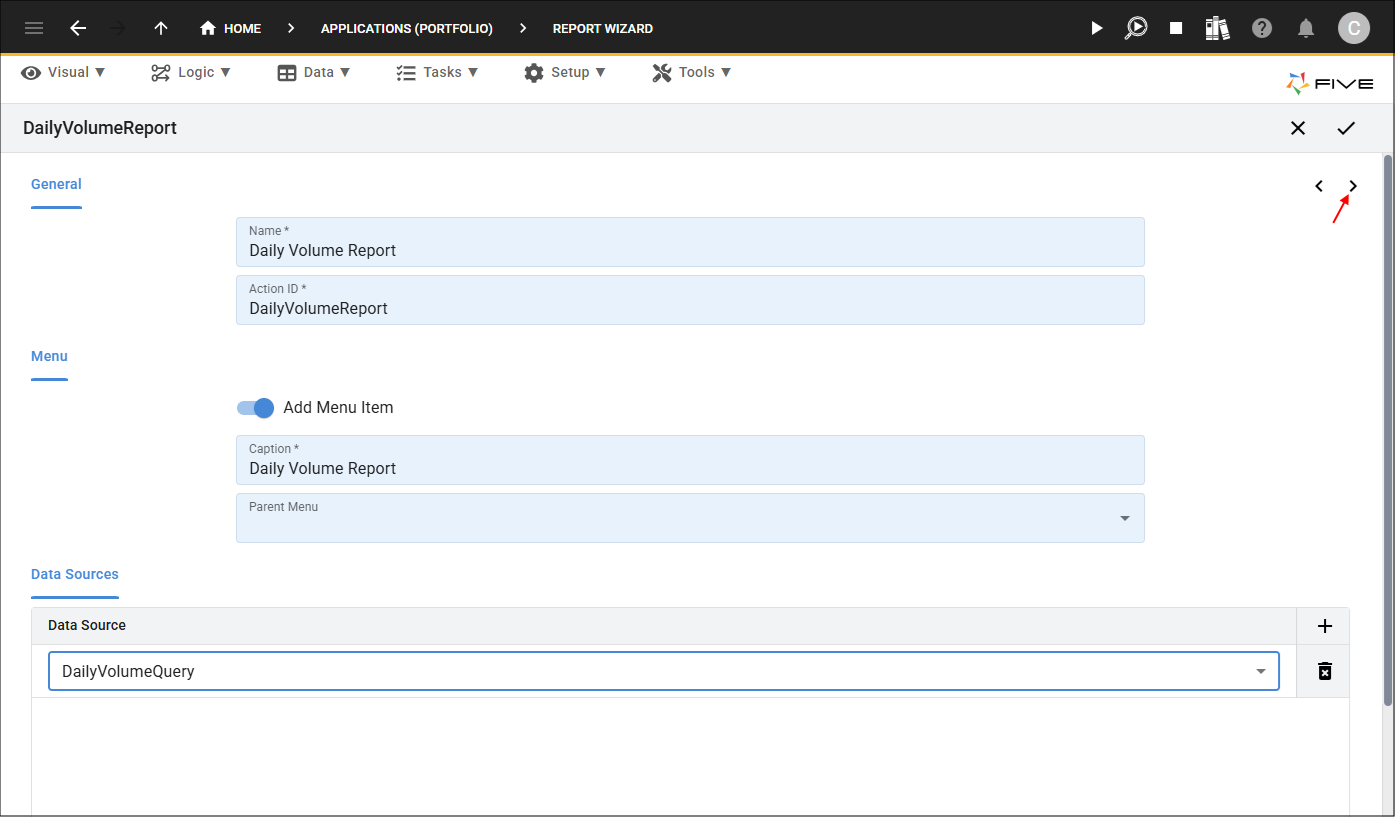
Figure 3 - Next button
5. Type Daily Volume October 2025 in the Header field.
6. Select all fields in the Fields field.
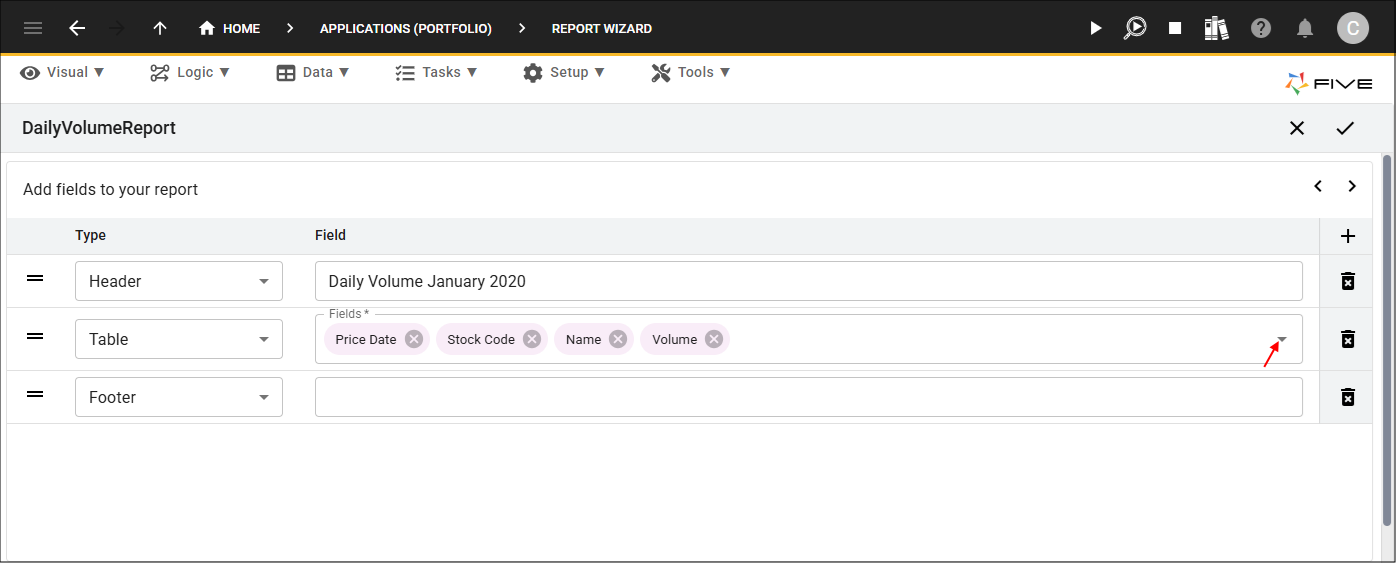
Figure 4 - Add header and fields
7. Click the Save button in the Report Wizard app bar.
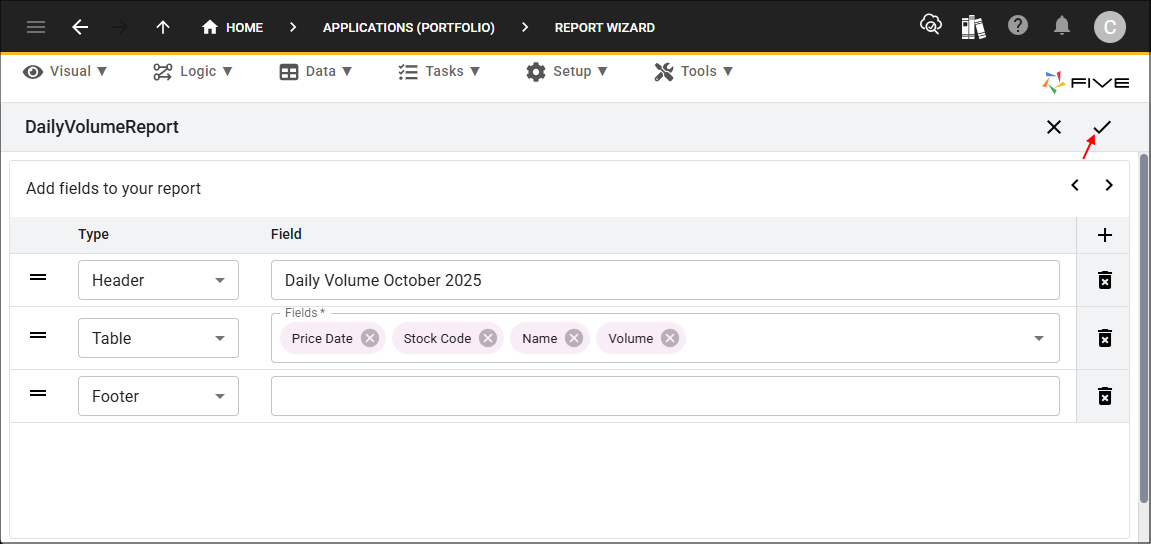
Figure 5 - Save button
info
Once you have saved a report via our Report Wizard, you will find the report record in the Reports view. To navigate to the Reports view, click Visual in the menu followed by Reports in the sub-menu.
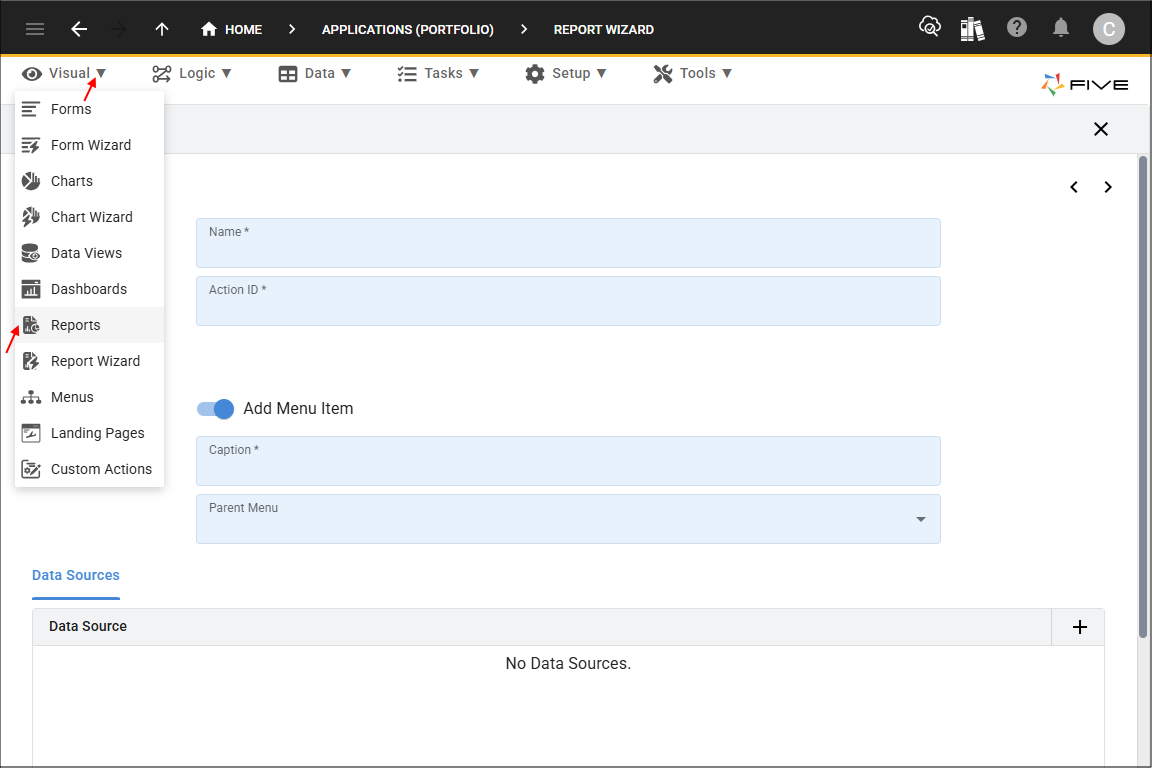
Figure 6 - Reports menu item
info
Select your record in the list and use the tabs to view and maintain your report properties. The Template field will open your report's template.
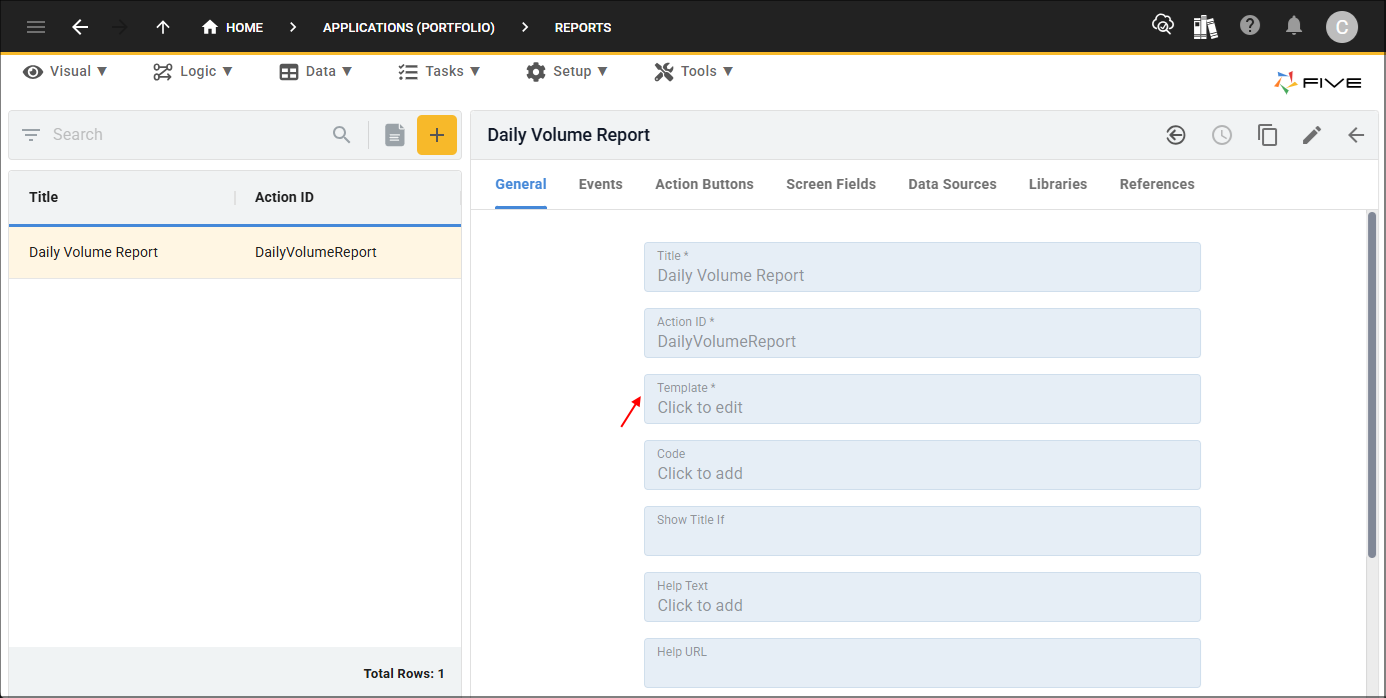
Figure 7 - Daily Volume Report record
tip
This is a good time to deploy/run the Portfolio application to check your Daily Volume Report!
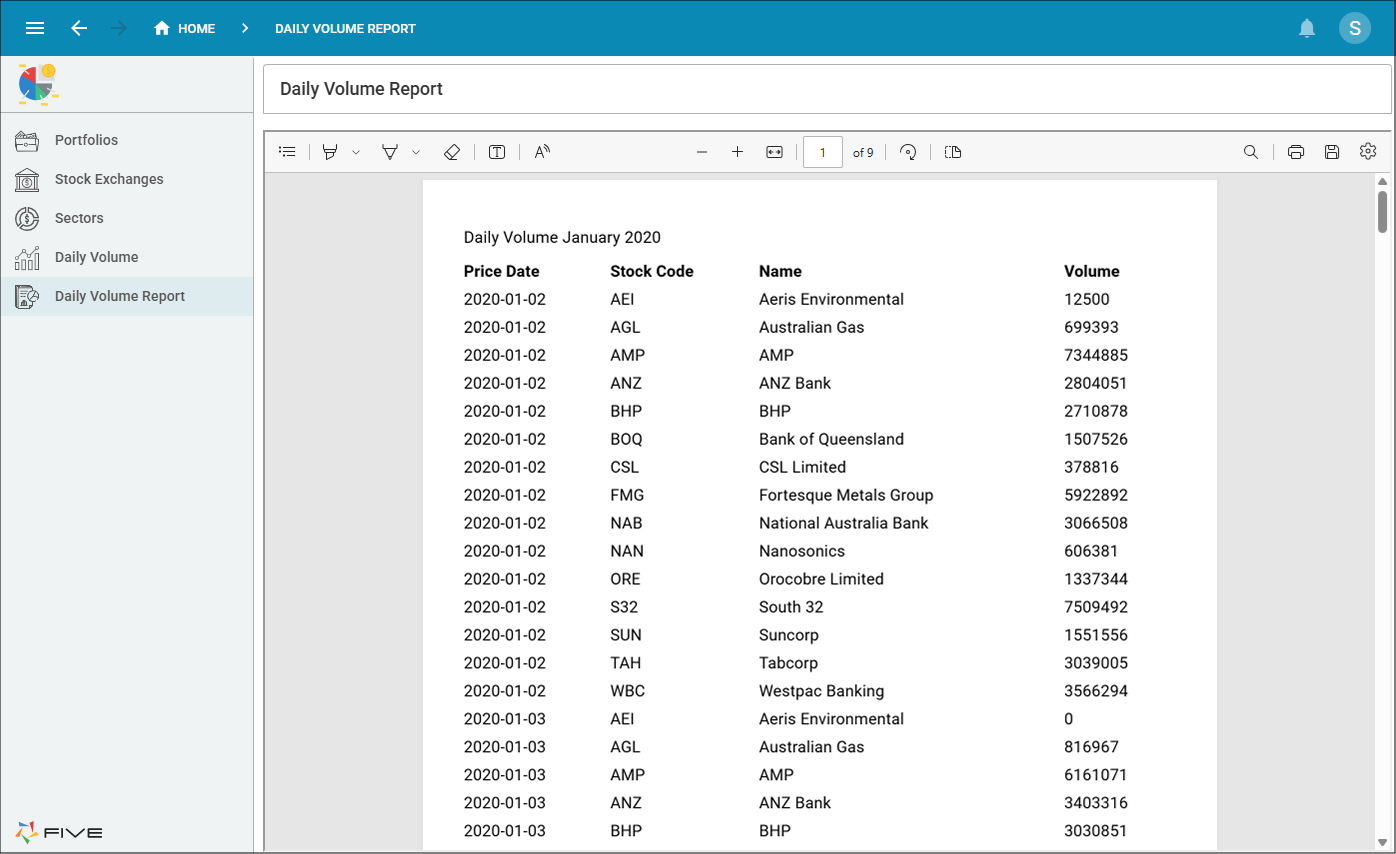
Figure 8 - Daily Volume Report