11 - Create a Menu Item
Last updated 11/12/2025
This documentation will explain how to add a menu item for the Portfolio application. A menu can reference any action in Five.
Add the Daily Volume Menu
1. Click Visual in the menu followed by Menus in the sub-menu.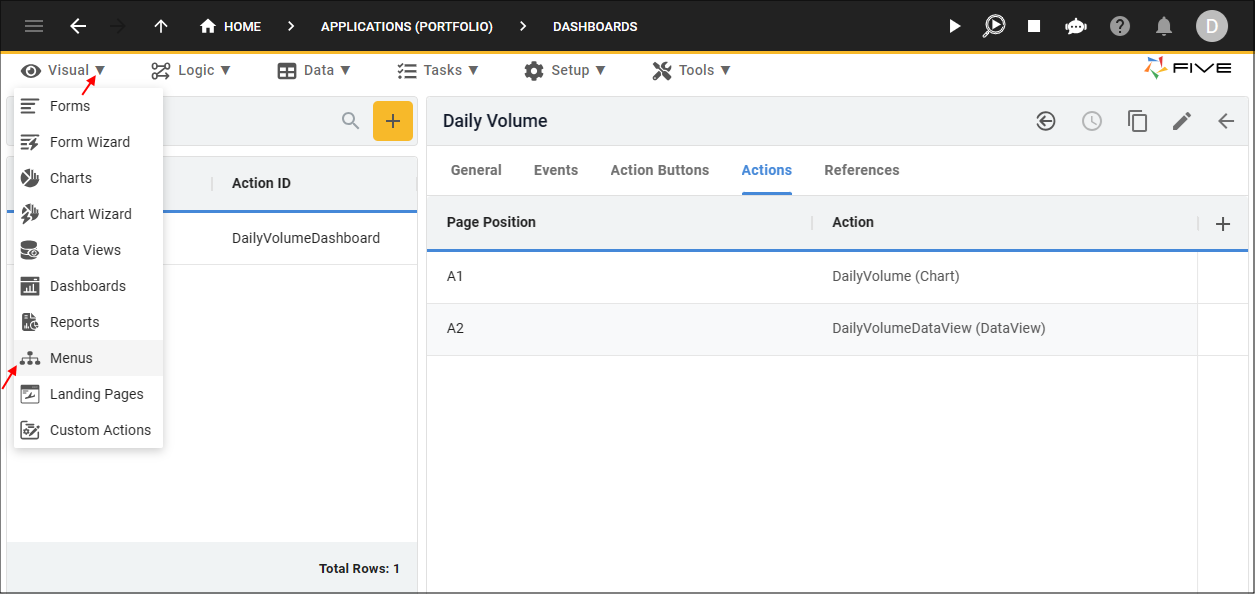
Figure 1 - Menus menu item
info
The menu records you can see in the list were created by Five's Form Wizard.
2. Click the Add Item button and type Daily Volume in the Caption field.
3. Type 4 in the Menu Order field.
4. Select DailyVolumeDashboard (Dashboard) in the Action field.
5. Optional: Click the Edit button in the Icon field and open an image file.
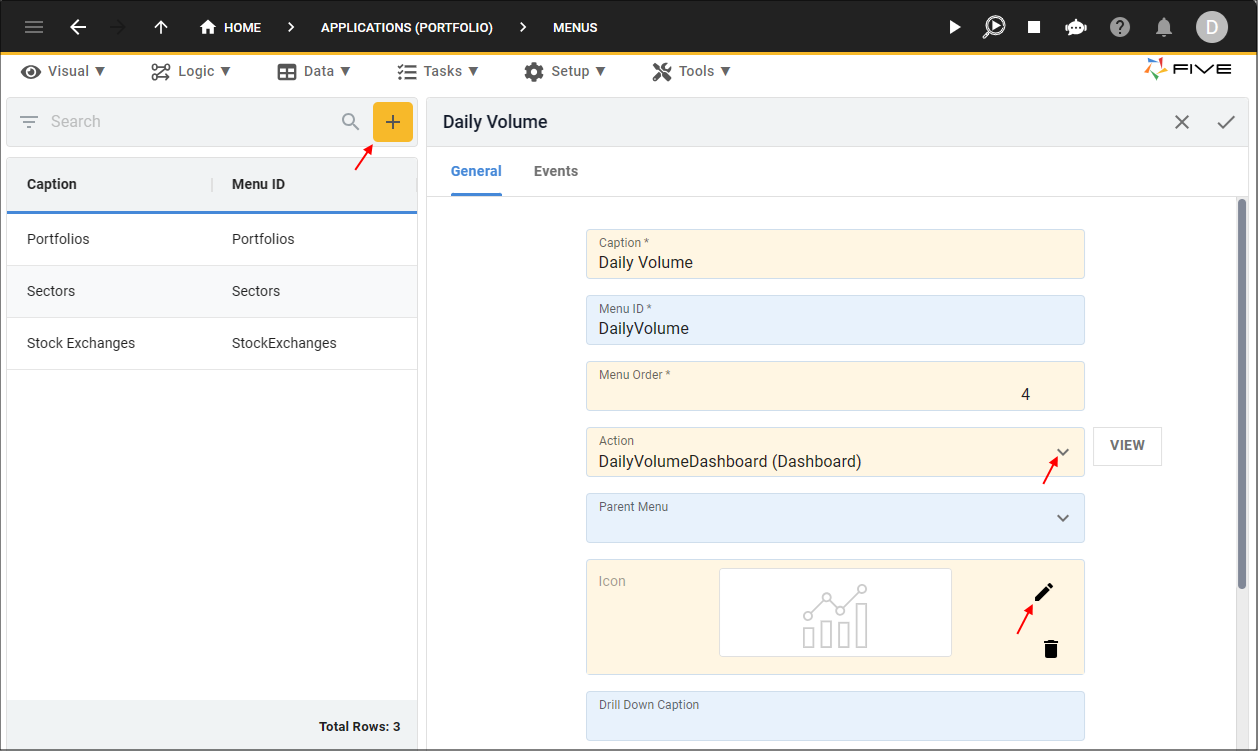
Figure 2 - Add Daily Volume menu
6. Click the Save button in the form app bar.
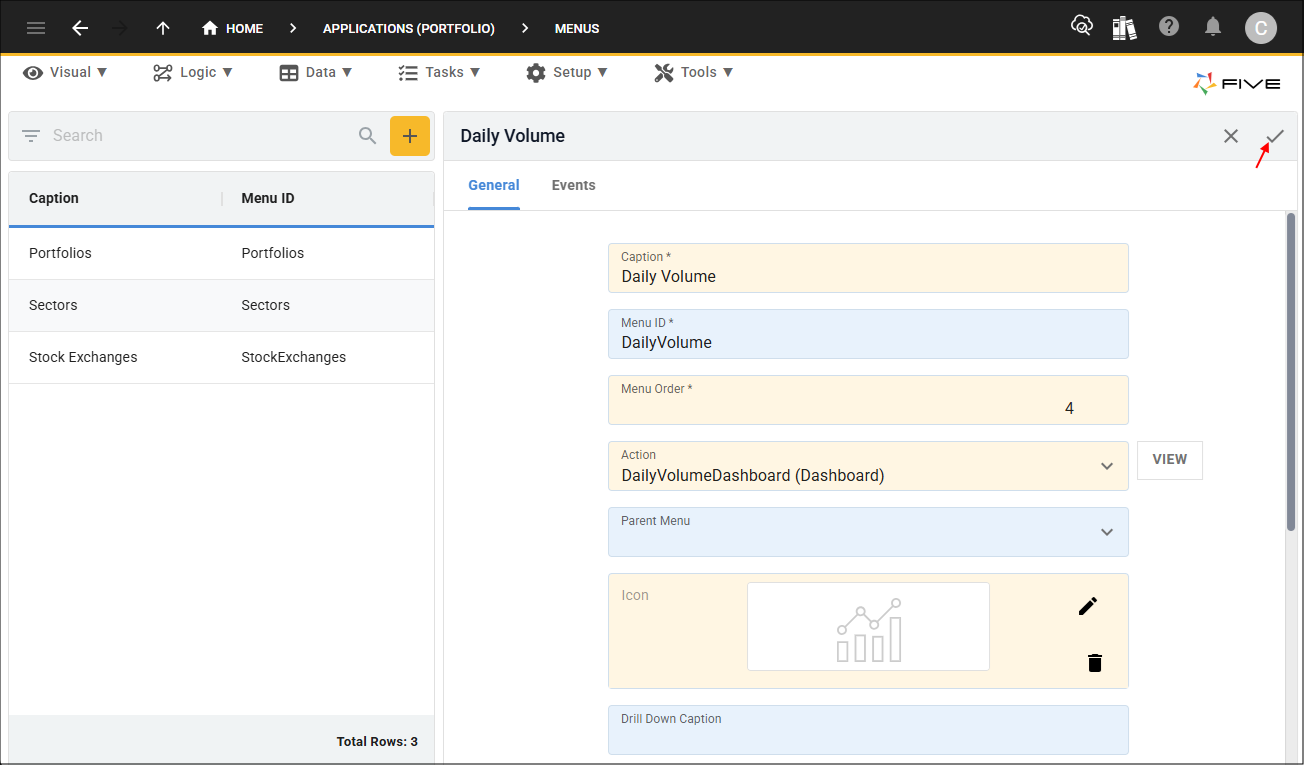
Figure 3 - Save button
tip
This is a good time to deploy/run the Portfolio application to check your Daily Volume dashboard!
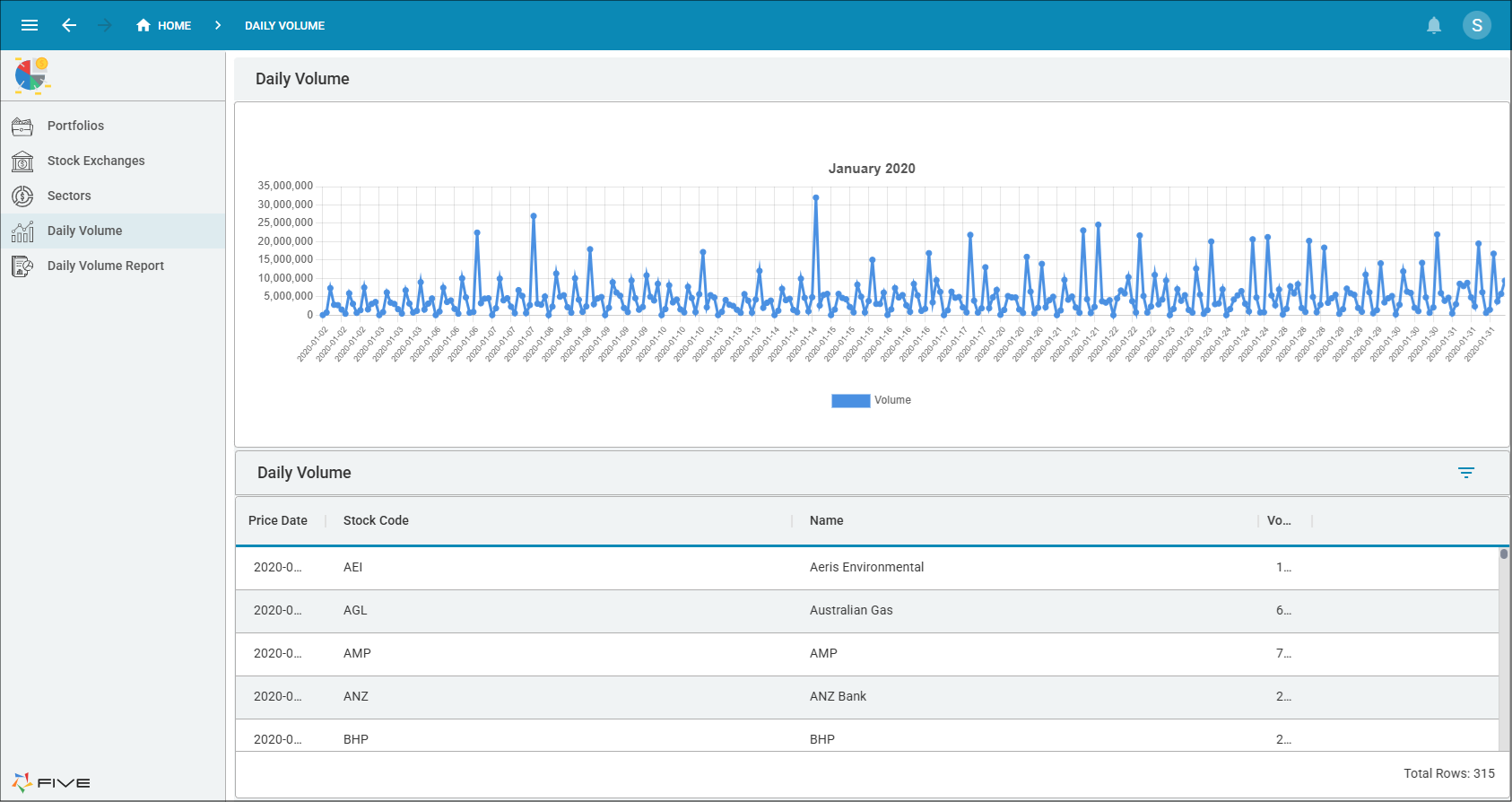
Figure 4 - Daily Volume dashboard