Remove Deployment Environments
Last updated 2/10/2025
In this documentation you will learn how to manage the removal of deployments. We will walk through each environment so you have an understanding of how to remove deployments to have your application removed from an environment. It is important to know that through this process if you are upgrading, there is an order you need to follow.
Development
| Plan | Who can remove deployments from the development environment |
|---|---|
| Basic | Administrator, Control, and Developer users |
| Team | Administrator, Control, and Developer users |
| Business | Administrator, Control, and Developer users |
| Enterprise | Administrator, Control, and Developer users |
Remove From Development
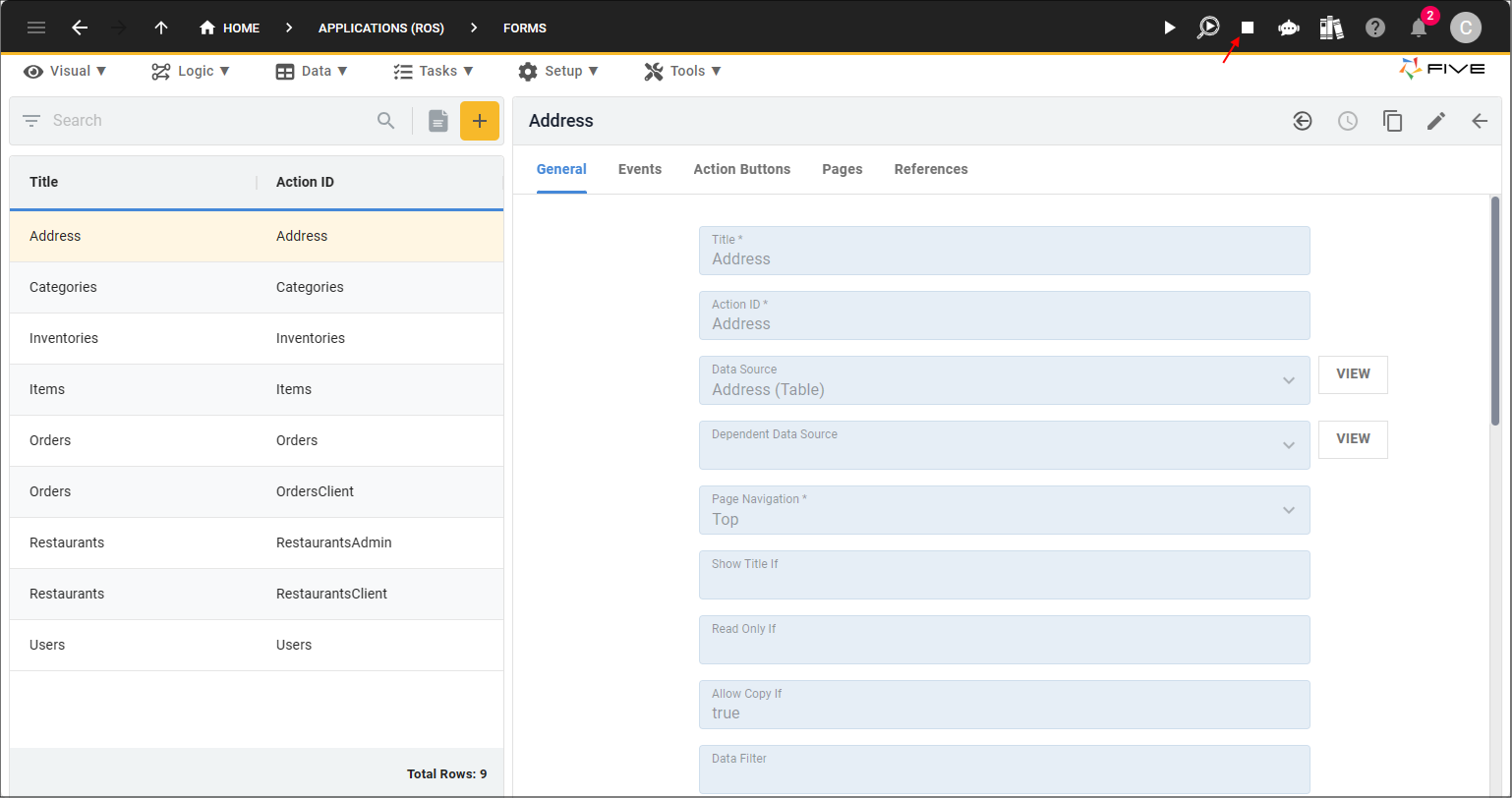
You can either remove the development deployment by using the Remove from Development button in Five's toolbar, or on the Cluster Management page. You must use the Cluster Management page if you are removing a development deployment that is not the default instance of your application.
1. Click the Remove from Development button.
Remove Development From the Cluster Management
1. Navigate to the Instances view by selecting Setup in the menu and Instances in the sub-menu.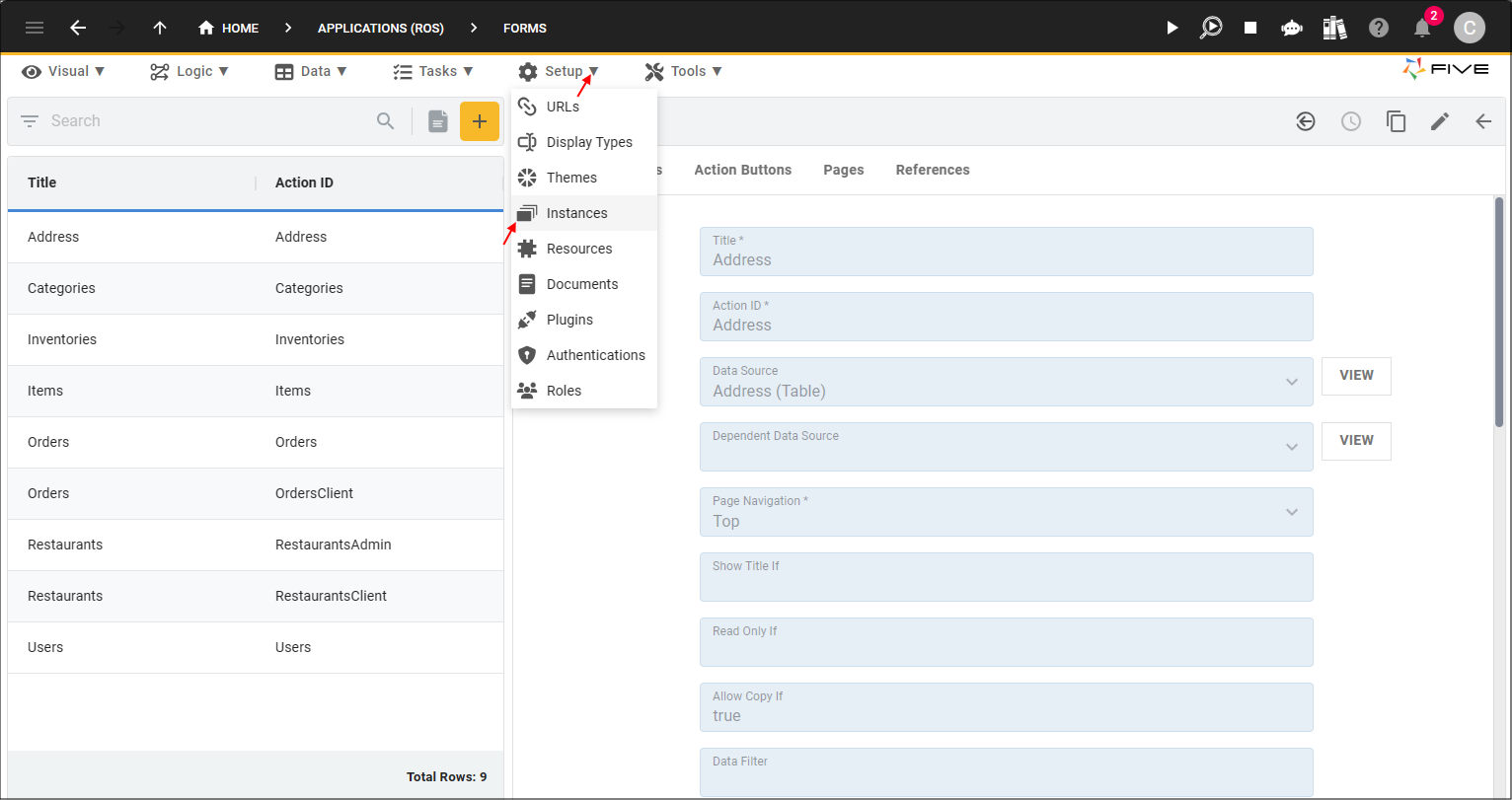
2. Select the instance record you want to remove from the development environment.
3. Click the Cluster Management button.
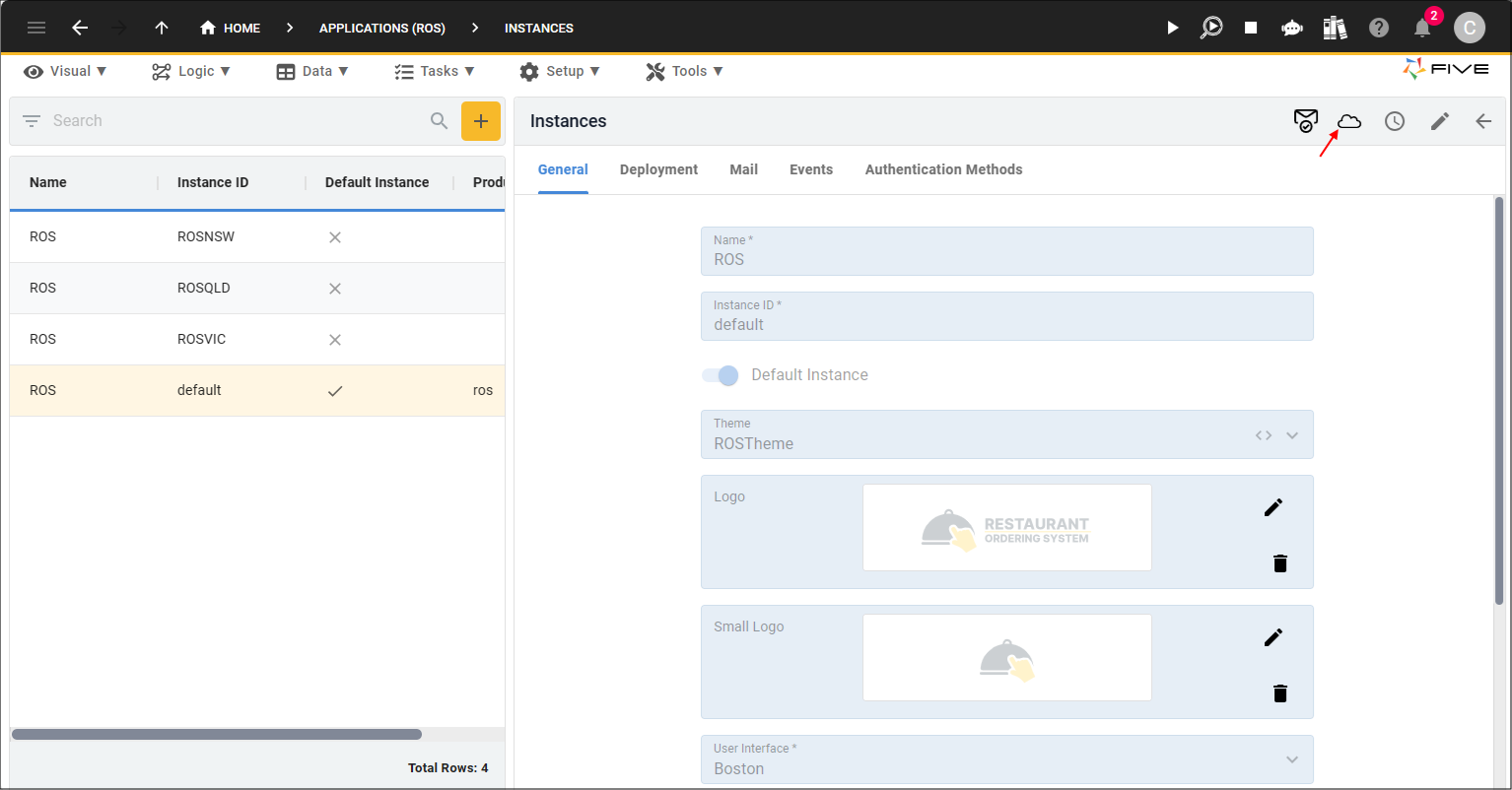
4. Click the Remove from Development button.

Testing
The testing deployment is available to the Business and Enterprise plans.
| Plan | Who can remove deployments from the testing environment |
|---|---|
| Basic | N/A |
| Team | N/A |
| Business | Administrator and Control users |
| Enterprise | Administrator and Control users |
If you have made changes in your development environment and they are ready to be pushed to testing, you will need to remove the current version in the testing environment to perform the upgrade. The development deployment does not need to be removed from deployment for the testing deployment to take on these changes, however, you must deploy or run your application in the development environment after performing your changes to apply the changes to your testing deployment.
To remove an instance of your application from the testing environment, you must use the Cluster Management.
Remove From Testing
1. Select the instance record you want to remove from the testing deployment.2. Click the Cluster Management button.
3. Click the Remove from Testing button.

Production
The production deployment is available to the Team, Business, and Enterprise Plans.
| Plan | Who can remove deployments from the production environment |
|---|---|
| Basic | N/A |
| Team | Administrator and Control users |
| Business | Administrator and Control users |
| Enterprise | Administrator and Control users |
For a Team plan, if you have made changes in your development environment and they are ready to be pushed to production, you will need to remove the current version in the production environment to perform the upgrade. The development deployment does not need to be removed from deployment for the production environment to take on these changes, however, you must deploy or run your application in the development environment after performing your changes to apply the changes to your production environment.
For a Business or Enterprise plan, if you have made changes in your development environment and they have been pushed to testing, you will need to remove the current version in the production environment to perform the upgrade. The development and testing environments do not need to be removed from deployment for the production environment to take on these changes, however, the changes must be deployed to the testing environment before deployment to the production environment.
To remove an instance of your application from the production environment, you must use the Cluster Management.
Remove From Production
1. Select the instance record you want to remove from the production environment.2. Click the Cluster Management button.
3. Click the Remove from Production button.
