Create an Application and Navigate Five
Last updated 20/08/2025
When you initially save an application in Five, it will be a single user application and Five will automatically create your database and establish the connection with MySQL. This enables you to start adding your tables immediately into your database.
Create an Application
1. Click Applications in the menu.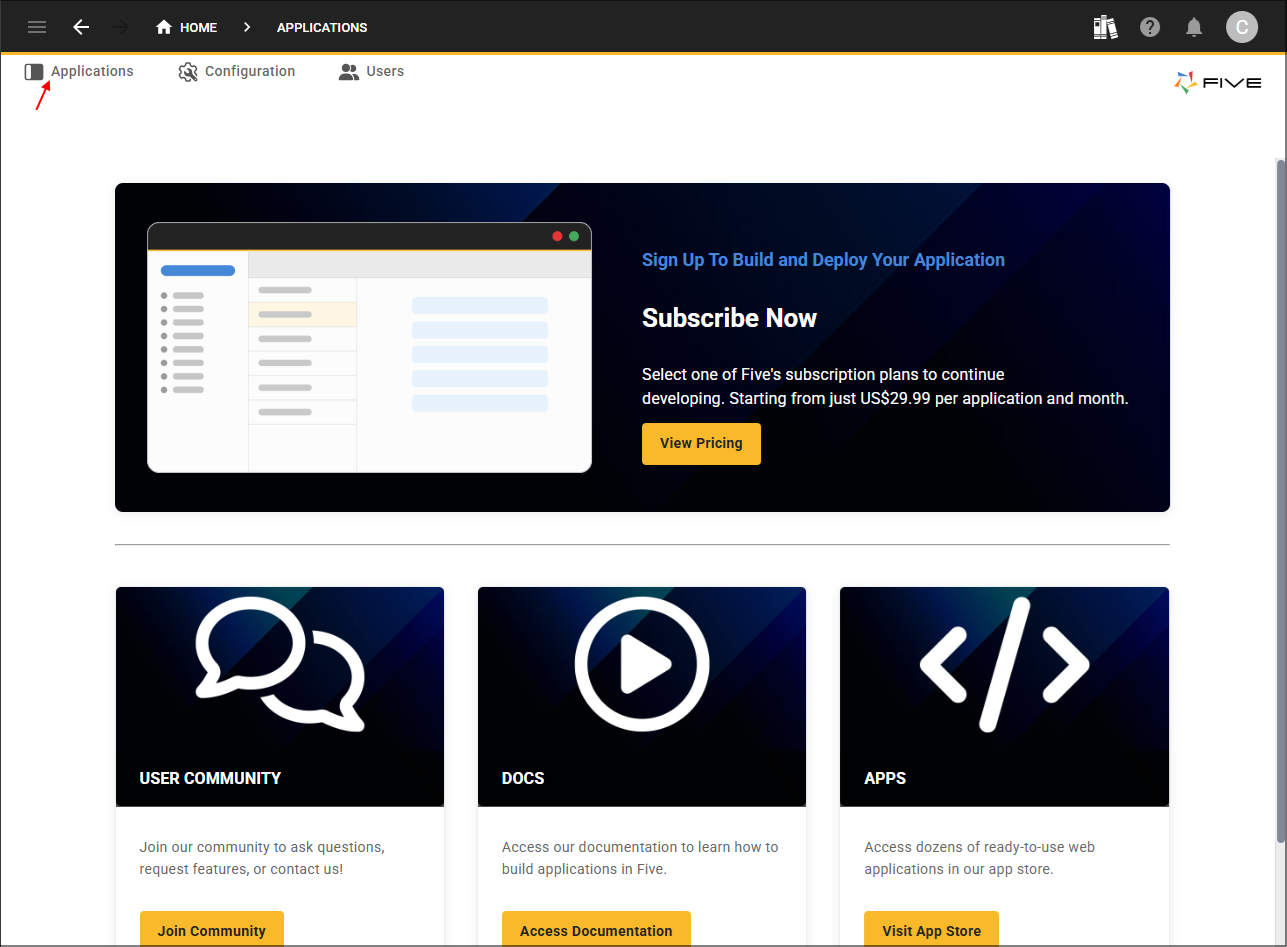
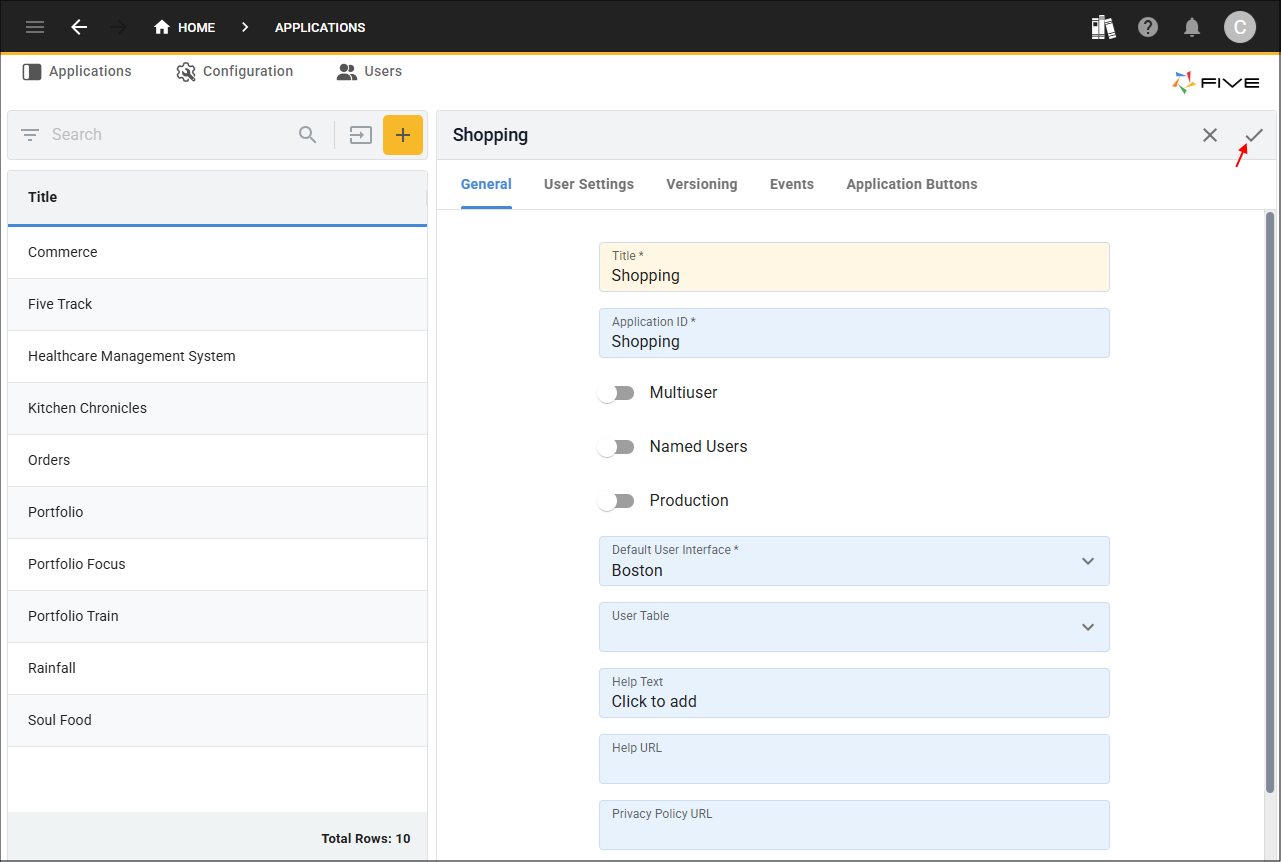
2. Click the Add Item button and type Shopping in the Title field.
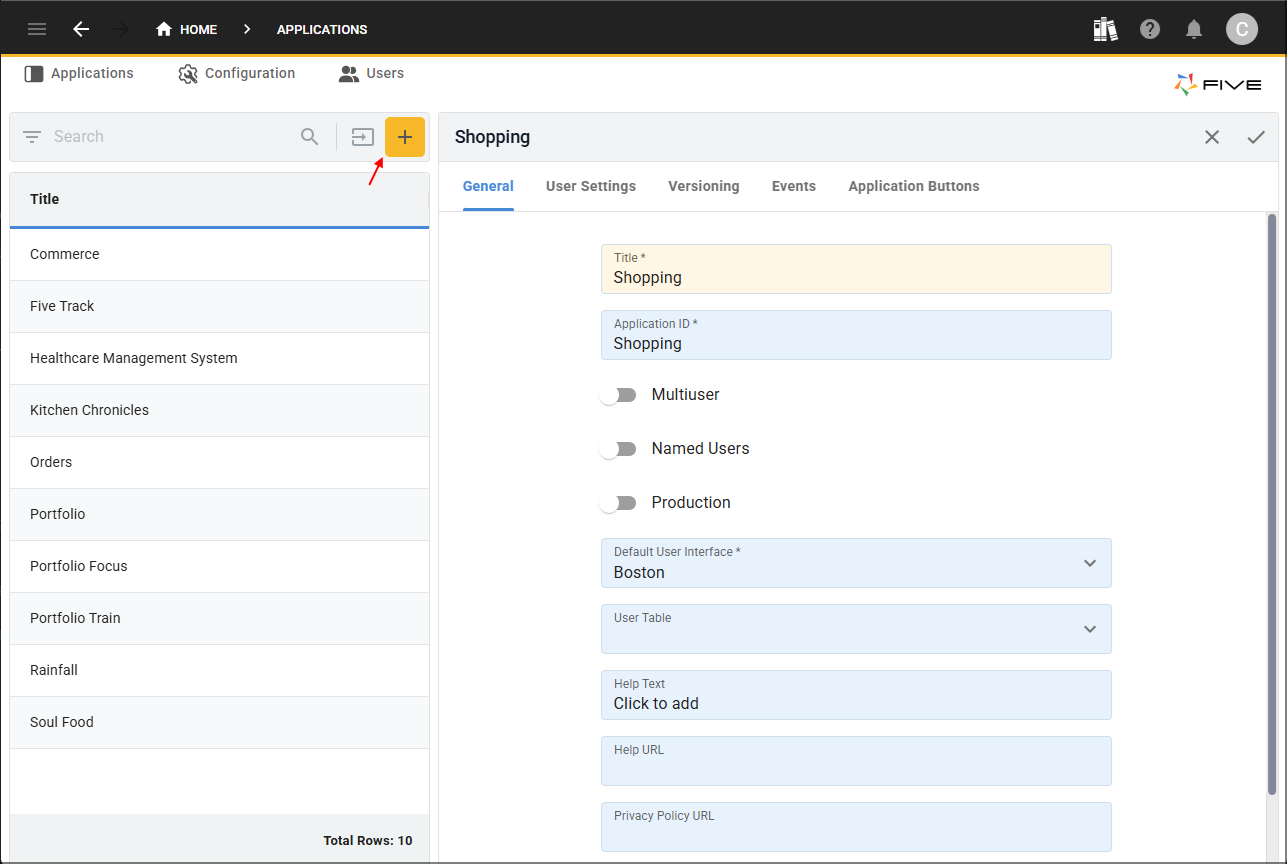
3. Click the Save button in the form app bar.
Navigate Five
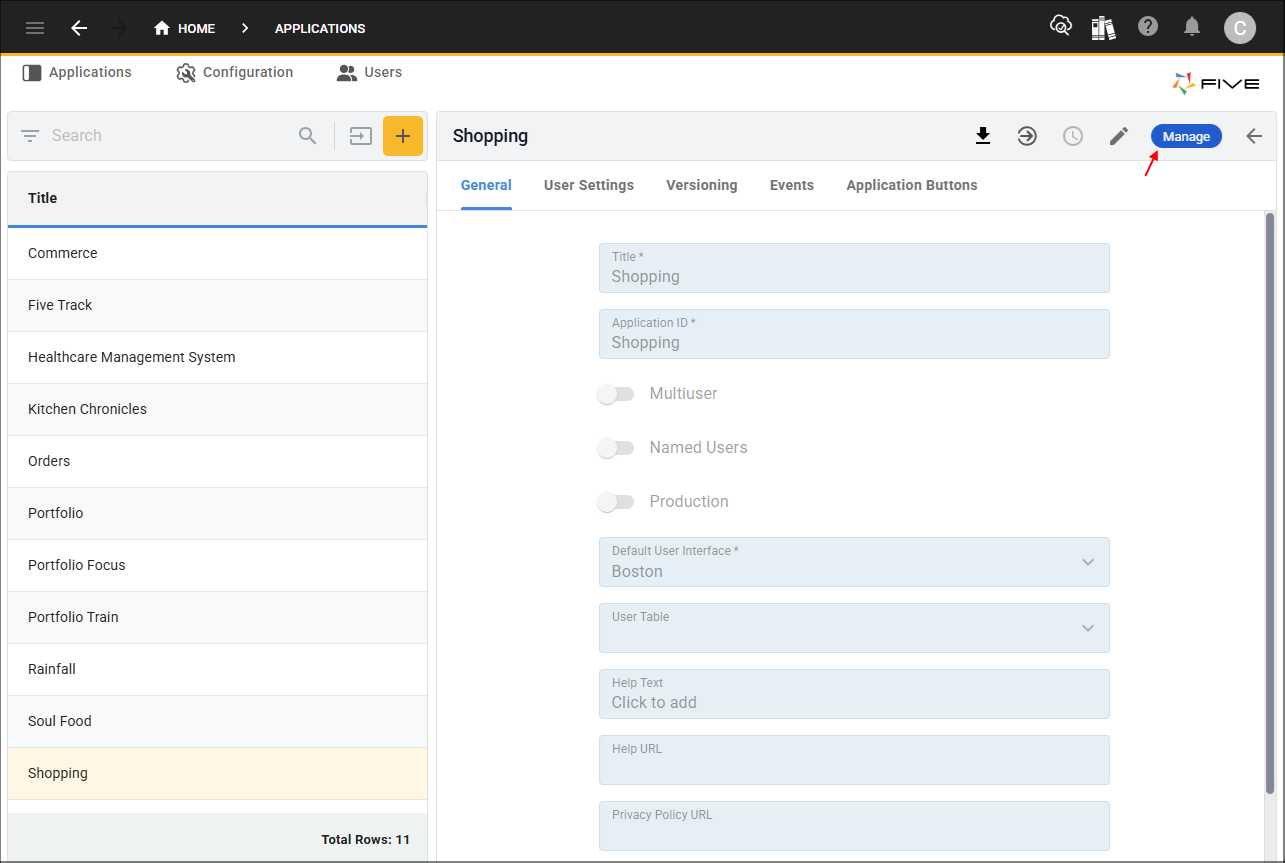
Once you have saved an application, the Manage button will become available and it will take you to a child menu which holds all the elements to build out your application.
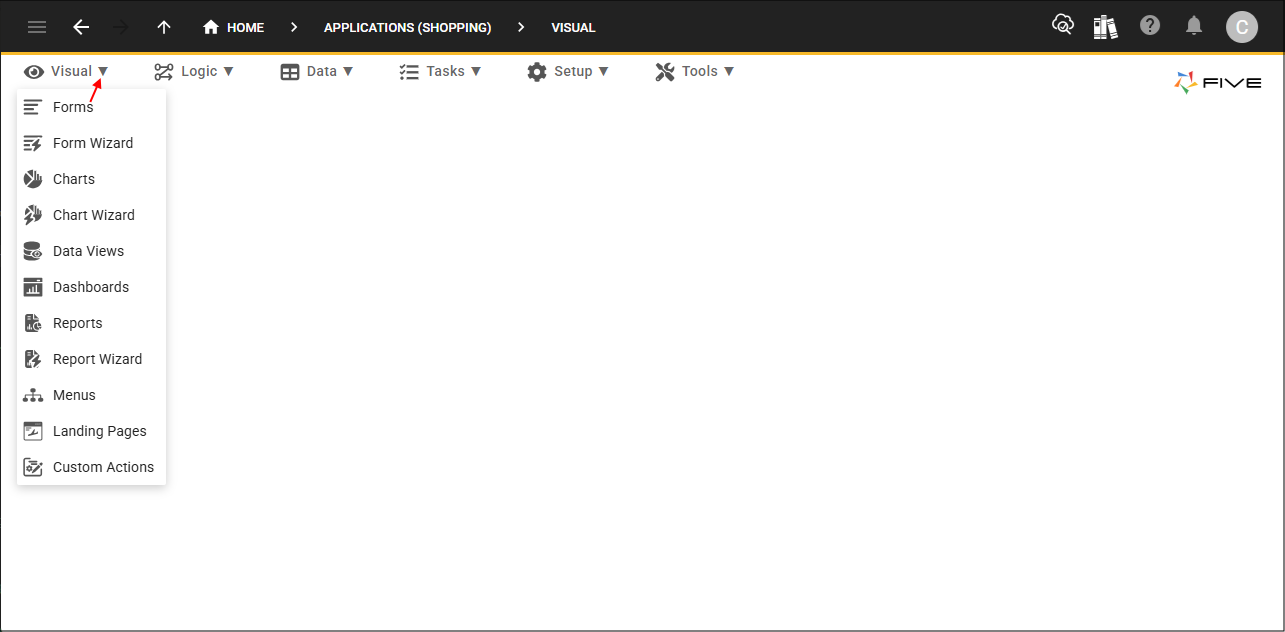
Across the top is the menu which is categorized and when you select one, it will open a sub-menu.
- The Visual menu holds everything that you will visually see in your application
- The Logic menu is where you can add your application's functionality
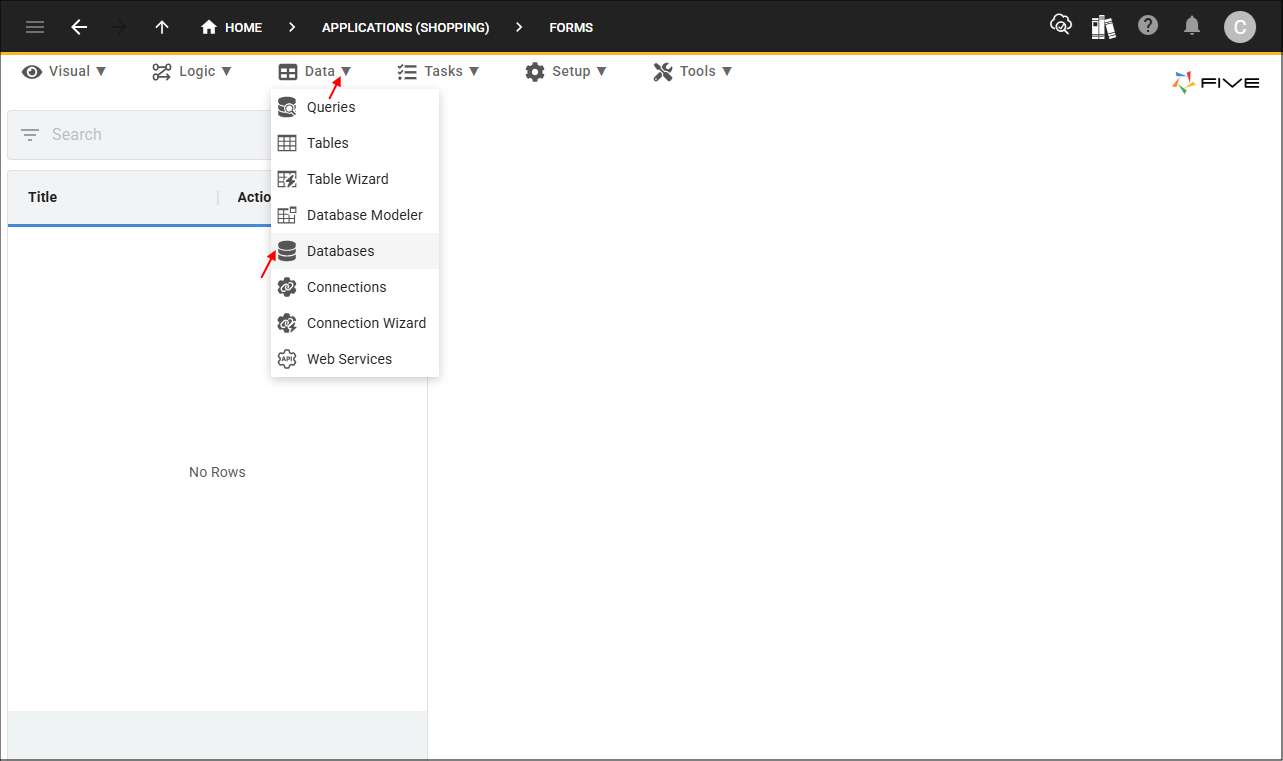
- The Data menu is to handle all your application's data
- The Task menu is where you can create and automate tasks
- The Setup menu holds everything to setup your application
- The Tools menu is for you as a developer in Five to search and maintain your code
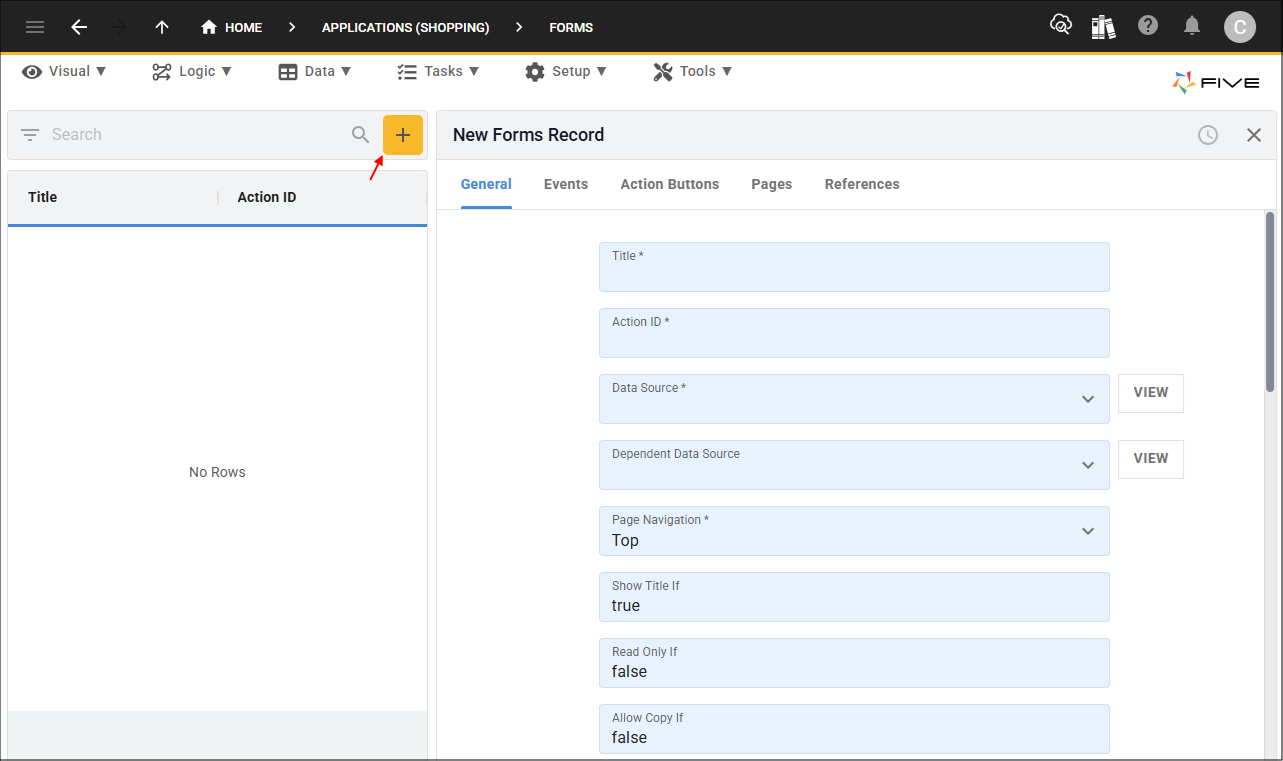
When a menu item is selected, a list of records will be on the left, as records are saved they will be populated in the list, and when the yellow Add Item button is clicked a new form is available on the right. Most views in Five are consistent to enhance your user experience.
Please refer to the User Interface Orientation chapter to get a high-level knowledge of navigating through Five.
What Five Creates When an Application is Saved
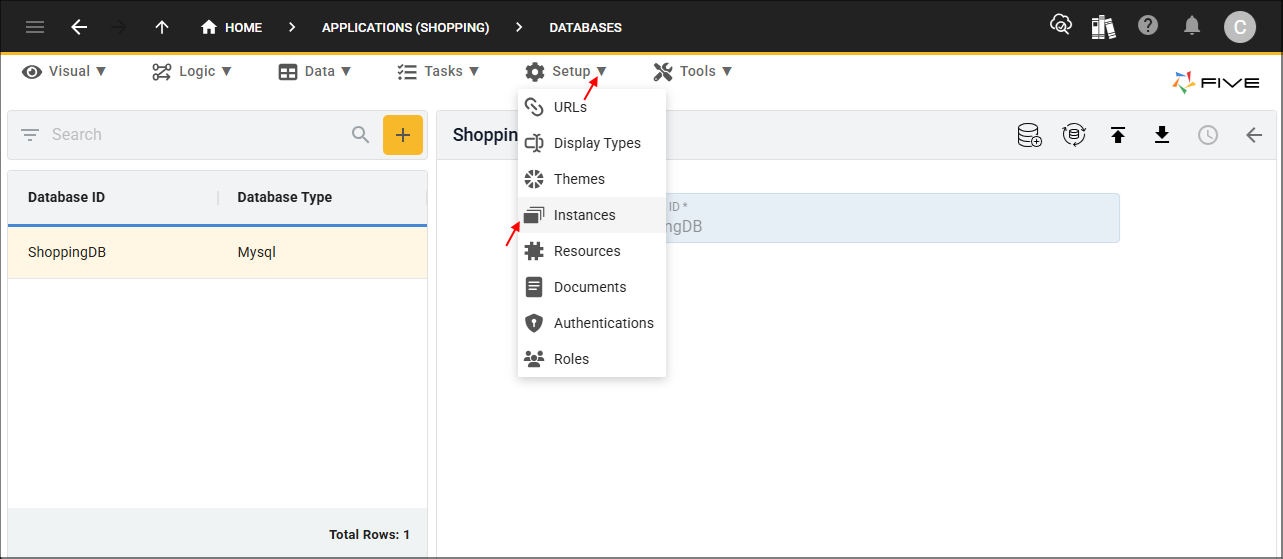
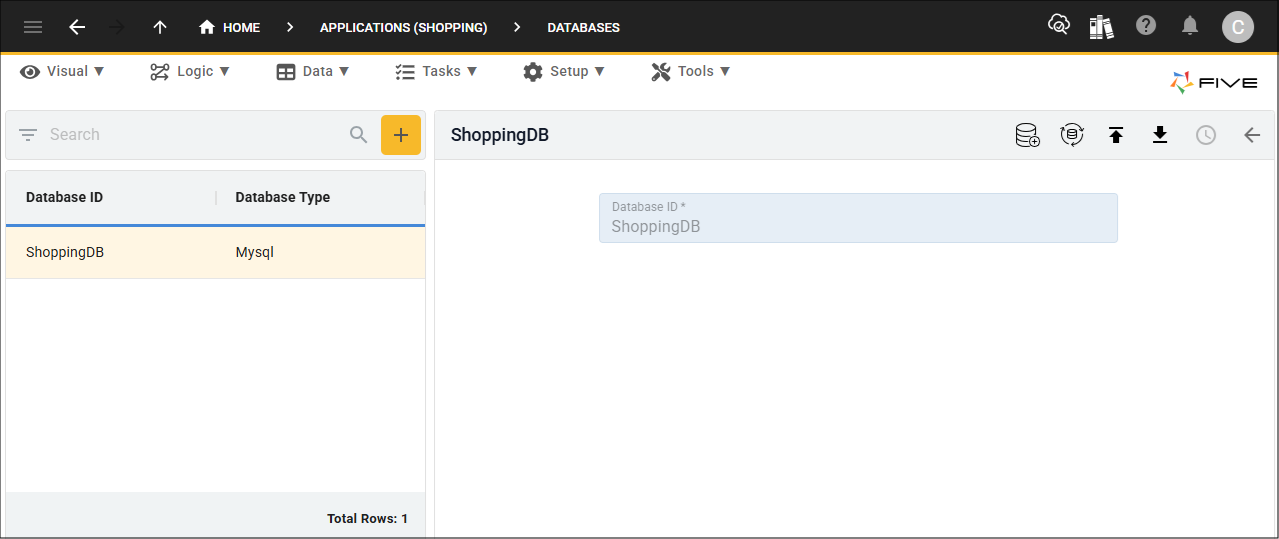
When an application is saved, Five creates a database and establishes the connection with MySQL. Five will take your application's ID and append DB to the end. You can see this by selecting Data in the menu followed by Databases in the sub-menu and selecting the record in the list.
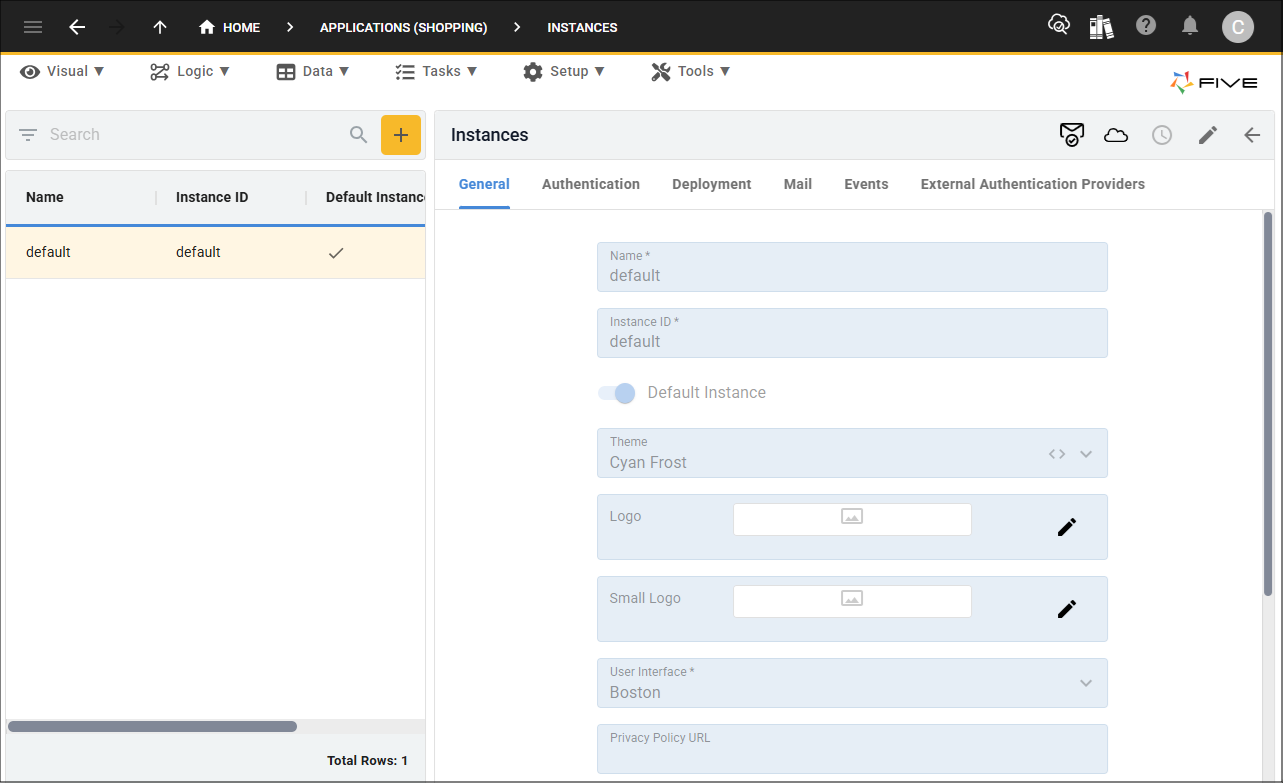
Five will also create an instance for your application. An instance is an instance of your application and you can have multiple instances for your application. The instance that Five creates enables you to deploy your application to the development environment from any view in Five by clicking the Deploy to Development button in Five's toolbar. You can see the instance record by selecting Setup in the menu followed by Instances in the sub-menu and selecting the default record.