Import Data
Last updated 2/09/2025
info
You can find the Import Data video in the Introductory Videos chapter that will cover this documentation.
You can import data for your application several ways:
- Import CSV formatted files
- Import a MySQL file
- Create a connection with an external API
This documentation will demonstrate how to import the ShoppingList.txt and Item.txt files into the ShoppingList and Item tables. You can download both of these files from the Shopping chapter in the Downloads Folder.
The fields in the text files are named exactly the same as in Five, because of this, Five will automatically marry up the field name in the file to the field name in the table.
Import the Shopping.txt File
1. Select Data in the menu followed by Tables in the sub-menu.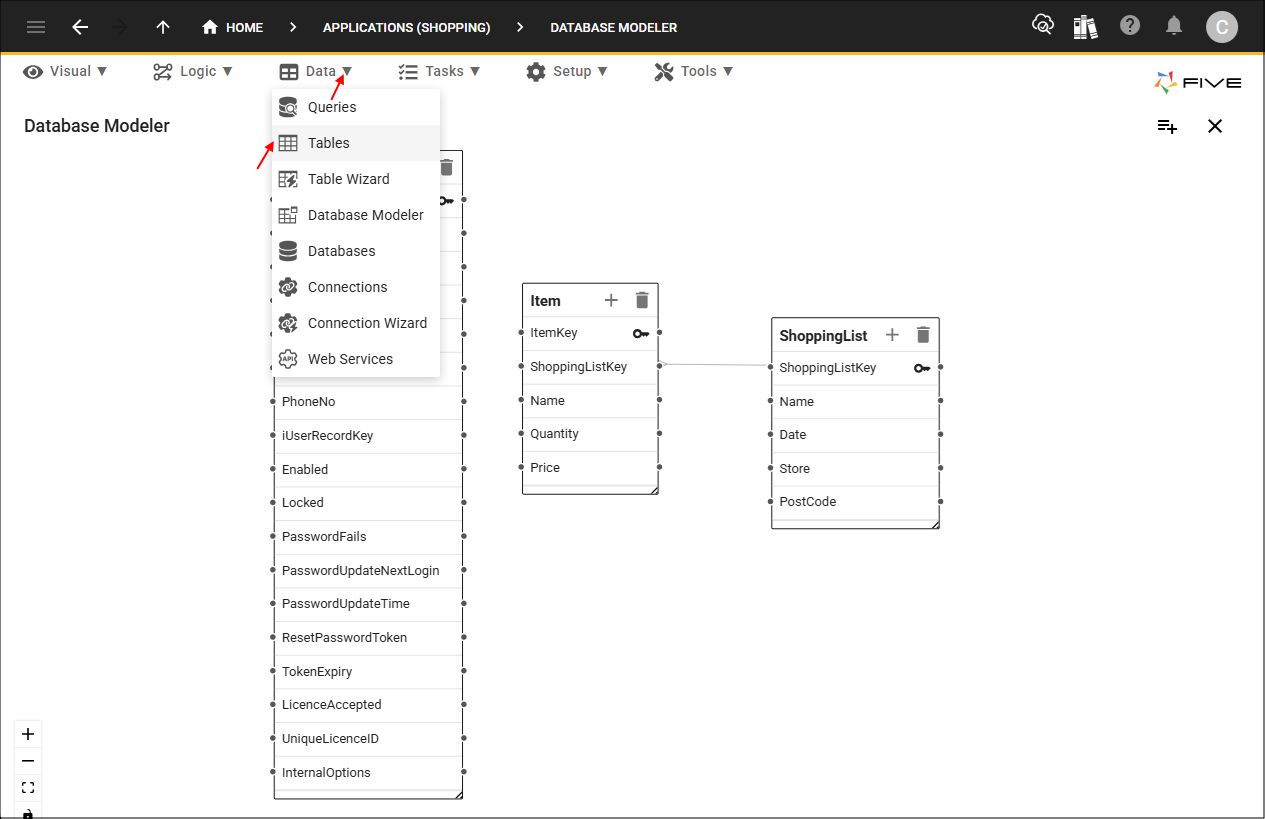
Figure 1 - Tables menu item
2. Click the Import CSV into Table button.
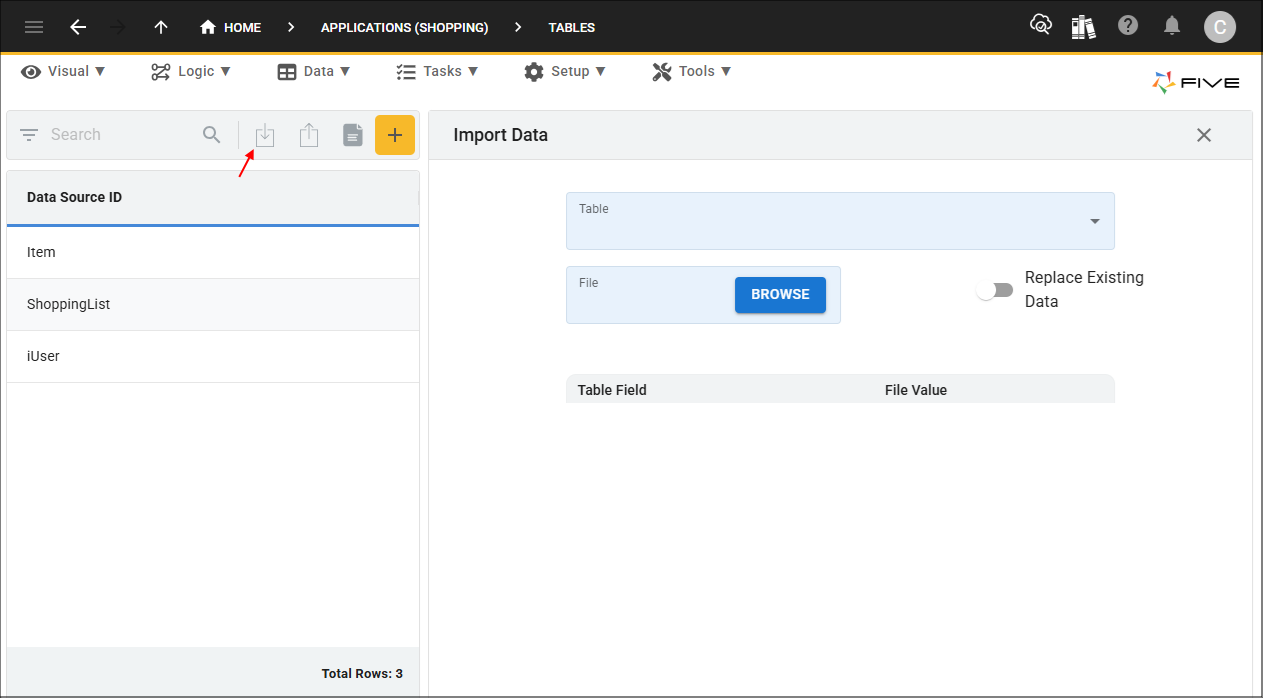
Figure 2 - Import CSV into Table button
3. Click the lookup icon in the Table field and select ShoppingList.
4. Click the Browse button in the File field, navigate and open the ShoppingList.txt file.
5. Click the lookup icon in the Date Format field and select YYYYMMDD.
6. Click the lookup icon in the Date Separator field and select - (hyphen).
info
You need to tell Five how your date is formatted in your file so Five can match the formatting on import.
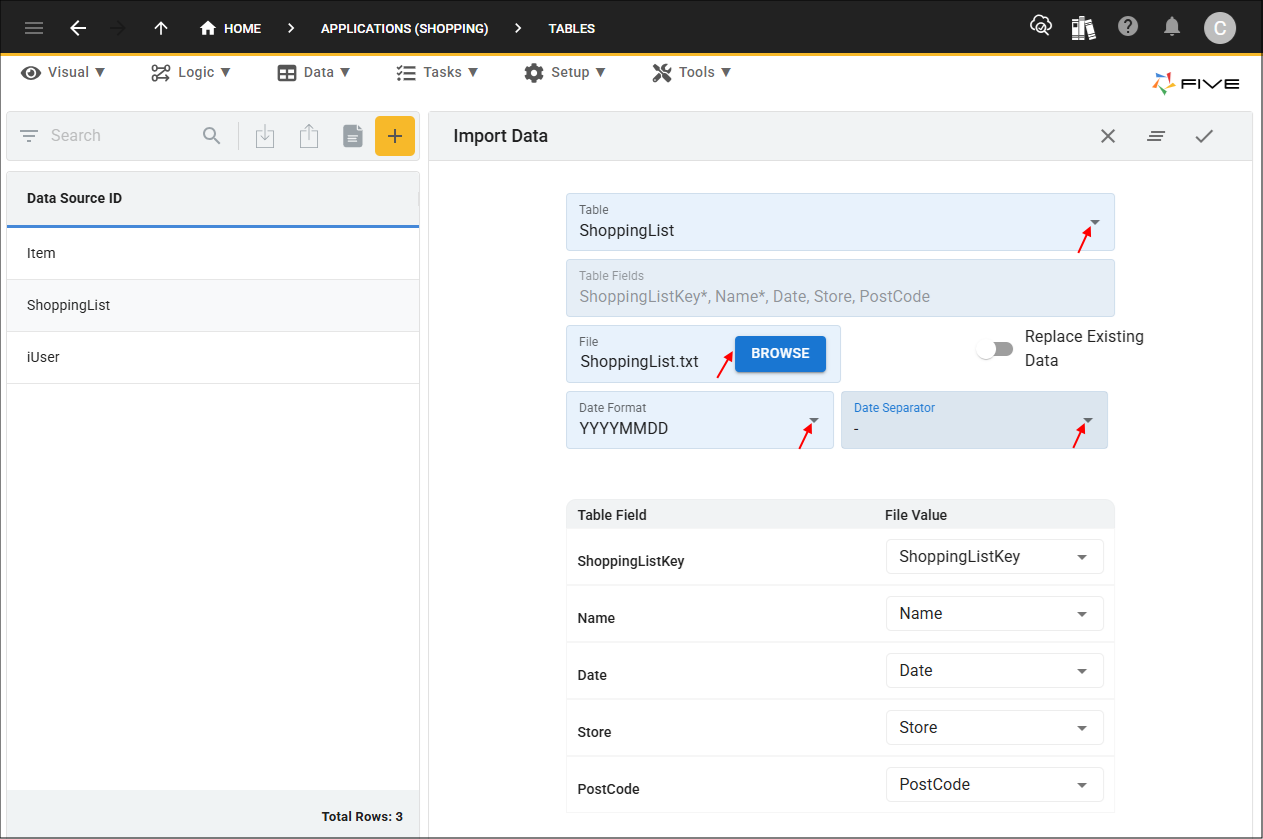
Figure 3 - Import ShoppingList data
7. Click the Save button in form app bar.
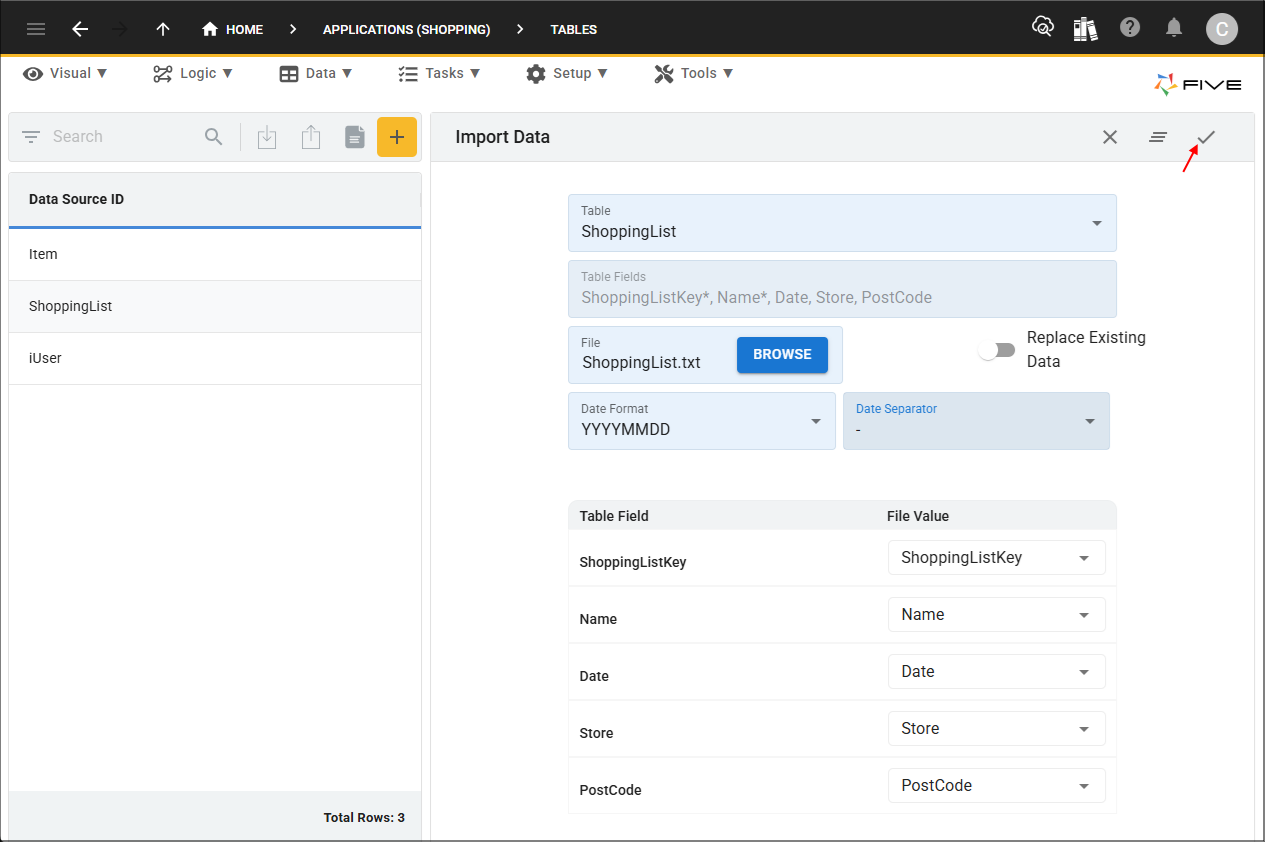
Figure 4 - Save button
8. Click the OK button.
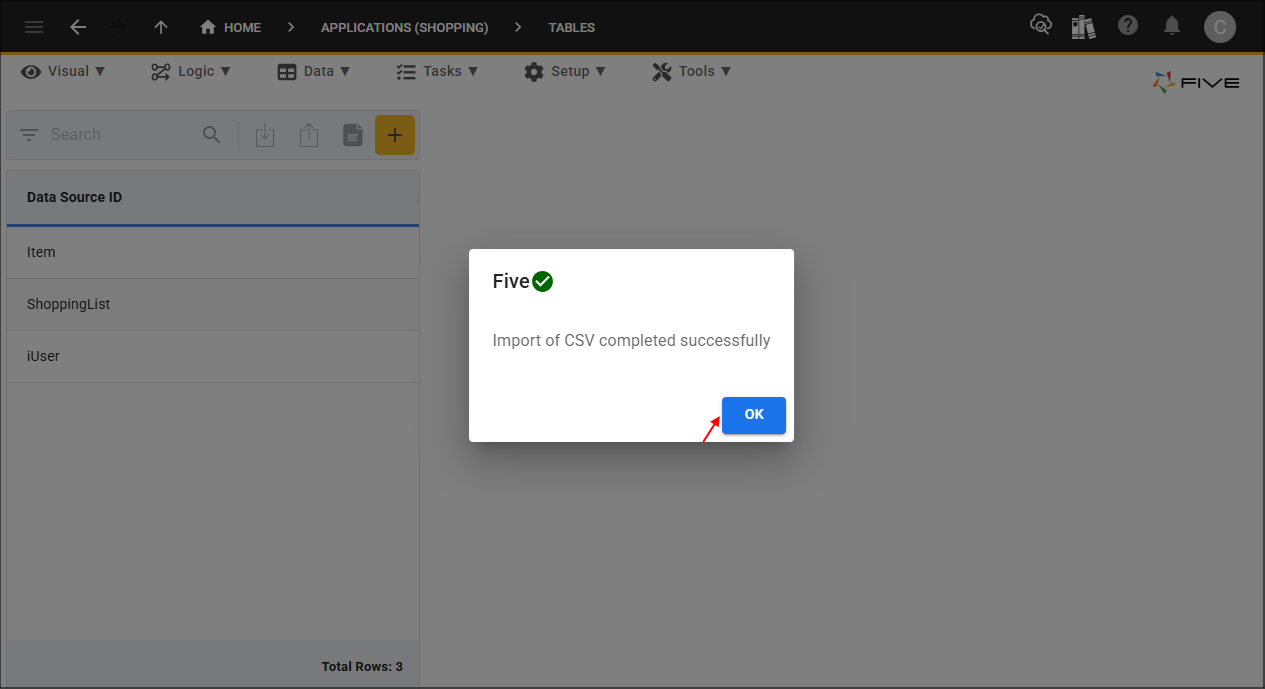
Figure 5 - OK button
Import the Item.txt File
1. Click the Import CSV into Table button.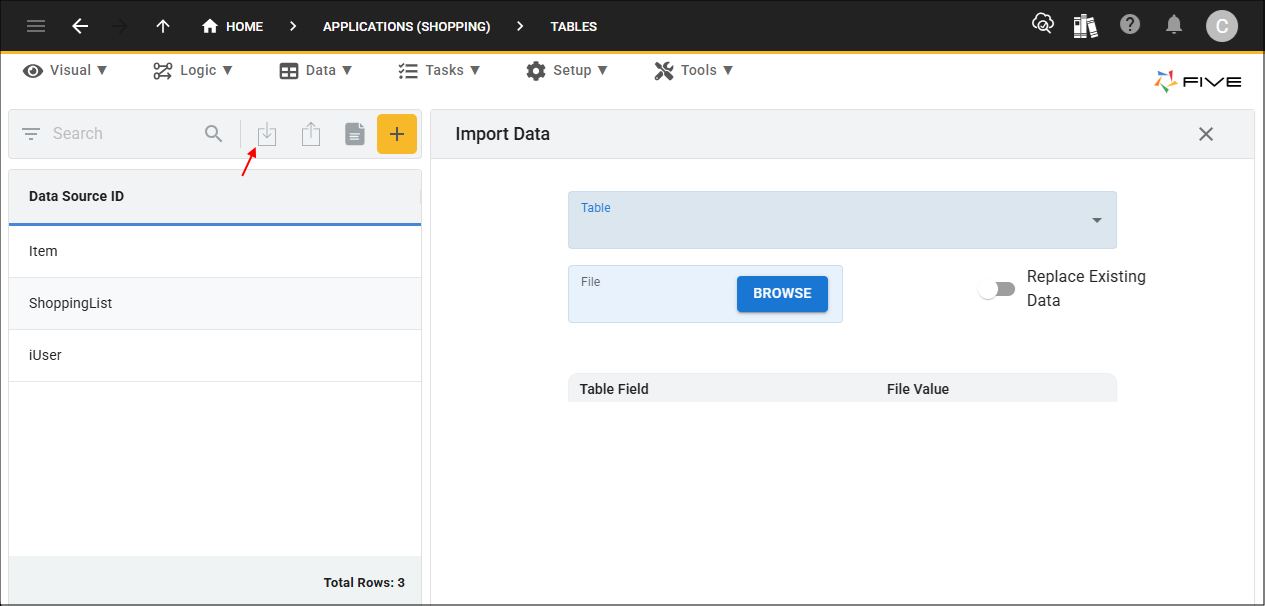
Figure 6 - Import CSV into Table button
2. Click the lookup icon in the Table field and select Item.
3. Click the Browse button in the File field, navigate and open the Item.txt file.
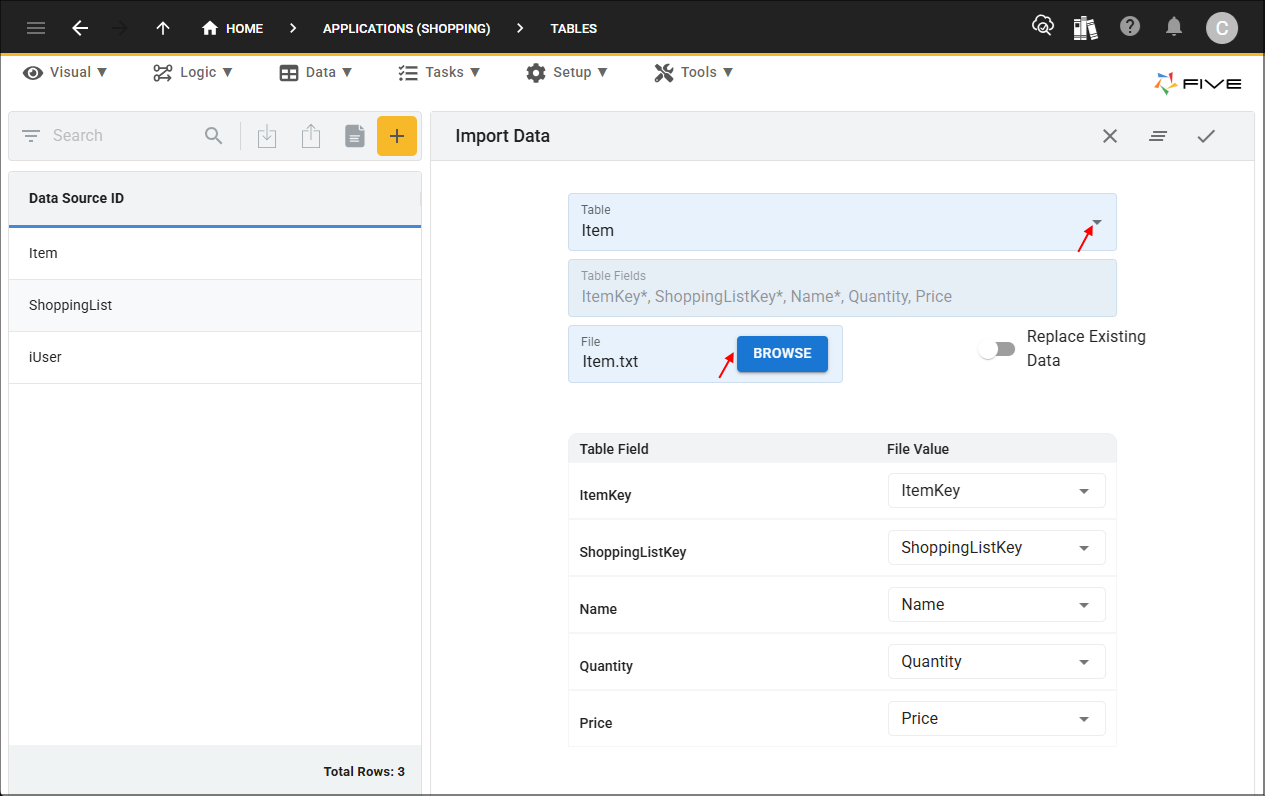
Figure 7 - Import Item data
4. Click the Save button in the form app bar.
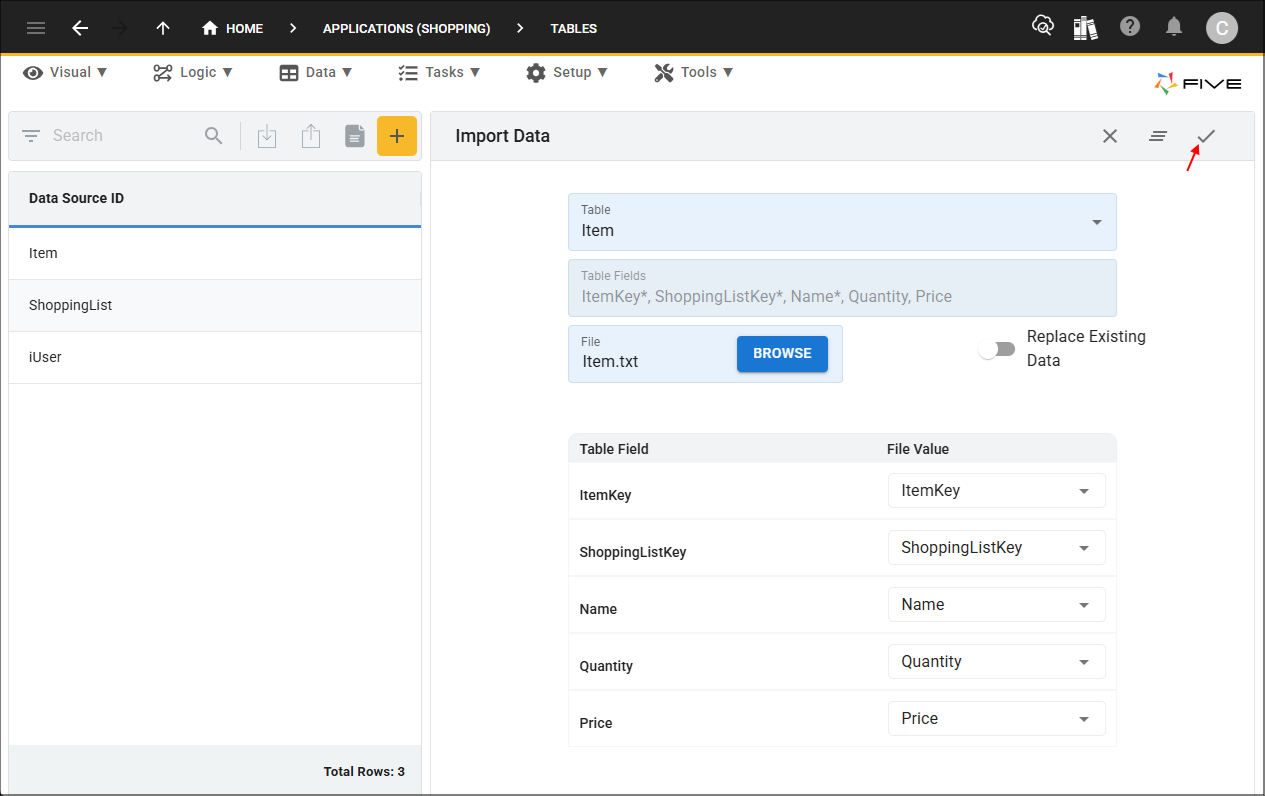
Figure 8 - Save button
5. Click the OK button.
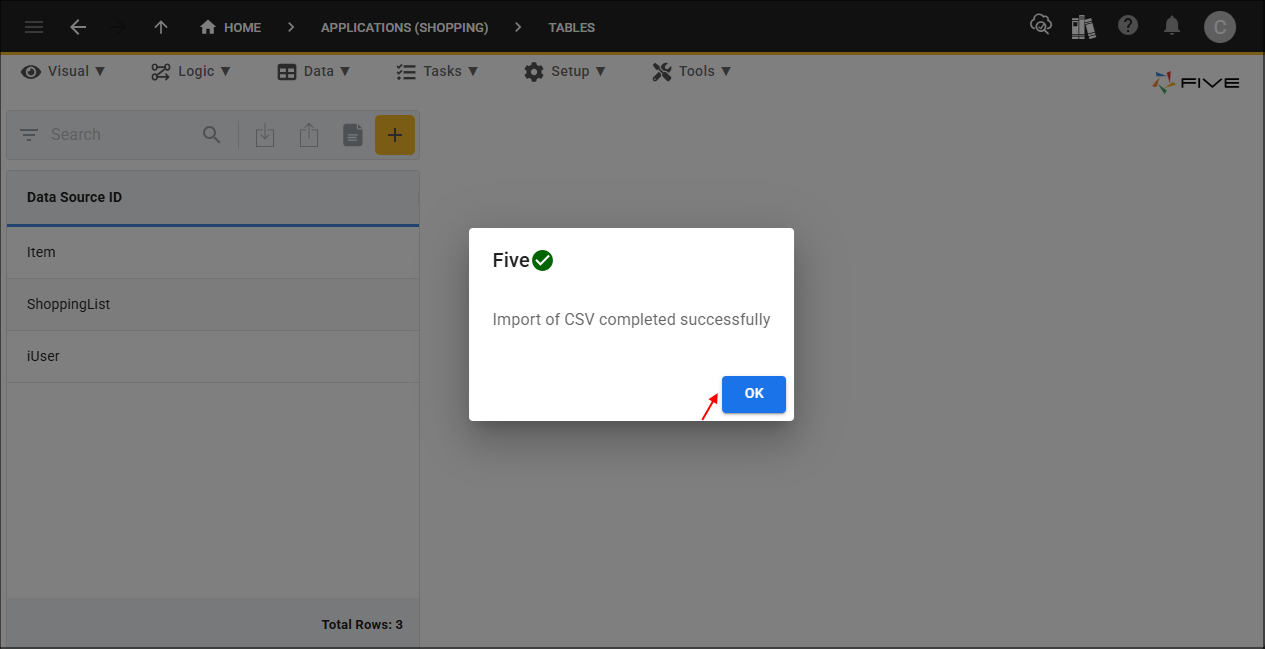
Figure 9 - OK button