Create Tables
Last updated 1/09/2025
You can create tables in Five several ways:
- Table Wizard
- Tables
- Database Modeler
The quickest and recommended way is through our Table Wizard. Two tables will be added into the Shopping application, these tables will be called ShoppingList and Item.
Add ShoppingList Table
1. Select Data in the menu followed by Table Wizard in the sub-menu.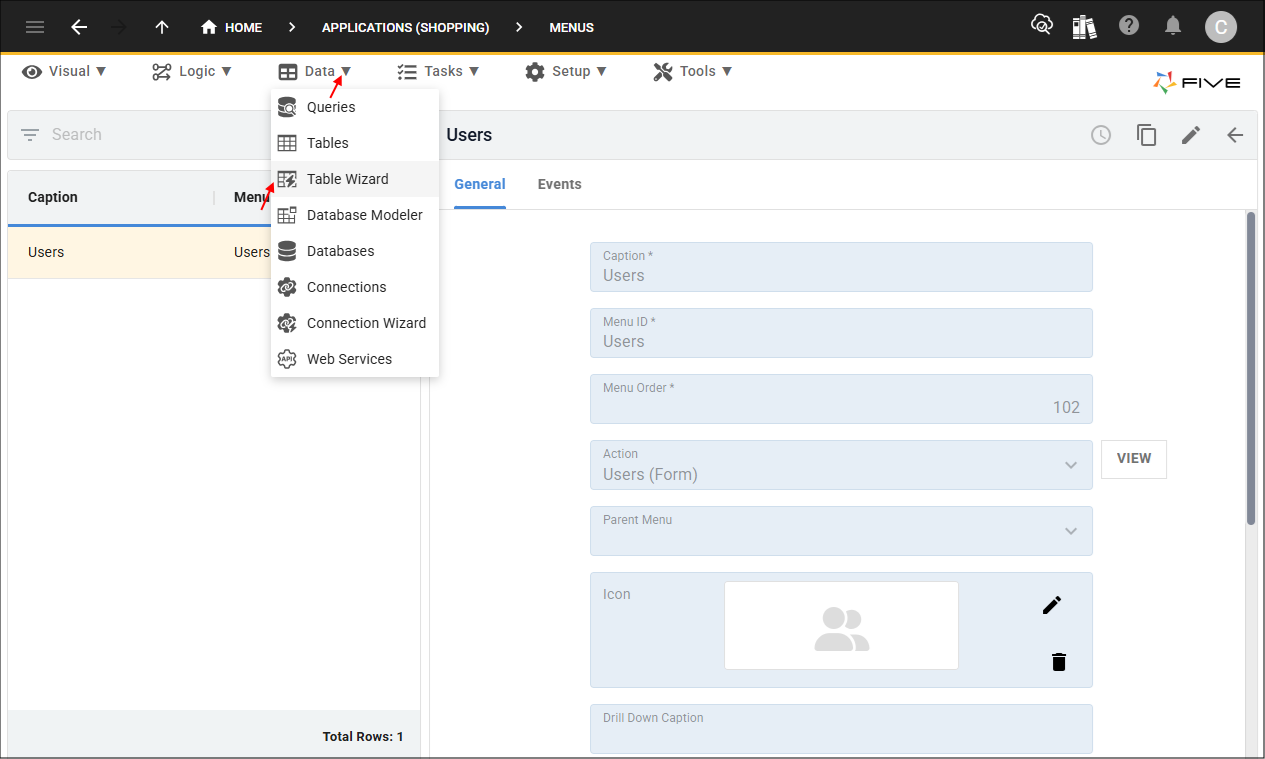
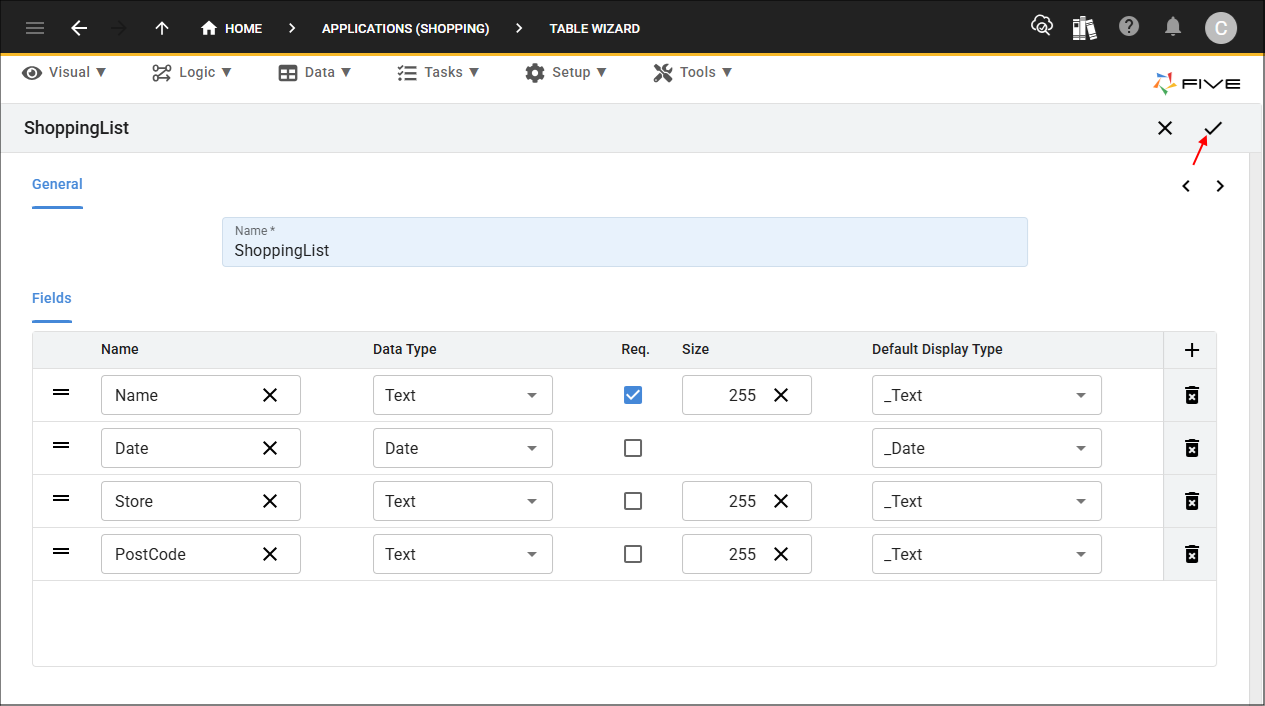
2. Type ShoppingList in the Name field.
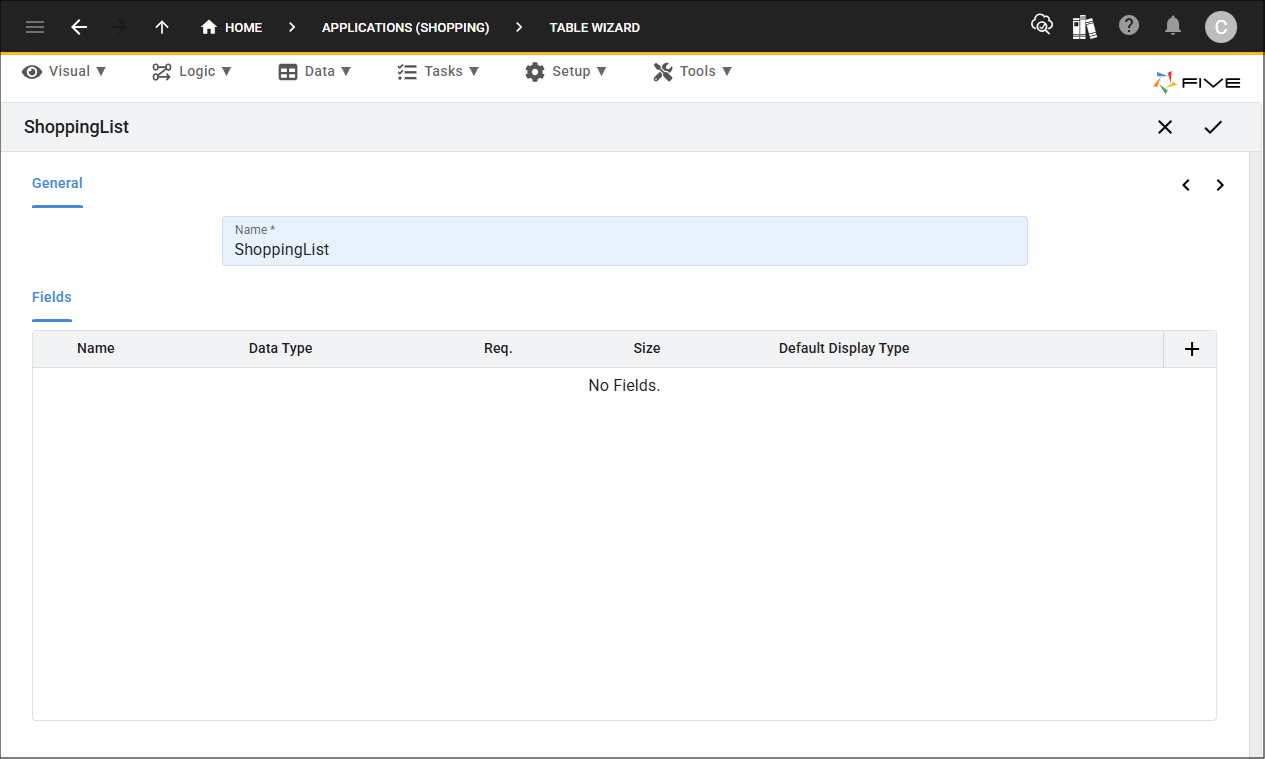
3. Click the Add Fields button and type Name in the Name field.
4. Click the Add Fields button and type Date in the Name field.
5. Click the Add Fields button and type Store in the Name field.
6. Click the Add Fields button and type PostCode in the Name field.
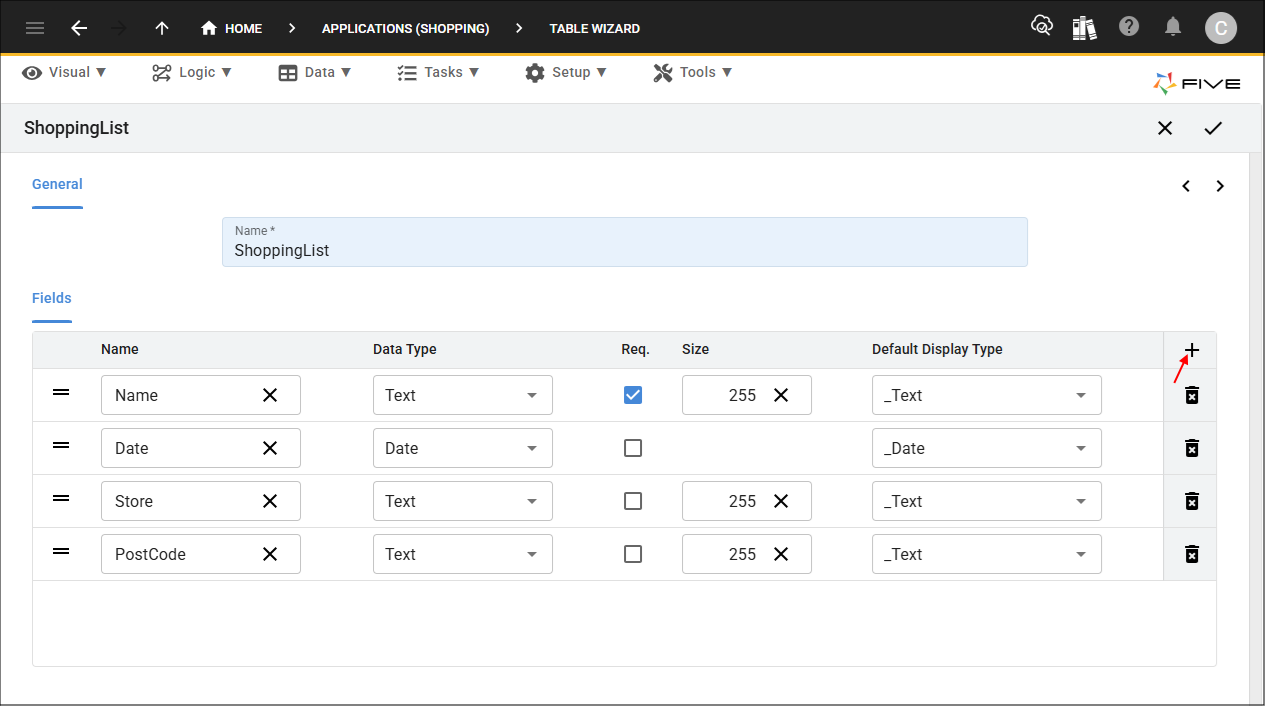
7. Click the Save button in the Table Wizard app bar.
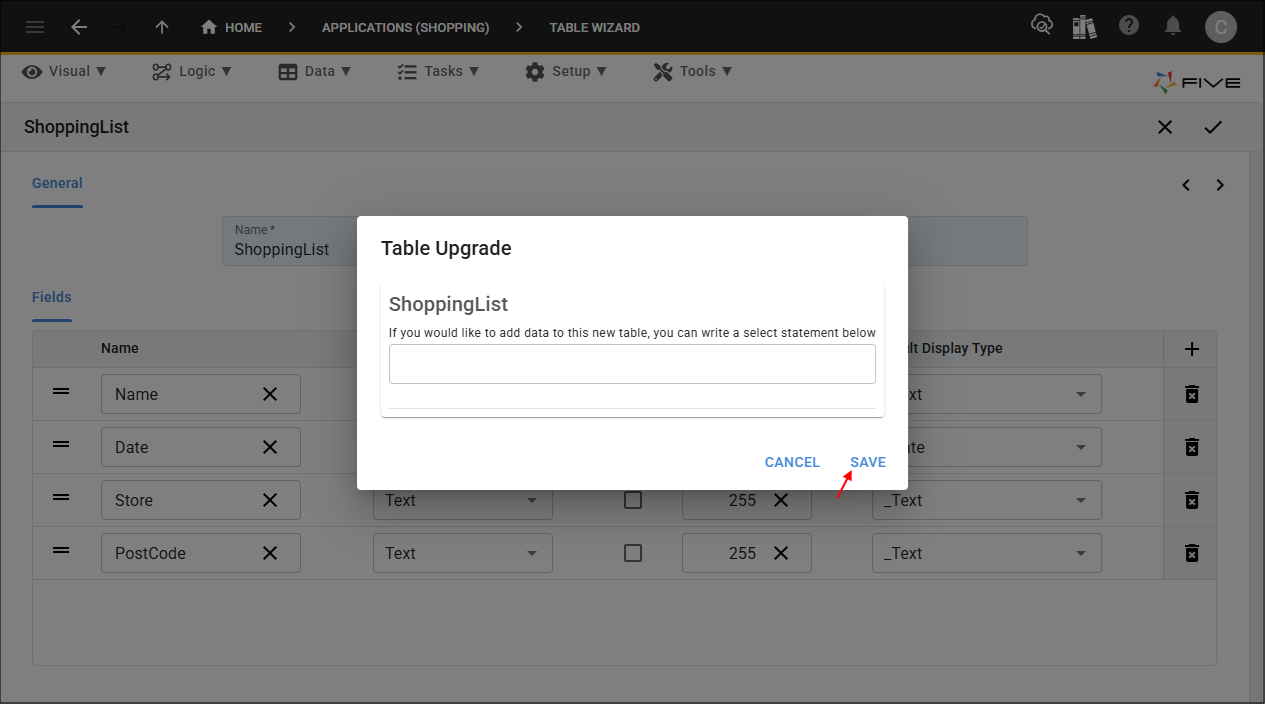
8. Click the Save button in the Table Upgrade window.
Add the Item Table
1. Type Item in the Name field.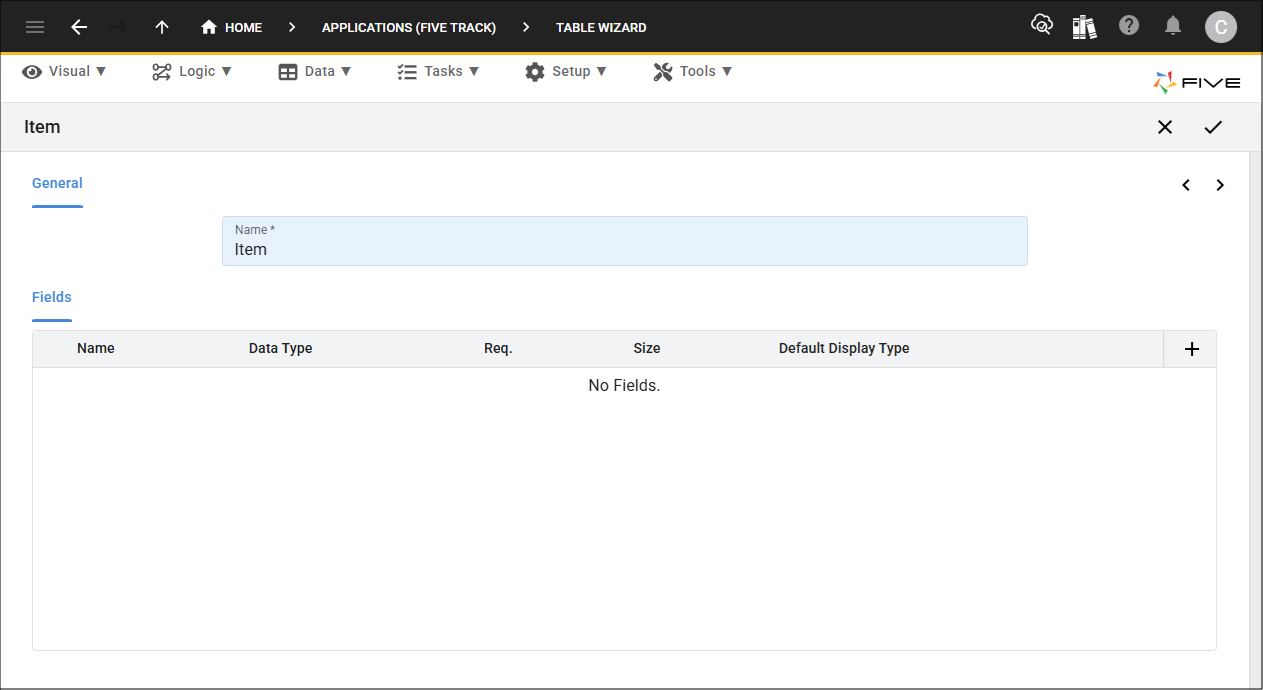
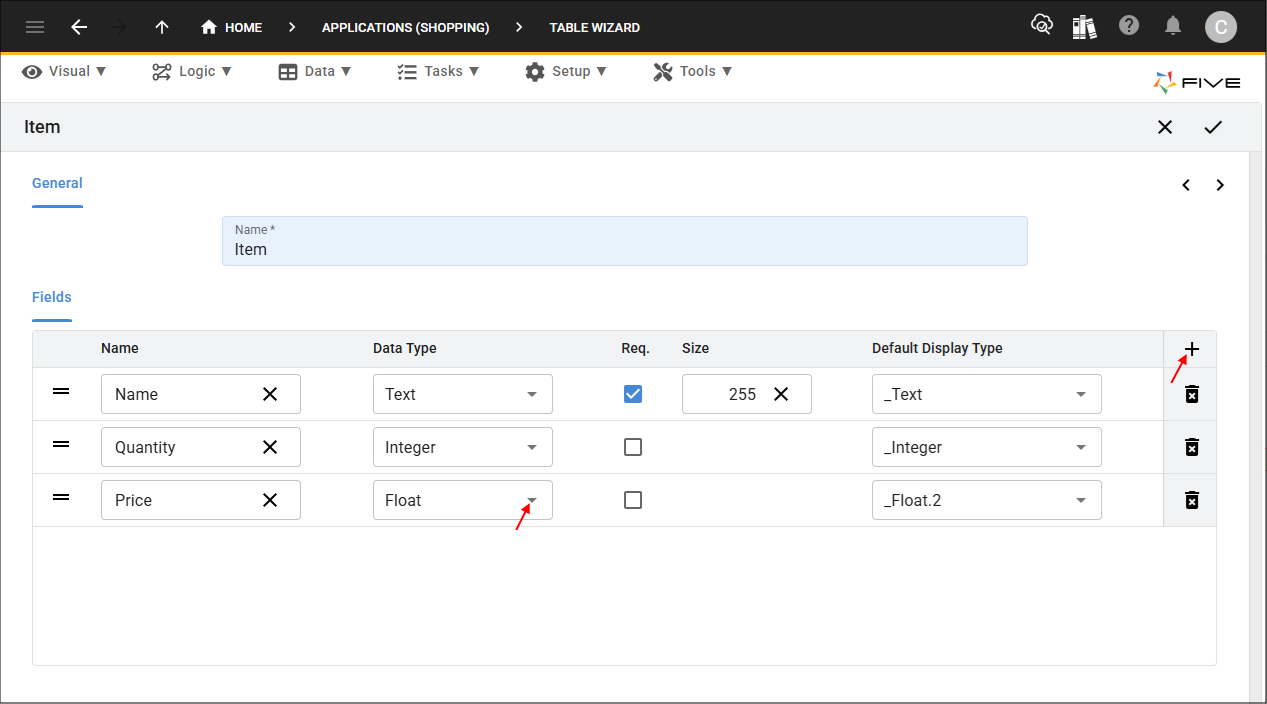
2. Click the Add Fields button and type Name in the Name field.
3. Click the Add Fields button and type Quantity in the Name field.
4. Click the Add Fields button and type Price in the Name field.
5. Click the lookup icon in the Data Type field and select Float.
6. Click the Next button.
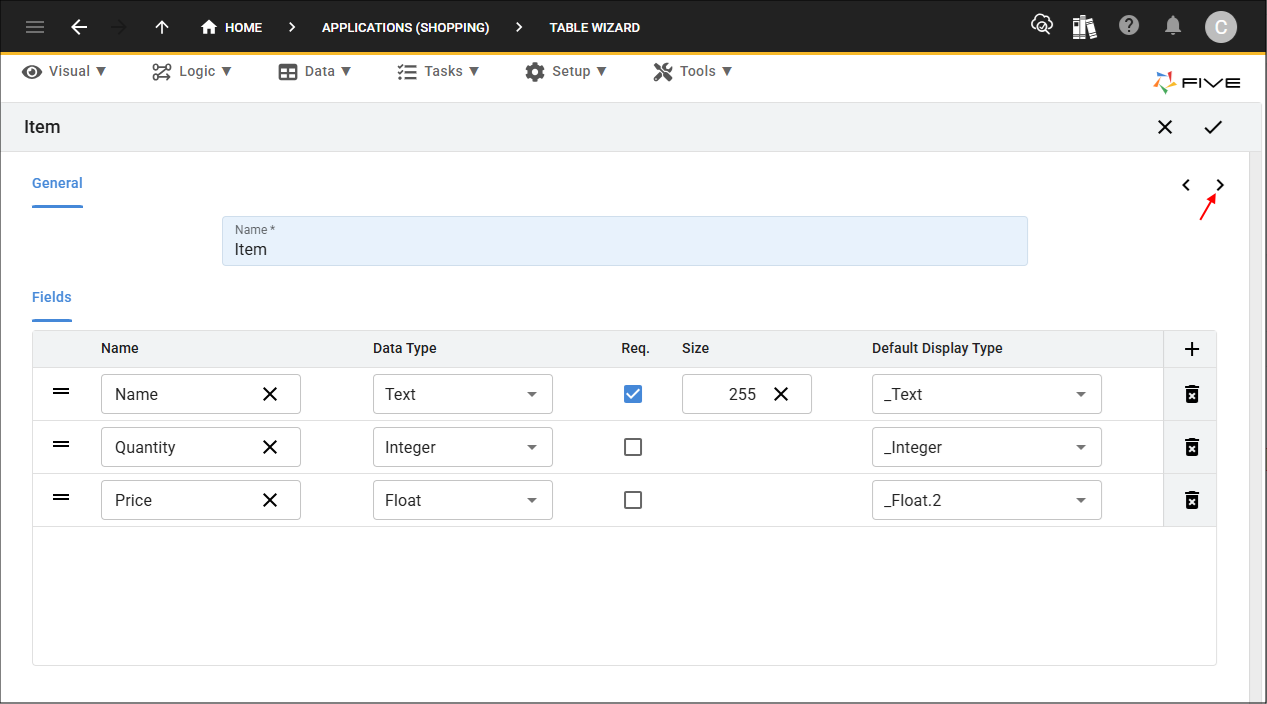
7. Click the Add Relationships button.
8. Click the lookup icon in the Table field and select ShoppingList.
9. Click the Required checkbox.
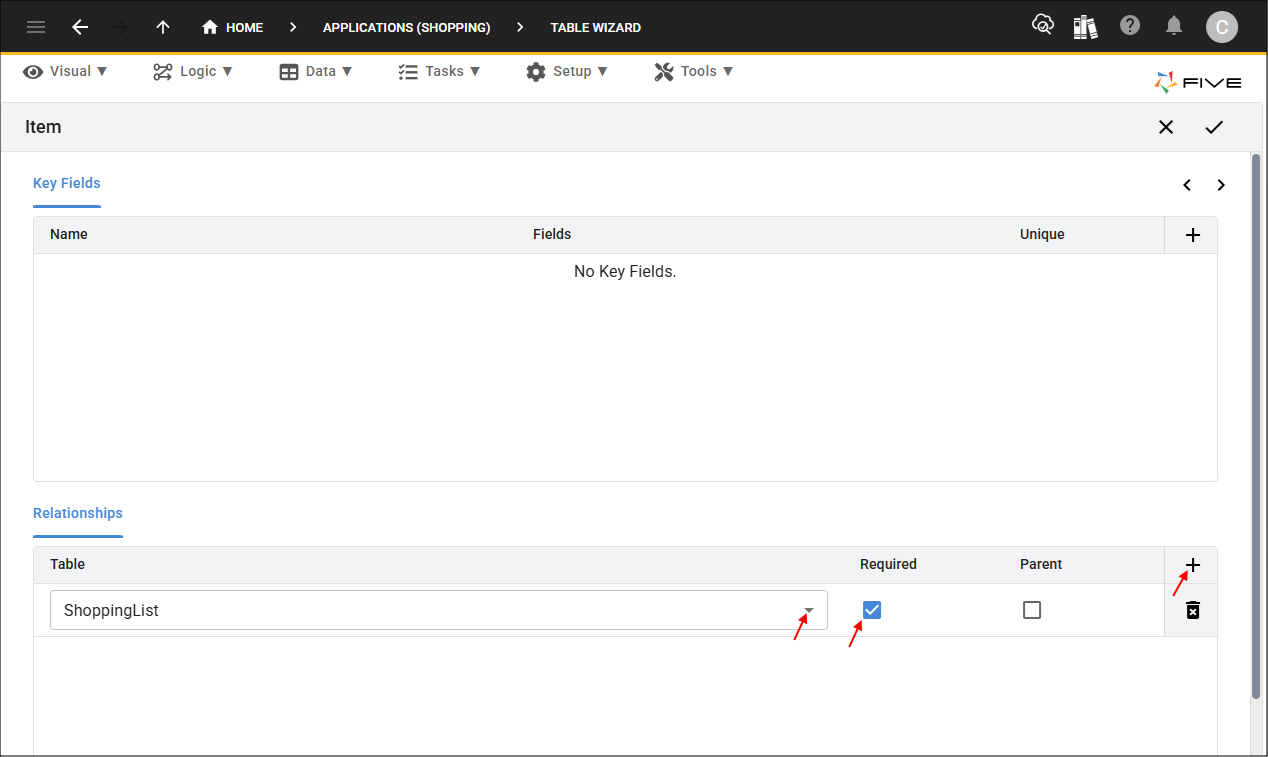
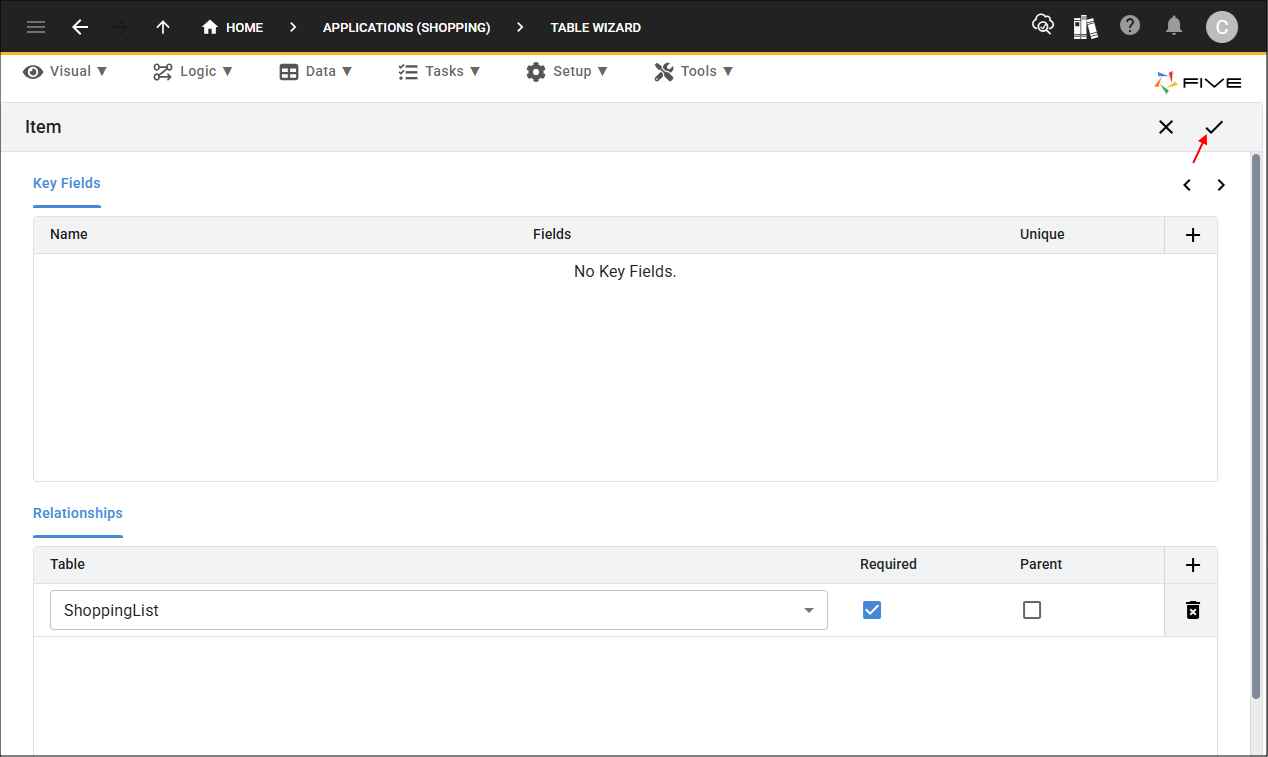
10. Click the Save button in the Table Wizard app bar.
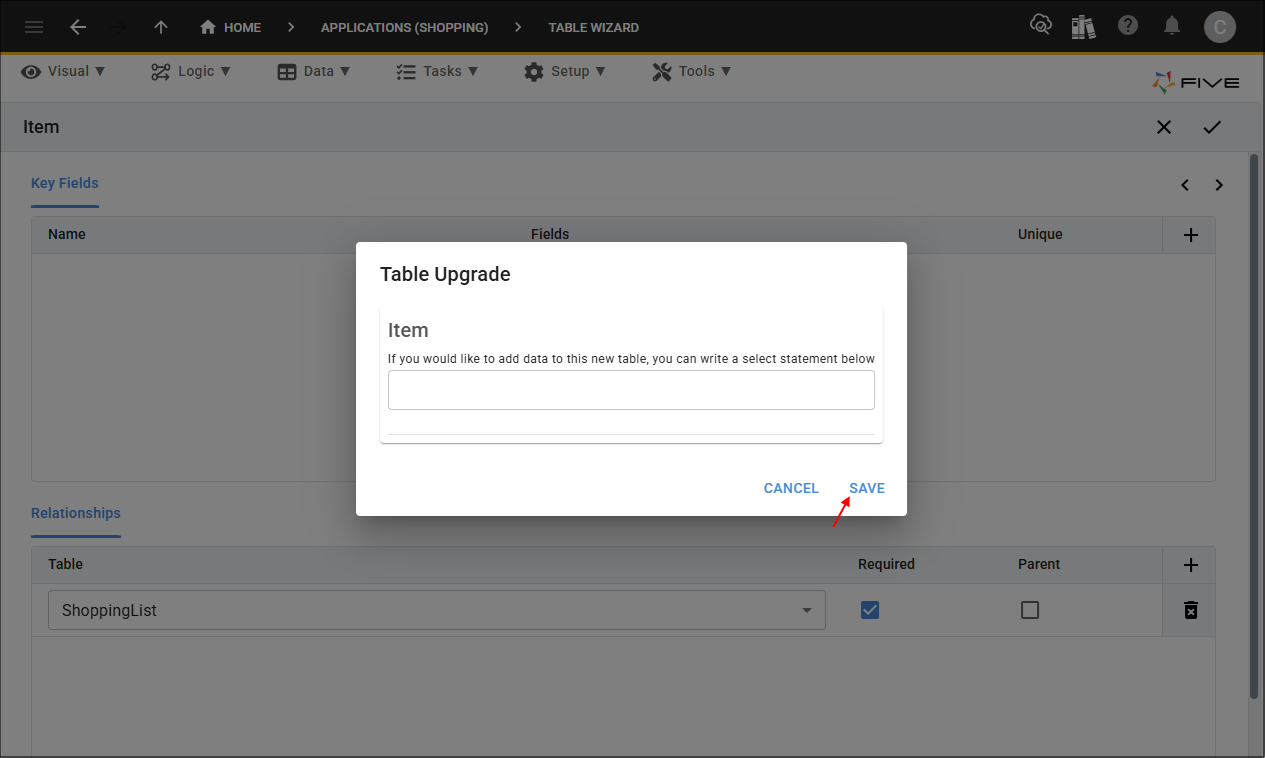
11. Click the Save button in the Table Upgrade window.
Locate Your Table Records
All your table records will be stored in the Tables view and this is where you can maintain your records.
1. Select Data in the menu followed by Tables in the sub-menu.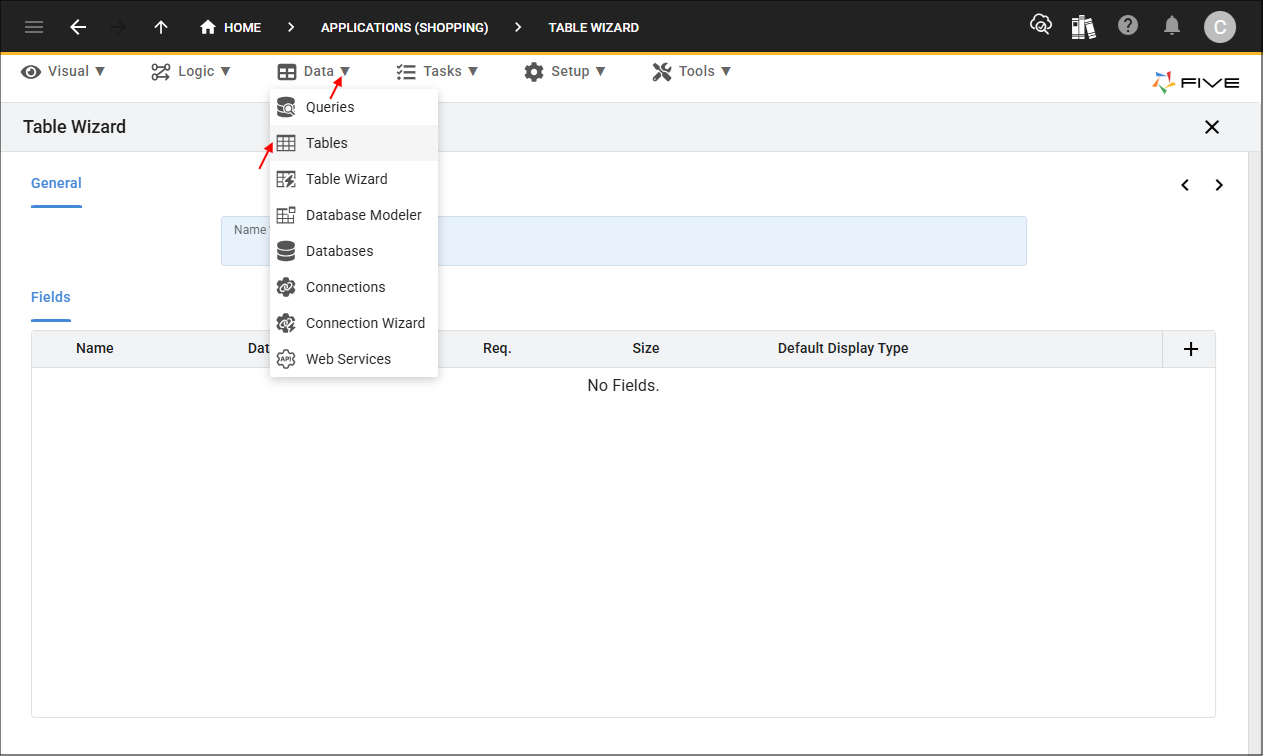
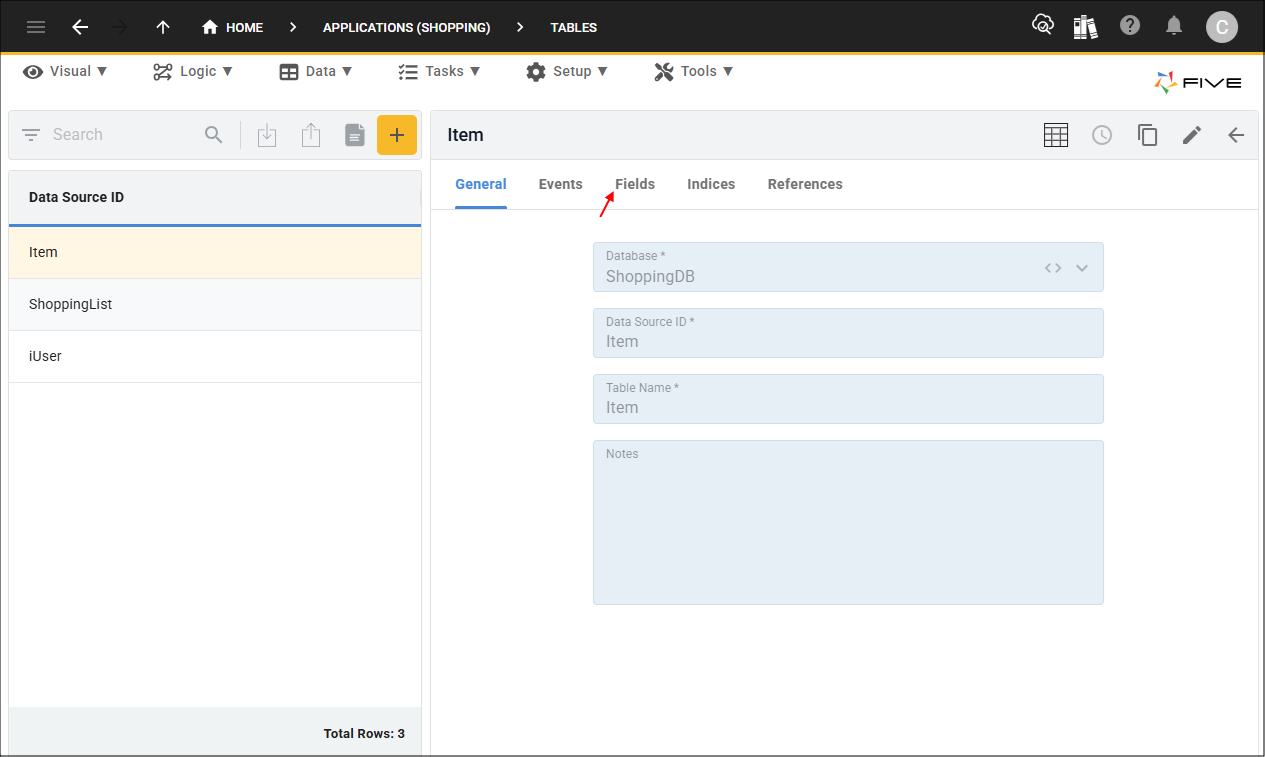
2. Select the Item record and click the Fields tab.
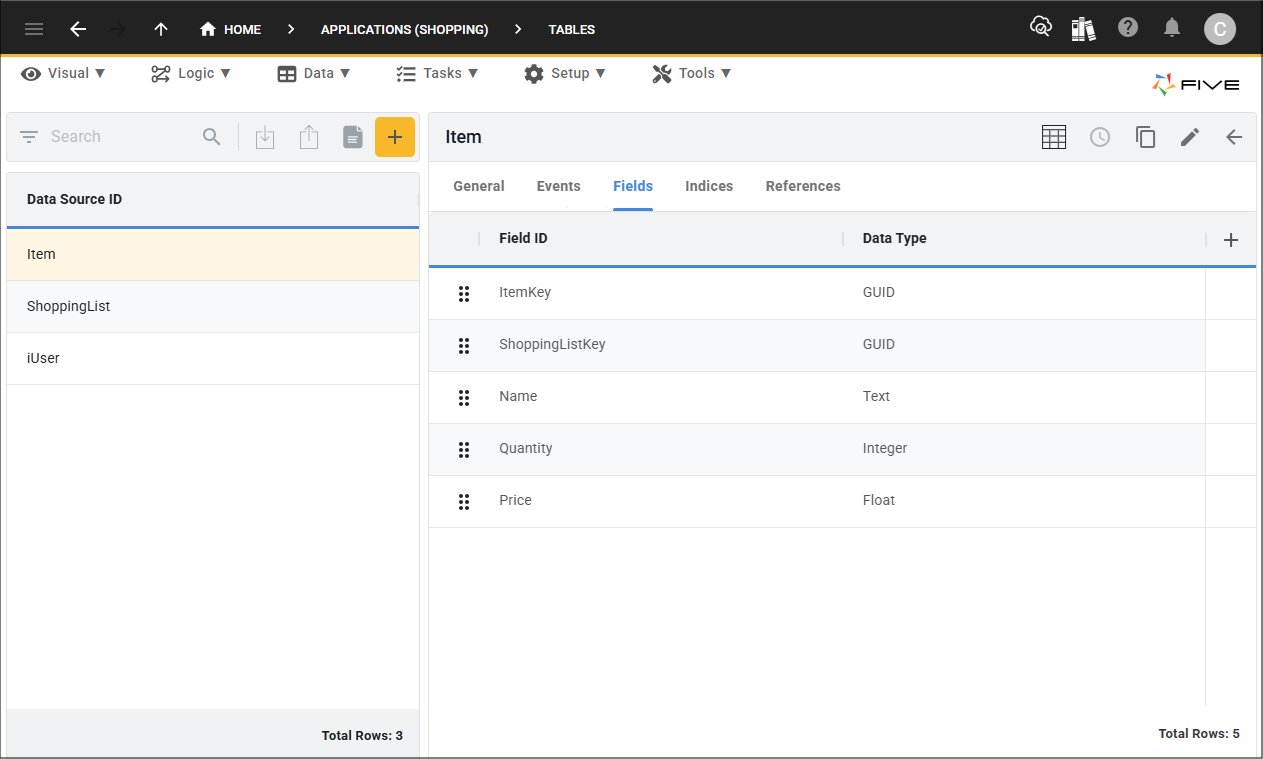
The ItemKey record is our primary key field, when you create a table via our Table Wizard, Five will automatically create this field to store the key that uniquely identifies each record in your table. You can select the record in the list to see the full details for the record.
There is also a ShoppingListKey field, when you create a relationship in our Table Wizard, Five will automatically create this field to store the key for the record in the foreign table ShoppingList. You can select the record in the list to see the full details for the record.
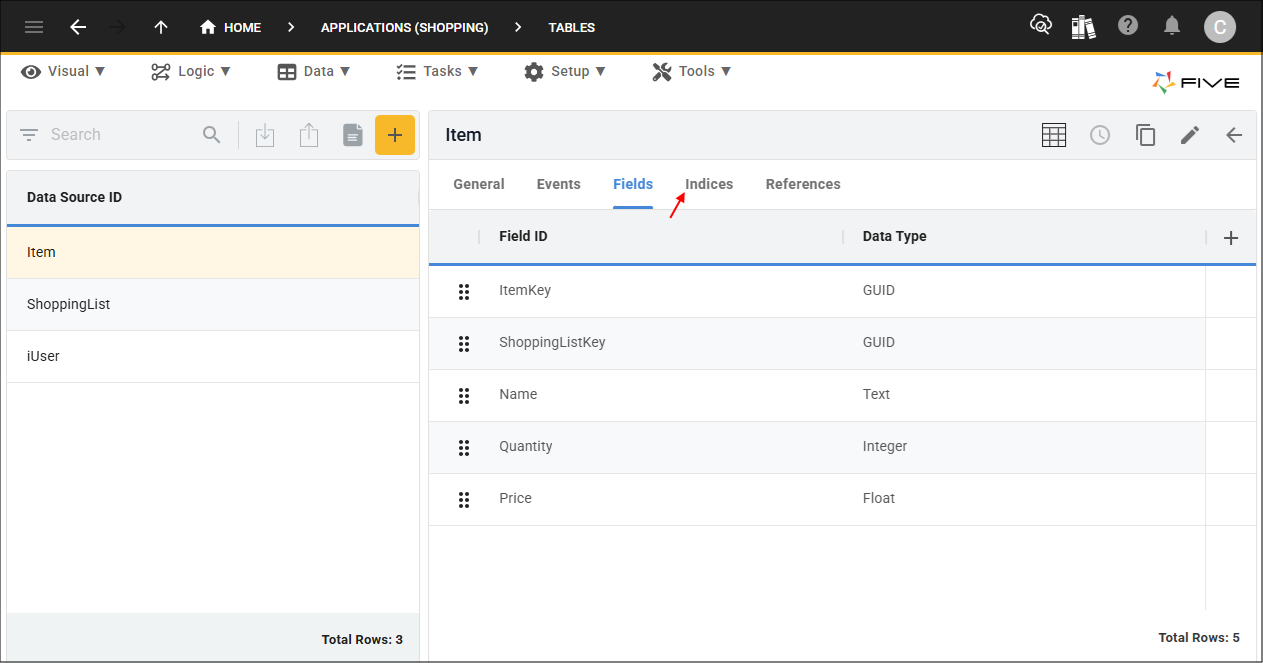
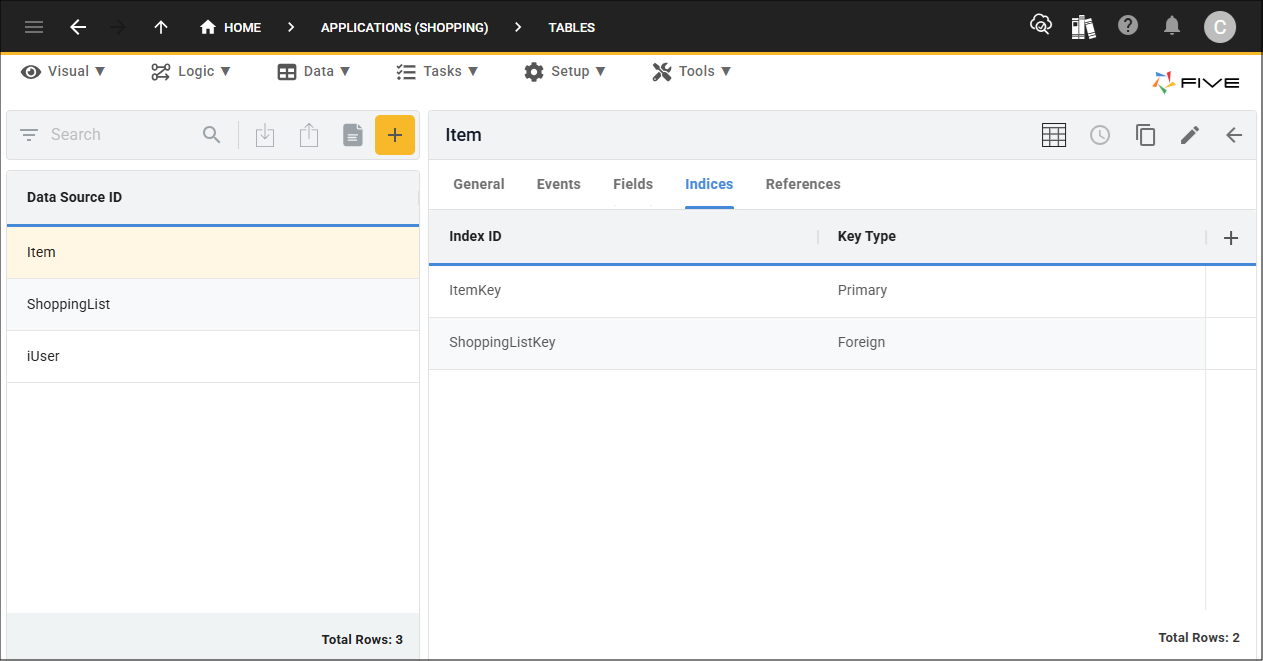
3. Click the Indices tab.
The ItemKey record is our primary index for our table. You can select the record in the list to see the full details for the record.
The ShoppingListKey record is our foreign index and forms a relationship between the Item table and the ShoppingList table. You can select the record in the list to see the full details for the record.
Database Modeler
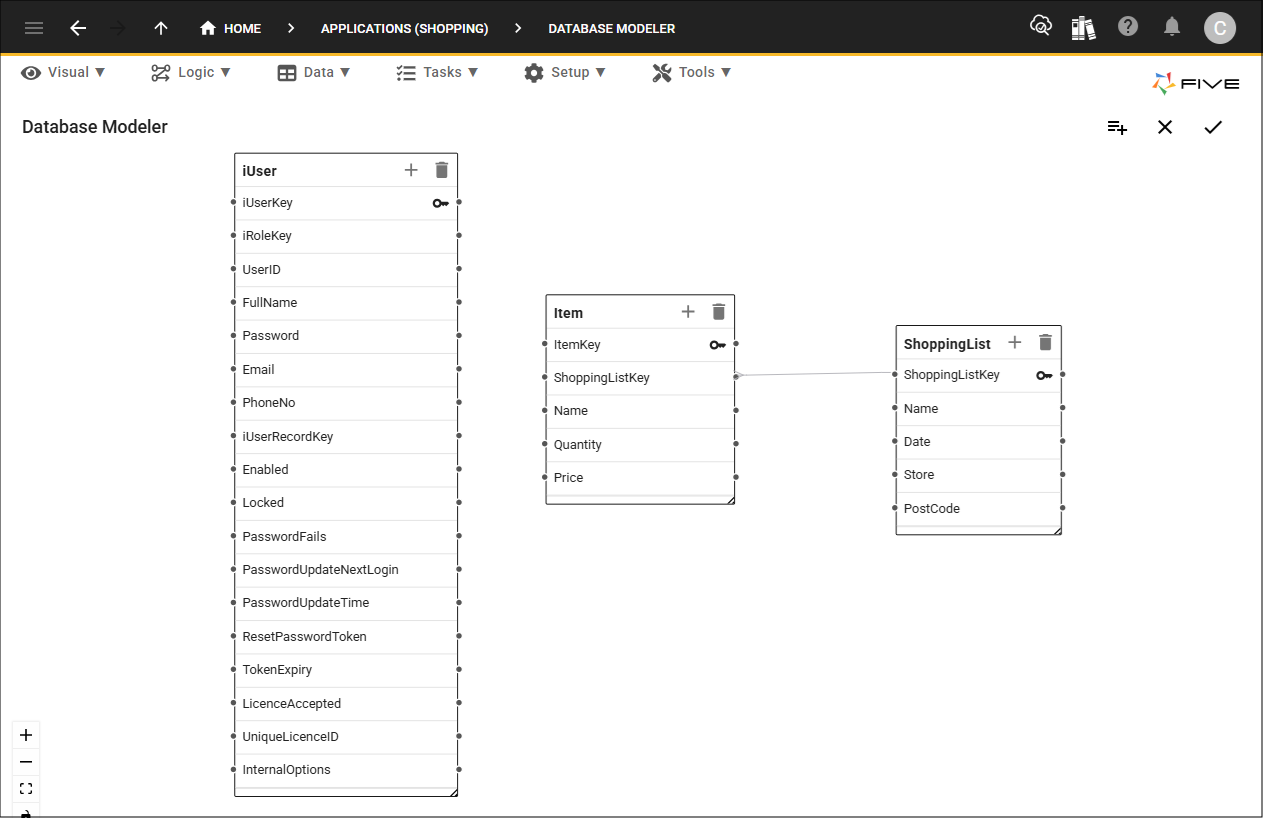
The third way to add tables into Five is by using our Database Modeler. It is also where you can see a visual representation of your tables and their relationships.
1. Select Data in the menu followed by Database Modeler in the sub-menu.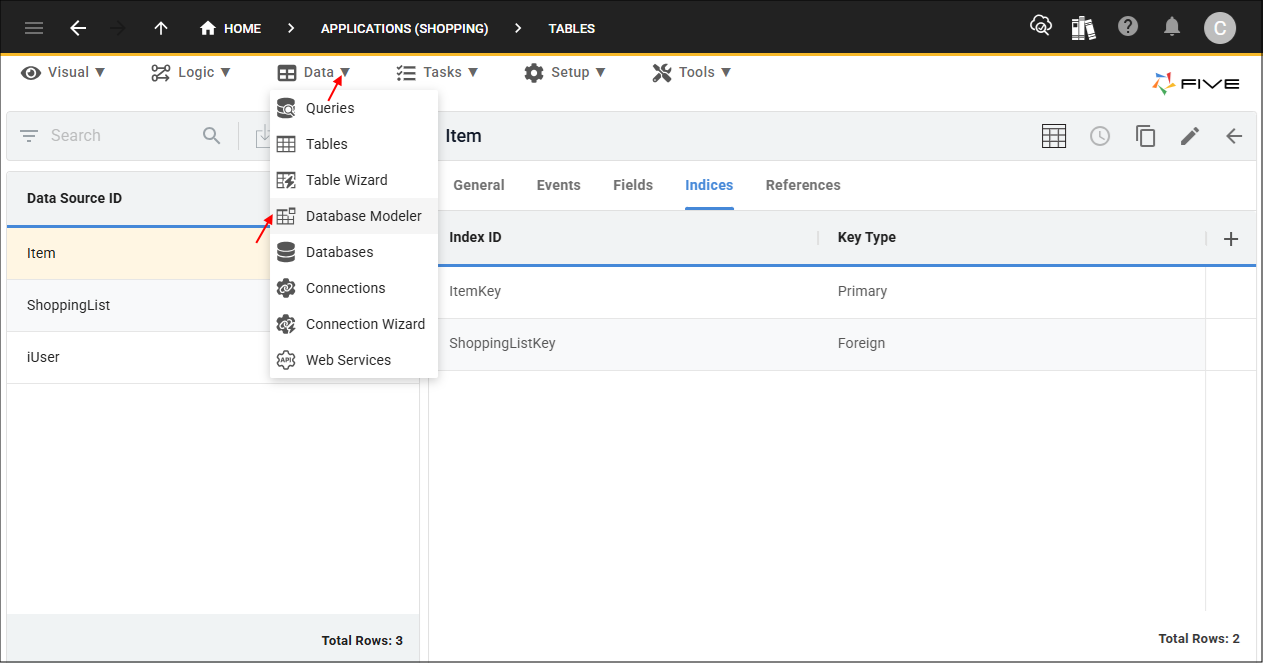
This is the Shopping database model. You can see the tables and the relationships between the tables.