10.2 - SetSearchCriteria Function
Last updated 8/05/2025
The
SetSearchCriteria()
function will be attached to the On Click event
for the Search field on the Find Book process, effectively turning the
field into a button.
Navigate to Functions
1. Click Logic in the menu.2. Click Functions in the sub-menu.
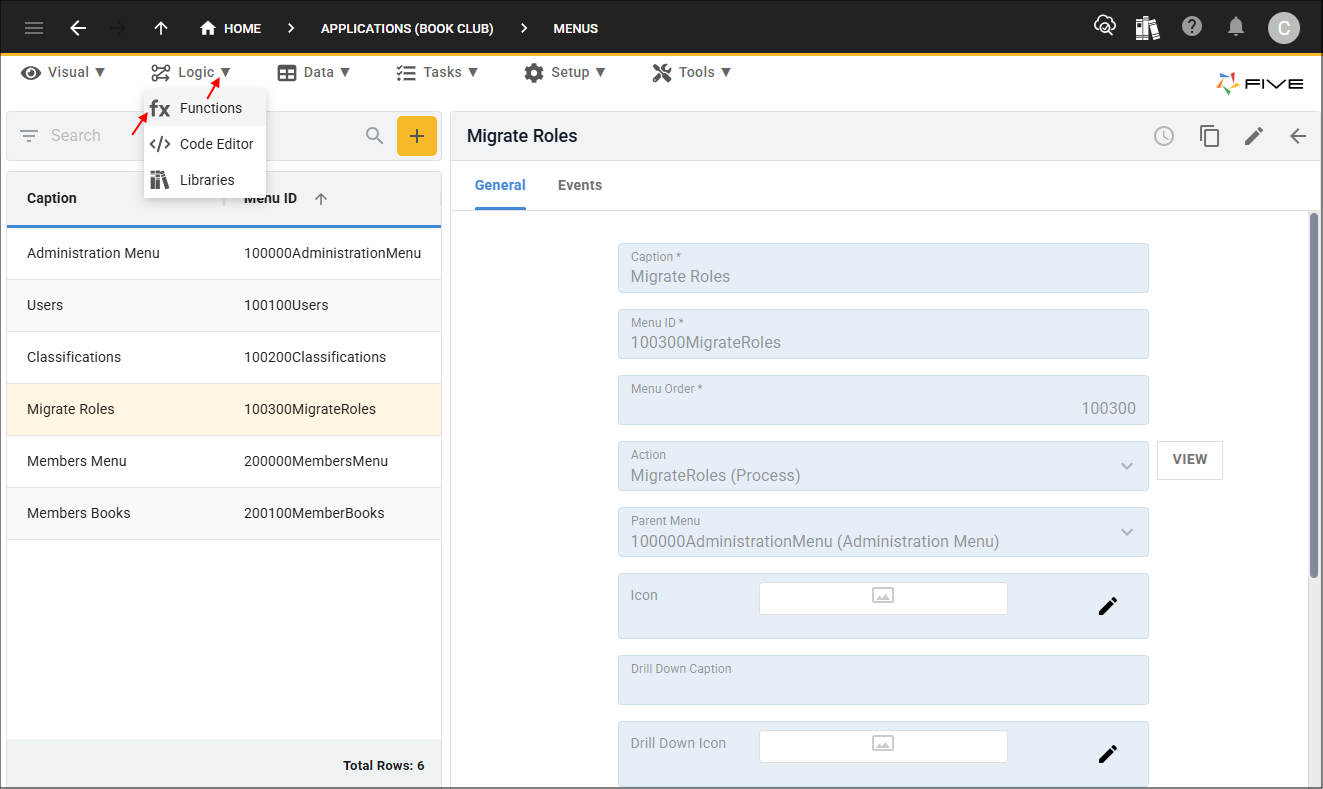
Figure 1 - Functions menu item
Add the SetSearchISBN Function
The
SetSearchCriteria()
function sets the ISBN, Title, and UserKey variables using the setVariable()
function making them global. The field
property
is used on the Five
object in the format of five.field.fieldID
to access the values from the screen fields
on the Find Book process record, that will be added next.
Because the title value is a
LIKE
parameter in the FindBook query (this query will be added to search for books), we surround it in %
signs so the query can return partial matches.
The key for the current logged in user is avaliable on the Five
object which can be gained from calling the currentUserKey()
.
The refreshTable() function is called on the Book table when a new search is made, effectively executing the live FindBook query so the results are updated on the
Find Book data view.
2. Type SetSearchCriteria in the Function ID field.
3. Click in the Code field to open the Code Editor.
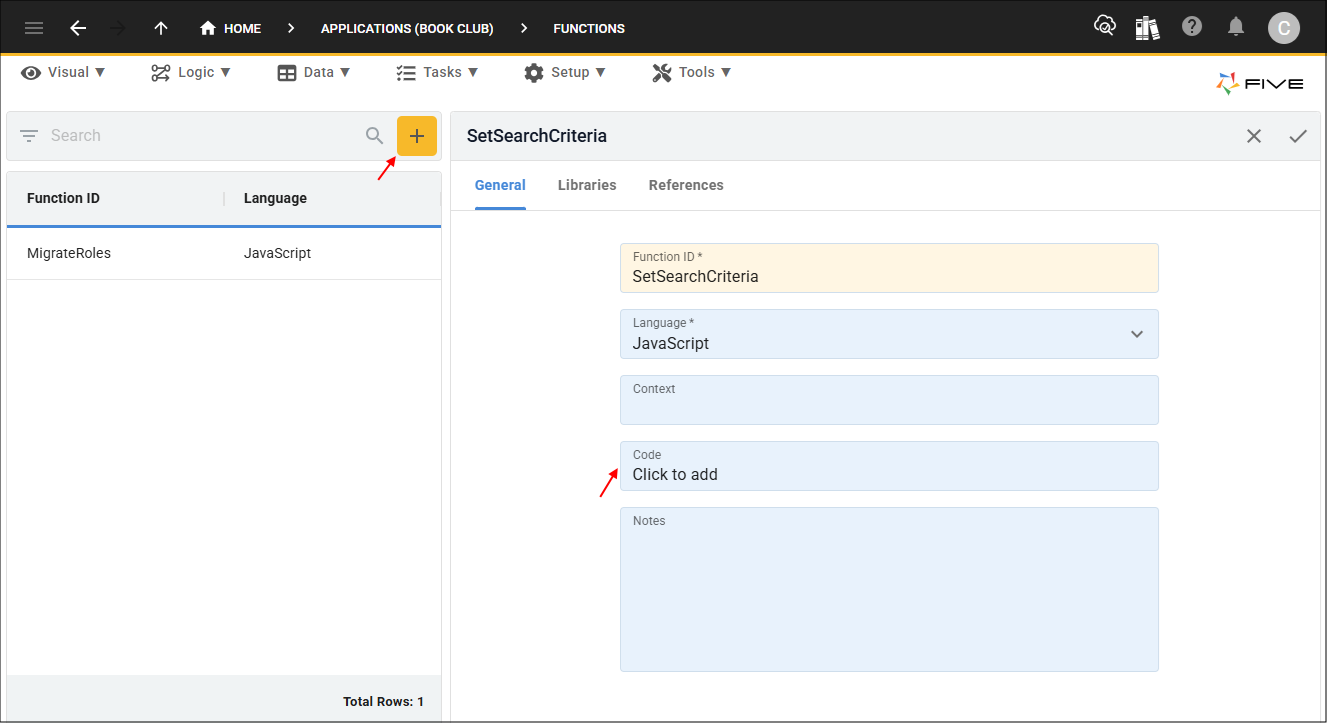
Figure 2 - Add SetSearchCriteria function
4. Copy the code block below and paste it over the template in the Code Editor.

Setting the search criteria
function SetSearchCriteria(five, context, result)  {
    five.setVariable('ISBN', five.field.ISBN);
    five.setVariable('Title', `%${five.field.Title}%`);
    five.setVariable('UserKey', five.currentUserKey());
    five.refreshTable('Book');
    return five.success(result);
}
5. Click the Save button in the editor app bar.
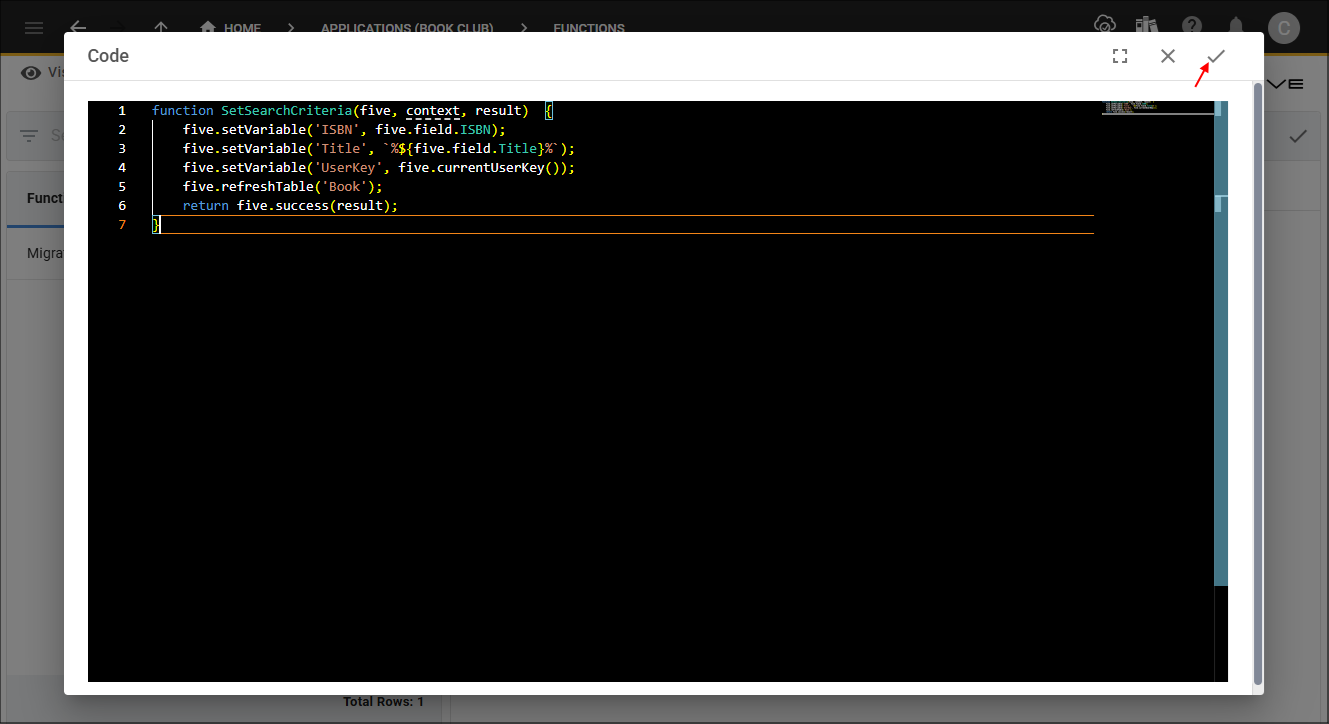
Figure 3 - Save button
6. Click the Save button in the form app bar.

Figure 4 - Save button