5 - Deploy a Multiuser Application
Last updated 2/05/2025
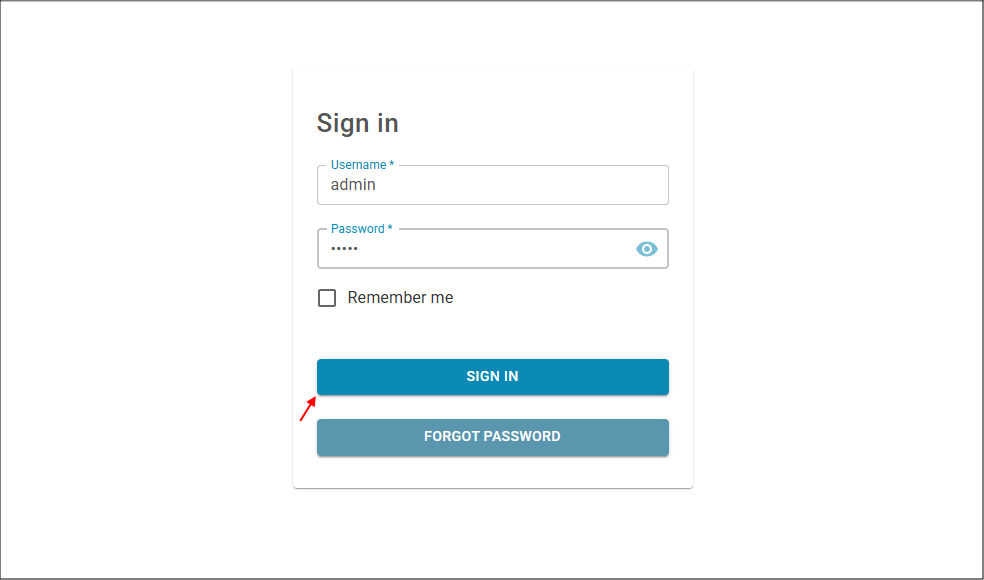
This is a good time to deploy the Book Club application and have a look at your development. When you initially deploy a multiuser application, you will need to use the following credentials:
- Username: admin
- Password: admin
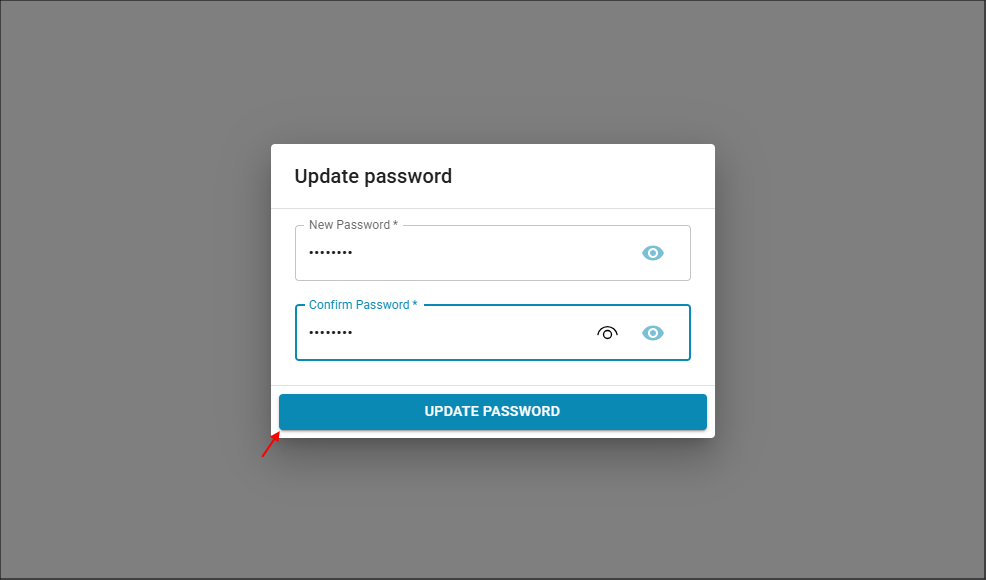
You will then be forced to change your password for security purposes. Your new password must contain the following:
- A letter
- A number
- A symbol
- 8 to 32 characters
For all future logins, you will need to use the following credentials:
- Username: admin
- Password: Your password
The admin login gives you full access to your application. Five creates this user in your application by default.
To deploy the Book Club application, you need to click the Deploy to Development button in Five's toolbar. Your initial deployment may take up to five minutes to be available as the new DNS (Domain Name System) entry for the URL needs to propogate. The Deploy to Development button will be replaced with the Run and Remove from Development buttons. You can use the Run button to keep checking on the development of your application. If there has been over an hour of inactivity in your application, the deployment will automatically close (except on a Basic plan), you will need to click the Remove from Development button and re-deploy your application.
Deploy the Book Club Application
1. Click the Deploy to Development button.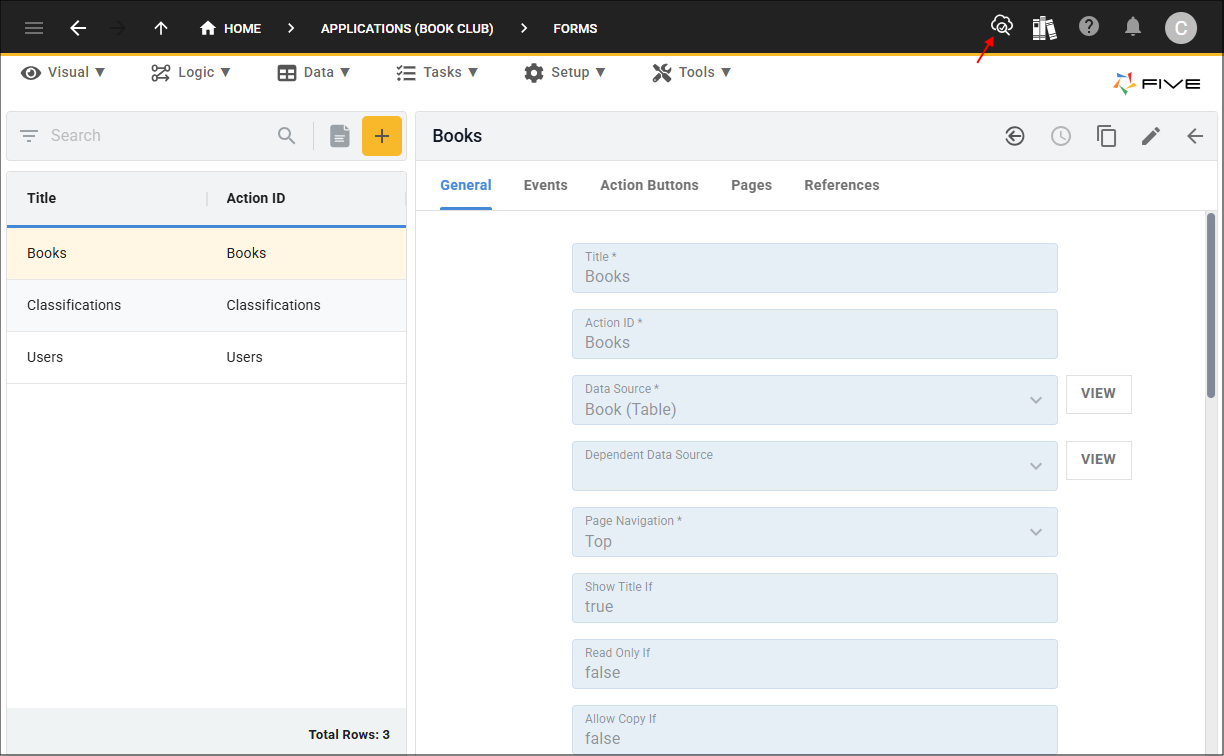
2. Type admin in the Username field.
3. Type admin in the Password field.
4. Click the Sign In button.
5. Type your new password in the Password field.
6. Type your password in the Confirm Password field.
7. Click the Update Password button.
Book Club Application
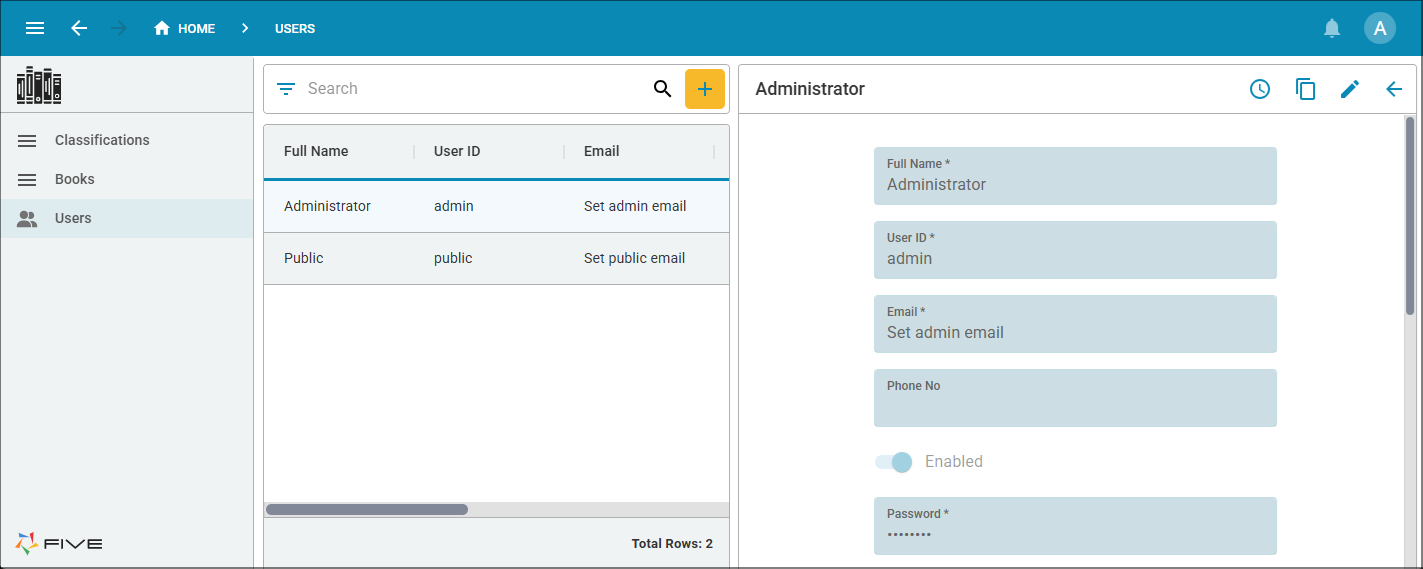
In the Book Club application, you can see the Books, Classifications, and Users menu items. Select each menu item to see the forms attached to the menu items.
At this point, we only have the default admin and public logins, another role needs to be created so the Book Club members can log into their account.