10.3 - Find Books Process
Last updated 9/05/2025
A process, which is simply a form without a table, needs to be created so the Title, ISBN, and Search screen fields can be added. Values can then be entered by a member into the Title and ISBN fields and the Search button can be clicked, this will filter the results that match the search criteria. The Search field will have a _Button display type and the
SetSearchCriteria()
function will be attached to the On Click
event, effectively, turning the field into a clickable button. The code will be executed when a member clicks the button and displays the book records that match
the search criteria.
Navigate to Processes
1. Click Tasks in the menu.2. Click Processes in the sub-menu.
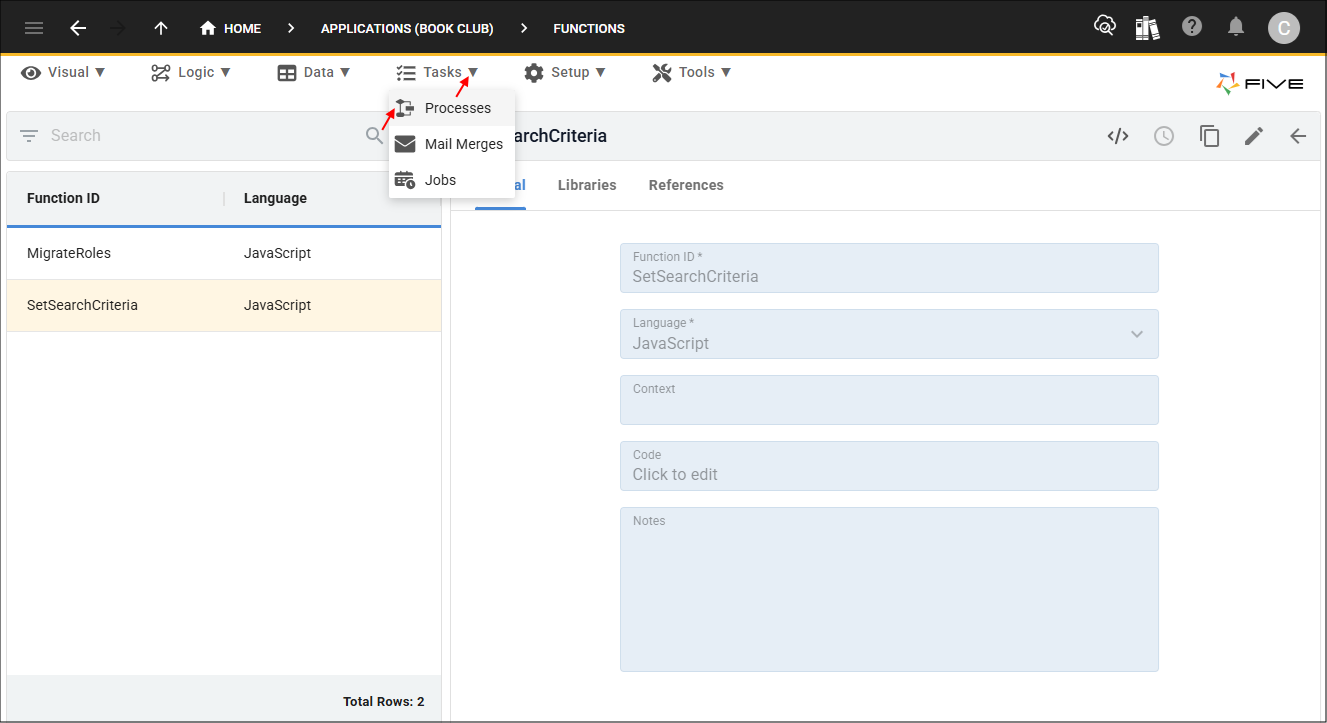
Figure 1 - Processes menu item
Add the Find Books Process
1. Click the Add Item button.2. Type Find Books in the Title field.
3. Type Process after FindBooks in the Action ID field.
info
Find Books will be the name of several actions while building the Find Books dashboard, the action ID for all actions must be unique throughout Five.
4. Type
false
in the Show Title If field.
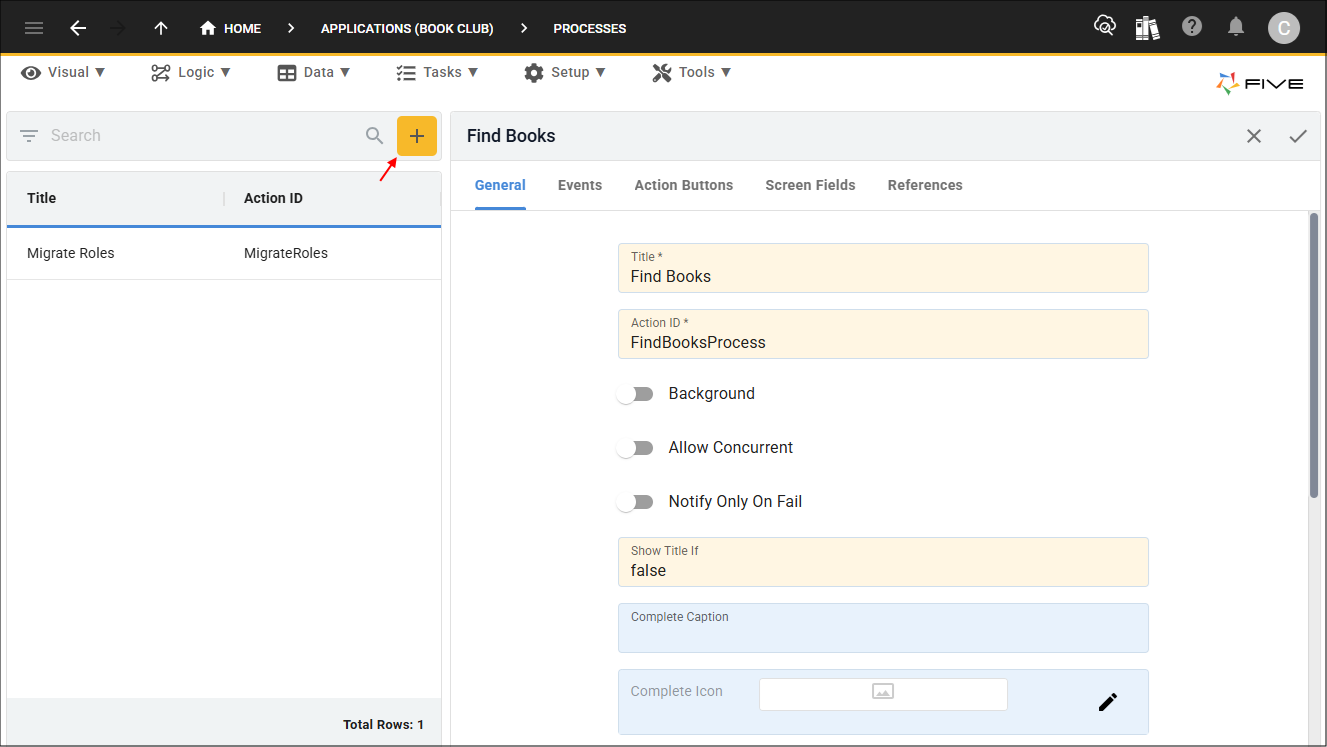
Figure 2 - Add Find Books process
5. Click the Screen Fields tab.
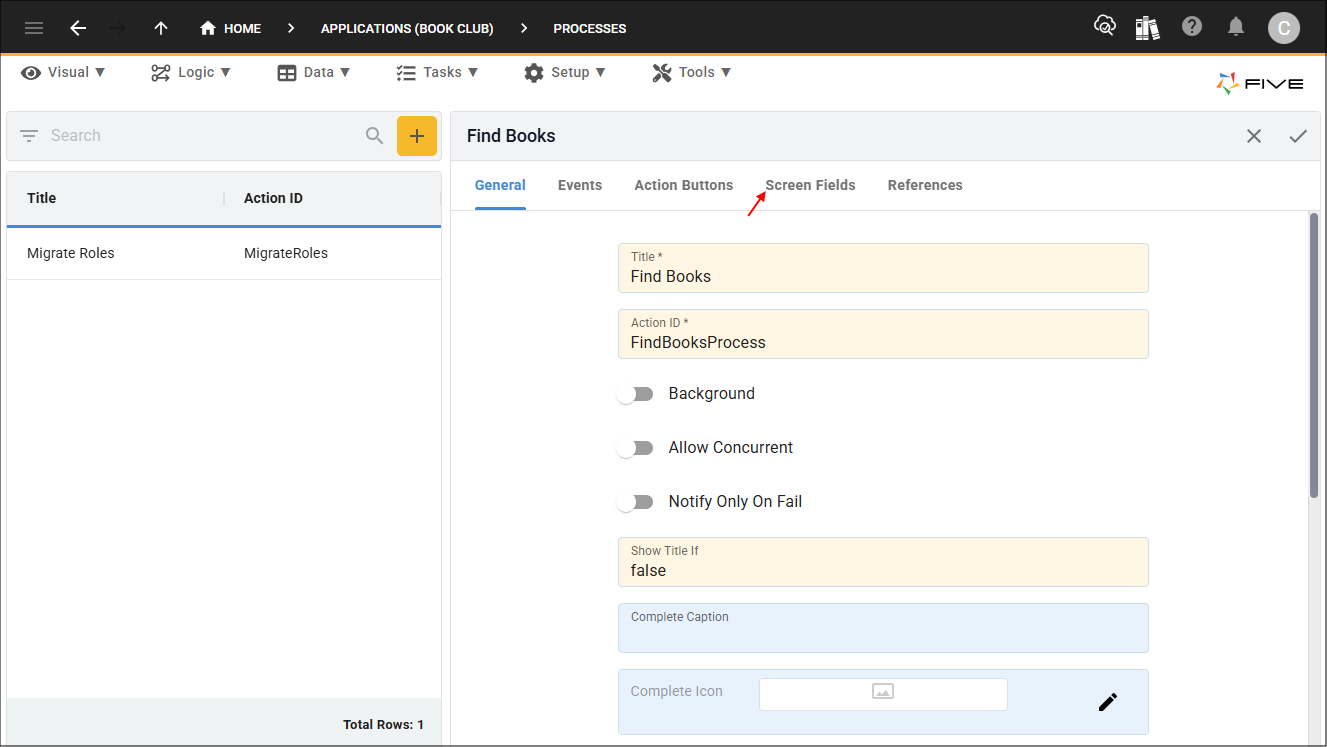
Figure 3 - Screen Fields tab
6. Click the Add Screen Fields button.
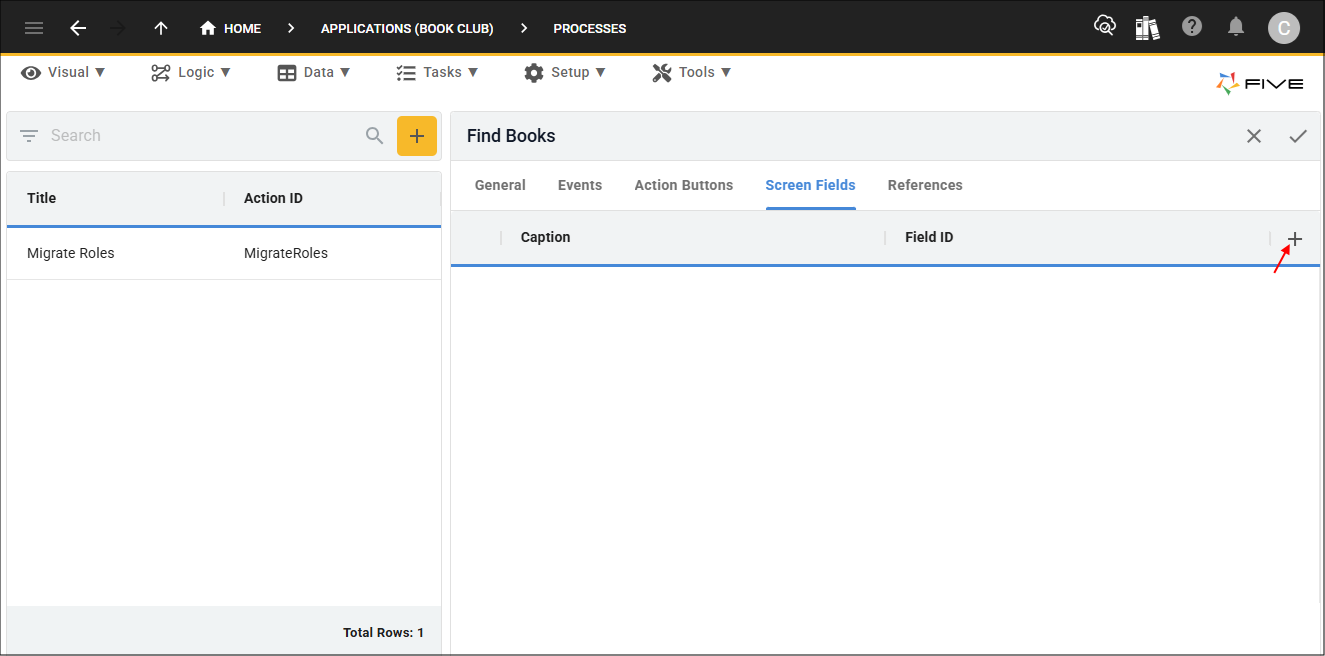
Figure 4 - Add Screen Fields button
7. Type Title in the Caption field.
8. Click the lookup icon in the Display Type field and select _Text.
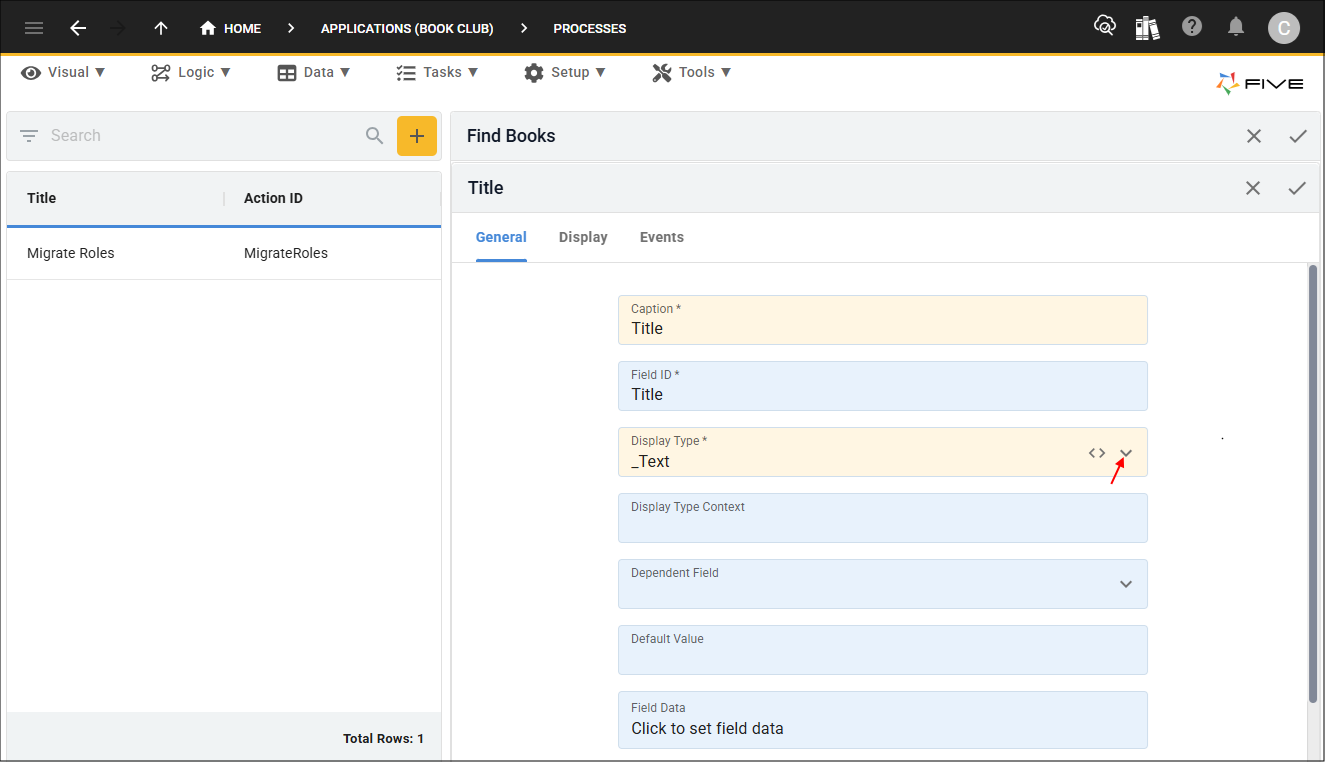
Figure 5 - Add Title field
9. Click the Display tab.
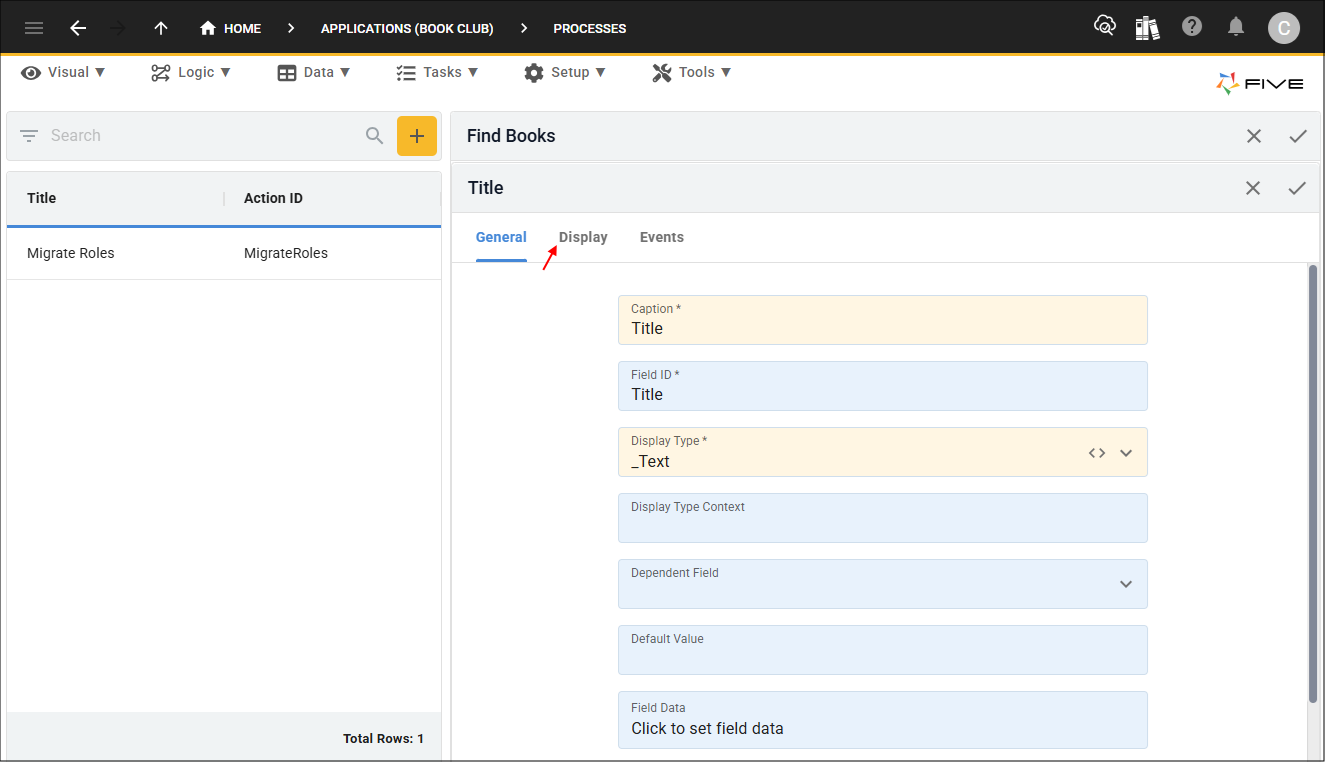
Figure 6 - Display tab
10. In the Desktop Layout section, type 0 in the Pre Width field, 4 in the Width field, 1 in the Post Width field.
info
The Title, ISBN, and Search fields will use the 12 grid positions for one row. This will position the fields in the one row on the process.
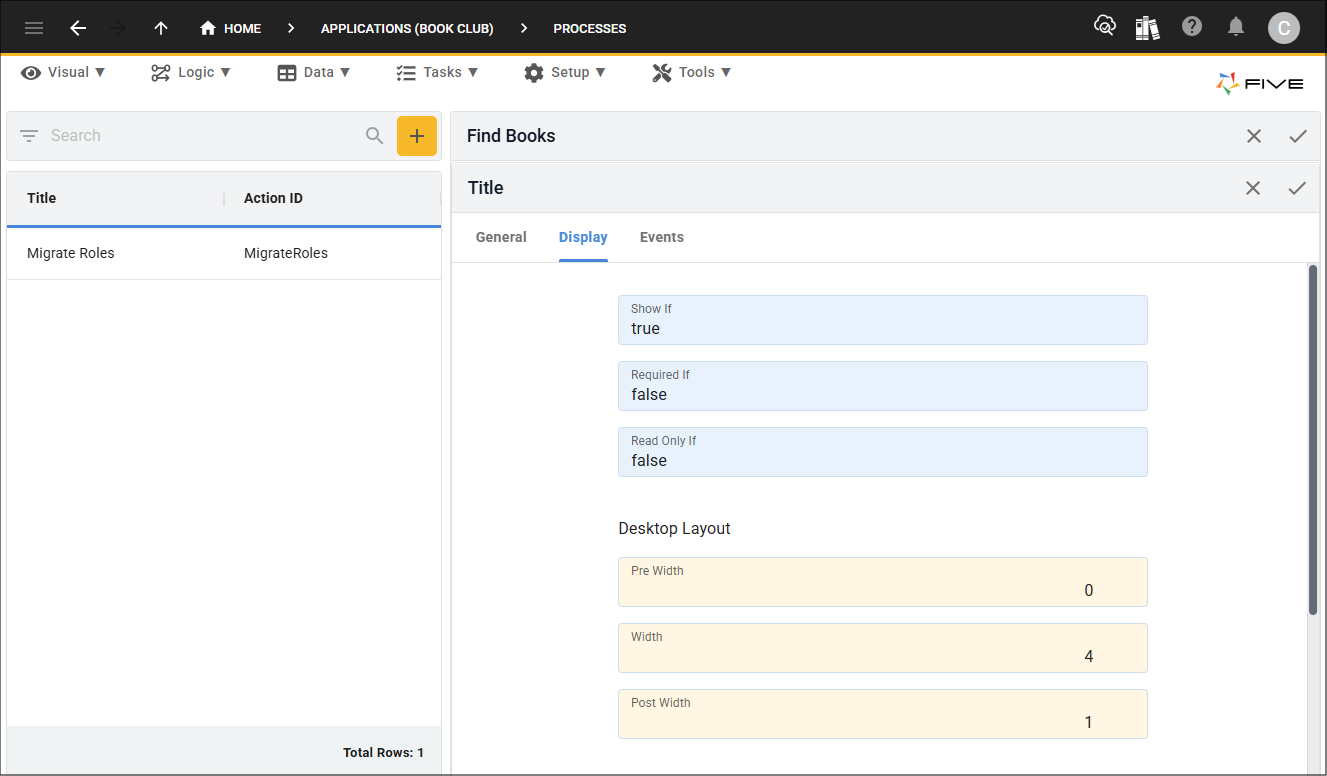
Figure 7 - Add display widths
11. Click the Save button in the form app bar.
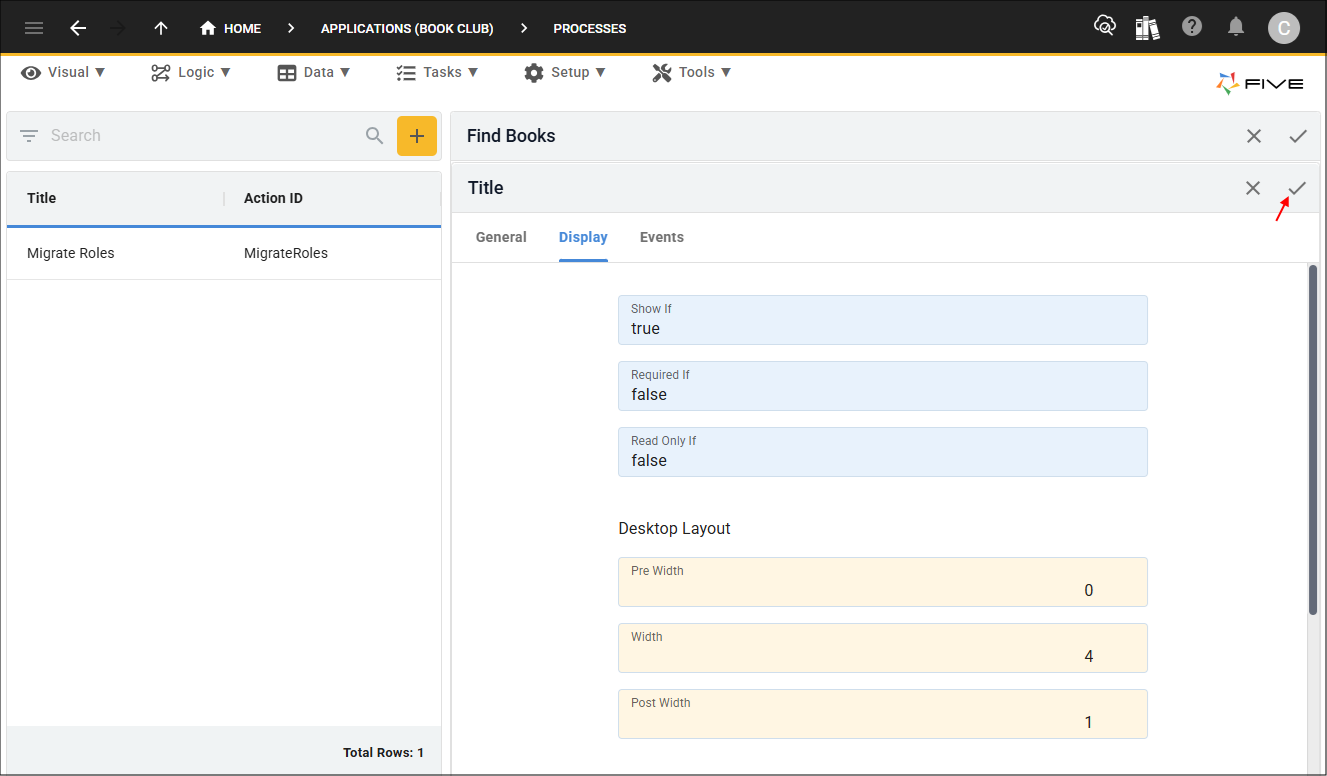
Figure 8 - Save button
12. Click the Add Screen Fields button.
13. Type ISBN in the Caption field.
14. Click the lookup icon in the Display Type field and select _Text.
15. Click the Display tab.
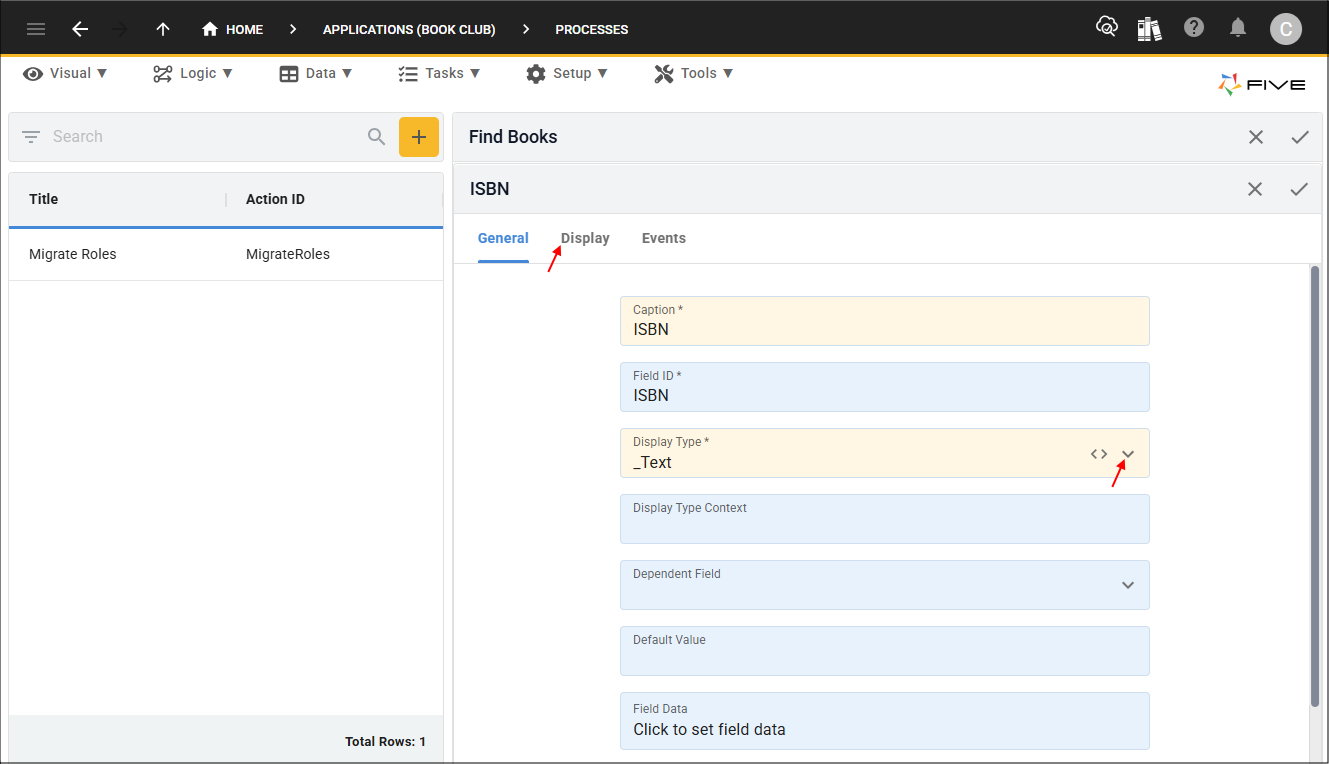
Figure 9 - Add ISBN field
16. In the Desktop Layout section, type 0 in the Pre Width field, 4 in the Width field, 1 in the Post Width field.
17. Click the Save button in the form app bar.
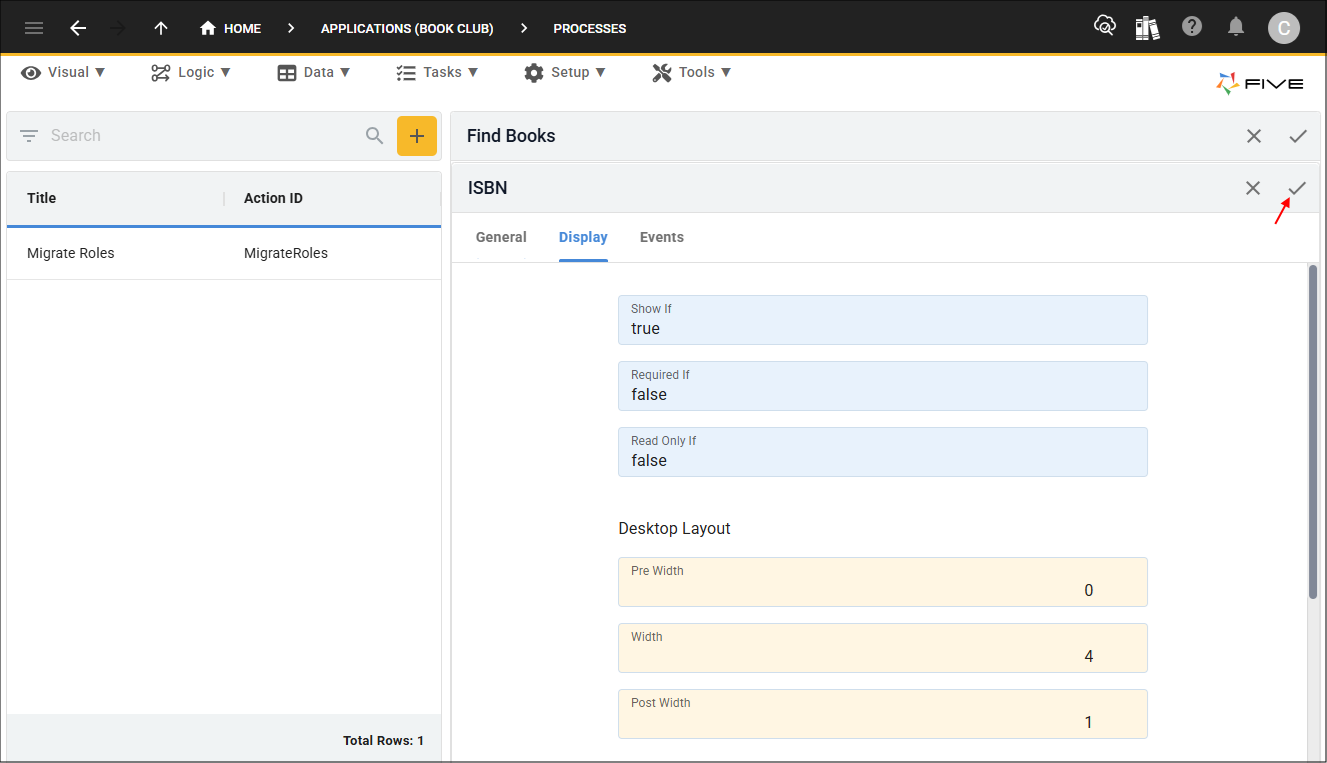
Figure 10 - Add display widths
18. Click the Add Screen Fields button.
19. Type Search in the Caption field.
20. Click the lookup icon in the Display Type field and select _Button.
21. Click the Display tab.
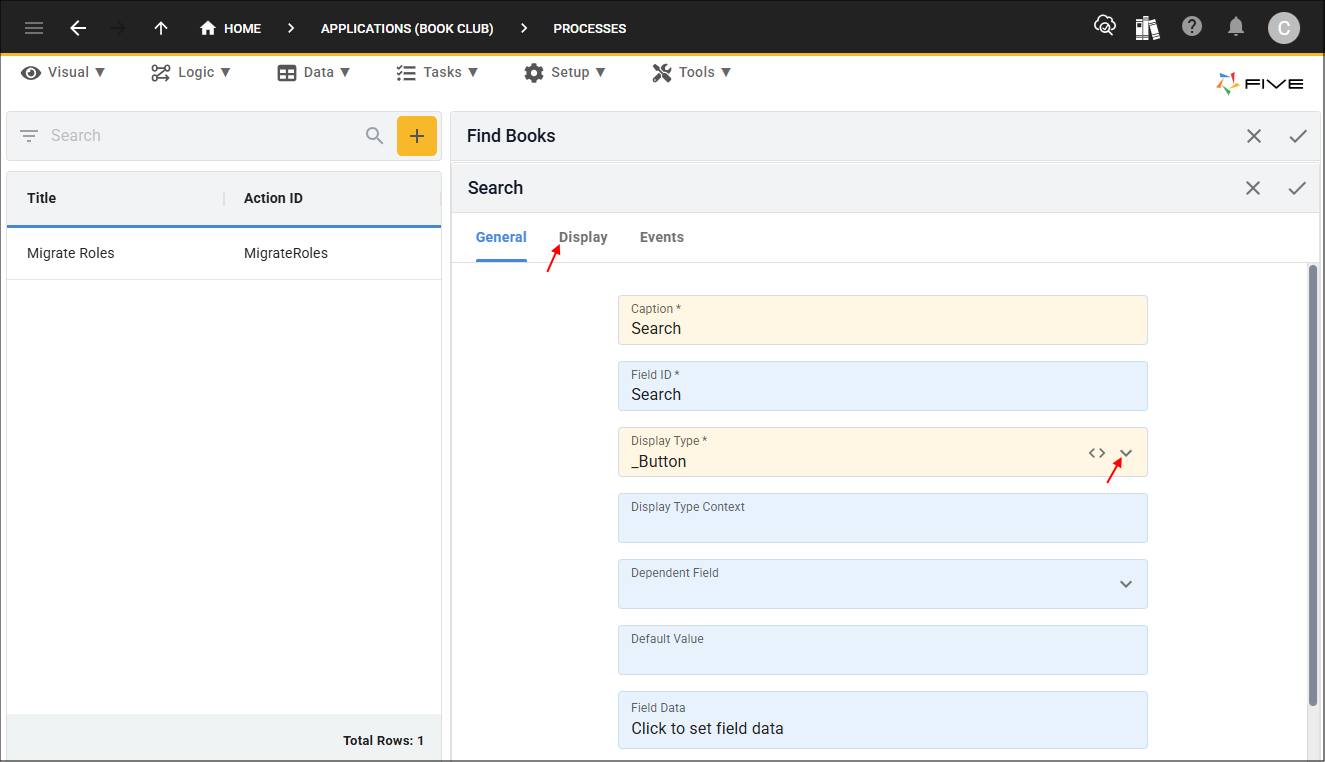
Figure 11 - Add Search field
22. In the Desktop Layout section, type 0 in the Pre Width field, 2 in the Width field, 0 in the Post Width field.
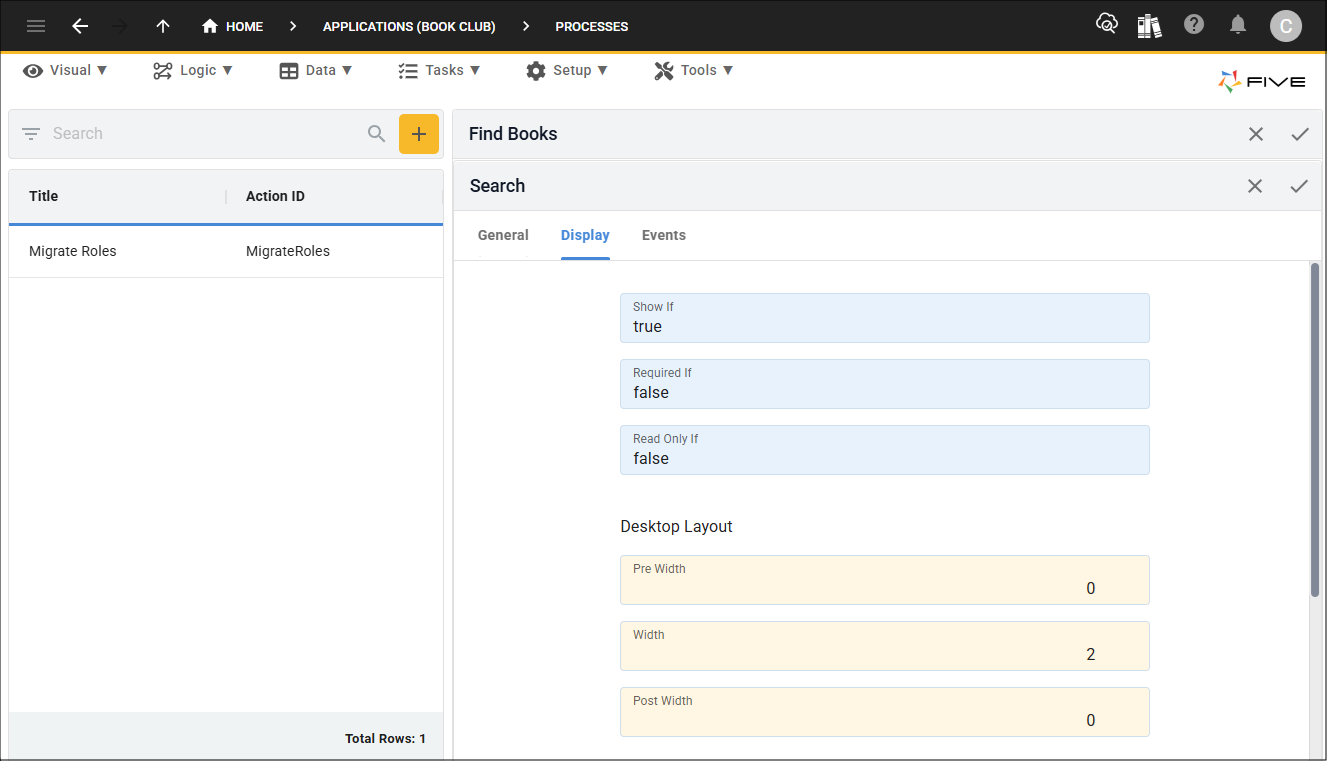
Figure 12 - Add display widths
23. Click the Events tab.
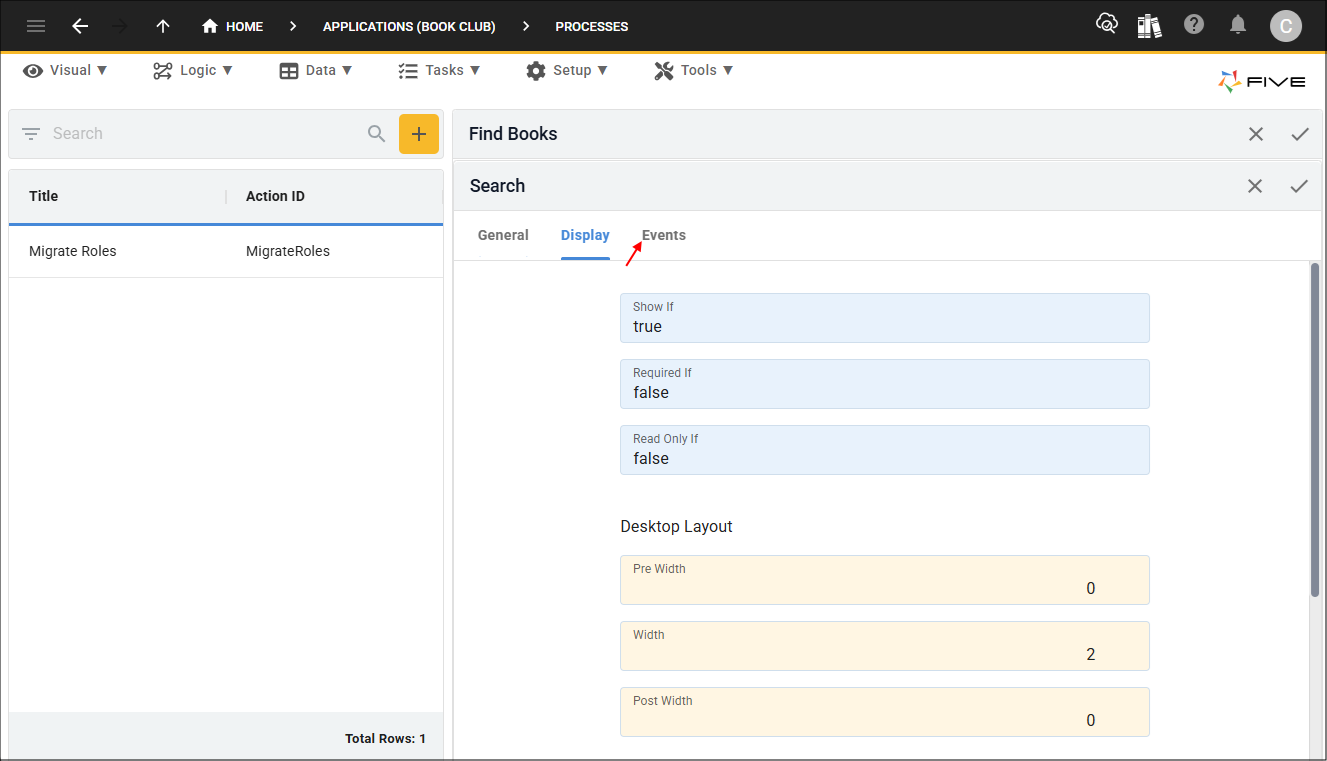
Figure 13 - Events tab
24. Click the lookup icon in the On Click field and select SetSearchCriteria.
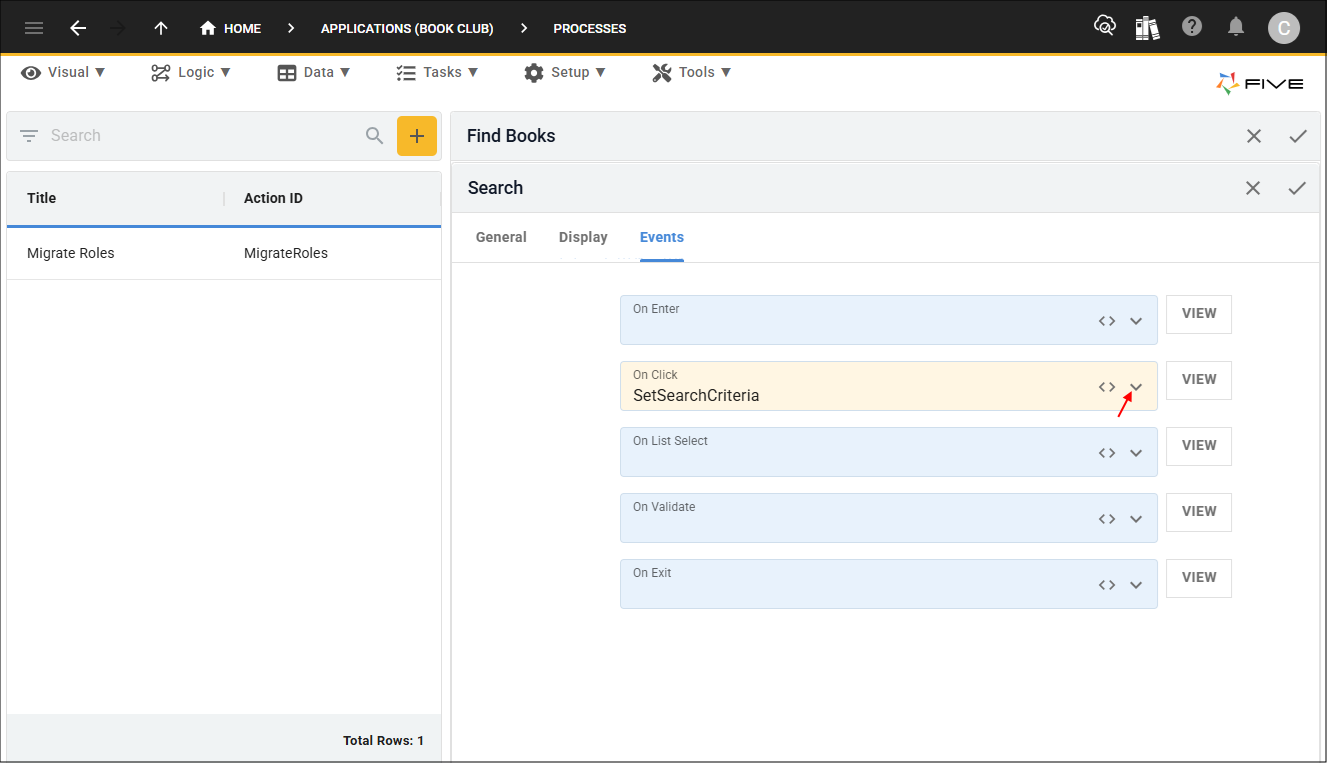
Figure 14 - On Click field
25. Click the Save button in the form app bar.
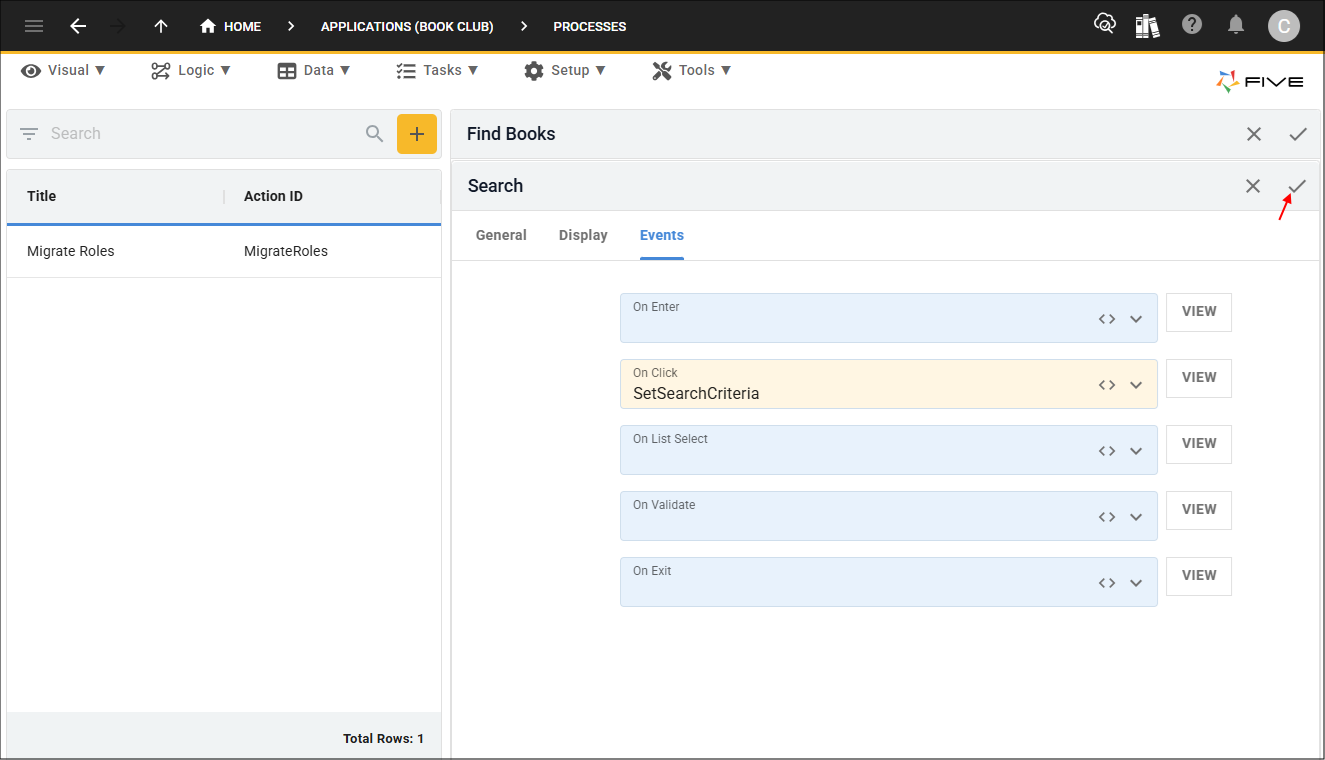
Figure 15 - Save button
26. Click the Save button in the form app bar above the list.
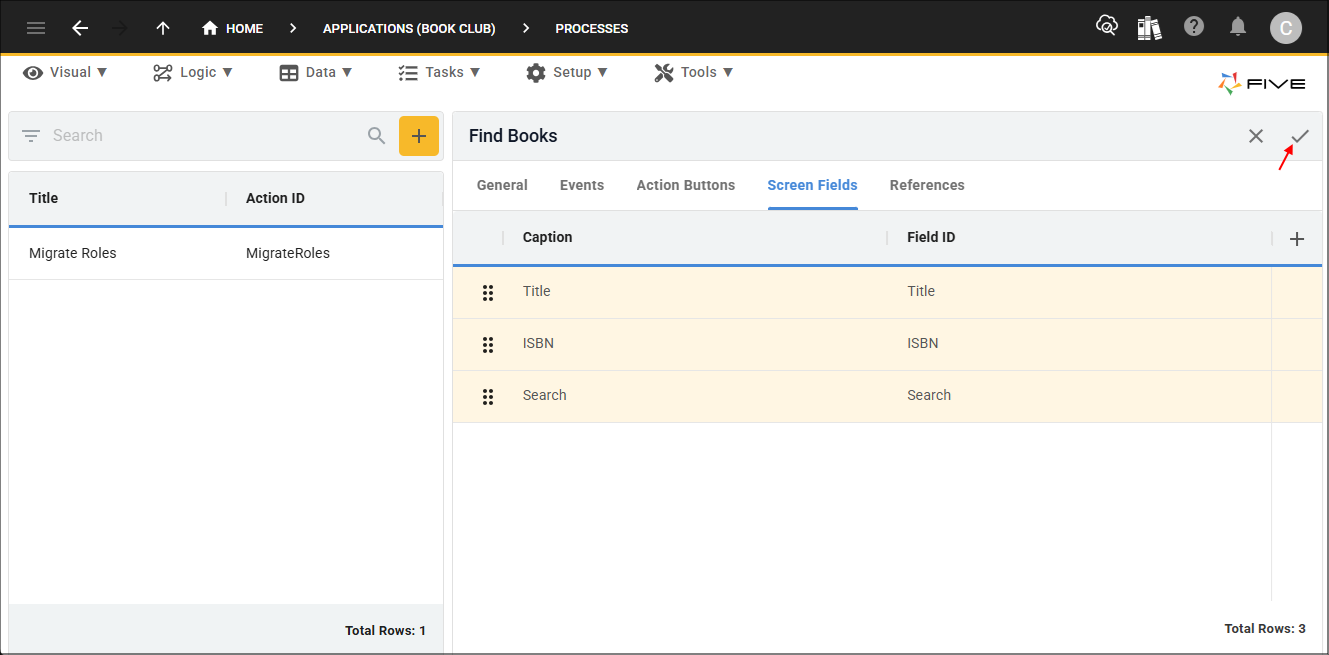
Figure 16 - Save button