10.9 - Find Books Dashboard in the Book Club Application
Last updated 19/05/2025
We have completed building the Find Books dashboard, so now is a great time to deploy/run the Book Club application and test how it all works. We will use two member accounts so you can view how it works.
The members, Chelsea and Rick, will be used to demonstrate how the Find Books dashboard works for both members.
How the Find Books Dashboard Works
Rick's login credentials:
- Username: rick
- Password: Demo123!
Chelsea's login credentials:
- Username: chelsea
- Password: Demo123!
Sign into the two Book Club accounts with the above credentials.
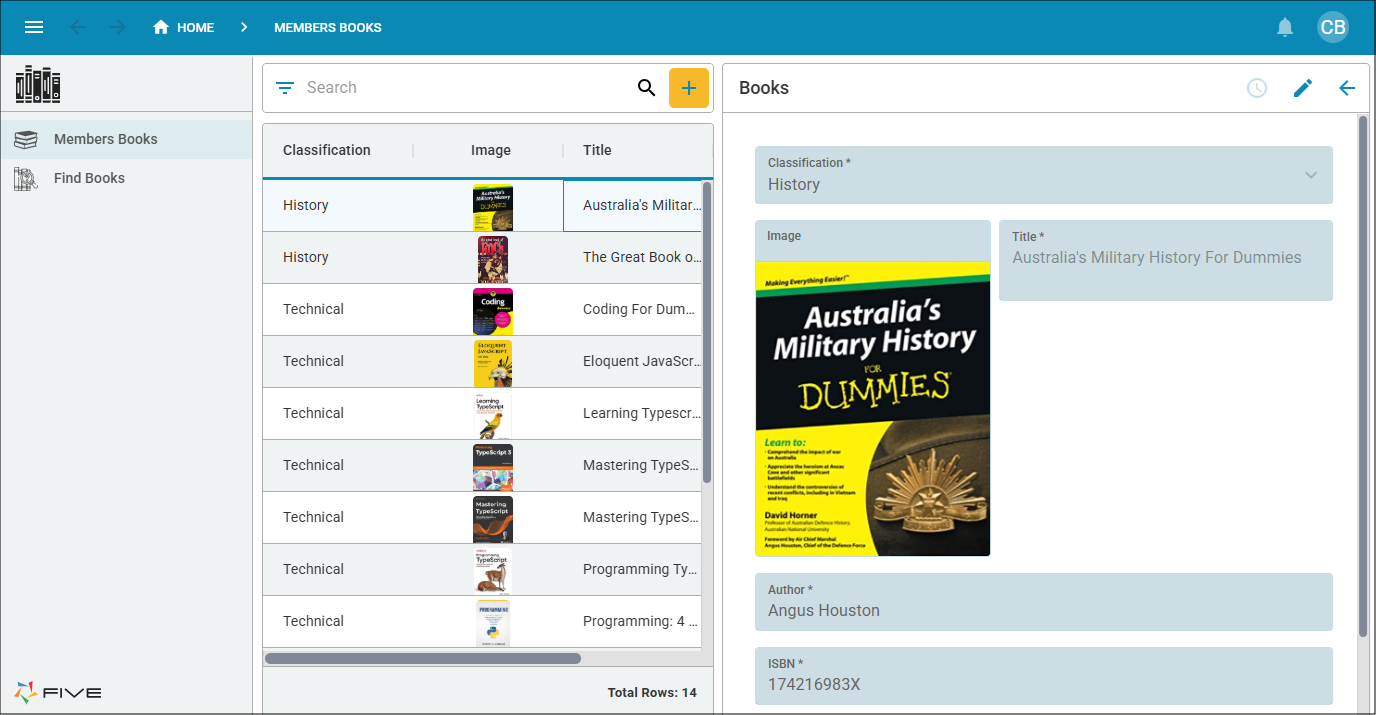
On Rick's initial log in, you will see a list of Rick's books that he has saved in the system.

On Chelsea's initial log in, you will see a list of Chelsea's books that she has saved in the system.
The Find Books menu holds the Find Books dashboard that we just created. Rick can either search for a book via the title or the ISBN. The book/s will be returned in the data view when the Search button is clicked if they are saved in the system. While you are logged in as Rick perform the following steps.
1. Click Find Books in the menu.
2. Type TypeScript in the Title field.
3. Click the Search button.

The
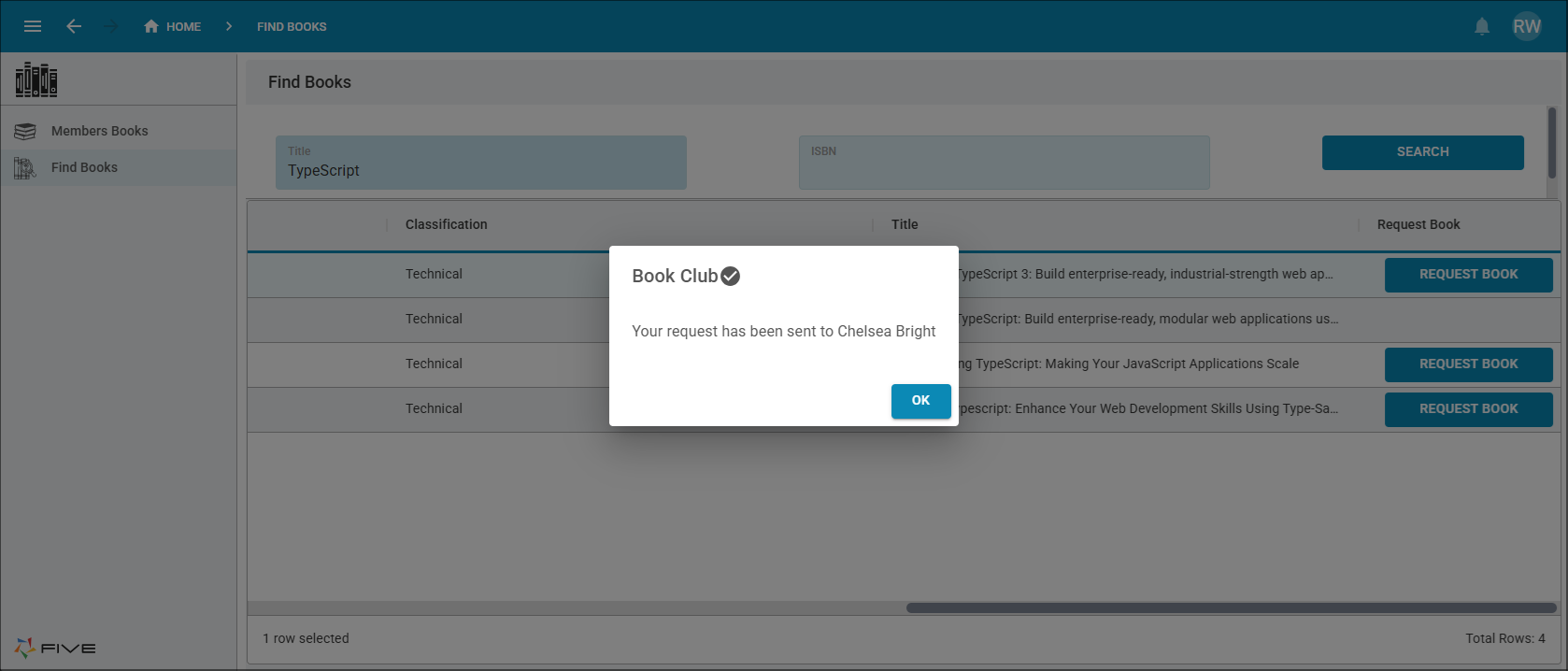
All books with the word TypeScript in the title will be returned in the results. All four books are owned by Chelsea.

Use the scroll if required to see all the results in the data view. If a book is available to borrow, the Request Book button will be available at the end of the row. The button will not be available to click if the book is currently borrowed by another member.
4. Click the Request Book button for the first record.
The
Meanwhile Chelsea's login will receive an in-app notification about the member who wants to request to borrow her book. This can be viewed by clicking the Notifications button in the toolbar.
