10.4 - FindBooks Query
Last updated 9/05/2025
The FindBooks query will return the title, the classification, the name of the book owner, their email, and their post code. The Title and ISBN fields have been set as global variables in the
SetSearchCriteria()
function, these can now be used as parameters to the FindBooks query, the query will be filtered by the values entered in these
fields on the Find Books process when the Search button is clicked.
The Live feature will be turned on for the FindBooks query so when we set the variables in the
SetSearchCriteria()
function, the refreshTable()
function
will be called to update the results in the data view.
The FindBooks query will be used as the data source for the Find Books data view which will display the results to the member searching for the books.
Navigate to Queries
1. Click Data in the menu.2. Click Queries in the sub-menu.
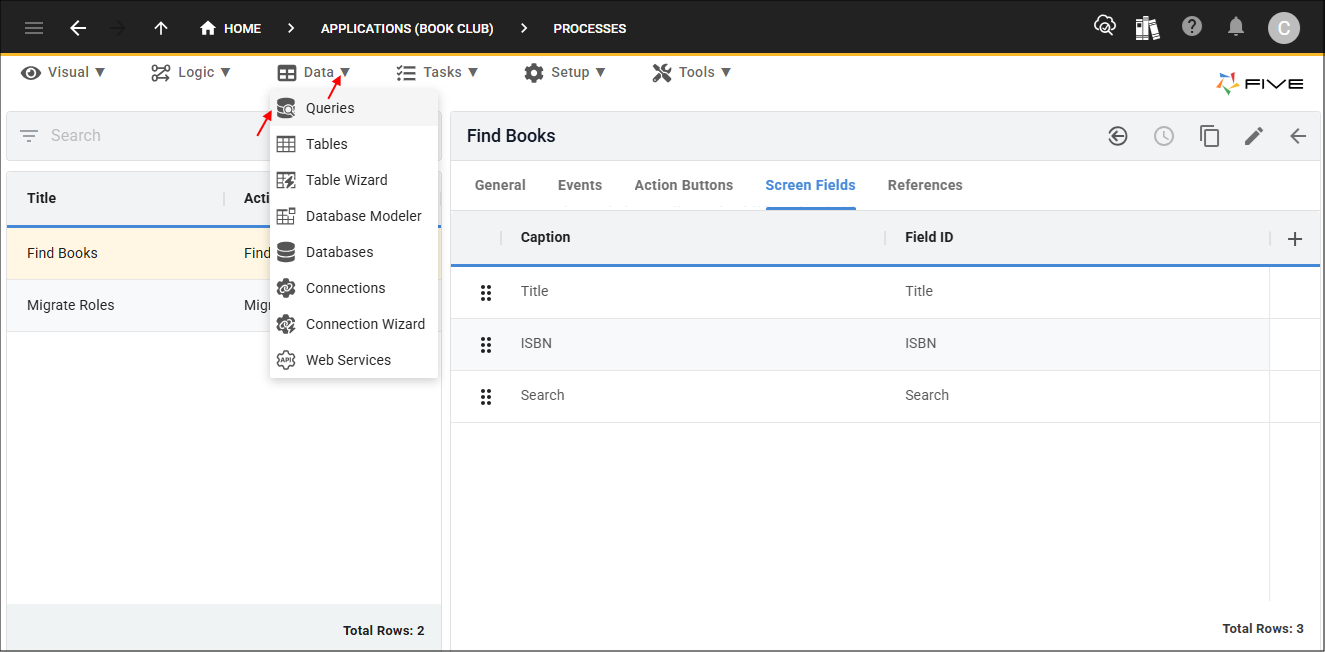
Figure 1 - Queries menu item
Add the FindBooks Query
1. Click the Add Item button.2. Type FindBooks in the Data Source ID field.
3. Click in the Query field to open the Query Builder.
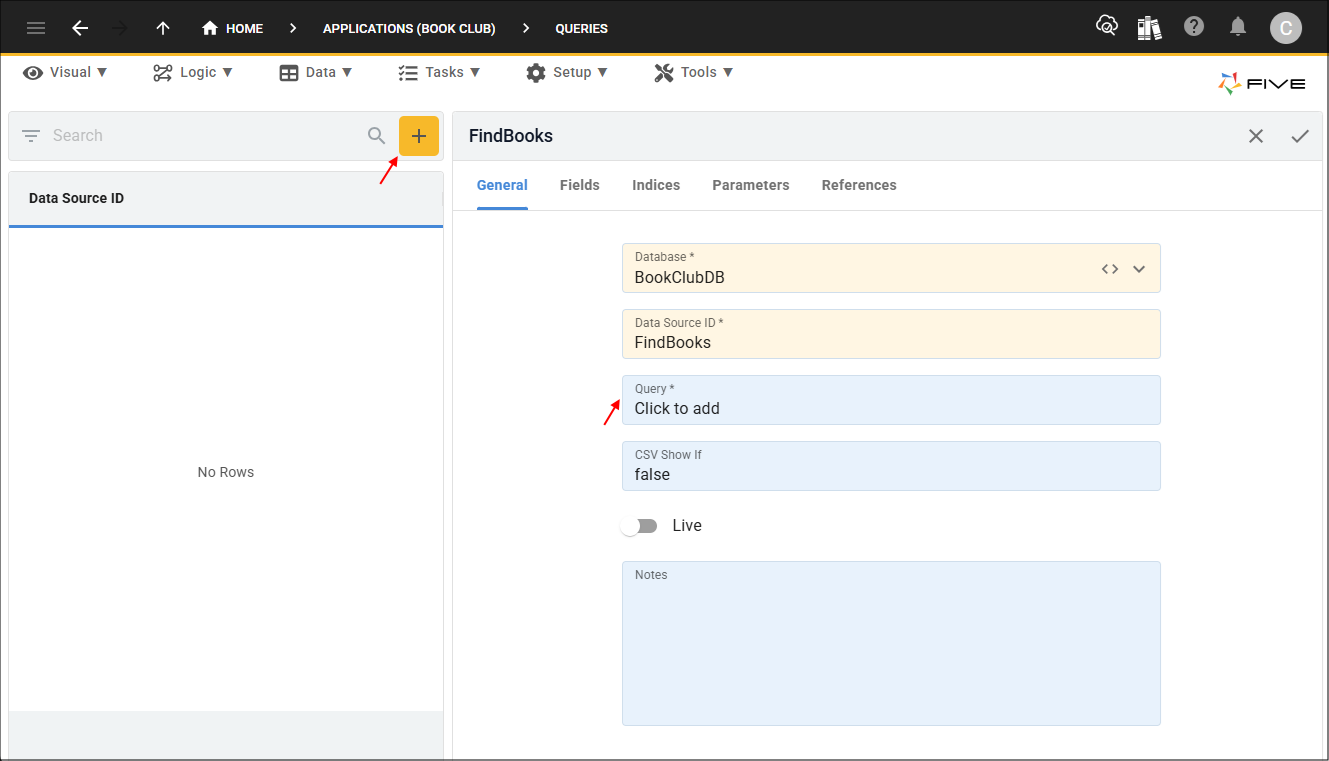
Figure 2 - Add FindBooks query
4. Click the SQL tab.
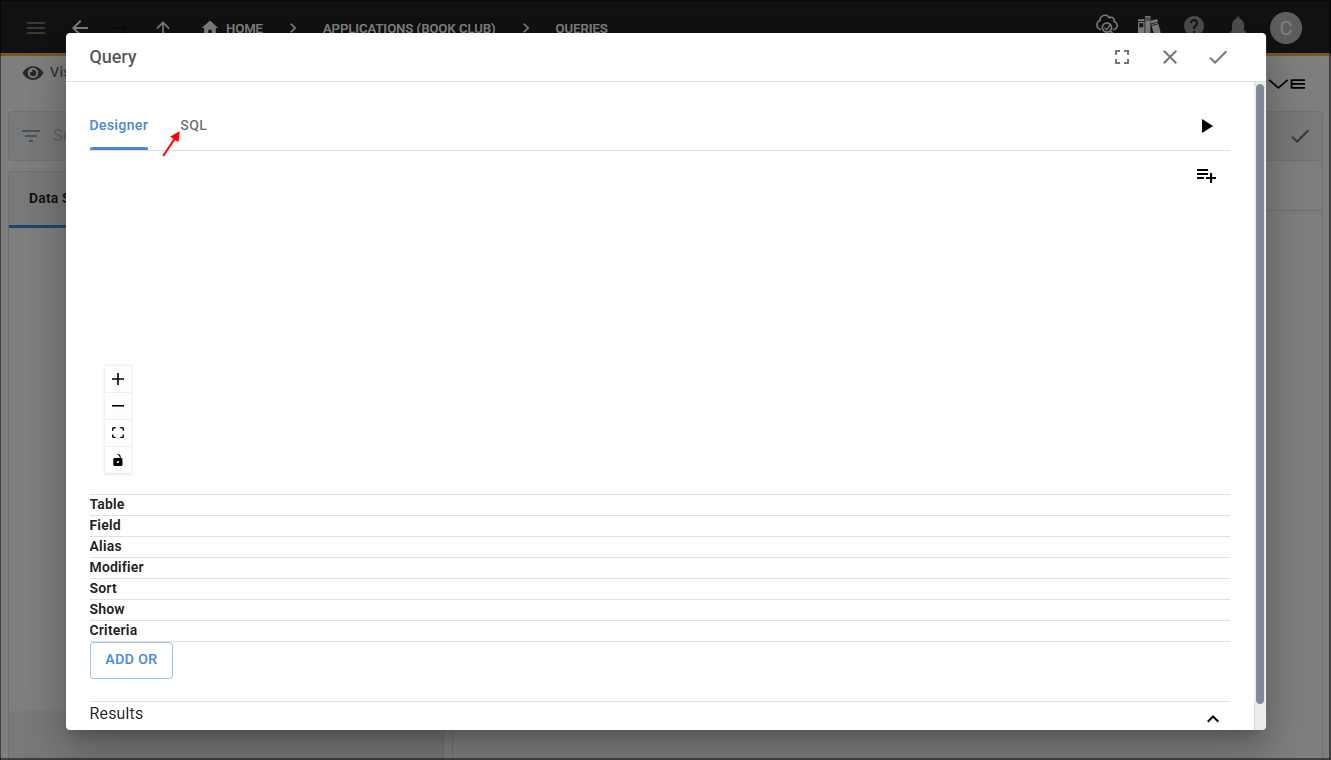
Figure 3 - SQL tab
5. Copy the syntax below and paste in the SQL Editor.

Returning results form book search
SELECT
    iUser.iUserKey AS UserKey,
    iUser.FullName AS Name,
    iUser.Email AS Email,
    iUser.PostCode AS Postcode,
    Classification.Name AS Classification,
    Book.Title AS Title,
    Book.BorrowMemberKey AS Borrower
FROM
    iUser
INNER JOIN Book ON Book.MemberKey = iUser.iUserKey
INNER JOIN Classification ON Classification.ClassificationKey = Book.ClassificationKey
WHERE ((? = '' AND Book.Title LIKE ?) OR (Book.ISBN = ?)) AND iUser.iUserKey <> ?
6. Click the Save button in the editor app bar.

Figure 4 - Save button
7. Click the Live switch.
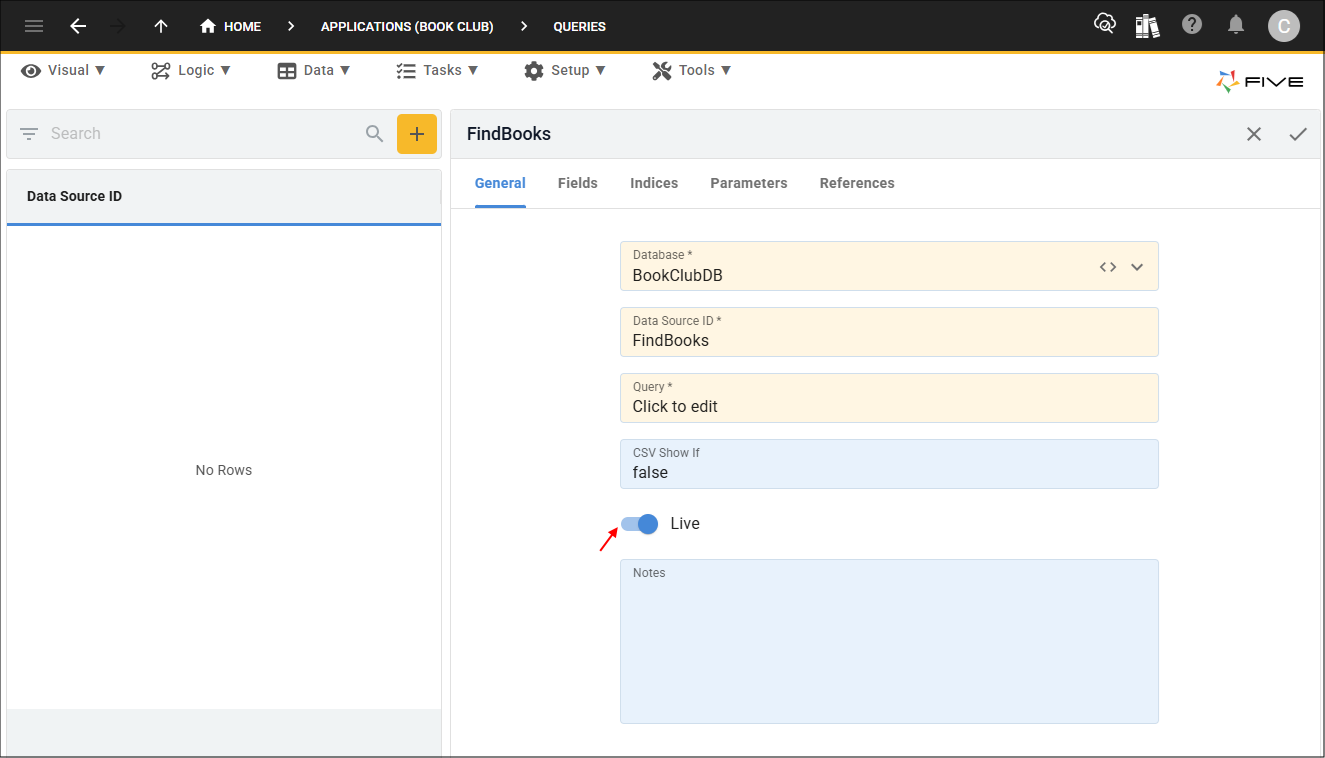
Figure 5 - Live switch
8. Click the Parameters tab.
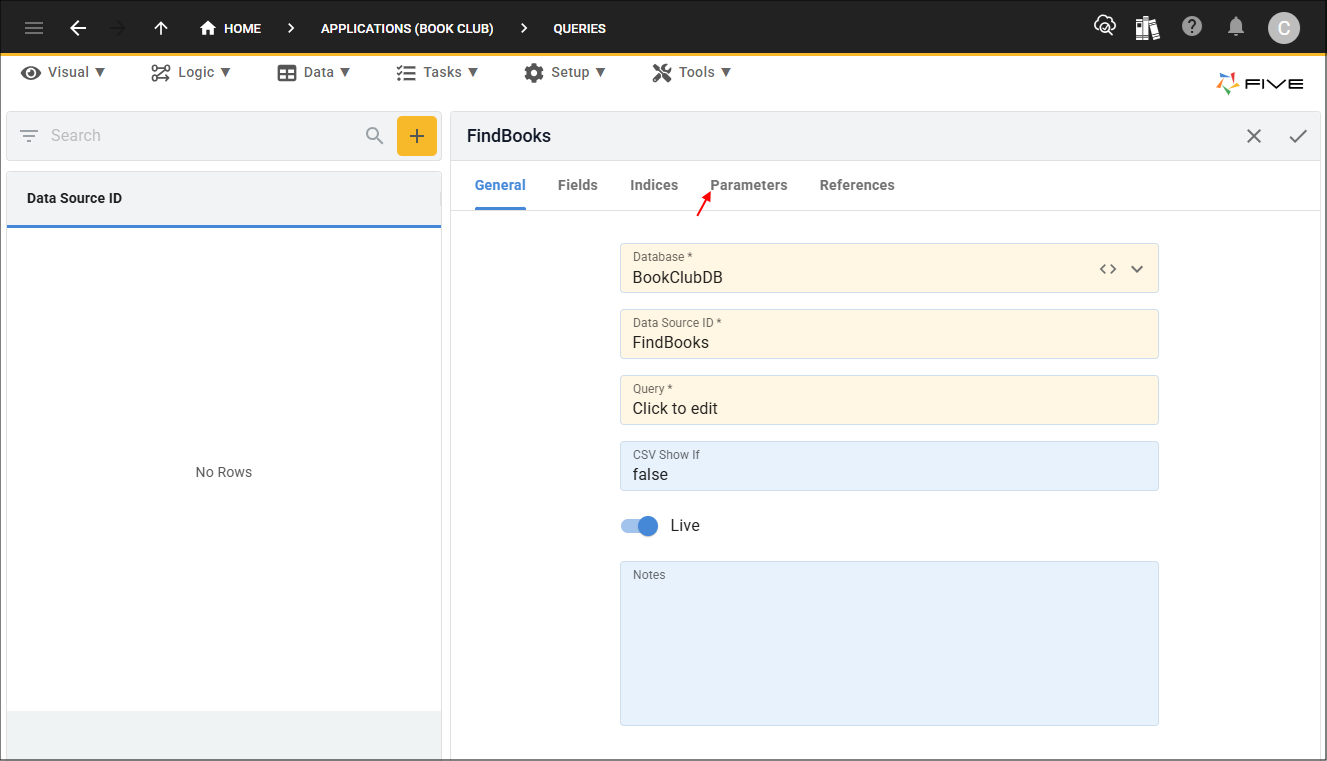
Figure 6 - Parameters tab
9. Click the Add Parameters button.

Figure 7 - Add Parameters button
10. Type ISBN in the Parameter ID field.
11. Type
{{five.variable.ISBN}}
in the Parameter field.
12. Click the Save button in the form app bar.
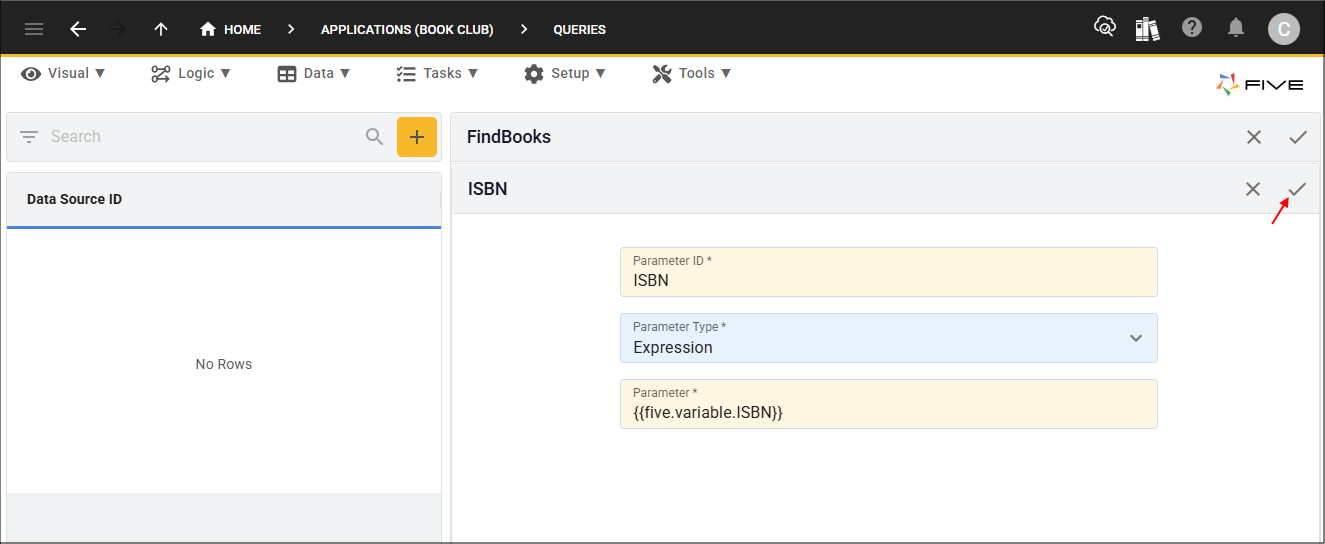
Figure 8 - Add ISBN parameter
13. Click the Add Parameters button.
14. Type Title in the Parameter ID field.
15. Type
{{five.variable.Title}}
in the Parameter field.
16. Click the Save button in the form app bar.
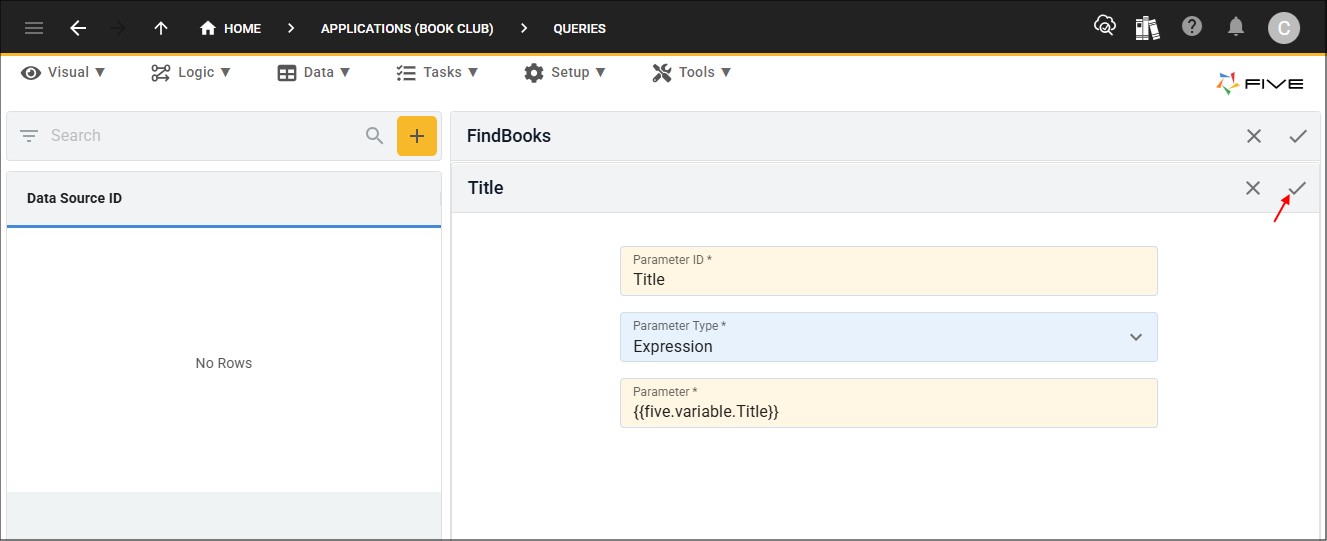
Figure 9 - Add Title parameter
17. Click the Add Parameters button.
18. Type ISBNSearch in the Parameter ID field.
19. Type
{{five.variable.ISBN}}
in the Parameter field.
20. Click the Save button in the form app bar.
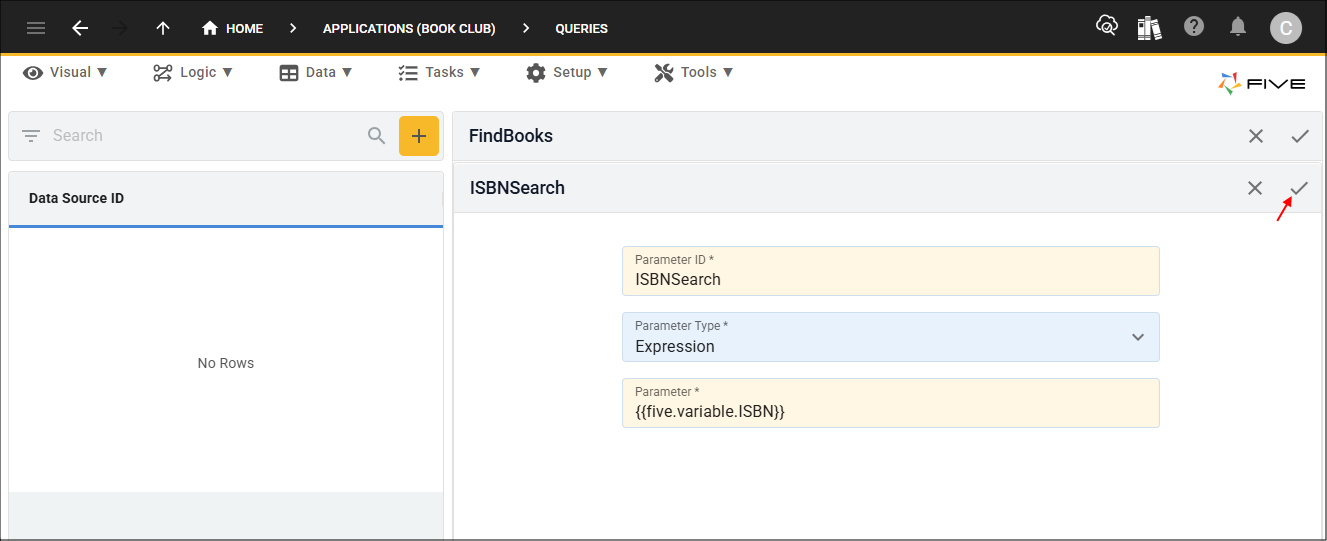
Figure 10 - Add ISBNSearch parameter
21. Click the Add Parameters button.
22. Type UserKey in the Parameter ID field.
23. Type
{{five.variable.UserKey}}
in the Parameter field.
24. Click the Save button in the form app bar.
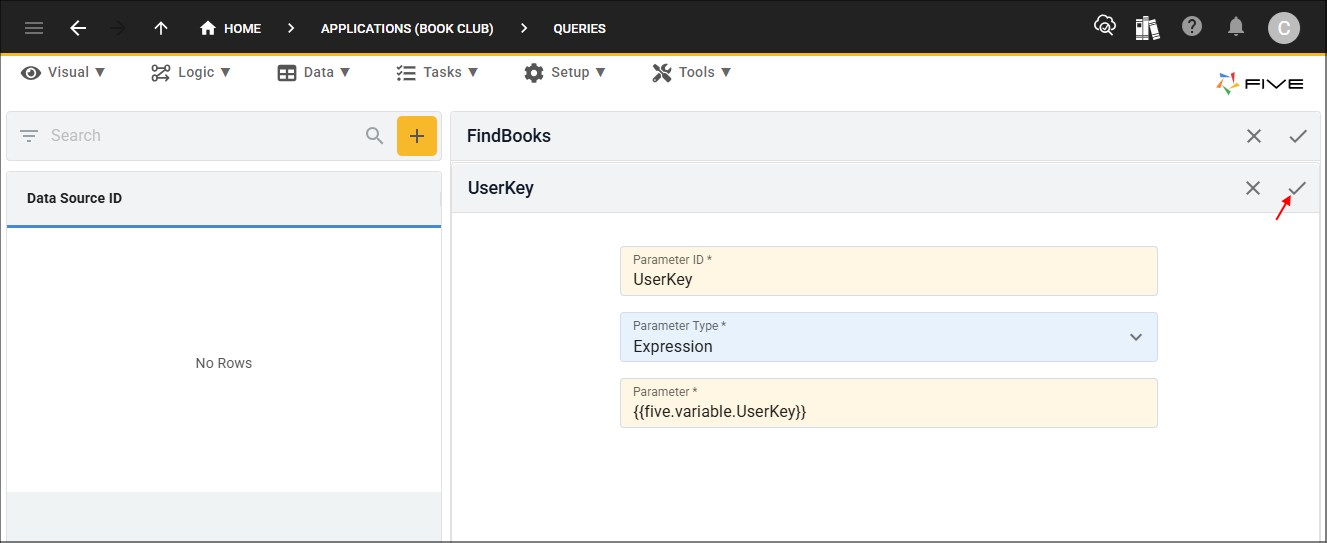
Figure 11 - Add UserKey parameter
25. Click the Save button in the form app bar above the list.
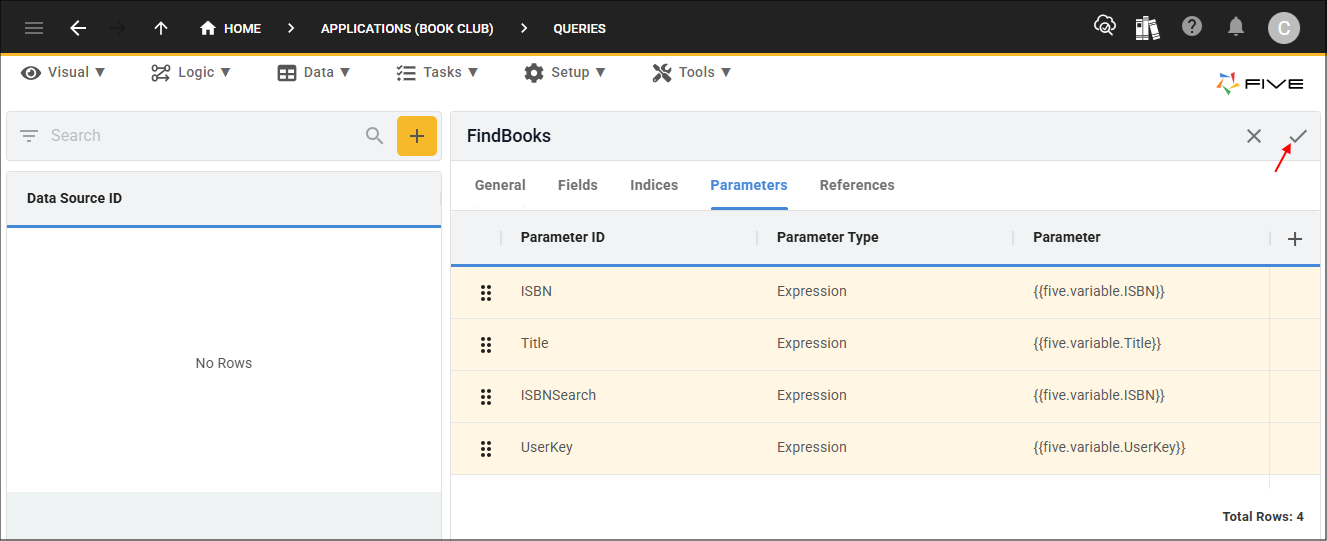
Figure 12 - Save button