10.7 - Find Books Dashboard
Last updated 15/05/2025
Now that we have all the actions, queries, and functions built in Five, we can build the Find Books dashboard.
Navigate to Dashboards
1. Click Visual in the menu.2. Click Dashboards in the sub-menu.
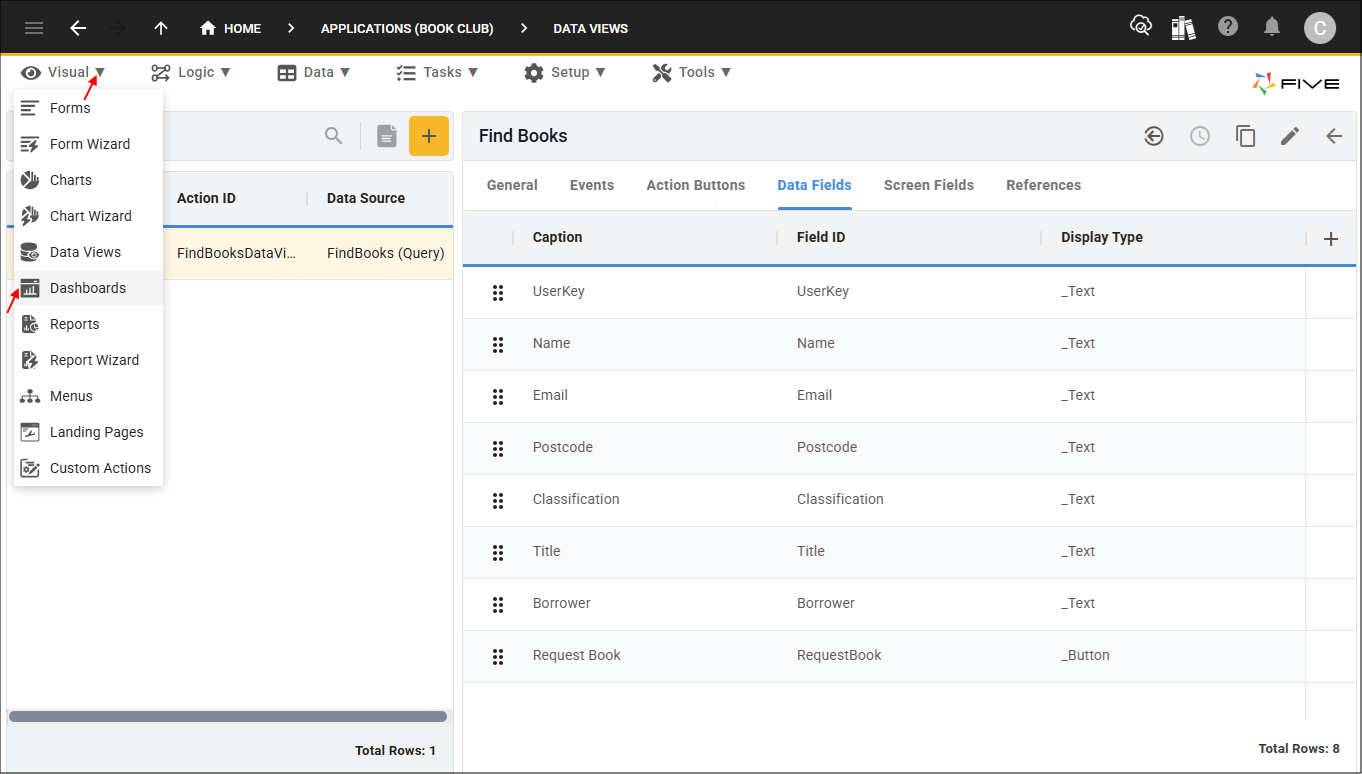
Figure 1 - Dashboards menu item
Add the Find Books Dashboard
1. Click the Add Item button.2. Type Find Books in the Title field.
3. Type Dashboard after FindBooks in the Action ID field.
4. Click the Cancel button in the Rows field and type 6.
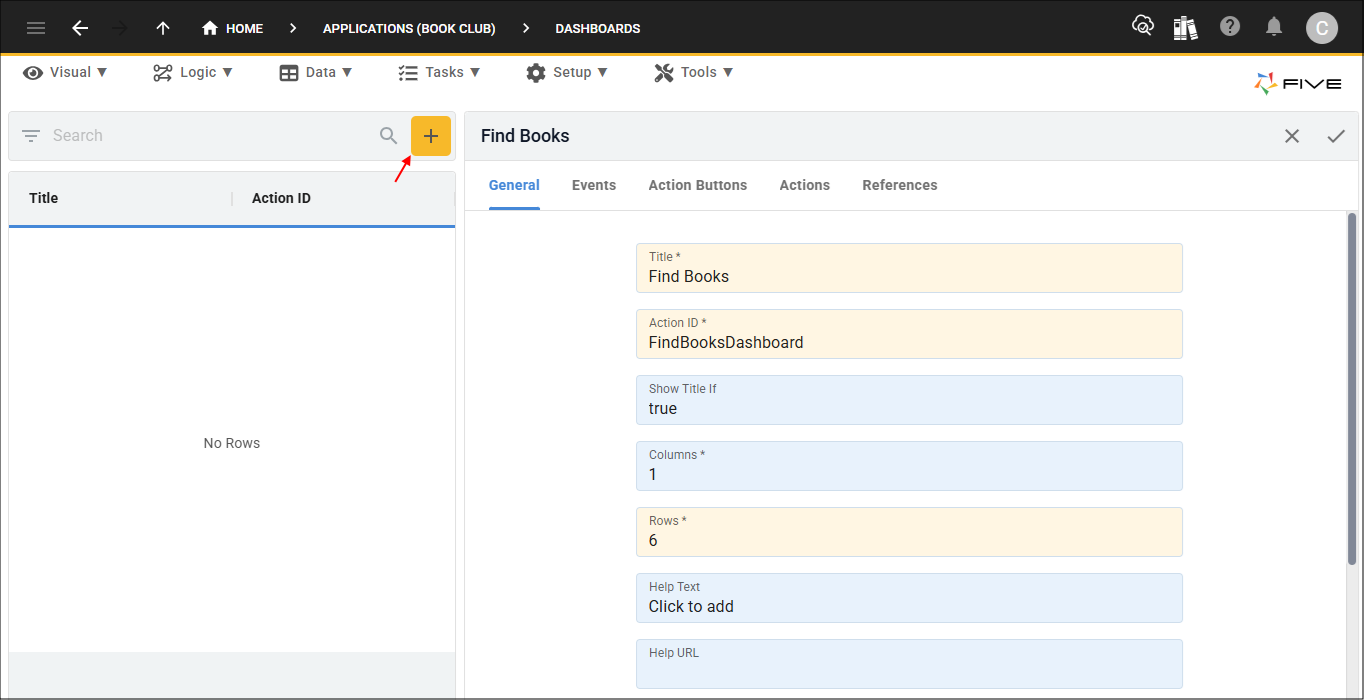
Figure 2 - Add Find Books dashboard
5. Click the Actions tab.
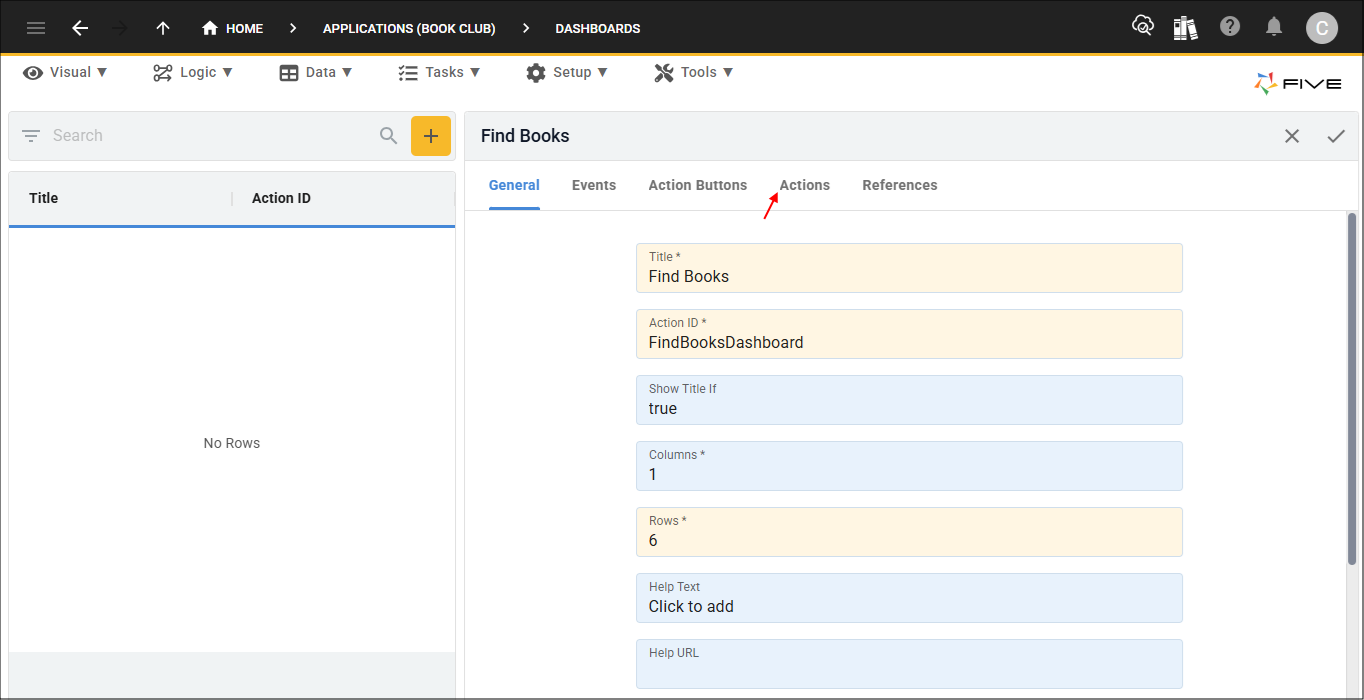
Figure 3 - Actions tab
6. Click the Add Actions button.
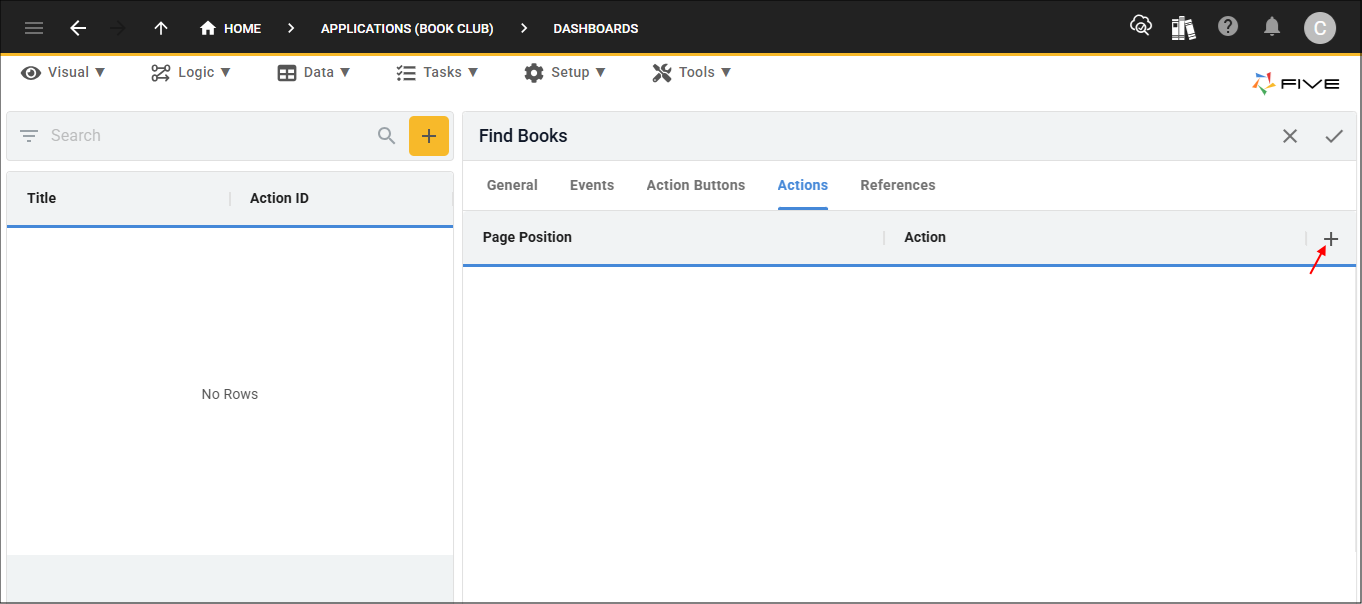
Figure 4 - Add Actions button
7. Click the Edit button in the Page Position field.
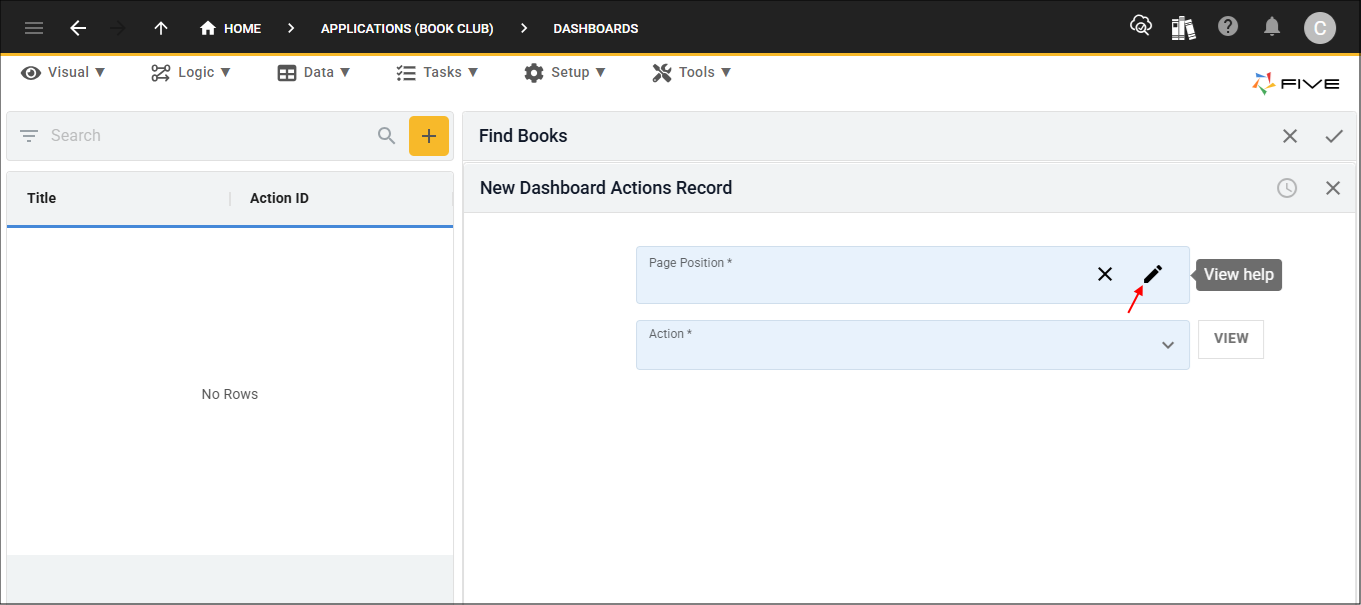
Figure 5 - Edit button
8. Click A1 and the Save button in the Grid Picker.
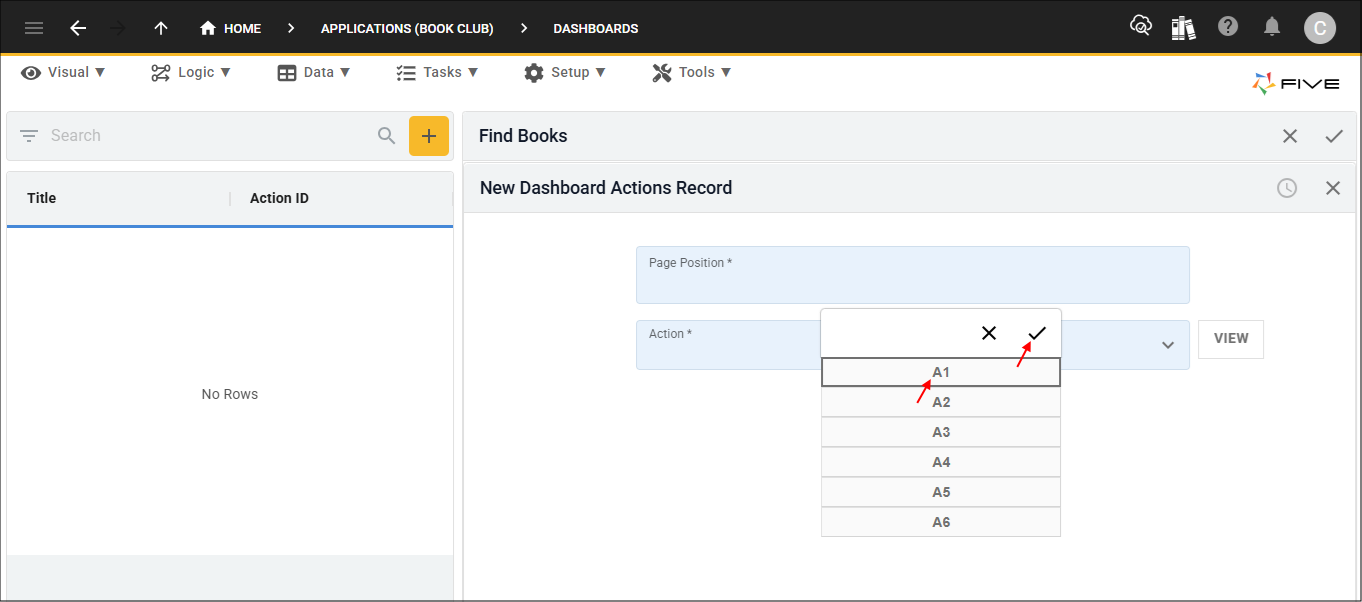
Figure 6 - Save A1 position
9. Click the lookup icon in the Action field and select FindBooksProcess (Process).
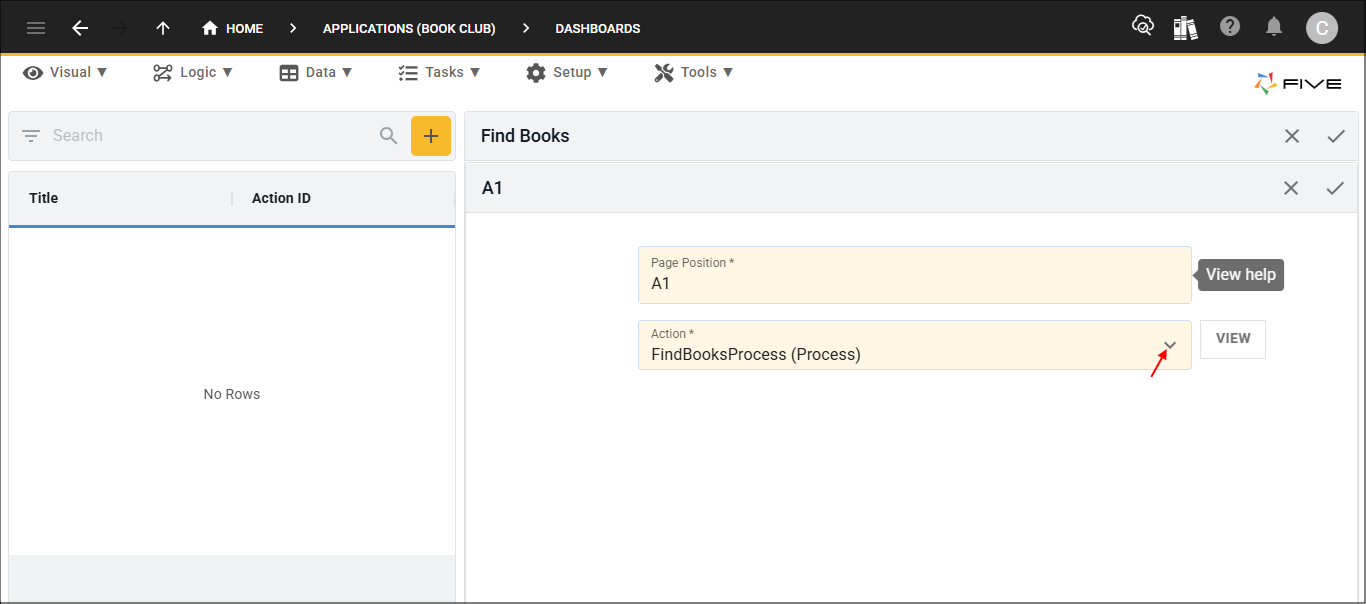
Figure 7 - Action field
10. Click the Save button in the form app bar.
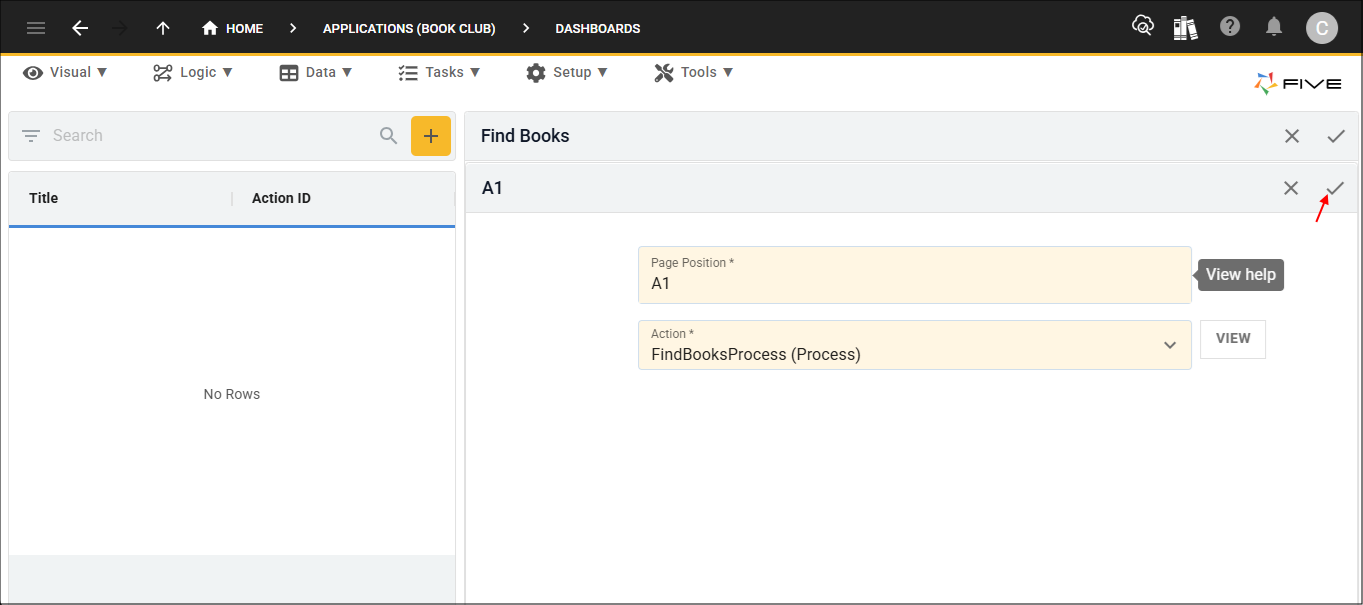
Figure 8 - Save button
11. Click the Add Actions button.
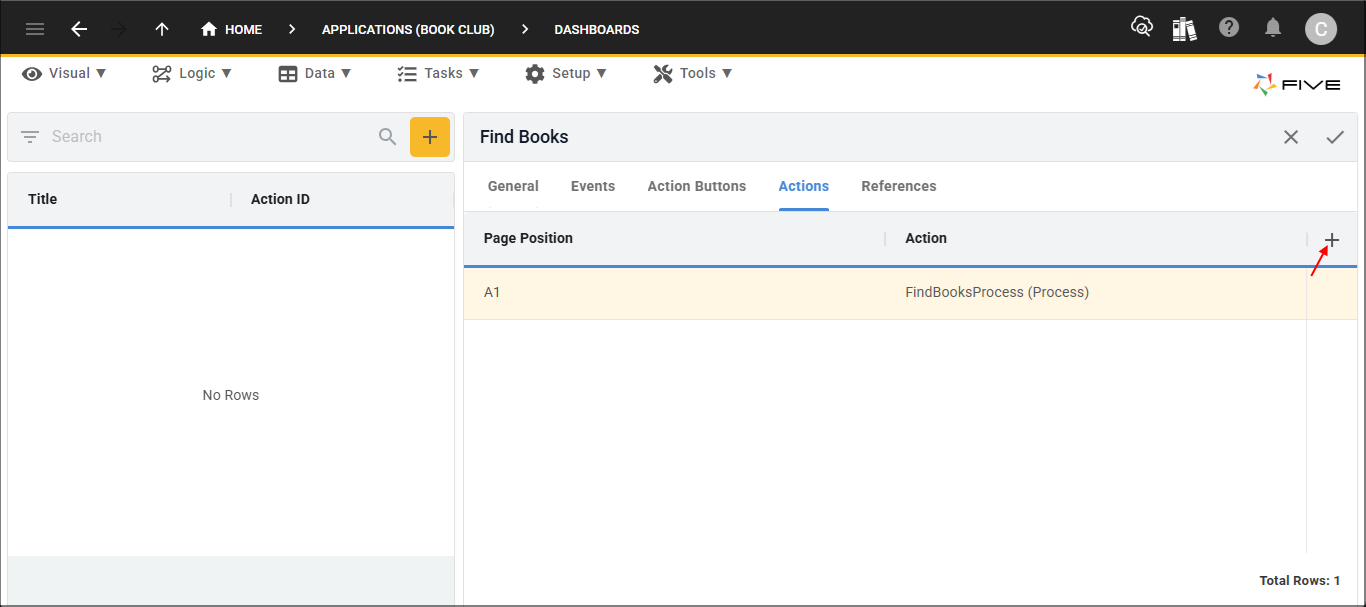
Figure 9 - Add Actions button
12. Click the Edit button in the Page Position field.
13. Click A2 and the Save button in the Grid Picker.
tip
With A2 selected, Five will allocate the remaining rows to the data view. If we only had 2 rows on our dashboard, Five would give the process and the data view equal space on the dashboard.
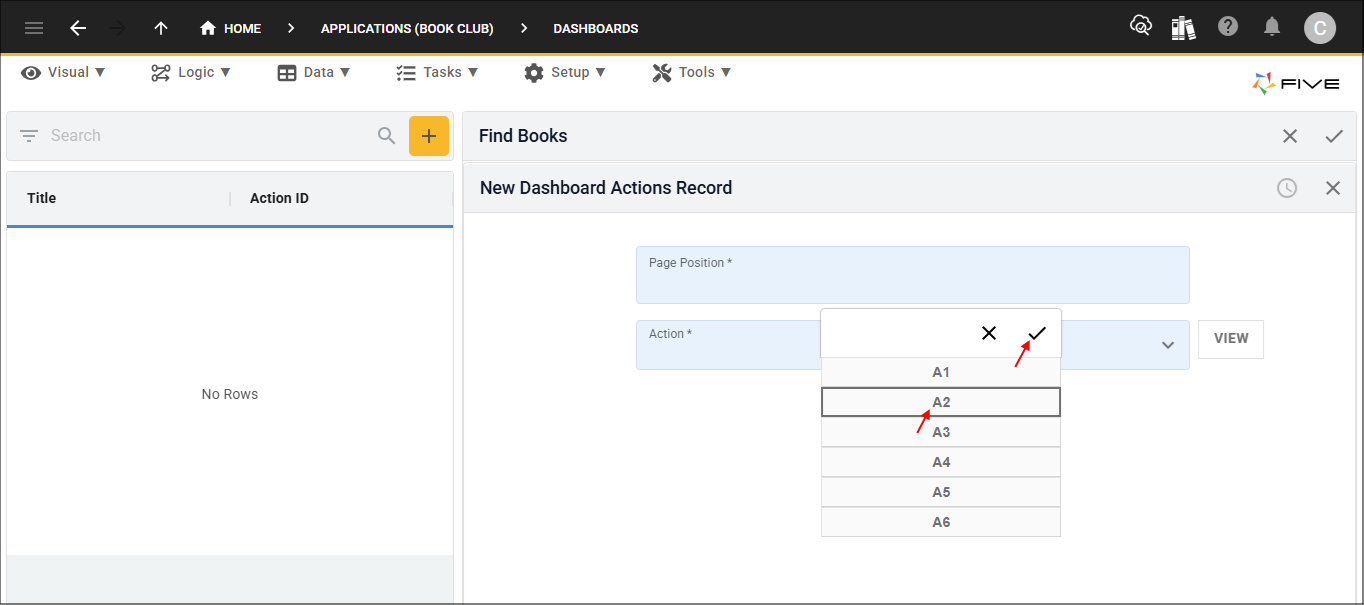
Figure 10 - Save A2 position
14. Click the lookup icon in the Action field and select FindBooksDataView (DataView).
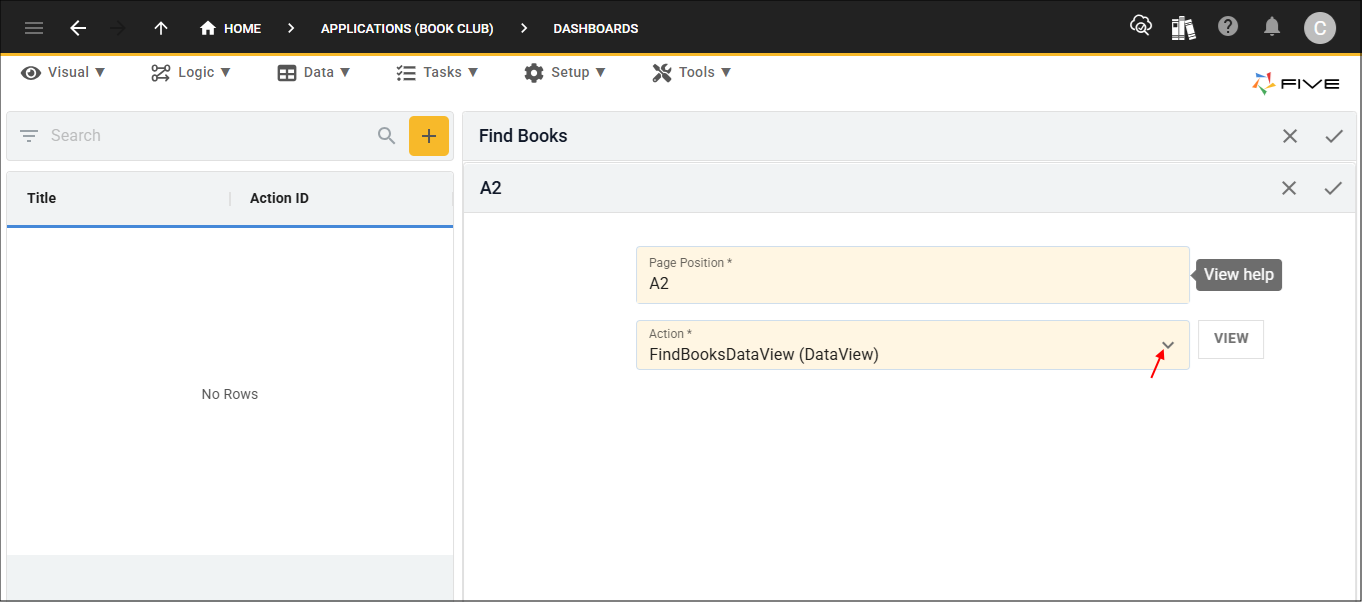
Figure 11 - Action field
15. Click the Save button in the form app bar.
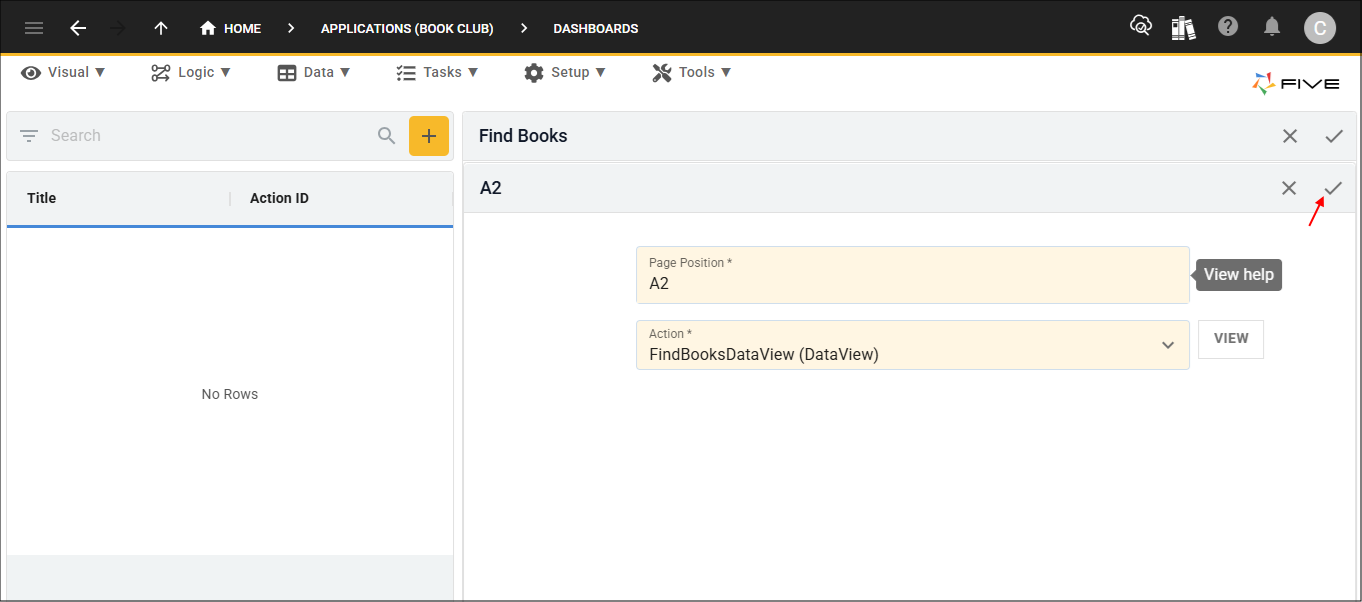
Figure 12 - Save button
16. Click the Save button in the form app bar above the list.
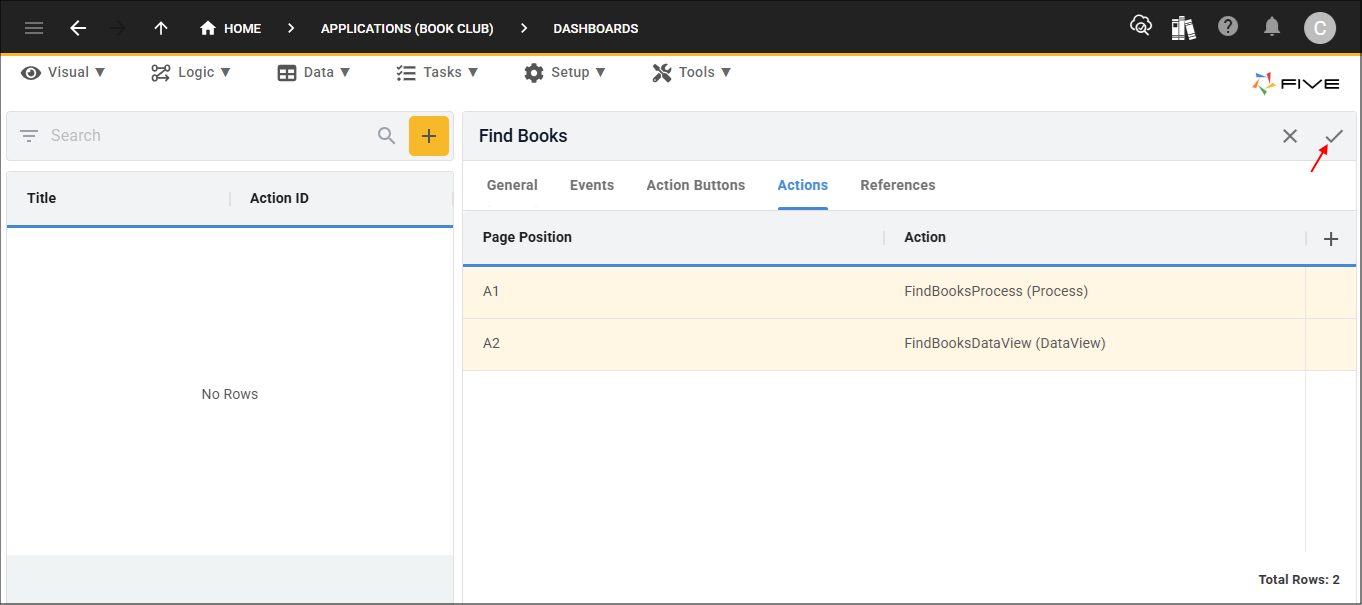
Figure 13 - Save button