10.6 - Find Books Data View
Last updated 15/05/2025
The Find Books data view will use the FindBooks query to display the results returned from the Find Books query when values are entered in the Title and/or ISBN fields and the Search button is clicked.
Navigate to Data Views
1. Click Visual in the Menu.2. Click Data Views in the menu.
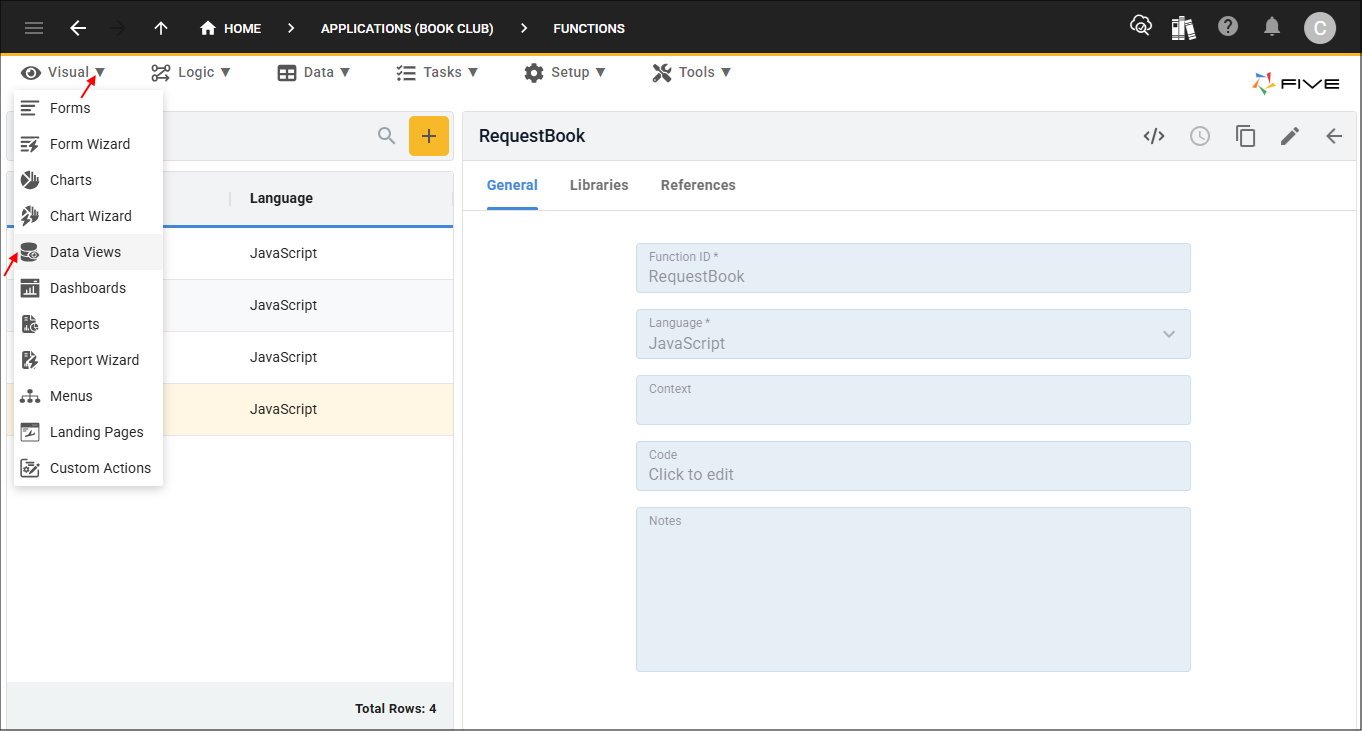
Figure 1 - Data Views menu item
Add the Find Books Data View
1. Click the Add Item button.2. Type Find Books in the Title field.
3. Type DataView after FindBooks in the Action ID field.
4. Click the lookup icon in the Data Source field and select FindBooks (Query).
5. Type
false
in the Show Title If field
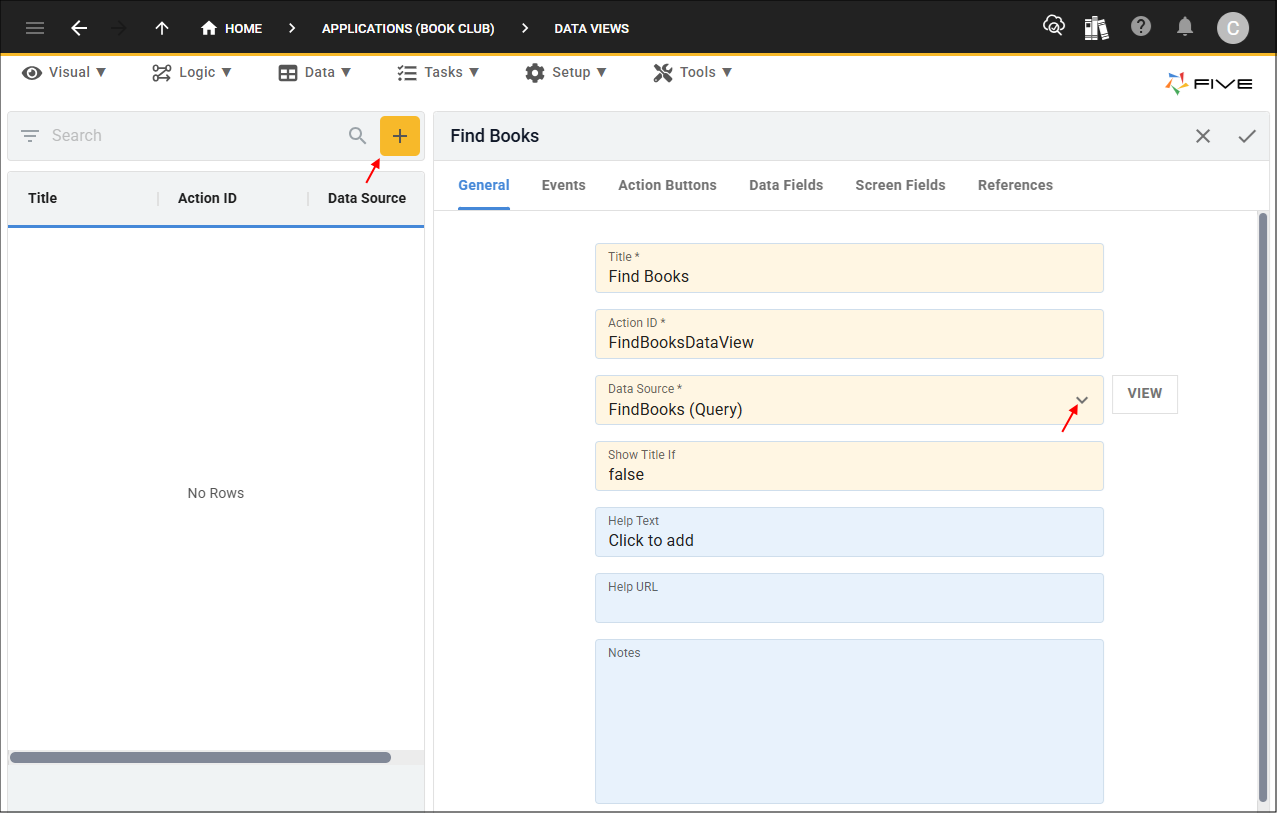
Figure 2 - Add Find Books data view
6. Click the Data Fields tab.
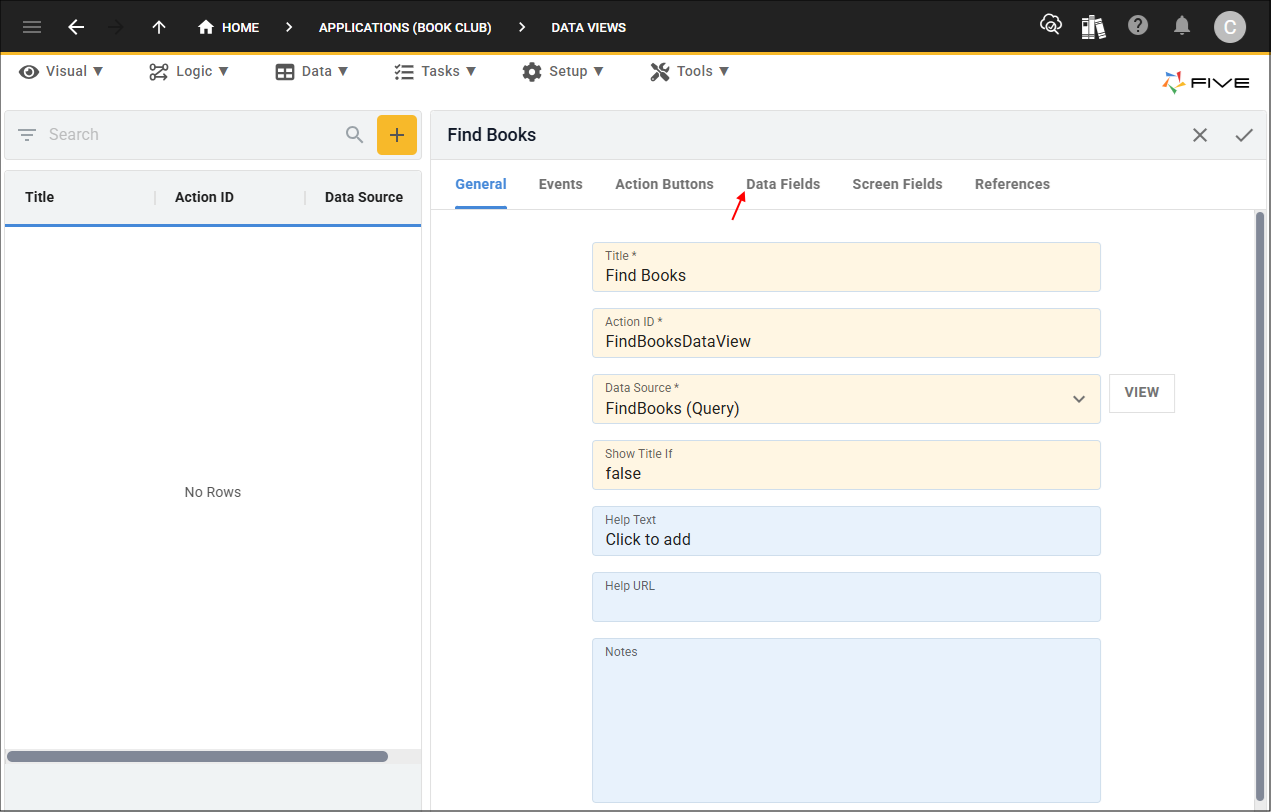
Figure 3 - Data Fields tab
7. Select the UserKey record.
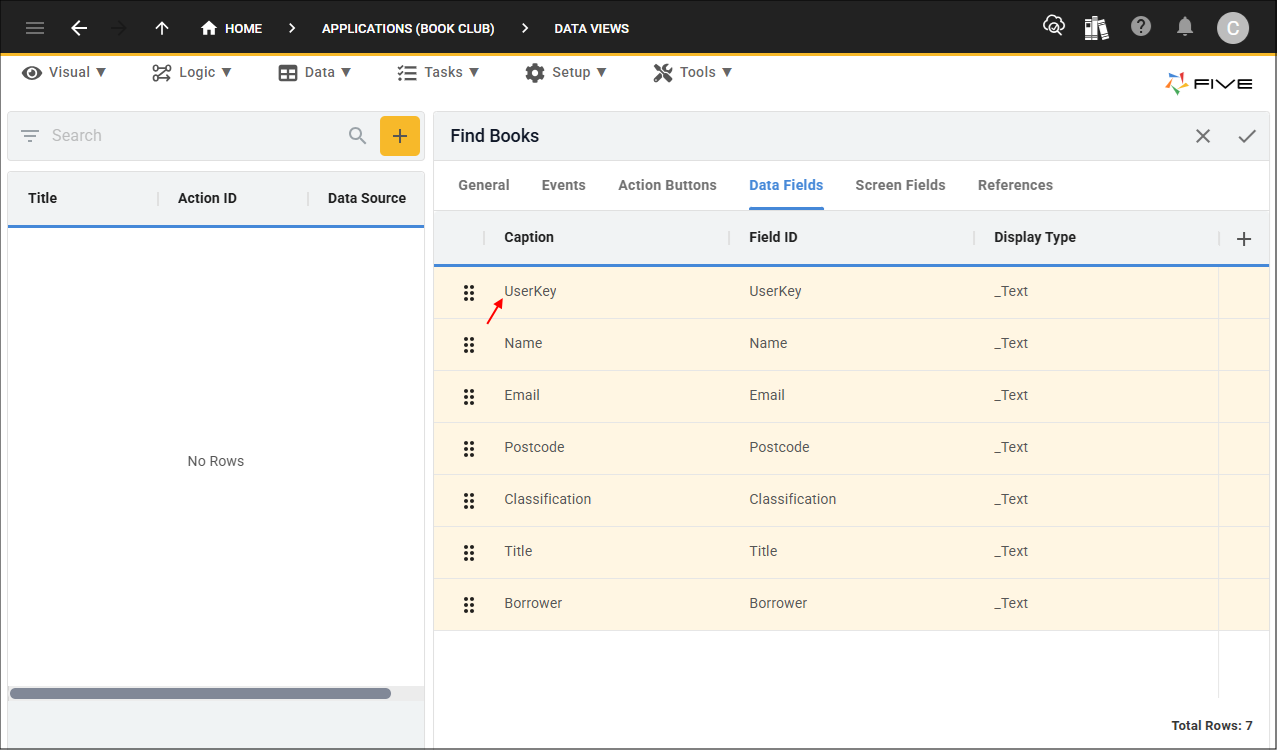
Figure 4 - UserKey record
8. Either click the Edit button in the form app bar or click directly in the Show If field.
9. Type
false
in the Show If field.
10. Click the Save button in the form app bar.
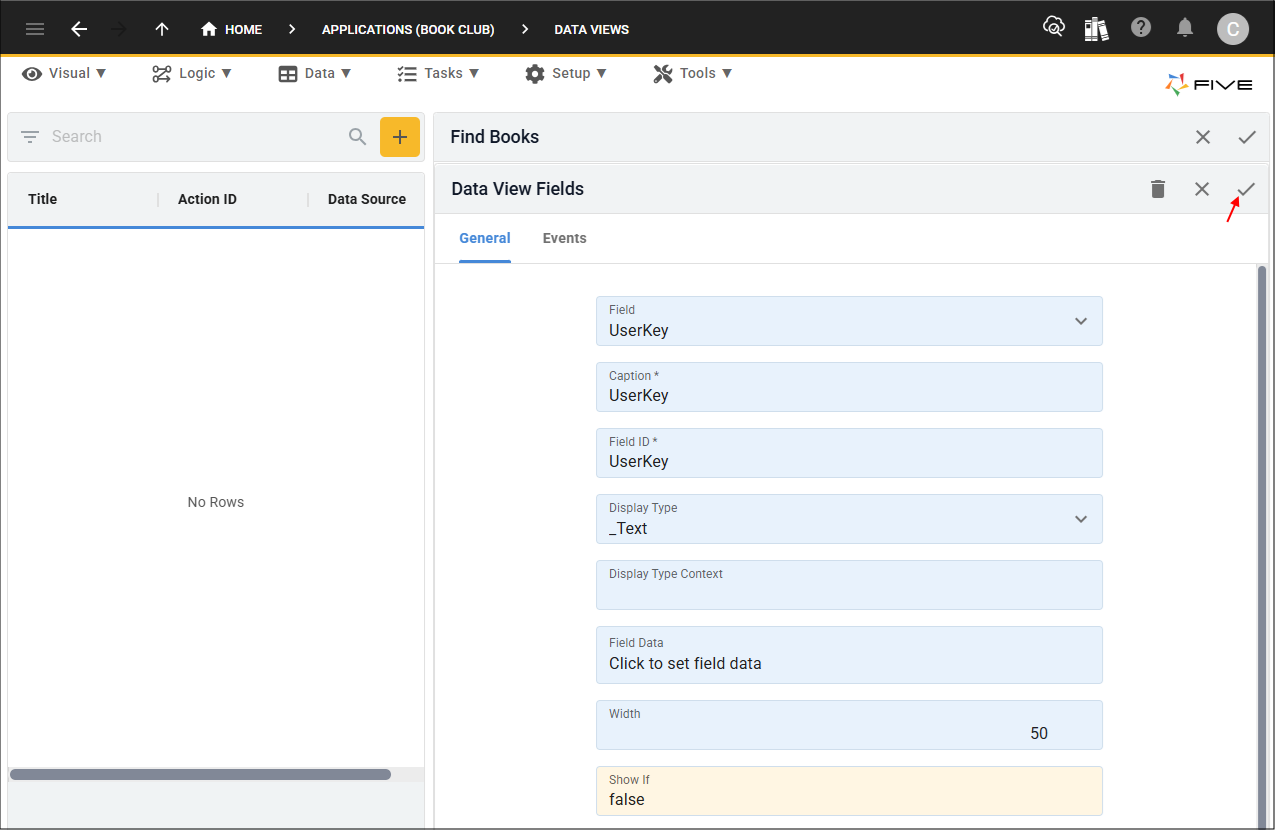
Figure 5 - Save button
11. Select the Borrower record.
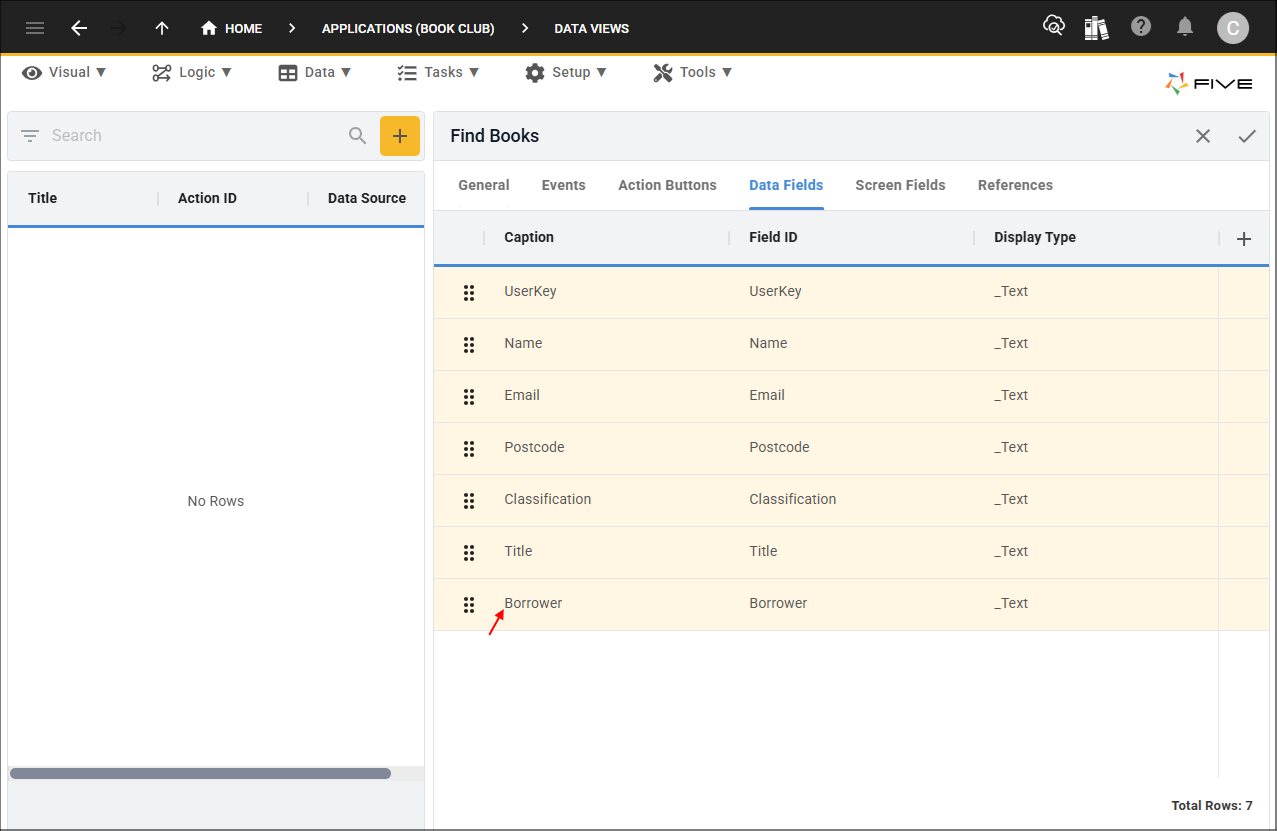
Figure 6 - Borrower record
12. Either click the Edit button in the form app bar or click directly in the Show If field.
13. Type
false
in the Show If field.
14. Click the Save button in the form app bar.
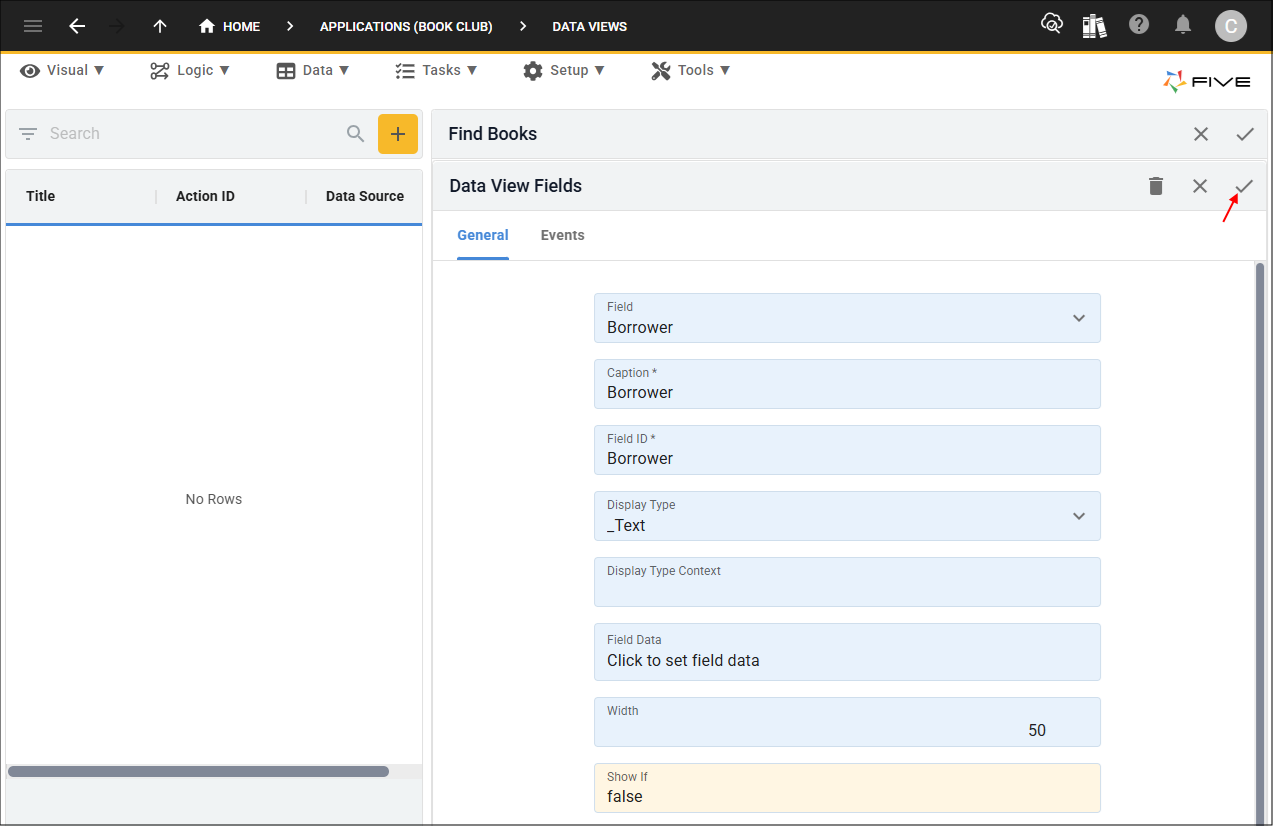
Figure 7 - Save button
15. Click the Add Data Fields button.
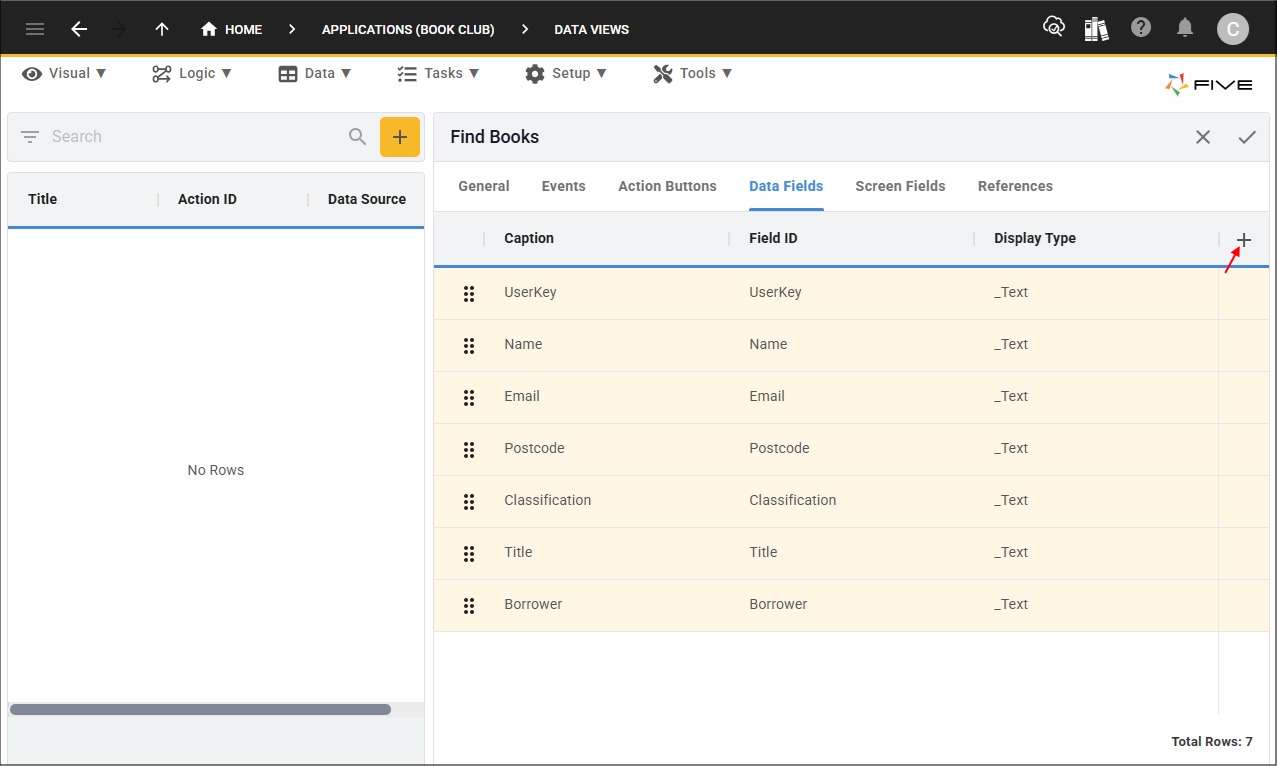
Figure 8 - Add Data Fields button
16. Type Request Book in the Caption field.
17. Type RequestBook in the Field ID field.
18. Click the lookup icon in the Display Type field and select _Button.
19. Type 20 in the Width field.
20. Type
(!five.field.Borrower)
in the Show If field.
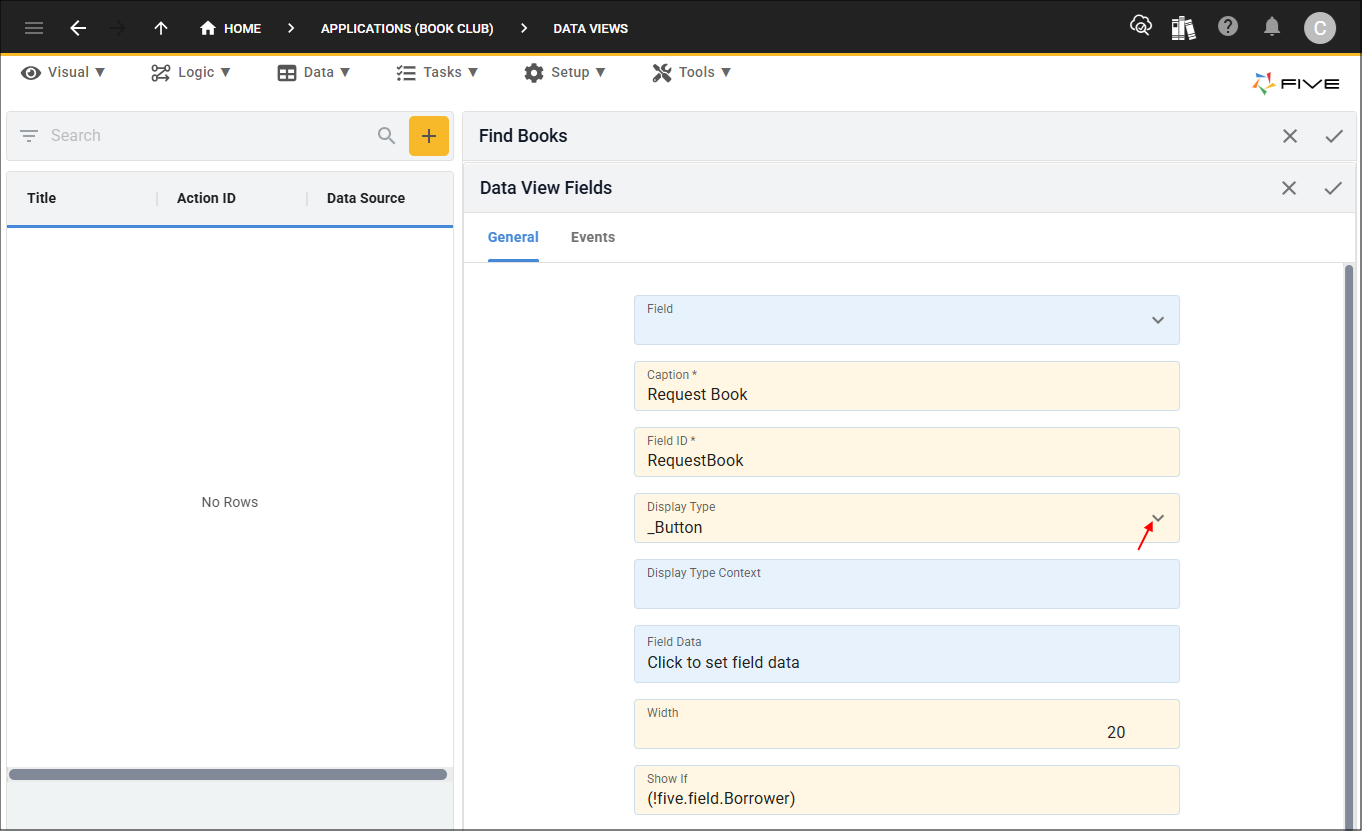
Figure 9 - Add Request Book field
21. Click the Events tab.
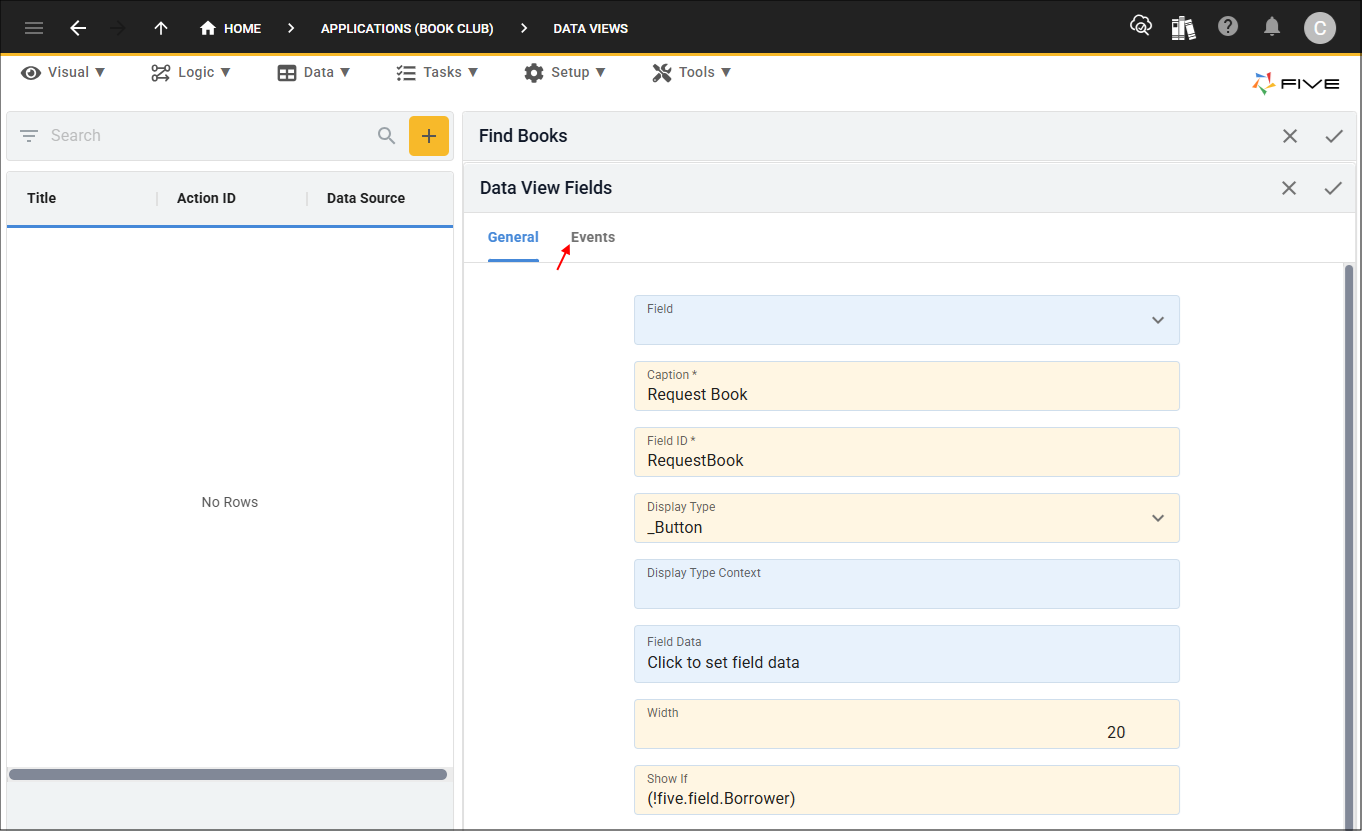
Figure 10 - Events tab
22. Click the lookup icon in the On Click field and select RequestBook.
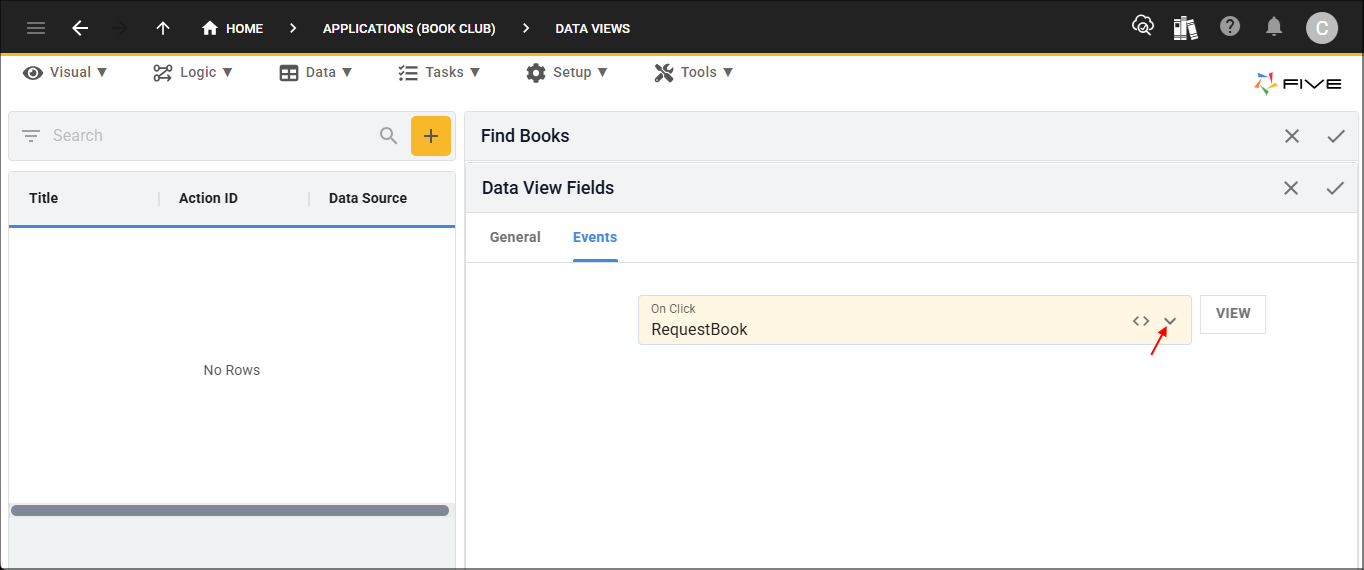
Figure 11 - On Click field
23. Click the Save button in the form app bar.
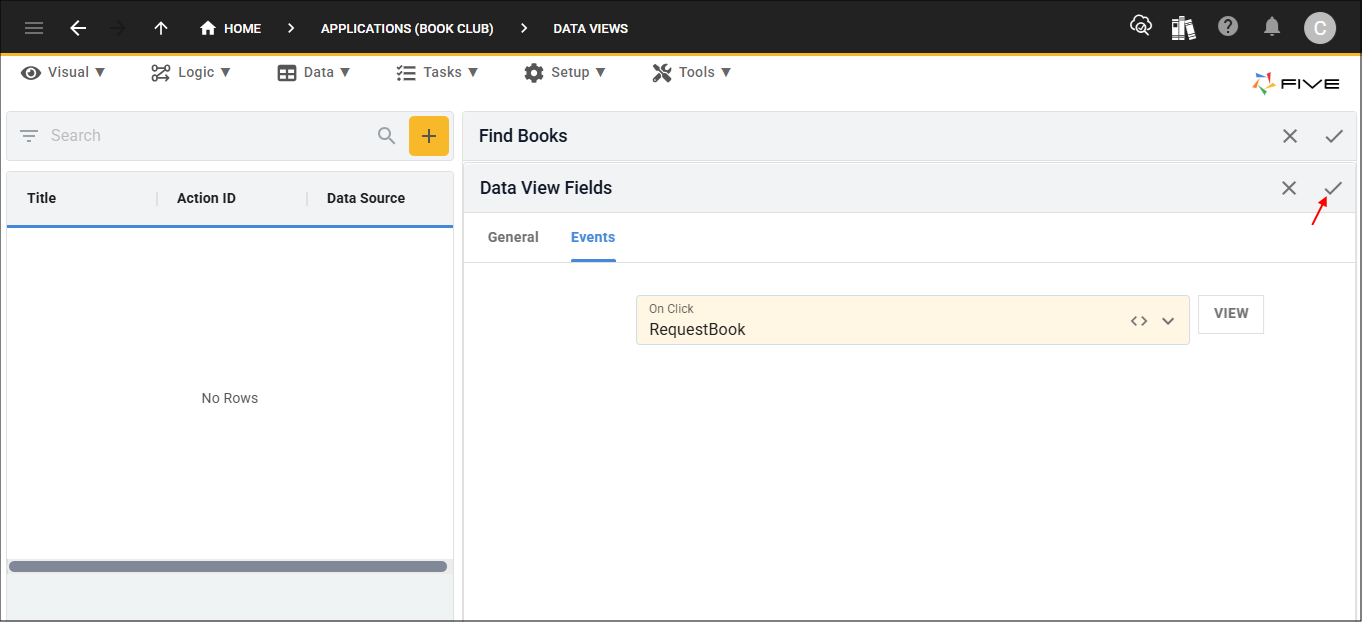
Figure 12 - Save button
24. Click the Save button in the form app bar above the list.
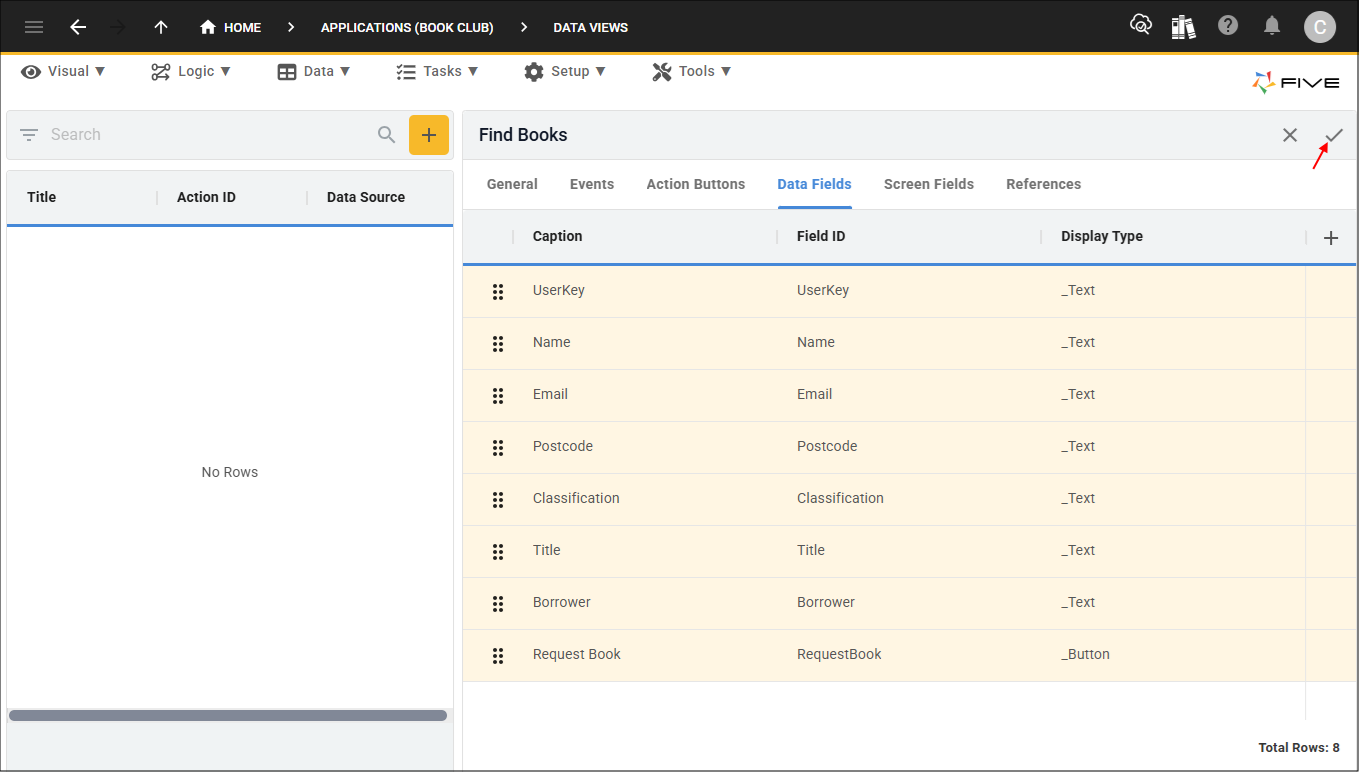
Figure 13 - Save button