10.5 - RequestBook and RequestBookServer Functions
Last updated 15/05/2025
Two functions need to be added to request a book, the
RequestBook()
and RequestBookServer()
functions.
The RequestBook()
function will execute in the frontend and call the RequestBookServer()
function
from the backend. The RequestBookServer()
function uses Five's executeQuery()
function,
this function can only be used in the backend due to it dealing with data in the database. The function also uses Five's sendNotification()
function which only executes in the backend too.
The
RequestBookServer()
function will get the full name of the current logged in user in the Book Club application, using Five's currentUserKey()
function. The name of the
owner of the book will also be returned using the UserKey supplied on the context
parameter. Five's sendNotification()
function is then used to send a notification to the owner of the book when a member requests to borrow
their book.
The
RequestBook()
function executes in the frontend and collects the owner's UserKey and Title of their book. The function then sends these values as variables to the
backend function RequestBookServer()
using Five's executeFunction()
function. When calling executeFunction()
,
the function ID, and the variables are passed as parameters, and the variables will be passed into the backend function, RequestBookServer()
, on the context
parameter.
A button will be added onto the Find Books data view with the
RequestBook()
function attached, this will enable a member to click the button and request a book from the owner. The owner of the book will receive an in-app
notification containing the request information. If the owner is not logged into their account, the notification will be cached and available when they log in.
Navigate to Functions
1. Click Logic in the menu.2. Click Functions in the sub-menu.
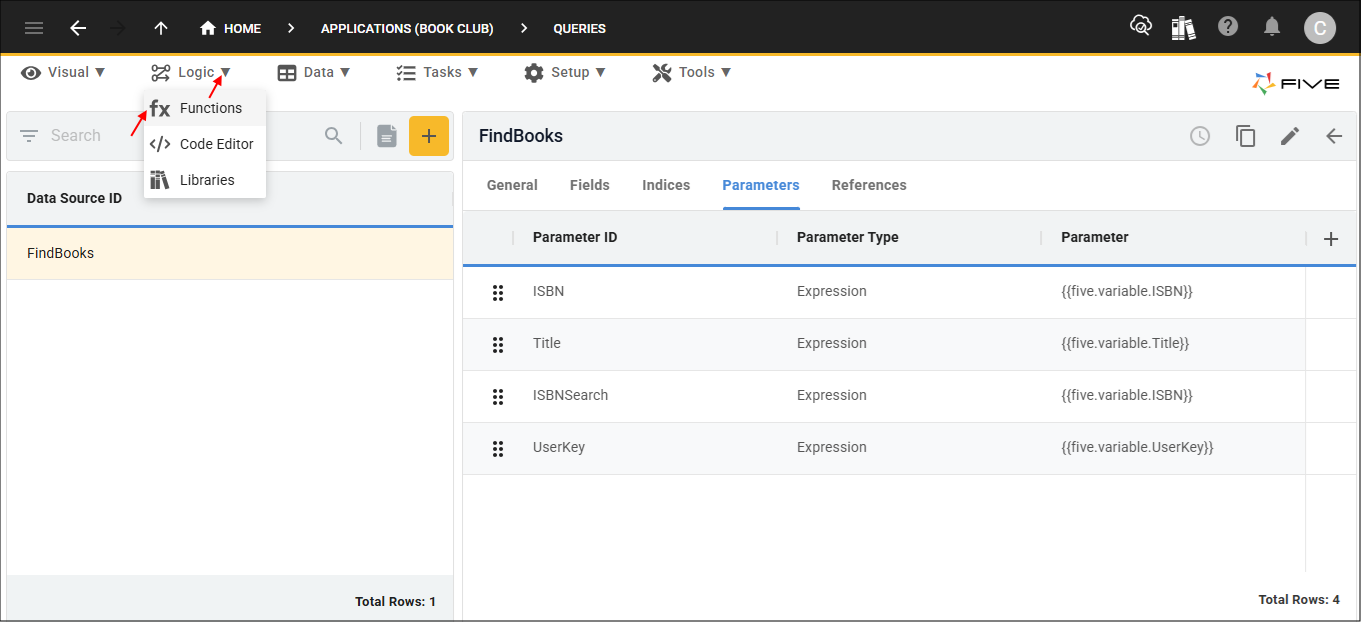
Figure 1 - Functions menu item
Add The RequestBookServer Function
1. Click the Add Item button.2. Type RequestBookServer in the Function ID field.
3. Click in the Code field to open the Code Editor.
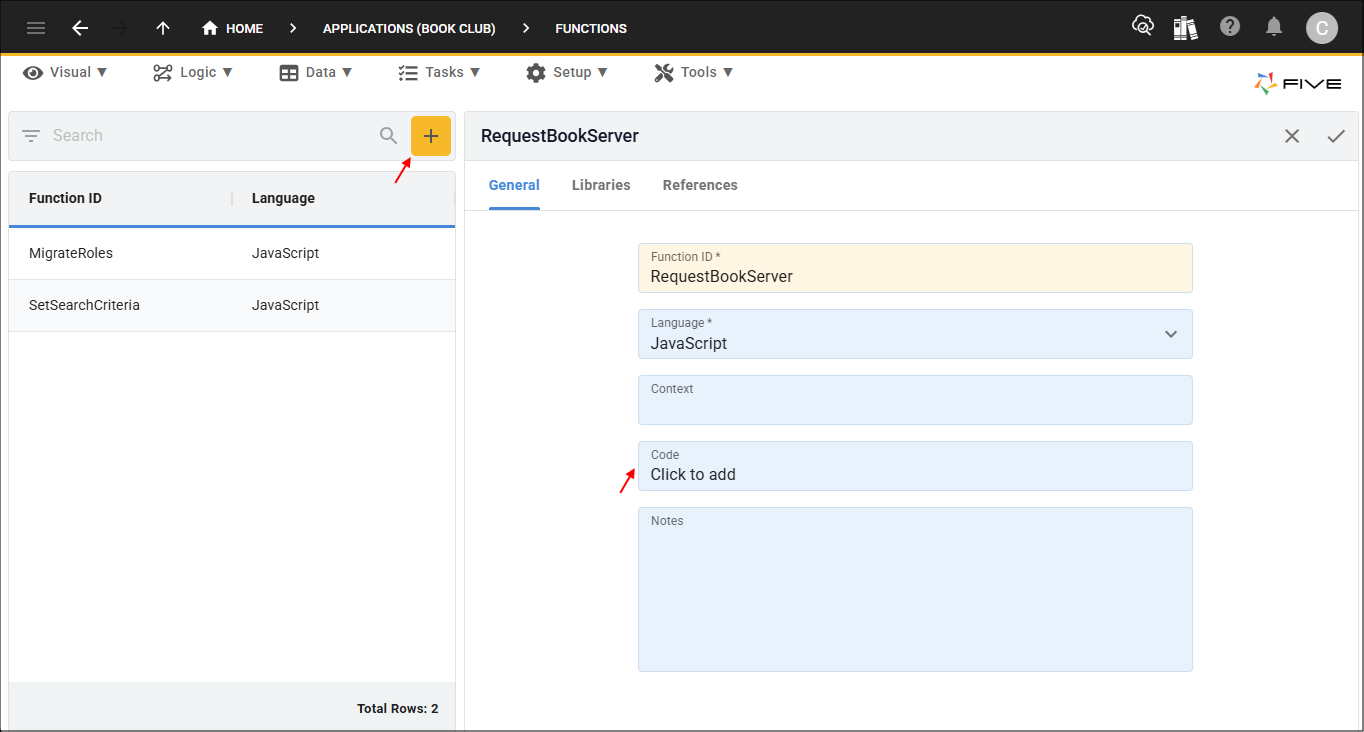
Figure 2 - Add RequestBookServer function
4. Copy the code block below and paste it over the template in the Code Editor.

Backend function for requesting a book
function RequestBookServer(five, context, result)  {
    five.log(JSON.stringify(context));
    const currentUserKey = five.currentUserKey();
    let userResults = five.executeQuery("SELECT FullName FROM iUser WHERE iUserKey = ?", 1, currentUserKey);
    if (userResults.isOk() === false) {
        return five.createError(userResults);
    }

    const currentName = userResults.records[0].FullName;
    five.log('Name ' + currentName);

    userResults = five.executeQuery("SELECT FullName FROM iUser WHERE iUserKey = ?", 1, context.UserKey);
    if (userResults.isOk() === false) {
        return five.createError(userResults);
    }

    const ownerName = userResults.records[0].FullName;

    five.sendNotification(context.UserKey, `Hi ${ownerName}, ${currentName} would like to borrow your book : ${context.Title}`);

    return five.success(result, `Your request has been sent to ${ownerName}`);
}
5. Click the Save button in the editor app bar.
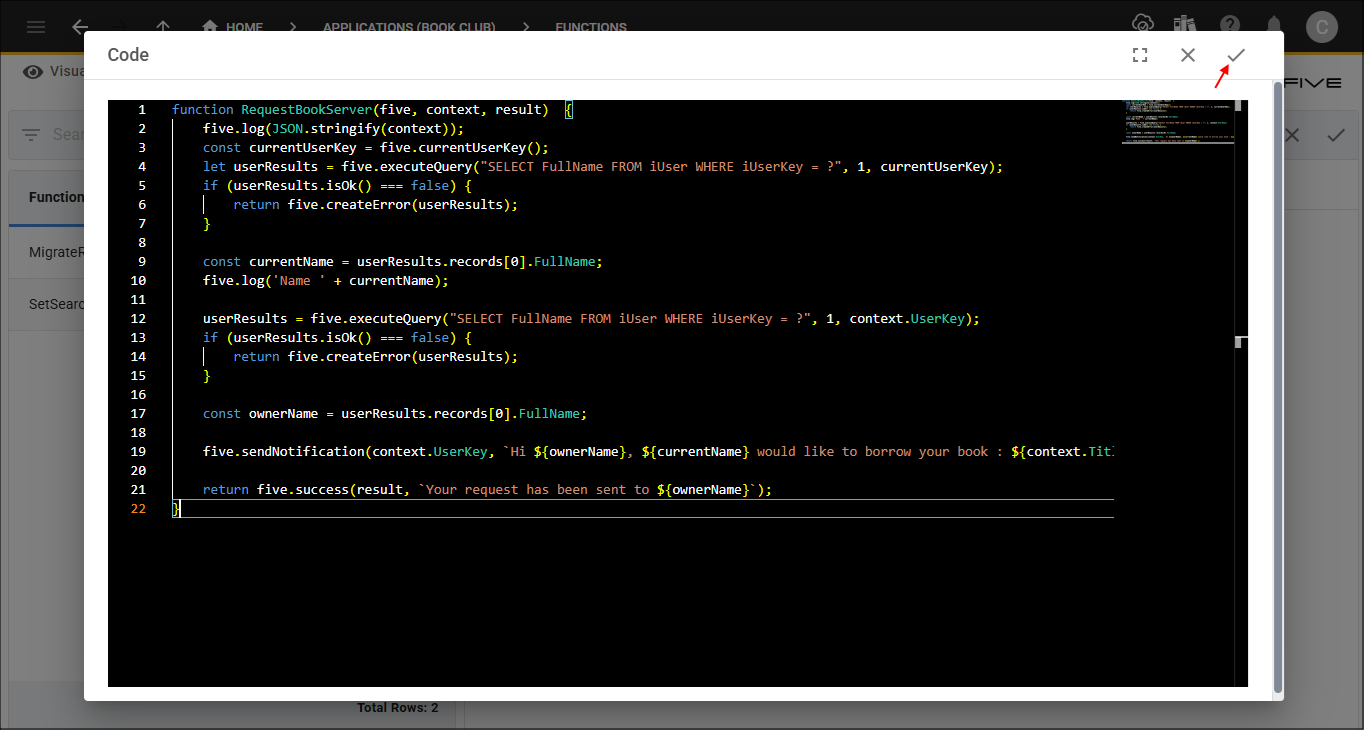
Figure 3 - Save button
6. Click the Save button in the form app bar.
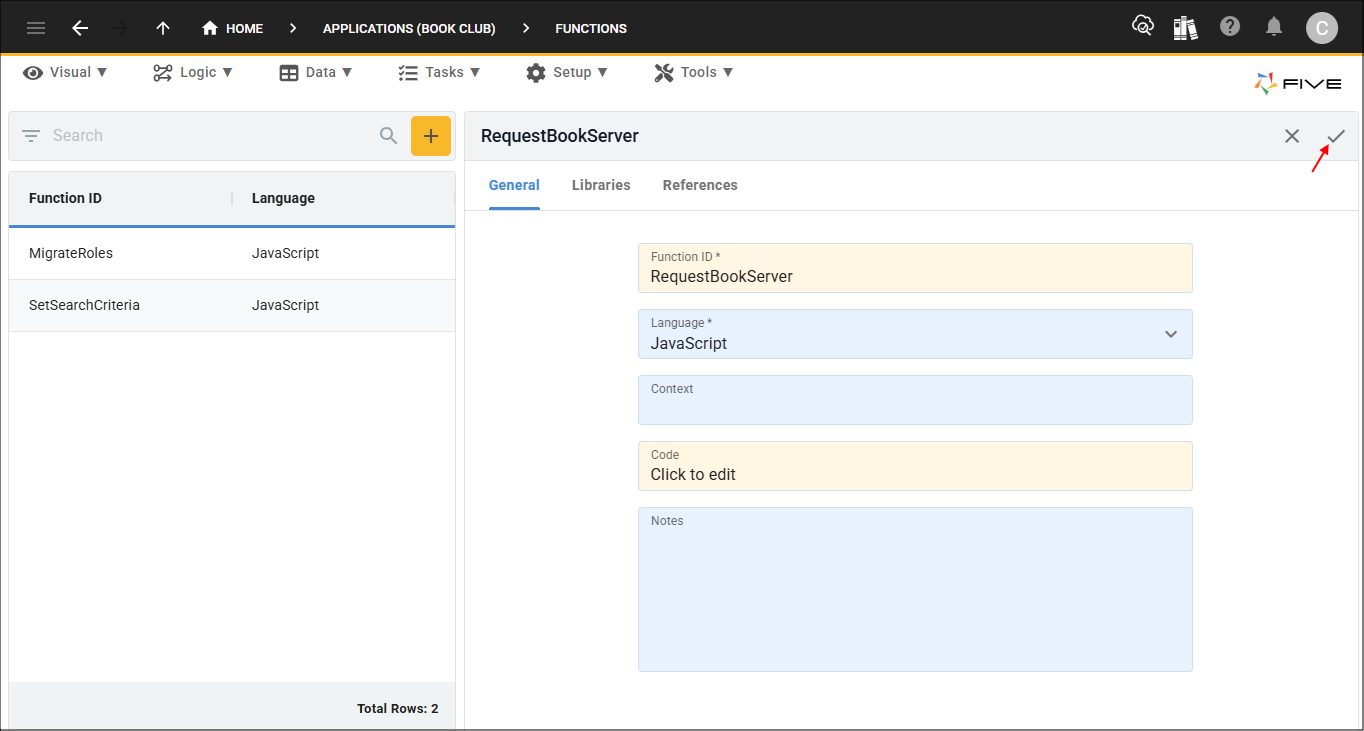
Figure 4 - Save button
Add the RequestBook Function
1. Click the Add Item button.2. Type RequestBook in the Function ID field.
3. Click in the Code field to open the Code Editor.
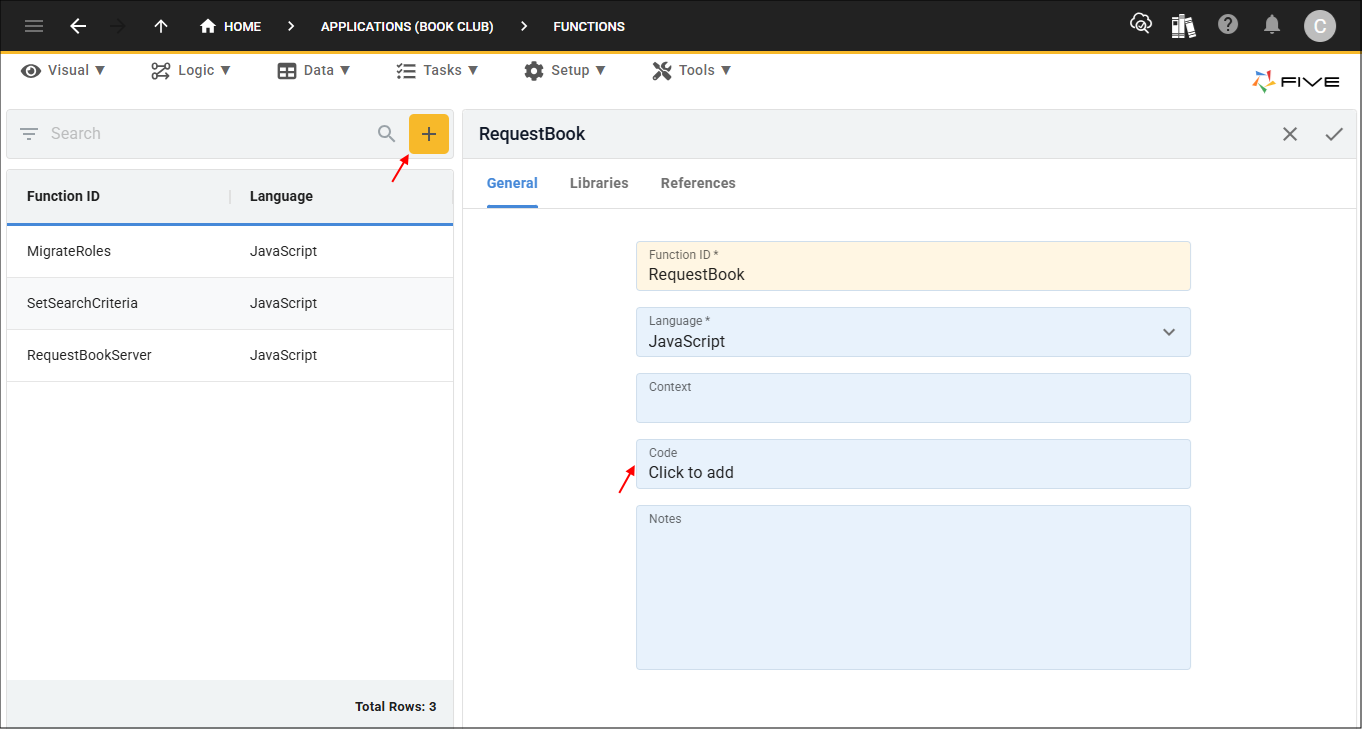
Figure 5 - Add BookRequest function
4. Copy the code block below and paste it over the template in the Code Editor.
Frontend function calling backend function for requesting a book
function RequestBook(five, context, result)  {

    const variables = {};
    variables['UserKey'] = five.field.UserKey;
    variables['Title'] = five.field.Title;

    const _five = five;
    five.executeFunction('RequestBookServer', variables, null, '', '', function (result) {
        if (result.serverResponse.errorCode === 'ErrErrorOk') {
            return;
        }

        const functionMessage = result.serverResponse.results;
        if (functionMessage !== '') {
            _five.message(functionMessage);
        }
    });

    return five.success(result);
}
5. Click the Save button in the editor app bar.
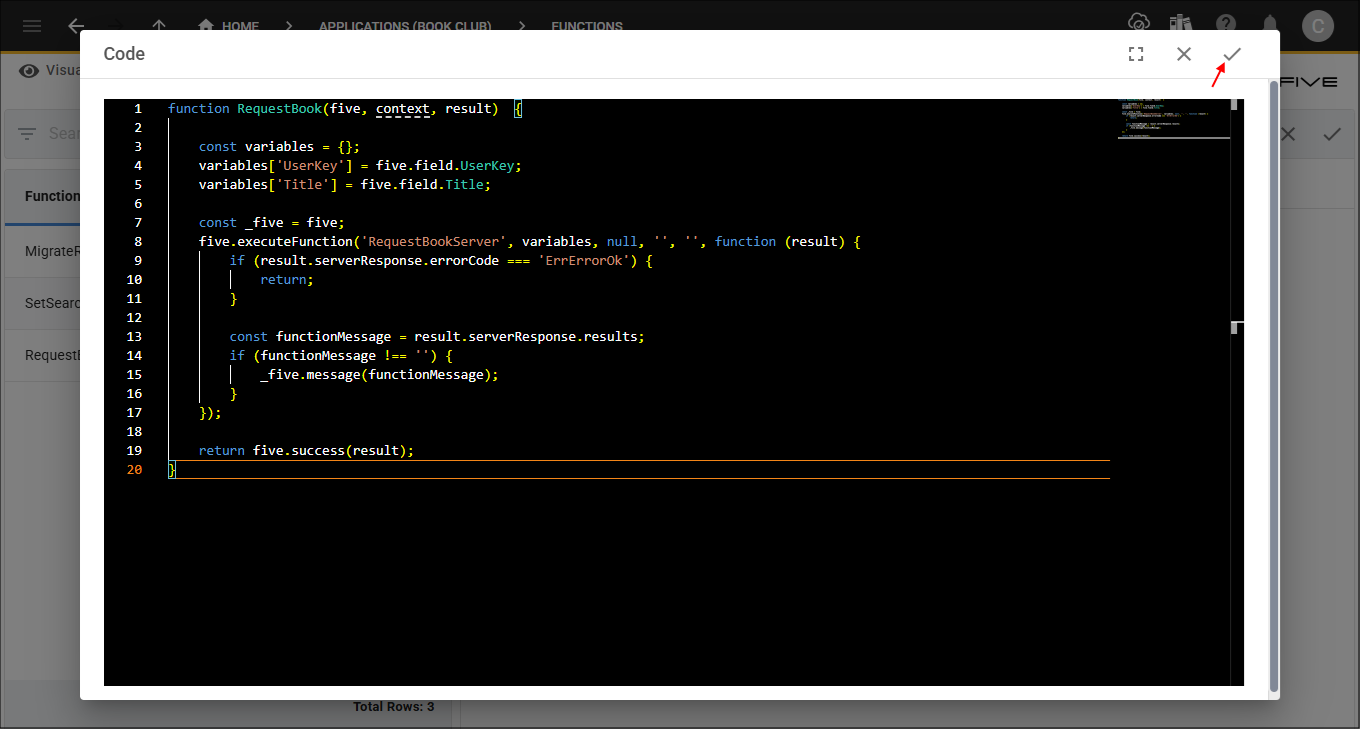
Figure 6 - Save button
6. Click the Save button in the form app bar.
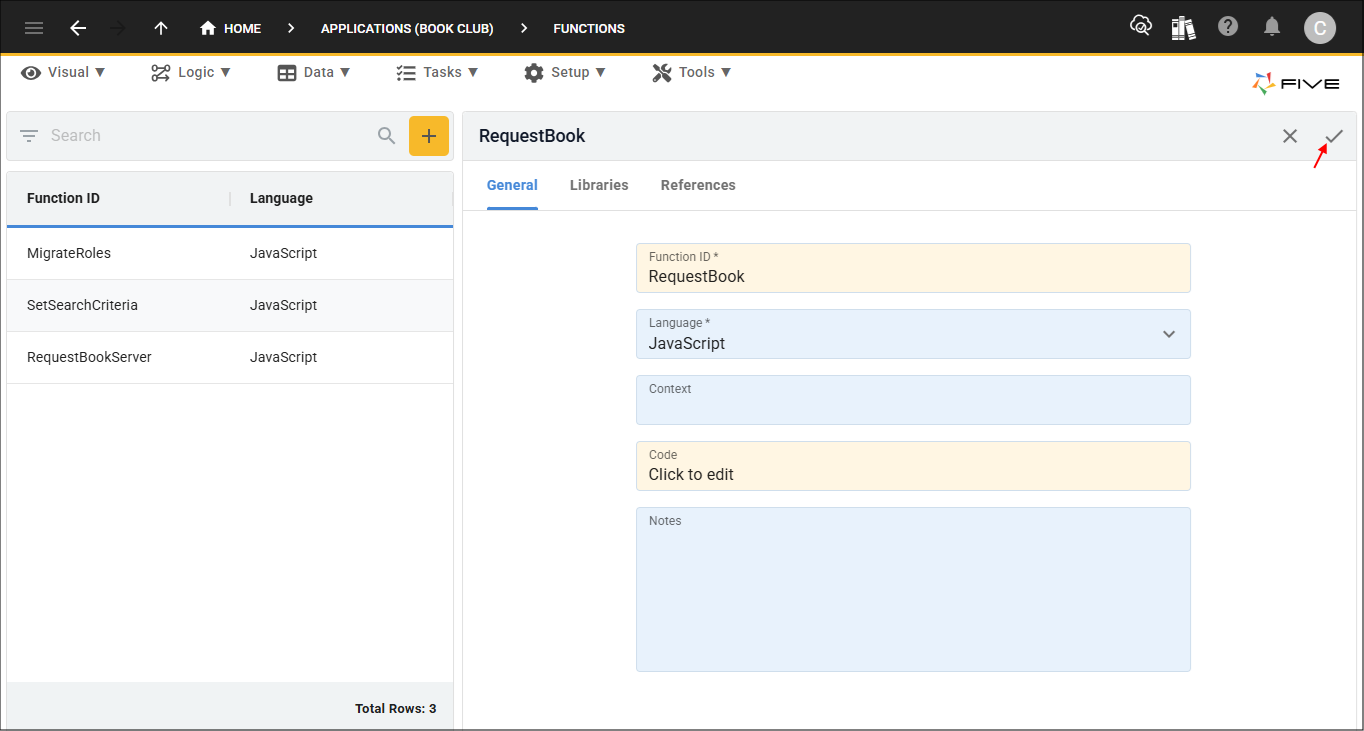
Figure 7 - Save button