Spreadsheet to Web App
Last updated 14/07/2026
Overview
With V in Five, you can transform your existing data into a fully functional web application in just minutes. Instead of manually building database structures, forms, and user interfaces from scratch, V analyzes your uploaded data and automatically generates the foundation of your application for you.
Getting started is simple, all you need to do is upload a file containing data into V. This can include spreadsheets, exported business data, or structured datasets that you already use in your day-to-day operations. Once uploaded, V interprets the data structure, creates the necessary database tables, and begins building an application around your information automatically.
In this example, we will be using a spreadsheet file in XLSX format.
By using an existing spreadsheet, you can rapidly prototype or build applications for tasks such as:
- Customer and contact management
- Inventory tracking
- Project management
- Asset registers
- Internal business tools
- Reporting and data management systems
This approach dramatically reduces development time and allows you to focus on refining your workflows and business processes rather than manually configuring databases and interfaces.
Spreadsheet
Lets start by taking a look at the spreadsheet we're going to work with. This example spreadsheet demonstrates how existing business data can be organized by uploading it into V, in Five, to generate a web application automatically.
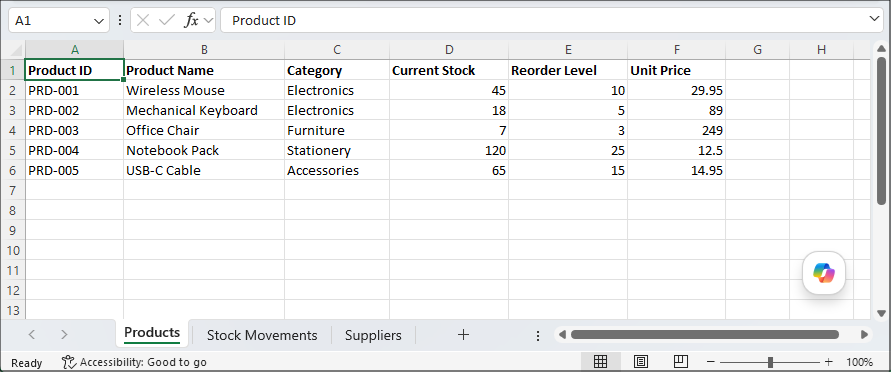
ProductsThe Products worksheet stores the main inventory records. Each row represents a product and includes information such as:
- Product ID
- Product Name
- Category
- Current Stock Levels
- Reorder Levels
- Unit Pricing
This data can be used by V to generate inventory management forms, searchable product lists, and reporting functionality.
Stock Movements
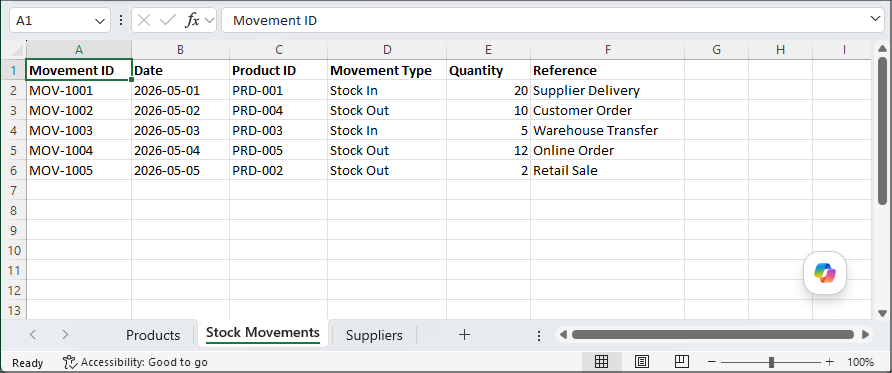
The Stock Movements worksheet tracks inventory activity over time. This includes stock entering or leaving the business through deliveries, sales, or transfers. The worksheet includes:
- Movement IDs
- Dates
- Product References
- Movement Types
- Quantities
- References or Notes
This type of data can be used to generate transaction history screens, audit trails, and stock movement reports.
Suppliers
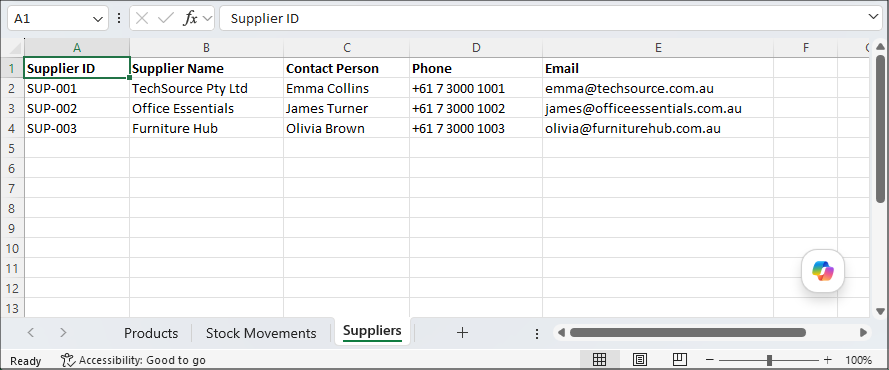
The Suppliers worksheet contains supplier and vendor information associated with the inventory system. The worksheet includes:
- Supplier IDs
- Supplier Names
- Contact Information
- Phone Numbers
- Email Addresses
When imported into V, this data can help generate supplier management screens and relationships between suppliers and products.
Purpose of This Example
This spreadsheet has been intentionally kept simple so you clearly understand how structured data can be transformed into a working application. In a real-world scenario, spreadsheets may contain hundreds and thousands of records across many worksheets.
Creating an Application
You will first need to create your application and drill down from the record to open V.
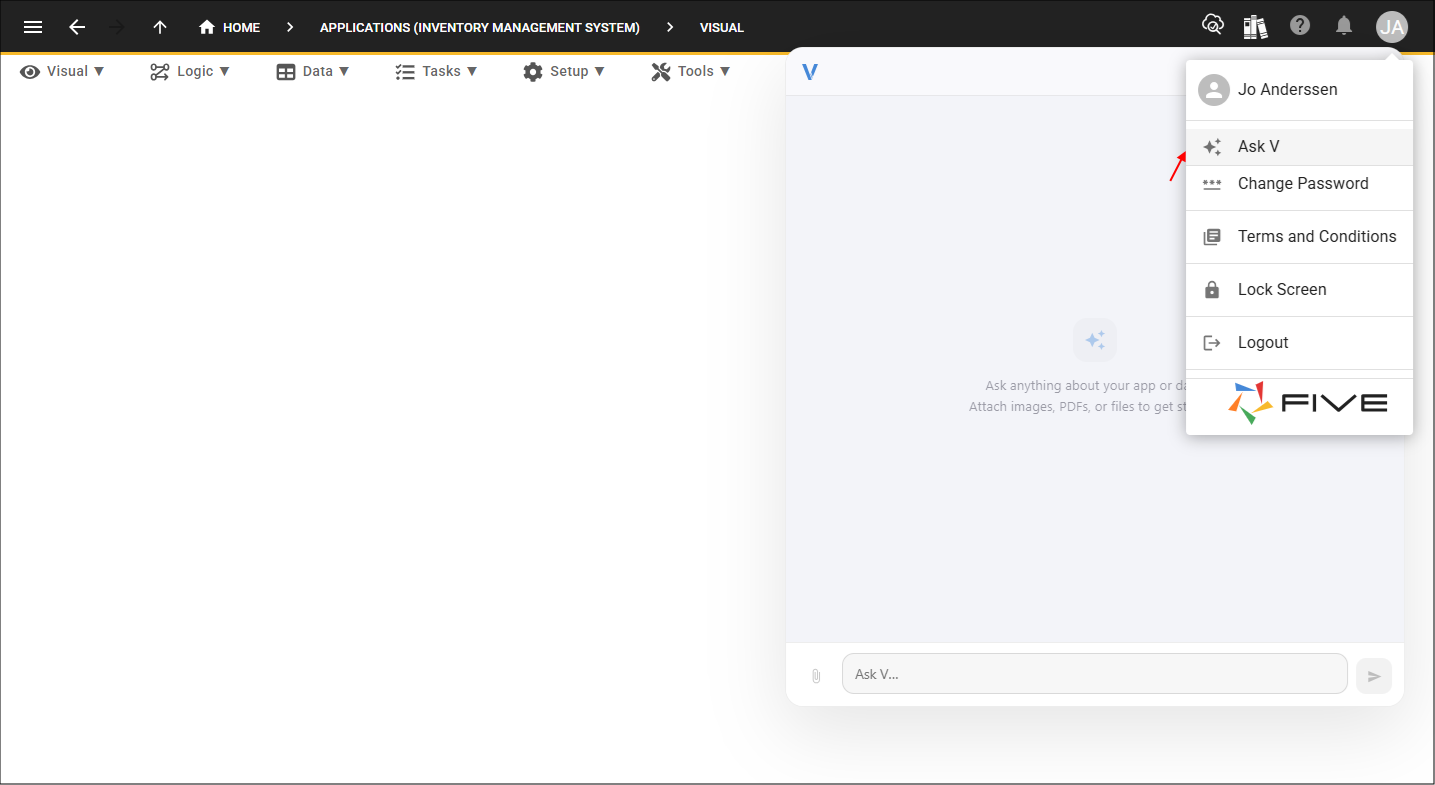
Uploading Your Data File
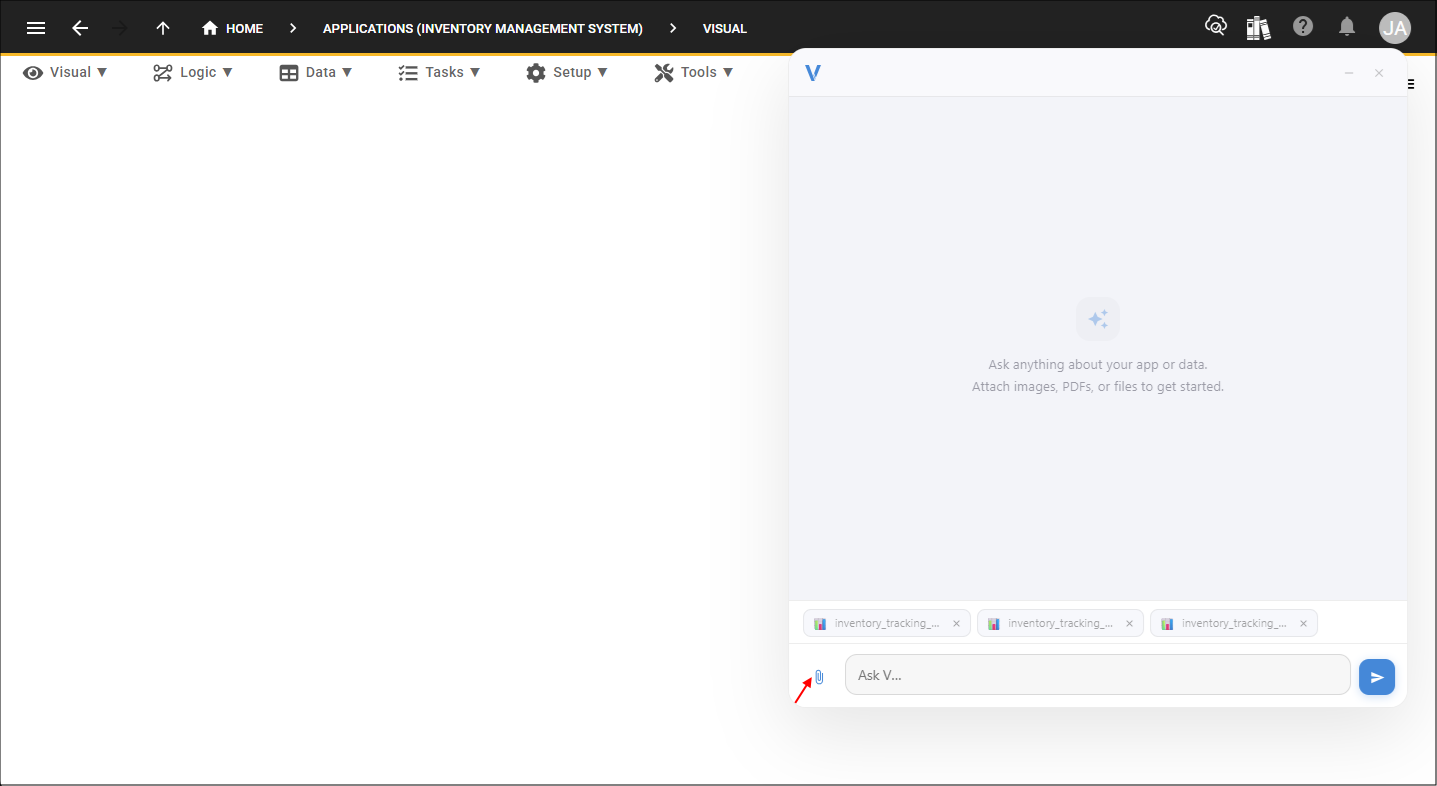
To begin building your application, click the Attach File button and browse to the location of your spreadsheet or data file. Select the file you want to upload.
Once uploaded, V immediately begins analyzing the contents of the file. As V reads the spreadsheet and identifies the columns, worksheets, and data structure, you will start to see your application's tables taking shape automatically. At this point, V understands the structure of your data, but it still needs instructions on what you would like to create.
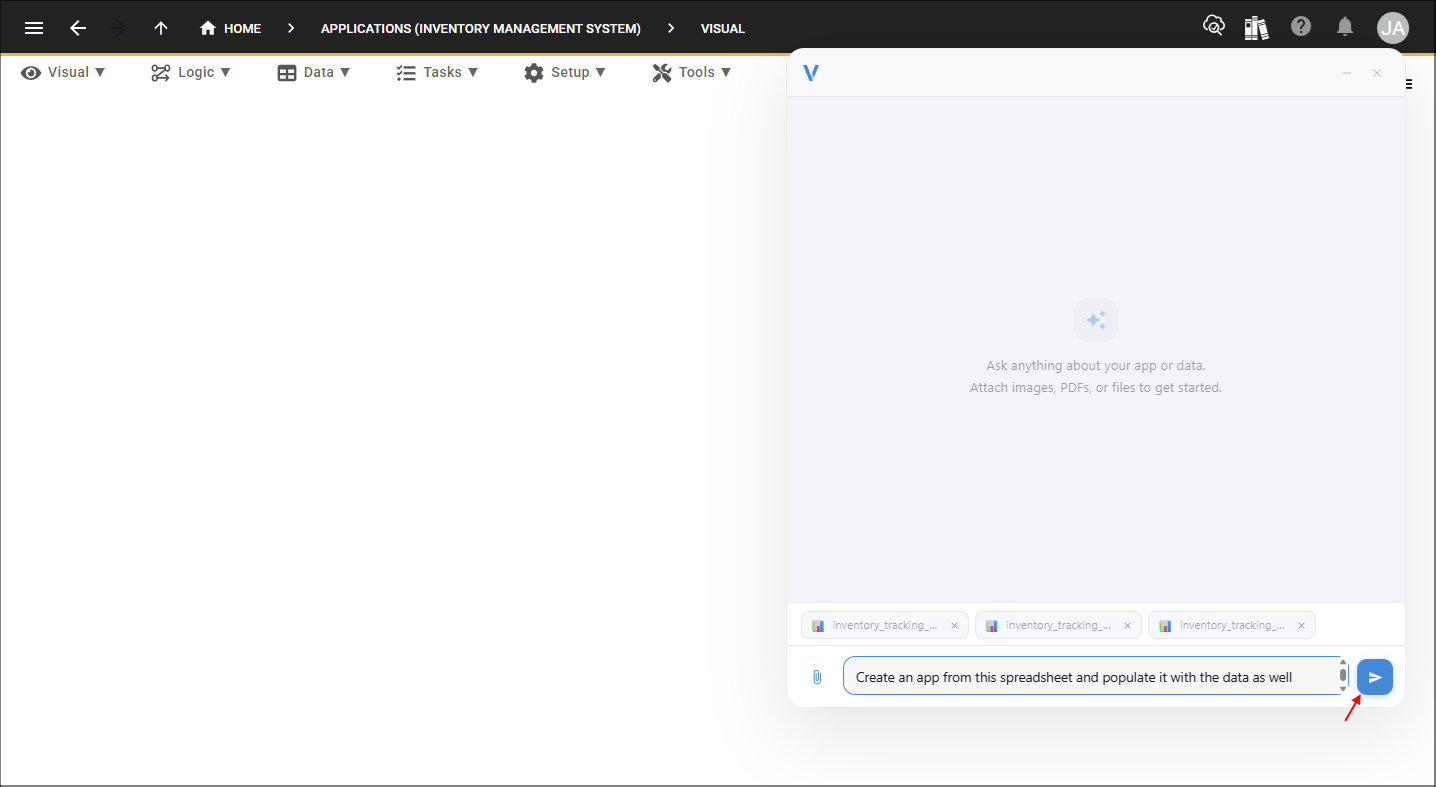
In the prompt area, enter a request such as:
"Create an app from this spreadsheet and populate it with the data as well."You can customize your prompt further if you have specific requirements, but this simple instruction is enough for V to generate a complete application from the uploaded spreadsheet.
Once you are ready, click the Send button or press Enter/Return on your keyboard.
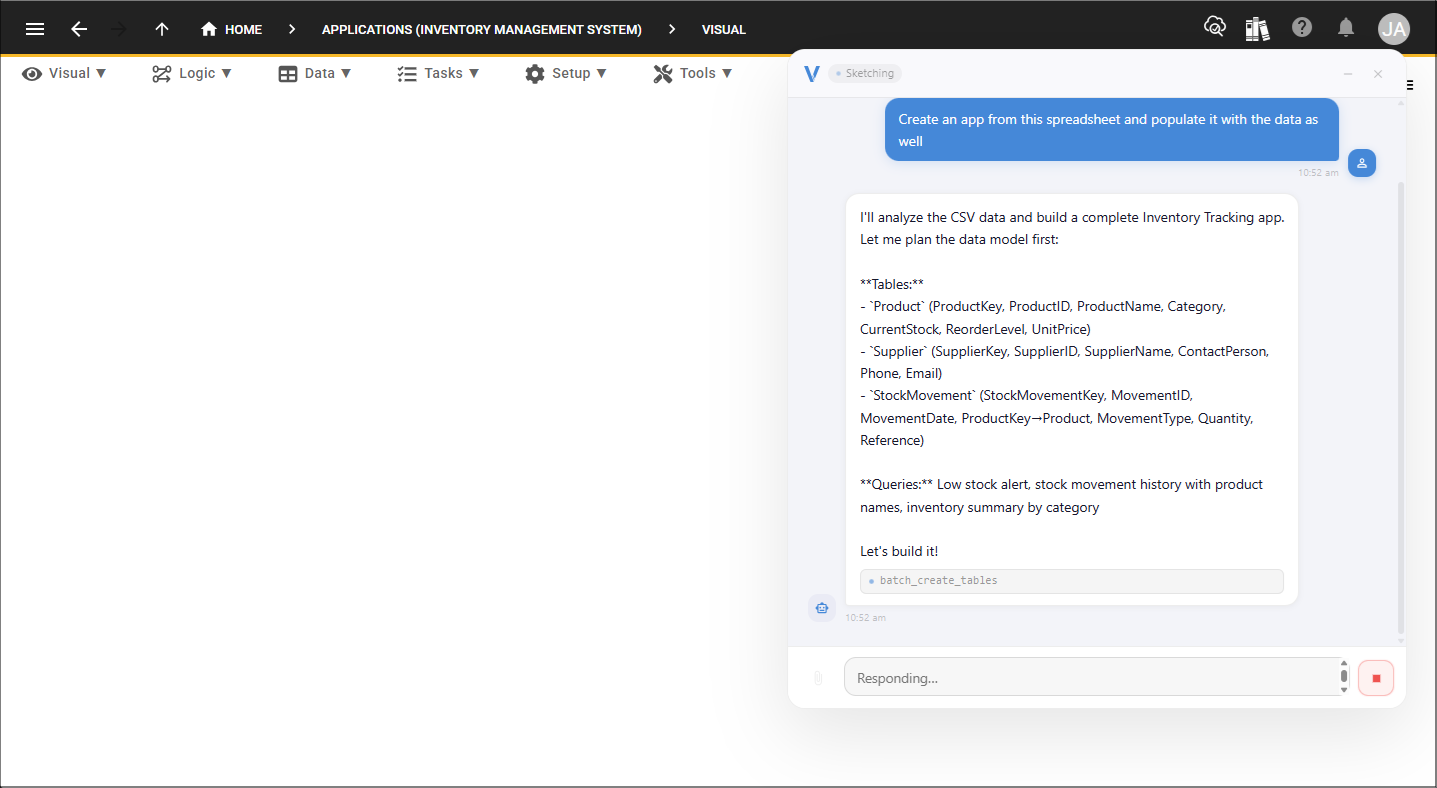
V will then begin building your application, creating the required database tables, forms, relationships, and user interface components based on the structure and content of the uploaded file. Within moments, you'll have a working application populated with your spreadsheet data and ready for further refinement if required.
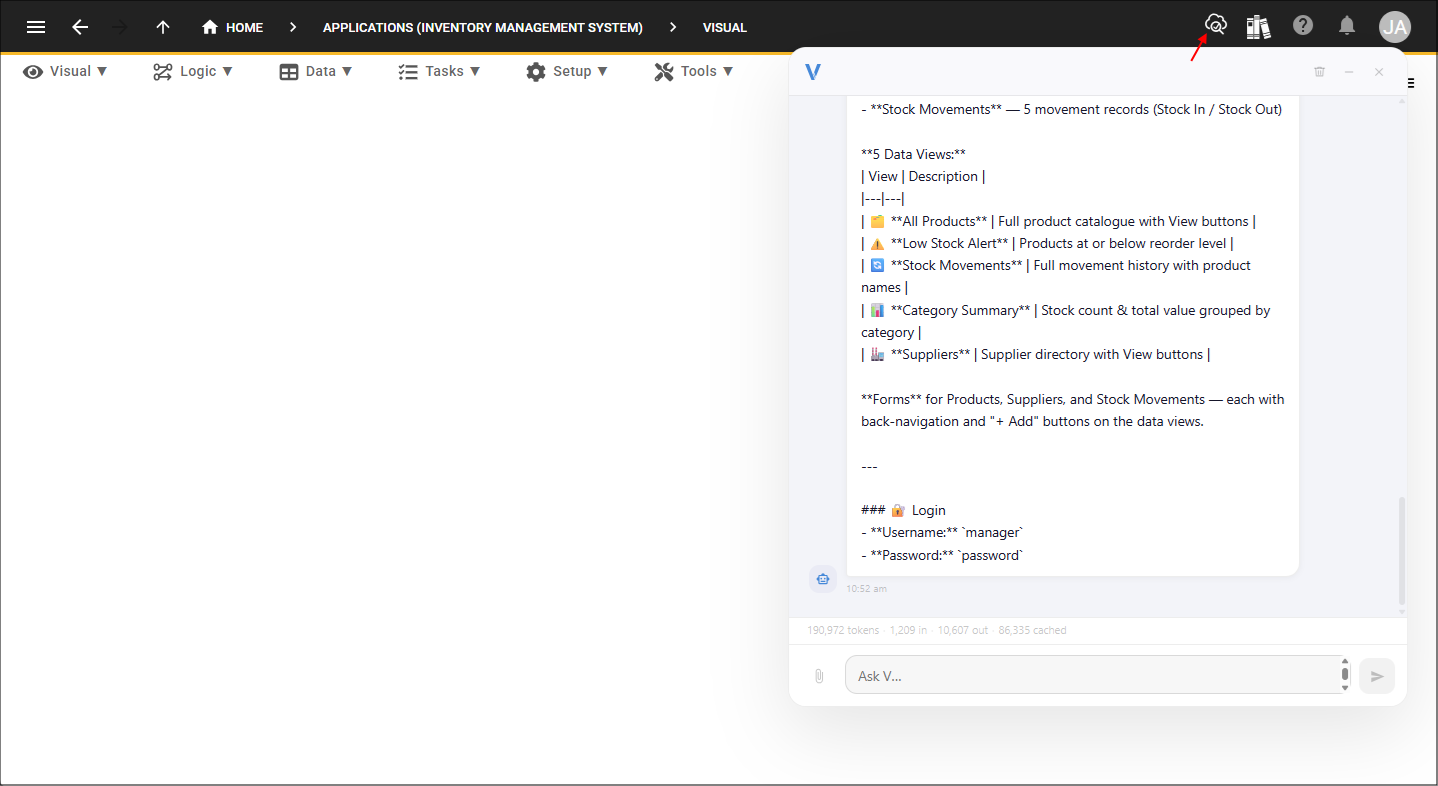
Once V has completed your application, click the Deploy to Development button in the toolbar to deploy your application to the cloud for viewing.
Application Creation
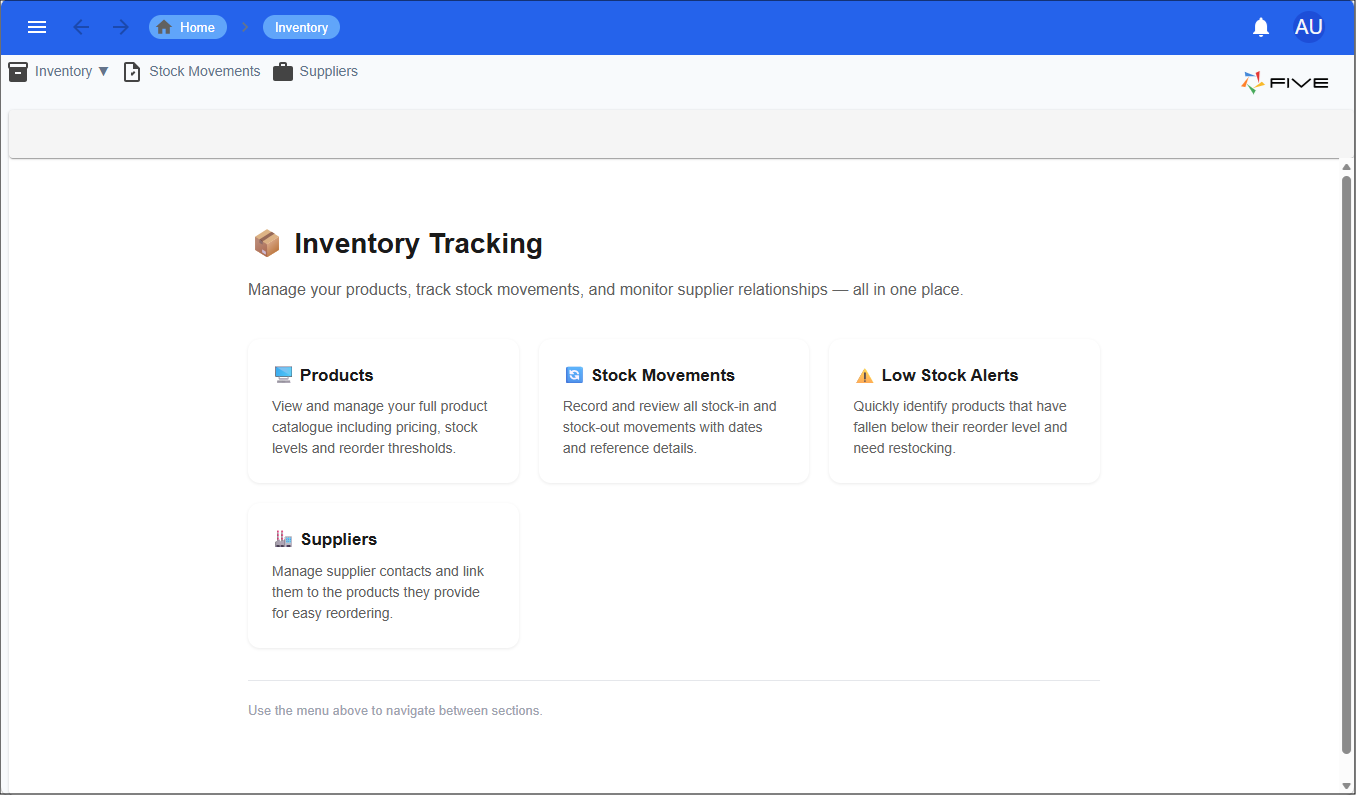
V in Five, has created a complete application from your spreadsheet, including a landing page, navigation menus, and the data structures required to manage your information. The landing page provides an overview of the application, while the generated menus give you access to key features and records derived from your spreadsheet data. The application is ready to use and can be further customized to suit your specific requirements.