Reboot Five Account
Last updated 26/02/2026
Overview
Users assigned the Administrator (admin) role have the ability to perform a full reboot of their Five development environment. This feature is designed to safely reset the runtime state of the environment while preserving all configured application data, metadata, and database content.
The reboot process is particularly useful in situations where temporary cloud or session-related issues impact performance or behavior.
How to Restart the Development Environment
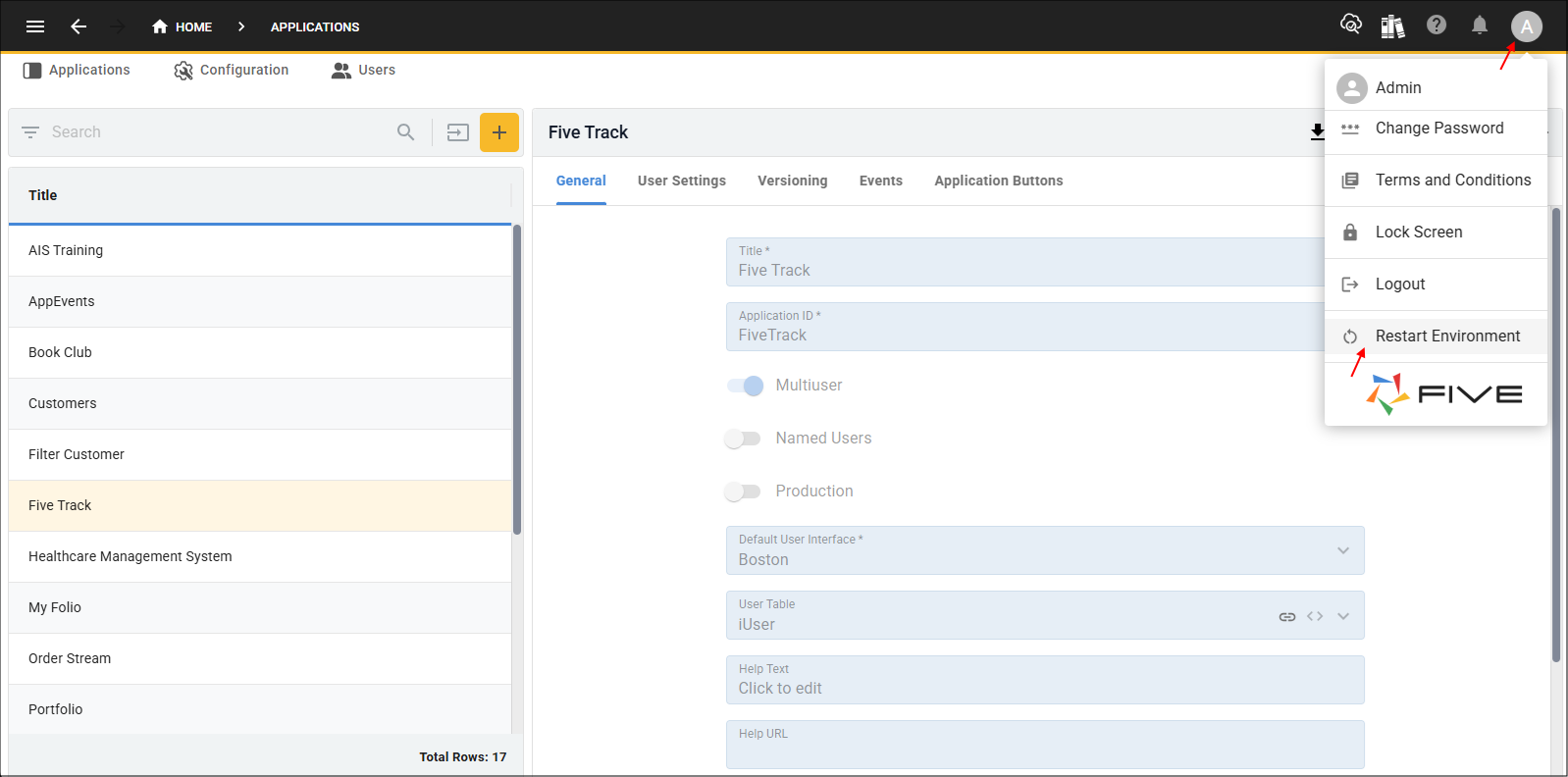
1. Click the Profile button in Five's toolbar.2. Select Restart Environment.
A confirmation message will appear: "Would you like to restart the development envronment? This action will reload the current session."
3. Click the Yes, Restart button.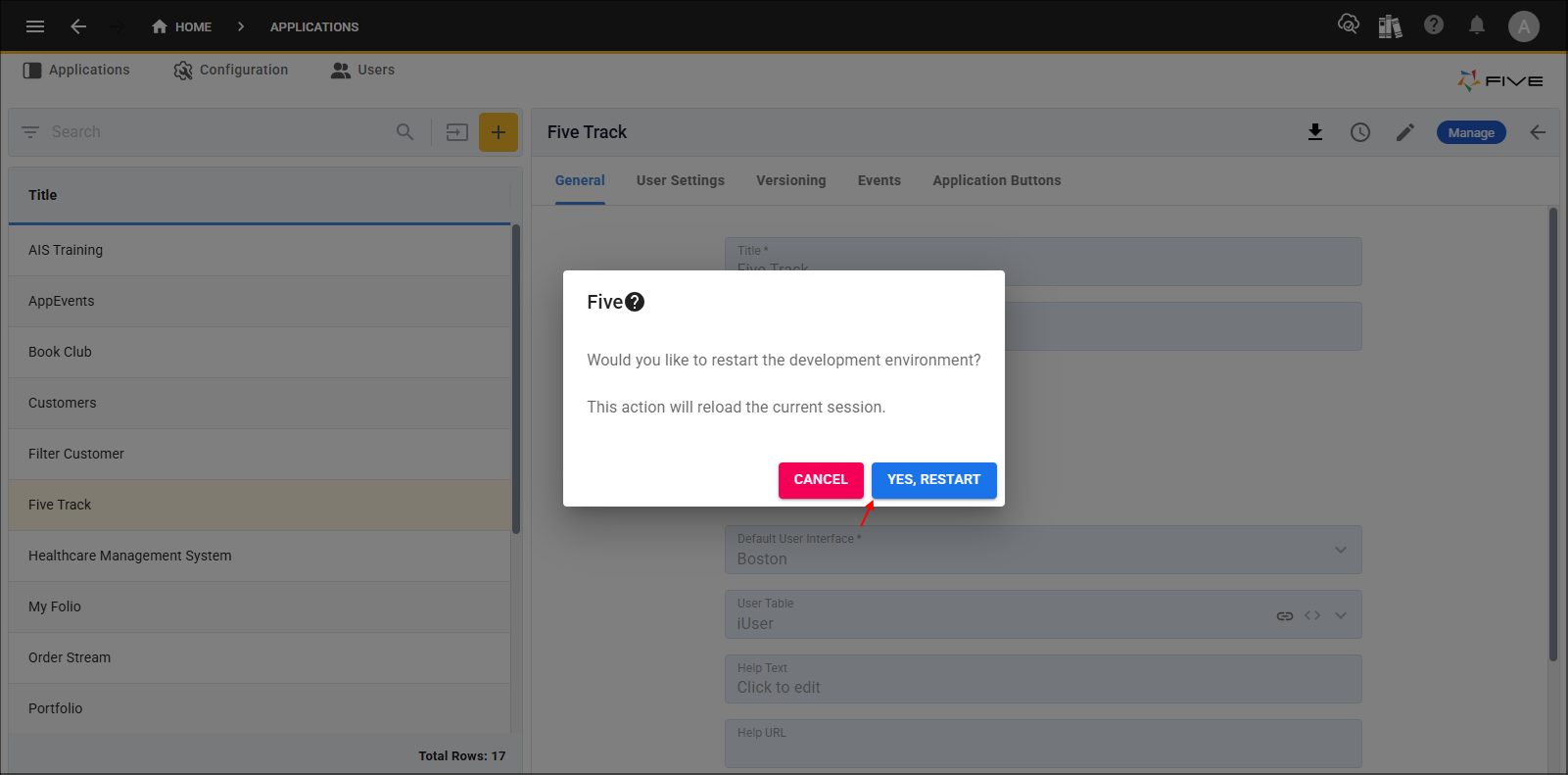
What Reloading the Session Means
Reloading the current session performs the following actions:
- Terminates the active runtime session
- Clears temporary in-memory state
- Resets server-side processes tied to your session
- Re-establishes a fresh connection to the development environment
- Reloads the application from its saved configuration and database state
- Application structure is preserved
- Database data is preserved
- Configuration settings remain unchanged
- Unsaved changes in the current session may be lost
In practical terms, this is similar to restarting an application server instance without affecting stored data.
Why You May Need to Restart the Development Environment
Restarting the development environment can resolve issus such as:
- Cloud instance instability
- Session timeouts or stuck sessions
- Unresponsive forms or actions
- Inconsistent UI behavior after configuration changes
- Background processes not completing as expected
- Cached state conflicts during development
Because development environments are dynamic and frequently updated, a reboot provides a clean runtime without requiring support intervention.
When to Use This Feature
Use the restart function when:
- The environment becomes slow or unresponsive
- You encounter unexpected runtime errors
- Changes appear not to be applying correctly
- A cloud-related interruption has occurred
- You have been instructed to restart by support
It is not required for normal development activities, publishing, or standard configuration changes.