Add a Query
Last updated 13/03/2026
Adding a Query Using the SQL Editor
The following steps outline the typical workflow for adding a query in Five. They guide you through the standard process, from defining parameters to configuring the query.
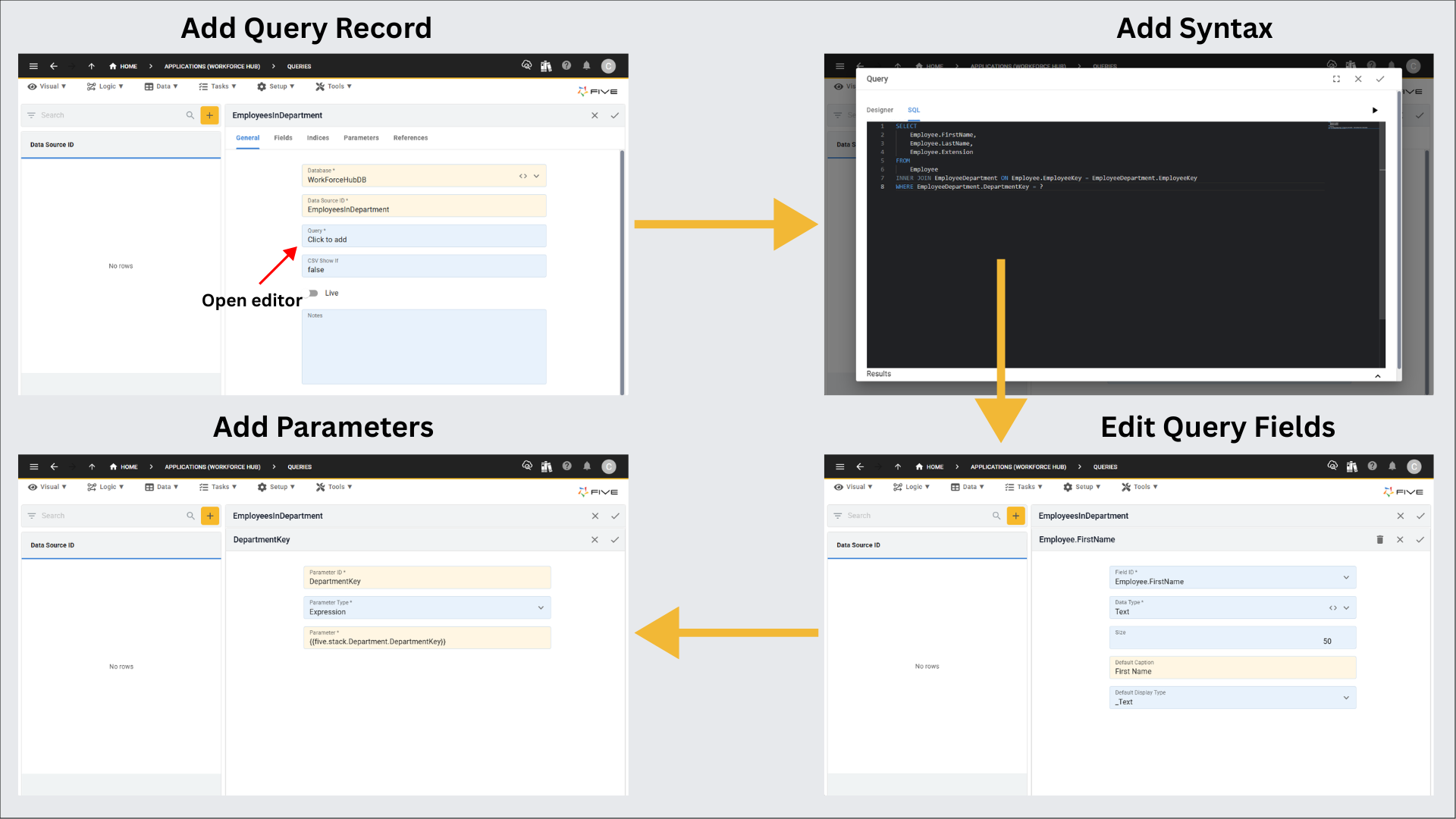
Figure 1 - Query workflow
Step 1: Add the Query
Click the Add Item button and give your query an ID in the Data Source ID field.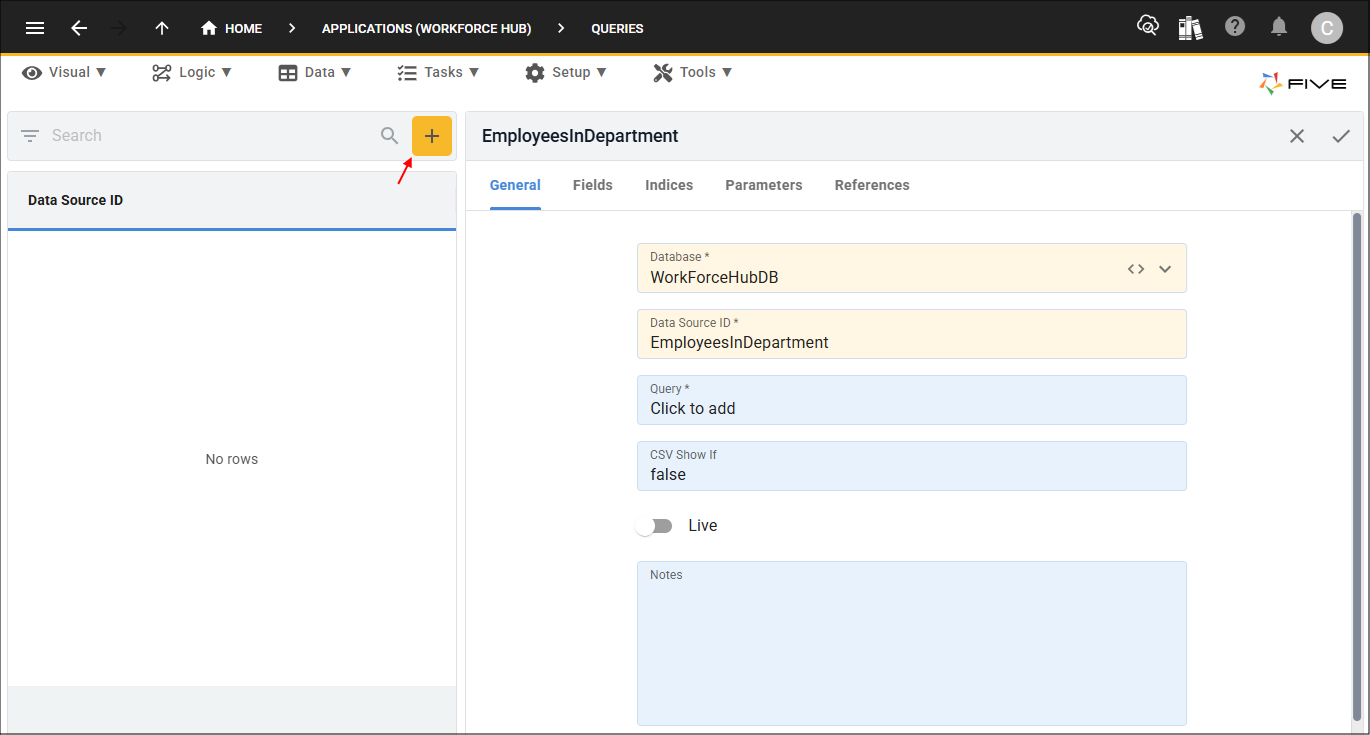
Figure 2 - Add query
Step 2: Open the Two-Way Editor
1. Click in the Query field to open the editor.- This will open the two-way editor and by default you will be on the Query Builder side
- The SQL tab in the Query Builder will take you to the SQL editor
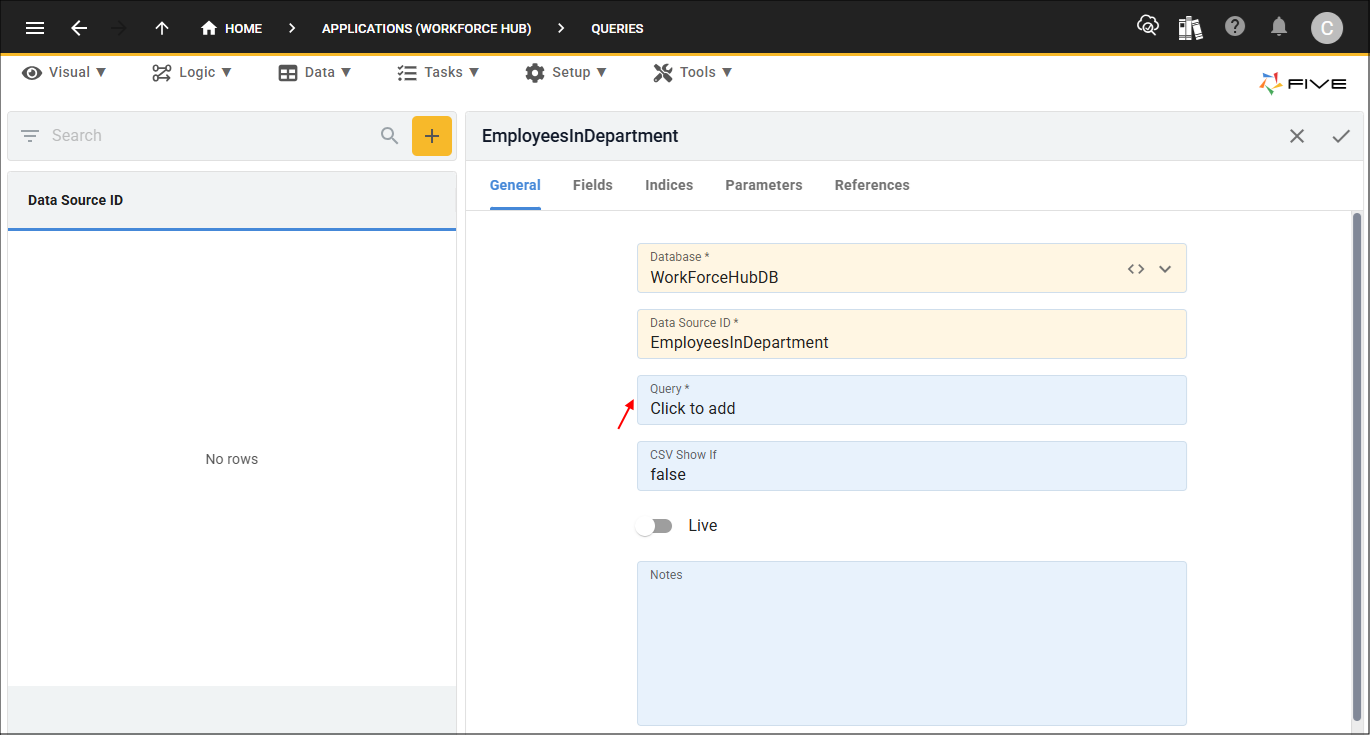
Figure 3 - Query field
2. Click the SQL tab.
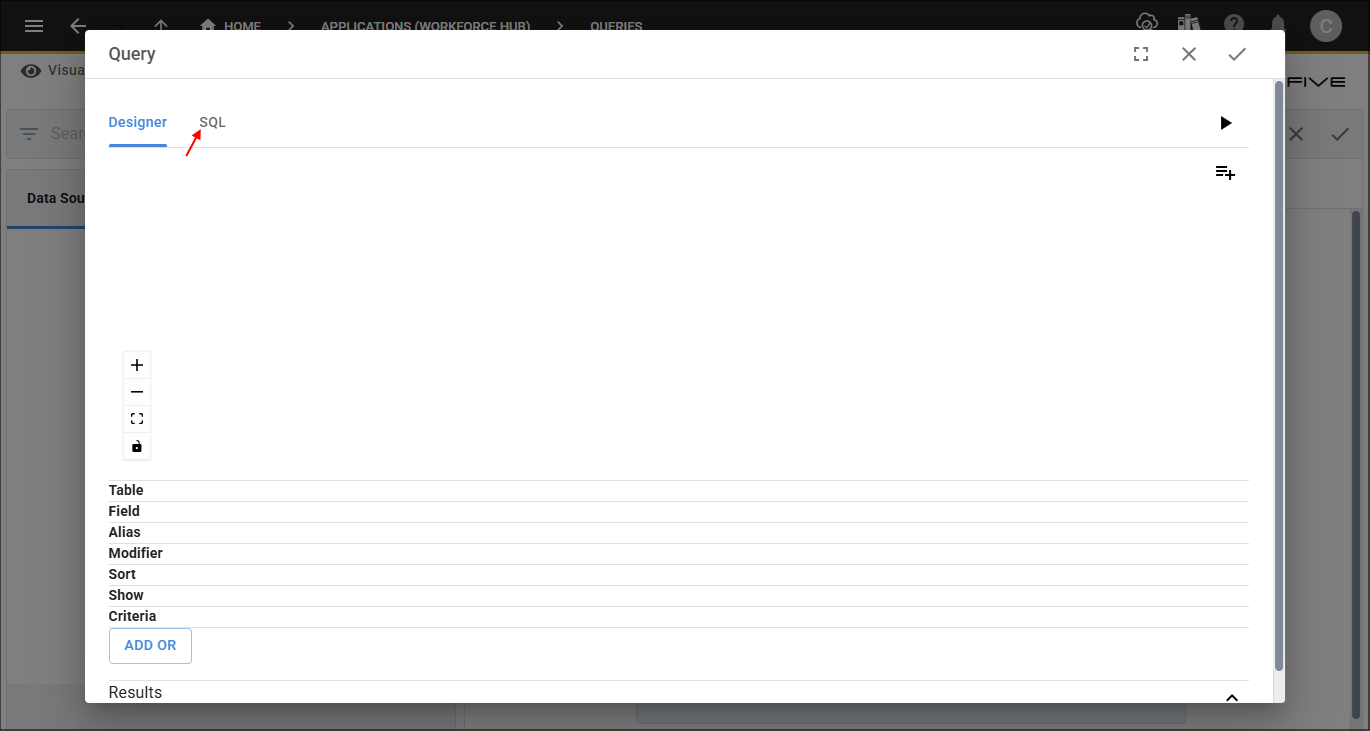
Figure 4 - SQL tab
Step 3: Add Your Query
1. Enter your query into the editor.tip
You can run your query directly in the editor to see the results by clicking the Run button.
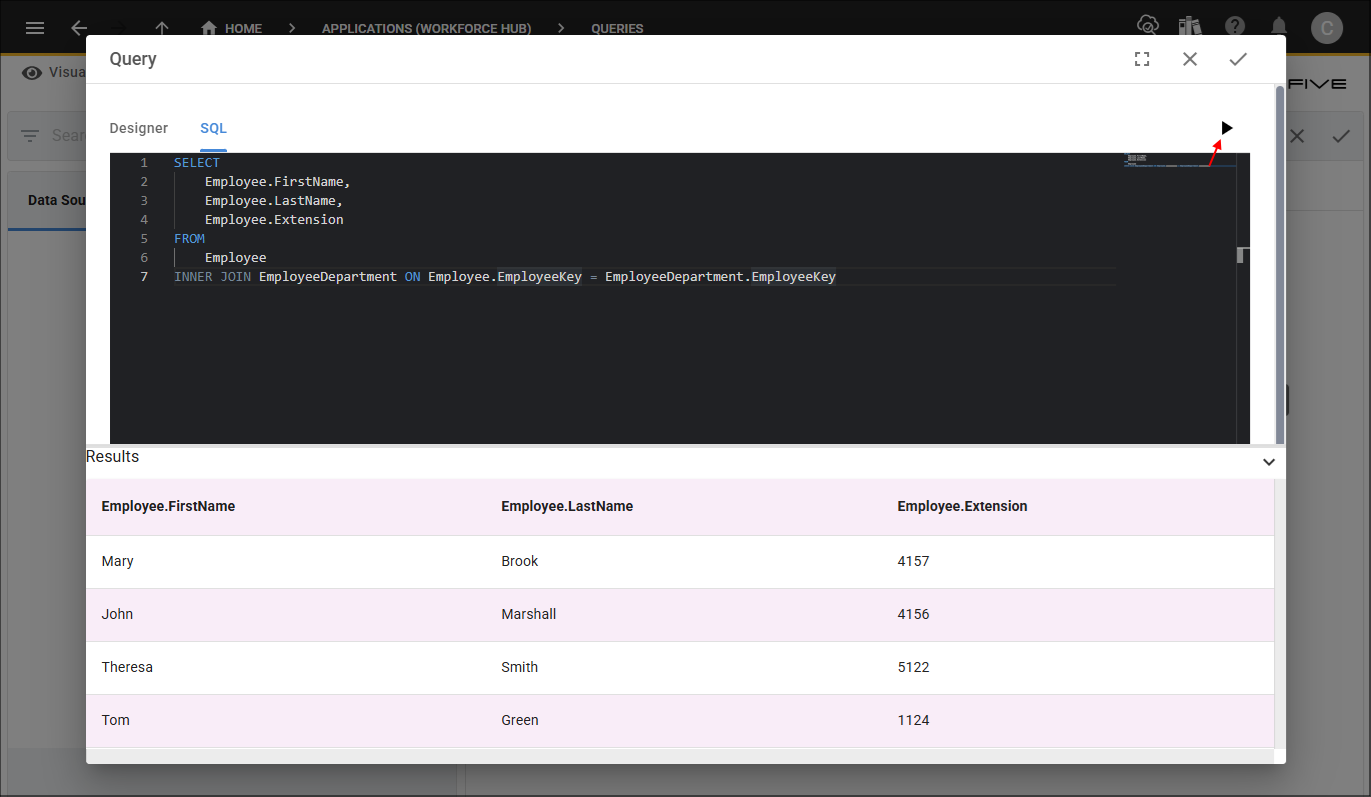
Figure 5 - Run button

Example syntax
SELECT
    Employee.FirstName,
    Employee.LastName,
    Employee.Extension
FROM
    Employee
INNER JOIN EmployeeDepartment ON Employee.EmployeeKey = EmployeeDepartment.EmployeeKey
If your query requires placeholders, like in the example below, the editor will only display column headers, not the actual rendered records as the parameters are defined outside of the editor. When using parameters in Five, you must use the placeholder
?
for each parameter.
Example syntax
SELECT
    Employee.FirstName,
    Employee.LastName,
    Employee.Extension
FROM
    Employee
INNER JOIN EmployeeDepartment ON Employee.EmployeeKey = EmployeeDepartment.EmployeeKey
WHERE EmployeeDepartment.DepartmentKey = ?
2. Click the Save button in the editor app bar.
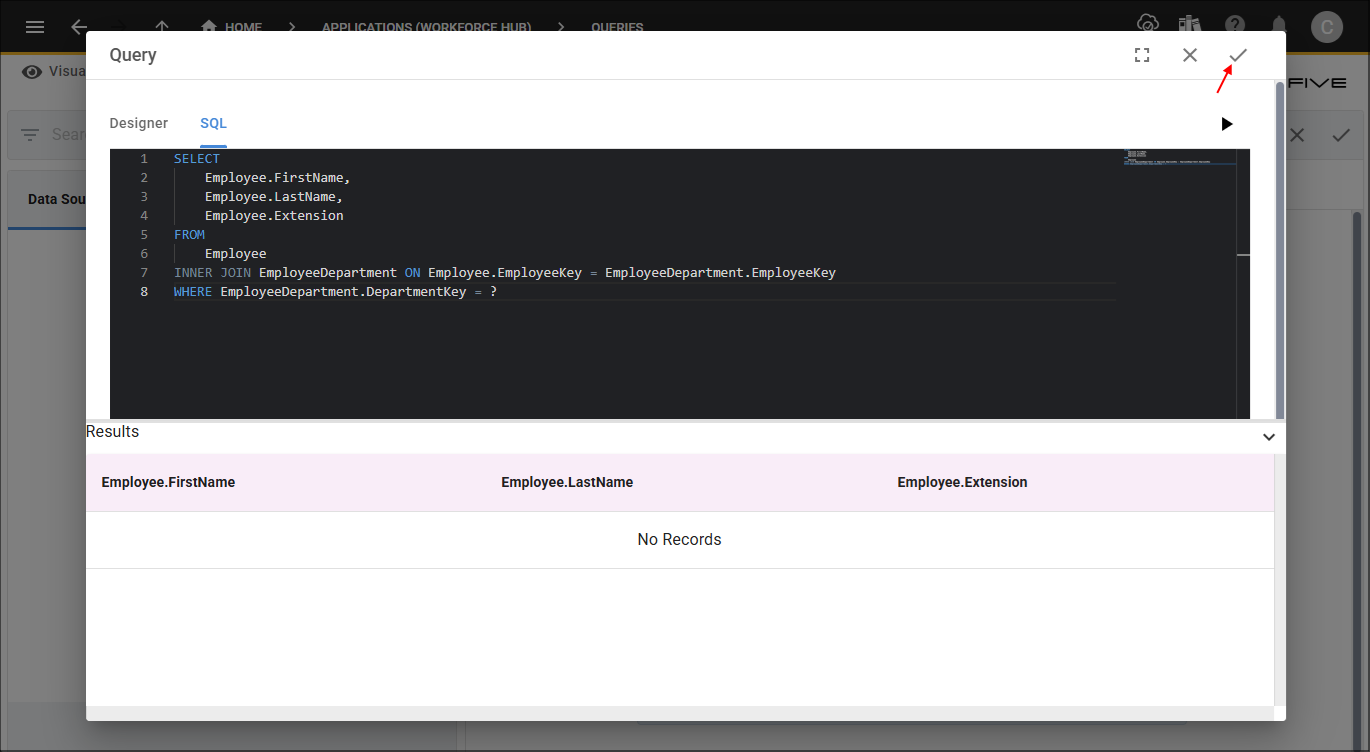
Figure 6 - Save button
Step 3: Configure the Fields
- After saving your SQL, Five generates all your query field records, which are available when you click the Fields tab
- These records can be selected and you can edit the default values applied by Five
- The field definitions will be carried over when selecting the data source in another view of Five
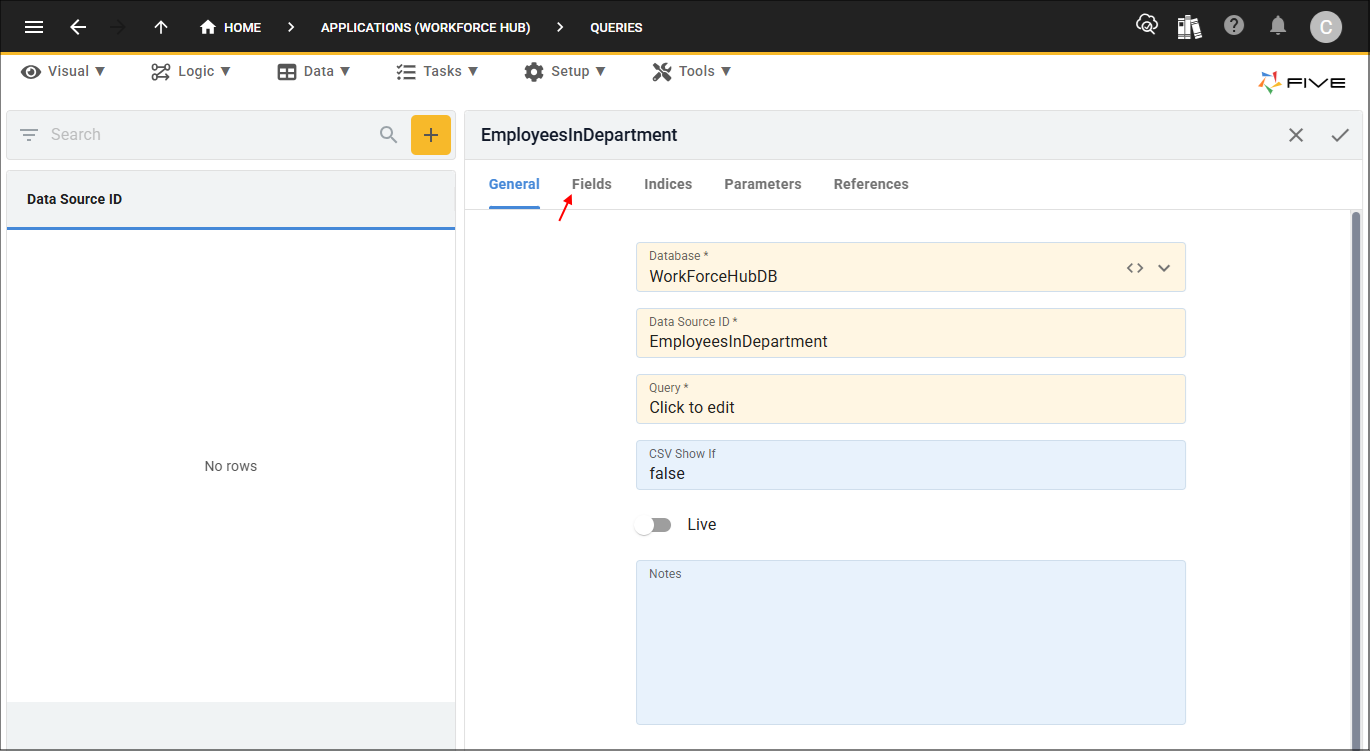
Figure 7 - Fields tab
2. Select a field record in the list.
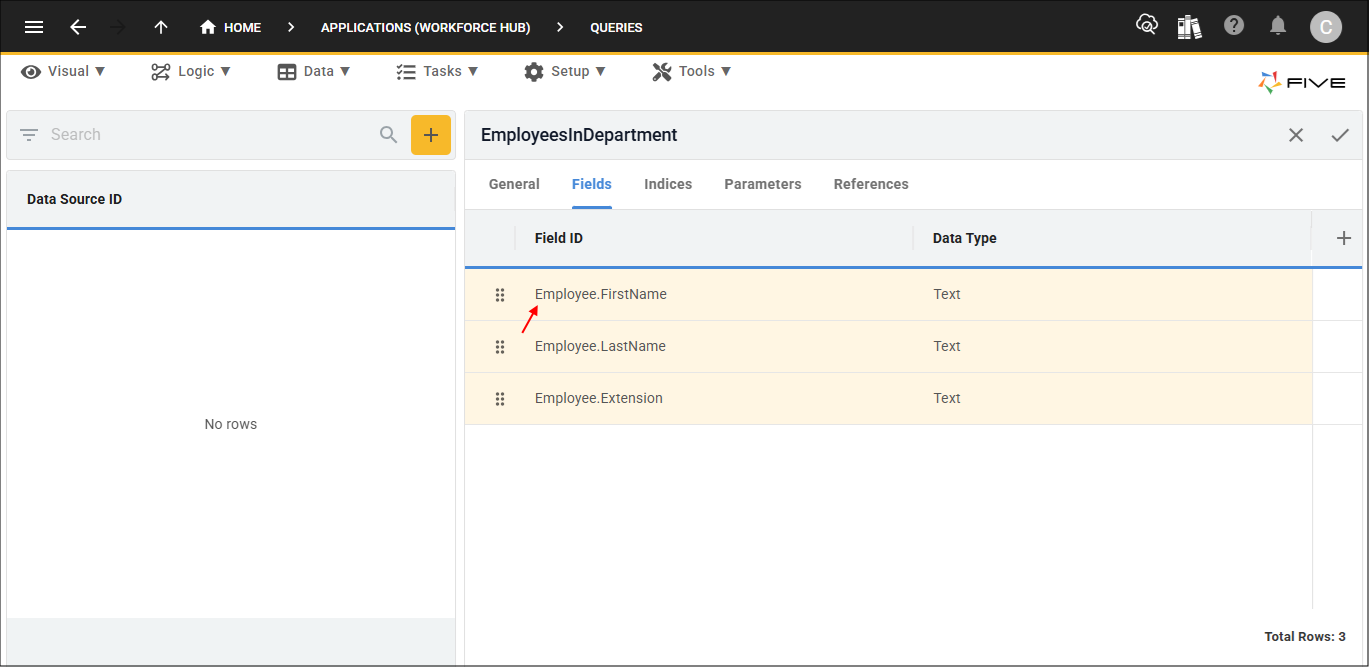
Figure 8 - Field list
3. Either click the Edit button in the form app bar or click directly in a field.
4. Edit the required fields.
5. Click the Save button in the form app bar.
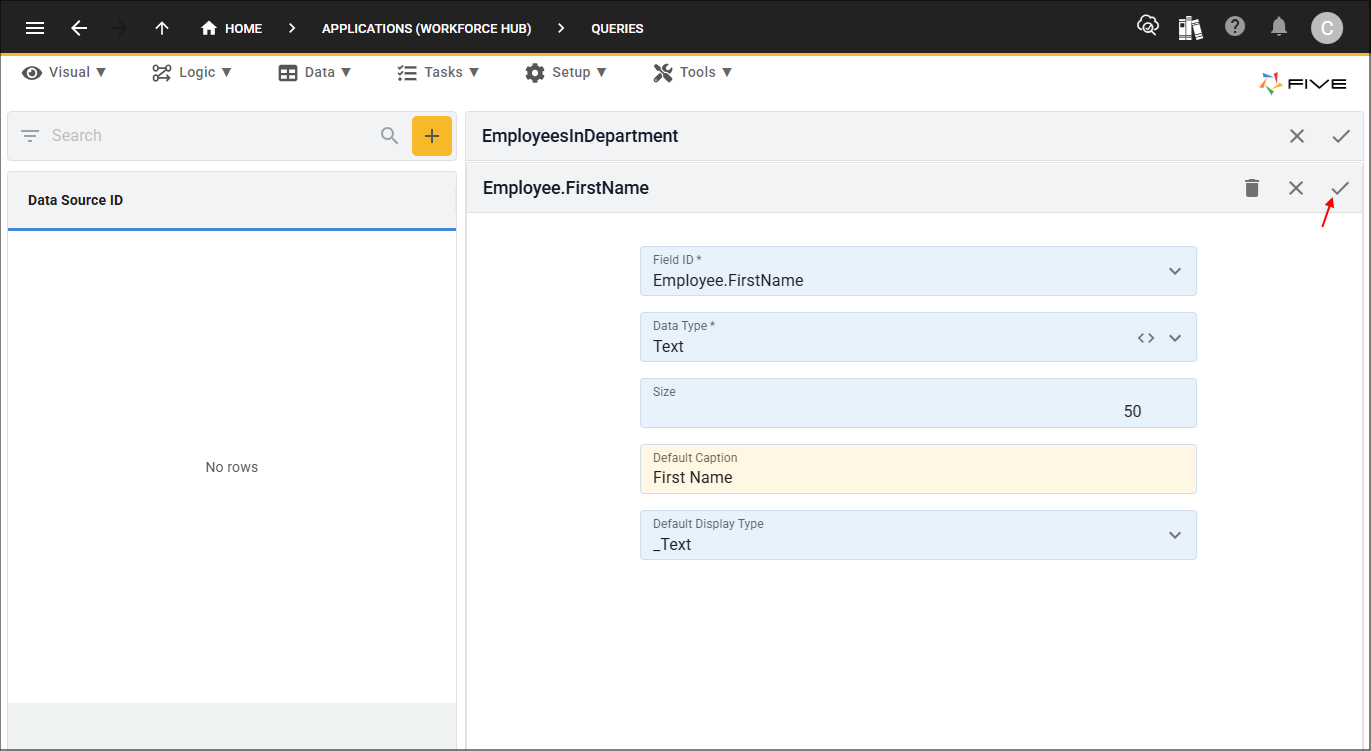
Figure 9 - Edit field record
Step 4: Define Parameters
For each
?
placeholder in your SQL, a parameter record needs to be created. When using ?
placeholders in a query, the parameter records
must be supplied in the same order that the placeholders appear in the SQL statement. Each parameter needs a unique ID, a type (default is Expression), and the parameter value. When you reference
a query parameter inside the SQL editor, you wrap the parameter name in double curly braces {{ }}
. This tells Five to replace the placeholder with the value
entered by the user at runtime.
tip
Refer to the properties on the Five object to help you define your parameters.
1. Click the Parameters tab.
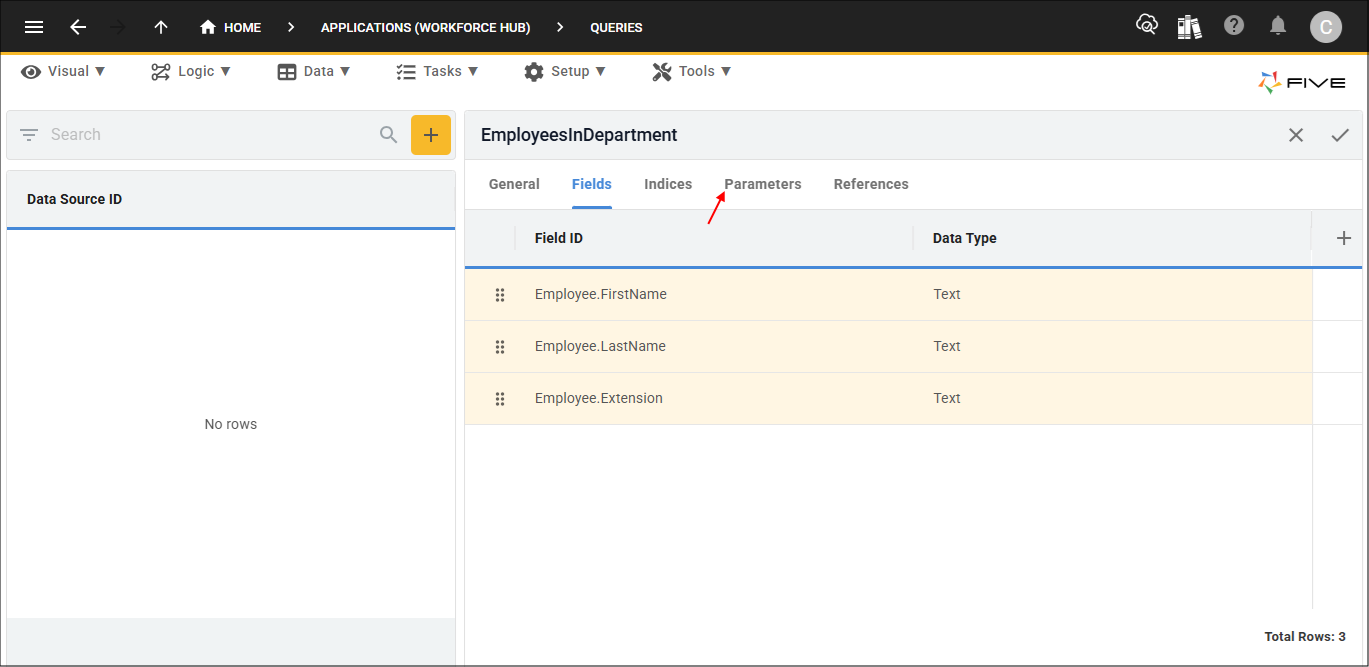
Figure 10 - Parameters tab
2. Click the Add Parameters button.
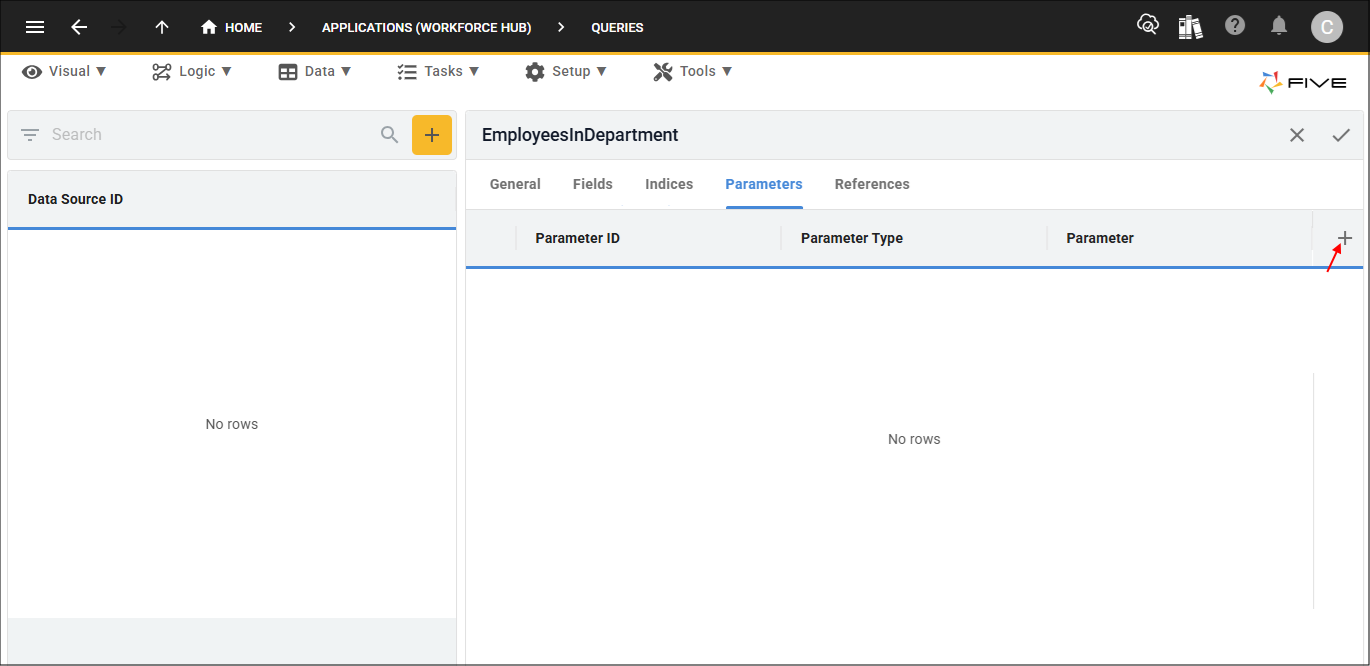
Figure 11 - Add Parameters button
3. Type an ID in the Parameter ID field.
4. Enter your parameter in the Parameter field wrapped in double curly braces.
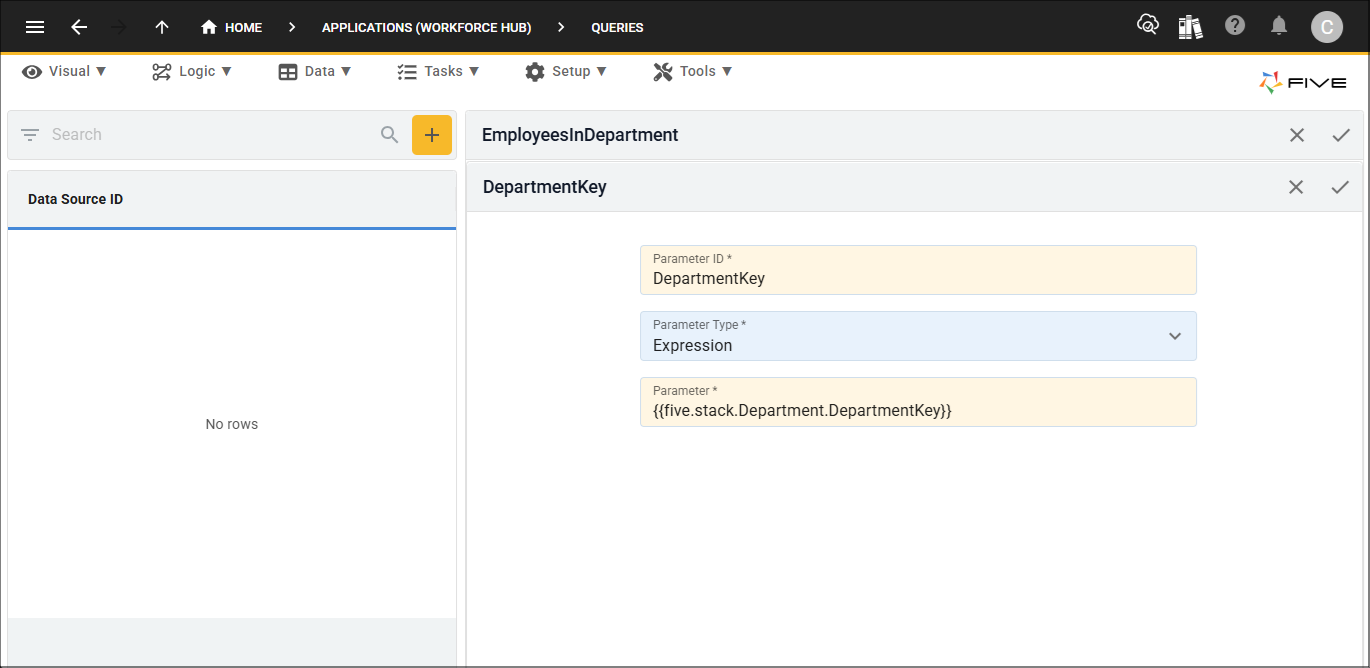
Figure 12 - Add parameter
5. Click the Save button in the form app bar
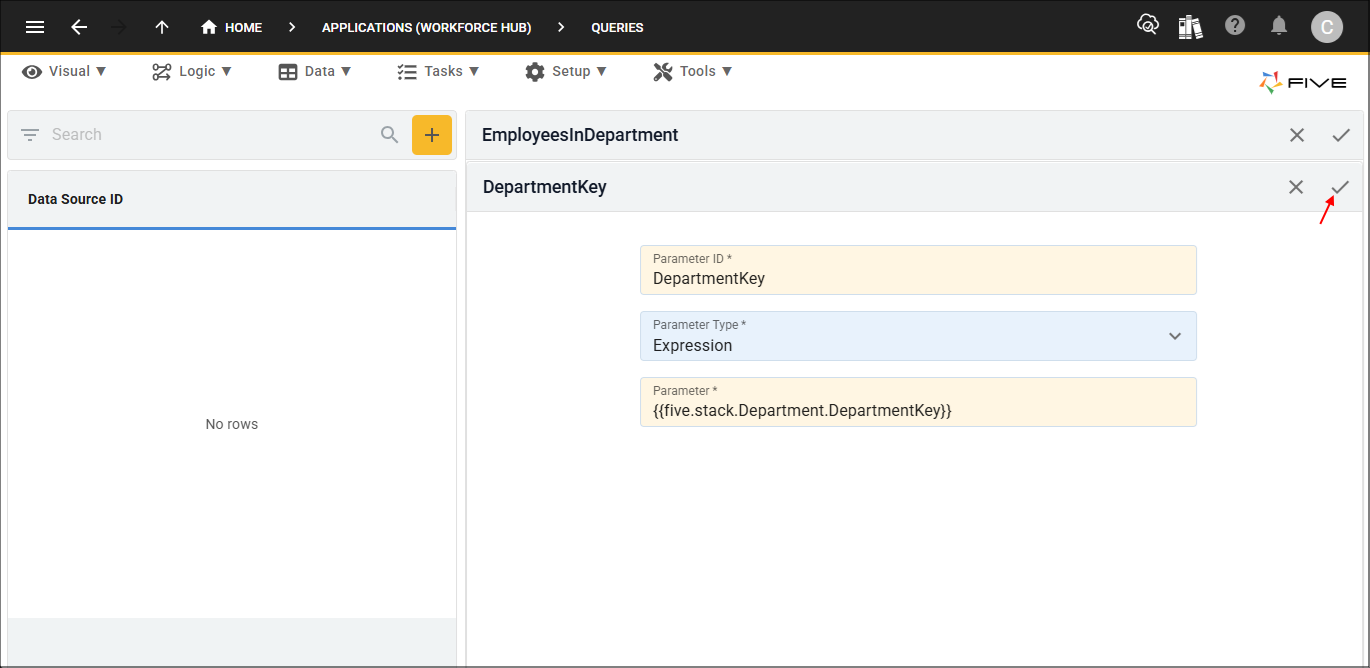
Figure 13 - Save button
Step 5: Save Your Query
Click the Save button in the form app bar.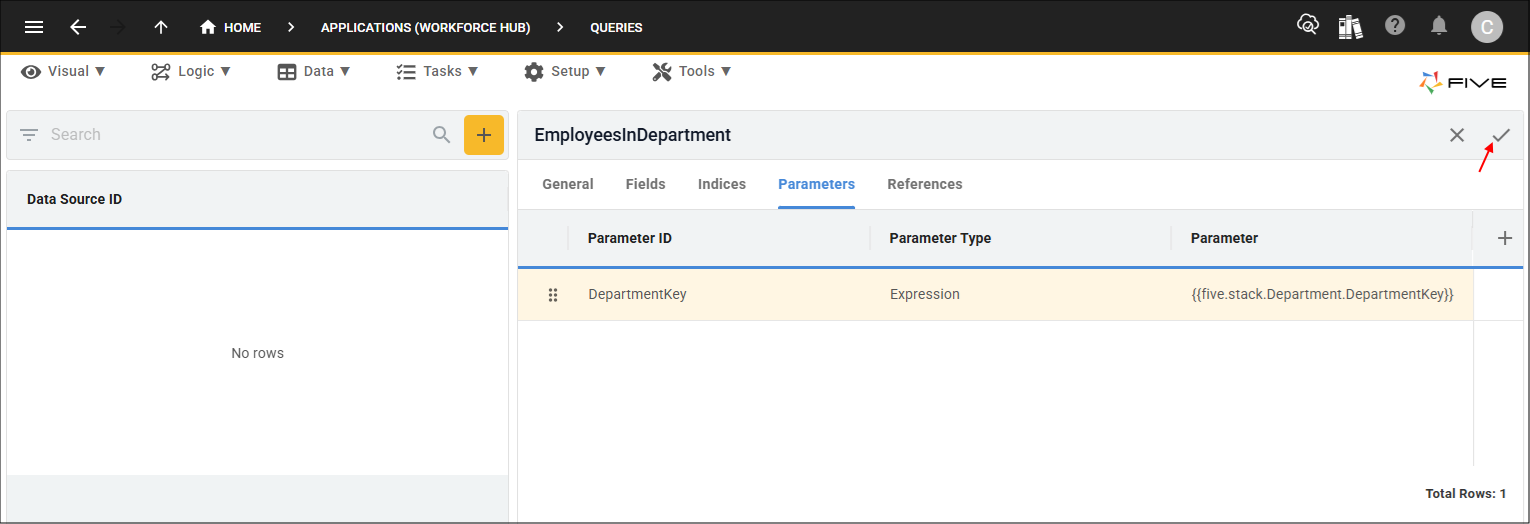
Figure 14 - Save button