Primary Authentication
Last updated 16/06/2025
Primary authentication is the initial step in the process of verifying a user's identity before granting access to your application.
How it Works
- User initiates login: Enters a logon identifier, this can be a username, email, or phone number and a password (secret), email, or text message providing a one time password (OTP).
- Five validates the credentials: Five compares the entered credentials to those stored as a securely hashed password in the database or the OTP.
- Authentication decision: If credentials match, the user is granted access (or moves to secondary authentication if required). If they don't match, access is denied.
Primary Authentication Methods
Your primary authentication can be:
- Password - This is the default set by Five and requires a password to log into your application.
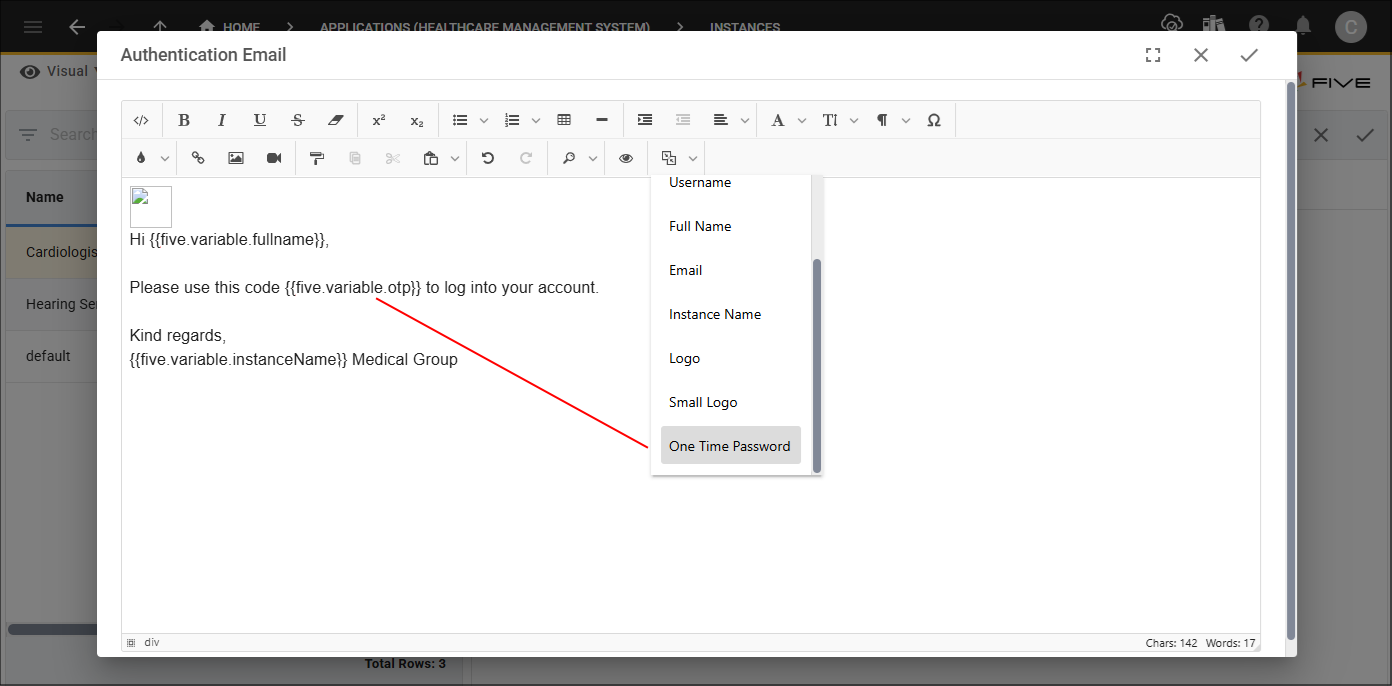
- Email - This requires SMTP settings to be configured in Five and the Authentication Email template configured with the One Time Password (OTP) tag.
- Text Message - This requires you to have a Twilio account, the values supplied from Twilio need to be configured in Five and the Authentication Message template configured with the One Time Password (OTP) tag.
Email as Your Primary Authentication
When using Email as your primary authentication you will need have the following in place:
- SMTP settings configured in Five
- Authentication Email template configured with the OTP placeholder
- Valid email addresses for your users on their user record
With email set as your primary authentication method, a user will have to enter their logon identifier first, which could be their username, email, or phone number and then a One Time Password (OTP) will be emailed to them. This code is then used to log into your application. The code is valid for 60 seconds, after this duration the code will expire and the user will need to re-enter their logon identifer to receive another code.
Although email can be your only authentication method, it is recommended to add a secondary authentication method for an additional layer of security.
Add Email as Your Primary Authentication
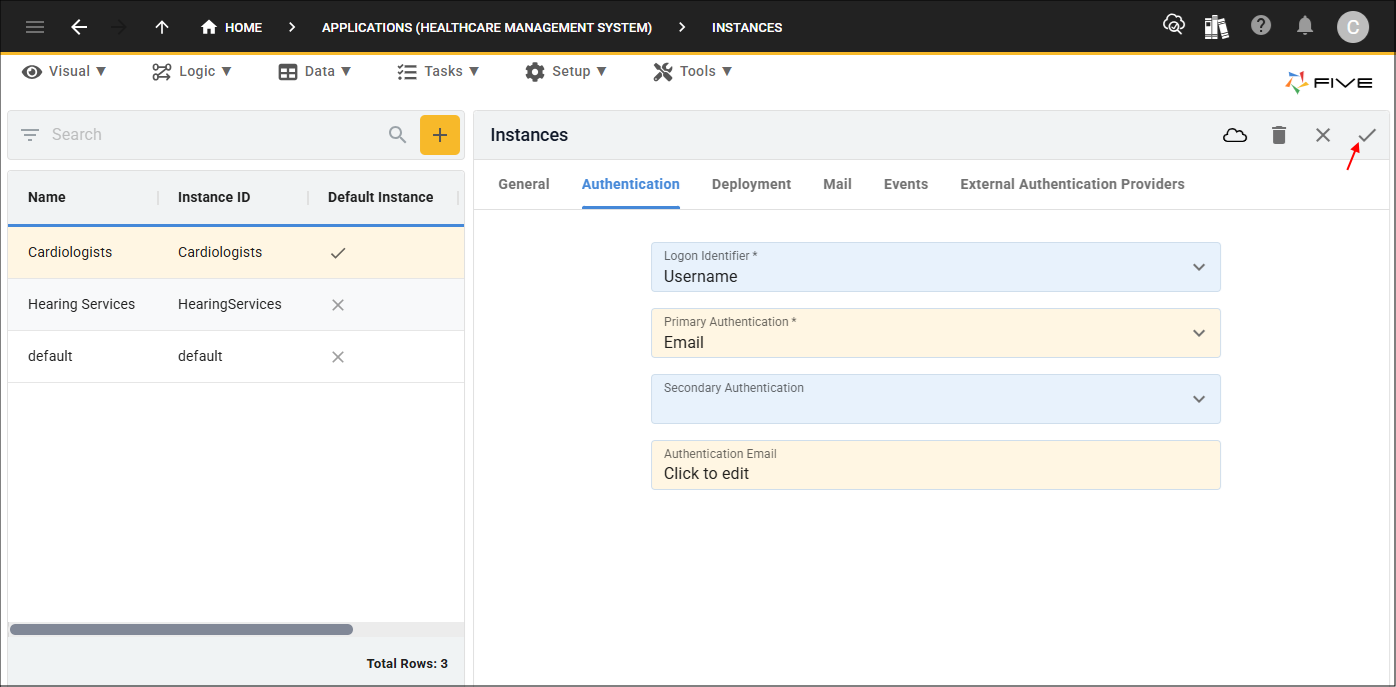
1. Select your instance record in the list.2. Click the Authentication tab.
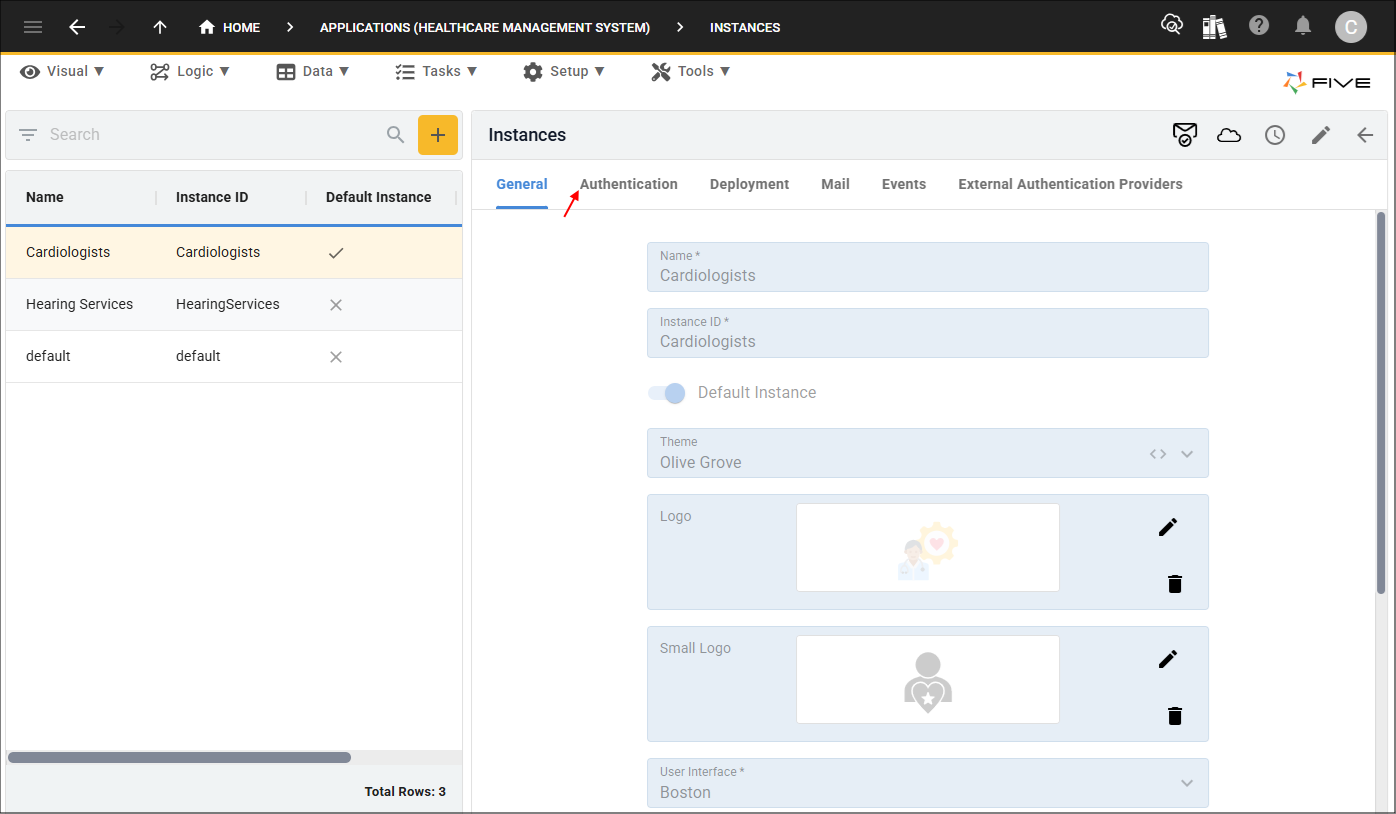
3. Either click the Edit button in the form app bar or click directly in the Primary Authentication field.
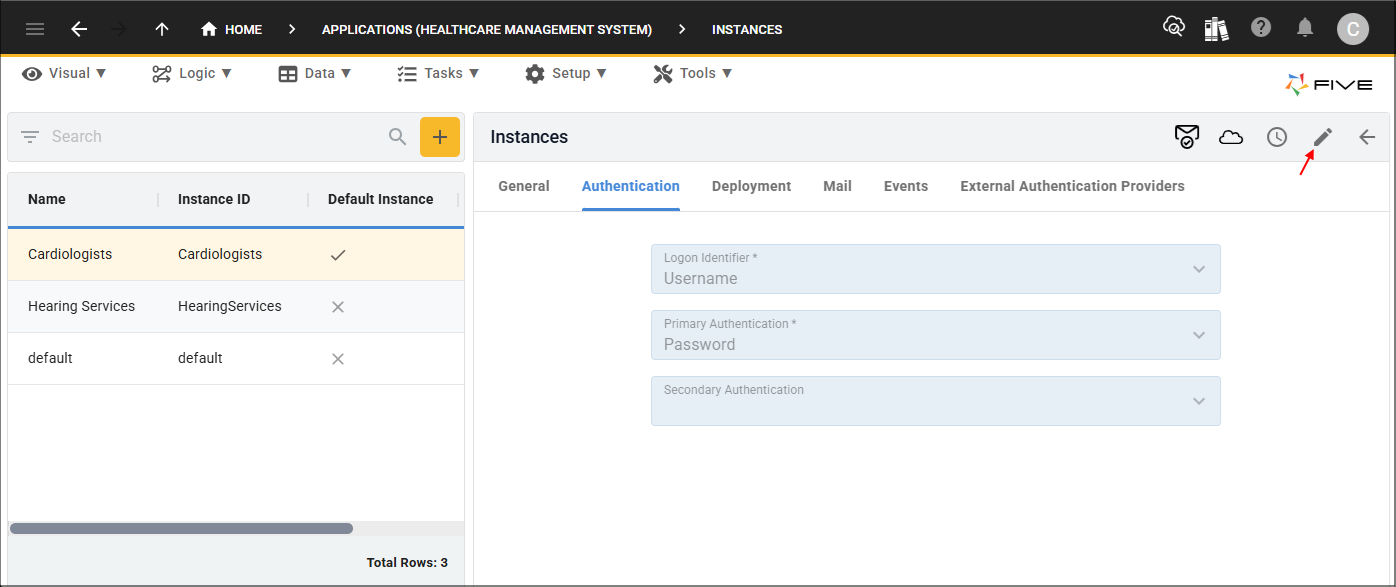
4. Click the lookup icon in the Primary Authentication field and select Email.
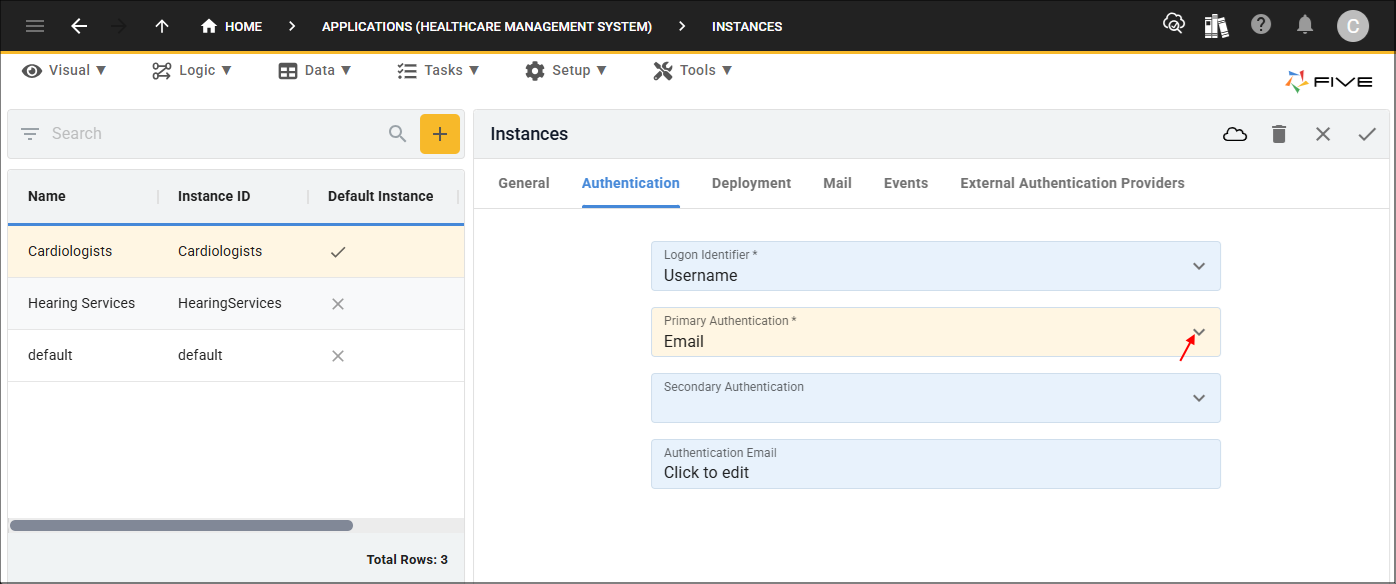
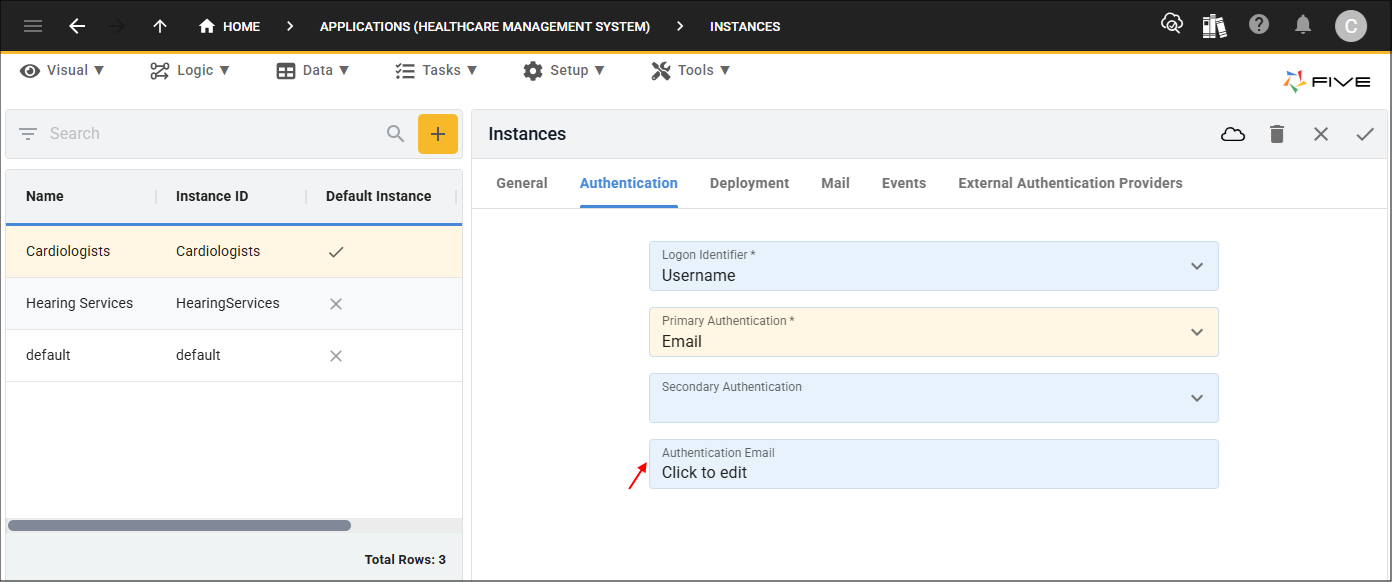
5. Click in the Authentication Email field to open the editor.
6. Design your Authentication Email template and add the OTP tag.
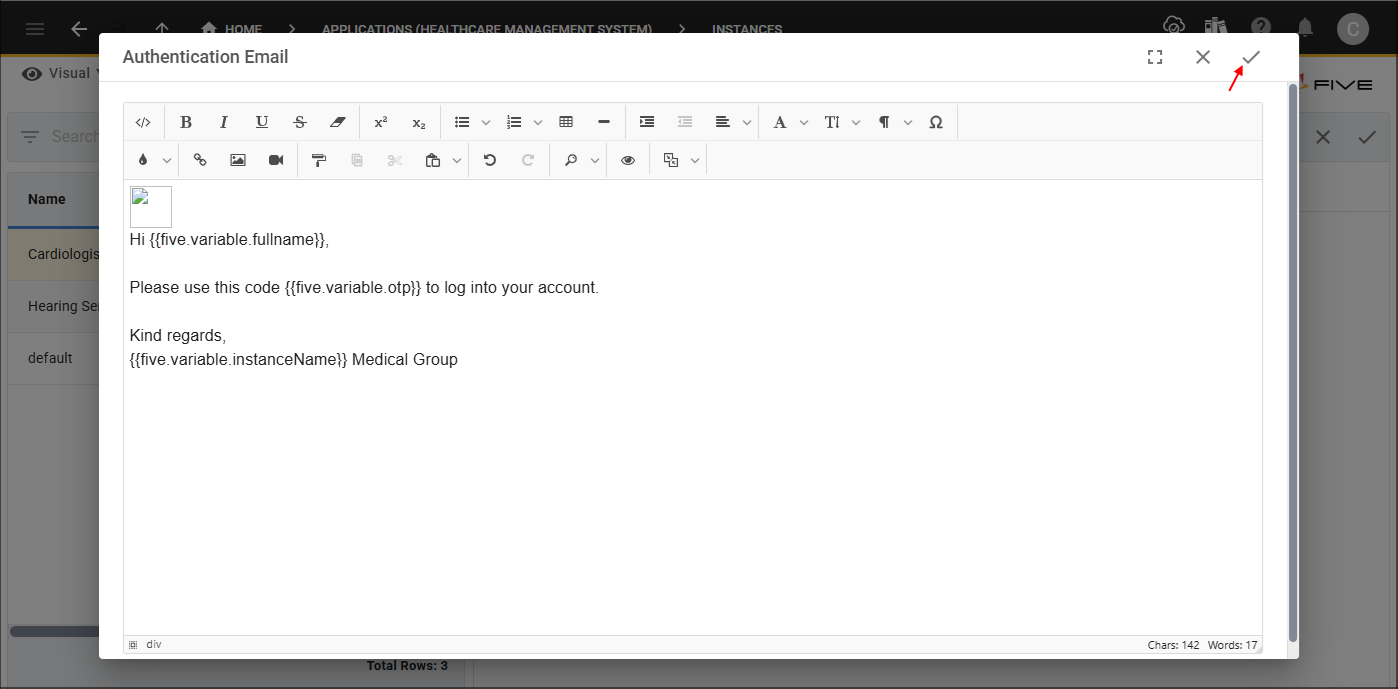
7. Click the Save button in the editor app bar.
8. Click the Save button in the form app bar.
Example Workflow
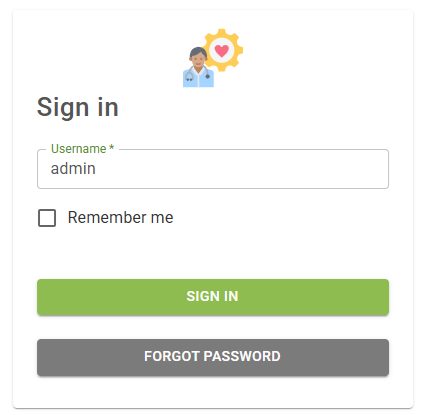
- User enters their logon identifier in the Sign In window and clicks the Sign In button.
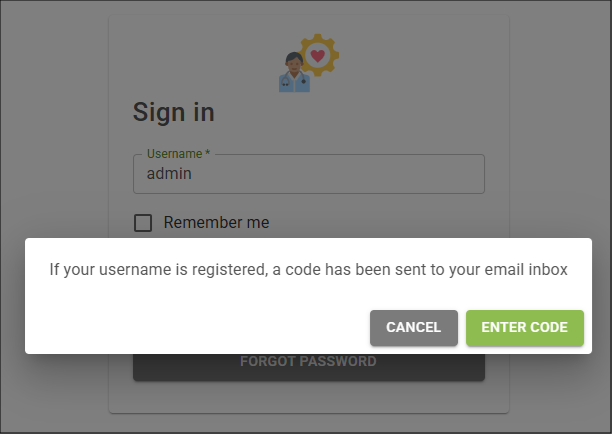
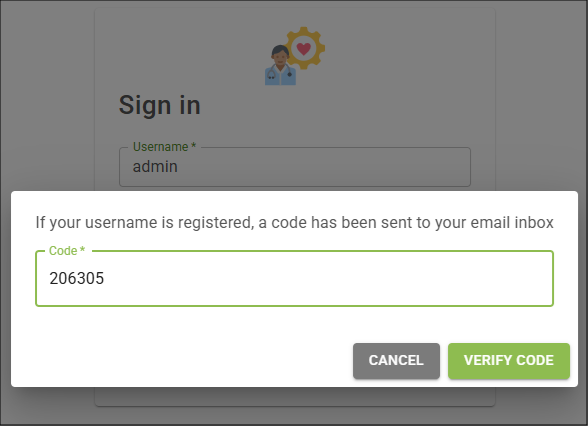
- User will receive a message letting them know that a code has been emailed to them and clicks the Enter Code button.
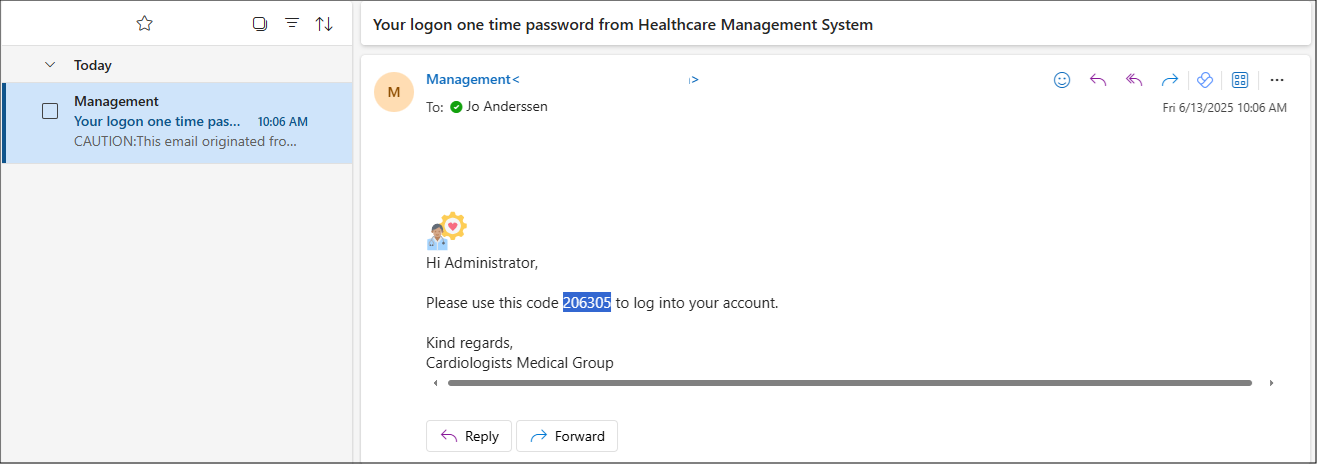
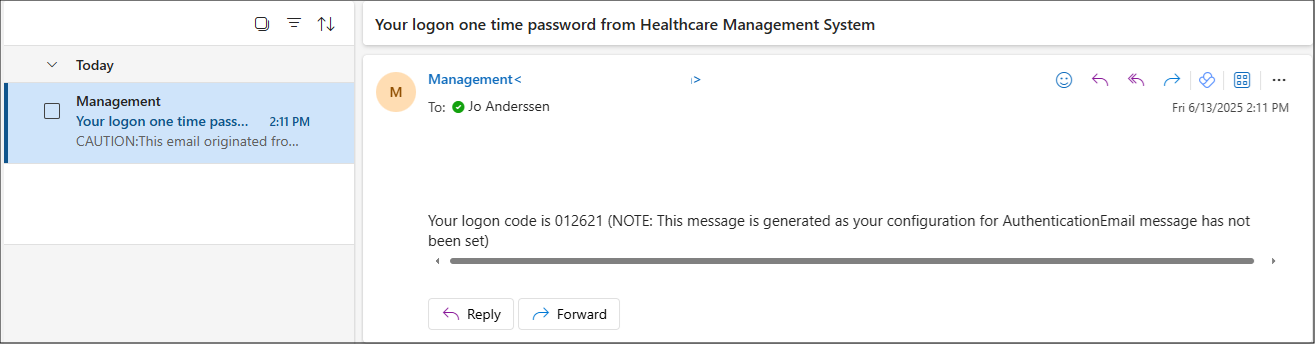
- User needs to get the code from their email.
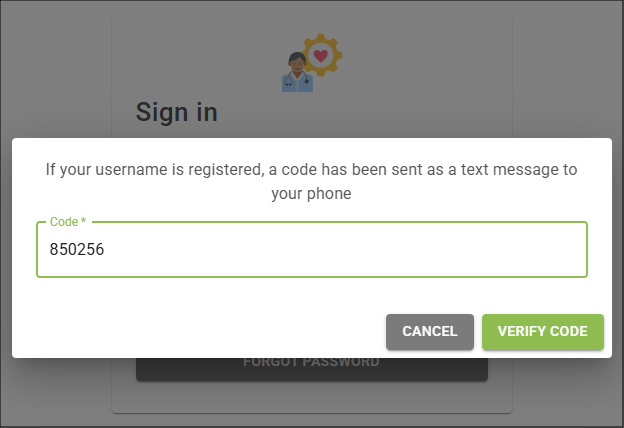
- User needs to add the code and click the Verify Code button.
Text Message as Your Primary Authentication
When using Text Message as your primary authentication you will need to have the following in place.
- Twilio account and the Twilio values configured in Five
- Authentication Message template configured with the OTP placeholder
- Valid phone numbers for your users on their user record
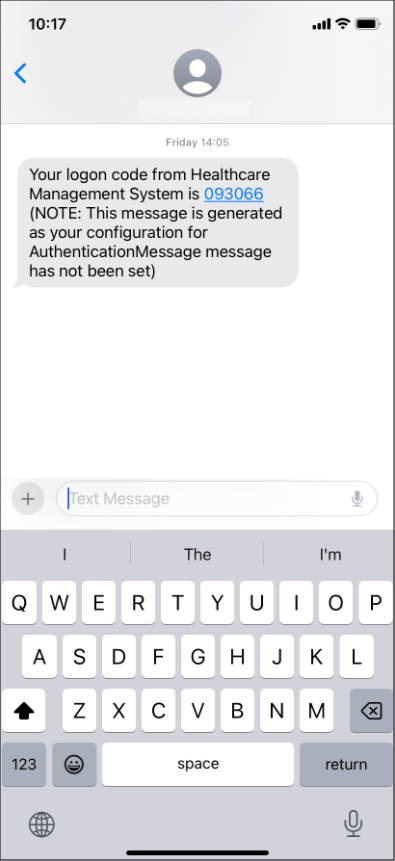
With text message set as your primary authentication method, a user will have to enter their logon identifier first, which could be their username, email, or phone number and then a One Time Password (OTP) will be messaged to them. This code is then used to log into your application. The code is valid for 60 seconds, after this duration the code will expire and the user will need to re-enter their logon identifier to receive another code.
Although text message can be your only authentication method, it is recommended to add a secondary authentication method for an additional layer of security.
Sed Expression
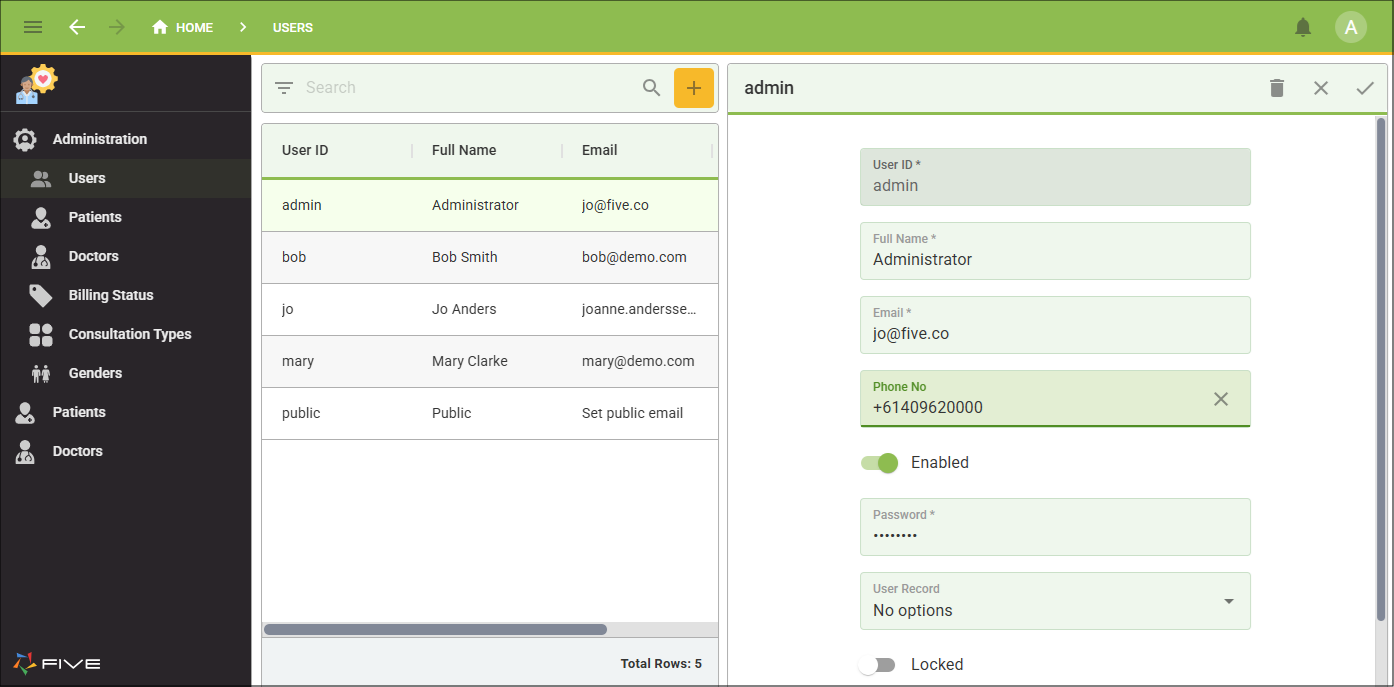
A single country application can have a sed expression added and this will enable you to save your user's phone number in local format which can be used as the logon identifier. Without an expression configured, you will need to save the user's phone number with + country code and your users need to use this as their logon identifier if using phone number. As an example, if you are using a sed expression with the TWILIO_FORMAT key to format the phone number such as,
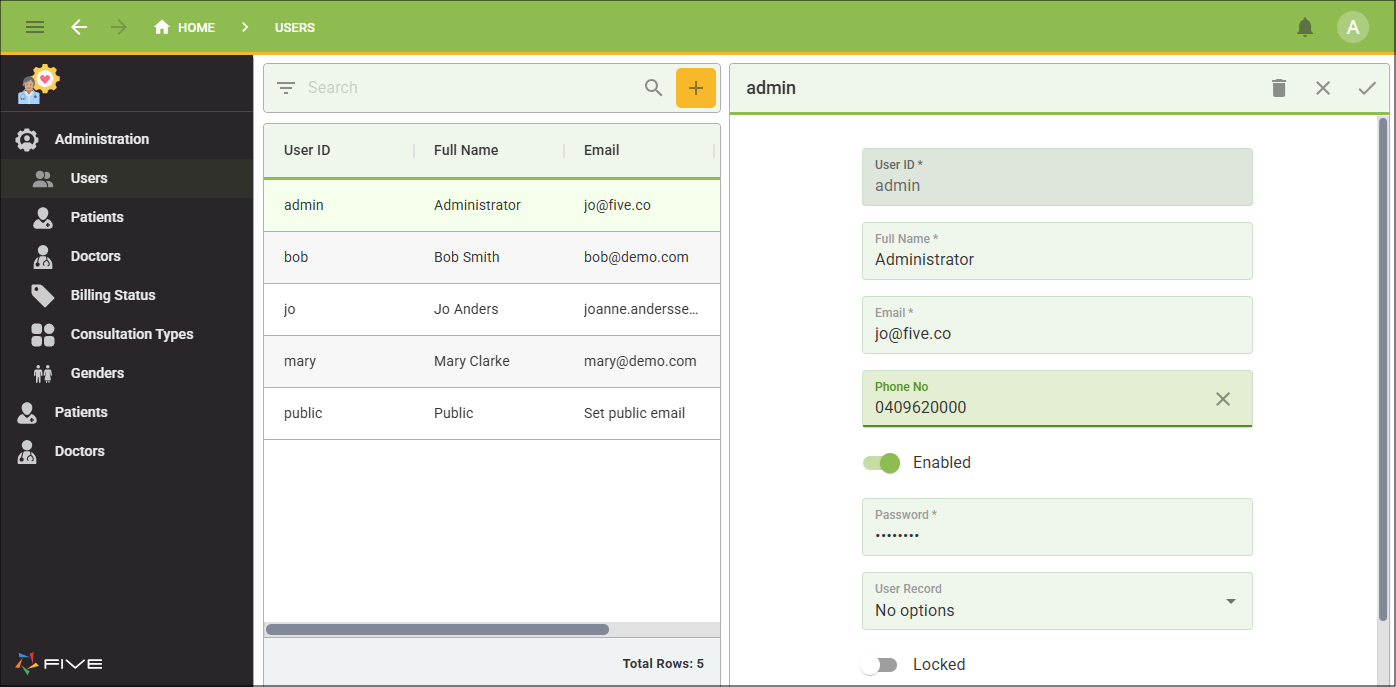
If your application is used in multiple countries, you cannot use the optional TWILIO_FORMAT key, you and your users would need to prepend + country code to their phone numbers.
Add Text Message as Your Primary Authentication
1. Select your instance record in the list.2. Click the Authentication tab.
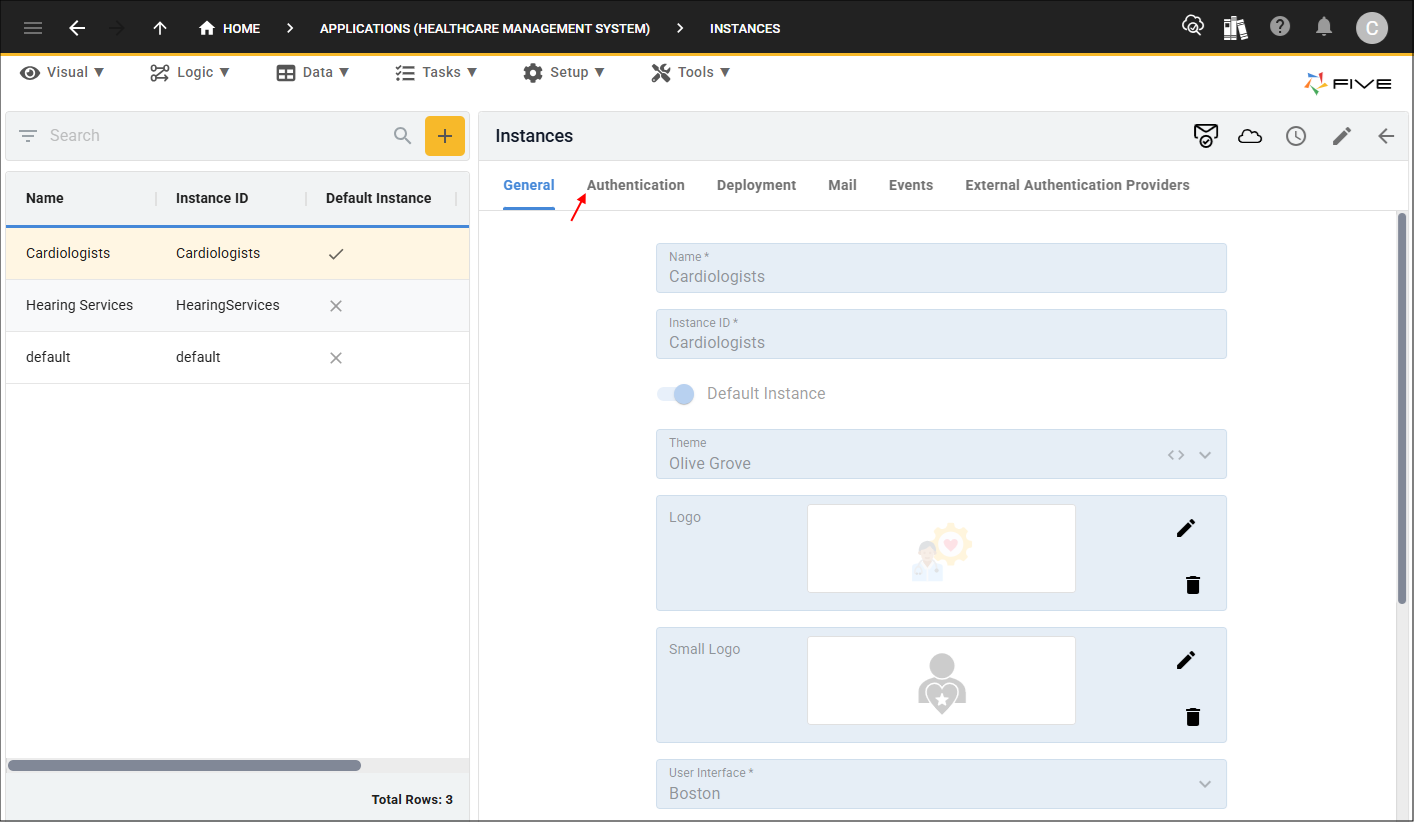
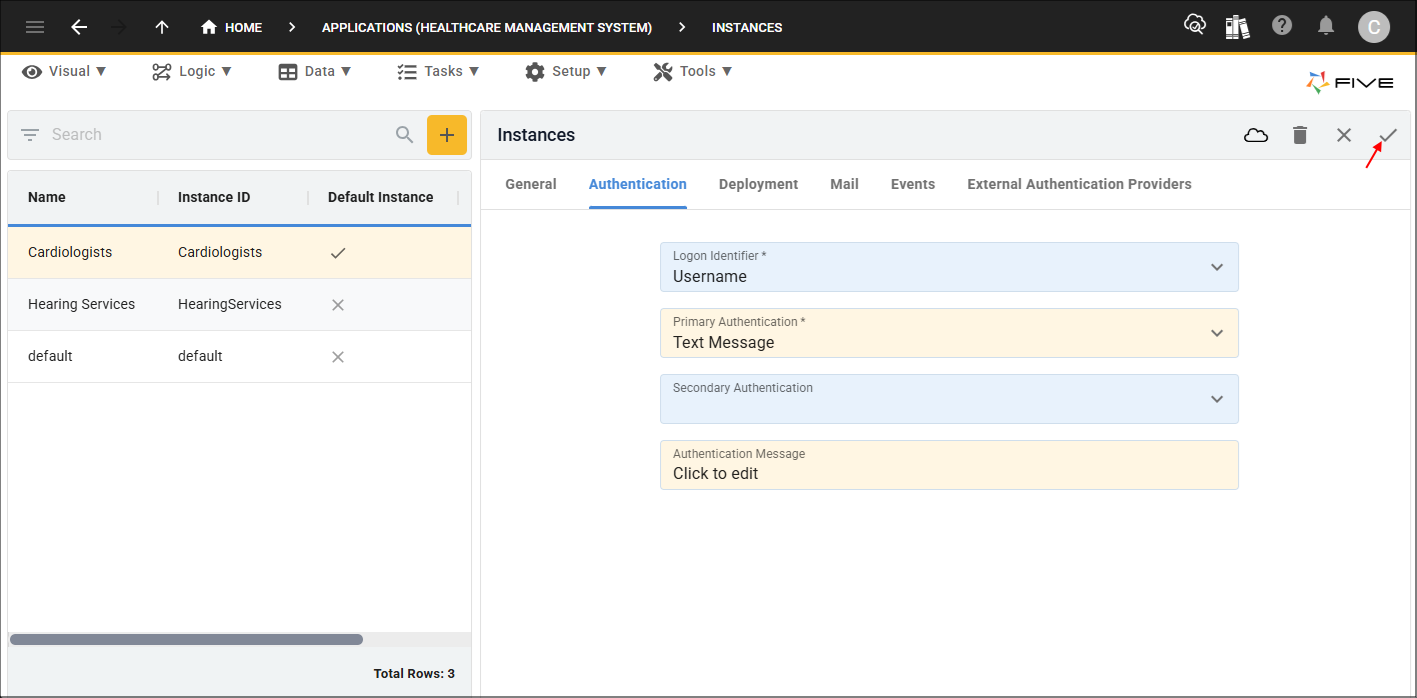
3. Either click the Edit button in the form app bar or click directly in the Primary Authentication field.
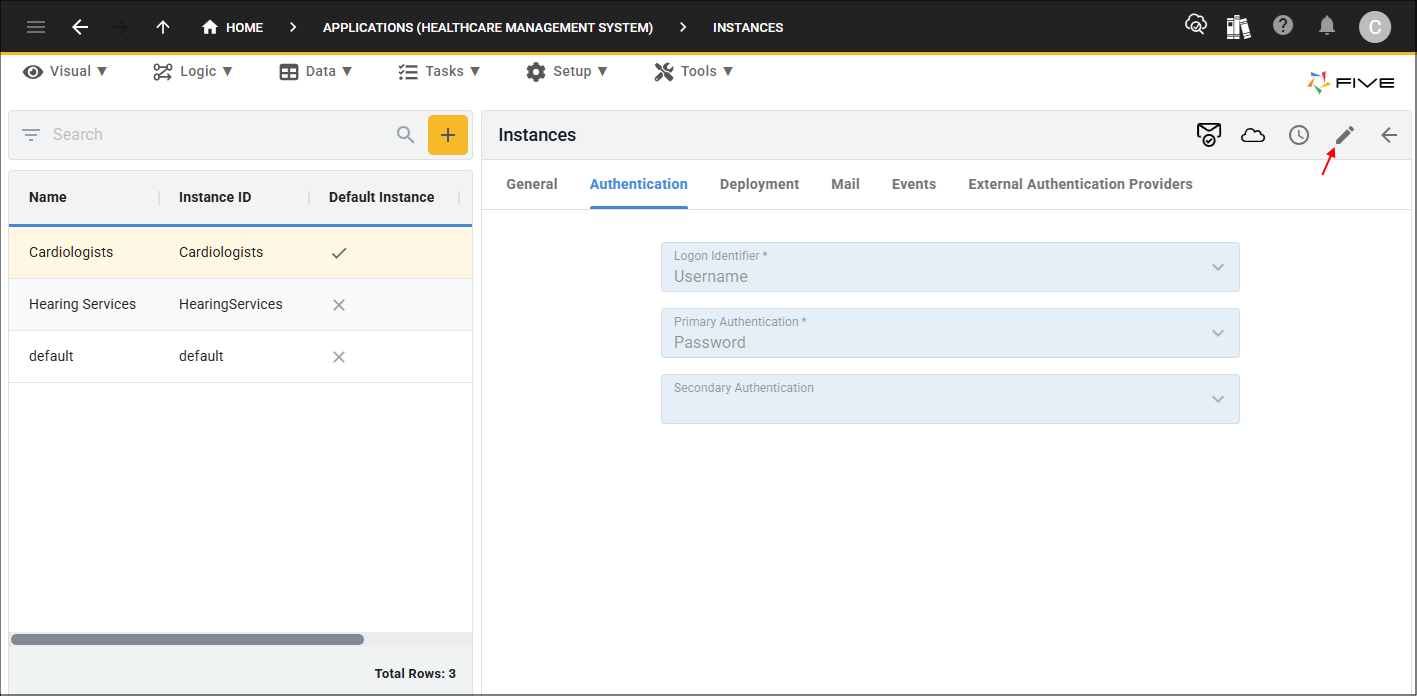
4. Click the lookup icon in the Primary Authentication field and select Text Message.
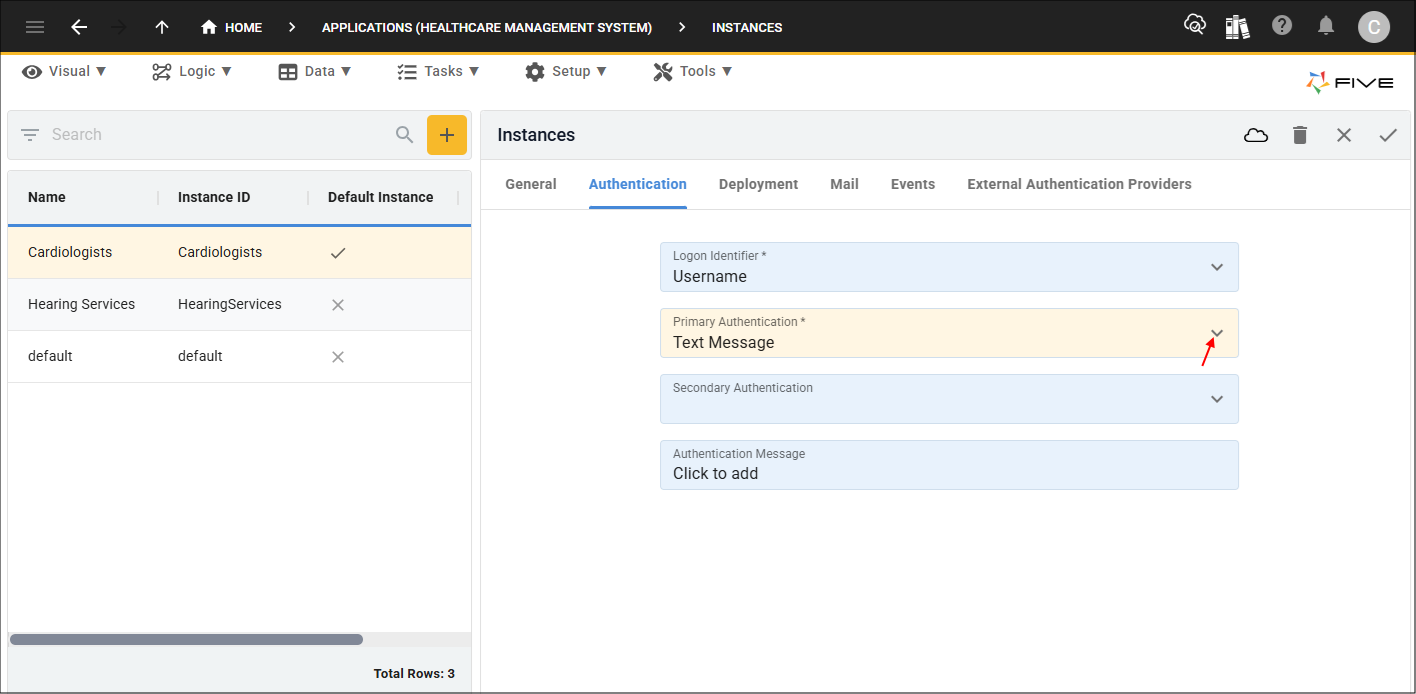
5. Click in the Authentication Message field to open the editor.
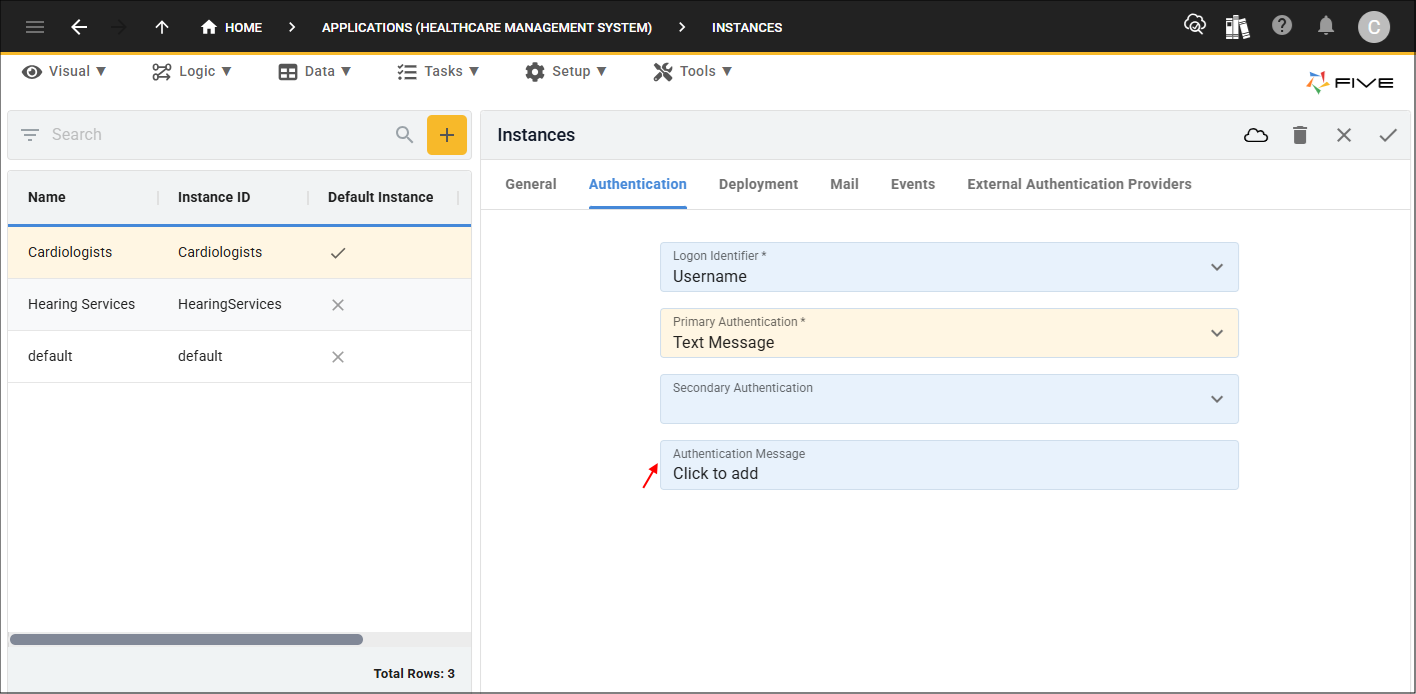
6. Design your Authentication Message template and add the OTP tag.
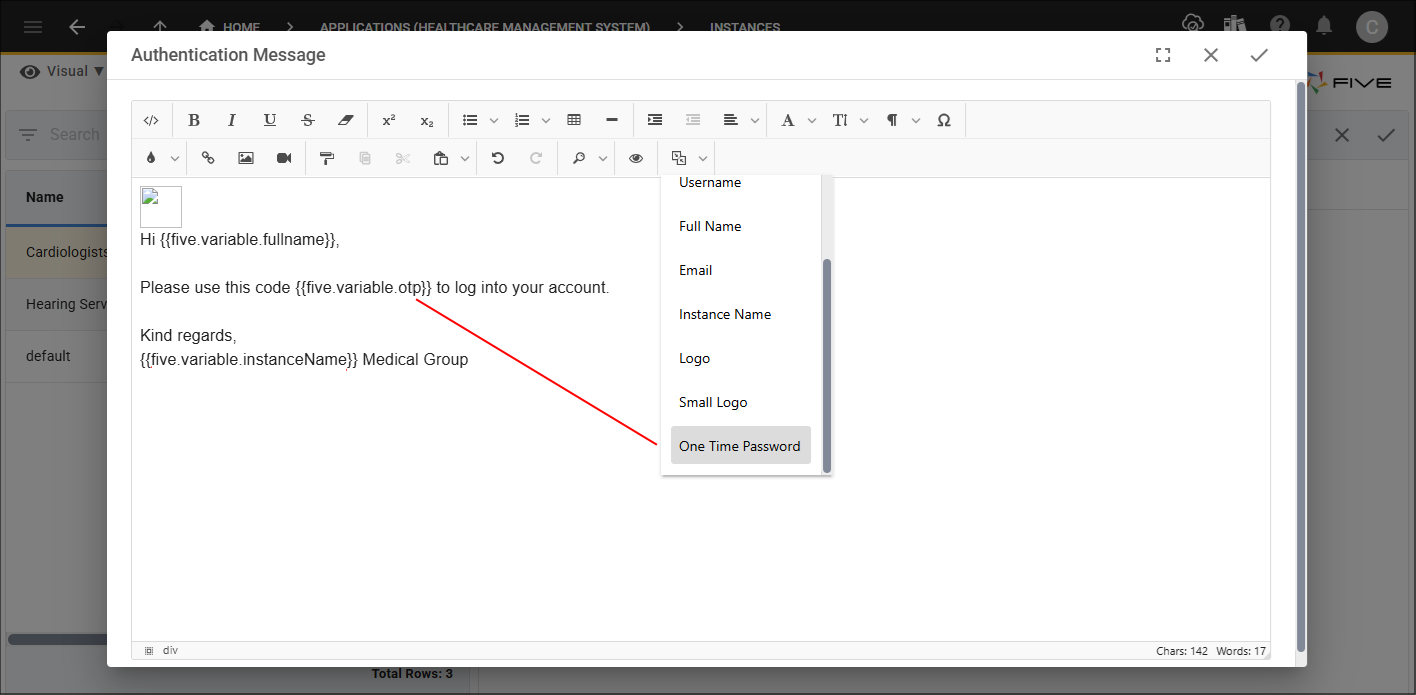
7. Click the Save button in the editor app bar.
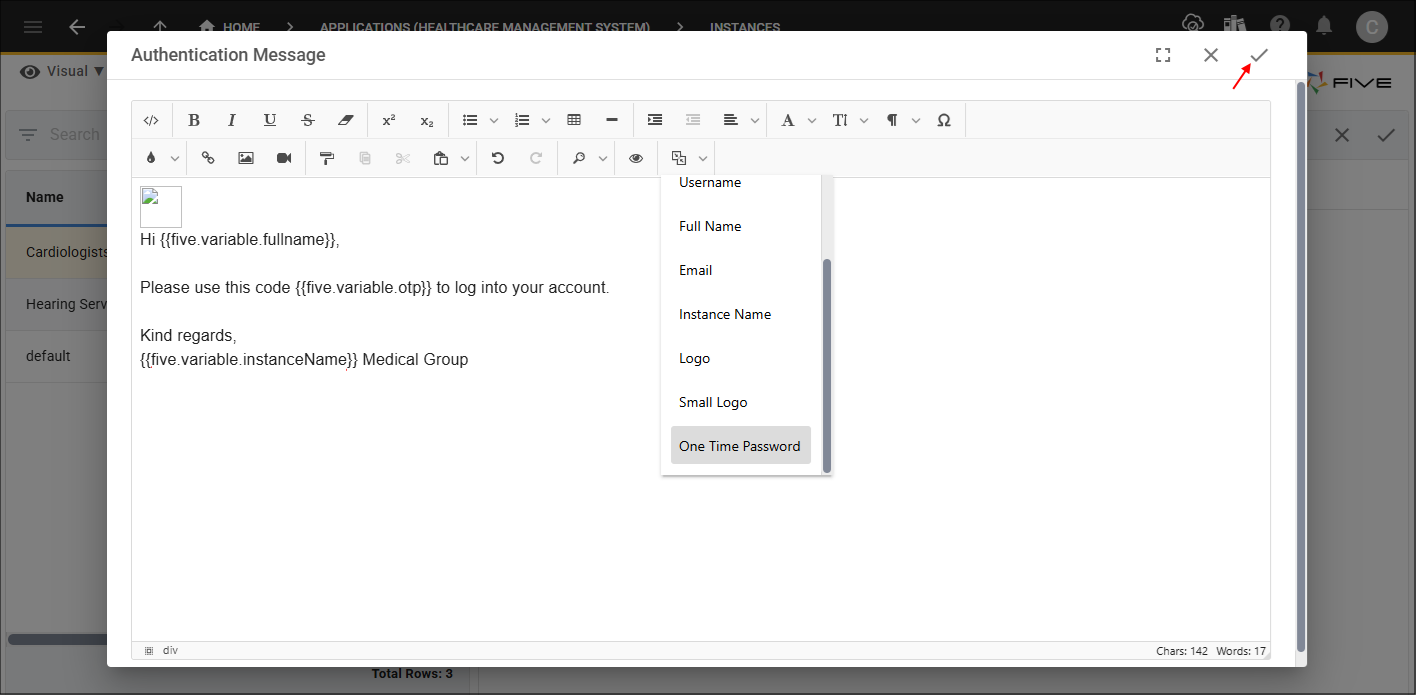
8. Click the Save button in the form app bar.
Example Workflow
- User enters their logon identifier in the Sign In window and clicks the Sign In button.
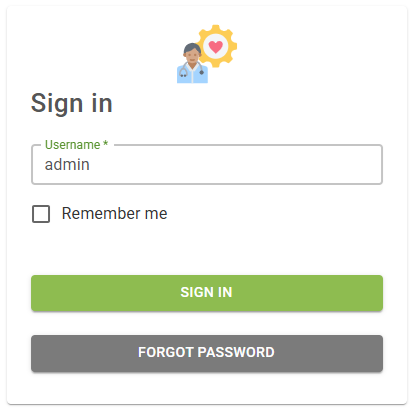
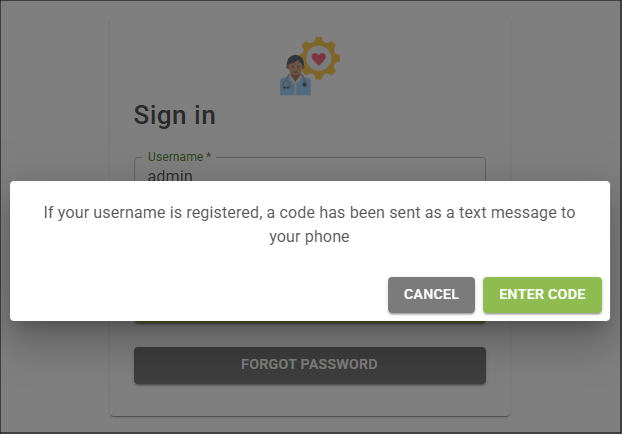
- User will receive a message letting them know that a code has been sent as a text message to them and clicks the Enter Code button.
- User needs to get the code from their text messages.
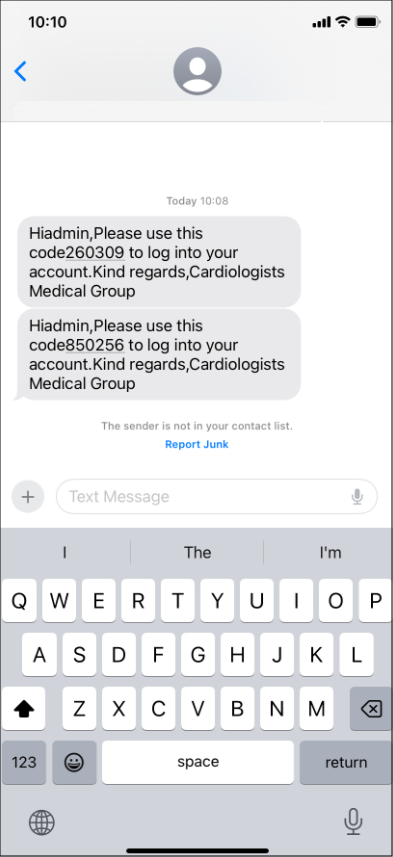
- User needs to add the code and click the Verify Code button.