Default Authentication Method
Last updated 11/06/2025
Default Settings
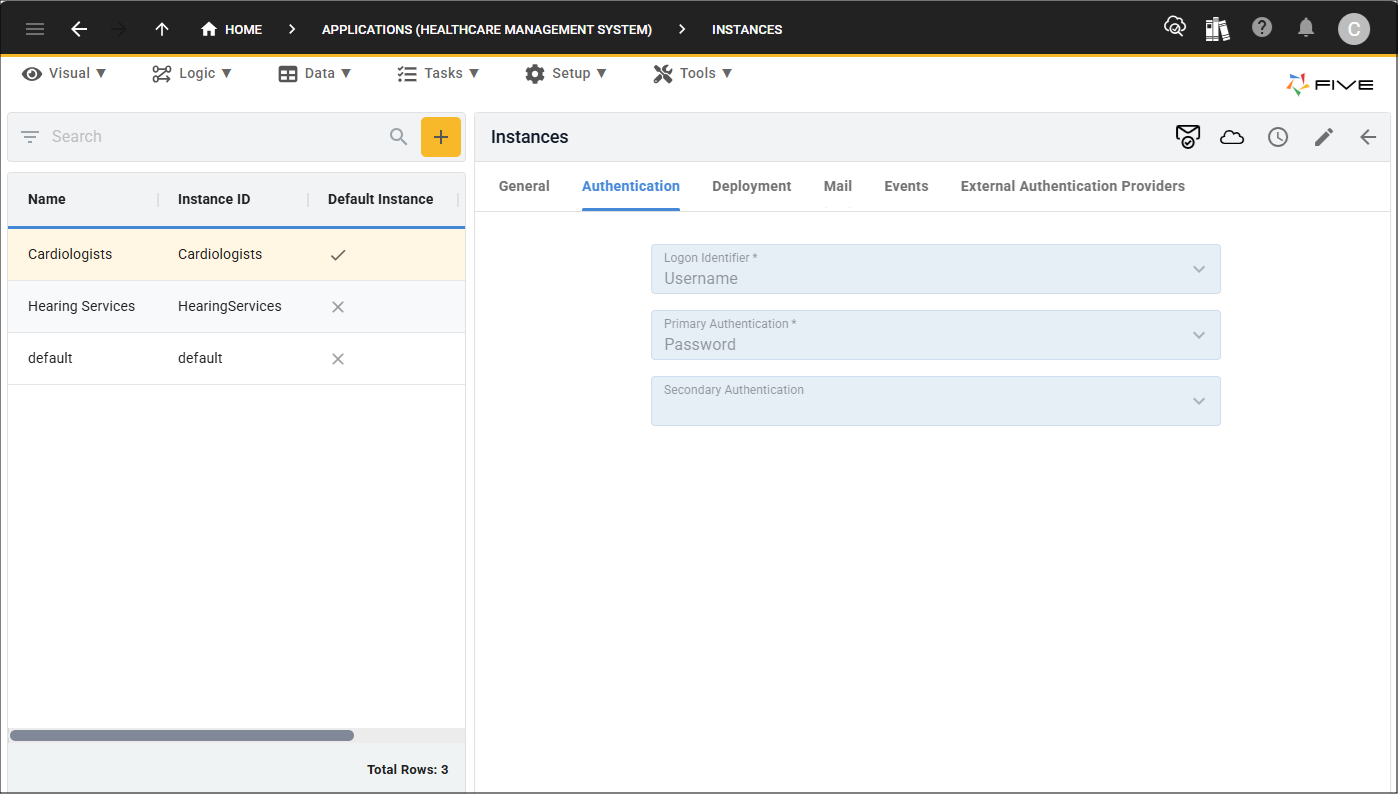
By default, your application is set to password-based by Five. You can see this on the Authentication page on the Instances form. The Logon Identifier field is set to Username and the Primary Authentication field is set to Password.
When you add a user into your application you can either give them their username and password, or alternatively, you can set up your SMTP settings and the Invite Email template with the Reset Password Link. With these configured, when you save a user via the Users form, an email will automatically be sent to the recipient and you can supply their login details.
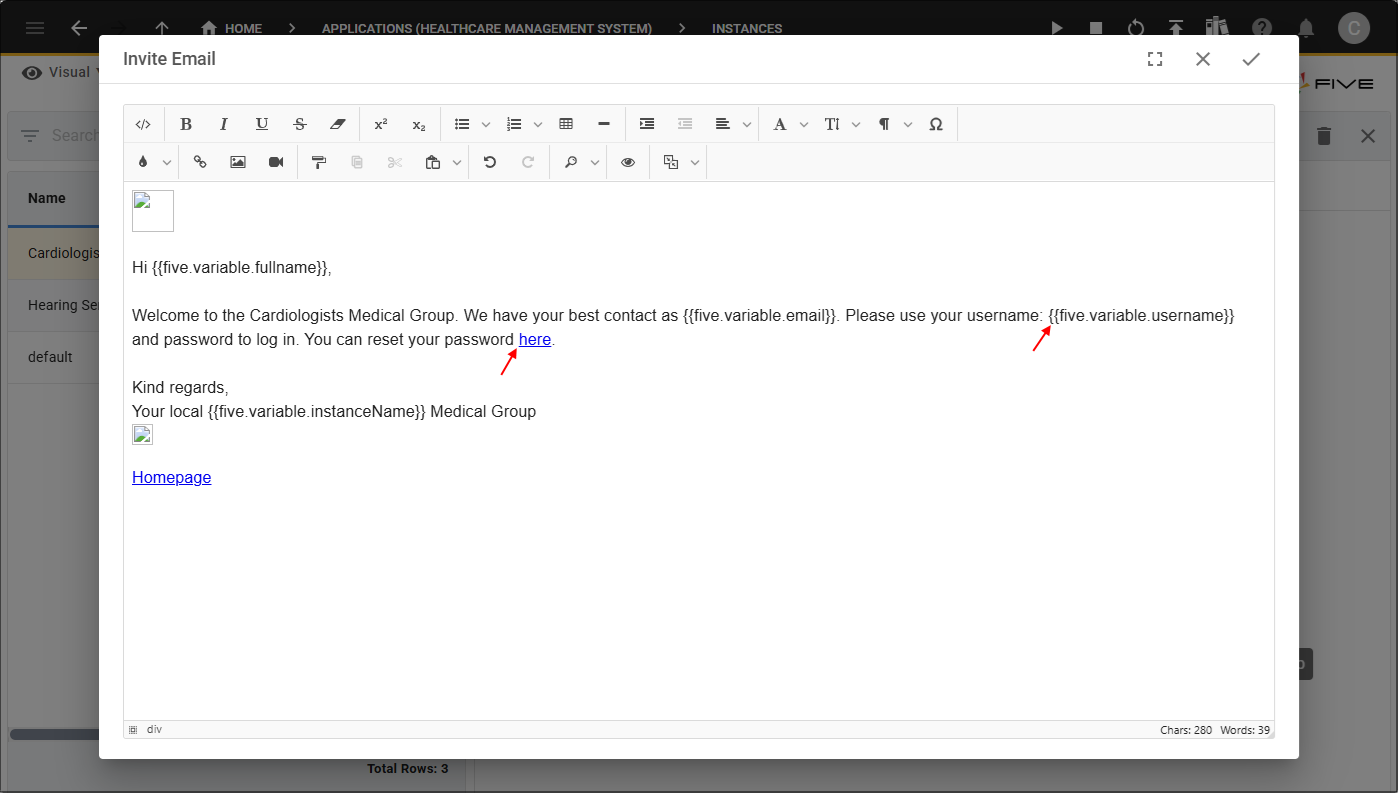
Let's take a look at the Invite Email template first. There is a link to click that will navigate a user to the Reset Password window. The username is also provided in the email, which they will need in order to login to your application.
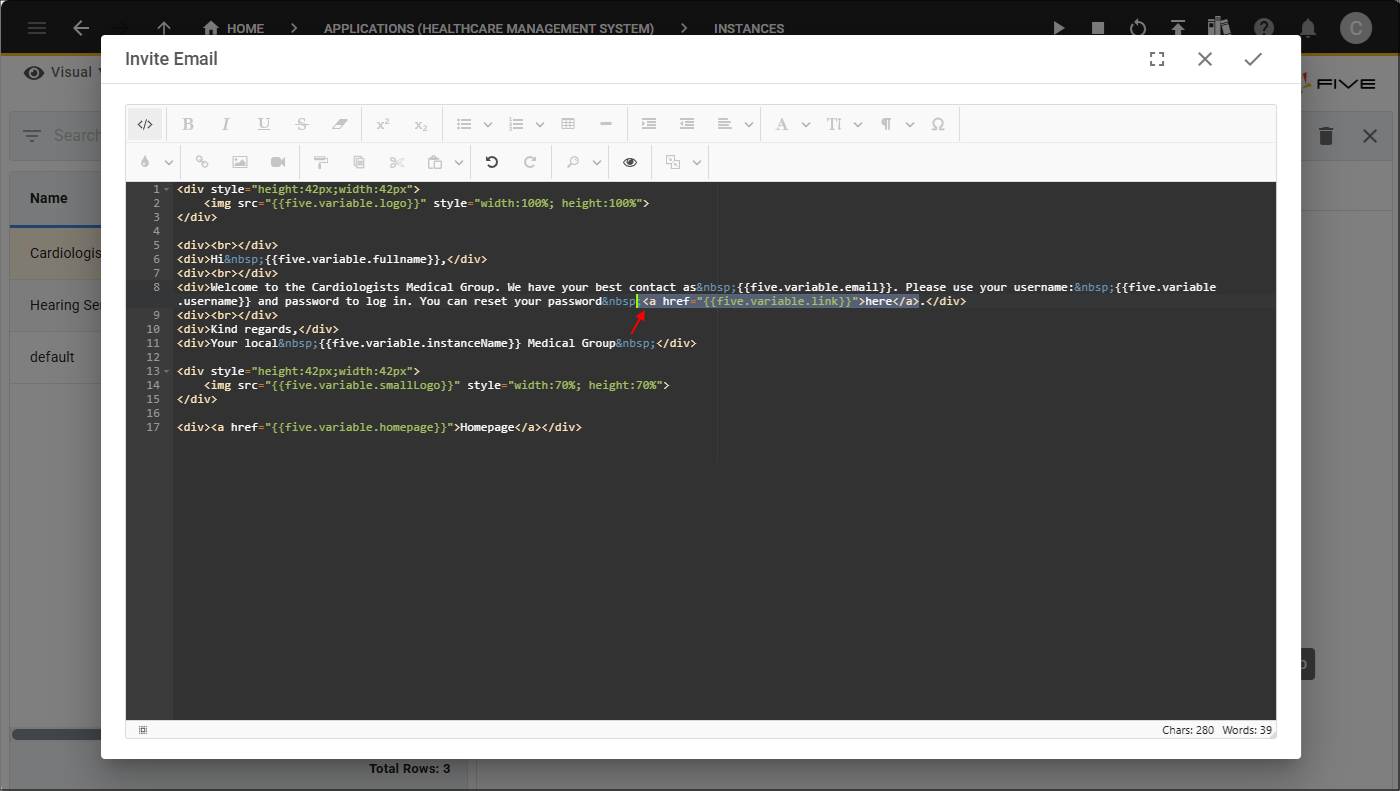
The link is added by selecting the Reset Password Link in the Tags tool. When this link is added into the Invite Email template it will be valid for 48 hours.
Once it is added into the template, the Reset Password Link needs the
Now in your application, when a user is saved via the Users form, they will be sent the Invite Email. Before you can save the Users form, you must give your user a password, this password does not need to be given to the user if you are providing the Reset Password Link for them to change the password.
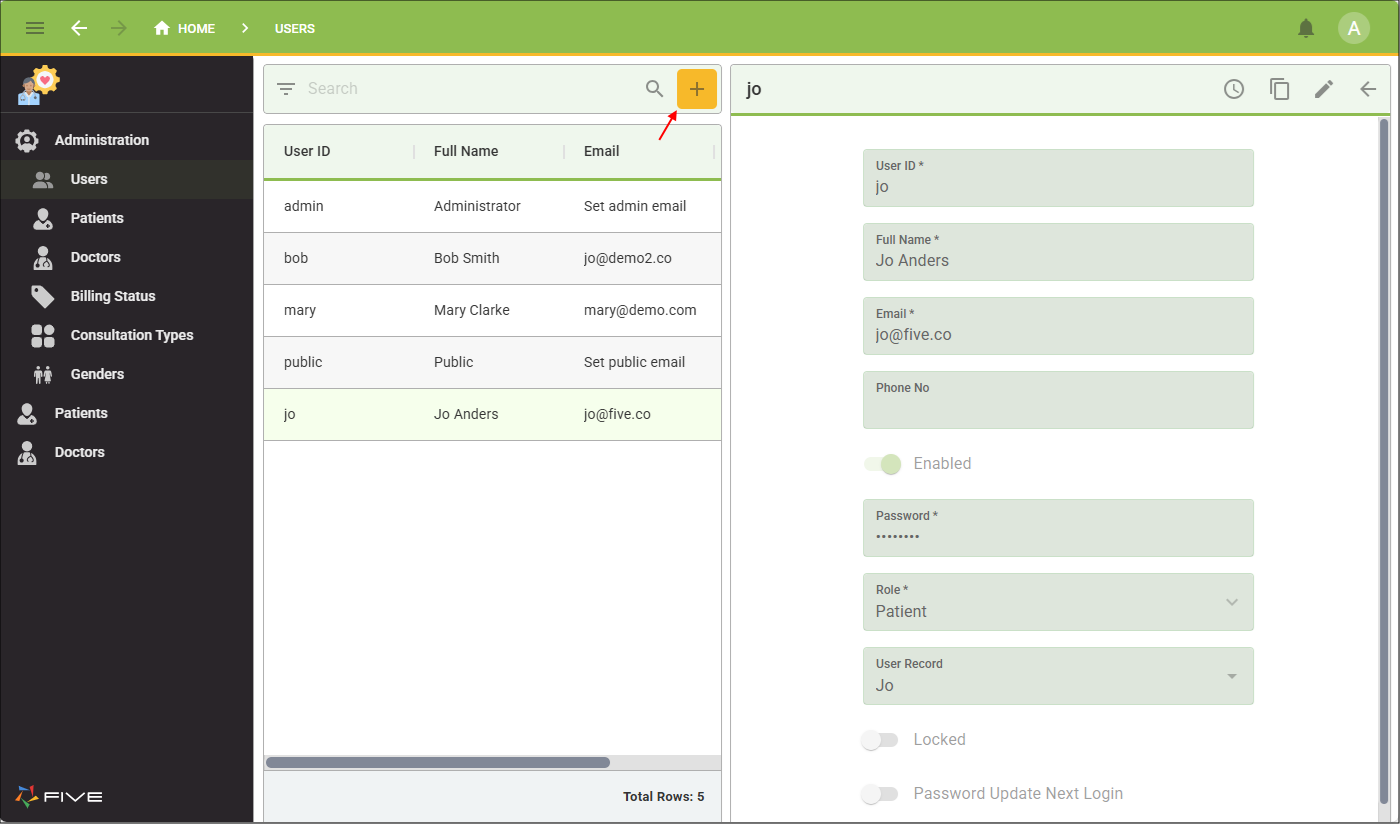
Reset Password on Invite
Once the recipient has received their Invite Email, they will need to perform the following steps to reset their password.
1. Click the Reset Password Link.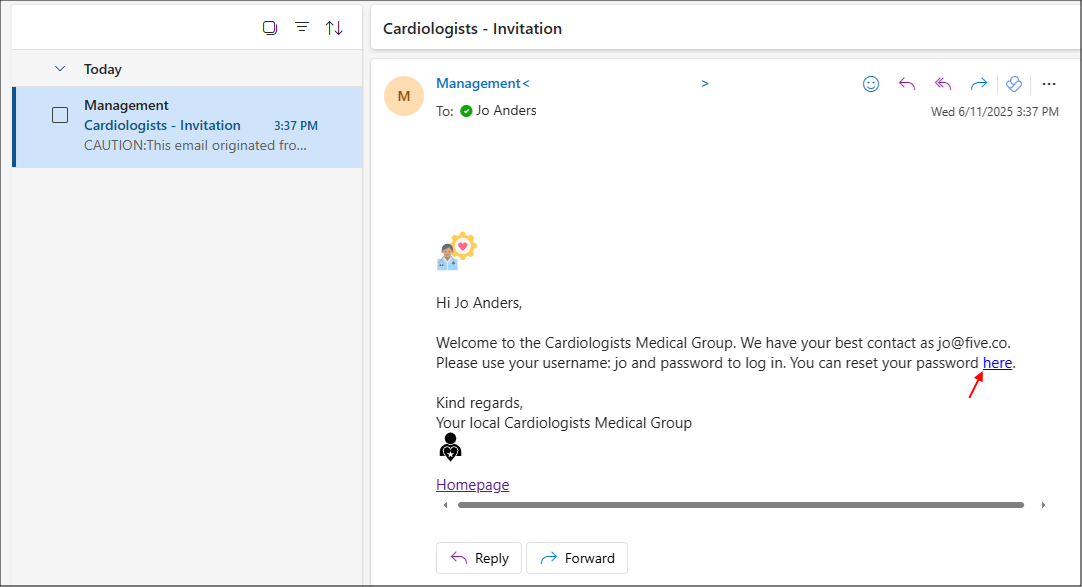
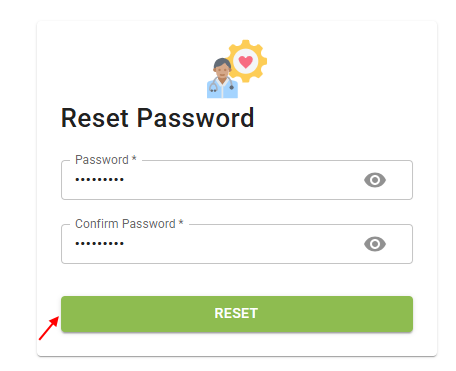
2. Type a password in the Password field.
3. Confirm the password in the Confirm Password window.
4. Click the Reset button.
5. Type the username in the Username field.
6. Type the password in the Password field.
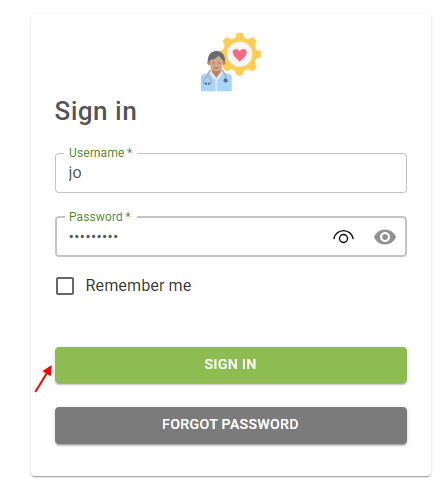
7. Click the Sign In button.