Twilio Account
Last updated 10/06/2025
A Twilio account is required if you are using Text Message as your primary or secondary authentication method. You will need to setup an account with Twilio to get the values to pair with the keys.
The following are the key: value pairs required when setting up Twilio in Five for your application. These are required when using phone authentication with OTP (One Time Password).
| Key | Value | Example |
|---|---|---|
| TWILIO_SID | Contains your Account SID from Twilio | AC82gt56b847h2rt7x23r12ed54dder162 |
| TWILIO_AUTH | Contains your Auth Token from Twilio | c123g3ytgh3r43c6jj7d4c567mi4b25d |
| TWILIO_FROM | Contains your allocated phone number from Twilio | +26626678977 |
| TWILIO_FORMAT | Optional: A sed expression to format the phone number when sending SMS messages using Twilio | s/^0/+61/ |
The server option TWILIO_FORMAT is applied to a user's phone number when sending a test message using Twilio service provider. The purpose of this mask is to allow when an application is being used in a single country, to enter the phone numbers in the local format, for example, 0481333222. This makes it that you do not require to prepend the country code, for example, +61481333222. The regular expression can be used to convert from local to international format when sending the message to Twilio, effectively users can use the local phone format when using a phone number as their logon identifier. The regular expression will convert the phone number to have + country code as this is what Twilio expects.
If your application is intended to work with multiple country codes, you would not set the optional TWILIO_FORMAT key: value pair, all phone numbers need to be stored in international format. When the user is authenticating with a phone number as their logon identifier, they need to enter the complete international format of their phone number.
Once you have added the key: value pairs on your instance record you will need to set up your authentication method.
Setting Up Twilio for Your Application
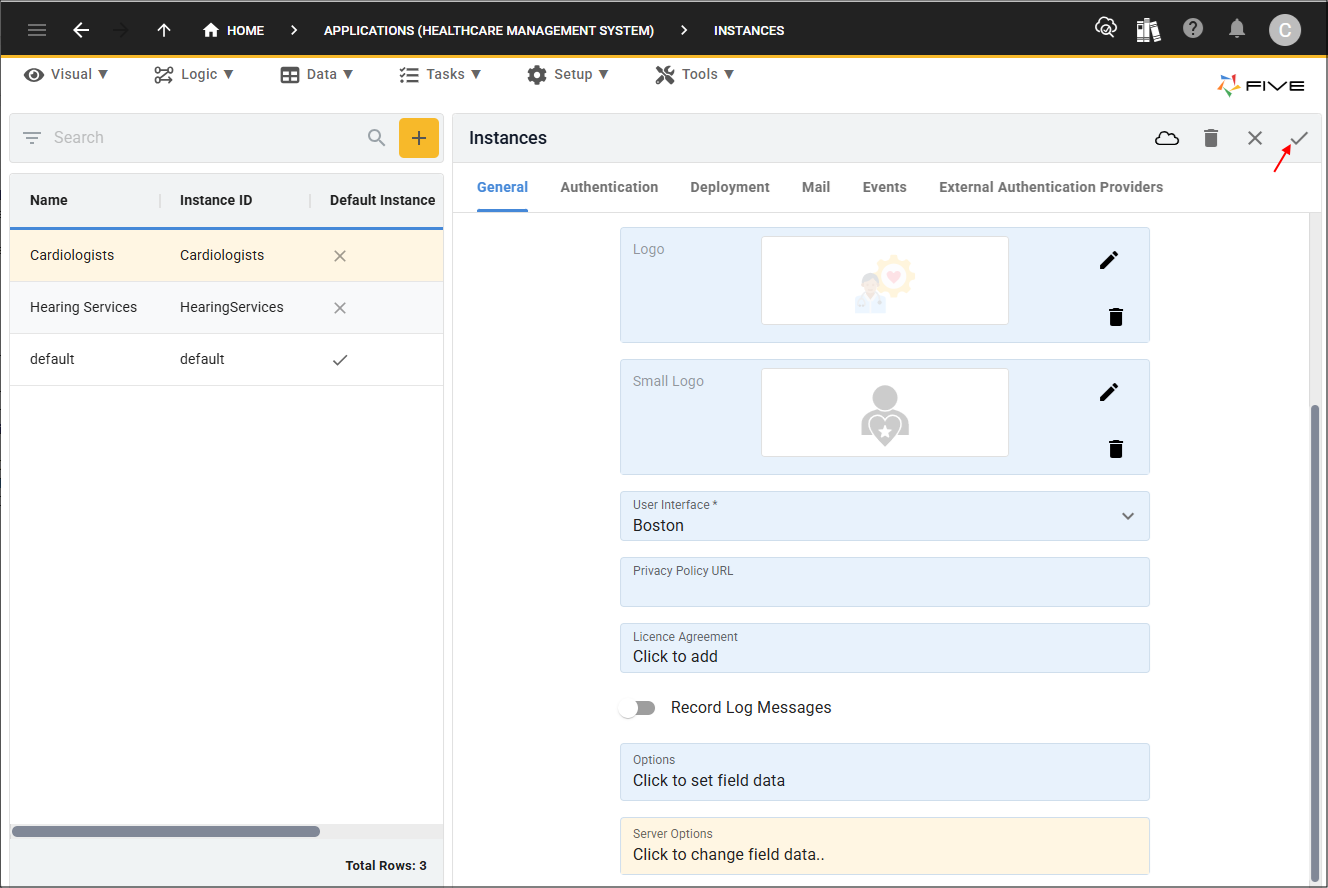
1. Select your instance record in the list.2. Click directly in the Server Options field to open the editor.
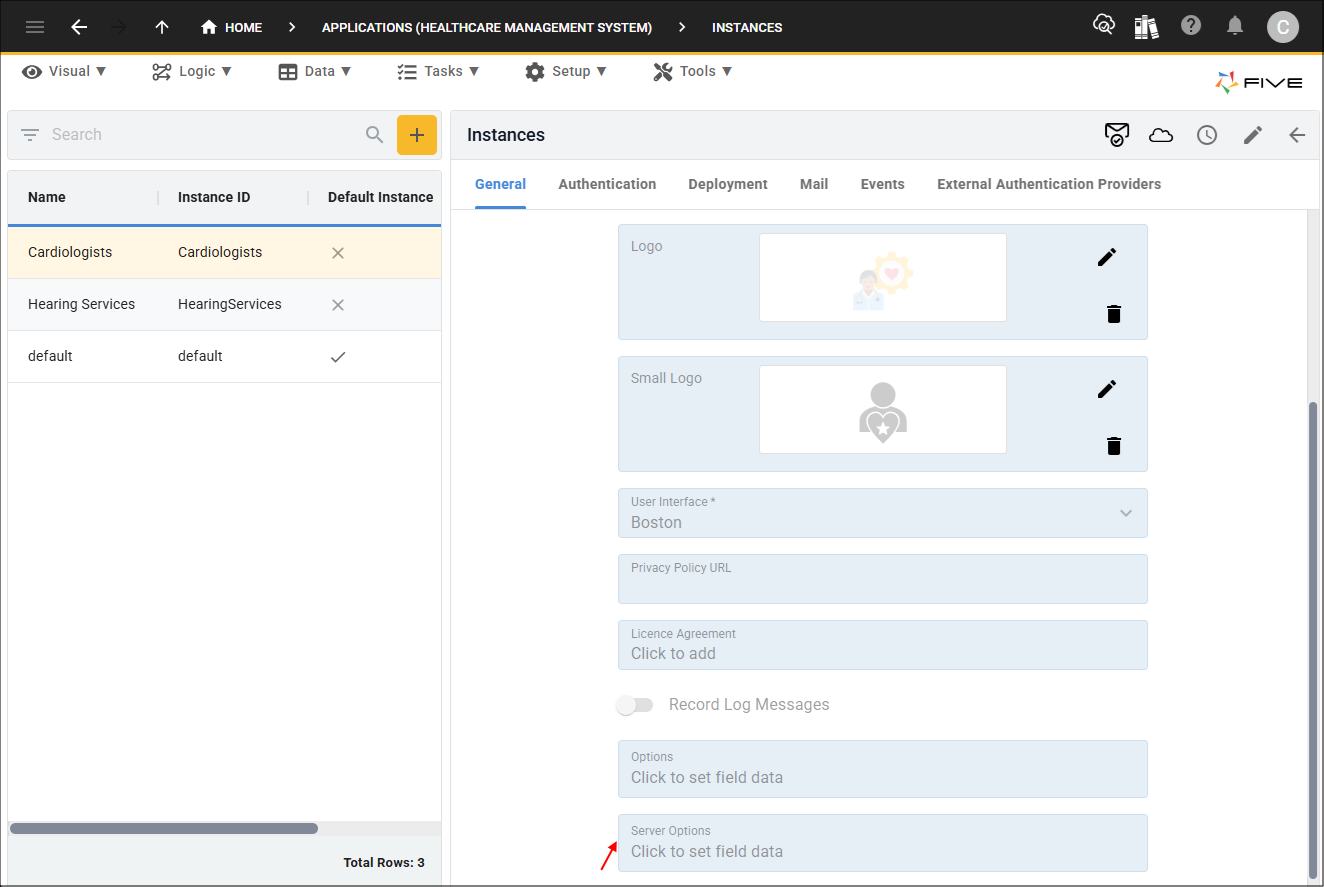
3. Type TWILIO_SID in the Key field.
4. Type your Account Sid value from Twilio in the Value field.
5. Click the Add Field Data button.
6. Type TWILIO_AUTH in the Key field.
7. Type your Auth Token value from Twilio in the Value field.
8. Click the Add Field Data button.
9. Type TWILIO_FROM in the Key field.
10. Type your allocated phone number value from Twilio in the Value field.
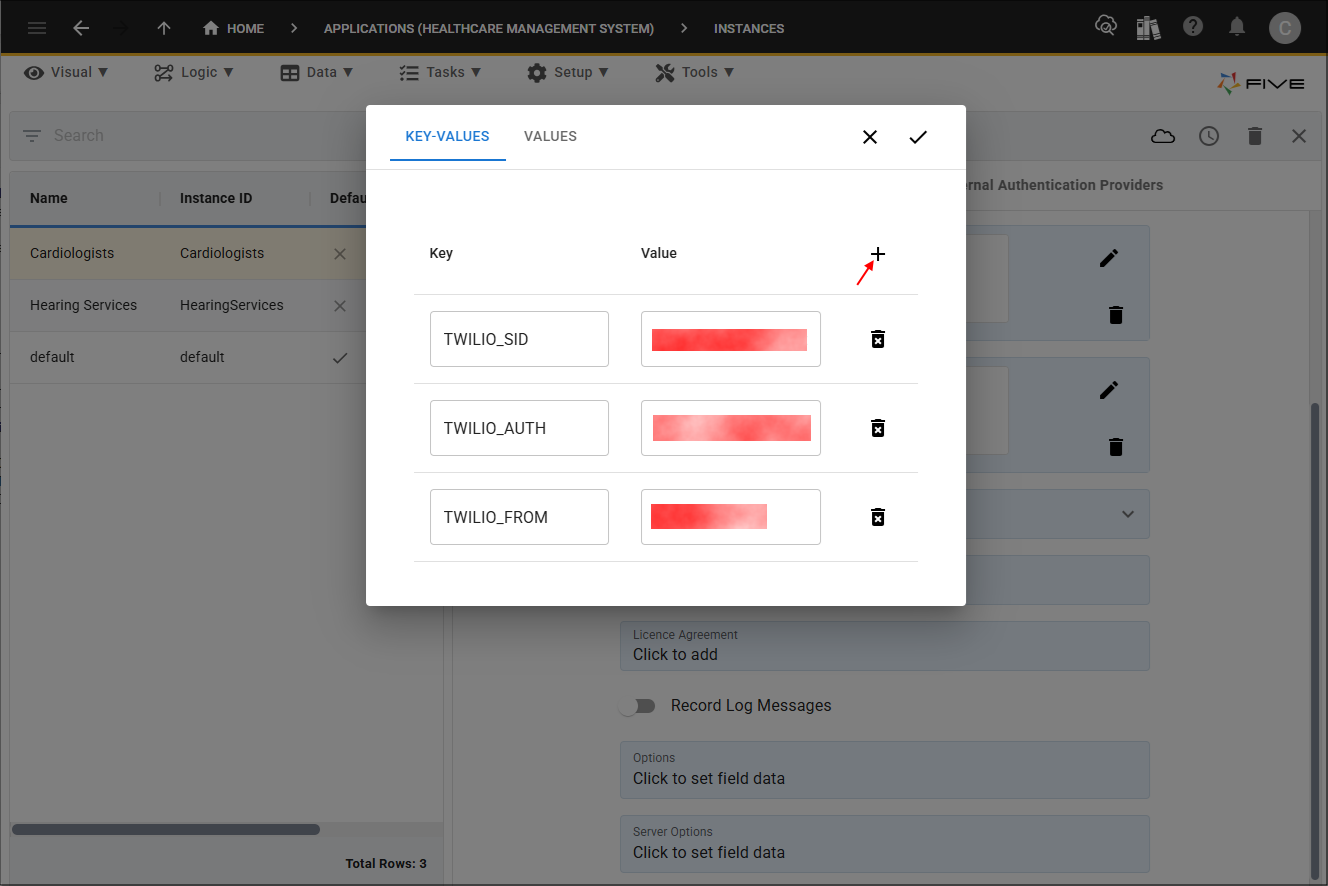
11. Click the Save button in the editor.
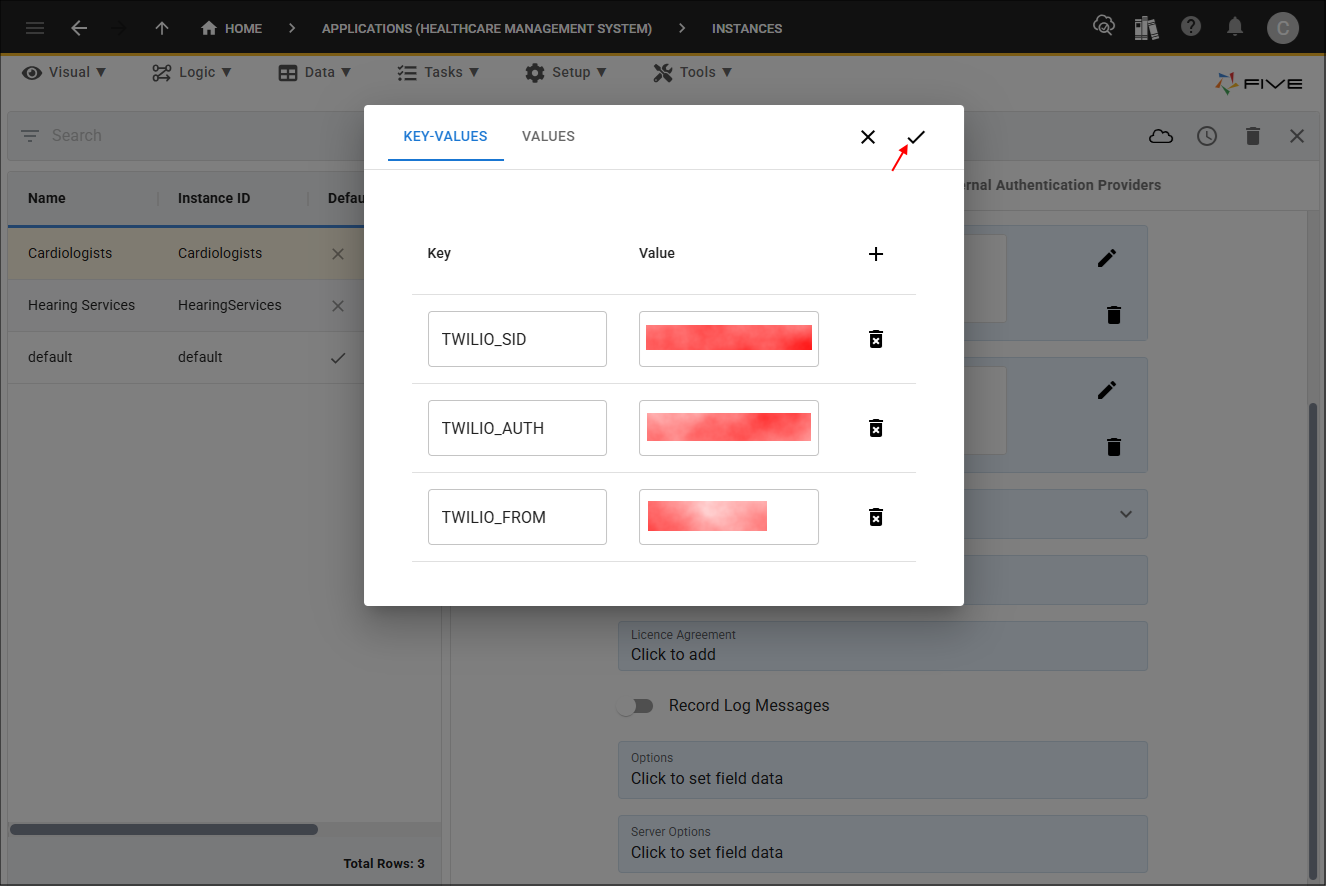
12. Click the Save button in the form app bar.