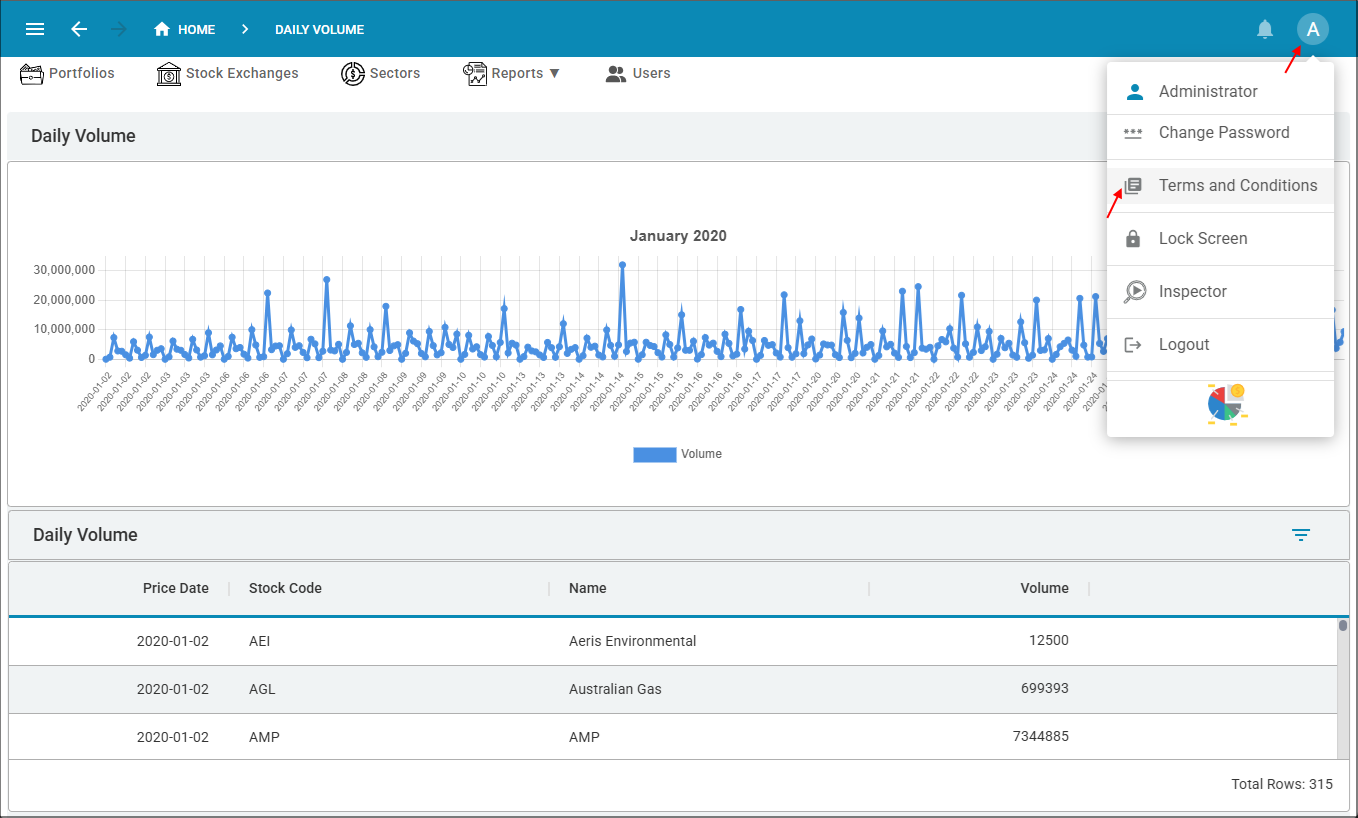
Add Your License Agreement
Last updated 21/10/2025
You can add a license agreement to your application that grants permission to your customers to use your application, subject to specific terms and conditions. When you add a license agreement at the application-level, this will be used for all instances or your application unless you add a license agreement at the instance-level. A license agreement added to an instance record will take precedence over the application-level.
The agreement will be displayed to a user on their initial login and they will need to agree to your terms and conditions to proceed. The license agreement will not display for all future logins, unless you make a change to the conditions. After changes have been made to the license agreement, it will be displayed again when the user logins and they will need to accept the new conditions before proceeding.
Add License Agreement
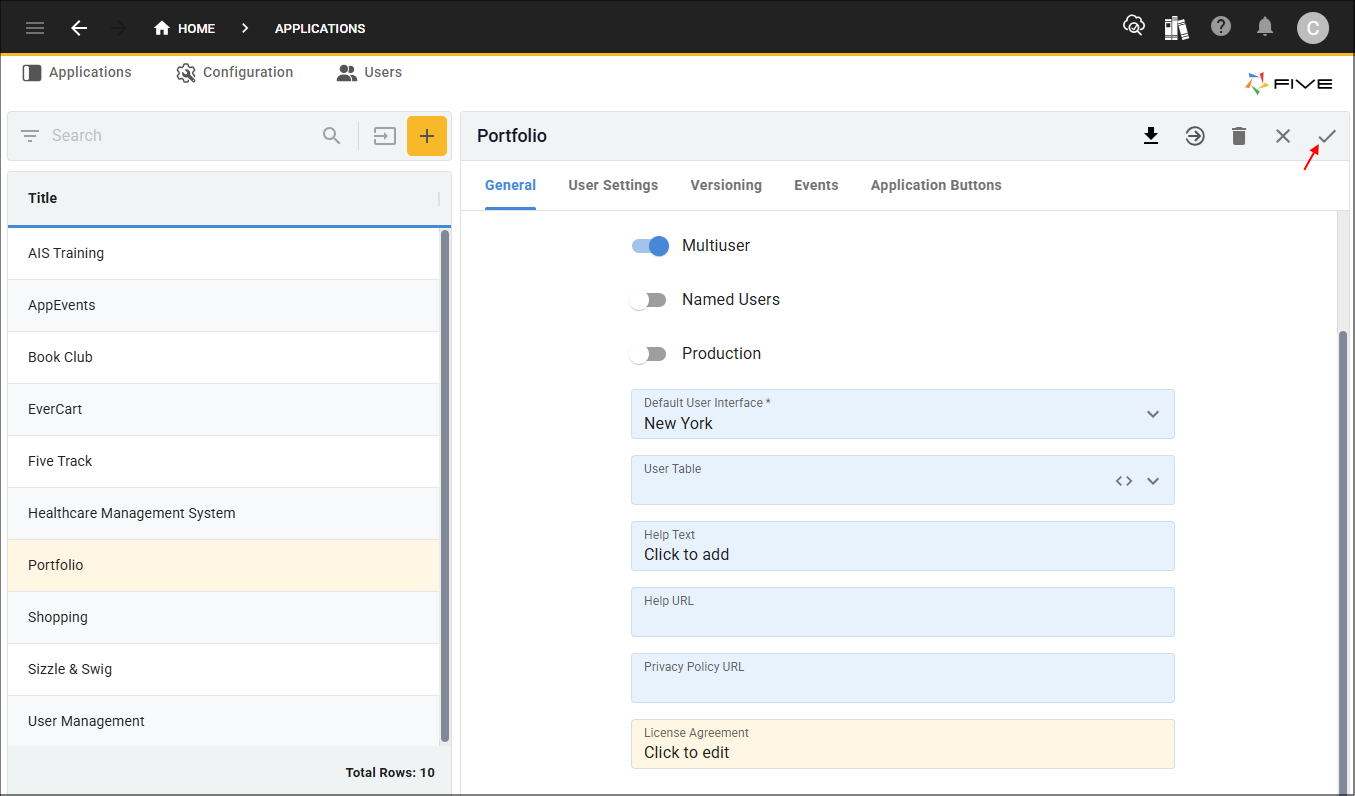
1. Select the application record in the list.
2. Either click the Edit button in the form app bar or click directly in the License Agreement field.
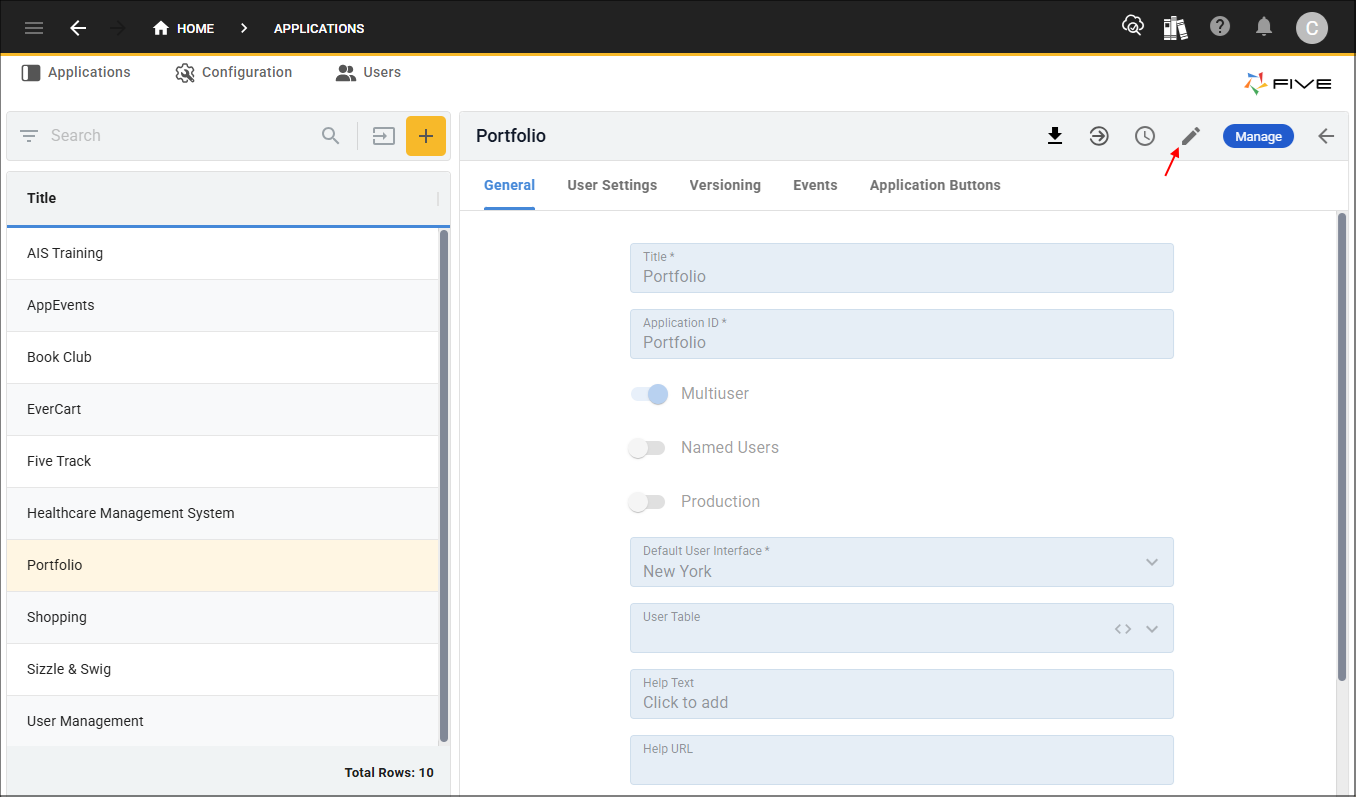
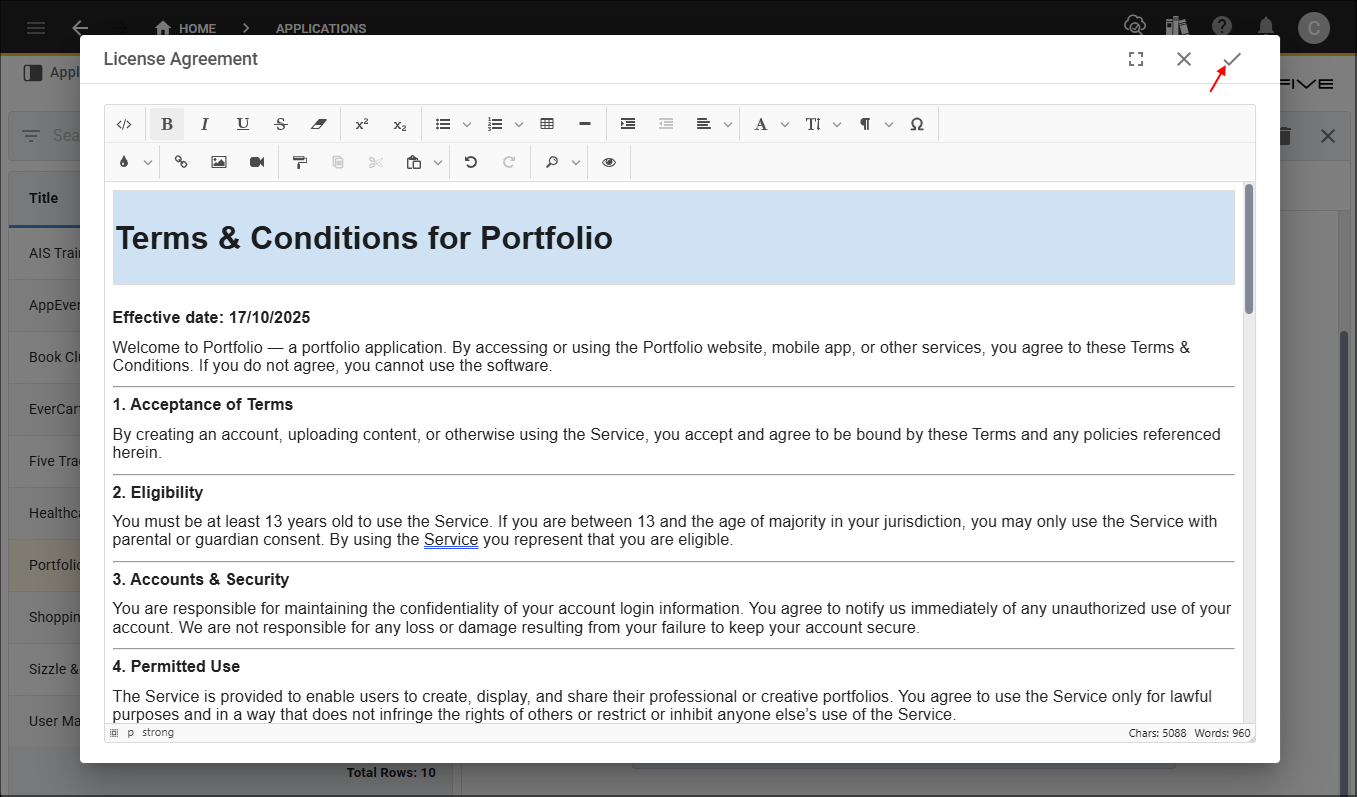
3. Click in the License Agreement field to open Five's Text Editor.
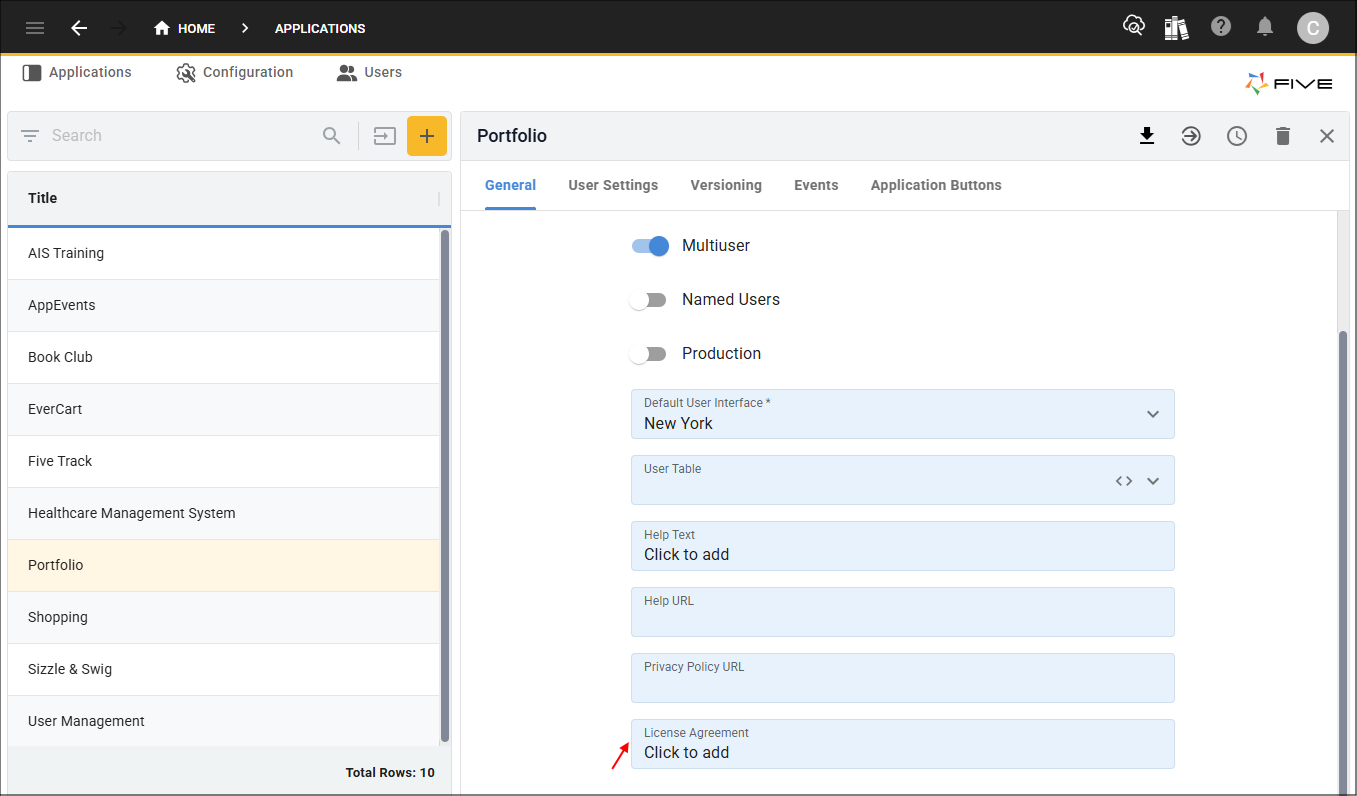
4. Add your content and use the features in the ribbon to design and format your license agreement.
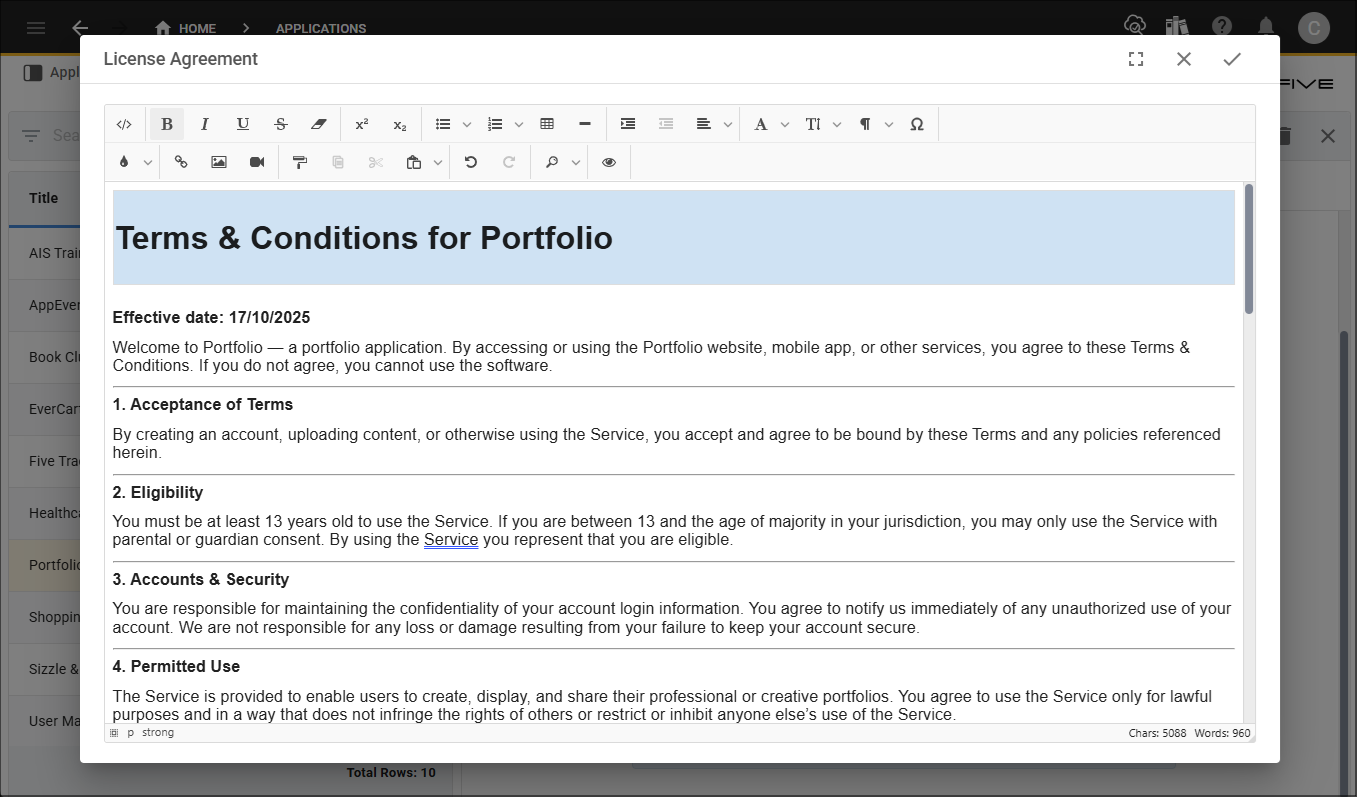
5. Click the Save button in the Text Editor app bar.
6. Click the Save button in the form app bar.
License Agreement in Your Application
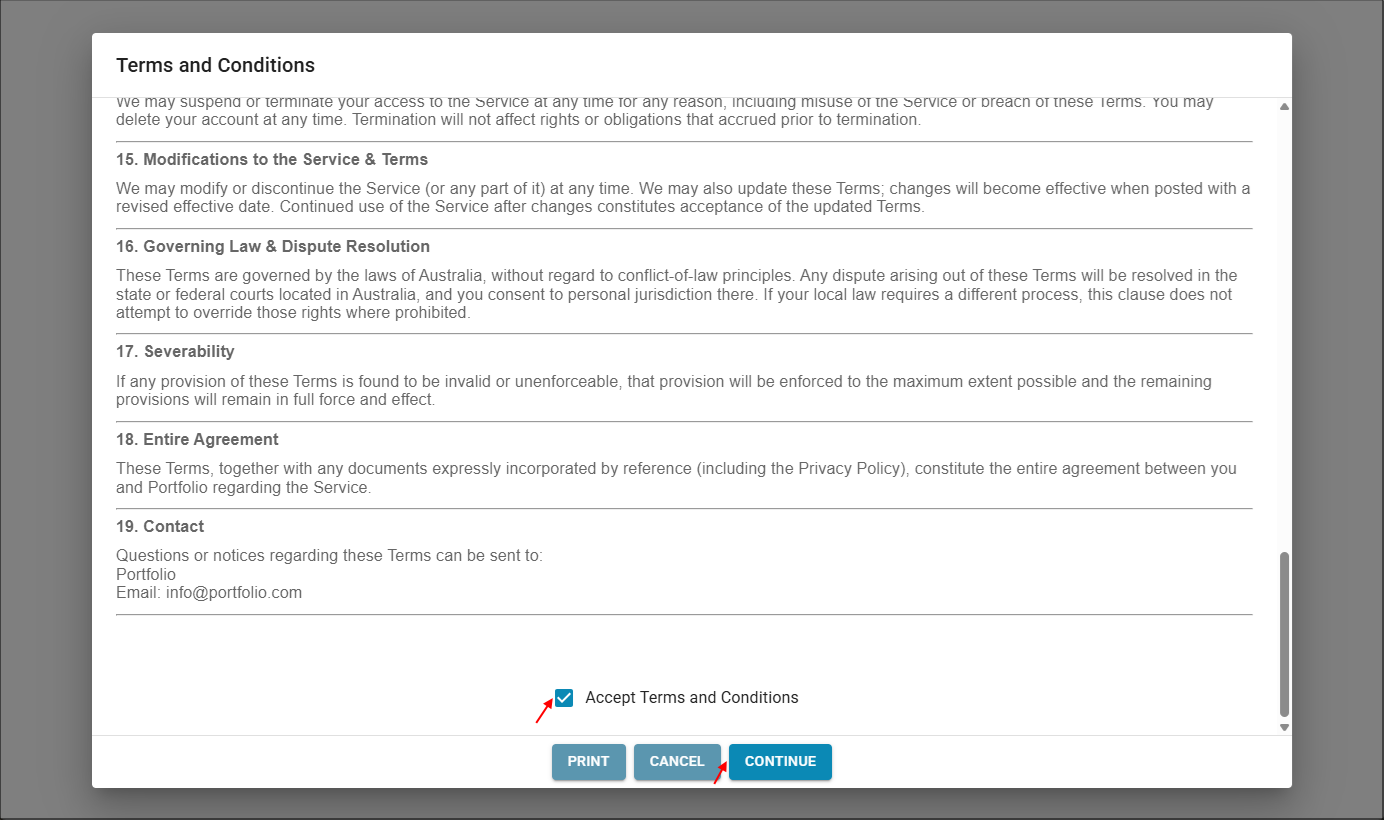
With your configured production application deployed, when a user performs their initial login, they will receive your license agreement and will need to accept the terms to use your application.
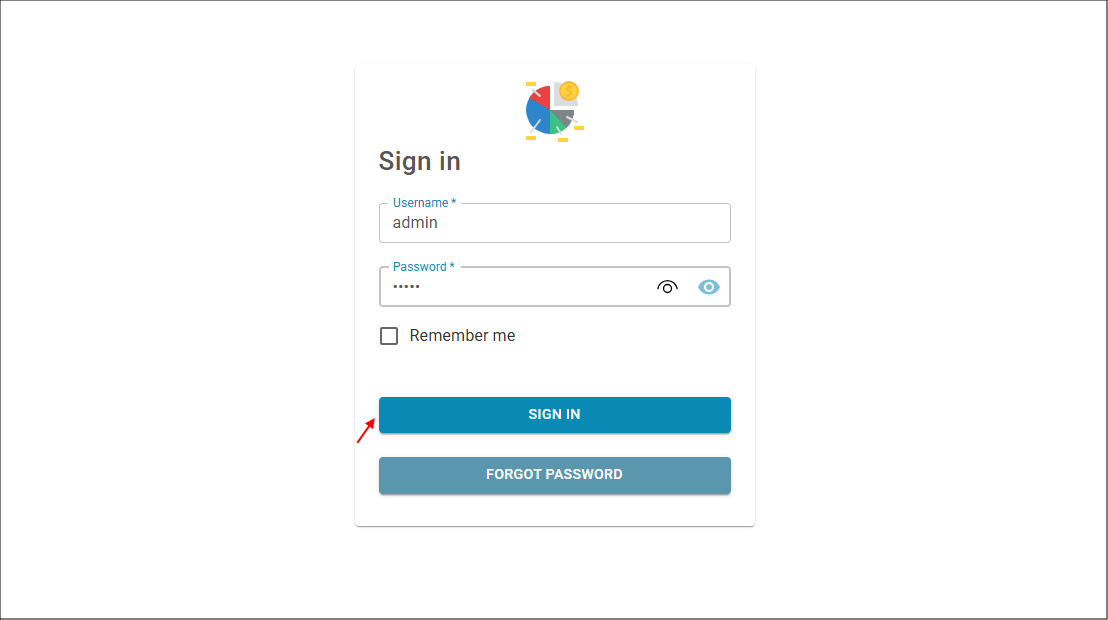
Your user will perform their initial login.
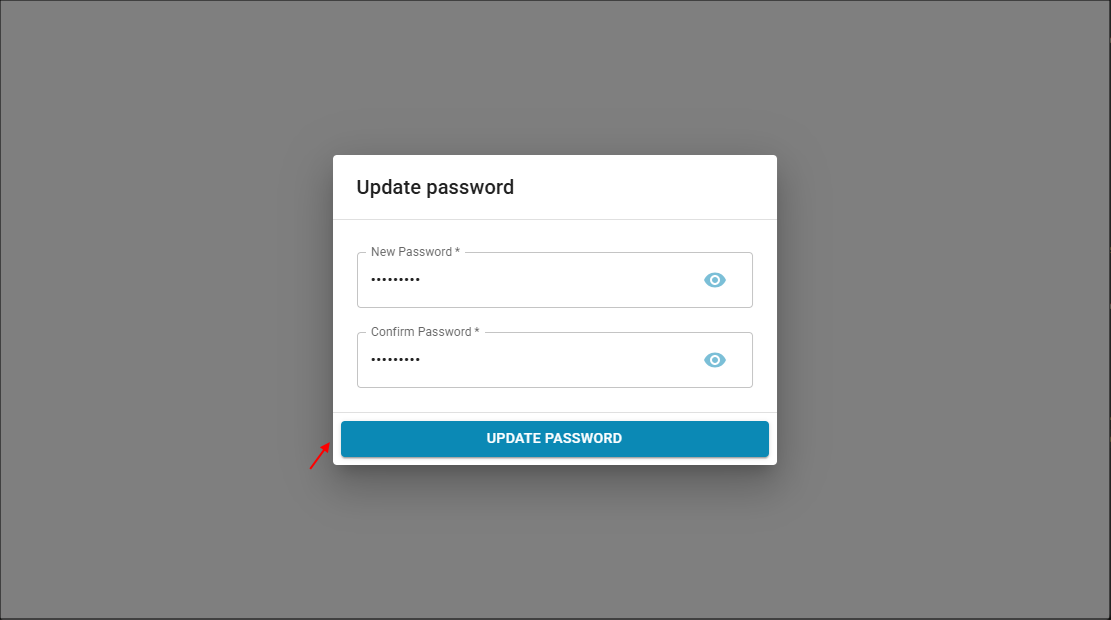
Your user will be forced to change their password.
Your user will need to scroll to the end of your terms and conditions, accept the conditions, and click the Continue button to proceed to use your application.
Your agreement will always be available to your users in their profile.