Download Messages
Last updated 9/02/2025
Downloading Record Log Messages
To download captured log messages, the application must first be deployed to the target environment. Once deployed, on the Cluster Management page the Download Logs button will be available for the associated deployment environment. This will download and save the log output as an iLog file with a timestamp to your local system.
1. Click the Cluster Management button in the form app bar.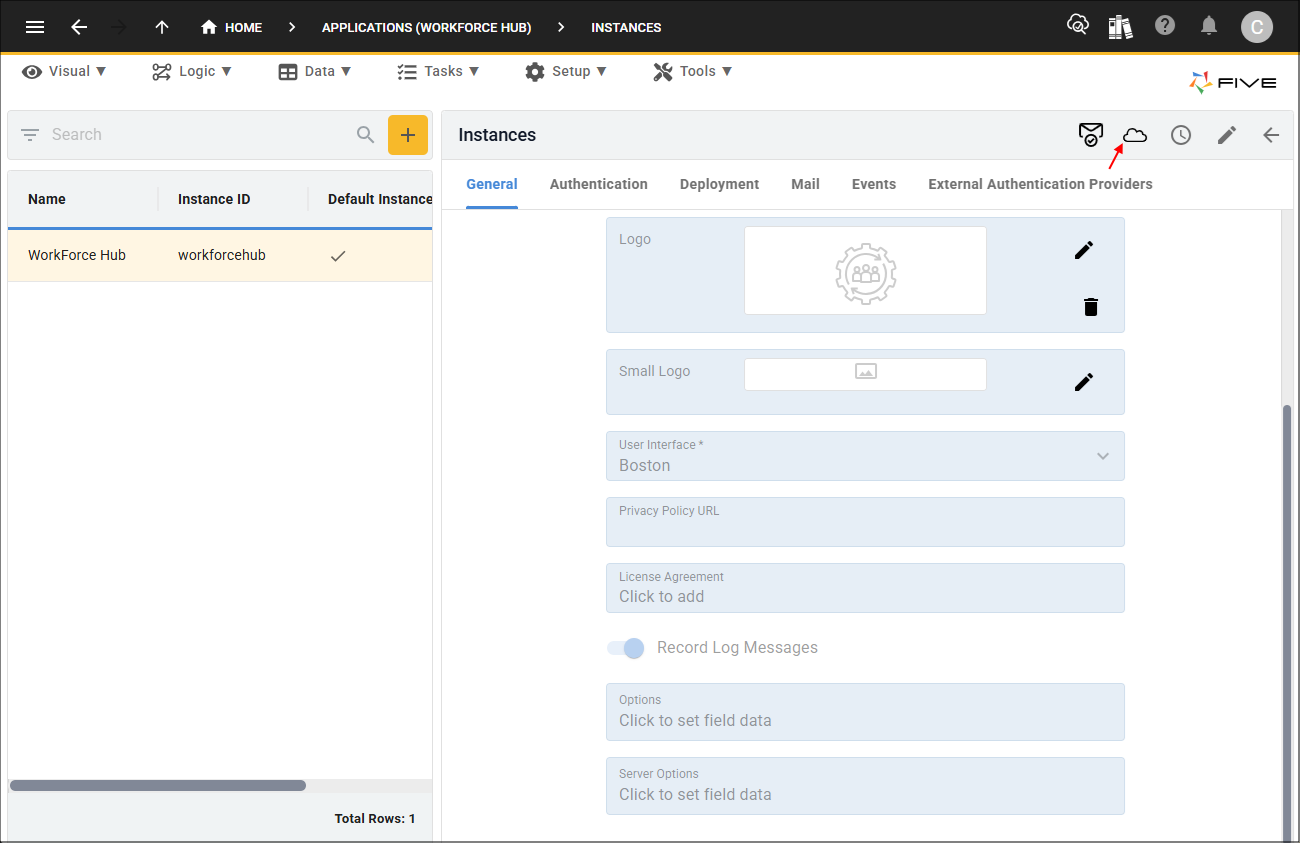
Figure 1 - Cluster Management button
info
For the changes (ie, turning the Record Log Messages on) to be applied to your testing and production environments, you will need to deploy the instance of your application to the development environment and then apply the upgrade to the testing and production environments.
2. Click the Deploy to Development button in the Development section.
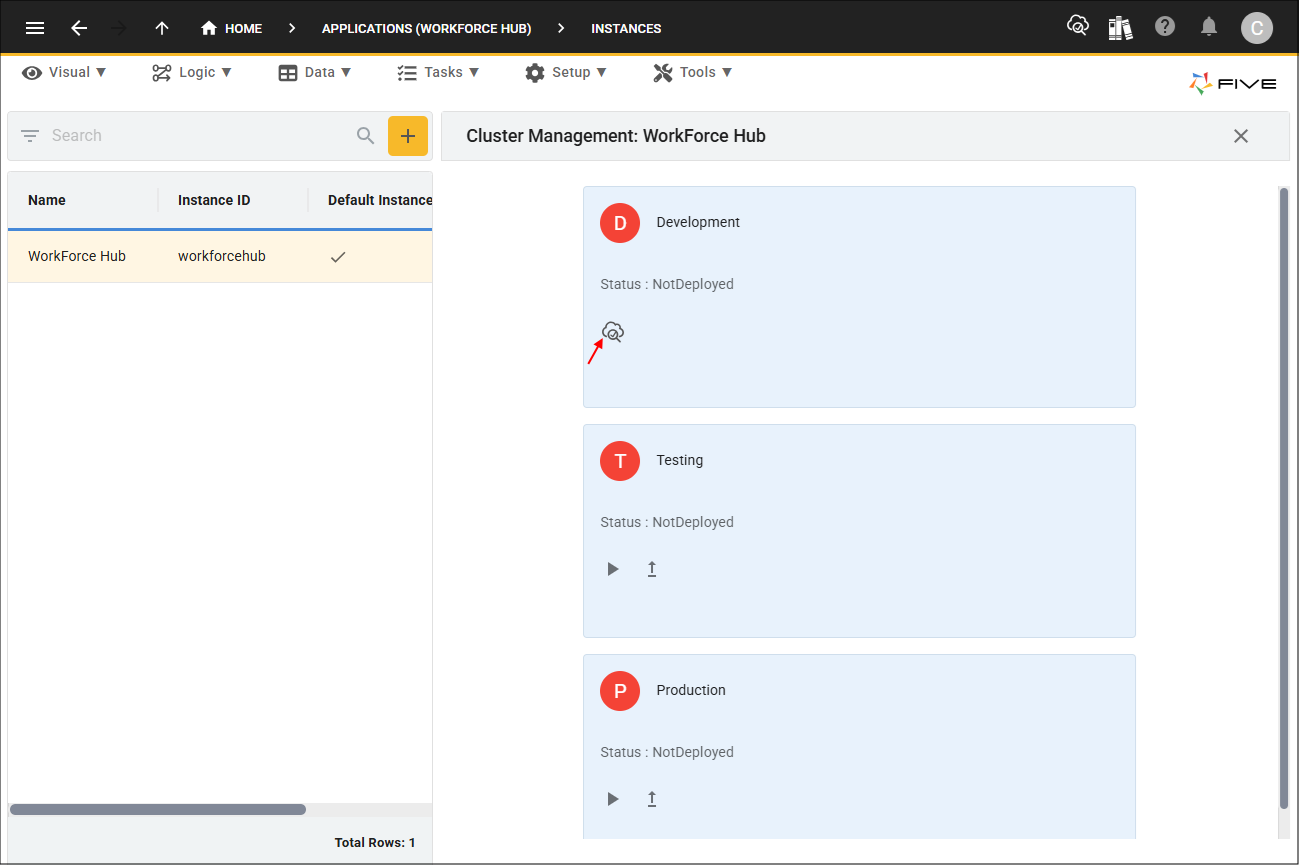
Figure 2 - Deploy to Development button
3. Click the Upgrade button for the Testing section.
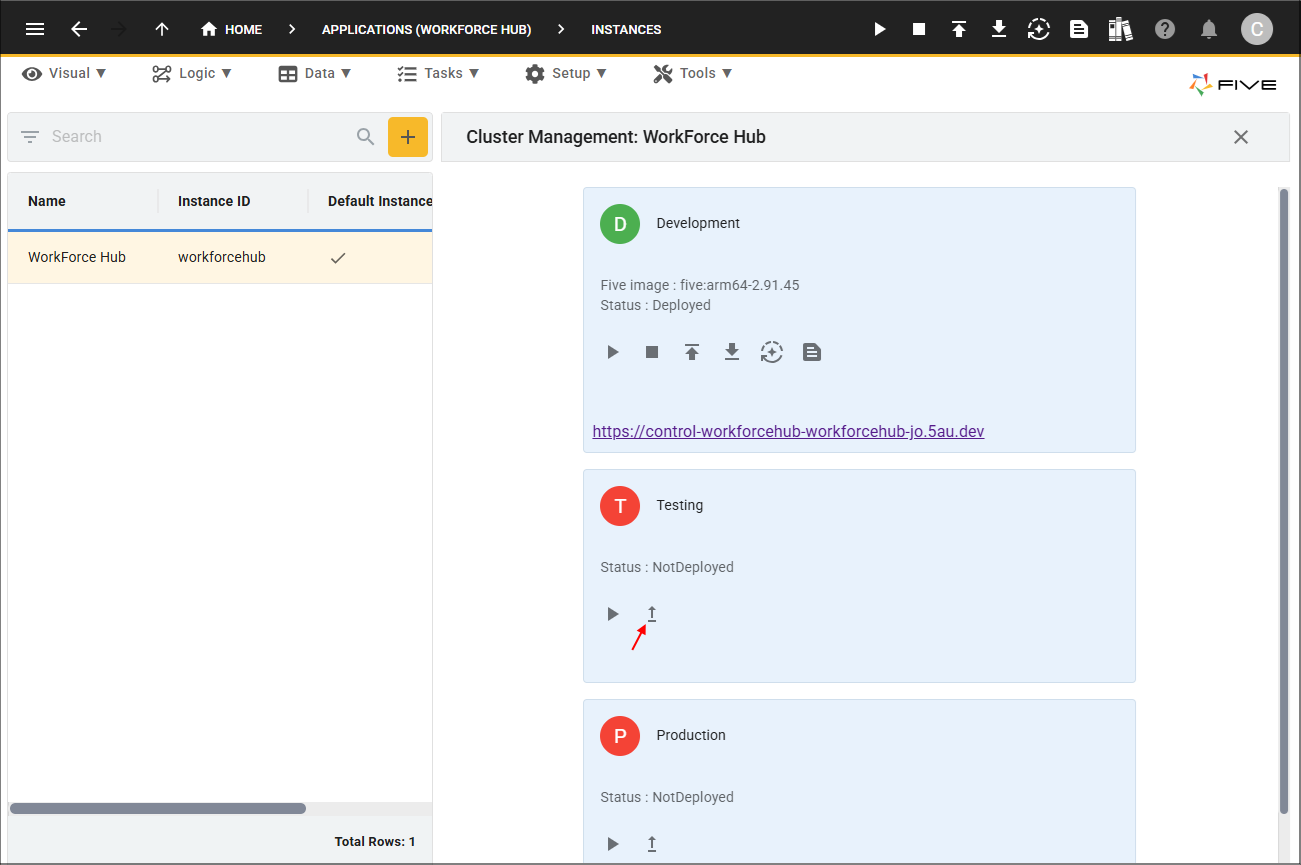
Figure 3 - Upgrade button
info
You can continue the upgrade process to the production environment, or depending on your subscription you may already be in the production environment.
4. Execute your function/s with the
five.log()
messages.
info
Executing your functions will vary depending on the events they are attached to. For this scenario, an employee record needs to be added as the function is attached to the Do Complete event on the Employee form.
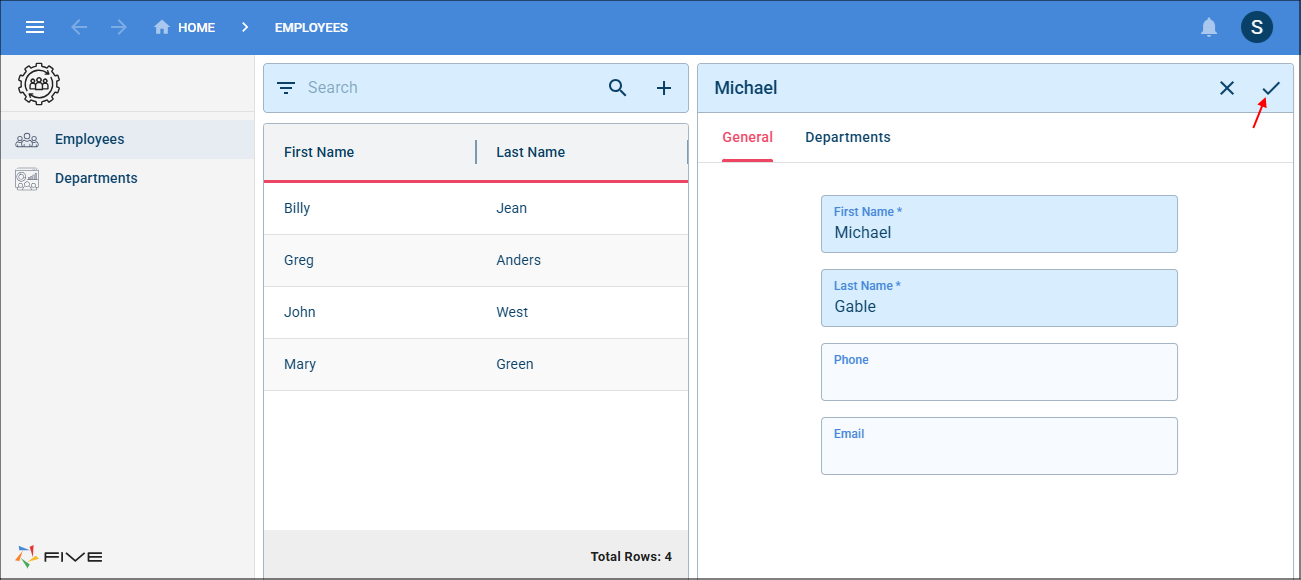
Figure 4 - Add record
5. Back in Five, click the Download Logs button for the required environment.
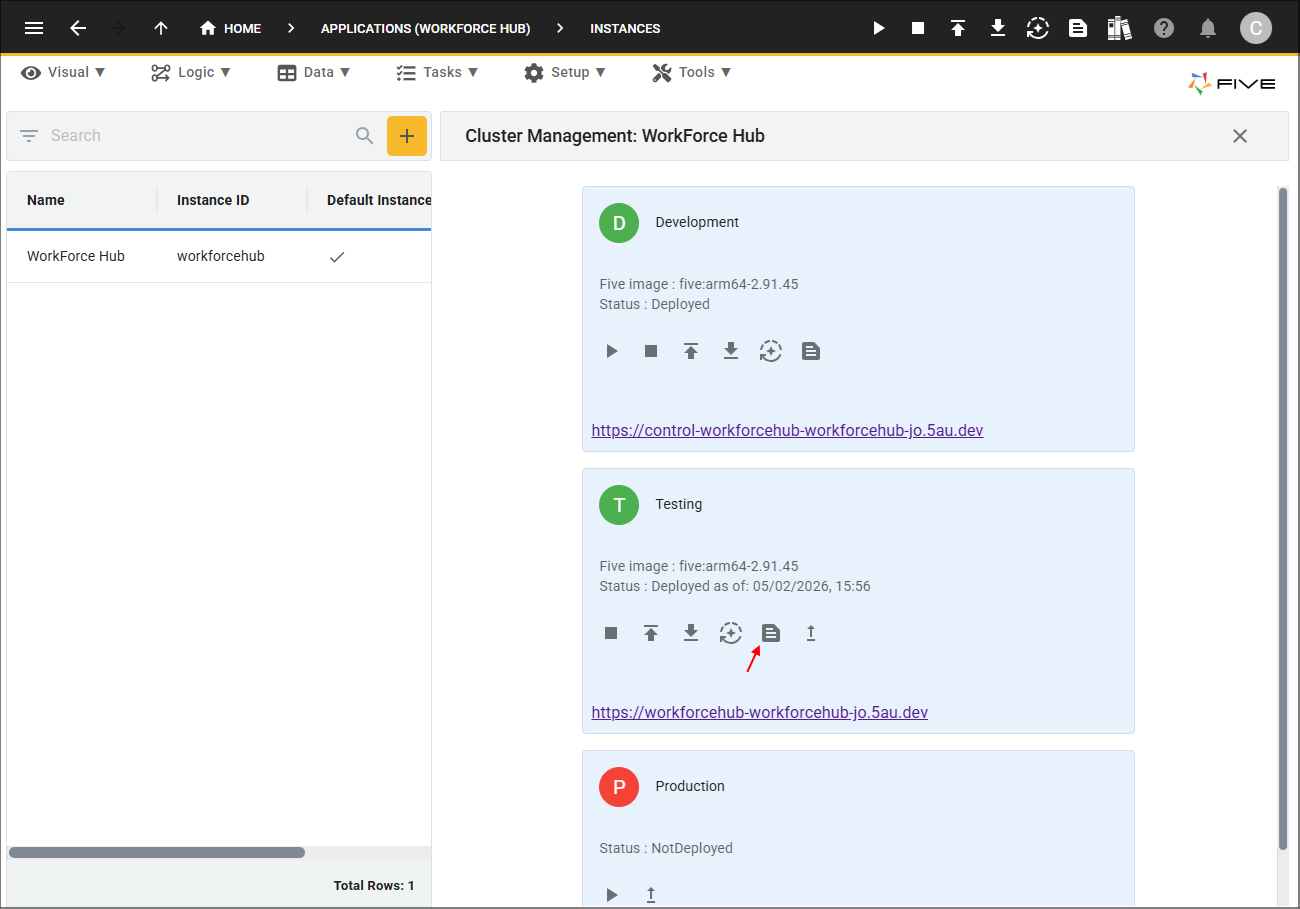
Figure 5 - Download Logs button
info
All executed
five.log()
messages in your functions for your application will be captured in the downloaded iLog file.What Happens When the Function Executes
Let's take a look at the
EmployeeSaved()
function attached to the Do Complete event

function EmployeeSaved(five, context, result)  {
    five.log('Saving employee');
    for (let i = 0; i < context.Transactions.length; i++) {
        five.log('Transaction action type : ' + context.Transactions[i].Type);
        five.log('Transaction details : ' + JSON.stringify(context.Transactions[i].Values));
    }
    return five.success(result);
}
The following occurs when the Do Complete event executes the
EmployeeSaved()
function.
- Trigger:
When the user completes the Employee form and the Do Complete event fires, the attached EmployeeSaved()function automatically executes.
- Logging messages with five.log():
- Every call to five.log()inside the function generates a log entry and contains:
- iLogKeys to identify each record
- Timestamps of executions
- Any custom messages or debug information added by you
- User experience:
- The user does not see the logs directly in a form, the function runs in the background
- From the user's perspective, the form completes normally
- Downloading logs: After the event executes, logs are available via the Cluster Management page in Five using the Download Logs button.
- Example output:
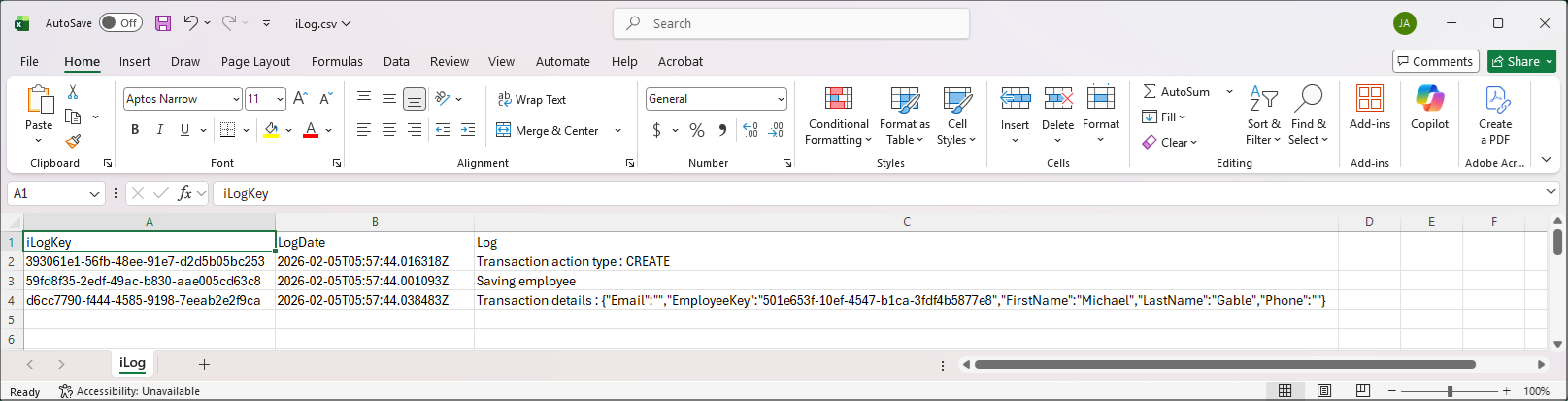
Figure 6 - iLog file