Change the User Interface
Last updated 25/02/2026
Change the Default User Interface
To change the default user interface at the application-level in Five, follow these steps.
info
1. Select your application record in the list.
2. Either click the Edit button in the form app bar or click directly in the Default User Interface field.
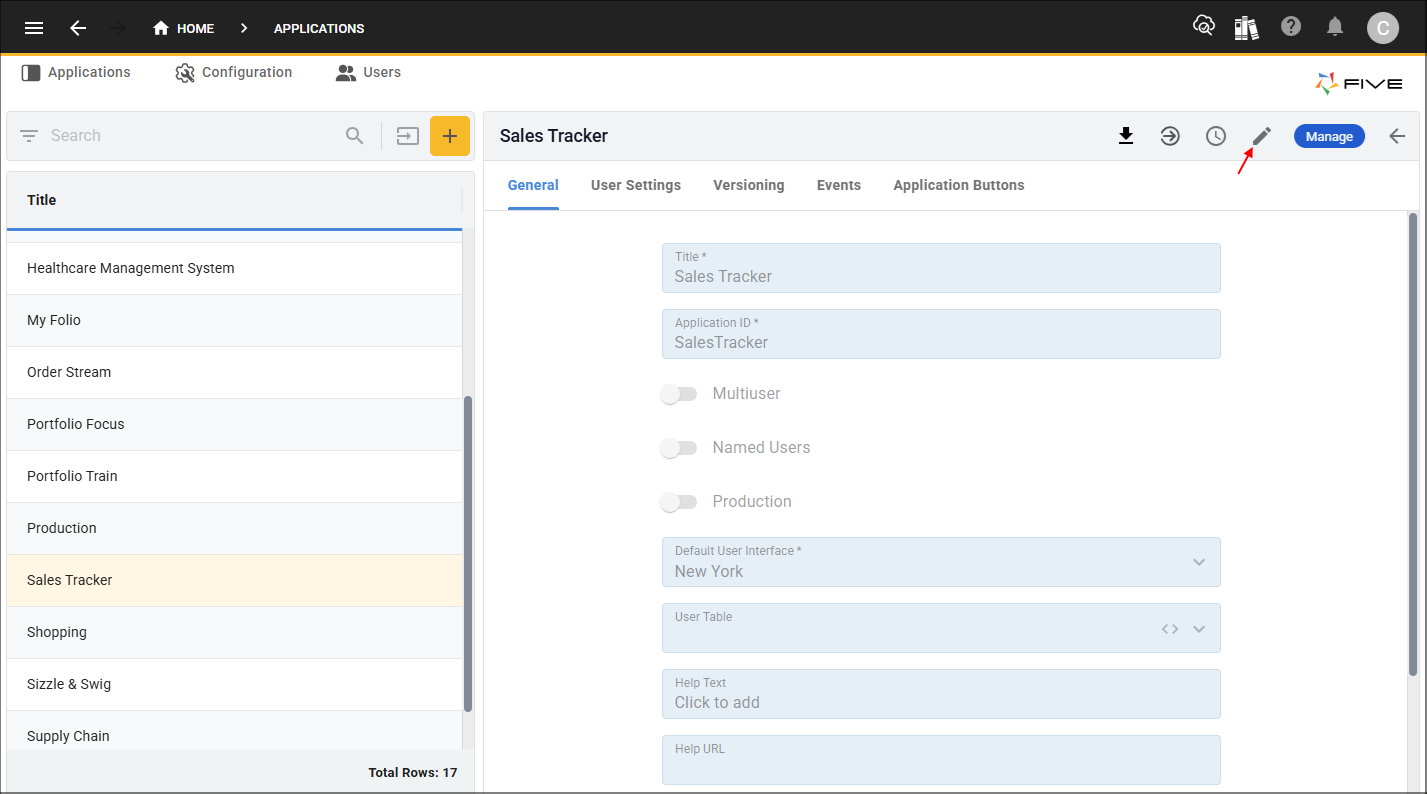
Figure 1 - Edit button
3. Select the required user interface in the Default User Interface field.
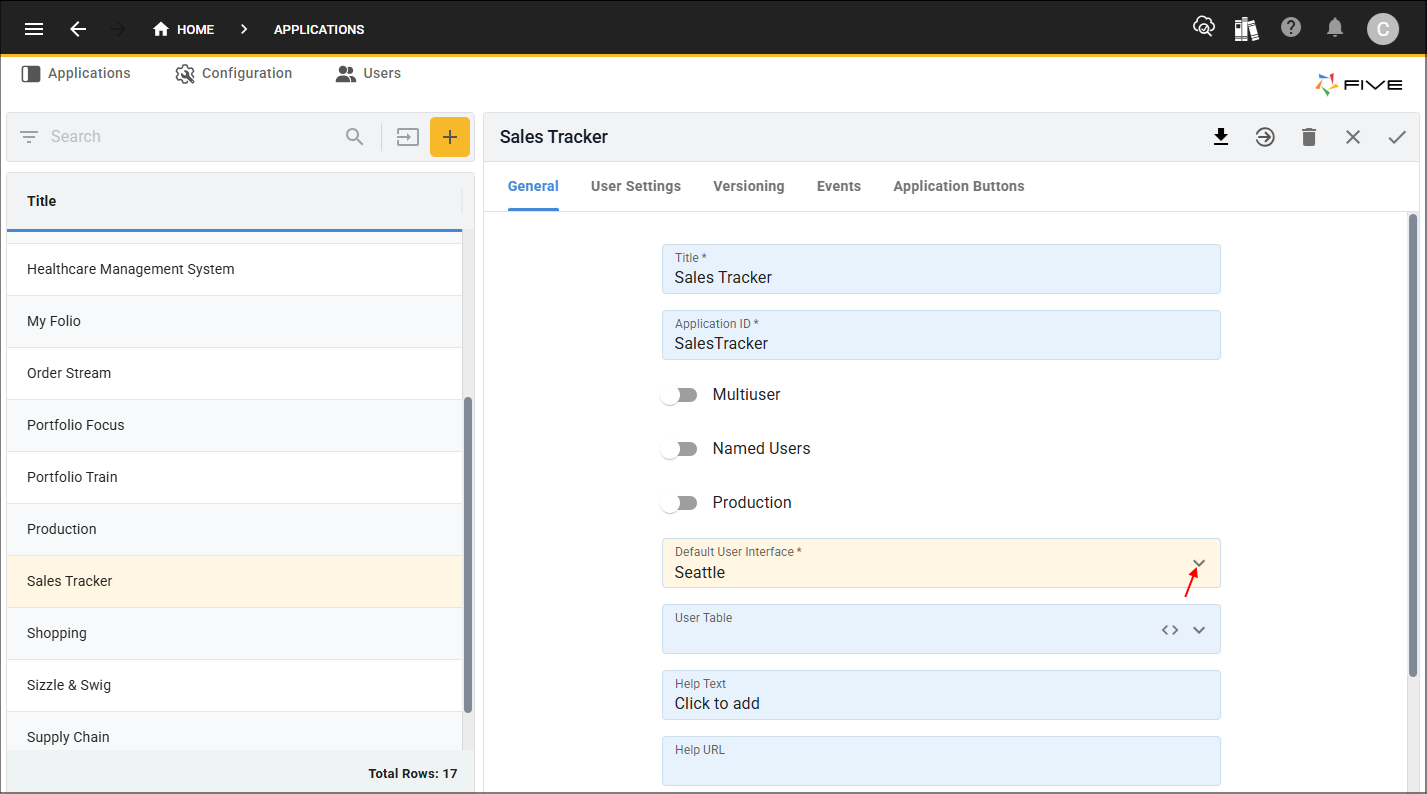
Figure 2 - Default User Interface field
4. Click the Save button in the form app bar.
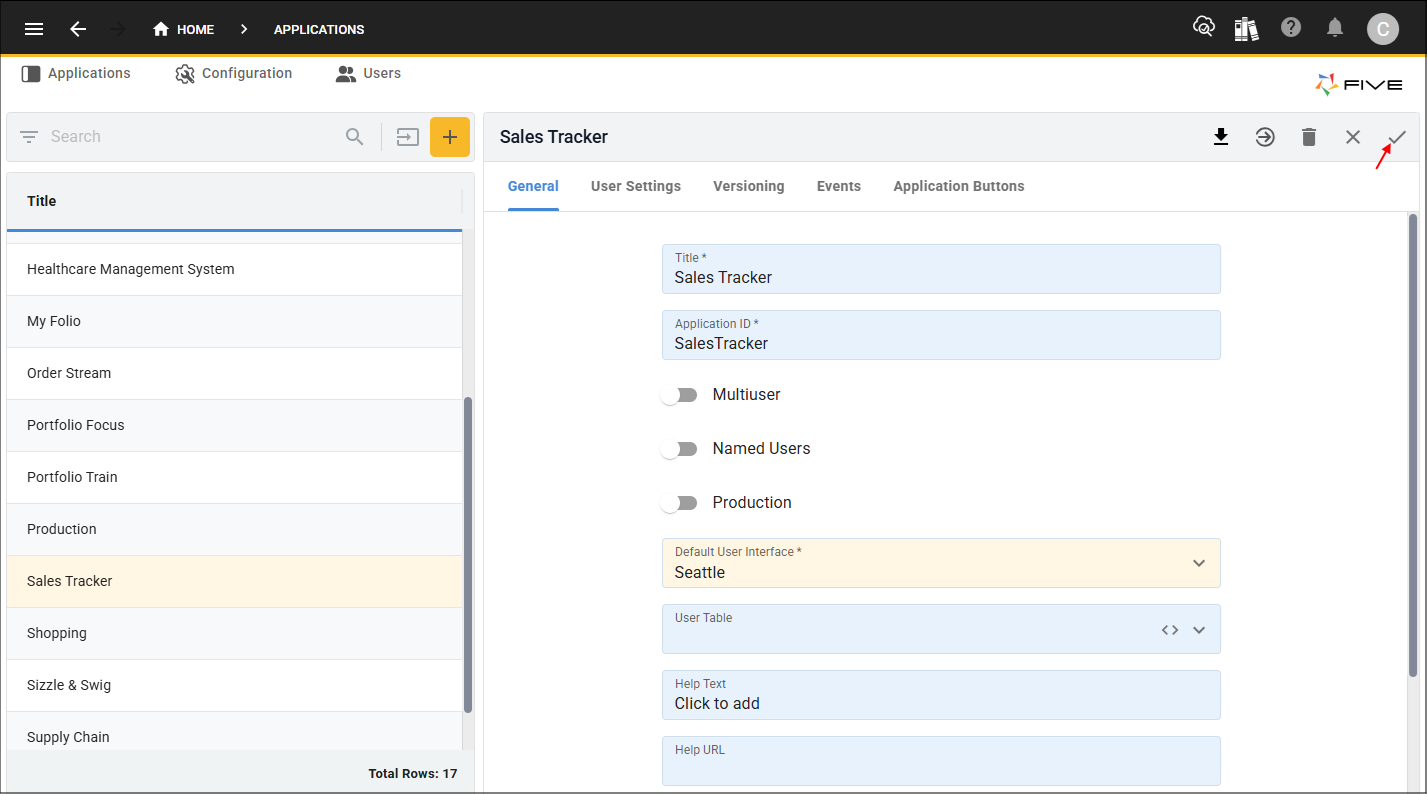
Figure 3 - Save button
What This Does
- All new instance records created after this change will automatically default to the selected user interface
- Existing instance records will not change, you need to change them manually on the instance record if required
- If an instance has a specific user interface set on the instance record, that value will always take precedence over the application default