Remove Deployment Environments
Last updated 27/02/2026
Removing Deployments in Five
In Five, deployment management is role based and environment specific:
In the development environment, users with the Developer, Control, or Admin roles can remove deployments from the development environment. This can be done either directly from Five's toolbar or through the Cluster Management on the instance record.
In the testing and production environments, users with Control or Admin roles can remove deployments from the testing and production environments. Access to these actions depends on your subscription plan. Removing deployments from the testing or production environments are performed exclusively via the Cluster Management on the instance record.
Removing and restarting a deployment does not upgrade the application. These actions only stop or remove the current deployment, unless you are on our Basic plan. When on the Team, Business, or Enterprise plans, to update to a new version, a separate upgrade process is required.
Removal of Deployments
The removal of deployments should follow the reverse order of the environment lifecycle to ensure system stability, prevent dependency conflicts, and minimize business risk.
Basic: Remove from development (your production application will be offline)
Team: Remove from Production -> remove from development
Business and Enterprise: Remove from production -> remove from testing -> remove from development
When you have all environments, it is recommended to remove deployments starting with production because it is the live system. Once the live system is safely shut down, remove testing since it no longer supports production. Finally development is removed, which is the least critical environment (except Basic plan). This controlled approach reduces operational risk and prevents dependency issues.
How to Remove Deployments
Remove Development Deployment
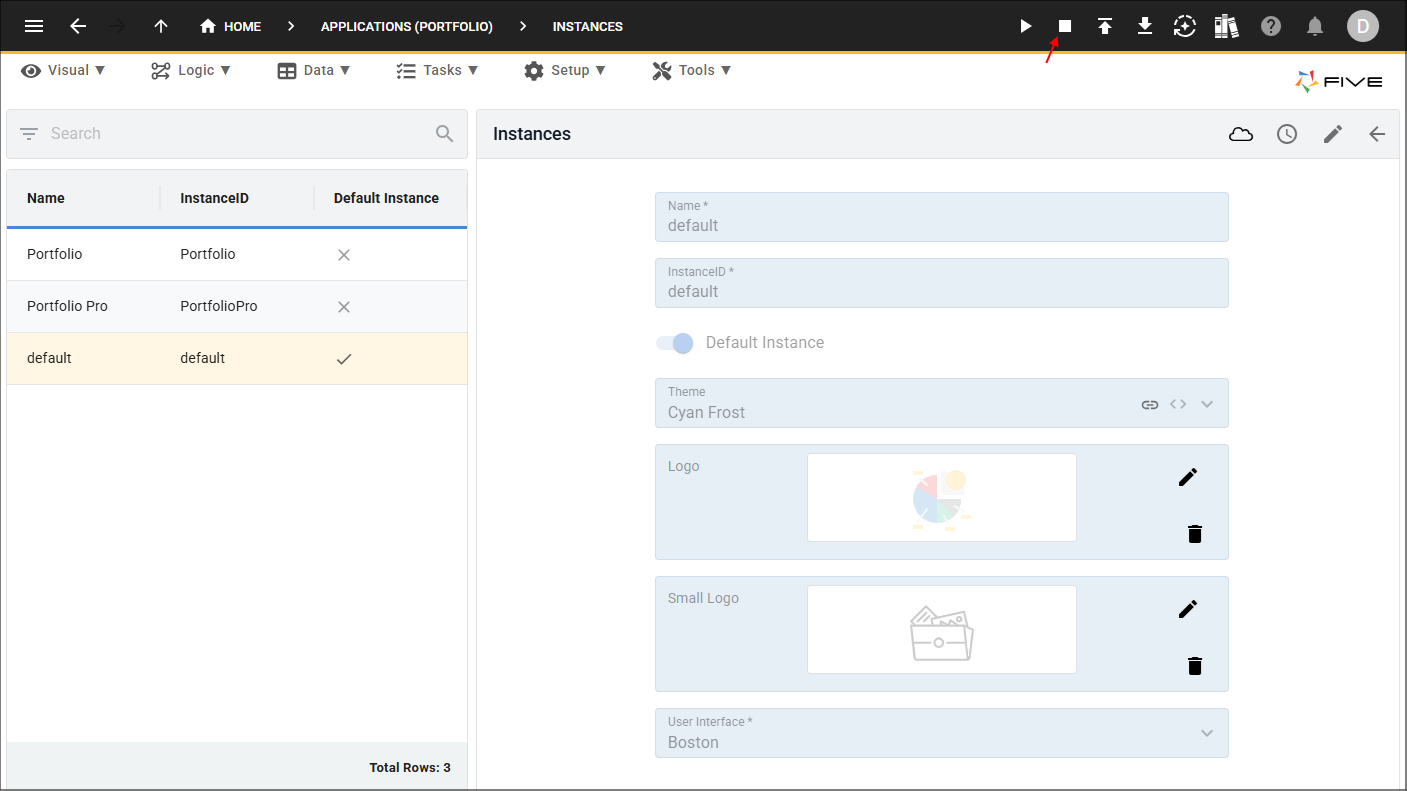
1. Click the Remove from Development button in Five's toolbar; or
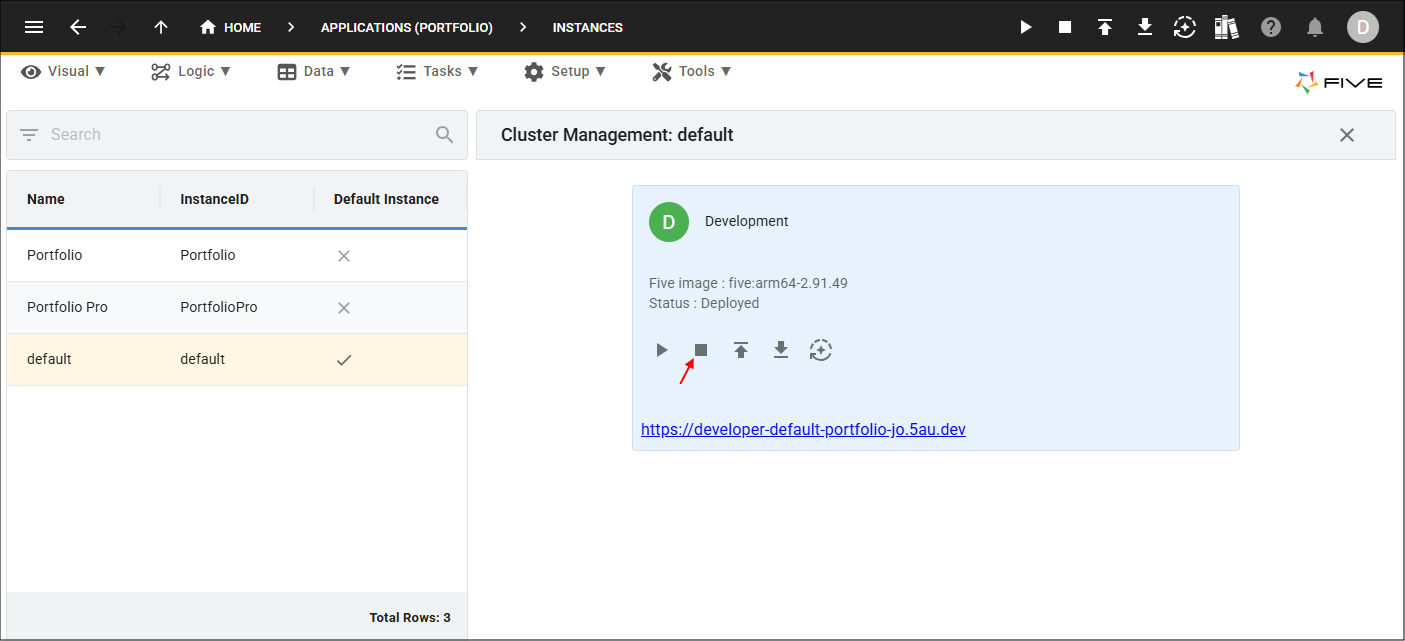
2. Click the Remove from Development button in the Cluster Management.
Remove Testing Deployment
1. Click the Remove from Testing button in the Cluster Management.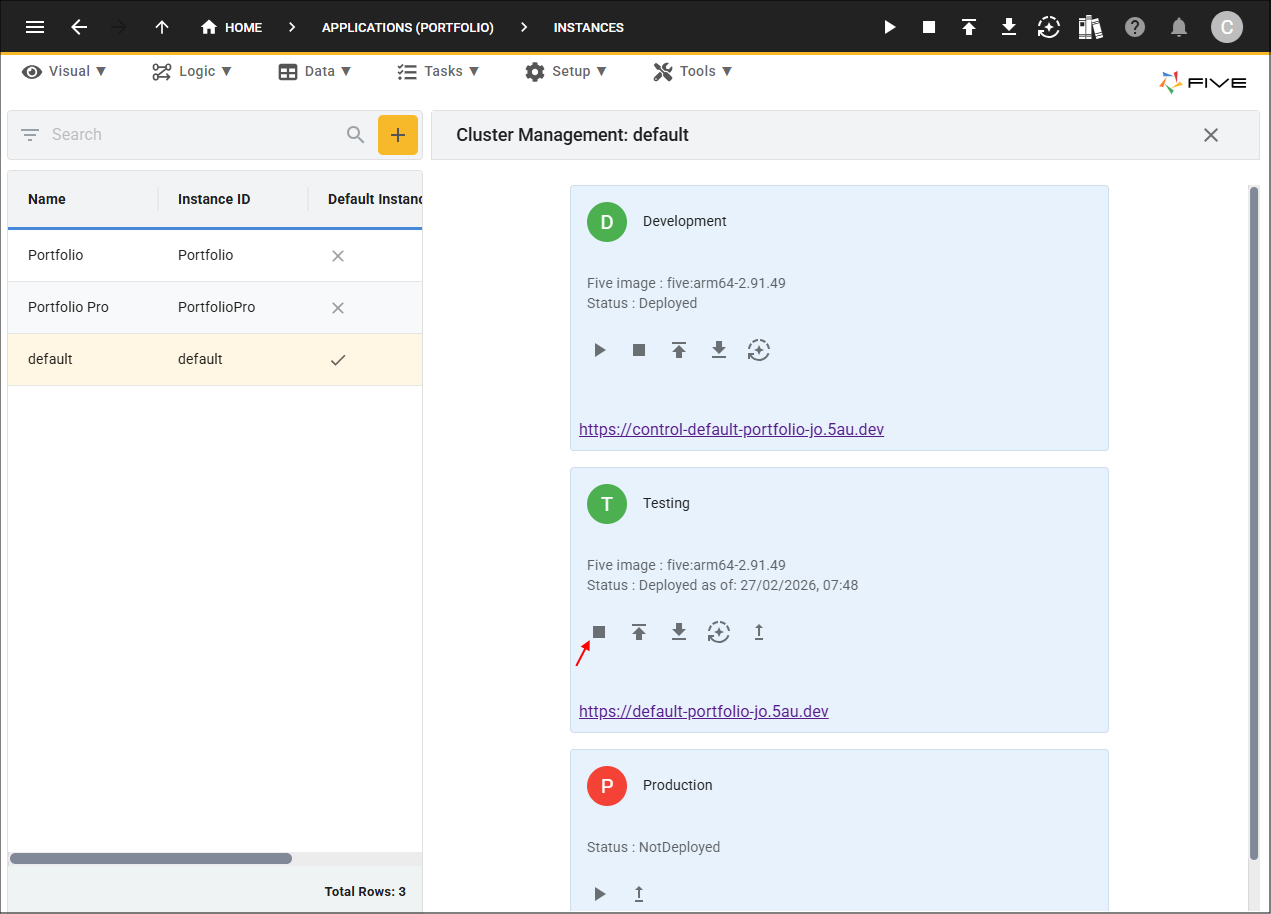
Remove Production Deployment
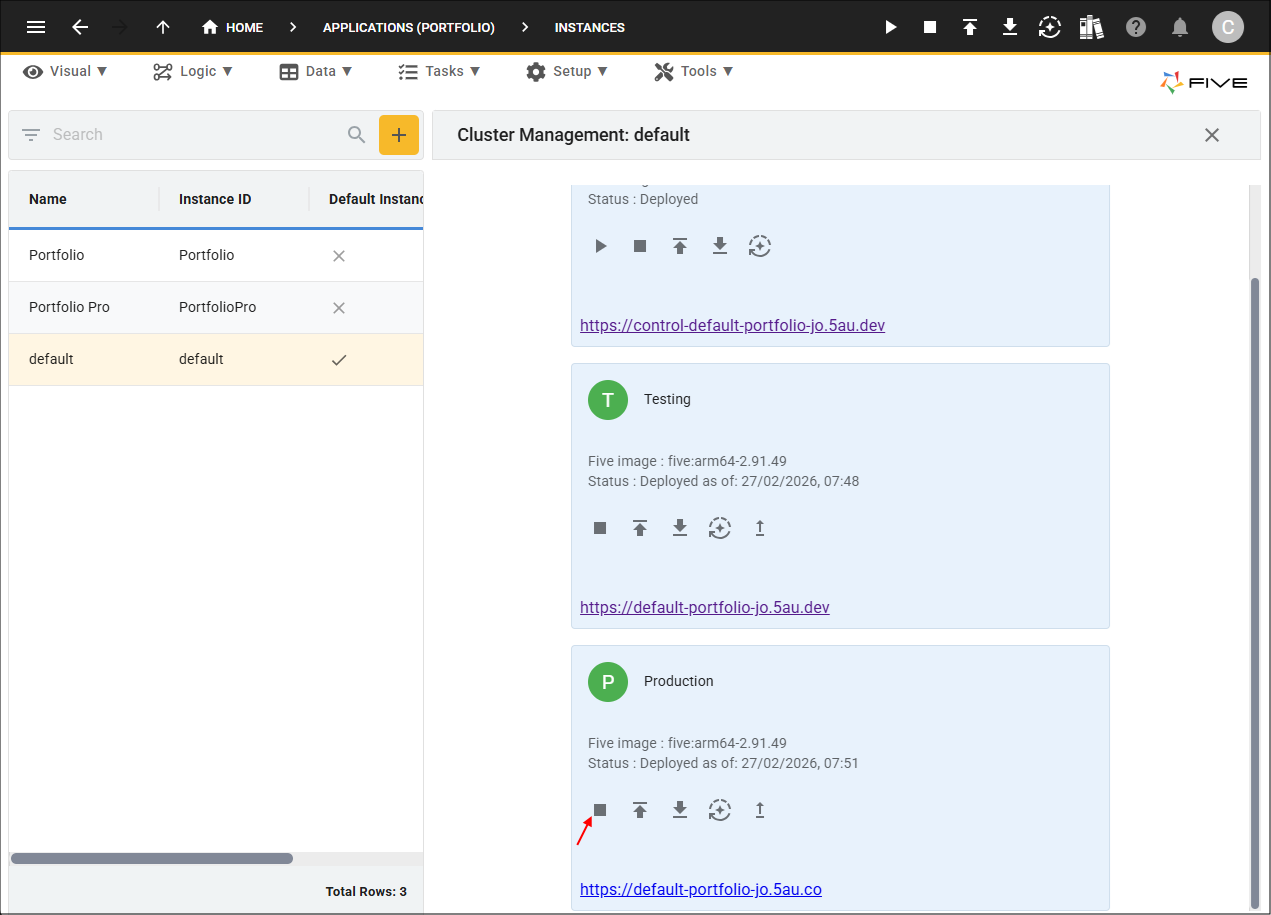
1. Click the Remove from Production button in the Cluster Management.