Test Response Data in Your Application
Last updated 4/09/2025
The previous chapter, Securing Public URLs, demonstrated how to get the response data from your Five application in Postman. This documentation will demonstrate how you can test the response data in your Five application when a Bearer Token is required.
The following will need to be added into the External URL Data Access application built in Five to enable you to test the response data from your URL endpoint:
- TestExternalURL()function
- An action button on the Customers list
TestExternalURL Function
The example function is called
The
The
The
The
The
The
The
Add the TestExternalURL Function
1. Click the Add Item button and give your function an ID (TestExternal URL) in the Function ID field.2. Click in the Code field.
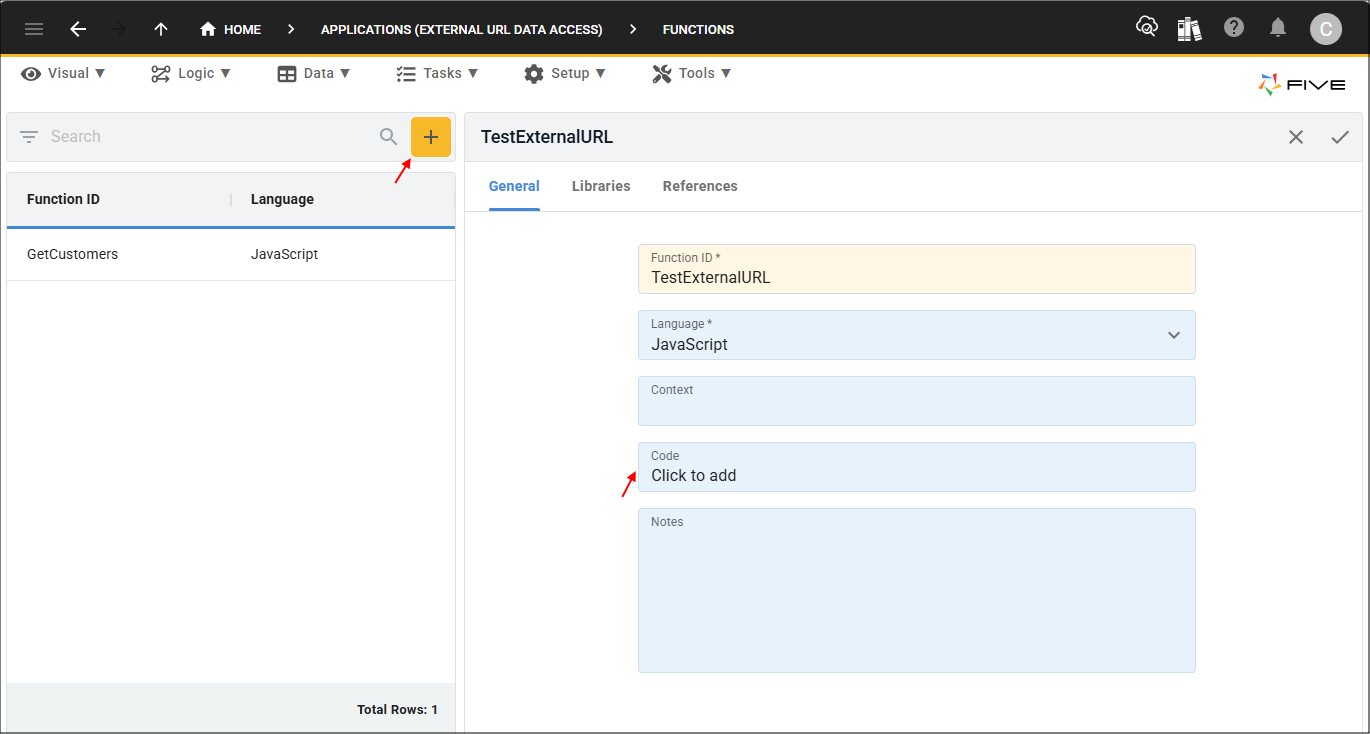
3. Click the Copy button on the below code block

function TestExternalURL(five, context, result)  {
    ////////////////////////////////////////////////////////////////////////////////////////////////
    // create the http client to test our external url
    ////////////////////////////////////////////////////////////////////////////////////////////////
    const accessToken = five.getOptionServer('accessToken');
    let webClient = five.httpClient();
    webClient.addHeader('Authorization', `Bearer ${accessToken}`);
    const webResult = webClient.get('https://control-default-externalurldata-jo.5au.dev/action/customers');
    if (webResult.isOk() === false) {
        return five.createError(webResult, 'Failed to access external url');
    }

    ////////////////////////////////////////////////////////////////////////////////////////////////
    // log the results so we view them in the inspector
    ////////////////////////////////////////////////////////////////////////////////////////////////
    five.log('Testing External URL Results');

    // the webResult object contains the results returned from the request, this is attached to the results key
    // on the response object of the webResult object, this data will be JSON data that has been stringified
    // and will need to be Parsed back to a JSON object
    const response = JSON.parse(webResult.response.results);

    // the response now contains an object containing the array of customers that was attached in the external URL
    // function
    const customers = response.customers;
    for (let i = 0; i < customers.length; i++) {
        five.log('Customer (FirstName) : '+ customers[i].FirstName + ", " + customers[i].LastName);
    }

    return five.success(result);
}
4. Paste the code block over the template in the Code Editor.
5. Click the Save button in the Code Editor app bar.

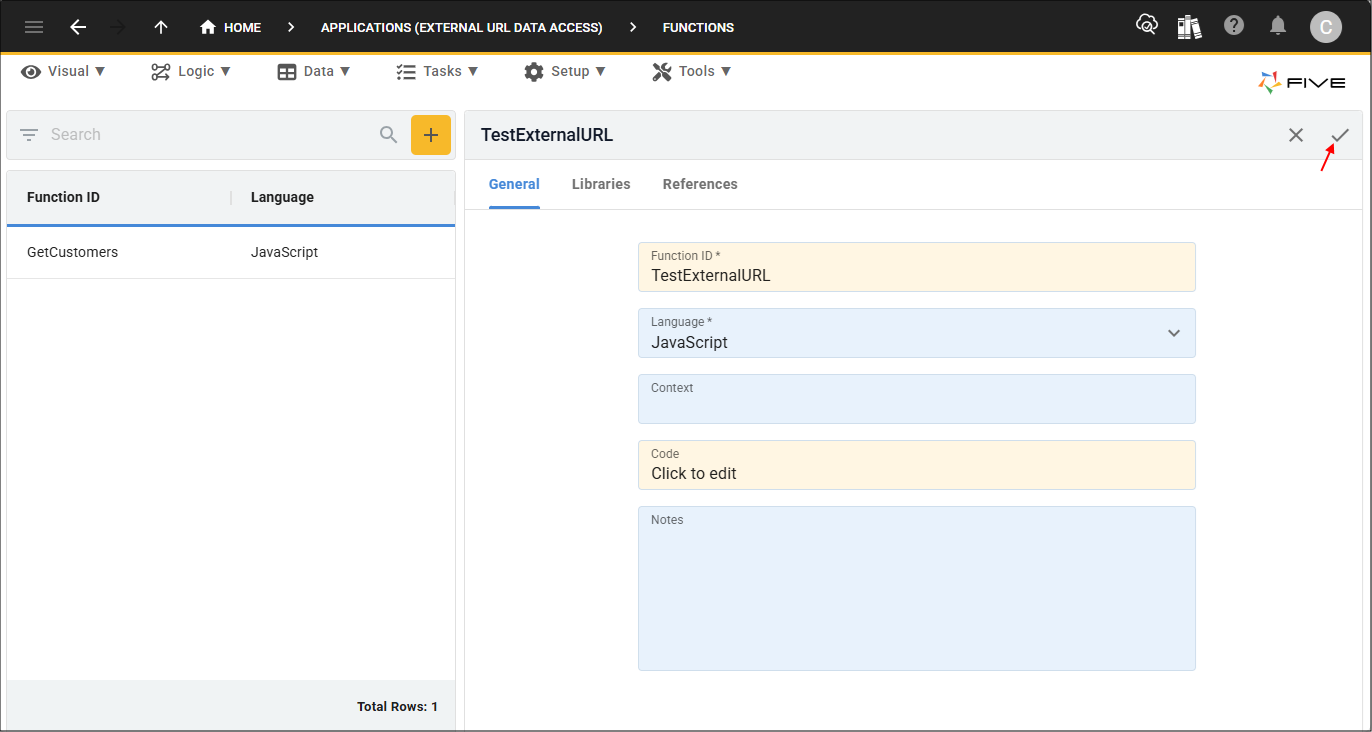
6. Click the Save button in the form app bar.
Add the Test URL Button
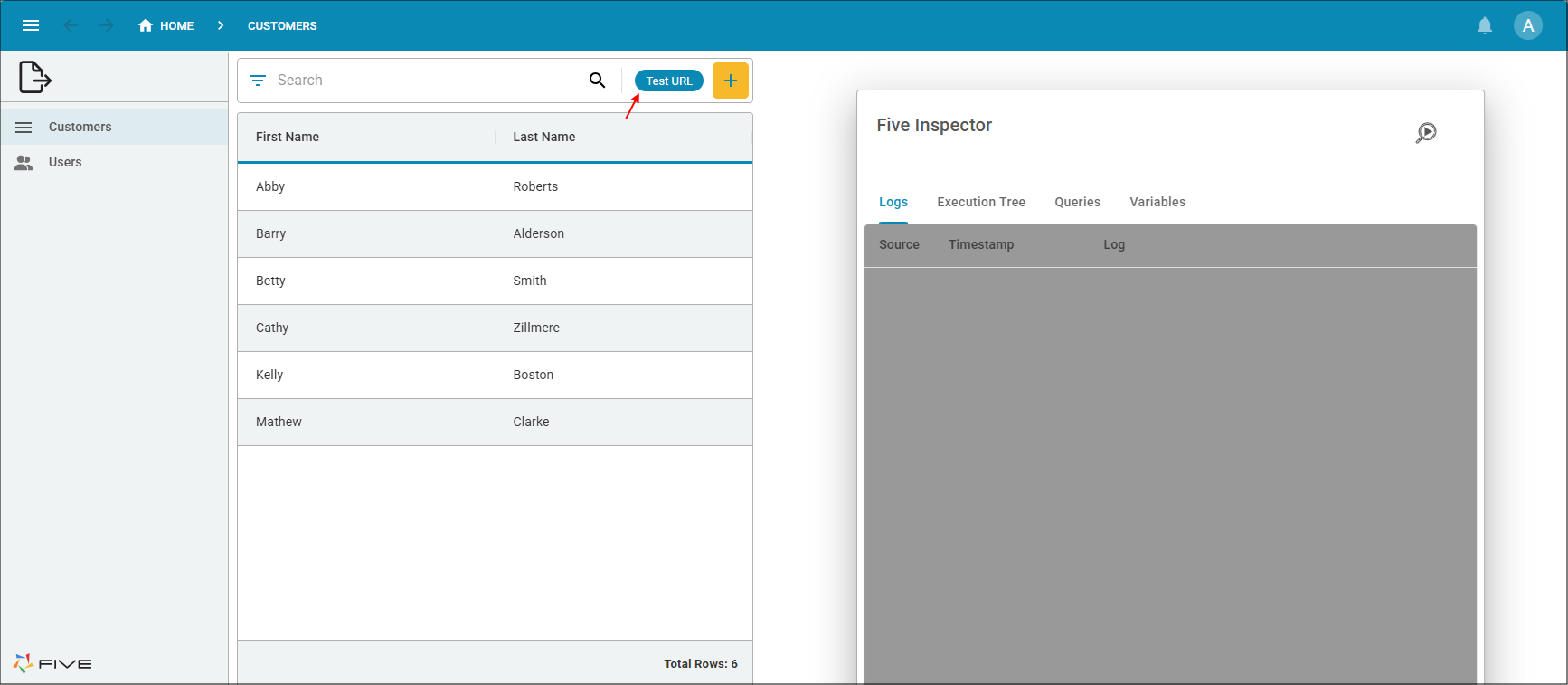
A button called Test URL needs to be added to the Customers list, when the button is clicked the response data will be available in Five's Inspector.
1. Select Visual in the menu followed by Forms in the sub-menu.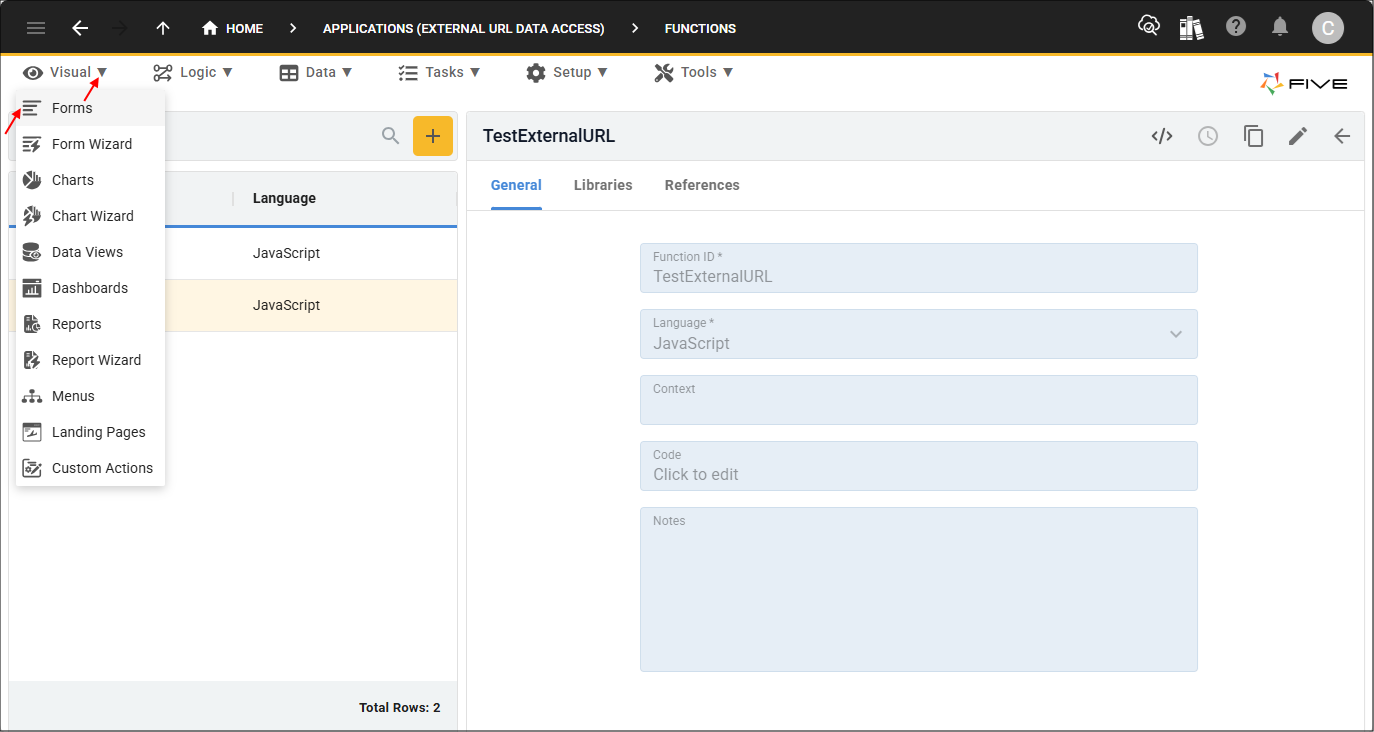
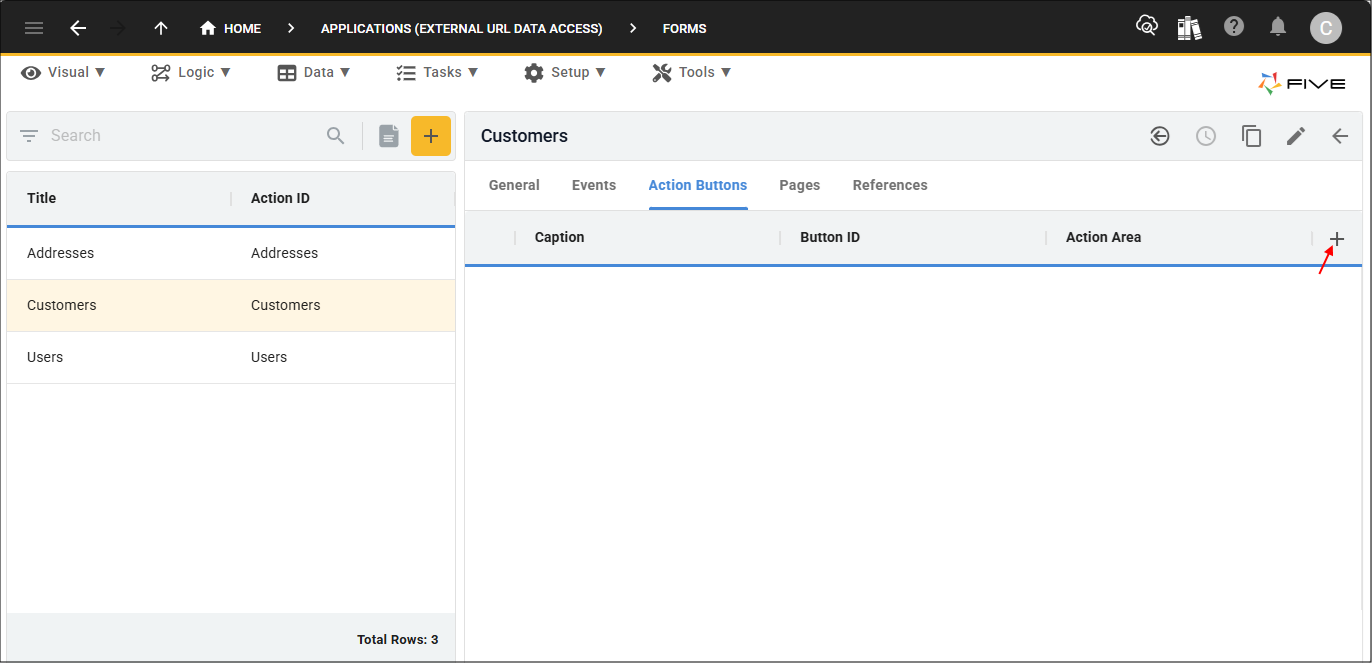
2. Select the Customers record in the list and click the Action Buttons tab.

3. Click the Add Action Buttons button.
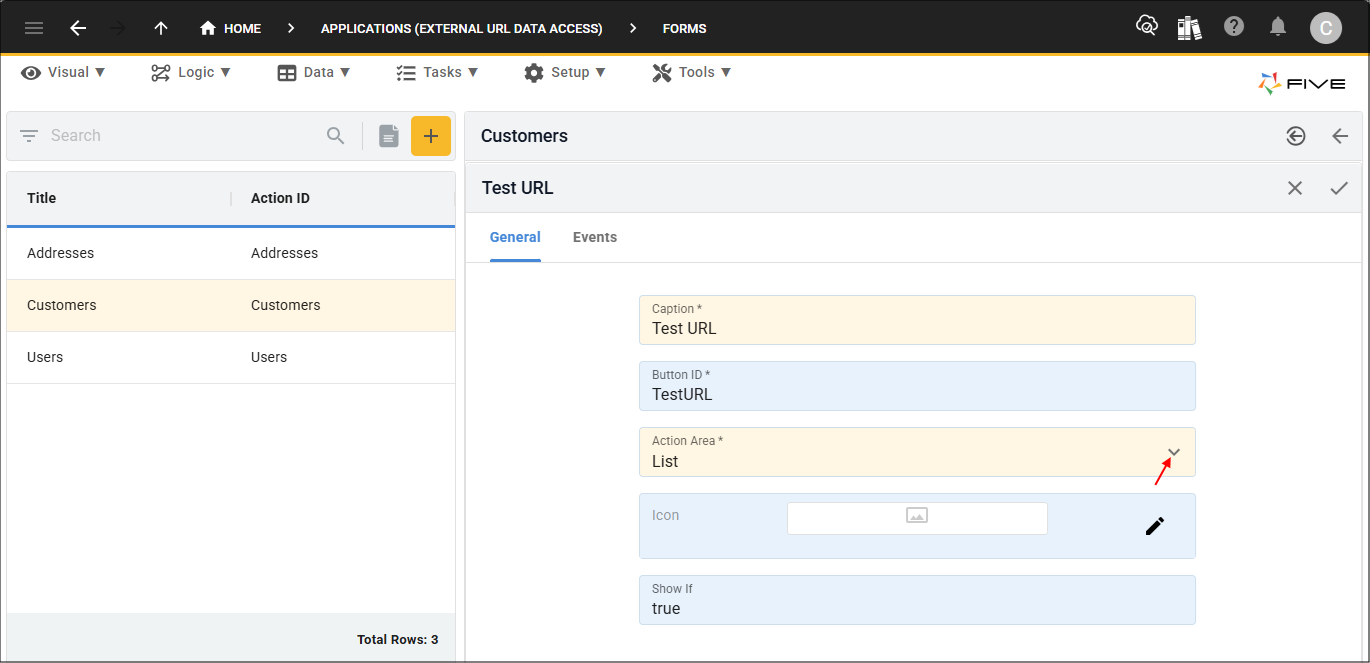
4. Give your button a caption (Test URL) in the Caption field.
5. Click the lookup icon in the Action Area field and select List.
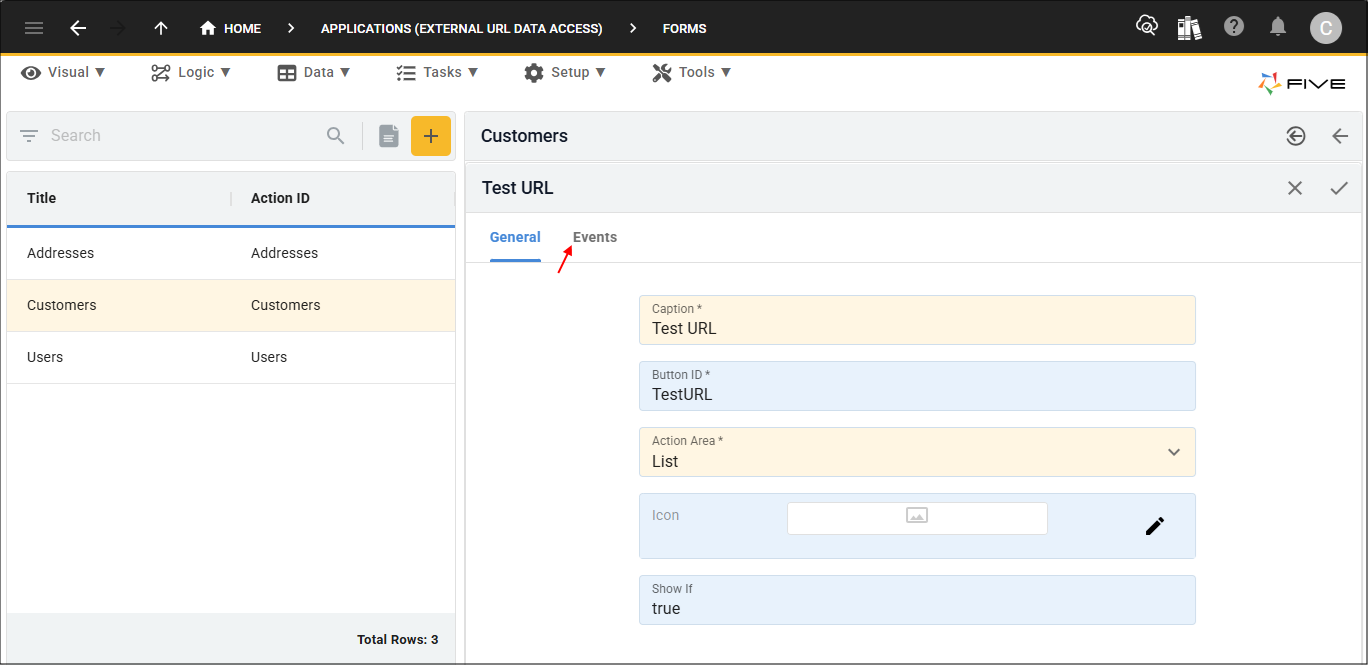
6. Click the Events tab.
7. Click the lookup icon in the Do Press field and select your function (TestExternalURL).
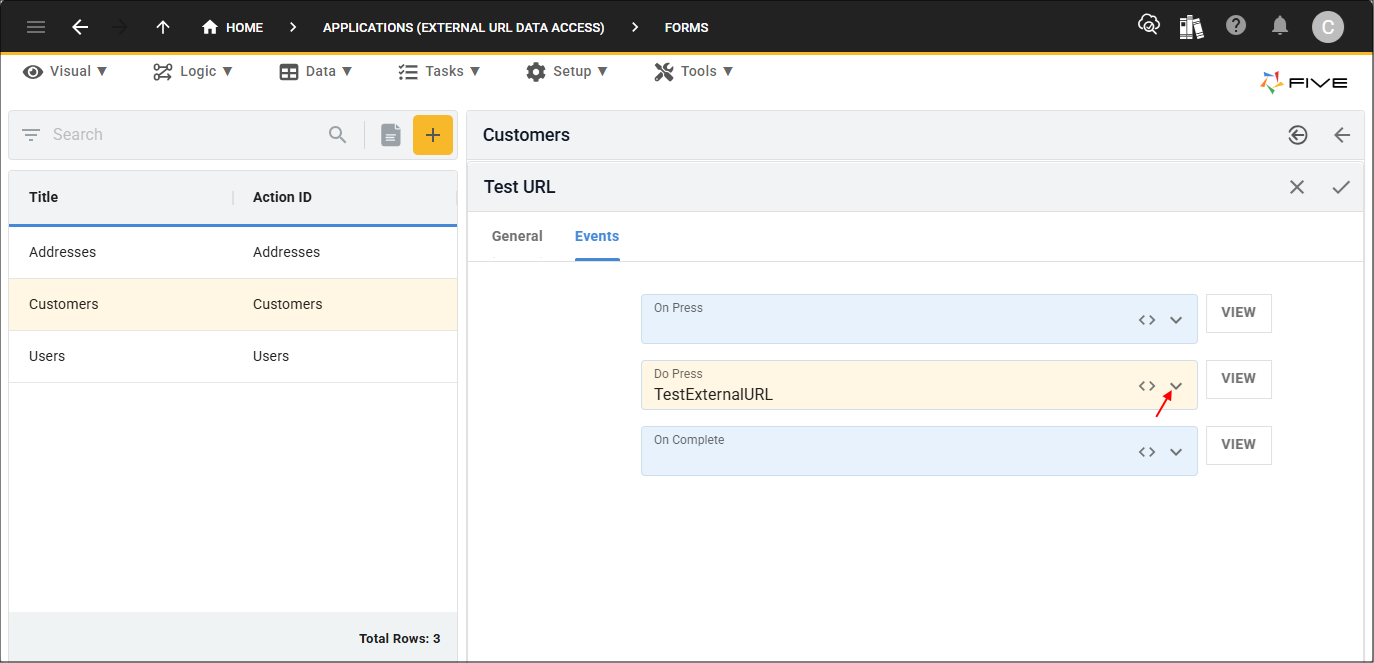
8. Click the Save button in the form app bar.
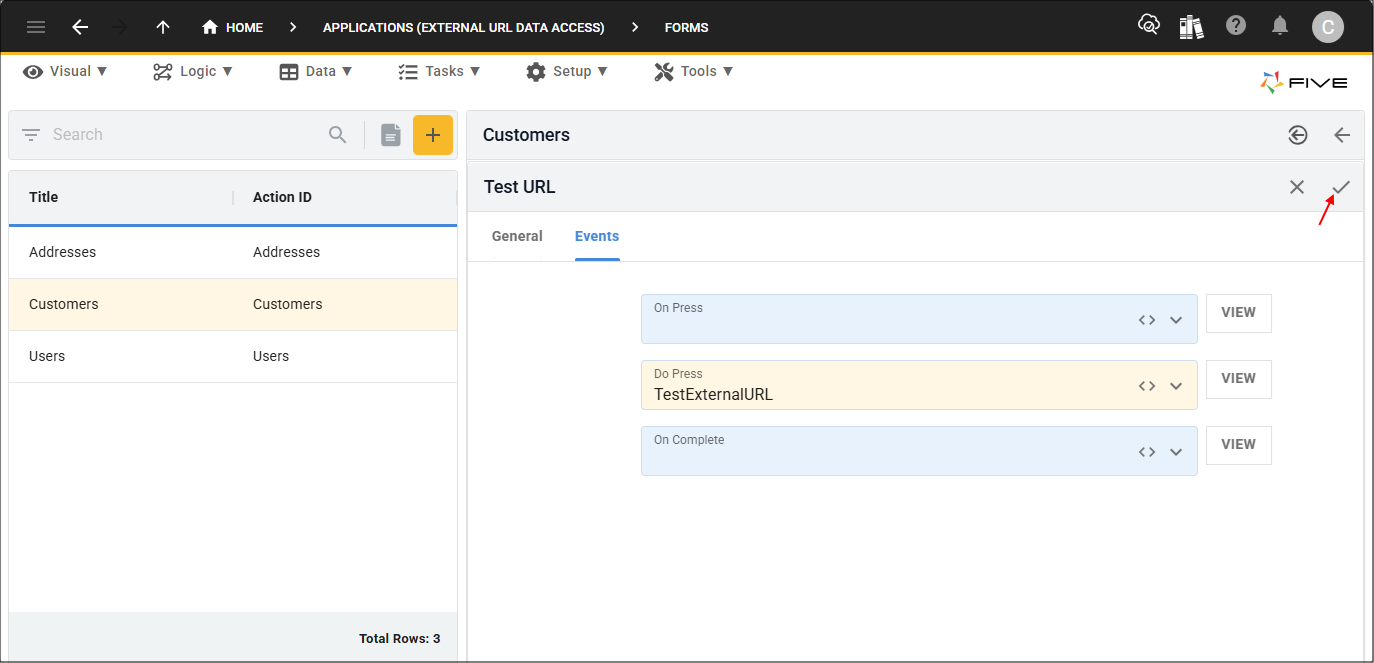
9. Click the Save button in the form app bar above the list.
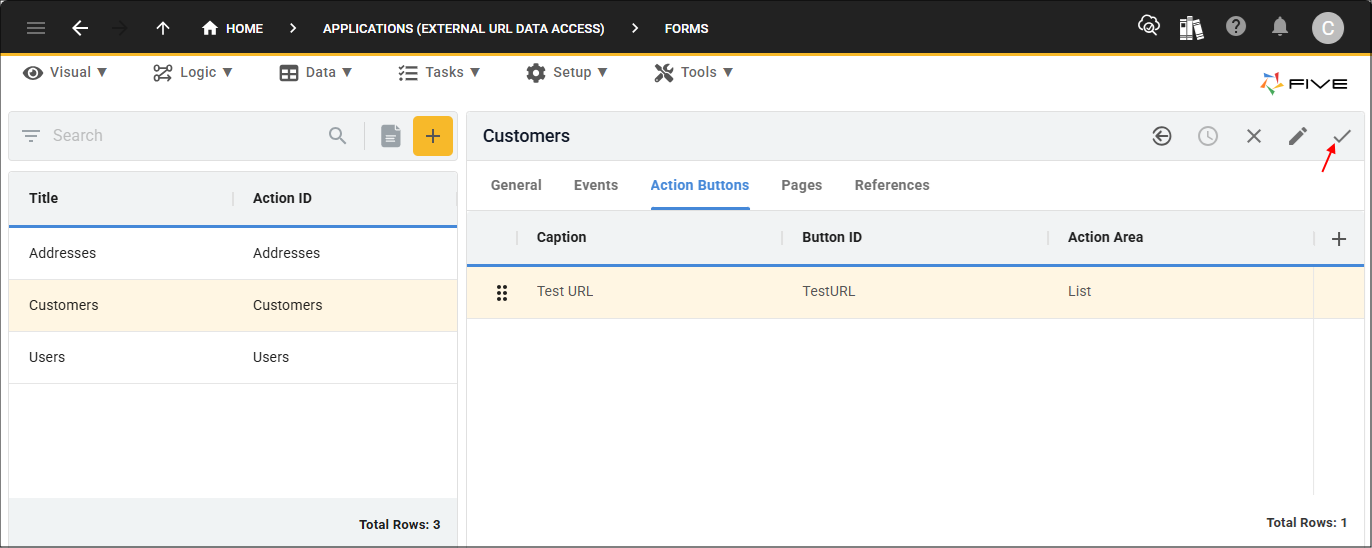
Response Data
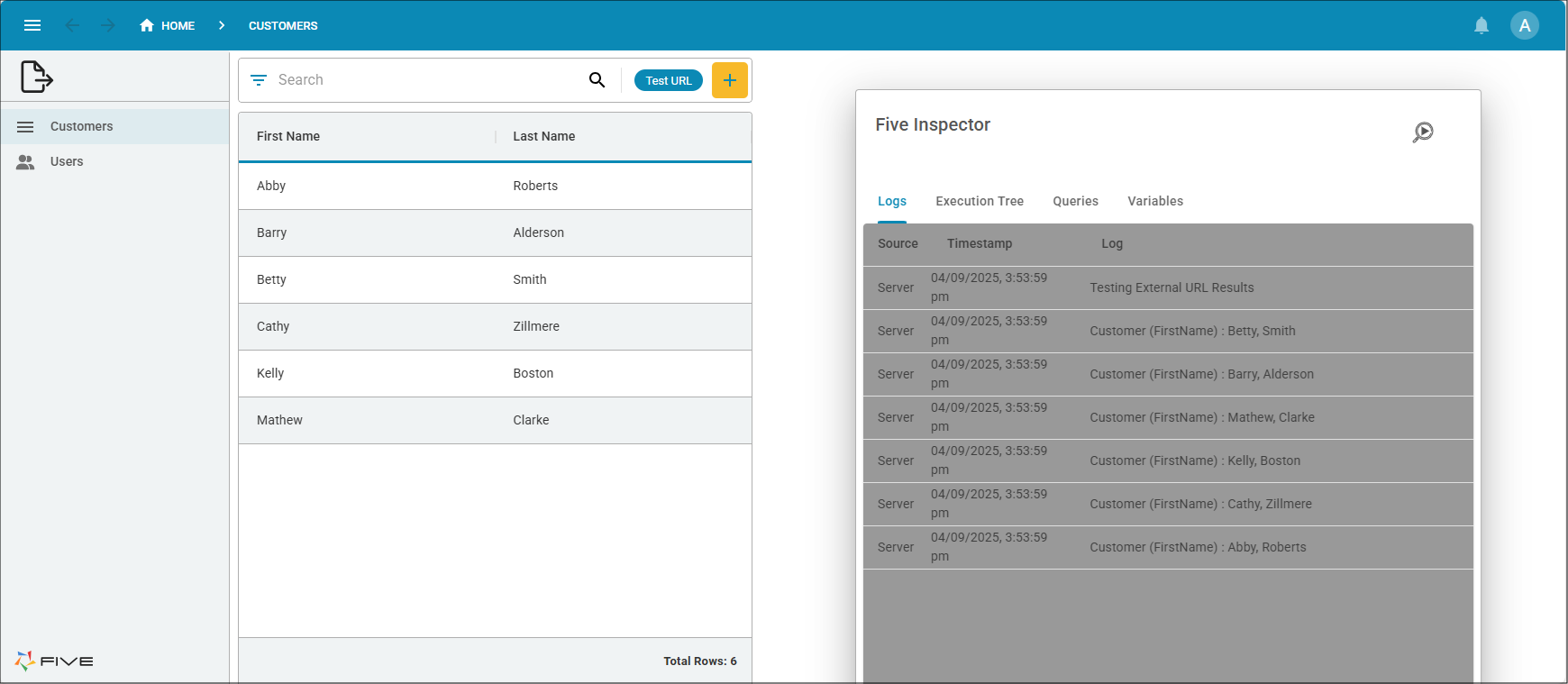
You can now deploy your application and use the Test URL button to see the response Data in Five's Inspector.
1. In your running application, click the Profile button followed by the Inspector button.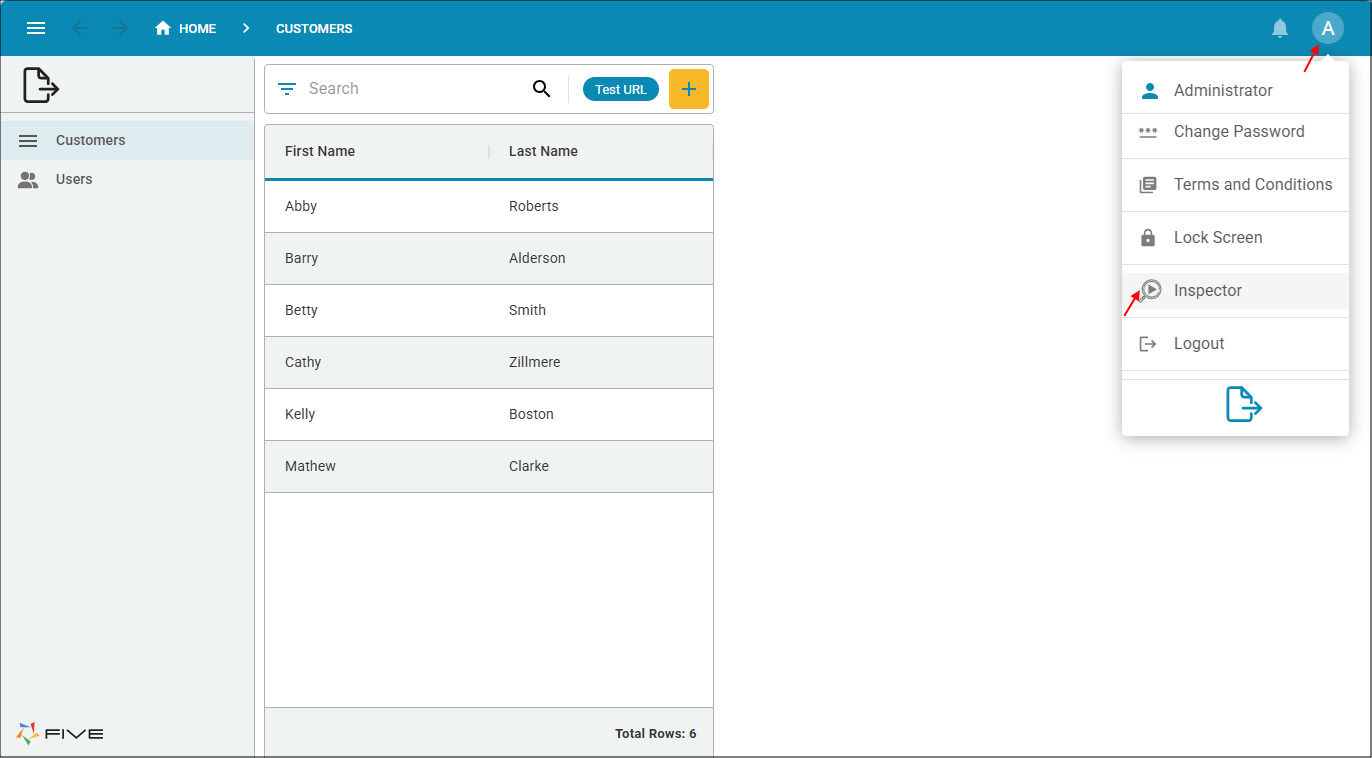
2. Click on the Expand button to open Five's Inspector.
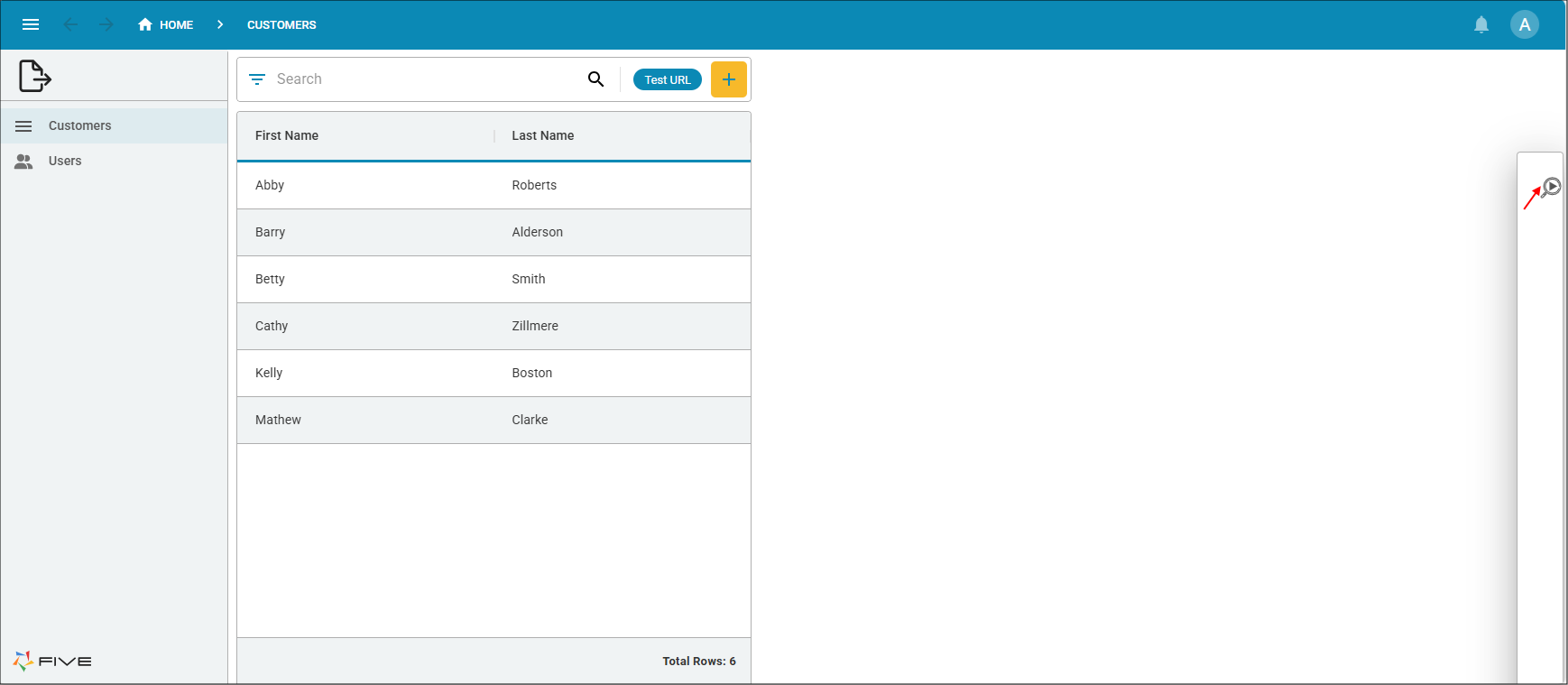
3. Click the Test URL button.