Add a URL to Retrieve Data
Last updated 3/09/2025
The following will need to be added into the External URL Data Access application built in Five to enable you to retrieve data via a public URL:
GetCustomers Function
The example function is called
The
The
A
The records retrieved from the
A
Add the GetCustomers Function
1. Select Logic in the menu followed by Functions in the sub-menu.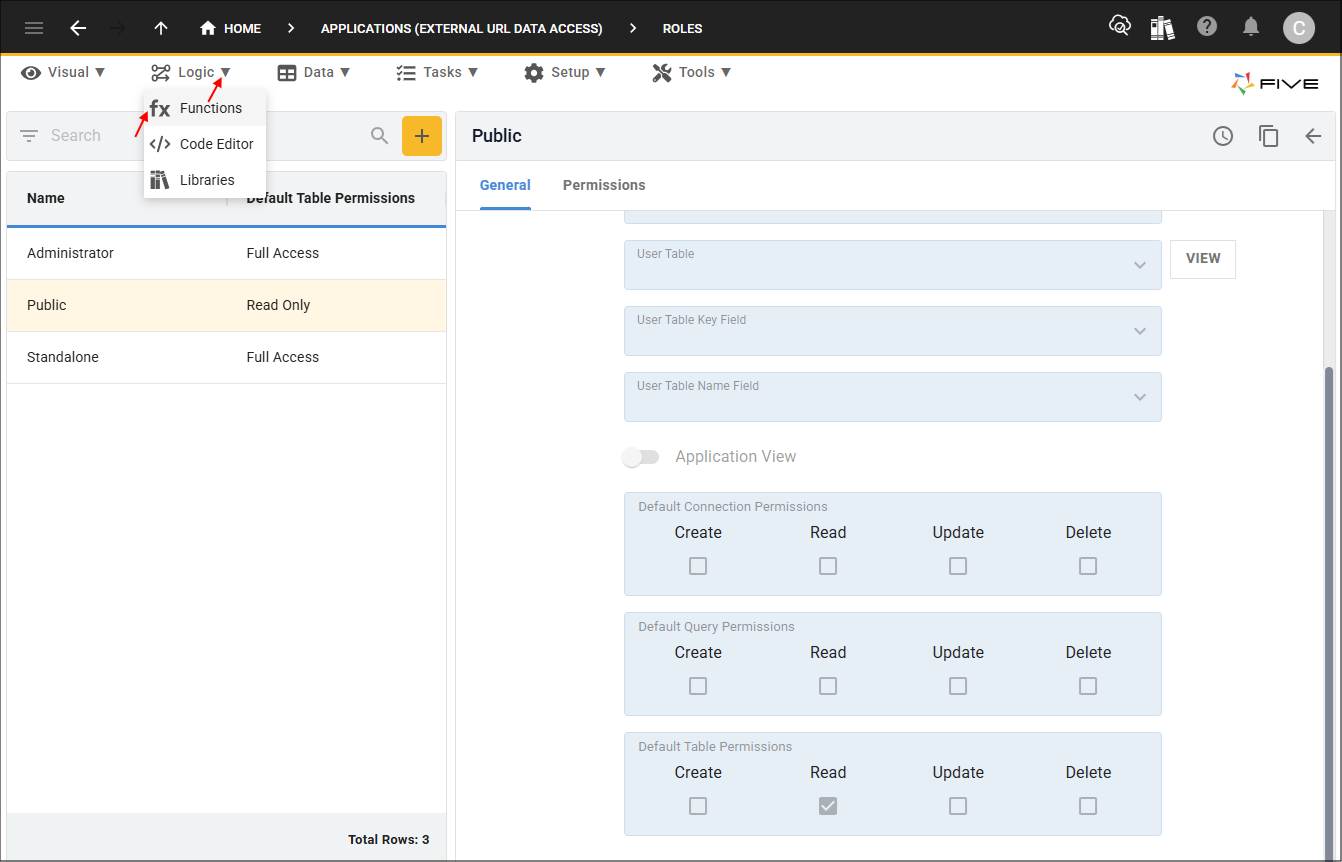
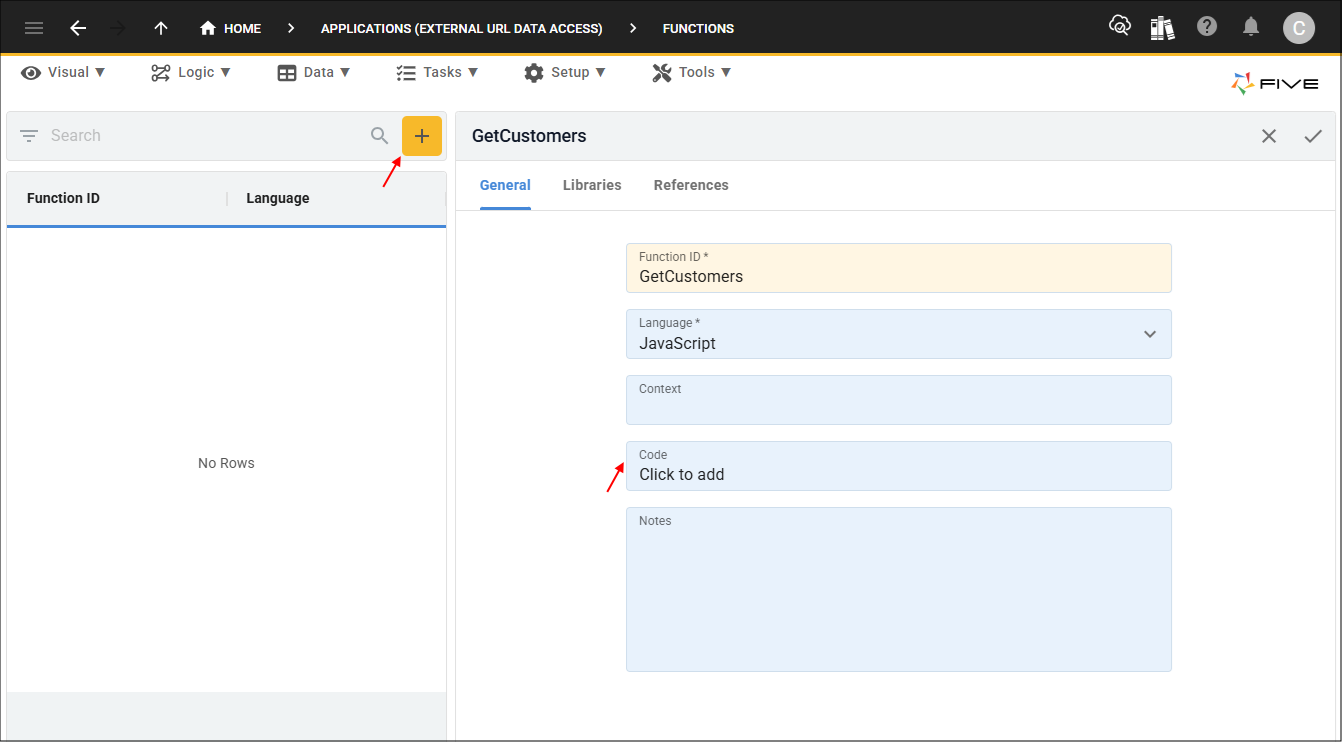
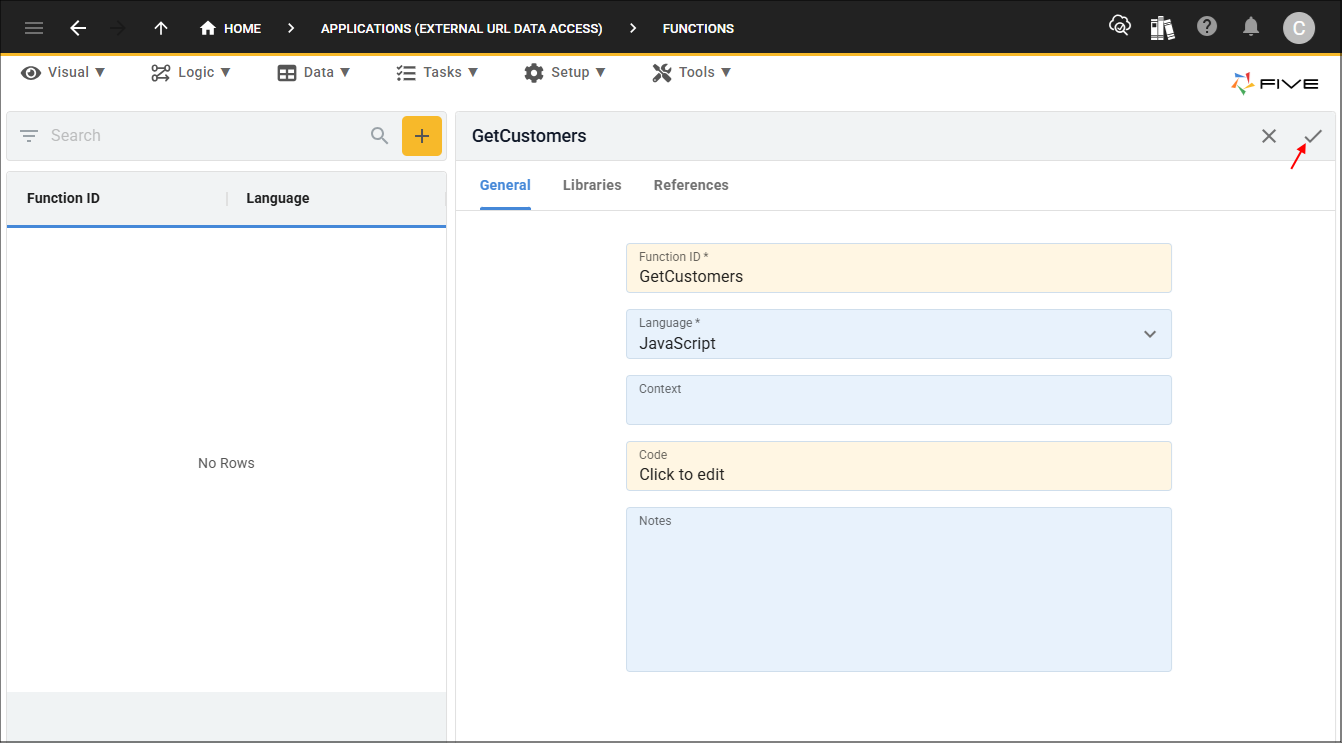
2. Click the Add Item button and give your function an ID (GetCustomers) in the Function ID field.
3. Click in the Code field.
4. Click the Copy button on the below code block.

function GetCustomers(five, context, result)  {

    ////////////////////////////////////////////////////////////////////////////////////////////////
    // query the data
    ////////////////////////////////////////////////////////////////////////////////////////////////
    const customerData = five.executeQuery('Select FirstName, LastName from Customer', -1);
    if (customerData.isOk() === false) {
        return five.createError(customerData, 'Error executing query');
    }

    ////////////////////////////////////////////////////////////////////////////////////////////////
    // create a resultsData object, which is where we will attach data to be returned
    ////////////////////////////////////////////////////////////////////////////////////////////////
    const resultsData = {};

    ////////////////////////////////////////////////////////////////////////////////////////////////
    // attach the records from the query results to the resultsData object,
    // and return the data by attaching the data to the FiveError object customerResult using setData
    ////////////////////////////////////////////////////////////////////////////////////////////////
    resultsData['customers'] = customerData.records;
    const customerResult = five.success();
    customerResult.setData(five.MIMETypeJSON, resultsData);
    return customerResult;
}
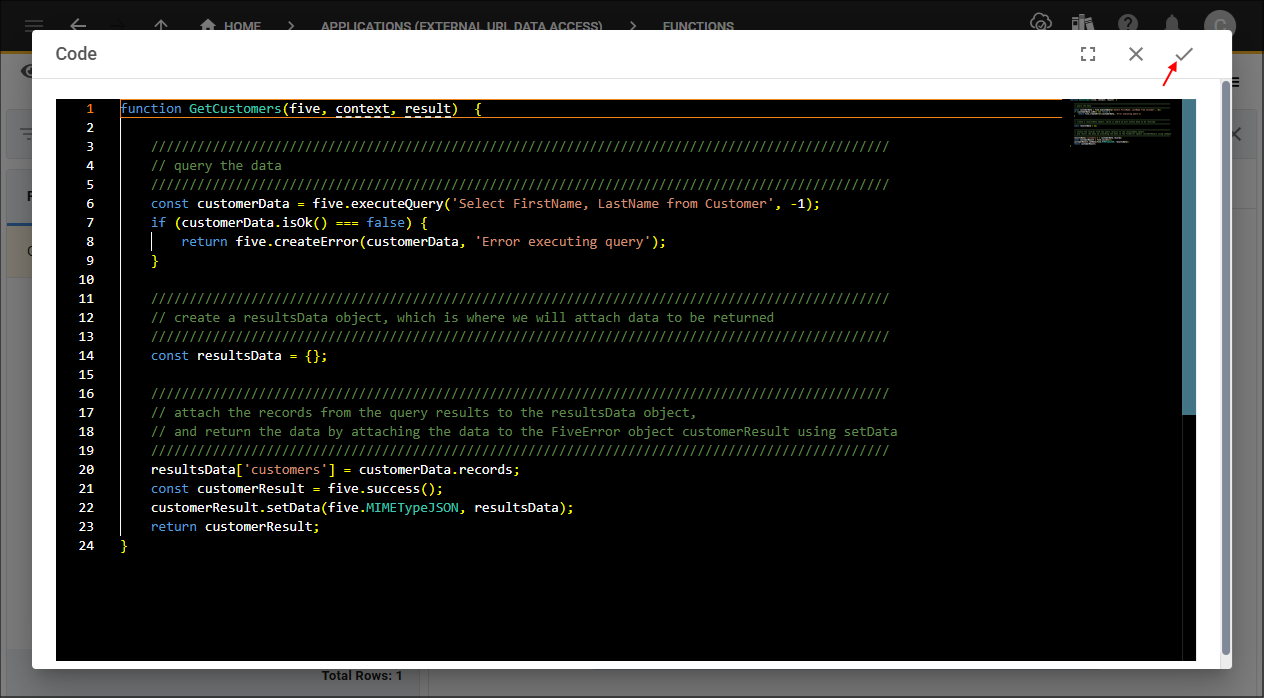
5. Paste the code block over the template in the Code Editor.
6. Click the Save button in the Code Editor app bar.
7. Click the Save button in the form app bar.
Get Customers Process
The process enables the
Add the Get Customers Process
1. Select Tasks in the menu followed by Processes in the sub-menu.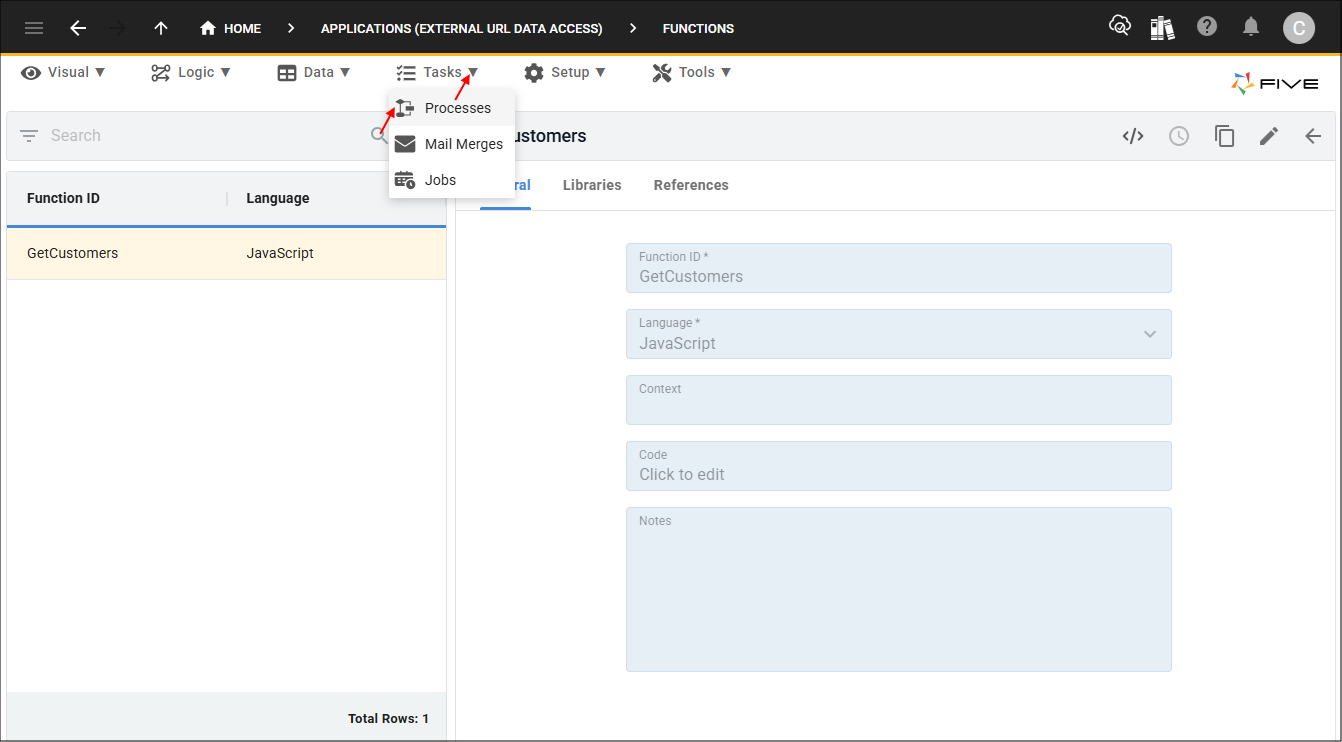
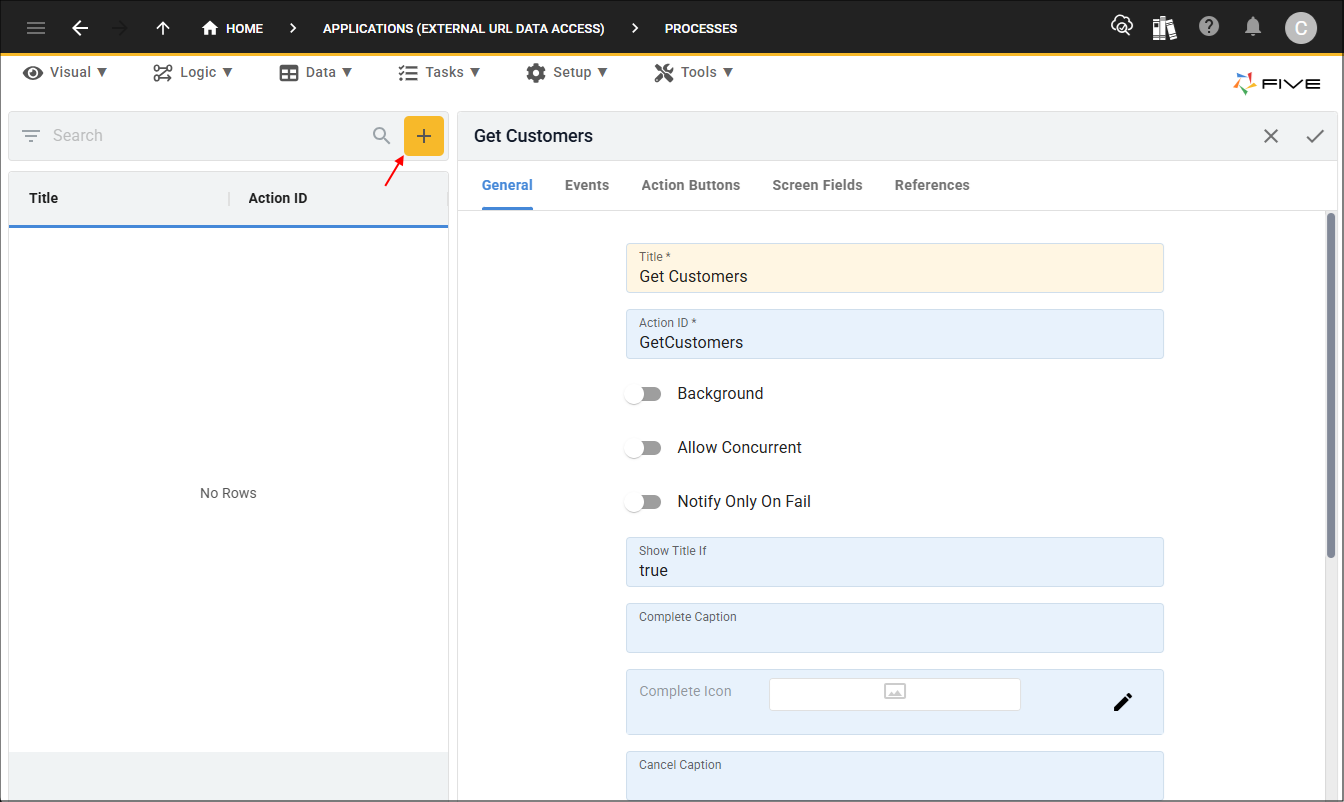
2. Click the Add Item button and give your process a title (Get Customers) in the Title field.
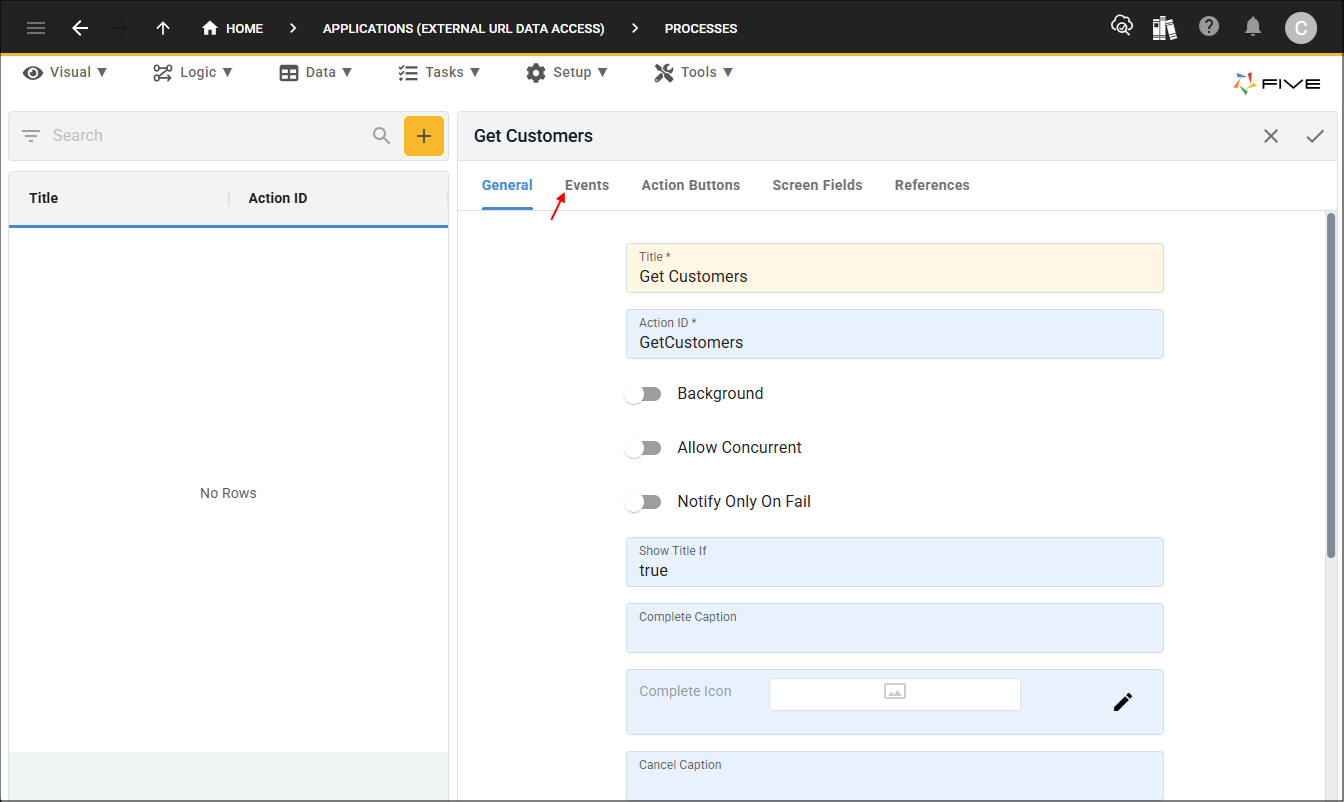
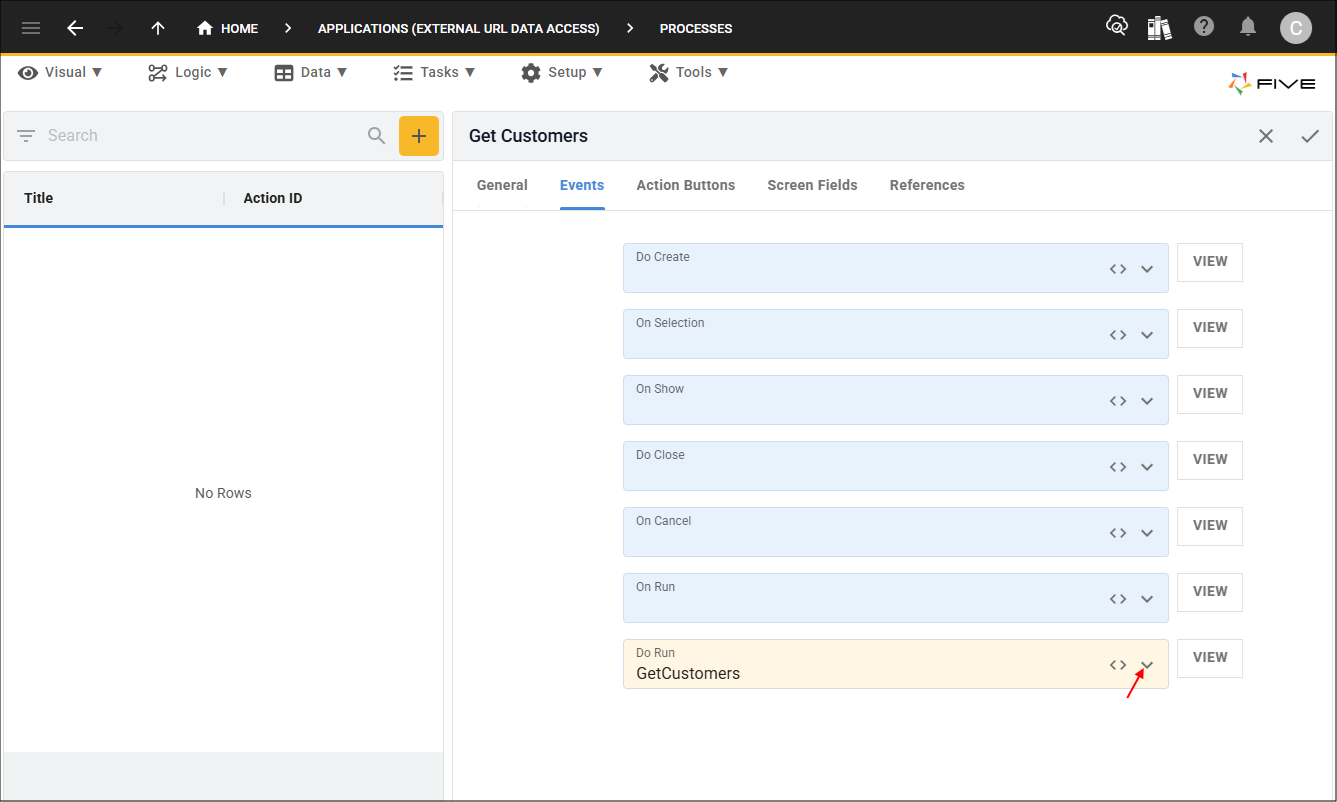
3. Click the Events tab.
4. Click the lookup icon in the Do Run field and select your function (GetCustomers).
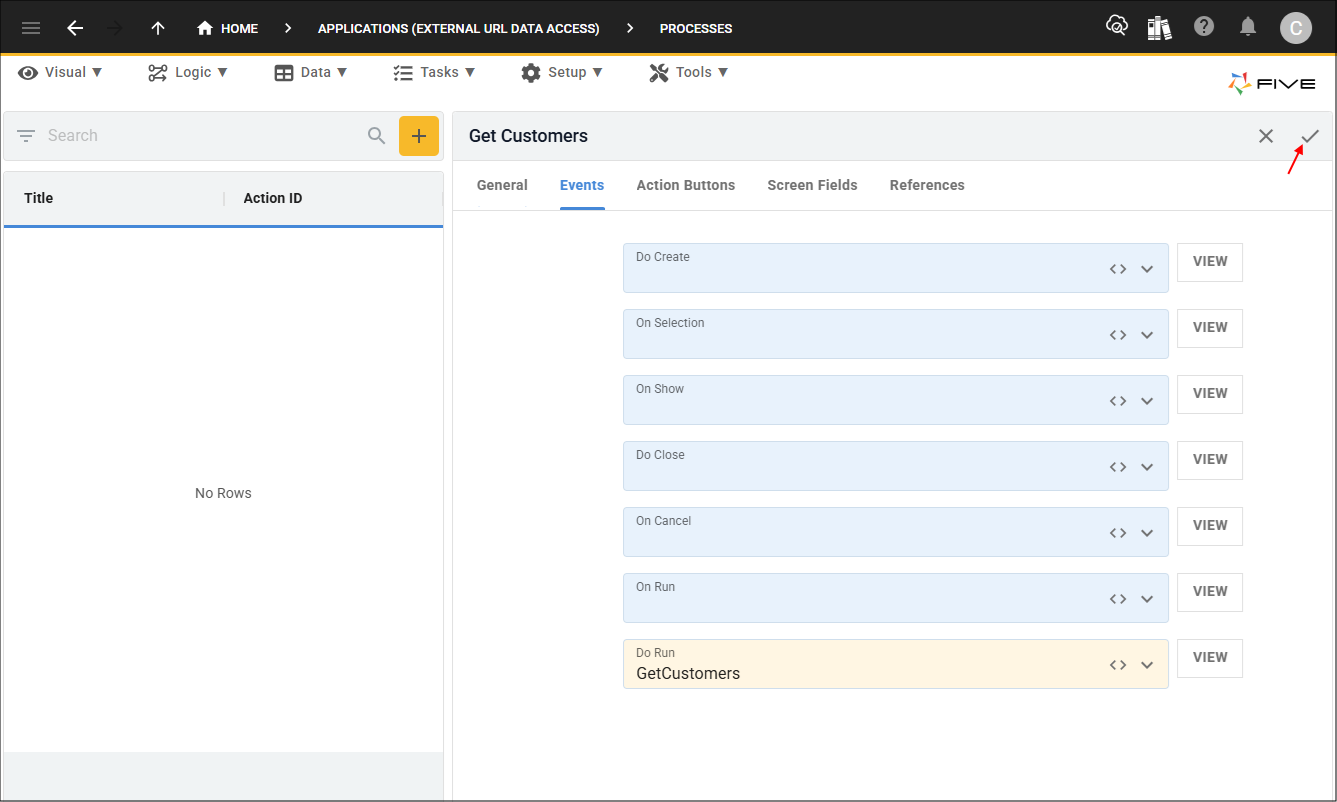
5. Click the Save button in the form app bar.
customers URL
The URL references your process so that when the URL is submitted, your URL created in Five will be used to retrieve the data and display it in the browser. Ensure the host name is your Five's host name. Add
https://control-default-externalurldata.5au.dev/action/customers
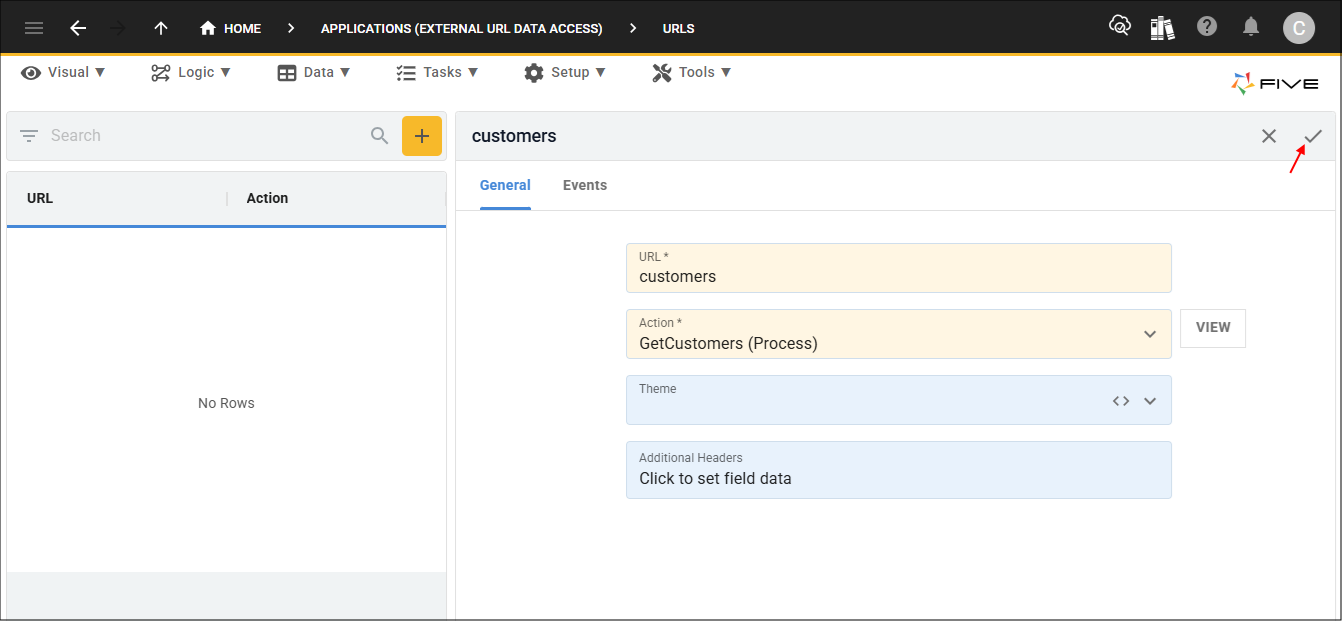
Add the customers URL
1. Select Setup in the menu followed by URLs in the sub-menu.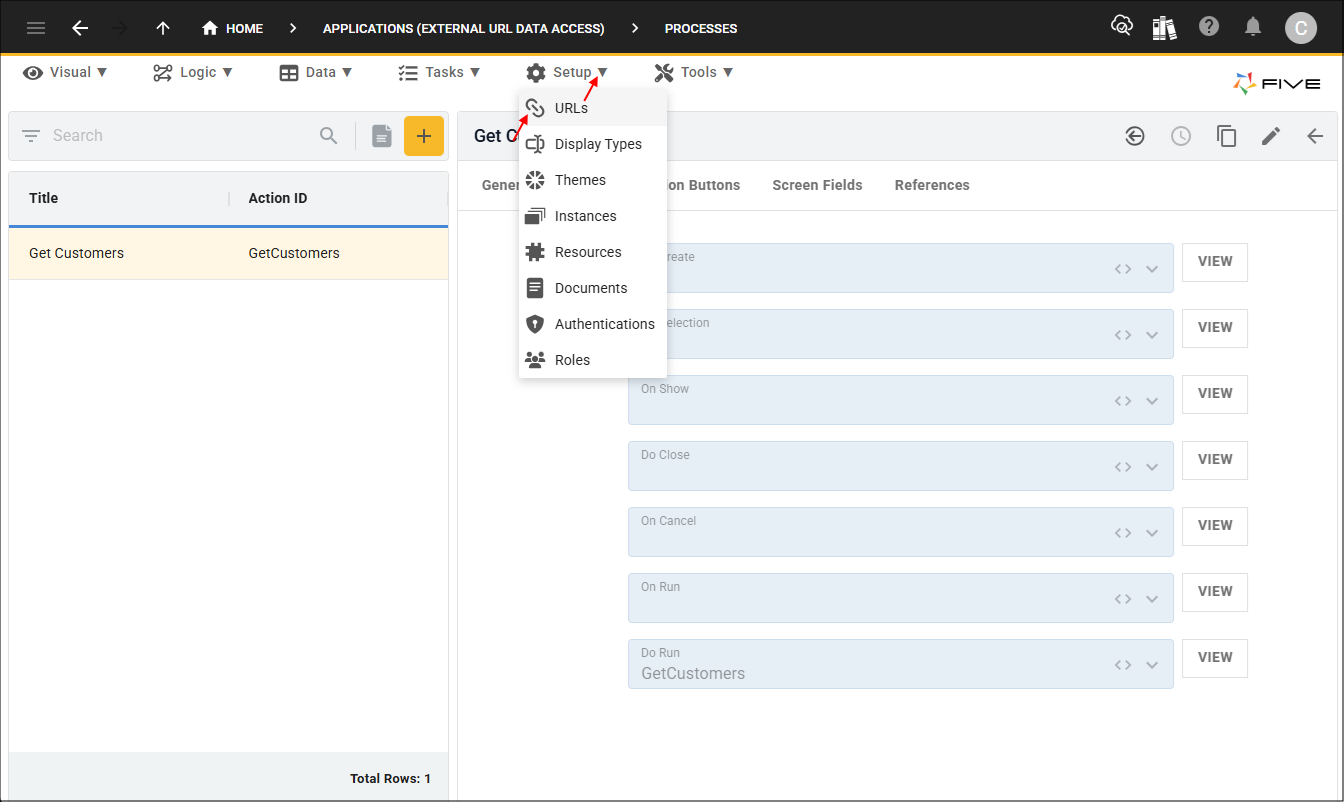
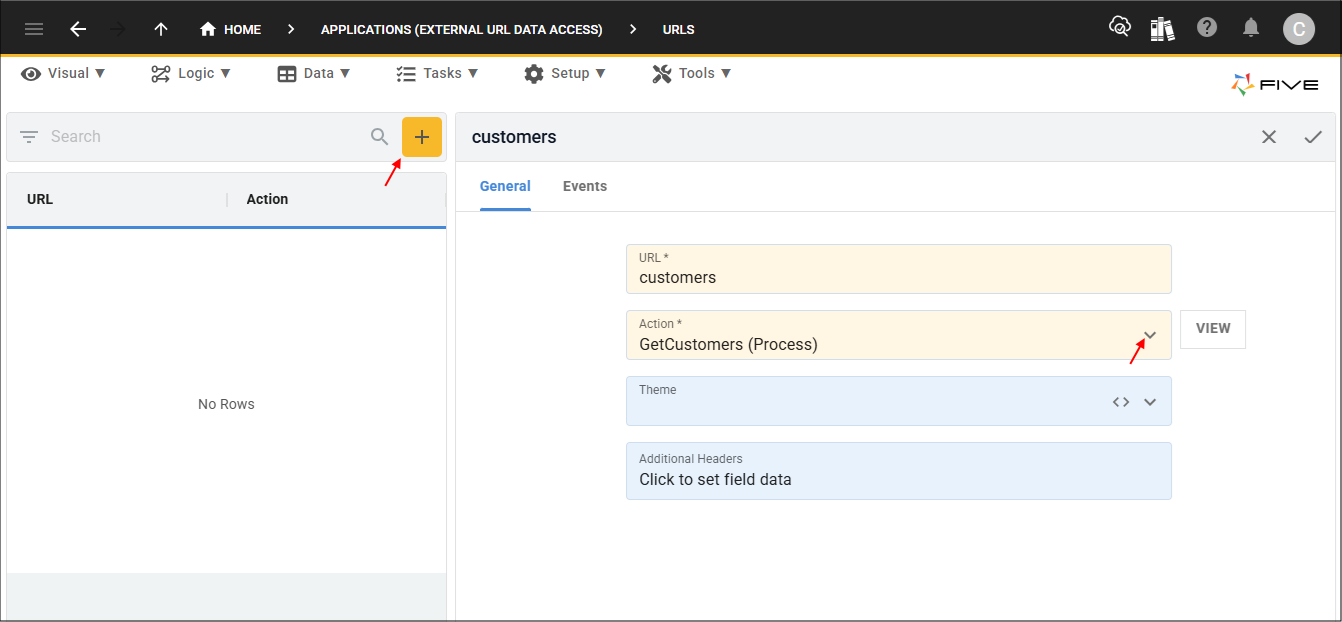
2. Click the Add item button and give your URL a name (customers) in the URL field.
3. Click the lookup icon in the Action field and select your process (GetCustomers (Process)).
4. Click the Save button in the form app bar.
Response Data
To see the data retrieved, you will need to have your application deployed to an environment and add
https://control-default-externalurldata.5au.dev/action/customers
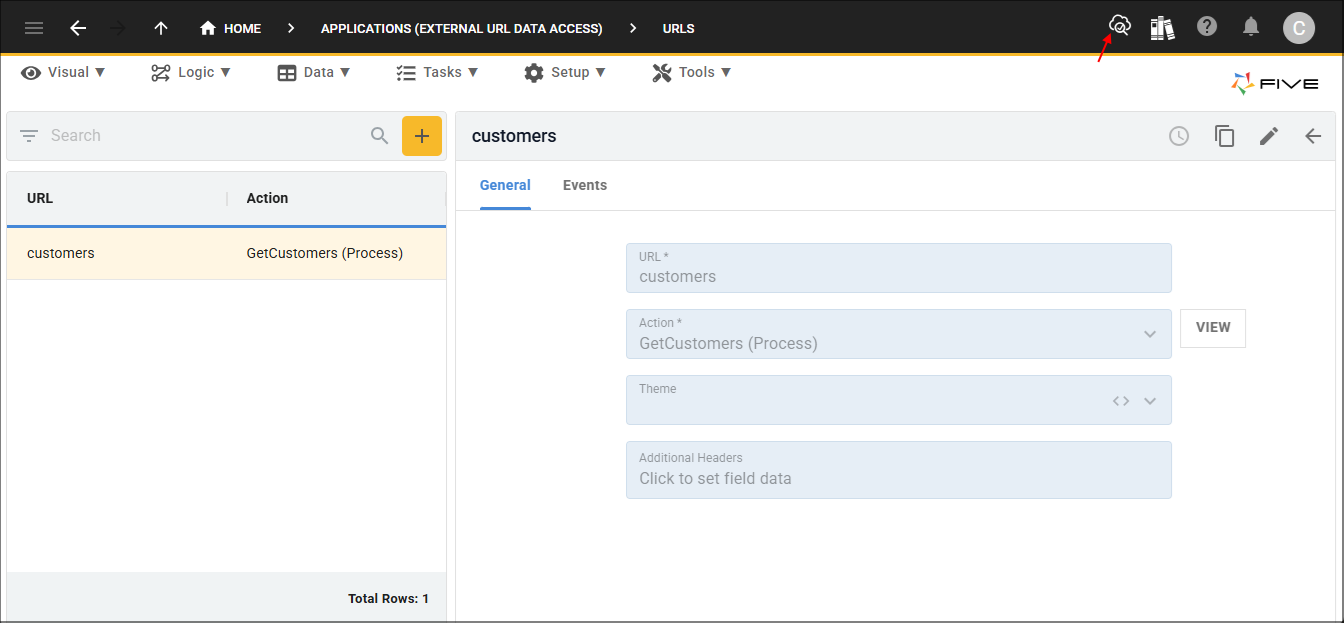
1. Click the Deploy to Development button.
2. Add
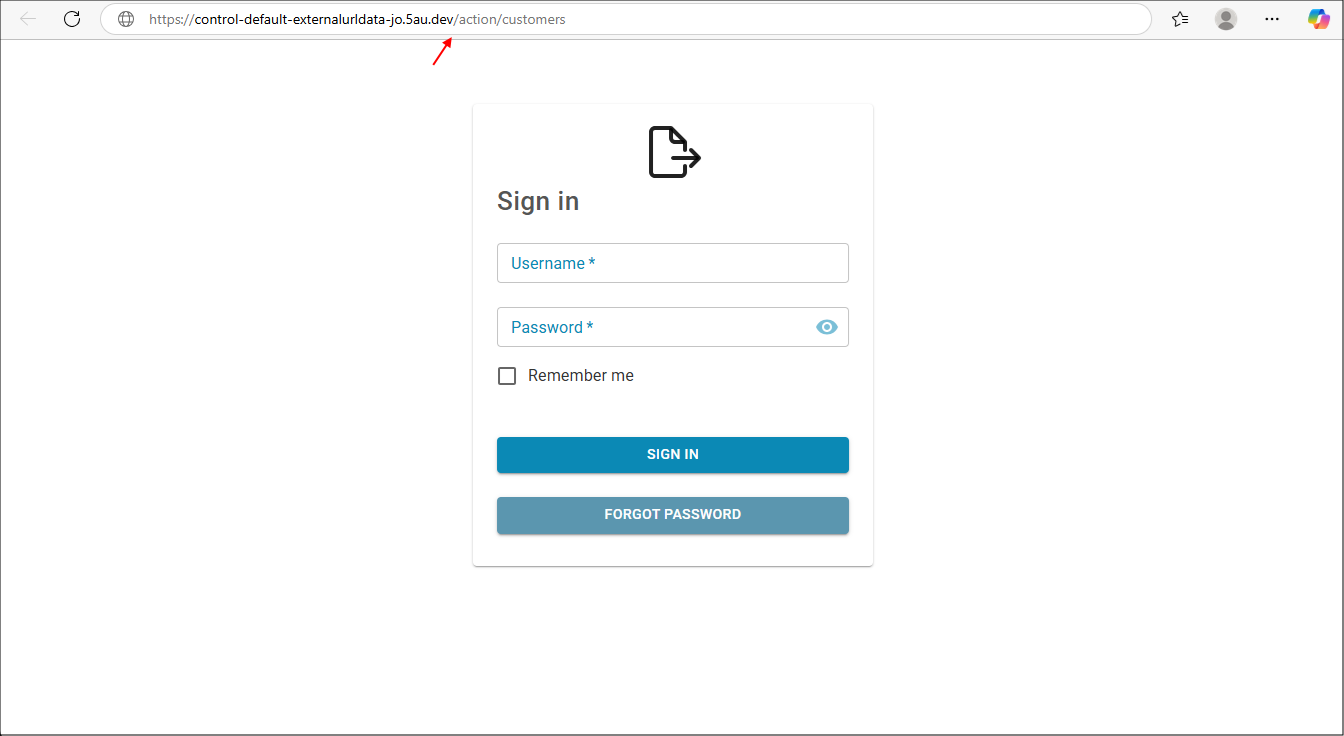
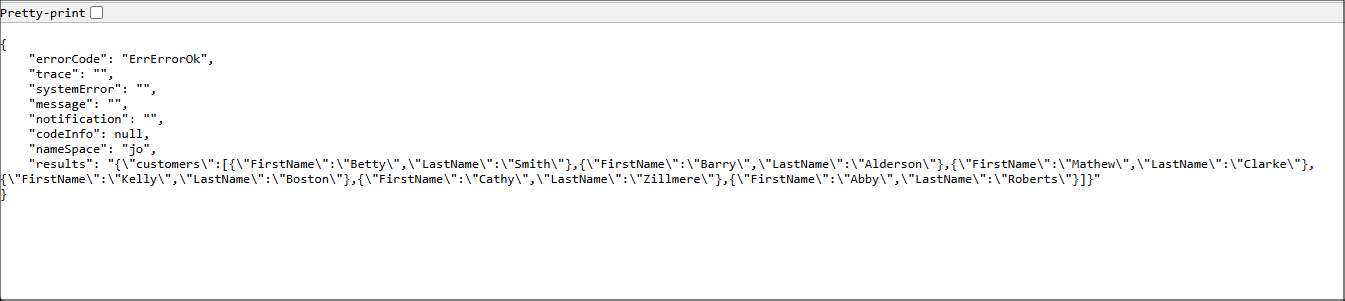
Returned is a string representation of a