Five's Rich Text Editor
Last updated 17/10/2025
How to Use Five's Rich Text Editor
1. Open the editor by clicking in the required field.🔹Start typing in the blank document area just like you would in any text editor.
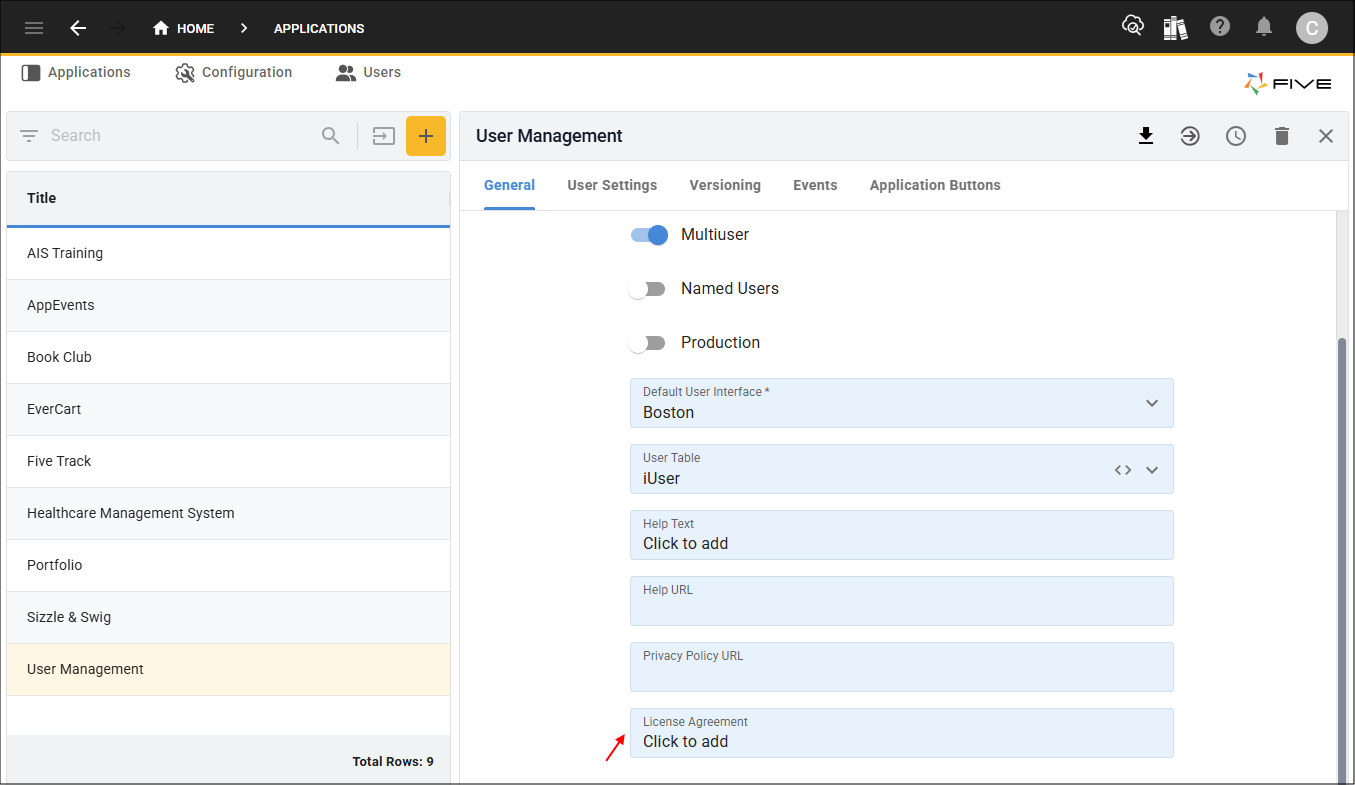
Figure 1 - Open text editor
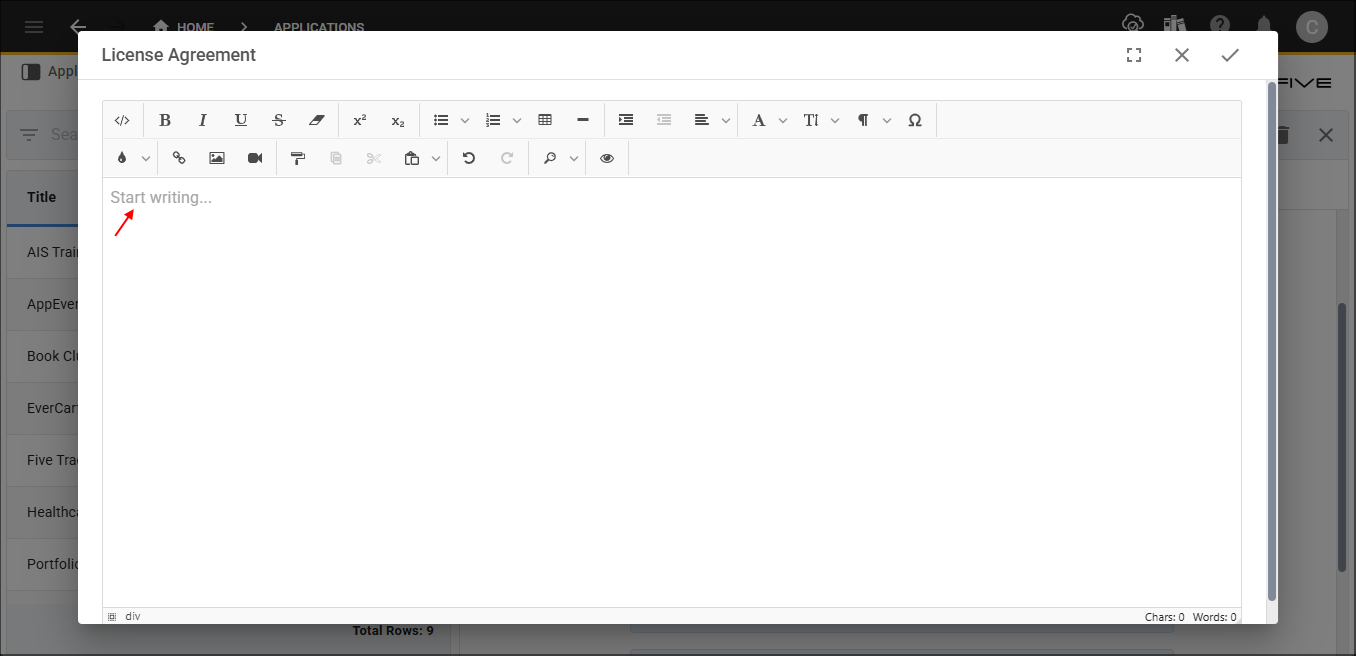
Figure 2 - Text editor
2. Use the toolbar for formatting.
🔹Hover on the buttons in the toolbar to see their functionality. Below is a list of the common functionality.
- Bold
- Italic
- Underline
- Strike Through
- Ordered and Unordered Lists
- Insert Table
- Align
- Font Family
- Font Size
- Insert Format Block
- Fill Color or Set the Text Color
- Insert Link
- Insert Image
- Tags (used in email templates)
tip
Highlight your text first, then click a formatting button to apply the style.
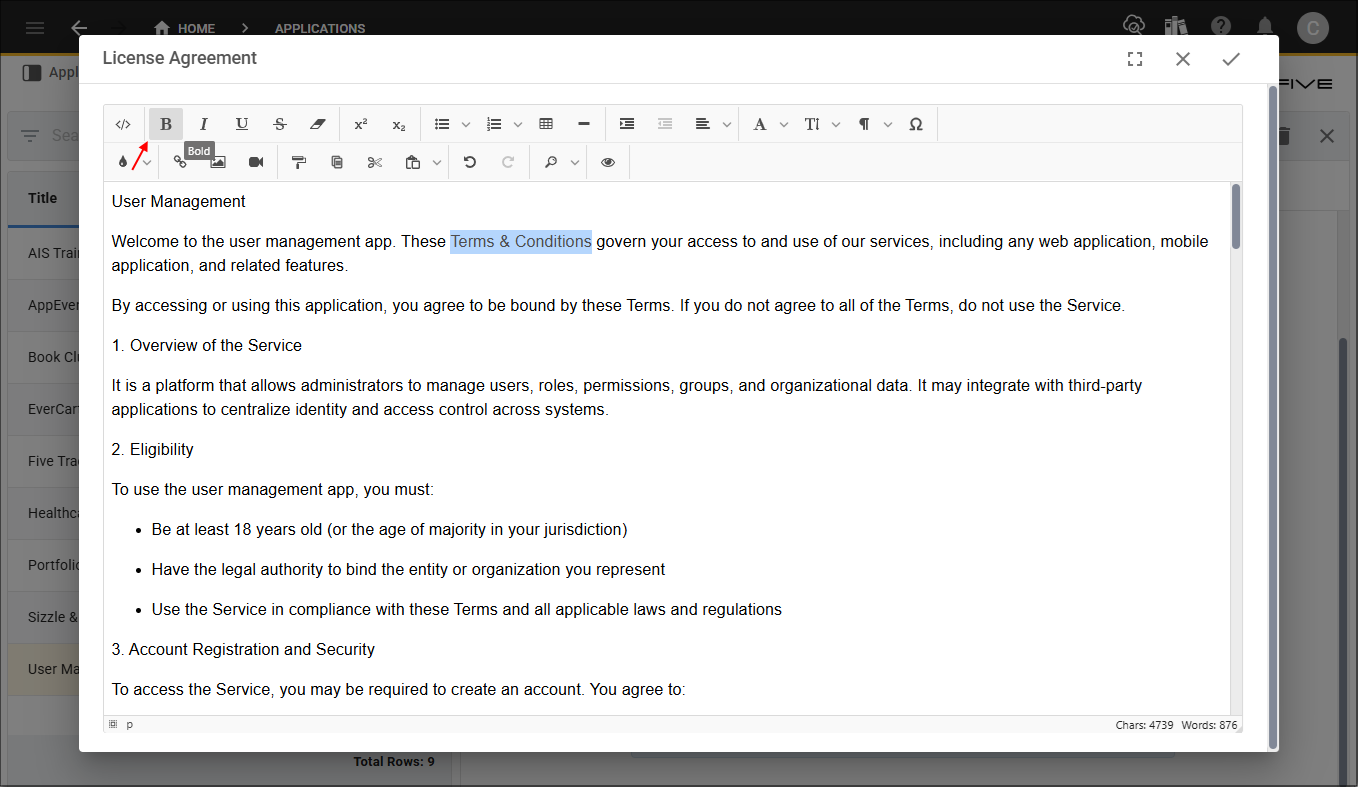
Figure 3 - Toolbar
3. Insert images.
🔹Click the Insert Image button and upload an image
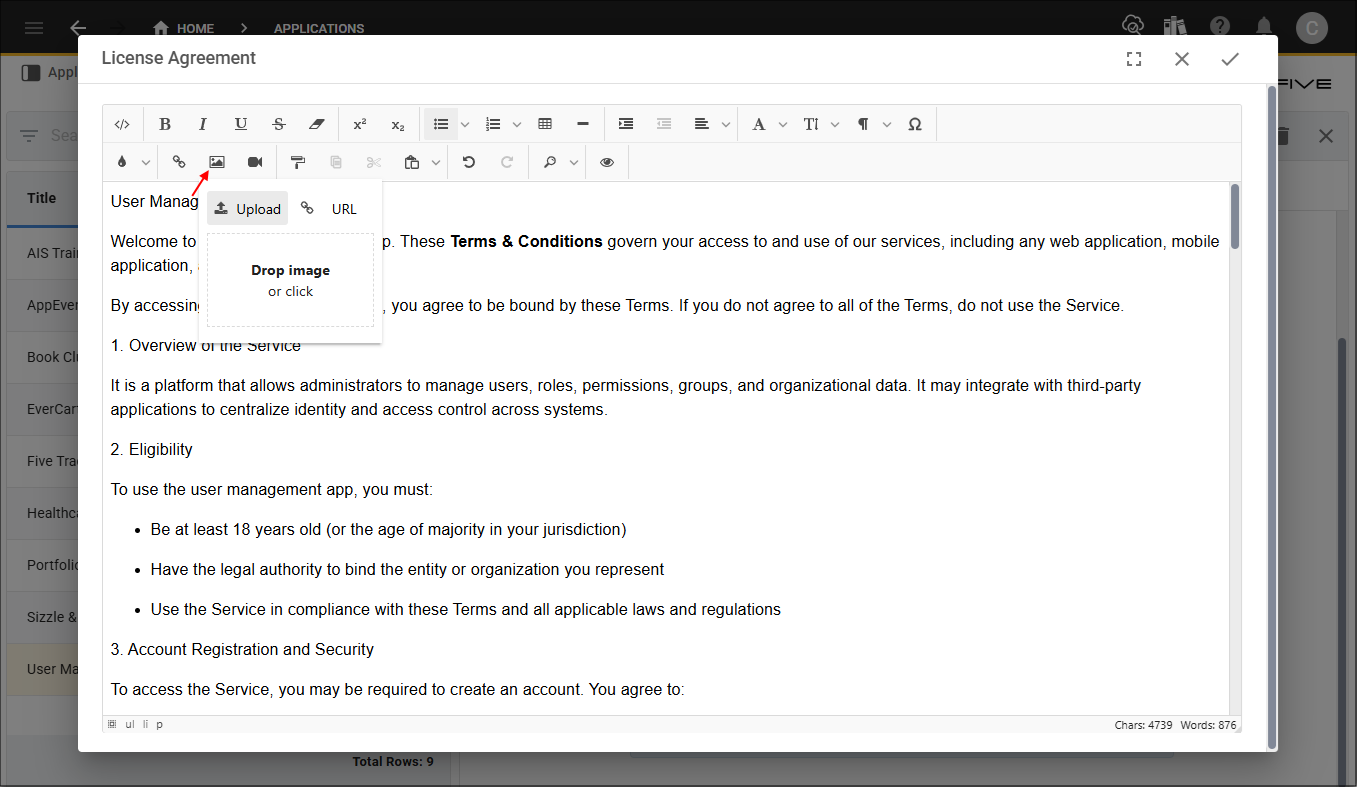
Figure 4 - Insert Image button
4. Use Headings
🔹Click the dropdown for the Insert Format Block button and choose Heading 1, Heading 2, etc
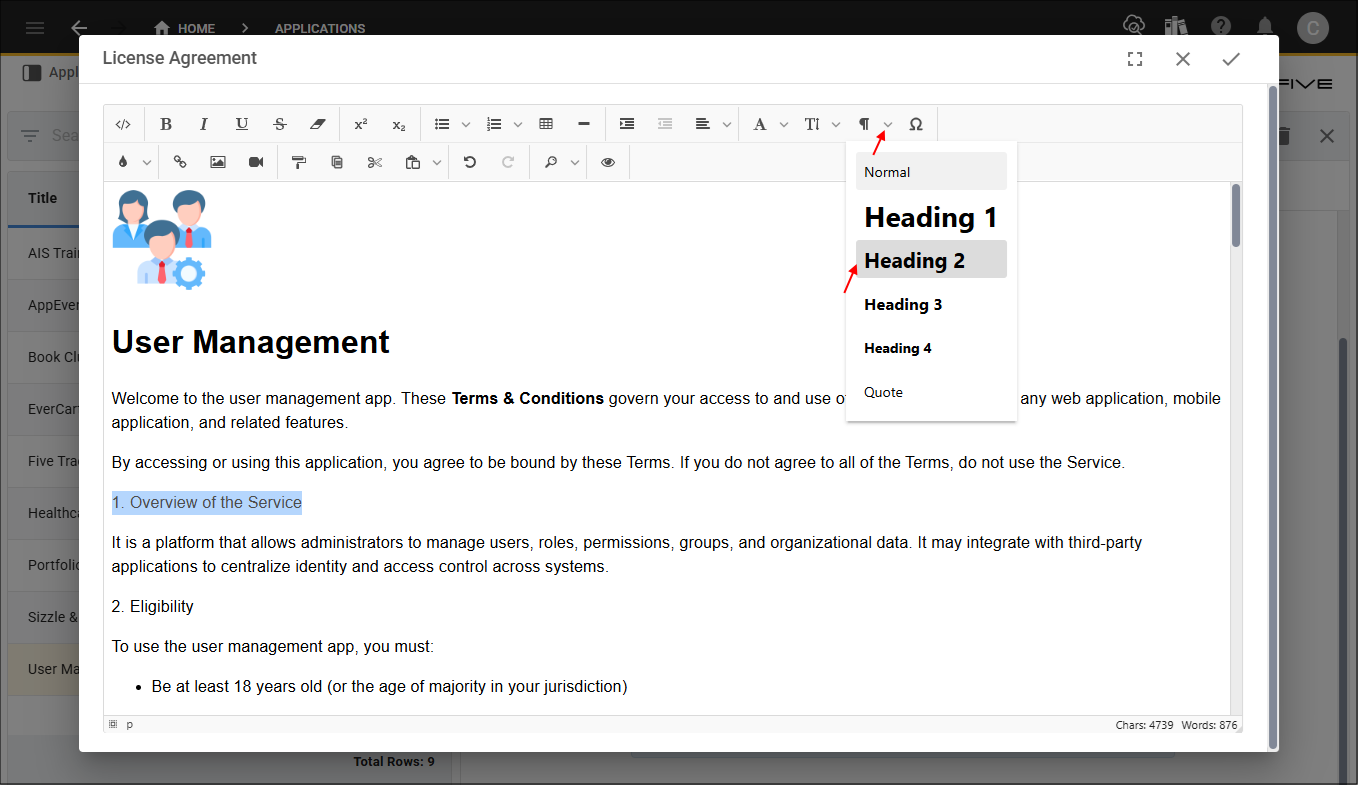
Figure 5 - Insert Format Block button
4. Preview your template.
🔹Click the Preview (eye) button to see the published version.
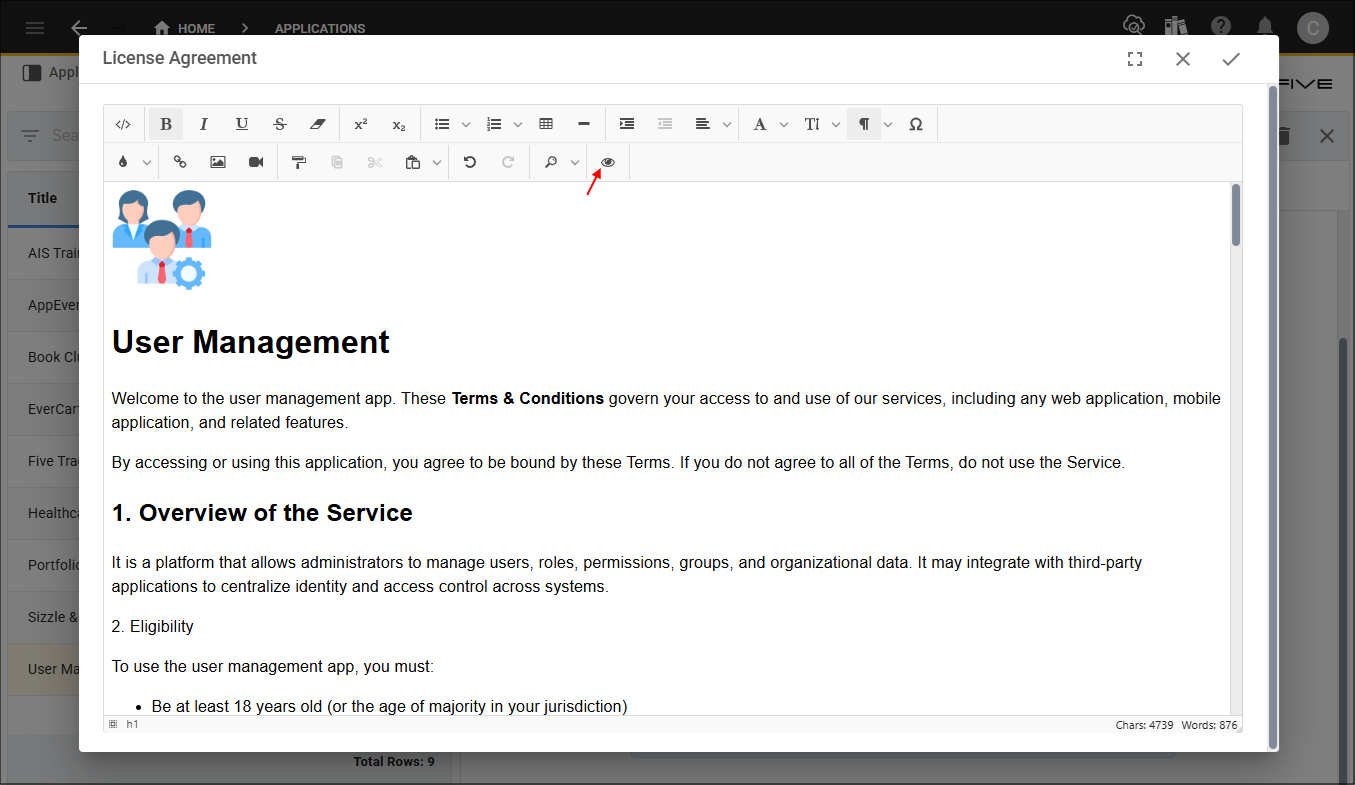
Figure 6 - Preview button
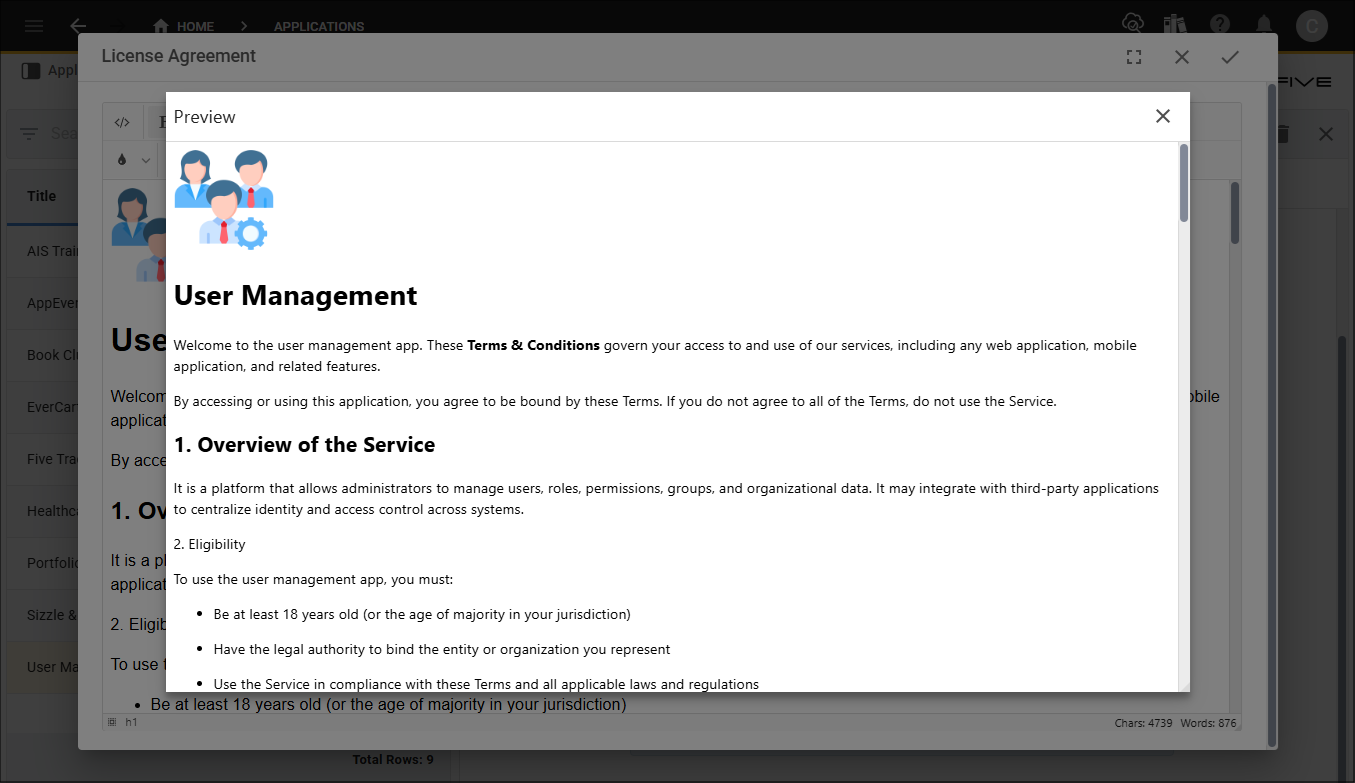
Figure 7 - Template preview
5. Click the Save button in the template app bar.
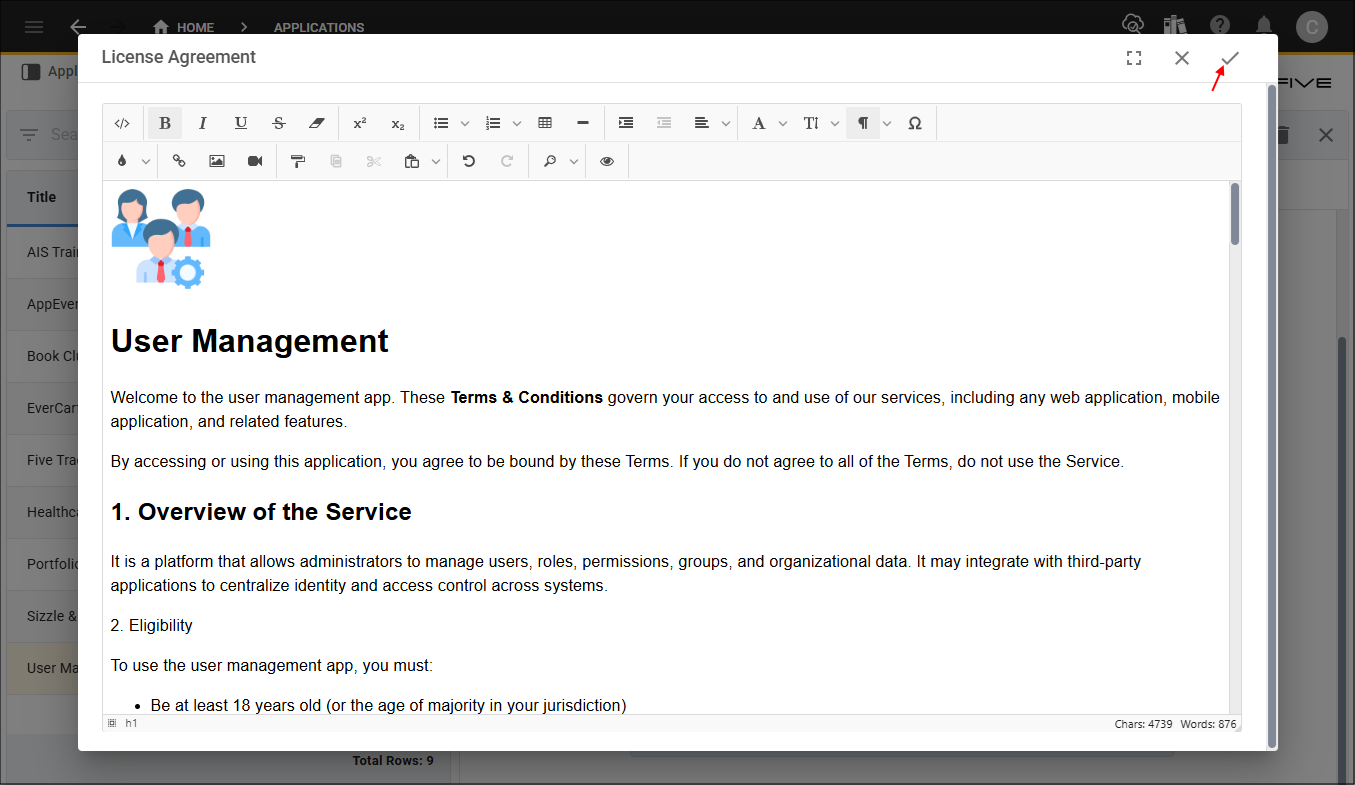
Figure 8 - Save button