AUTO_LOGOFF
Last updated 24/06/2025
The option AUTO_LOGOFF is a feature that automatically log's your end-user out of their account after of certain period of inactivity. This prevents access if the session is left unattended and helps data protection.
How Does it Work?
- Five monitors user activity such as mouse movement and typing.
- If no activity is detected for a predefined time, your application's session will logout.
- The user will need to log in again using the same authentication method you have defined for your instance record.
To have the auto logoff feature in your application, you need to provide a key: value pair in the Options field for the instance record. The key is AUTO_LOGOFF and the value is an integer, the integer represents the number of minutes that a user's account can be inactive before the session is logged out. For example, 5 entered into the Value field would be 5 minutes.
The following key: value pair is required when setting up the auto logoff feature in Five for your application.
| Key | Value |
|---|---|
| AUTO_LOGOFF | Contains the number of minutes till the user is automatically logged out of the system due to inactivity |
Add AUTO_LOGOFF
1. Select your instance record in the list.2. Click directly in the Options field to open the editor.
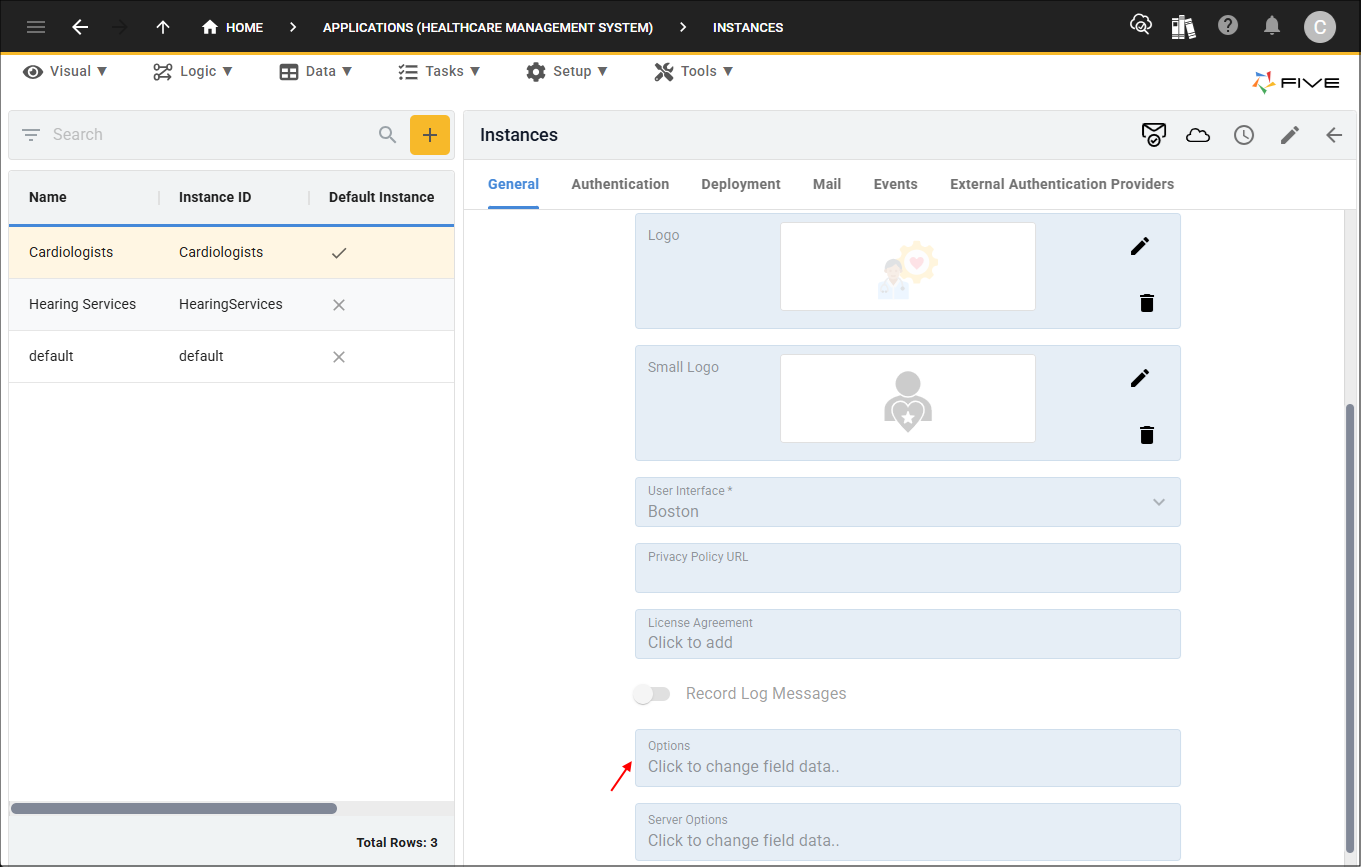
3. Type AUTO_LOGOFF in the Key field.
4. Type an integer in the Value field.
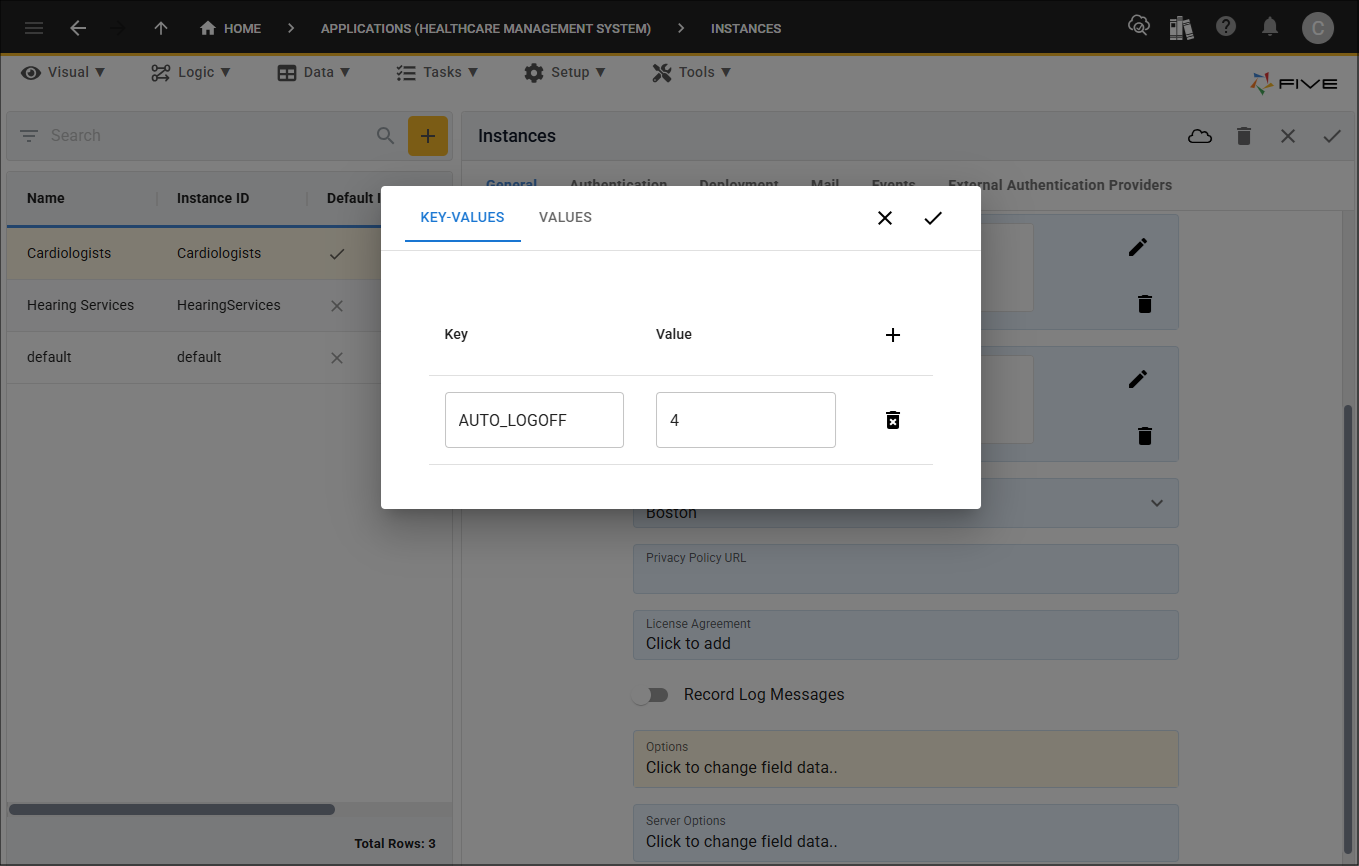
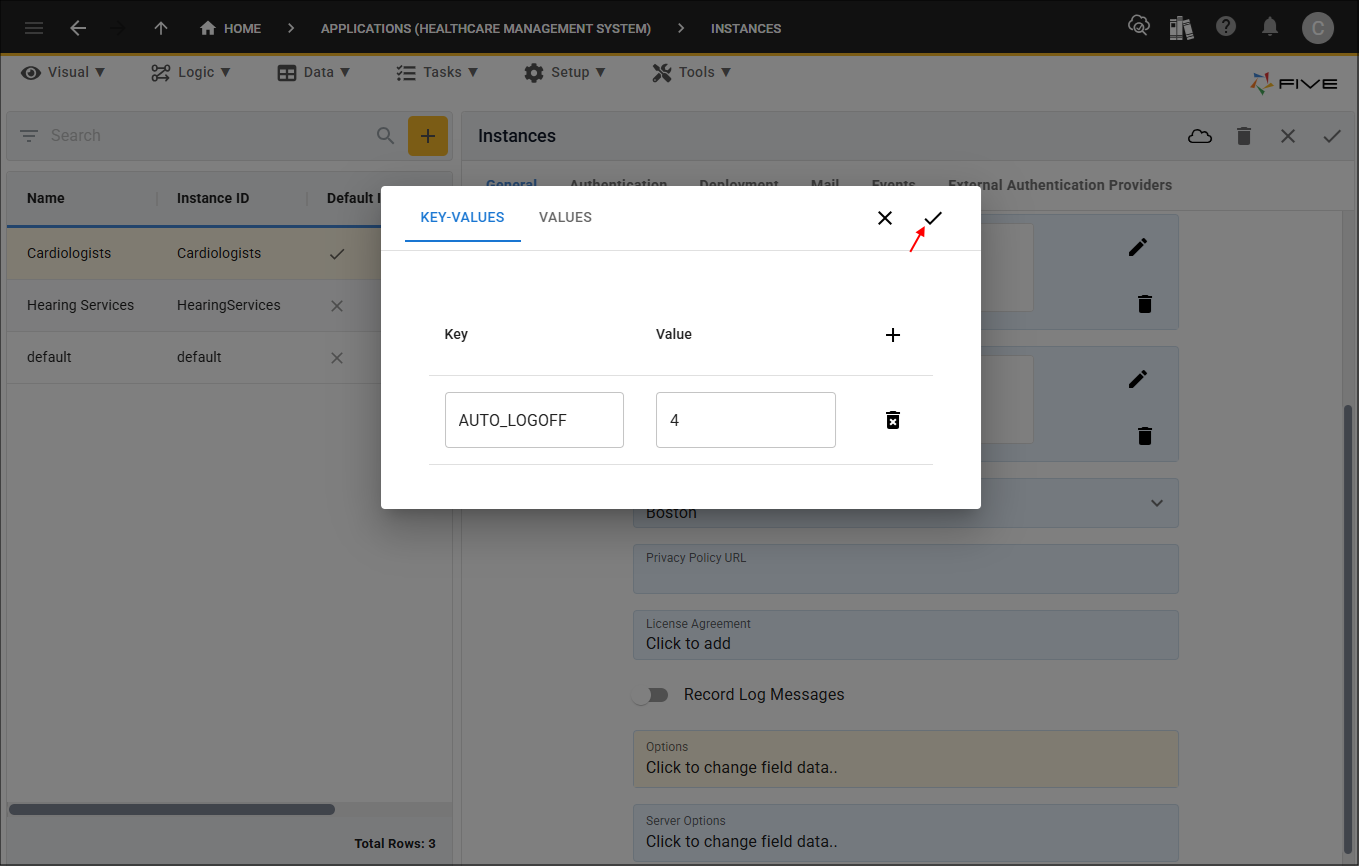
5. Click the Save button in the editor.
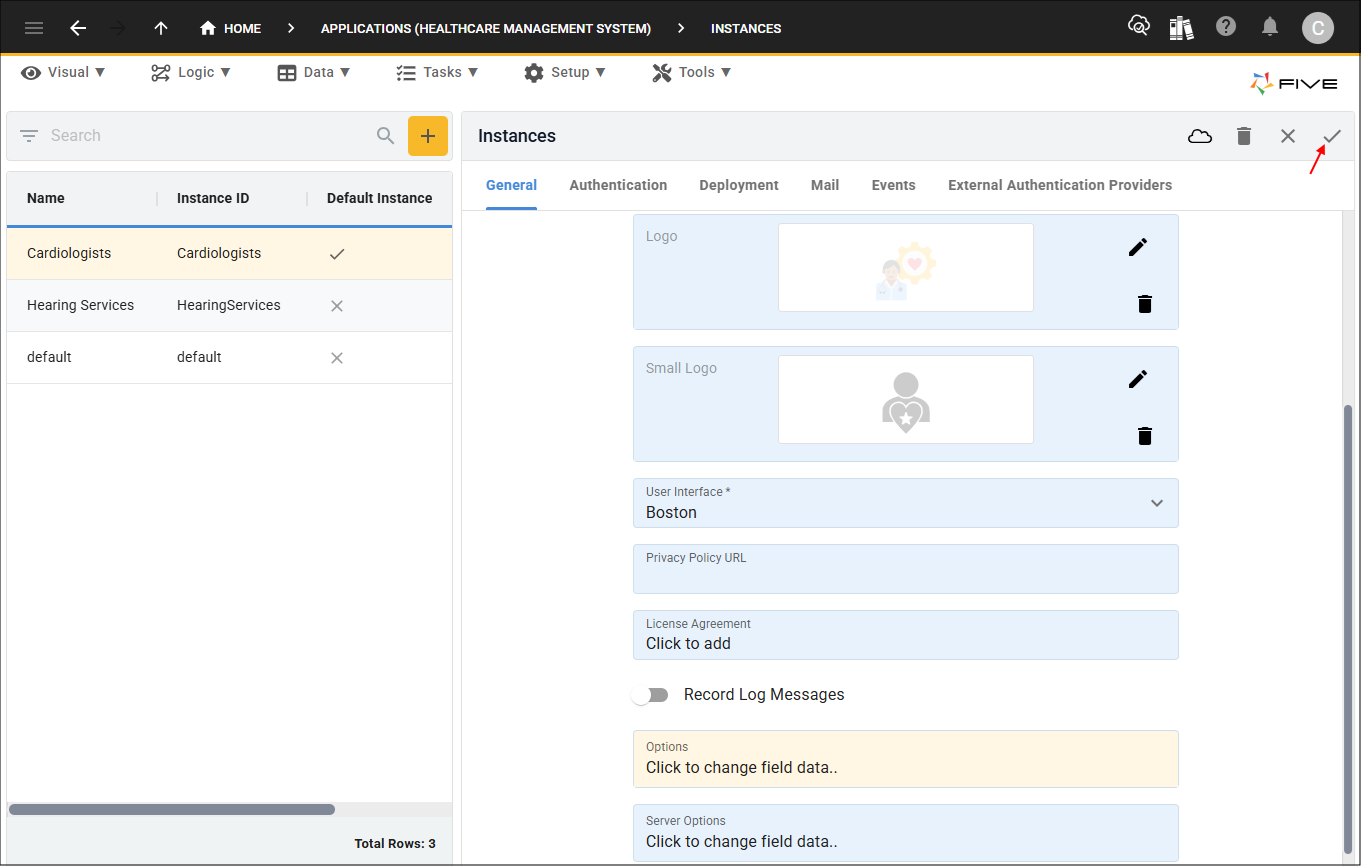
6. Click the Save button in the form app bar.
How This Works in an Application
Once a user's account has been inactive for the number of minutes defined, they will be logged out of the session and will need to use the Sign In window to access their account. Their authentication method will need to be used to sign in.