Navigating Five's User Interface
Last updated 29/05/2026
Overview
Five enables you to rapidly develop and deliver modern business software through an intuitive, browser-based interface. This guide provides a high-level overview of Five's user interface to help you quickly become familiar with navigating the platform.
Accessing Five
After logging into your Five account, you will arrive at our landing page. This page contains helpful links and resources that provide additional information about using the platform.
At the top of the page, you will see the navigation menu. To move away from the landing page and begin working with your application, click Applications.

You will be taken to the Applications list, where all available applications are displayed.
Creating a New Application
To create a new application, click the Add Item button and a new application form will open.
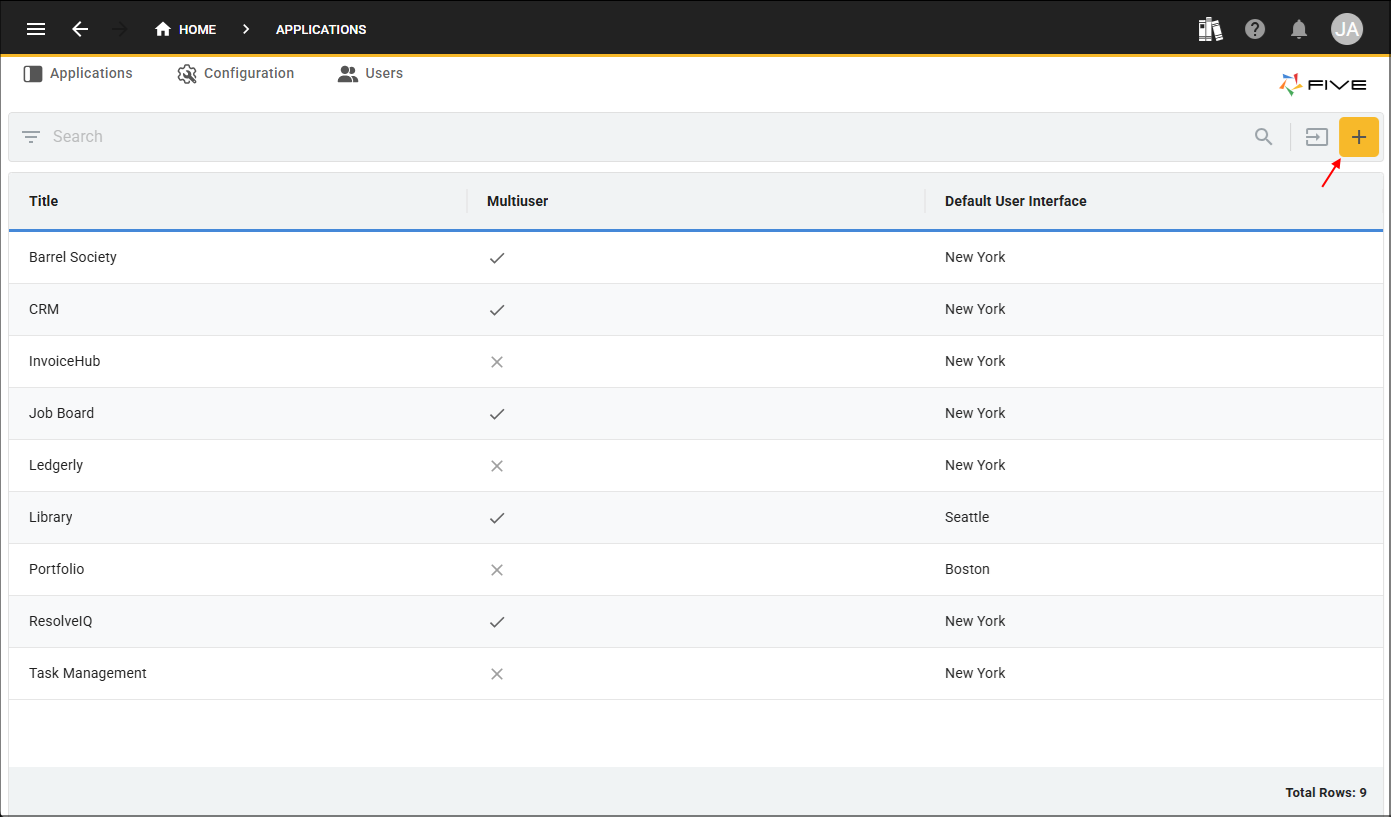
For now all you need to do is give your application a title and click the Save button.

Once saved, the application will appear in the Applications list.
Managing an Application
Existing application records can be selected directly from the Applications list. To begin building or maintaining an application, select an application record in the list.
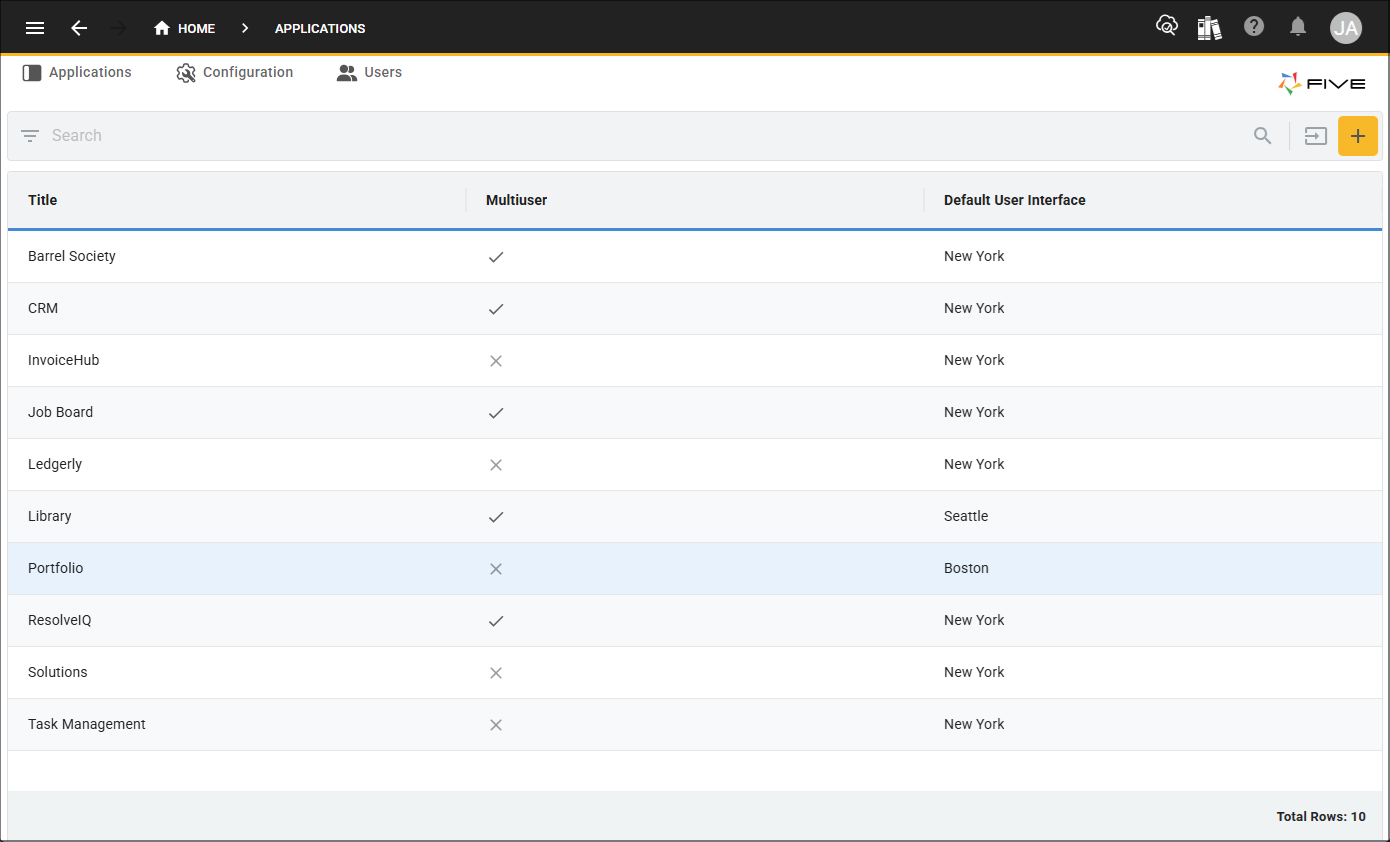
Click the Manage button, this will open the application workspace, where you can build and maintain your application schema and configuration.

Building Your Application With V
V is Five's AI-powered assistant designed to accelerate application development. V is available in your Profile menu.
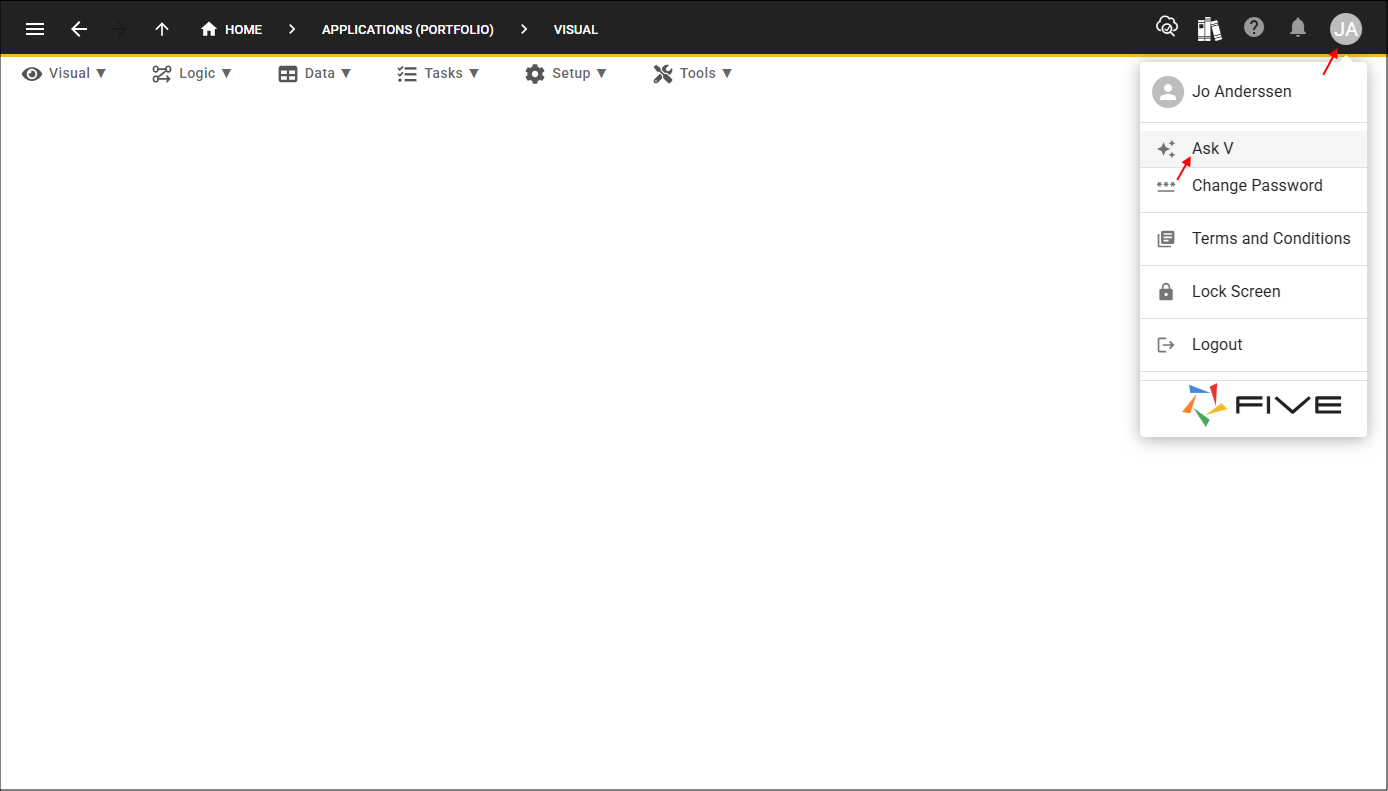
Within the application workspace, you can use V to build your application or build application components using natural language prompts. Simply describe what you want to create, and V will assist with generating the required application structure and functionality.

Every component V generates is available in Five which you can edit manually or use V to edit it.
Understanding the Main Navigation Menu
Five uses a structured menu system to organize all areas of application development. The main navigation menu is located across the top of the interface. Selecting a menu will display its available sub-menus and related functionality.

Each menu area is grouped by purpose, making it easier to locate the tools and features required to build, configure, and maintain your application.
The Visual menu contains everything related to the user interface and what users will visually see when interacting with your application. It is where you design the presentation layer of your application and control how information is displayed to end-users.
The Logic menu contains the functionality and business rules that drive your application. This area is used to define how your application behaves and responds to user actions and system events. The Logic menu allows you to build application behavior beyond the visual interface.
The Data menu contains all functionality related to your application's data structure and storage.
The Tasks menu is used to create and manage automated processes within your application. Tasks can be configured to run automatically based on schedules, triggers, or events.
The Setup menu contains configuration settings used to establish and maintain your application environment.
The Tools menu provides utilities to help monitor, maintain, and troubleshoot your application.
List and Records
Most views in Five follow a consistent layout and navigation structure. Selecting a menu item will open a list view containing the records for that area of the application.
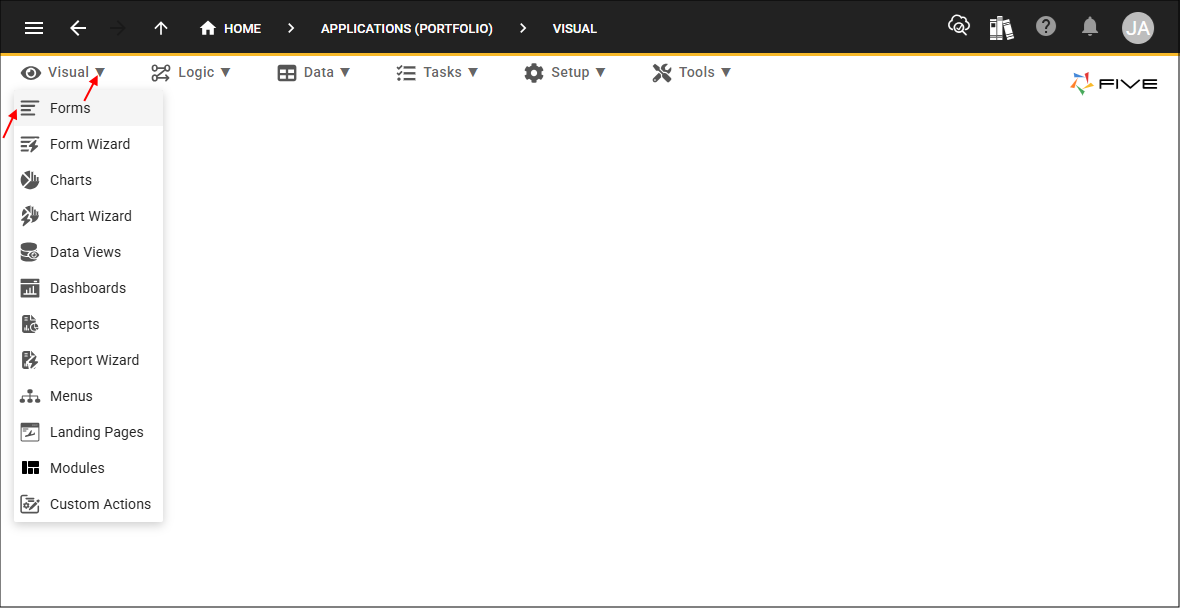
From the list, you can either, select an existing record to view or edit.

Or, click the Add Item button to create a new record.

From here, you can use the tabs at the top to navigate through the form. After saving, you will automatically return to the list.

Wizards
Five includes several built-in wizards that provide a quick and easy way to add elements into your application as Five populates a lot of values automatically for you. The wizards can be found in the main menu structure.
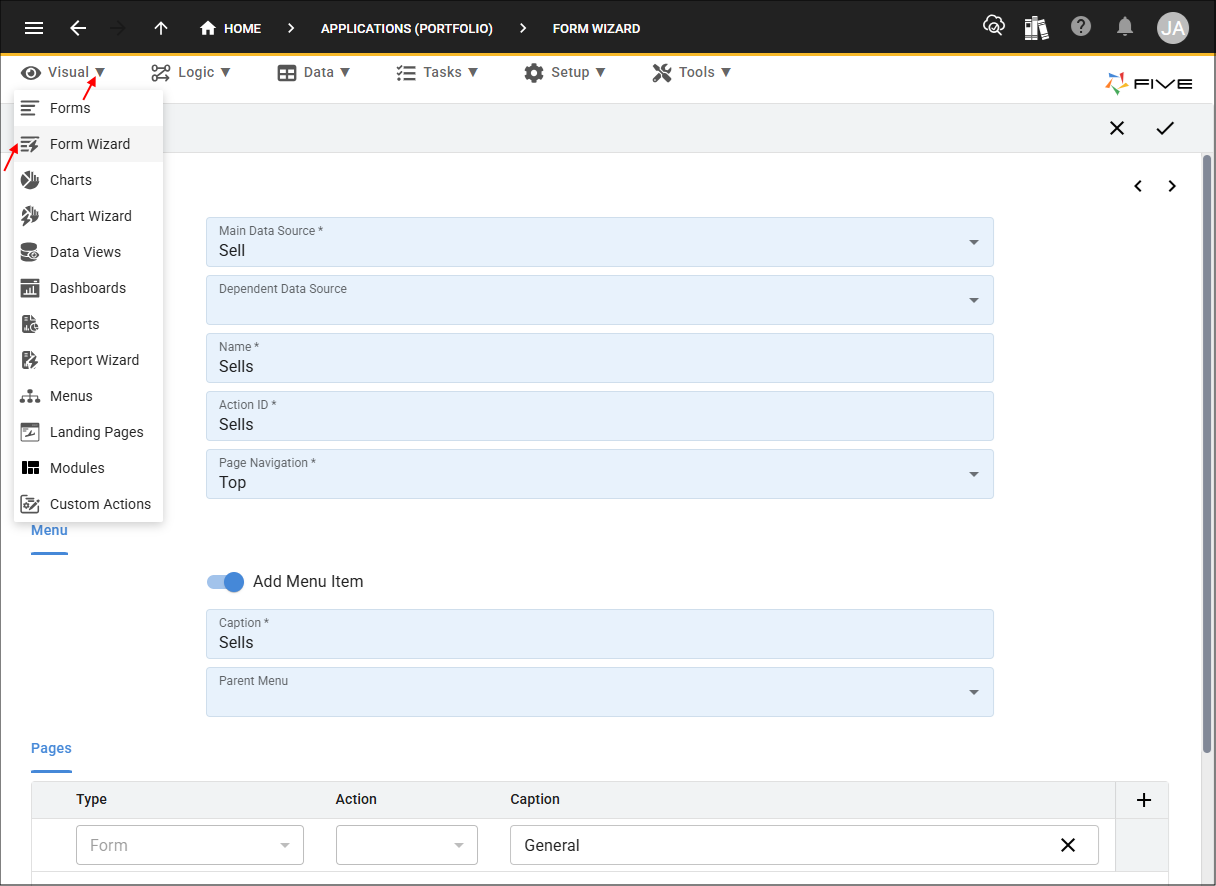
Once you save a record via a wizard, you will find the record in it's respective view. For example, forms created in the Form Wizard will appear in the Forms view.
Code Editors
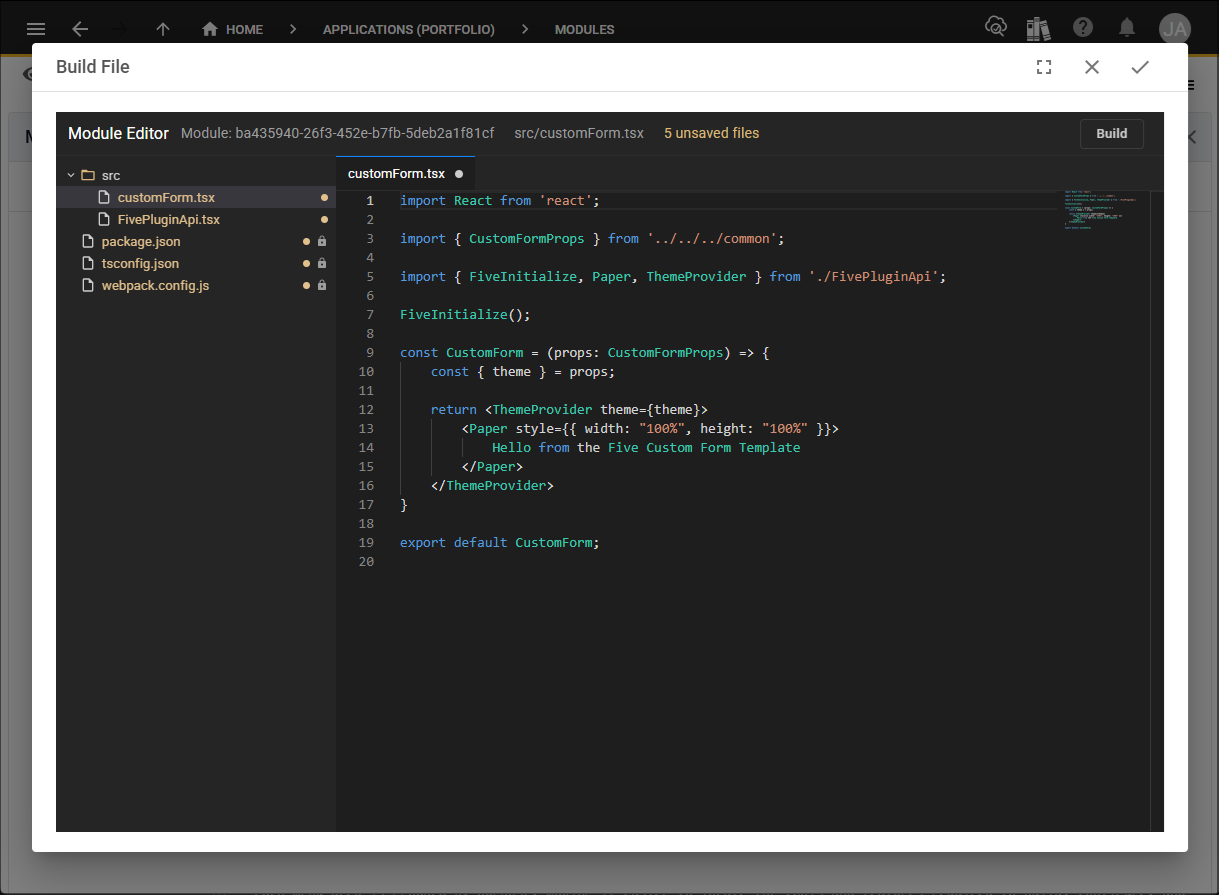
Five includes several built-in editors that can be used to extend and customize your application, or to review components created by V. Some editors can be opened directly from the main menu, while others are opened from specific fields, such as the Module Editor.
Deployment
Five provides a Deploy to Development button in the top toolbar, allowing you to quickly deploy your application from any view within Five. The action deploys your default application to the development environment, making the latest changes available for validation.

Logging Out
To log out of Five, open the profile menu in the top toolbar and click Logout.
