Related Form Navigation
Last updated 2/03/2026
Overview
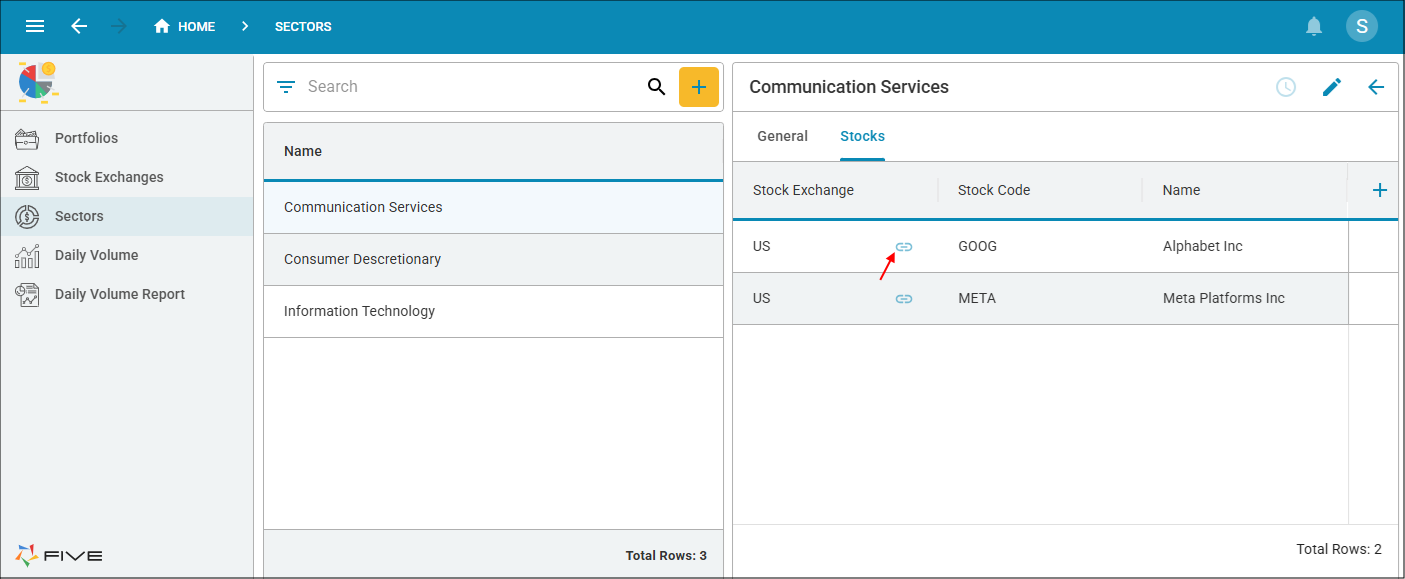
Fields configured with a reference form automatically display a link icon across all supported UI contexts. This functionality is available:
- Within the Five development environment
- Within your deployed application
This ensures a consistent navigation experience during both development and runtime.
The link icon visually indicates that the field value represents a related entity that can be opened directly in its full form view.
Configuration Requirements
To enable this behavior, the following setup is required:
-
The field must have a reference form configured.
-
The referenced form must be explicitly selected in the field configuration.
-
The field may be configured as:
-
The behavior applies to:
- Form fields
If a reference form is not assigned, the field will render as a standard value without a link icon.
Supported UI Contexts
The link icon is rendered consistently in the following UI components:
Lookup-Based Fields (_LookupQuery Support)
This functionality also applies to fields populated using a _LookupQuery, provided that:
- A reference form is defined for the underlying entity
- The lookup resolves to a valid referenced record
When these conditions are met, the field is treated as a navigable reference and the link icon is automatically displayed.
User Interaction
When the icon is activated:
-
The referenced record is resolved.
-
The associated reference form is opened.
-
The full record loads with all configured:
- Fields
- Relationships
- Business logic
- Validation rules
- Actions
- Role-based permissions
This enables seamless navigation between related records without disrupting workflow.
Functional Benefits
- Consistent experience - identical behavior in Five and the deployed app
- Improved discoverability - clear visual indication of relational data
- Faster navigation - direct access to related records
- Reduced context switching - eliminates manual searching for linked entities
- Actions
- Role-based permissions
Using the Link in Five
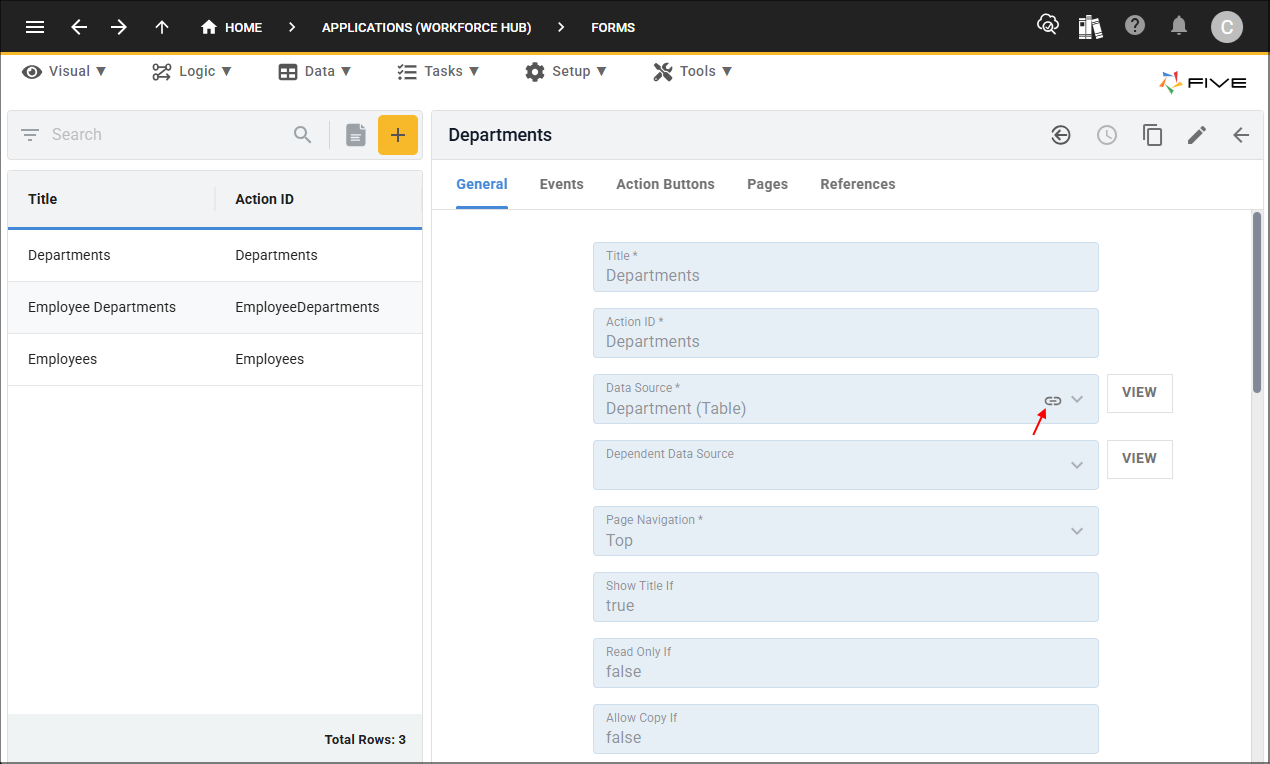
When you are in your Five development environment, clicking the link will automatically open the referenced form. For example, when you have saved a form, the Data Source field will have a link applied to the field. In the image below, the Data Source field holds the value Department (Table).
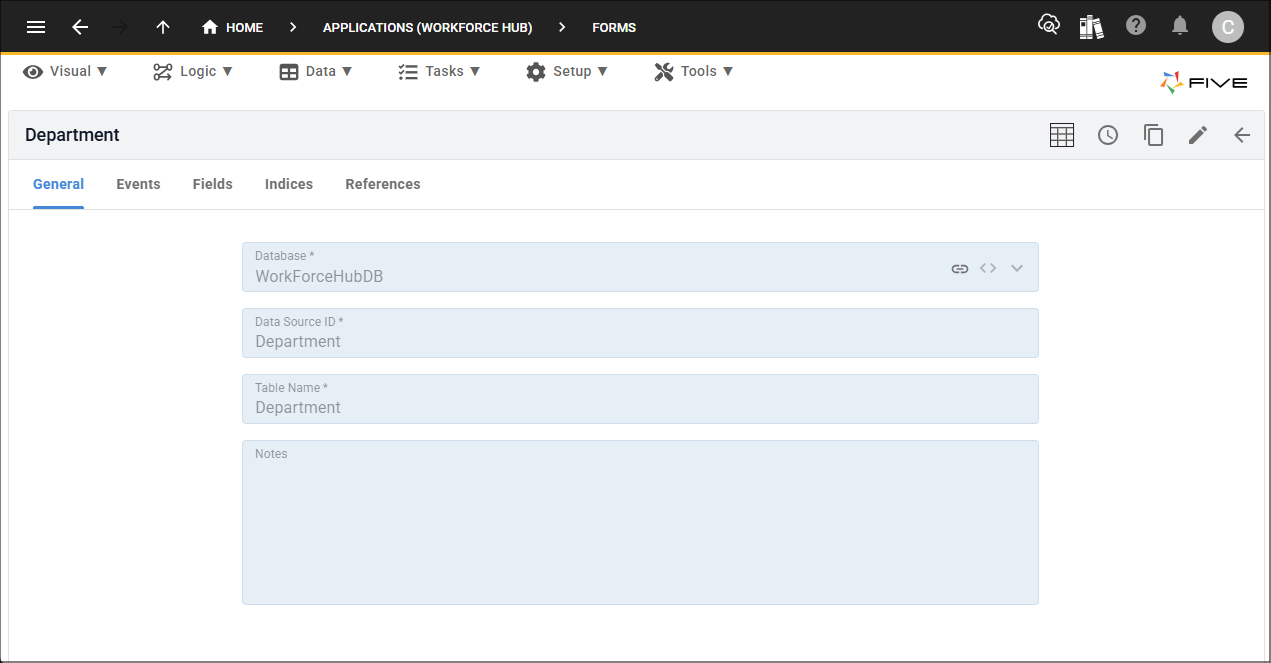
Clicking this link, will open the Department table record and the record will take the entire view.
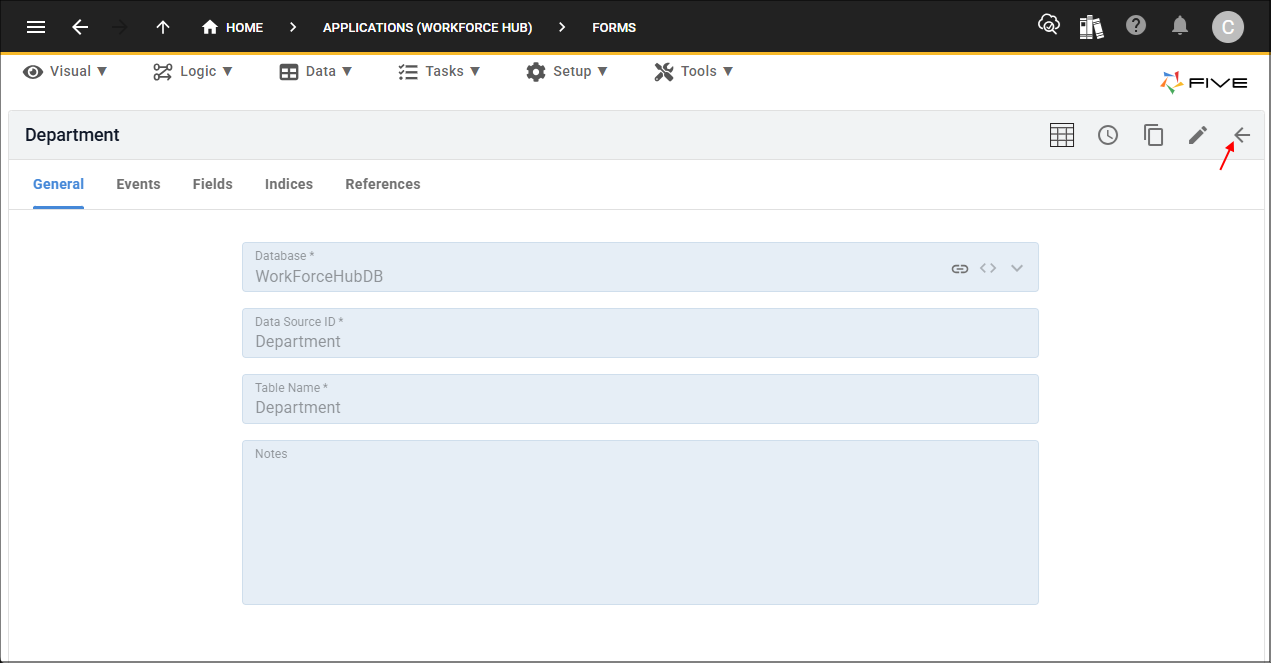
The Back button in the form app bar, will navigate you back to where you came from. In this scenario, you will be navigated back to the Forms view and the Departments form record will be selected.
Configure a Related Form
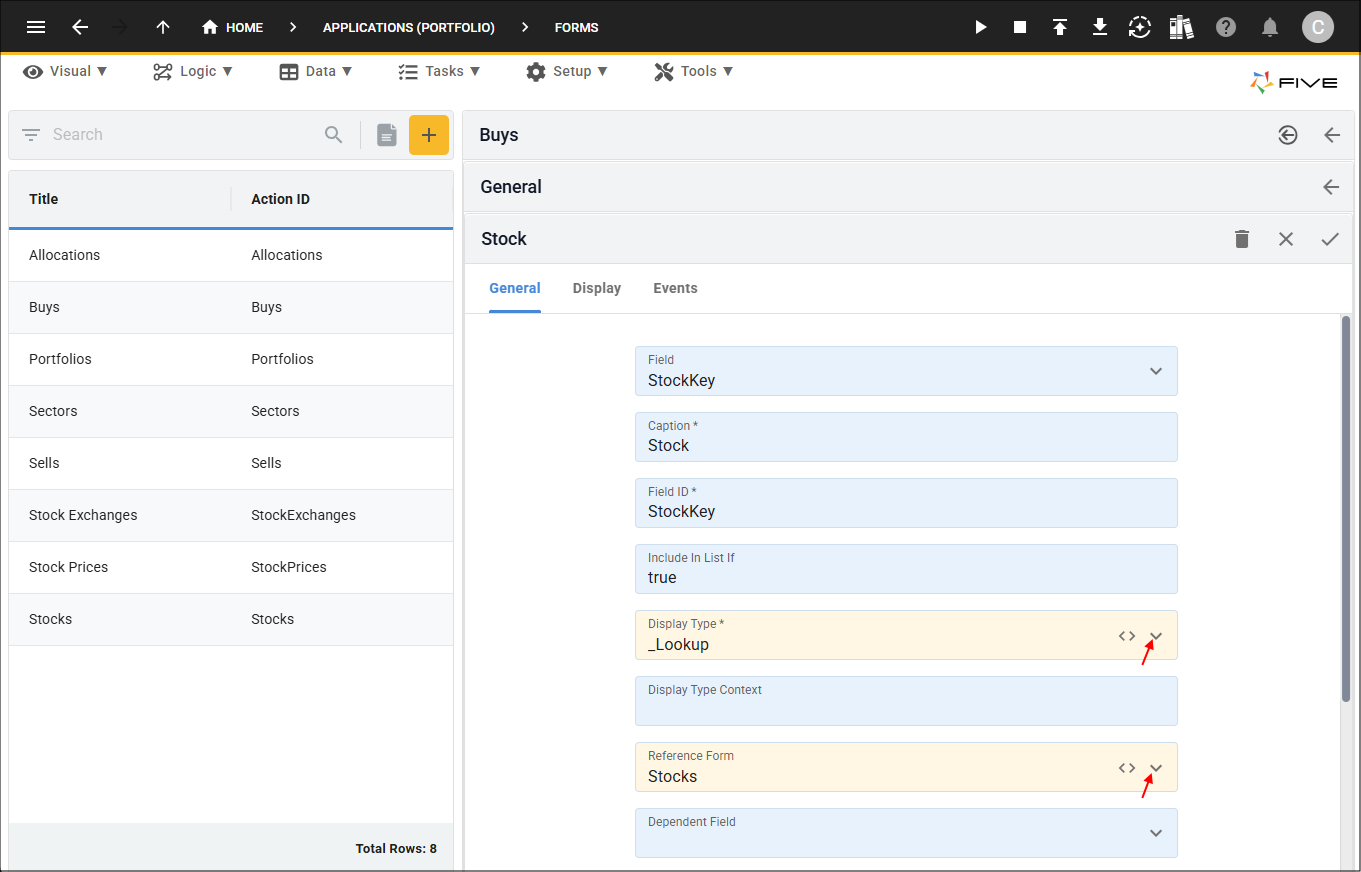
To have the link available in your application, your field is required to have a display type of _Lookup or _LookupQuery and have a relatable form in the Reference Form field.
1. Open/create your form field record.2. Select _Lookup or _LookupQuery in the Display Type field.
3. Select your referenced form in the Reference Form field.
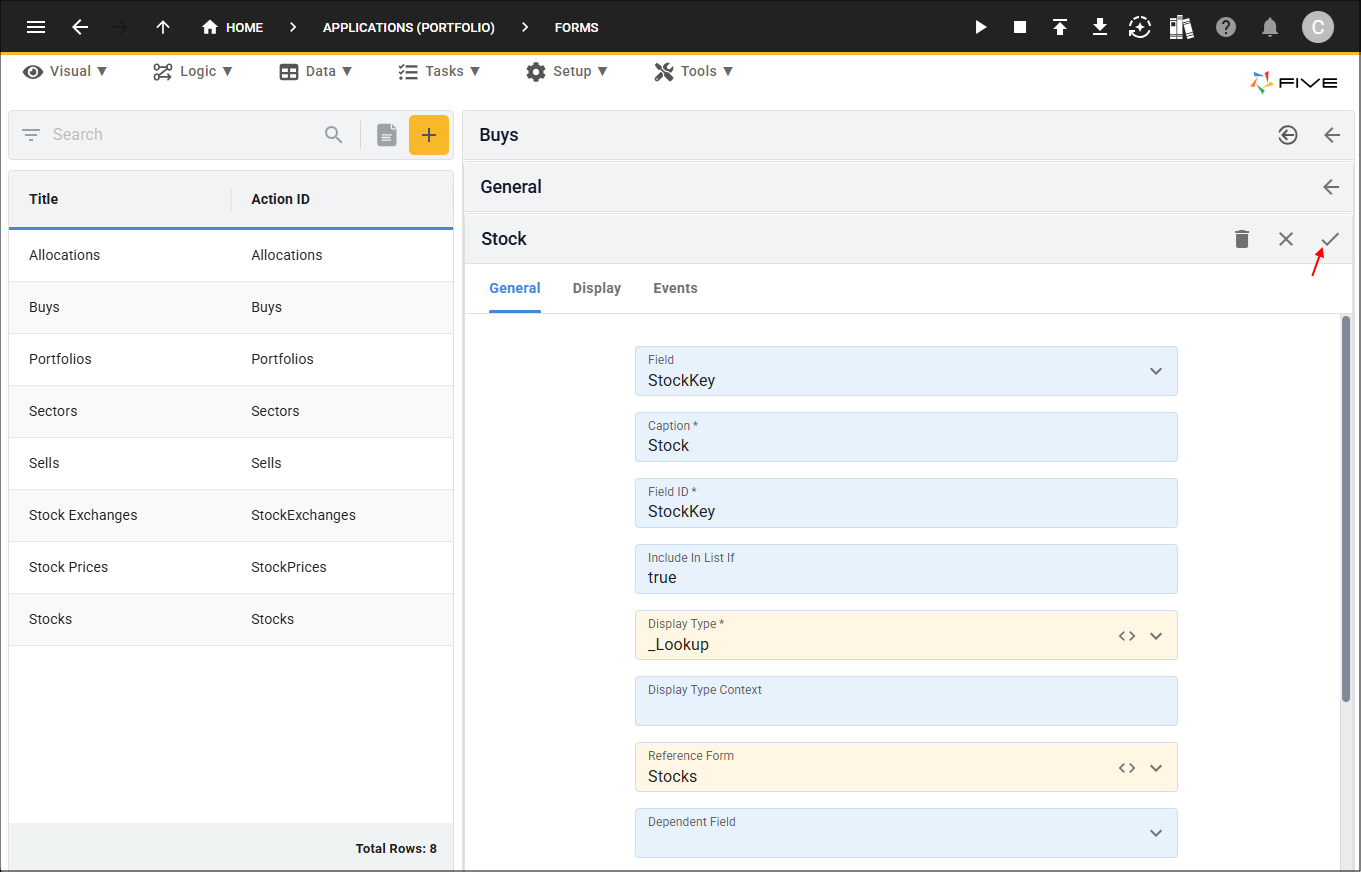
4. Click the Save button in the form app bar.
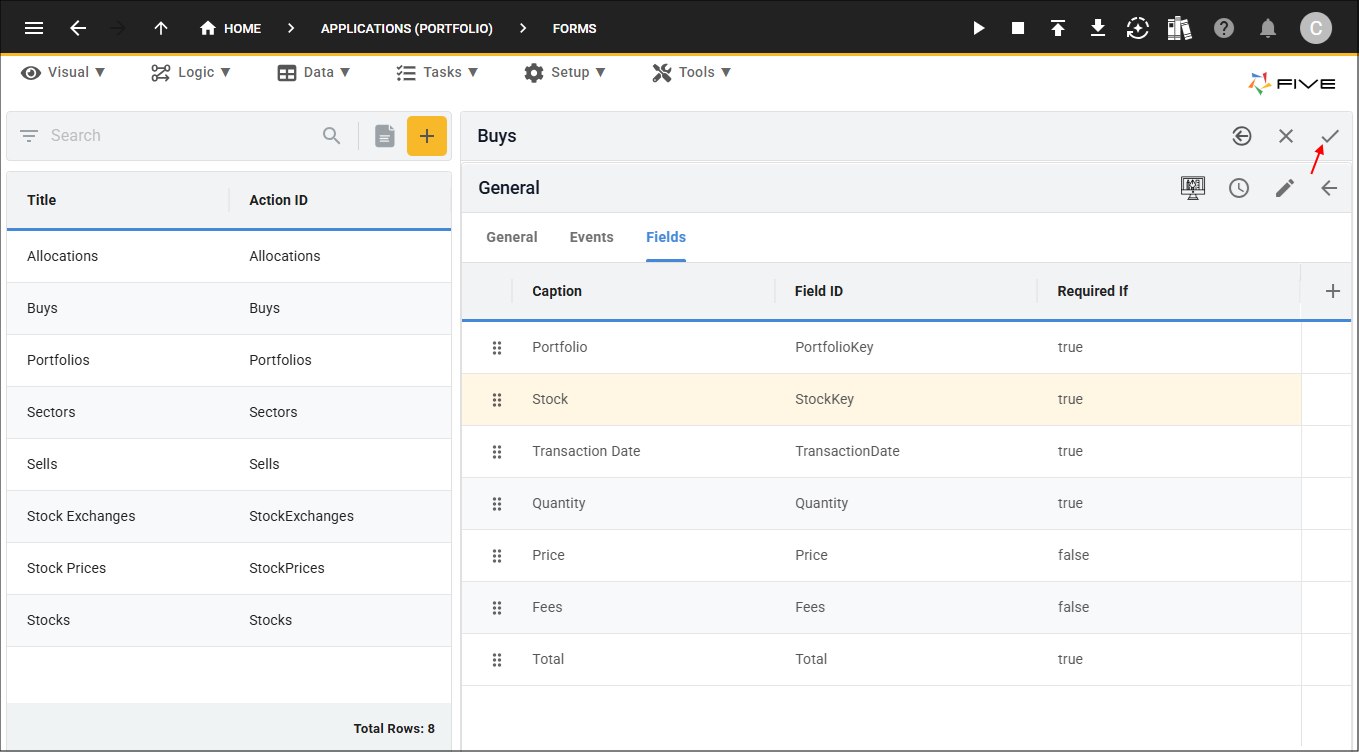
5. Click the Save button in the form app bar above the list.
How This Looks in Your Application
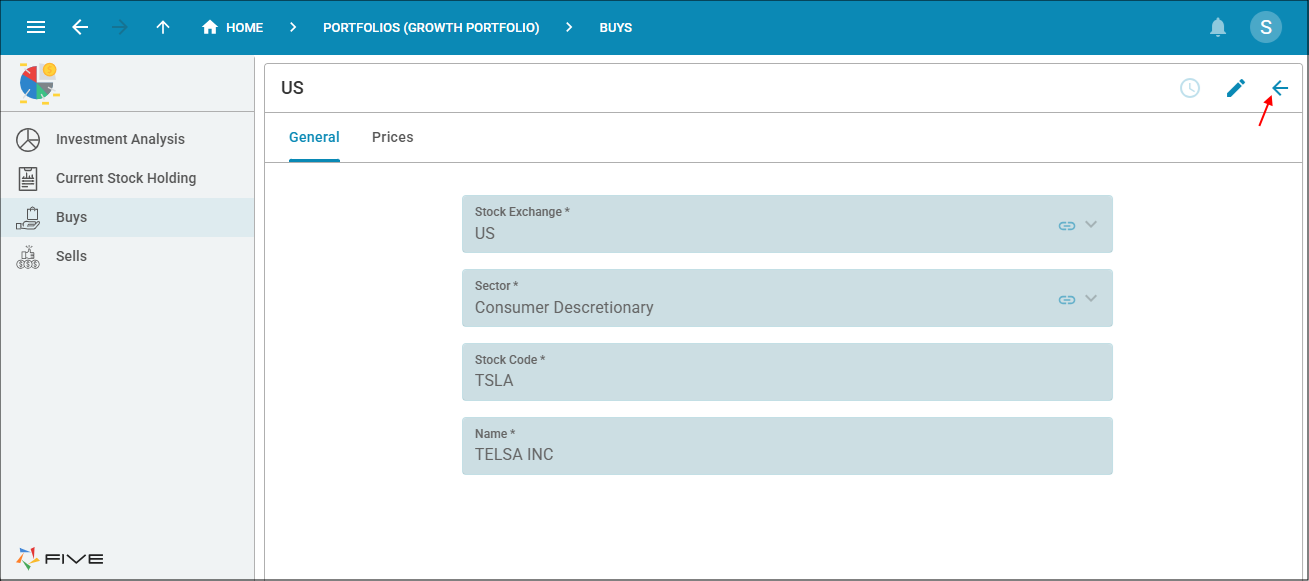
For this scenario, the link is available in the Stock field on the Buys form. When the link is clicked, the related form record for the stock will open.
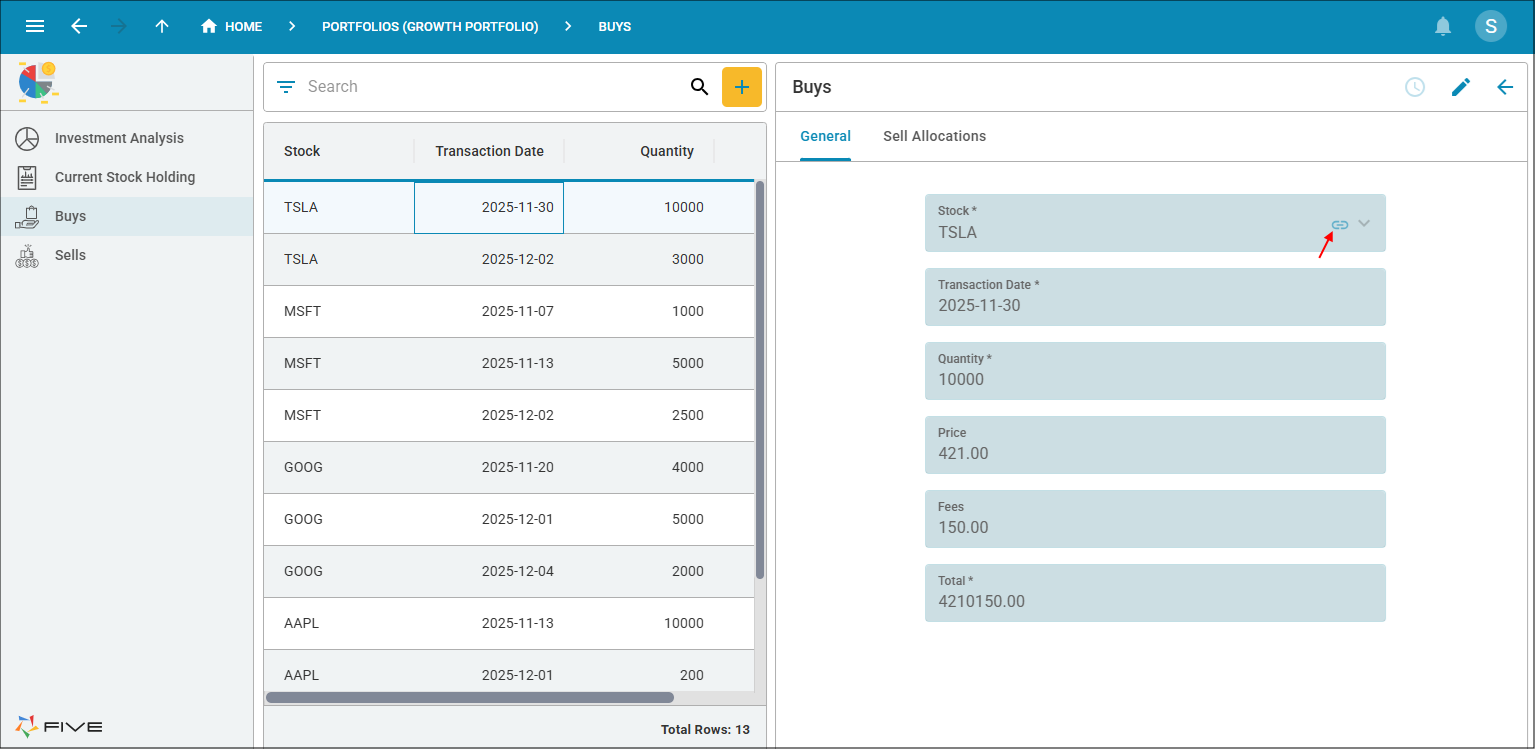
Just like in Five, the Back button will return you to the previous record.
The link icon will automatically be applied to your lists.