Export and Import FDF Files
Last updated 13/10/2025
When you export an application, the entire schema and data for the application will be exported in a Five Definition File (FDF). This file can then be imported back into Five.
Example: EverCart-20251013-003546781091213.fdf
When making big changes to your application, you can first export your current version in case you need to go back to it.
Export an Application into an FDF
1. Select the application record in the list and click the Export button in the form app bar.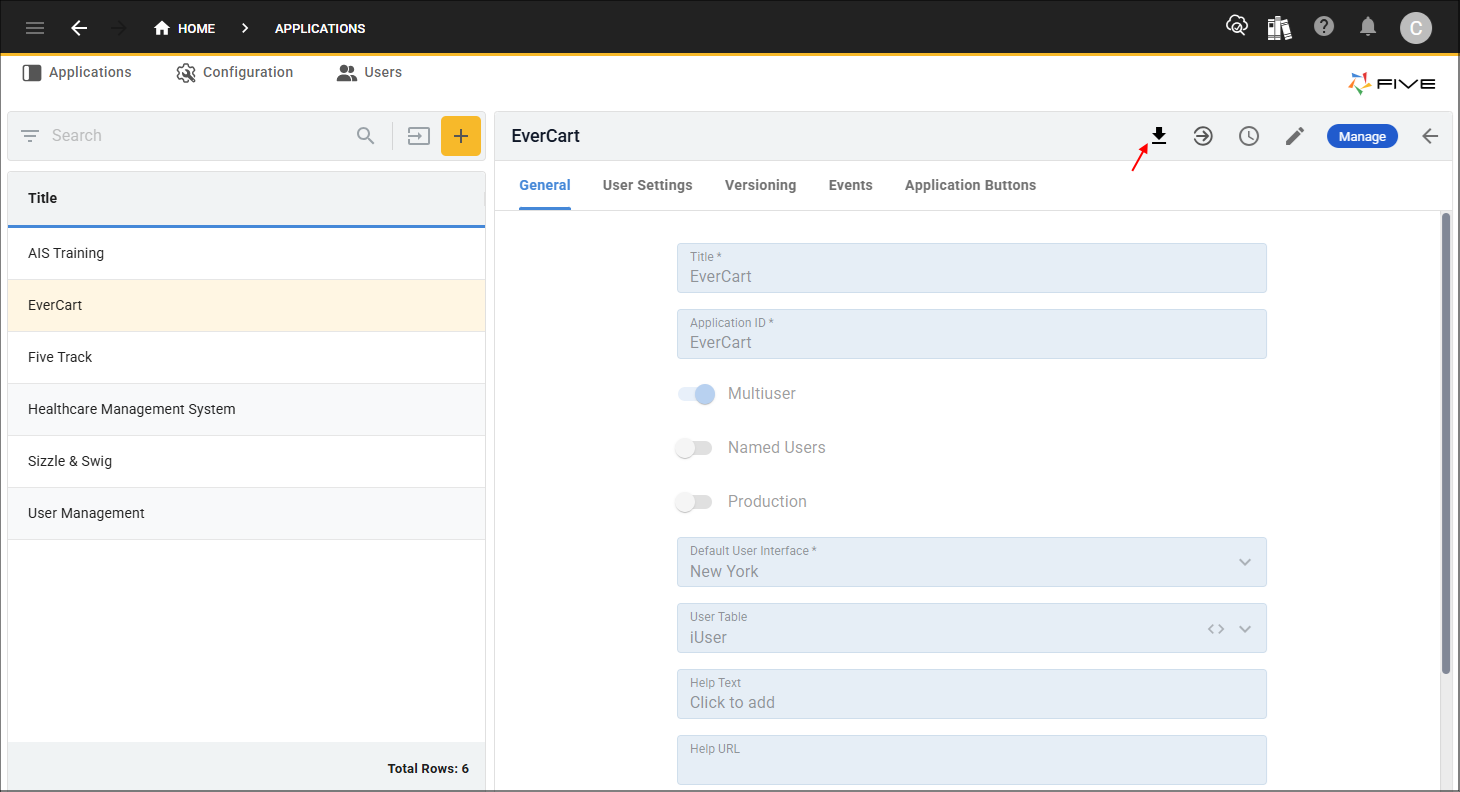
Figure 1 - Export button
info
Your application will be downloaded into a Five Definition File (FDF) holding the schema and all the data for the application.
Import an FDF
Any application you export into an FDF file from Five, can be imported back into Five. If the application is not deleted, when you import your FDF file, it will be imported over the top of your current version.
Five also has several FDF files you can download and import to help with learning how to develop applications in Five.
1. Click the Import button.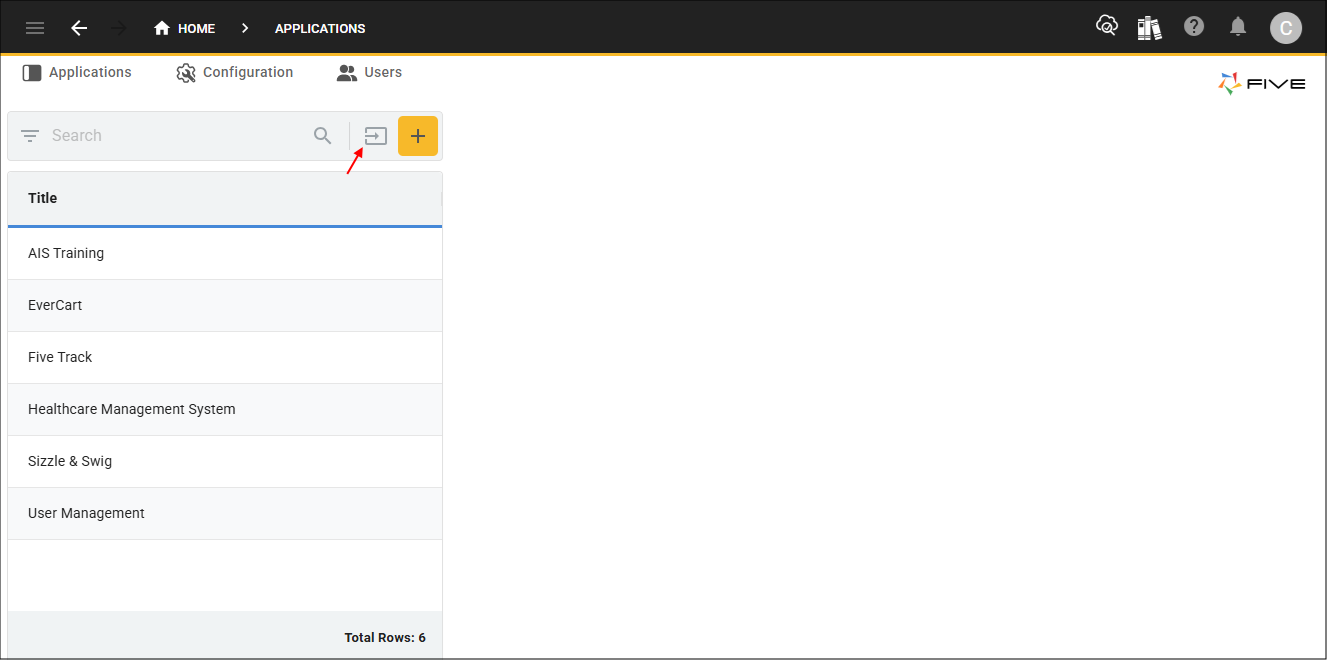
Figure 2 - Import button
2. Navigate your files and open the required FDF file.

Figure 3 - FDF file
3. Click the OK button.
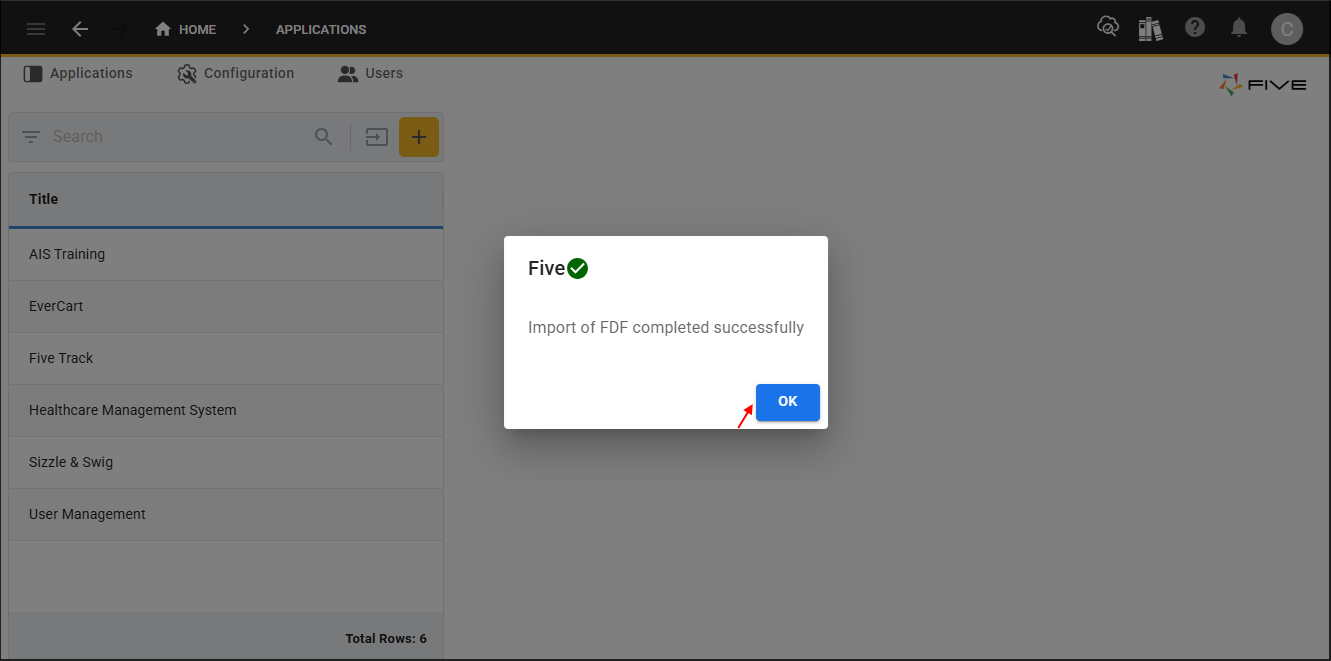
Figure 4 - OK button