Setup OpenAI
Last updated 29/09/2025
To use the OpenAI API, you need to provide an API key. First, sign up for OpenAI API on this page. Once you have signed up and logged in, you need to open this page, click on Personal, and select View API keys in the drop-down menu. You can then copy the key by clicking on the green text Copy.
To access this feature, a paid subscription is required. Visit our pricing page for more details.Add an OpenAI Key
1. Click Configuration in the menu.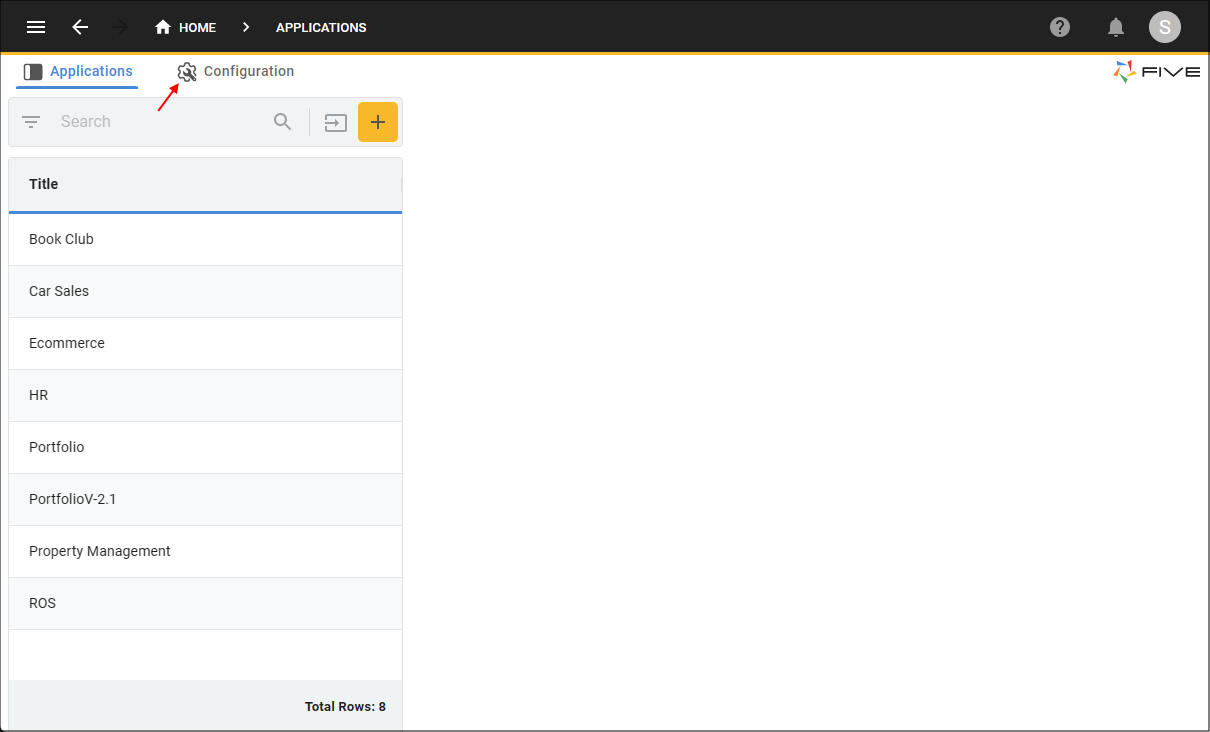
Figure 1 - Configuration menu item
2. Click in the Options field to open the Field Data window.
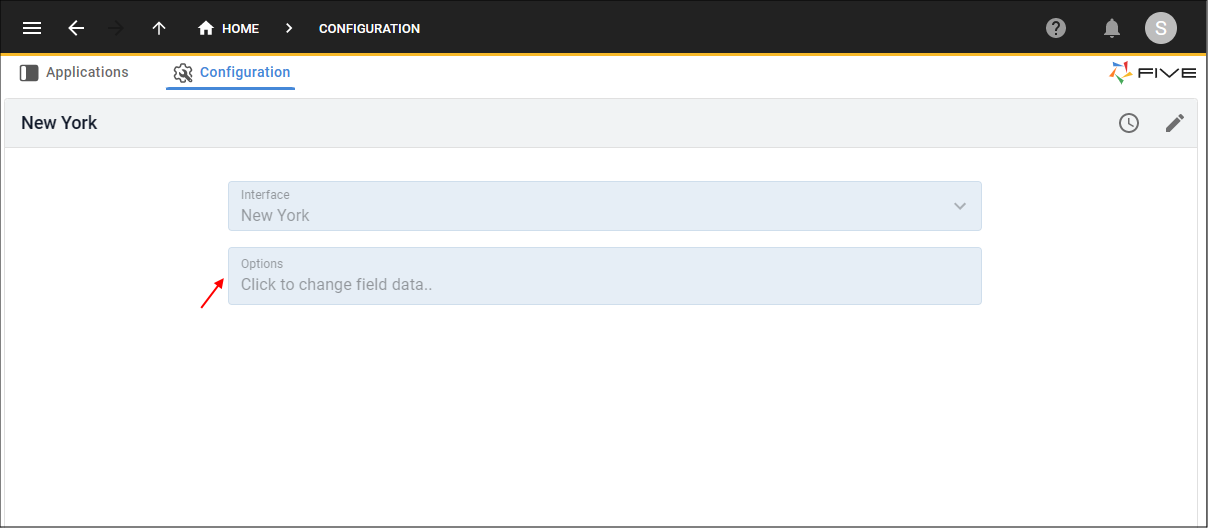
Figure 2 - Options field
3. Click the Add Field Data button
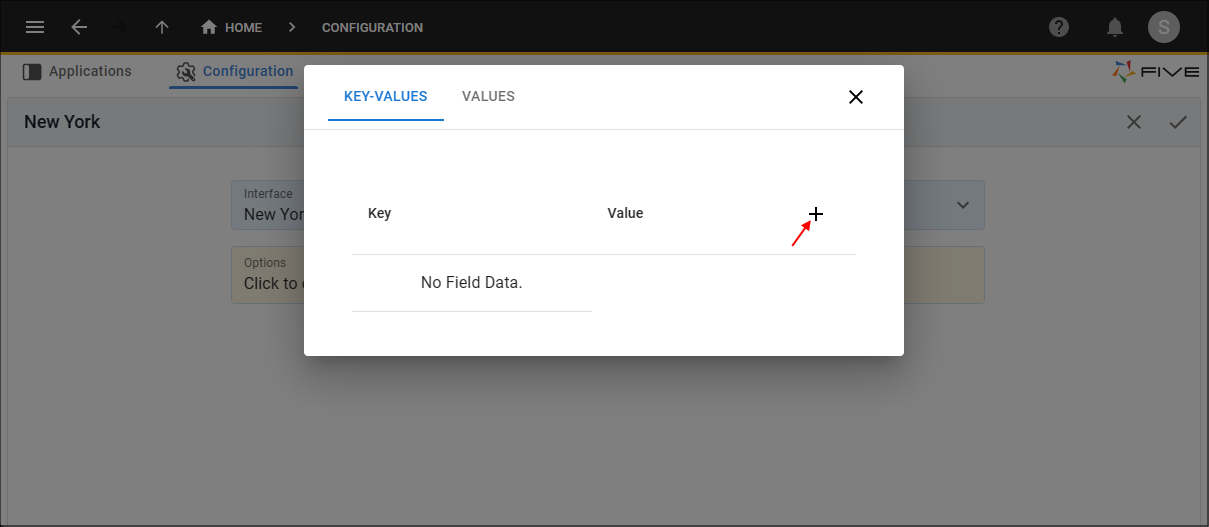
Figure 3 - Add Field Data button
4. Type OPENAI_KEY in the Key field
5. Enter your OpenAI key in the Value field.
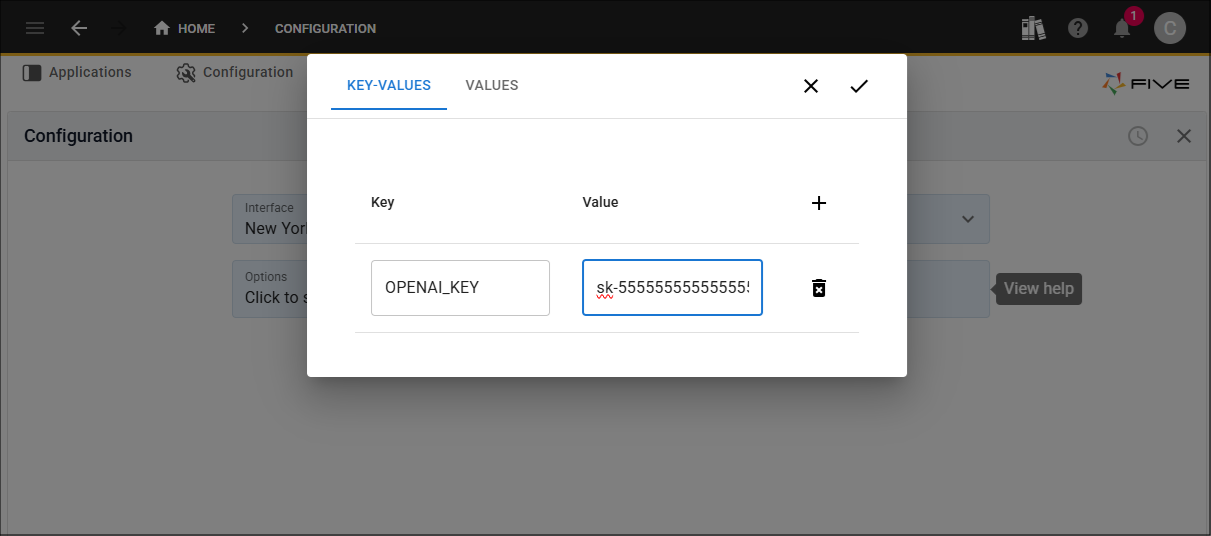
Figure 4 - Add OpenAI key
6. Click the Save button.
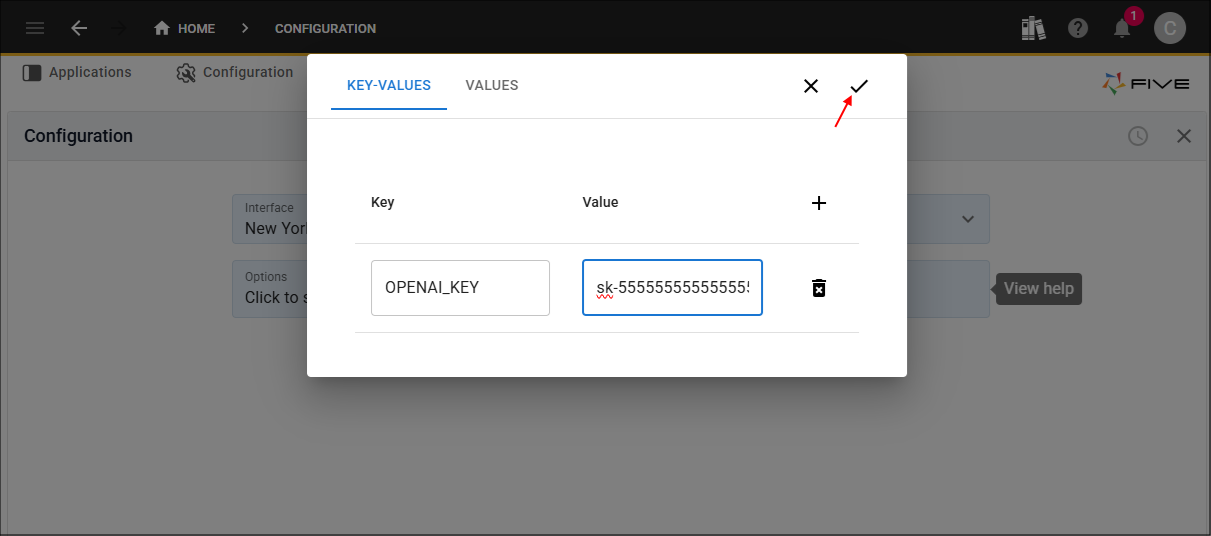
Figure 5 - Save button
7. Click the Save button in the form app bar.
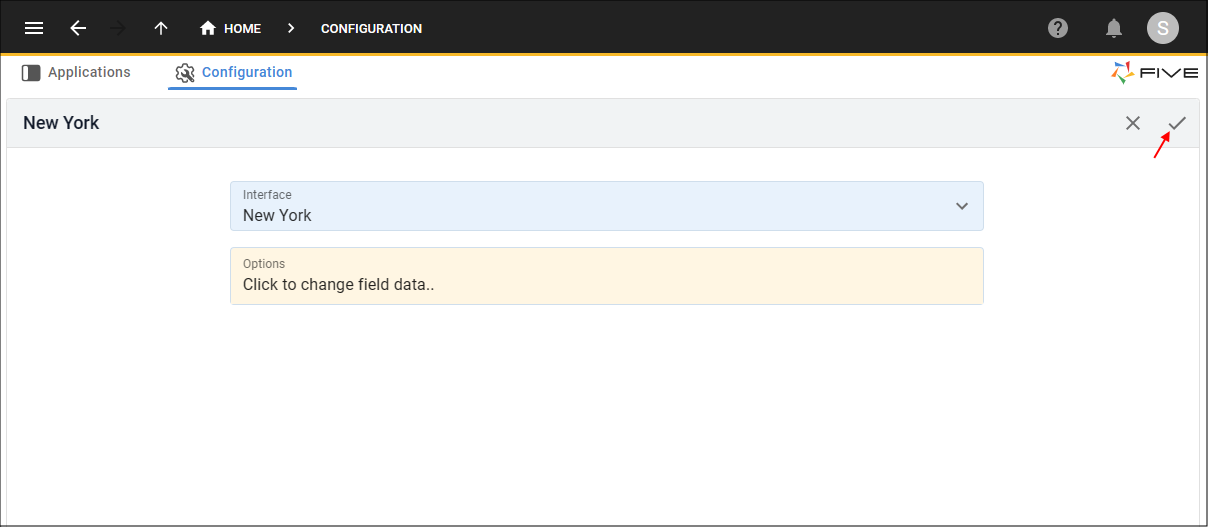
Figure 6 - Save button
Where is the AI Functionality Available?
Five's AI functionality is available in our Code Editor in the Logic menu. You can either ask to have the code explained, or check for errors in the code.
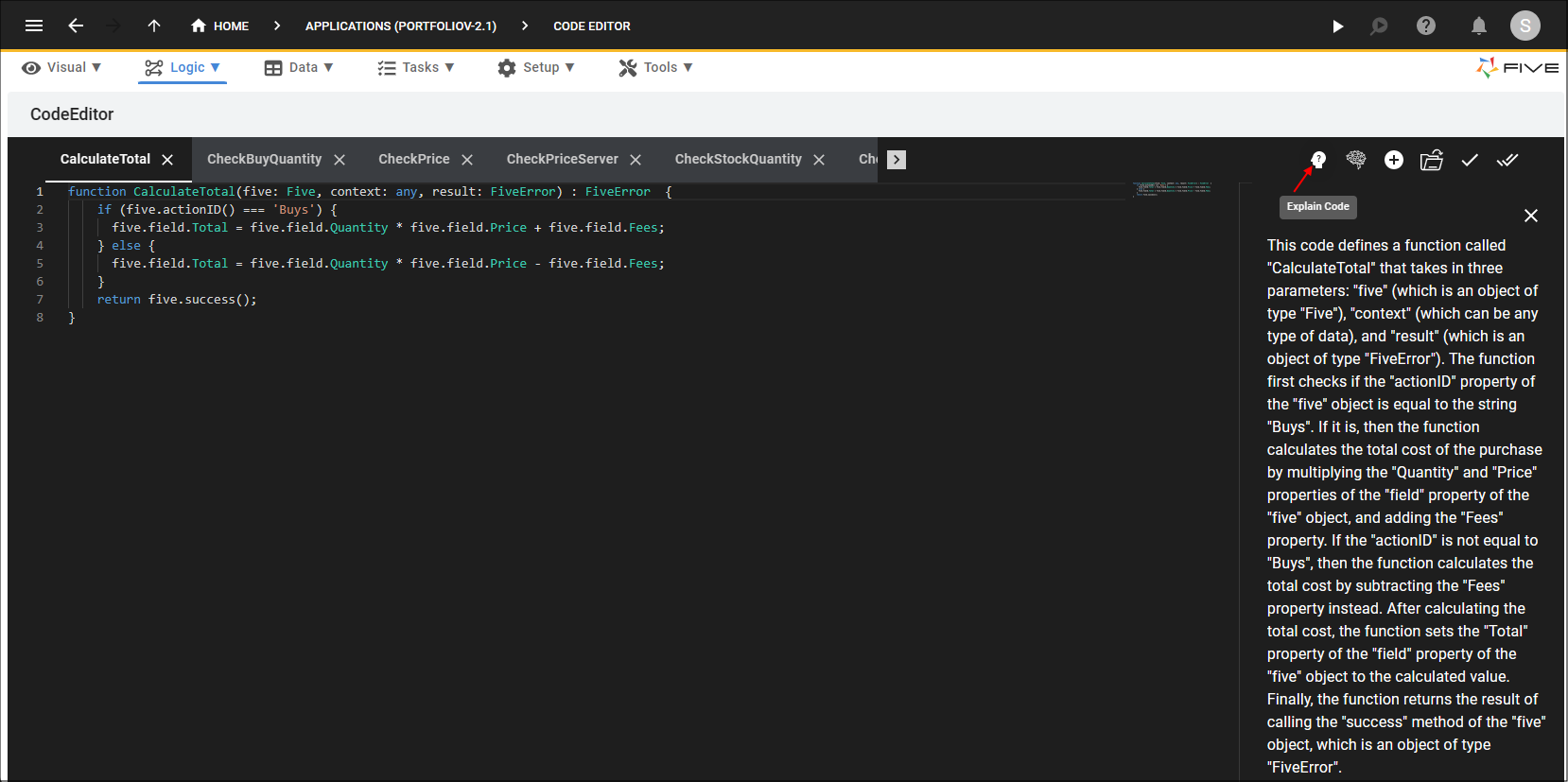
Figure 7 - Explain Code button
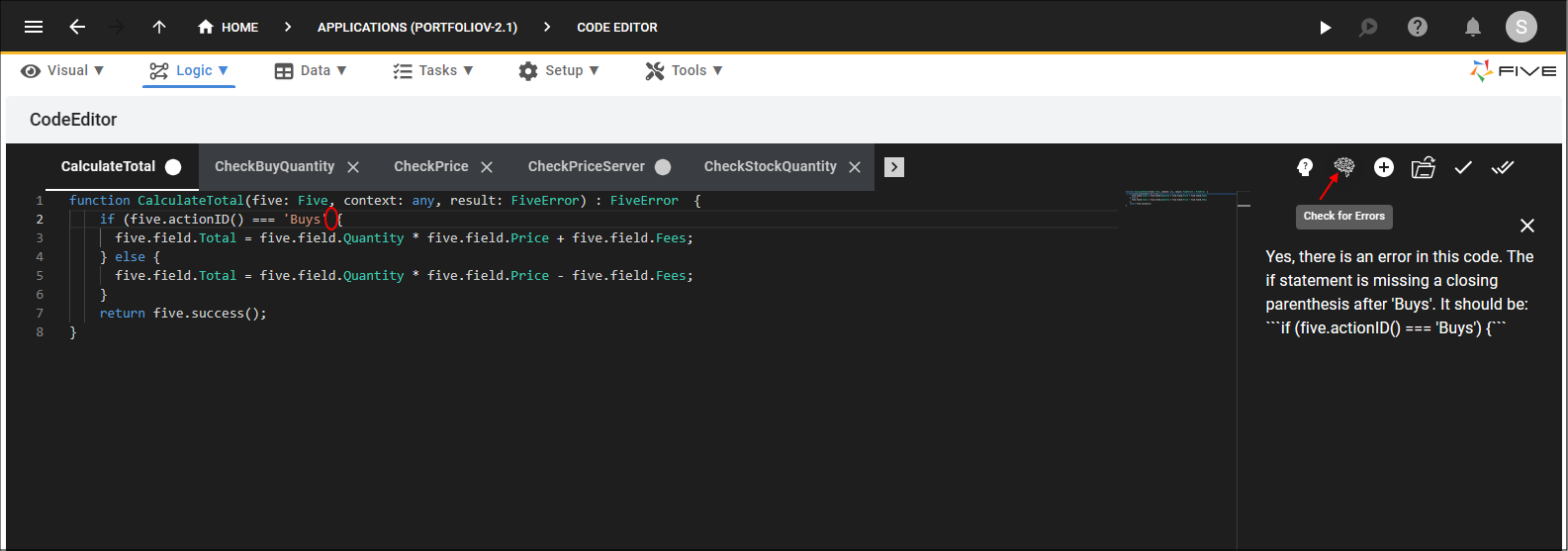
Figure 8 - Check for Errors button